

This action changes the stock quantity (the number). To mark products as in stock or out of stock without touching the number, use Set Stock Status.
Update the stock
1
Select products
Check the products you want to update. Or use filters and select all matching results.
2
Open Bulk Edit and choose Update Stock
Click Bulk Editing, then search for “Update Stock” or find it under Inventory & Shipping.
3
Choose the operation
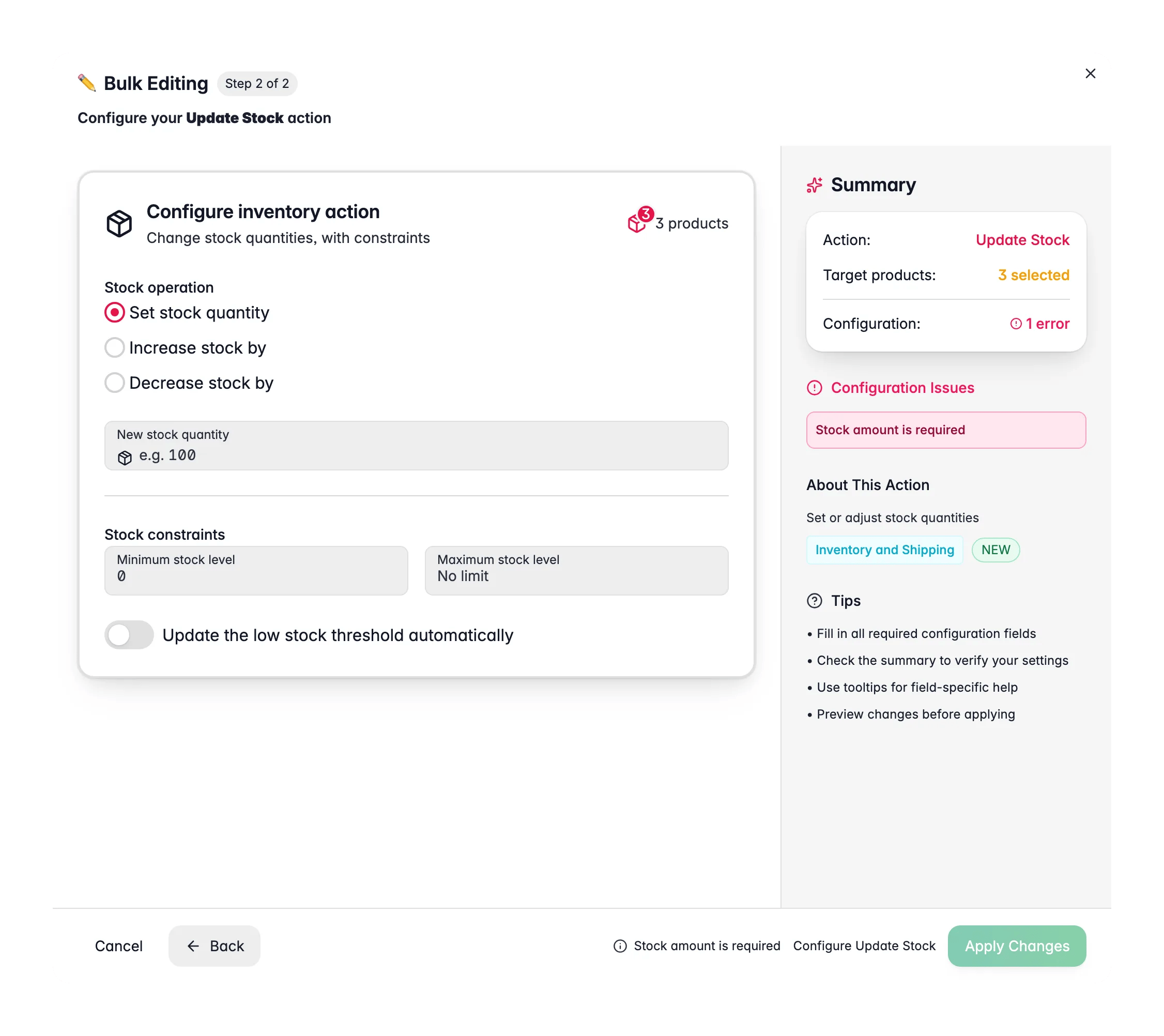
Pick Set, Increase, or Decrease.
4
Enter the quantity and limits
Set the value and, if you want, add minimum and maximum stock limits.
5
Preview and apply
Review the impact preview, then click Apply.
Operations
Options
Related
Set Stock Status
Mark products as in stock, out of stock, or on backorder.
Update Weight
Set product weights for accurate shipping calculations.
Numeric Operations
Add, subtract, multiply, or divide any numeric attribute.
All bulk actions
Browse every bulk editing action by category.