

The order pipeline is rolling out per account. Some stores may not show order data yet. Until a store’s orders are imported, its tiles and rows show a reason instead of a number.
The shared controls
Every order page has the same toolbar, and your choices travel with every link between them.- Date picker: defaults to Last 30 complete days. The closed-window label reads Last 30 days (to 13 Oct), which means today is left out. The longest period is 366 days.
- Filters: Stores, Currency (“Shows only stores that sell in this currency. Amounts aren’t converted.”) and Report measure (“Changes the daily and per-store report values. The order list stays the same.”). Measures are Recorded order totals (default), Order totals, Orders, Gross product sales and Product sales after discounts.
- Compare: switches on a comparison with the previous period. It is disabled with a reason on views that cannot compare, and it stops at yesterday: Today is still running, so a fair comparison stops at yesterday.
- Copy link: copies the page with its period, stores, currency and measure, so a teammate sees the same thing.
- A status line under the title, such as Noordkust NL last updated yesterday, with an amber dot when a store is stale, and an About these numbers link that opens a drawer with What this shows, How we calculate, Included, Missing, Your stores and Technical details (for support).
All orders
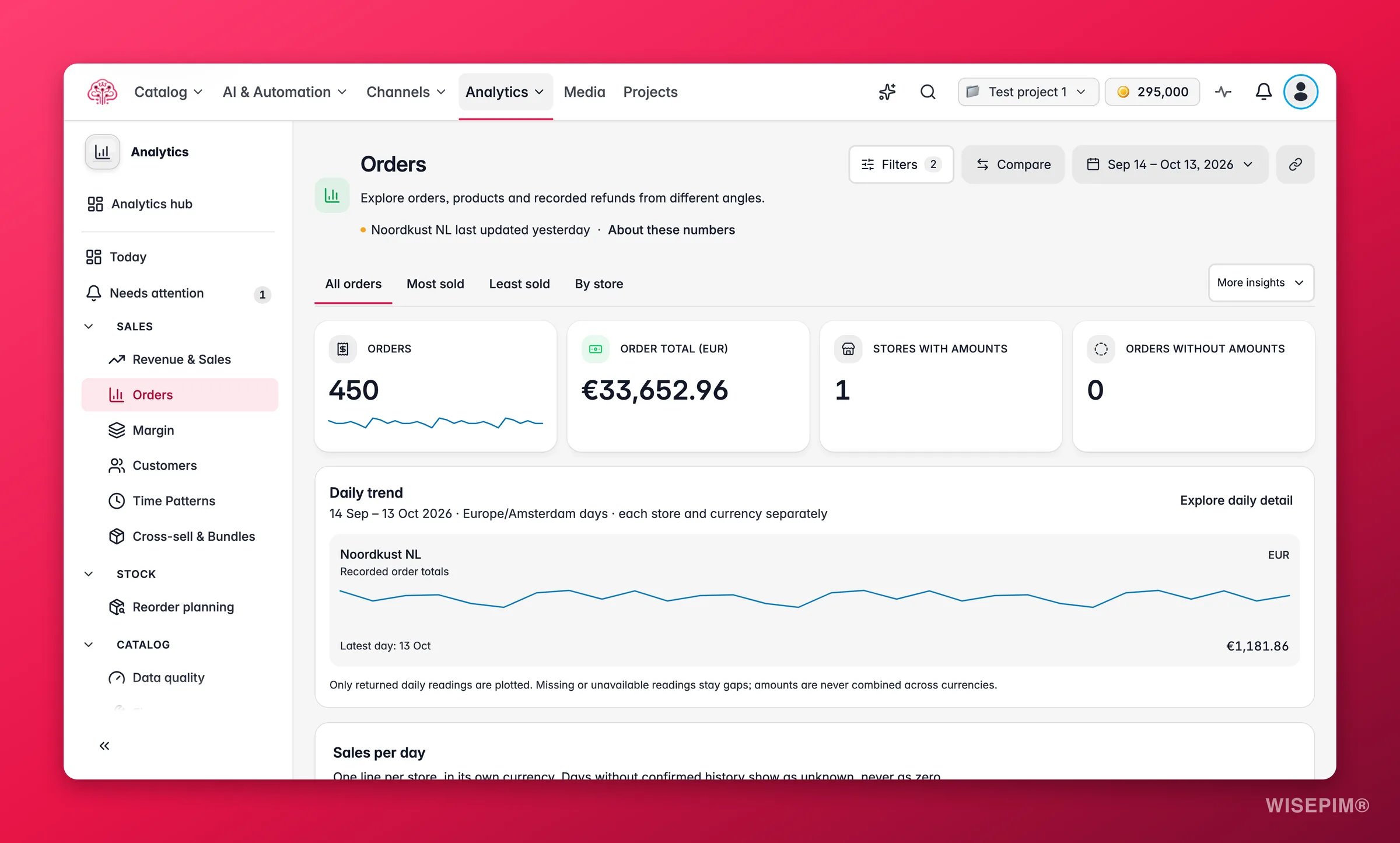
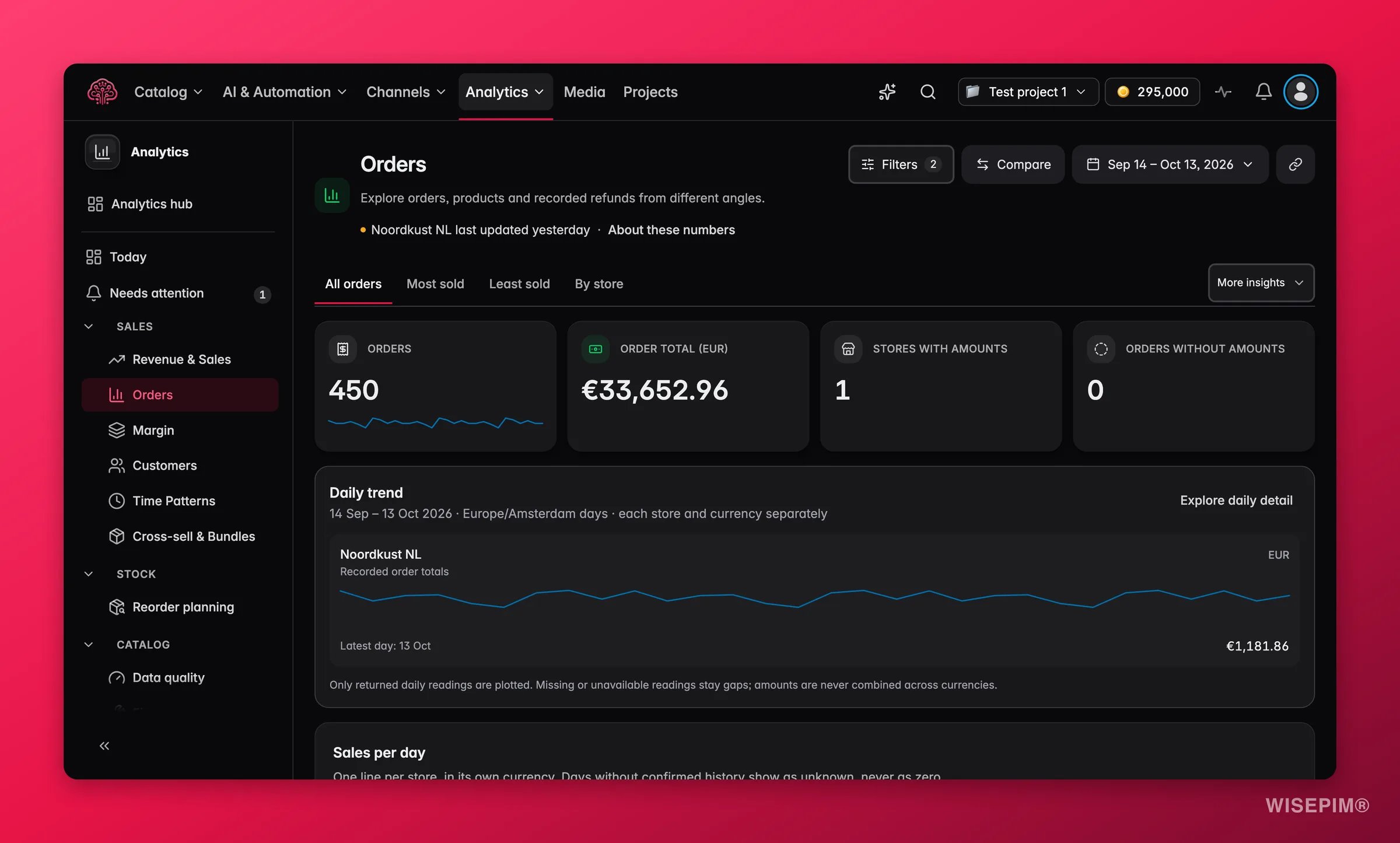
Tiles
When every selected store is bol, the tiles shrink to orders, matched lines and stores, with the note bol doesn’t send order amounts. Order counts and products are complete.
Daily trend and Sales per day
Daily trend plots one line per store and currency, with the footnote “Only returned daily readings are plotted. Missing or unavailable readings stay gaps; amounts are never combined across currencies.” Click Explore daily detail to open the full Sales per day chart: “One line per store, in its own currency. Days without confirmed history show as unknown, never as zero.” With Compare on, the chart adds Compared with the previous period and a table with This period, Previous period, Difference and Change (%).All stores in one currency
If you set a reporting currency in Analytics settings, the card All stores in{currency} converts foreign orders “at the rate for each order’s date”. Orders whose date has no rate are listed as N orders need an exchange rate. with an Add rates button. Rates are yours to enter, one exact rate per day, and WISEPIM never falls back to the day before.
Orders in this period
The list shows 50 orders per page with the columns Order, Placed, Status and Total. Use Search by order number, the All statuses filter and the sort options Newest orders first or Recently imported. The footer reads Showing orders 1 to 50 of 899. Download this page (CSV) exports the rows you see; Export all 899 orders in Reports builds a frozen report with every matching order. Click any row to open its Order Detail.By store
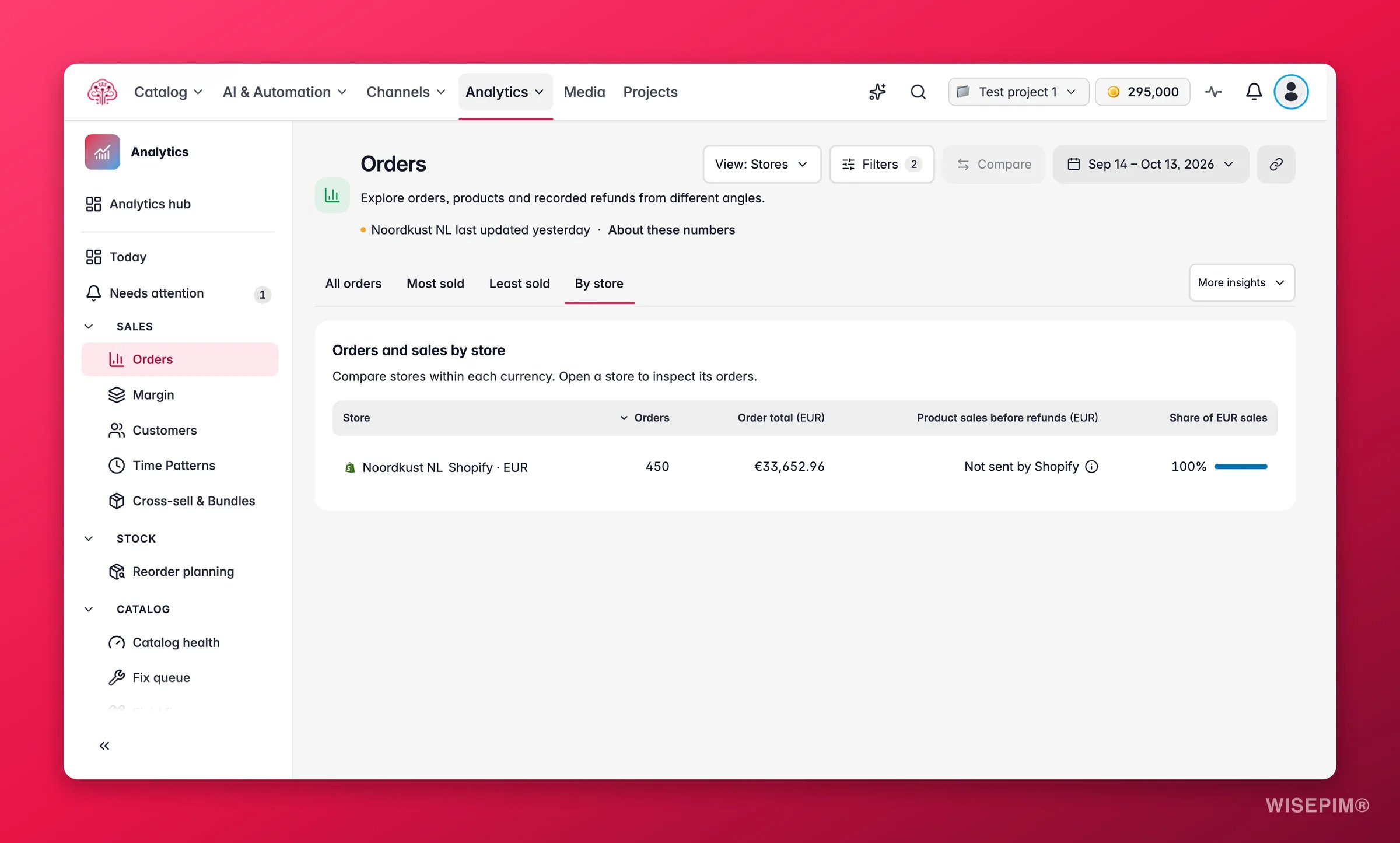
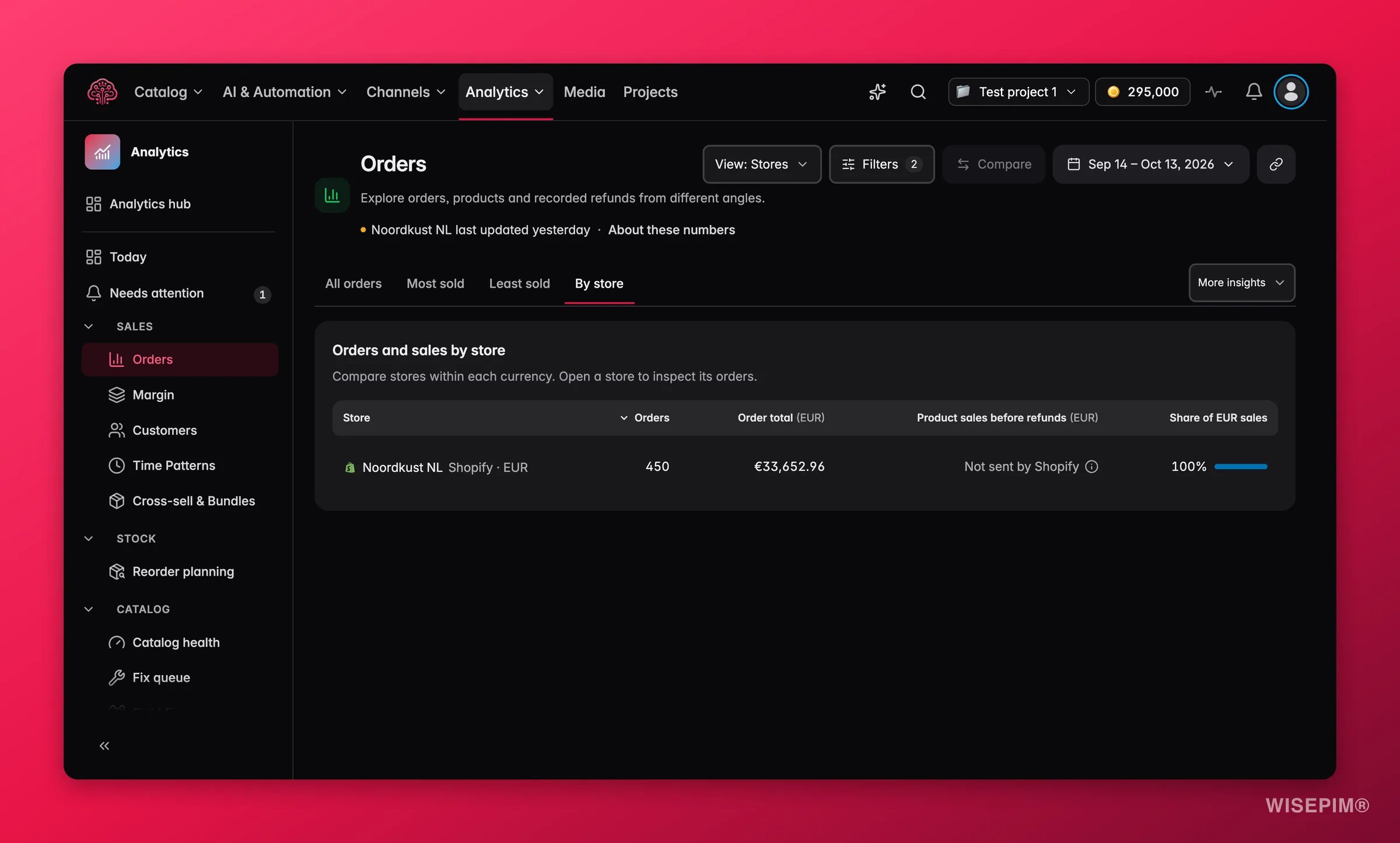
Most sold and Least sold
Both tabs open the Product sales view, ranked differently. Columns: Product, Units ordered, Orders and Lines with gaps. Expand a product to review each store’s amounts.- Group products by: Products and variants or Parent products.
- Rank products: Most sold, Least sold, Most ordered, Least ordered, or by name.
- The rule under the ranking: “Only products with recorded sales. Unsold products excluded; unknown quantities last when ranking units.”
Units come from order lines matched to your current catalog. Lines that are not linked to a product sit under Not linked to a product with a Match them button. Linking them in Unmatched products adds them to every product view, for past orders too.
More insights
Movers
Recent sales changes compares two periods of the same length: the selected period against the same number of days before. Rising and Falling list the products whose product sales after discounts moved most, with Where it happened per store. The footnote is the rule: “These add up to the change in product sales after discounts. They show where it happened, not why.” Pick up to 4 stores to compare products.Baskets
Products bought together uses every complete basket in a store, single-product baskets included. Columns: Product A, Product B, Bought together, Complete baskets, Share of baskets, Buyers of A who also bought B and Lift. The slider Bought together in at least N baskets starts at 3. Lift is “Observed co-occurrence relative to independent buying. It does not measure extra sales.” A basket with an unknown product is left out entirely.Returns
Refunds by purchase cohort follows the orders placed in the period for a chosen Return window of days and counts the refunds recorded in that time. Refund rate by store and Refund rate by product show Refunded orders, Refund rate, Top reason and vs store, plus the marks Fix with product data and Clear outlier. Reasons are a closed list: Size and fit, Colour or photos, Not as described, Quality or defect, Arrived damaged, Wrong item, Changed mind, Late delivery, Other and No reason given. Reasons come from the store, and free-text reasons are counted, never shown. A line such as 14 recent orders are still inside the return window. tells you which orders cannot be judged yet.Promotions
Orders by promotion code splits each order’s product sales and discount evenly over the codes used on it. Columns: Code, Orders with this code, Product sales (split per code), Discount (split per code), Margin after product costs (split per code) and Ordered again within 30 days. Two notes matter: “Repeat orders use customers whose first order was 31 to 120 days ago.” and “Free-shipping codes discount shipping, not products, so their product discount can be 0.”Attributes
Sales by attribute value groups order lines by the attribute value recorded At the time of sale. Values that were not recorded stay unknown, and today’s catalog never fills them in. Switch to Current catalog to group past orders by today’s values instead, with the caveat on screen: “Groups past orders using today’s catalog values, not values recorded at sale.”Act on what you find
Orders without amounts is not zero
Orders without amounts is not zero
Open a few of those orders. Amount source tells you whether the amount is As sent by the store, From an older import; it may be rounded, or Amount unknown, and Currency not confirmed flags the currency problem. bol orders are expected here. For other platforms, check the connection in Data health and re-sync.
A product sells a lot and gets refunded a lot
A product sells a lot and gets refunded a lot
In the Returns view, a product marked Fix with product data has a refund reason the catalog can address: size and fit, colour or photos, not as described. Open the product, fix the content, and use Bulk Edit when the same gap applies to its siblings. Then watch the next cohort once its return window has passed.
Movers show a drop in one store only
Movers show a drop in one store only
The Movers view tells you where, not why. Check that store’s status line for a late sync, then look at stock in Reorder Planning and at recent content changes in Listing history. A store that stopped syncing looks like a sales drop until the import catches up.
Two products are always bought together
Two products are always bought together
A high Lift with enough Complete baskets is a candidate for a bundle or a cross-sell block on the product page. Keep in mind it does not prove extra sales. Set it up in Cross-sell & Bundles and compare the next period.
You need the full list, not one page
You need the full list, not one page
Export all N orders in Reports creates a frozen report on Reports with every order that matches your filters, up to 100,000 rows, with exact amounts in CSV and XLSX. The report keeps its data and settings versions, so the numbers do not shift under you.
Related
Order Detail
One order: what was bought, what the customer paid and whether it adds up.
Margin
Product sales minus costs, per store, only when every cost is known.
Revenue & Sales
Sales trends and category performance built on the same orders.
How Order Numbers Work
Trust marks, native currency, complete days and coverage, explained once.