

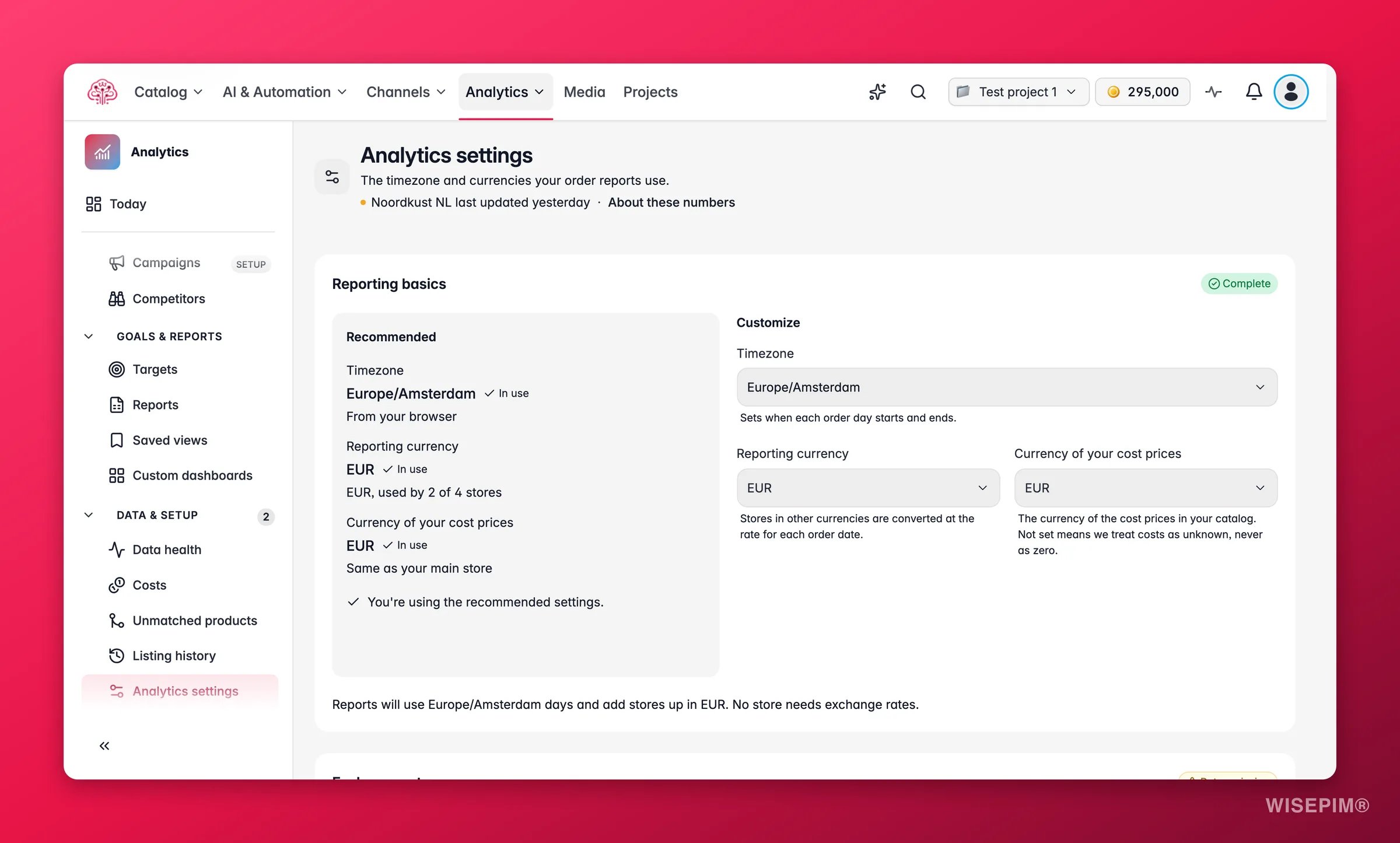
These settings apply to every report in this project. Changing them needs permission to manage settings. Reports per store stay in each store’s currency whatever you set here; the reporting currency only adds a converted total on top.
Reporting basics
The Reporting basics card offers a Recommended set and a Customize option.
Click Use recommended settings to accept all three, or Customize to pick your own. Before you save, the preview line reads Reports will use
{timezone} days and add stores up in {currency}. N stores need exchange rates.
Exchange rates
Stores that sell in another currency than the reporting currency need a rate for every order date. The Exchange rates card tells you how many: N order days need a rate.- Enter one rate adds a single rate: the from-currency, the order date and the rate, read back as Read as
{rate}{reporting}per 1{currency}so you can check the direction. Record rate saves it. - Paste rates takes one line per day: date and rate, separated by a tab or semicolon, and records them all at once.
- The card links to where to find official rates: ECB reference rates.
Rates are yours. WISEPIM stores the rate as you enter it and doesn’t look it up, uses one exact rate per date, and doesn’t fall back to the day before or to an inverse rate. An order date without a rate stays unconverted and is counted under Orders without a rate for their date.
Report updates
The Report updates card recalculates reports for 1 to 366 days across the whole project, whatever store or currency filter you use. Save your settings first, pick the From and To dates, and click Update reports. Statuses: Queued, Running, Done, Cancelled, Replaced by a newer update and Failed. When it finishes, reopen a report to see the new numbers. Other pages ask for an update too: linking products under Unmatched products and posting purchase prices under Costs both end with Reports need an update.Act on what you find
Margin is unknown on every order
Margin is unknown on every order
Check Currency of your cost prices. While it is empty, catalog cost prices cannot be used, and Margin says Needs product costs. Set it, save, and run Update reports for the period you care about.
The converted total is marked Known so far
The converted total is marked Known so far
Some order days have no rate. Open Exchange rates, read the count, and paste the missing days. The reporting card on the Orders page shows the exact number under Orders without a rate for their date.
You changed the timezone and the targets now say Check the dates
You changed the timezone and the targets now say Check the dates
Day boundaries moved, so each target’s period has to be confirmed. Open Targets, check the start and end dates, and save each one.
An update says Replaced by a newer update
An update says Replaced by a newer update
Someone started another update that covers the same days. Nothing was lost; the newer run carries the work. Wait for it to read Done.
Related
Today
The setup checklist that starts with these settings.
Margin
What the cost currency and exchange rates unlock.
Costs
Purchase prices and fee imports that also need a report update.
How Order Numbers Work
Complete days, native currency and why nothing is converted implicitly.