

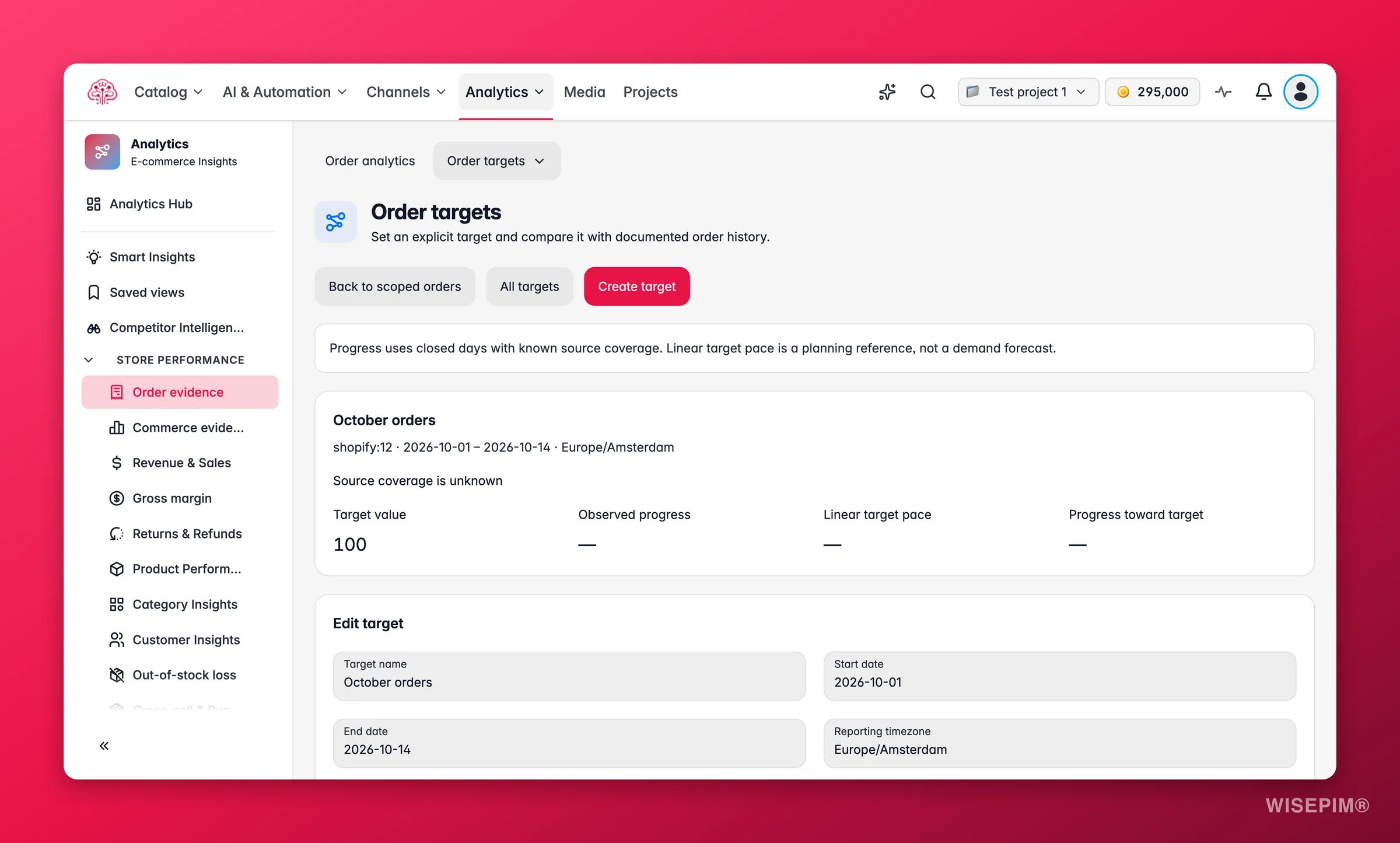
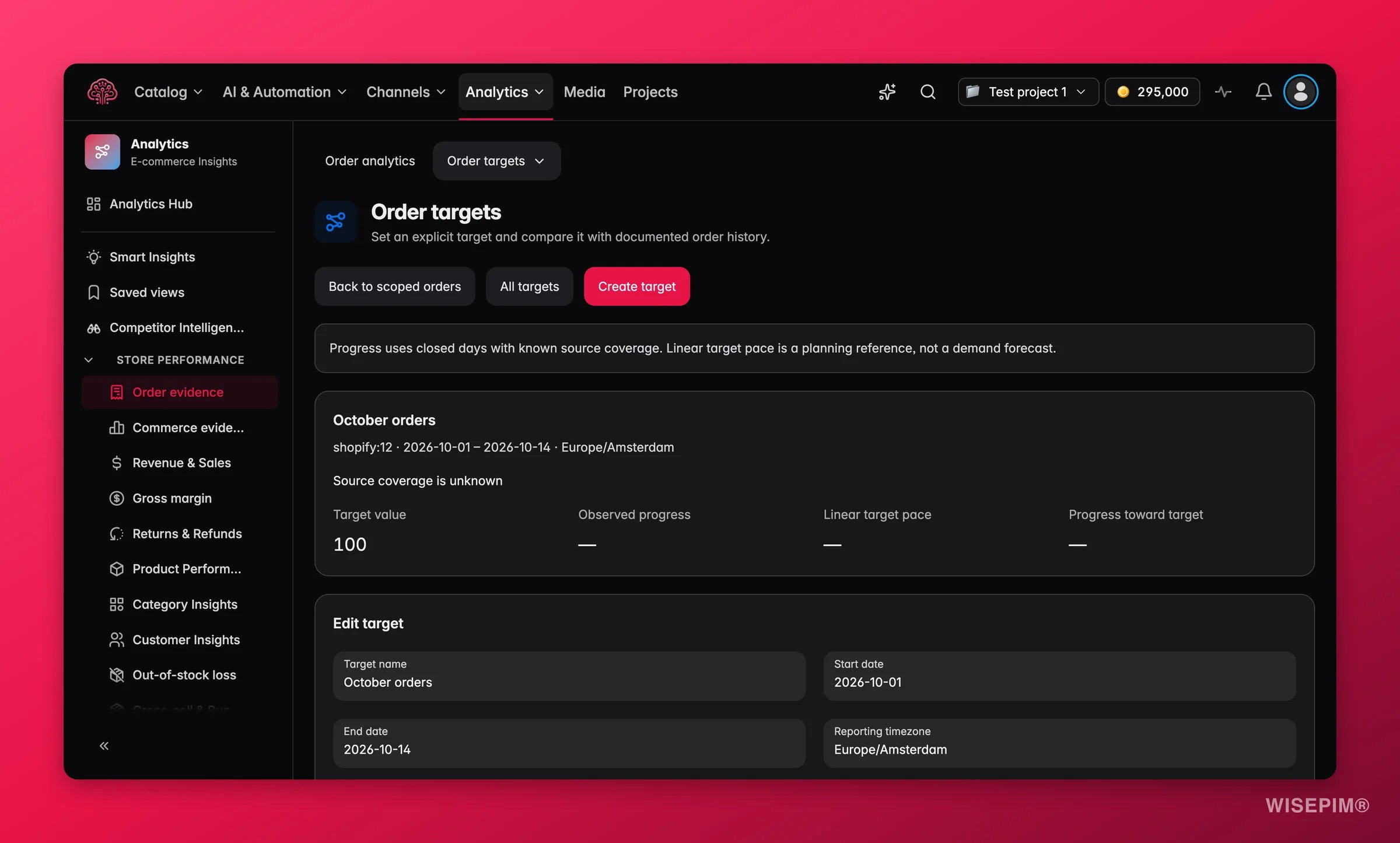
Each target has its own store, currency and dates, so the date picker at the top of the page does not change them. Progress counts complete days with confirmed order history. Pace shows where you’d be with the same amount every day. Managing targets needs permission to change settings; everyone else can read them.
Read a target
Every target is a card with:- Progress: what has been counted so far, shown as N of N · N% under Progress toward target, and the line Complete days up to
{date}that tells you which days are in. - Pace: where you’d be with an even pace every day. The card says Ahead of pace by N, Behind pace by N, On pace or Pace unknown, plus N days left.
- Same period last year: N when there is confirmed history for it.
Today is never counted. A target reads the last complete day in your analytics timezone, which you set under Analytics settings.
Create a target
1
Open the form
Click New target. Give it a Name you will recognise in the feed, such as “Q4 NL store”.
2
Choose what to track
Under What to track, pick Orders for a count or Order totals for an amount. Order totals are the totals your store sent, tax and shipping included, refunds not subtracted.
3
Set the period
Use a preset, This month, This quarter, Rest of year, or Custom with a Start date and End date. The dates follow your analytics timezone.
4
Pick the store and currency
Each target covers one Store. For an amount, enter the Currency as a 3-letter code; money targets need a 3-letter currency code. Leave empty for order counts.
5
Enter the number
Type the Target and save. The card shows No complete days yet until the first complete day has passed.
Act on what you find
A target is behind pace early in the period
A target is behind pace early in the period
Open Orders for the same store and look at what moved. If the drop is store-wide, check the connection under Data health before you react; a store that stopped syncing looks exactly like a store that stopped selling.
Progress says History not confirmed
Progress says History not confirmed
One or more days in the period have no confirmed import. Open Data health and look at History in this period for the store. Once the gap is filled by a sync, the target recalculates on its own.
Every target reads Check the dates
Every target reads Check the dates
The analytics timezone changed, so the day boundaries moved. Open each target, confirm the Start date and End date, and save. The warning clears.
You want one target across several stores in one currency
You want one target across several stores in one currency
Targets are per store. Create one per store, or set a reporting currency under Analytics settings and read the converted total on the Orders page instead.
Related
Today
Yesterday’s orders per store and the targets that are behind pace.
Orders
The order totals a target is counted from.
Analytics settings
The timezone that decides when a day is complete.
Reports
Save a fixed copy of the numbers behind a target.