

Reconciliation checks that each order’s parts add up to the total your store reported. Each store keeps its own currency. Balanced parts tell you the import is consistent; they do not certify the store’s own report, and WISEPIM never claims that.
Reconciliation
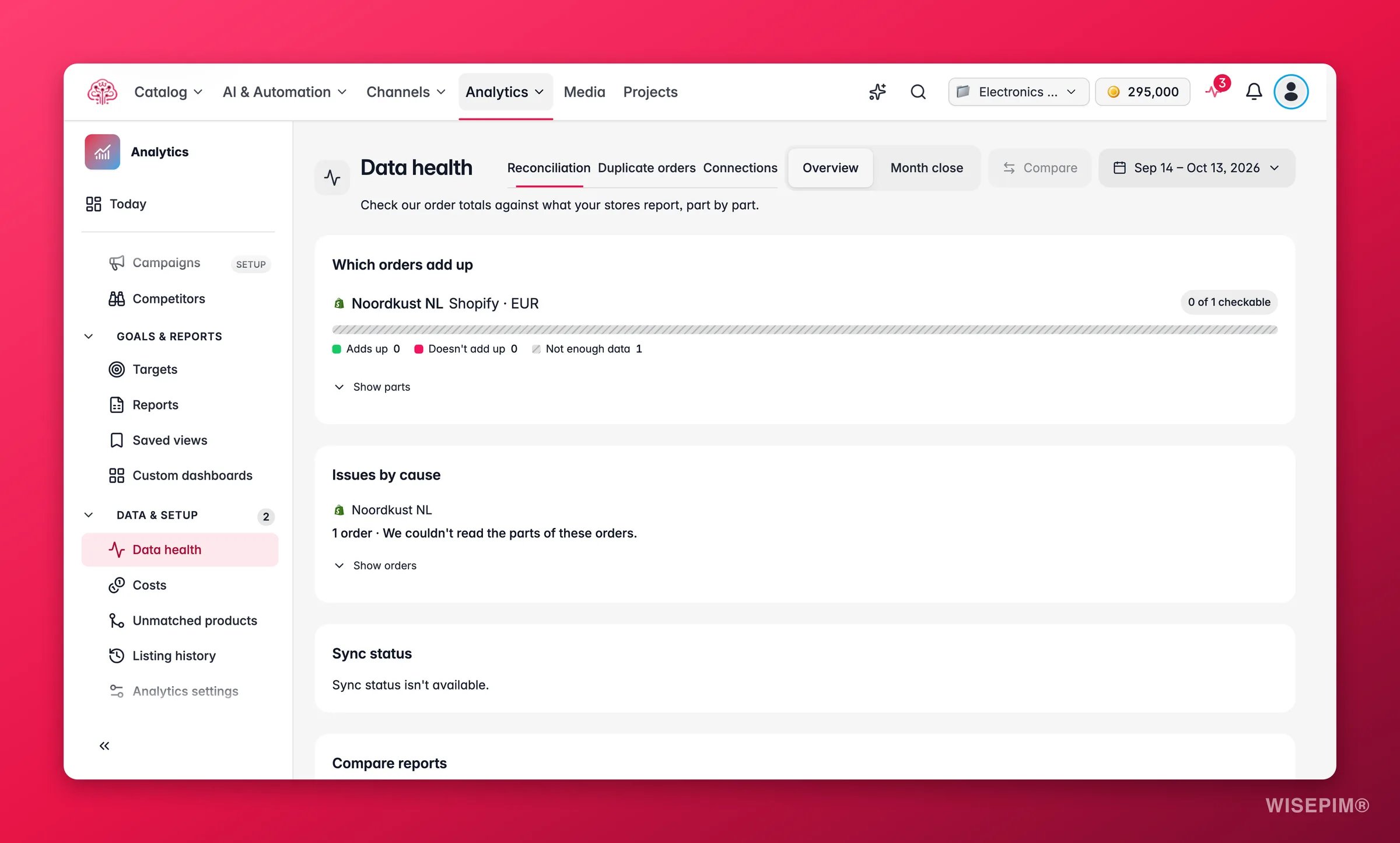
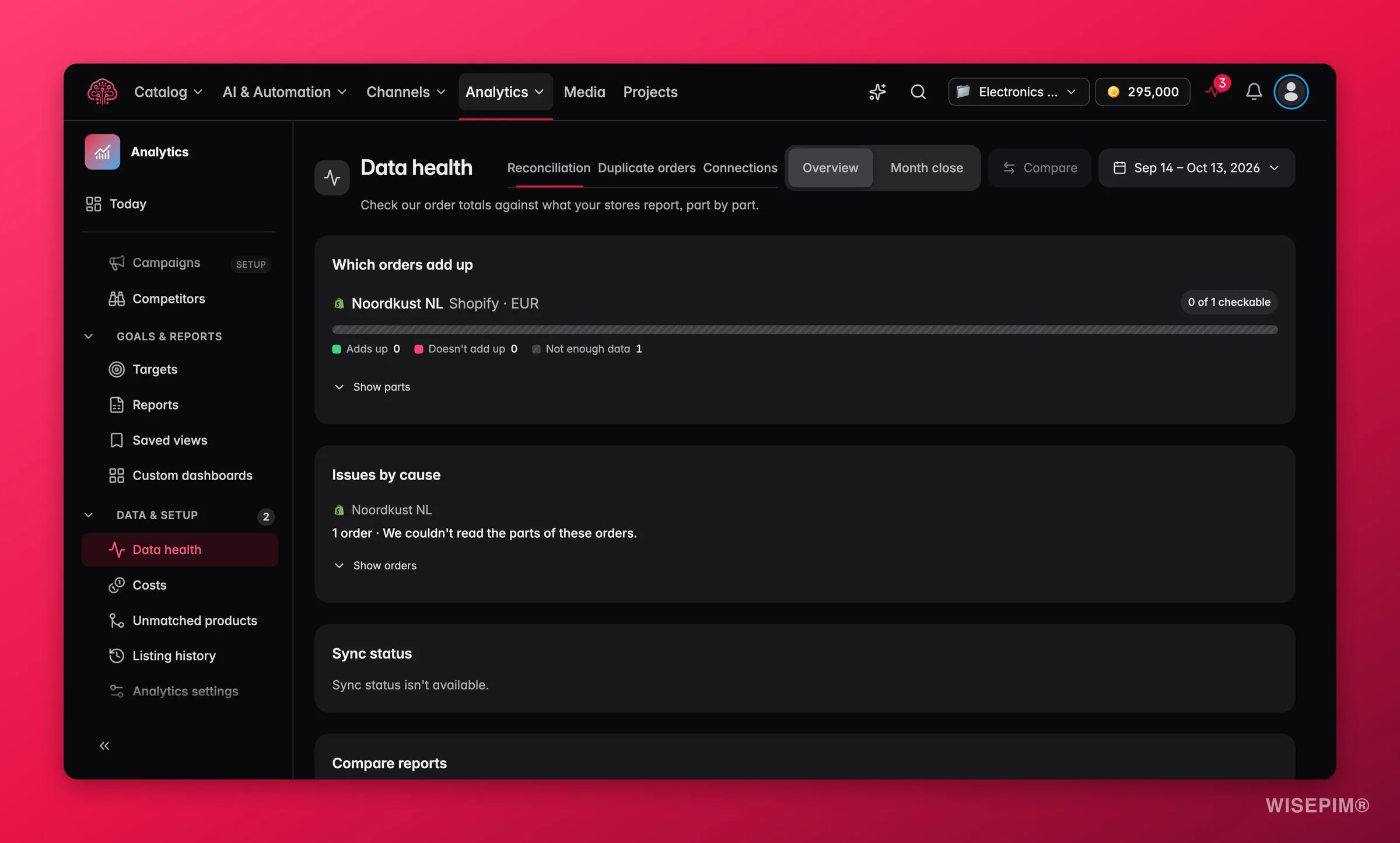
Which orders add up
Per store, a coverage bar splits the orders into Adds up, Doesn’t add up and Not enough data, with the count N of N checkable. Expand a store to see the parts:
Each row reads Known for N of N orders. Each amount covers only the orders where that part is known. A dash means no order has it known, not that it’s zero. A store that never sends a part shows No data from
{store} for N components.
The summary counts next to the bar are Amount and currency confirmed, Matched to products, Adds up, Doesn’t add up and Parts unknown.
Issues by cause
Orders that do not add up are grouped as N orders ·{cause}, with the most common causes named so you know whether there is anything to do:
- bol doesn’t send order amounts. Import a bol invoice to add fees.
{platform}doesn’t send customer fee parts. Nothing to do.{platform}doesn’t send refund dates. Nothing to do.- Other differences, which you can open order by order.
Sync status
The Sync status table shows per store the Connection (Connected and tested, Store not connected, Not turned on or not tested), the Last sync (On time, Late, Never synced, Review the last sync), the Last successful import, and History in this period with the days marked Confirmed or Not confirmed. The sync schedule comes from your connection settings and reads Syncs every N minutes.Compare reports
Compare with your own reports takes a CSV you exported elsewhere and checks it against WISEPIM’s numbers. Describe your report exactly: what it measures, which orders, which date and which timezone. If it measures something different, WISEPIM says so instead of forcing the numbers to match. Upload Your report (CSV) with 1 to 100 rows and click Compare reports. Each row comes back as Matches, Differs or Can’t compare, with a reason such as Your report measures something else., Your report uses a different timezone., Our import doesn’t cover every order for these dates yet. or The amount or currency isn’t confirmed.Month close
Switch to Month close, pick a month, and click Download for your accountant (XLSX). The file holds the month’s orders with the same part-by-part check, so questions about a difference can be answered line by line.Duplicate orders
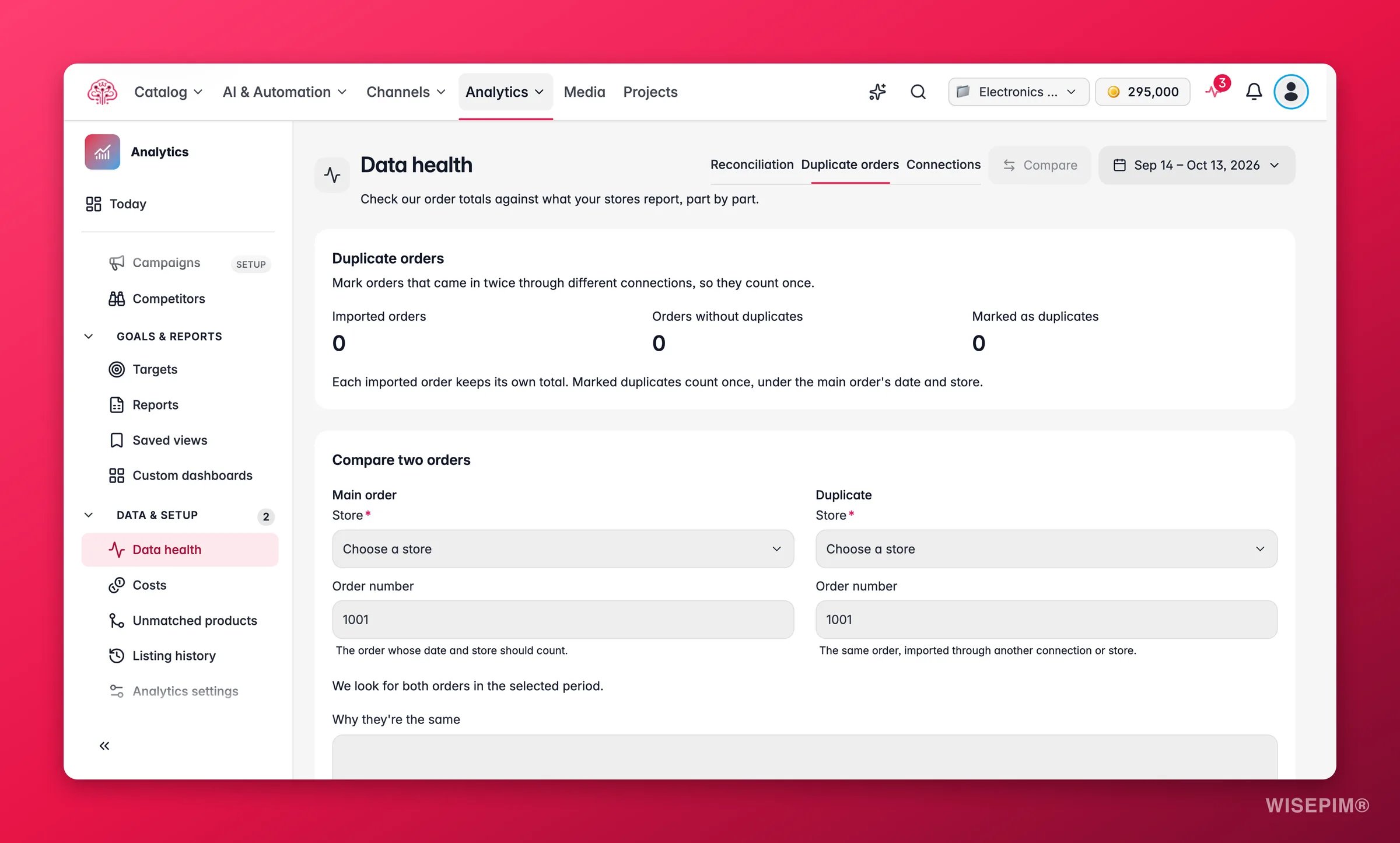
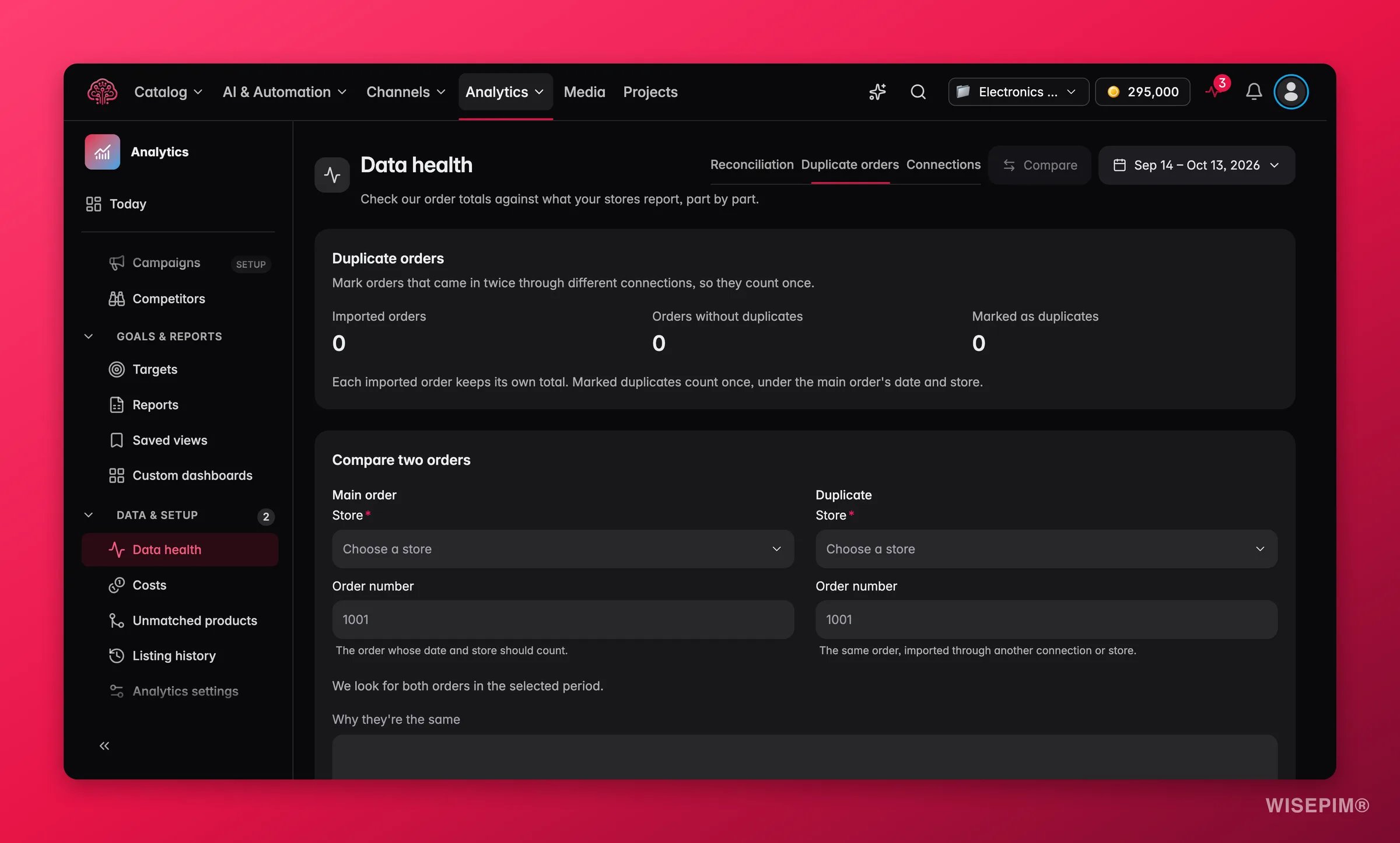
1
Identify the pair
Under Compare two orders, enter the Main order (the store and order number whose date and store should count) and the Duplicate (the same order, imported through another connection or store). Both orders must fall inside the selected period.
2
Note why
Write under Why they’re the same what you compared. The note stays in this draft; WISEPIM saves the two orders you linked.
3
Preview and save
Leave Count these as one order on, click Preview, check the Confirm these two orders panel and click Save. Turn the toggle off, preview and save to undo an existing link.
Saving changes only the count of orders without duplicates. Amounts, payments and refunds stay as imported. Each imported order keeps its own total; marked duplicates count once, under the main order’s date and store. Marking duplicates needs permission to edit products.
Connections
The Connections tab is the Integration Health report: sync reliability per channel over the last 30 days, the error breakdown, and the Merchant Center drift scan. Use it when Sync status on the Reconciliation tab shows a store as Late or Review the last sync.Act on what you find
Sales dropped yesterday and you are not sure it is real
Sales dropped yesterday and you are not sure it is real
Check Sync status first. A store that reads Late or Never synced has not delivered yesterday’s orders yet, and History in this period shows the day as Not confirmed. Fix the connection under Connections, wait for the sync, and look again.
Many orders from one store do not add up
Many orders from one store do not add up
Open Issues by cause. If the cause ends in Nothing to do., the platform does not send that part and the orders are complete as far as the platform allows. For bol, import the invoice under Costs to add the fees. For Other differences, open an order and check the receipt under Order detail.
Your own report differs from WISEPIM's by a fixed amount
Your own report differs from WISEPIM's by a fixed amount
Run Compare reports with the exact definition of your report. A reason like Your report measures something else. usually means refunds, tax or shipping are treated differently. Change the Report measure in the scope bar to the closest definition and compare again.
Order counts doubled after you connected a second channel
Order counts doubled after you connected a second channel
The same orders arrive twice. Mark the pairs under Duplicate orders. If the second connection sends every order again, consider disconnecting it under Supported Platforms instead of marking hundreds of pairs.
Related
Integration Health
The Connections tab in full: sync reliability per channel and drift.
Order Detail
The receipt view of one order, with the same adds-up check.
Costs
Post the fees and carrier costs that complete the picture.
How Order Numbers Work
Why a dash means unknown, not zero.