

Volume discount rules are created separately in your pricing settings. This action only links them to products or unlinks them. It does not change the rules themselves.
Apply a discount in bulk
1
Select your products
Check the products you want to update. To cover a large set, apply filters and select all matching results.
2
Open the action
Click Bulk Editing, then search for “Volume Discounts” or find it under Pricing & Discounts.
3
Choose what to do
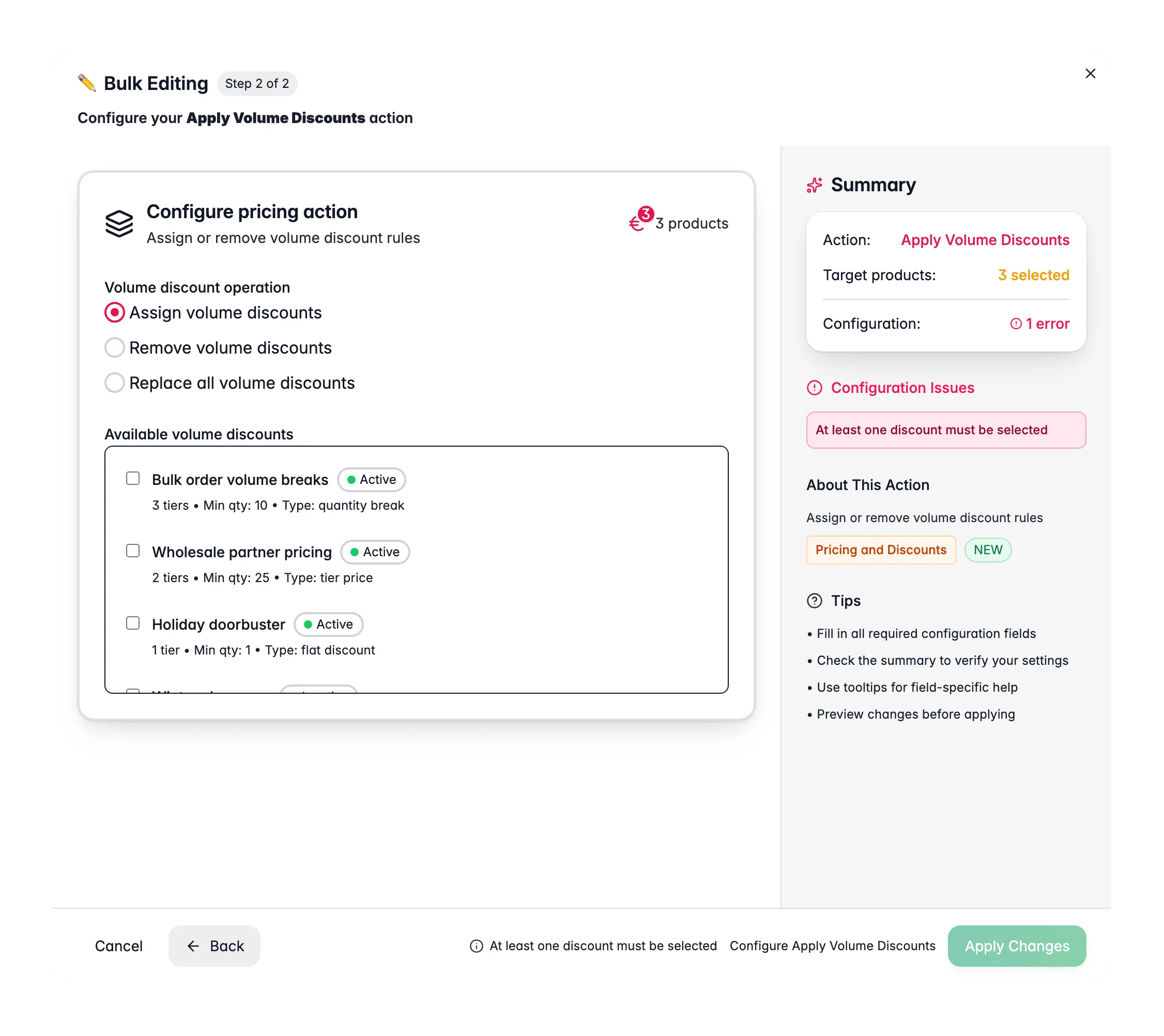
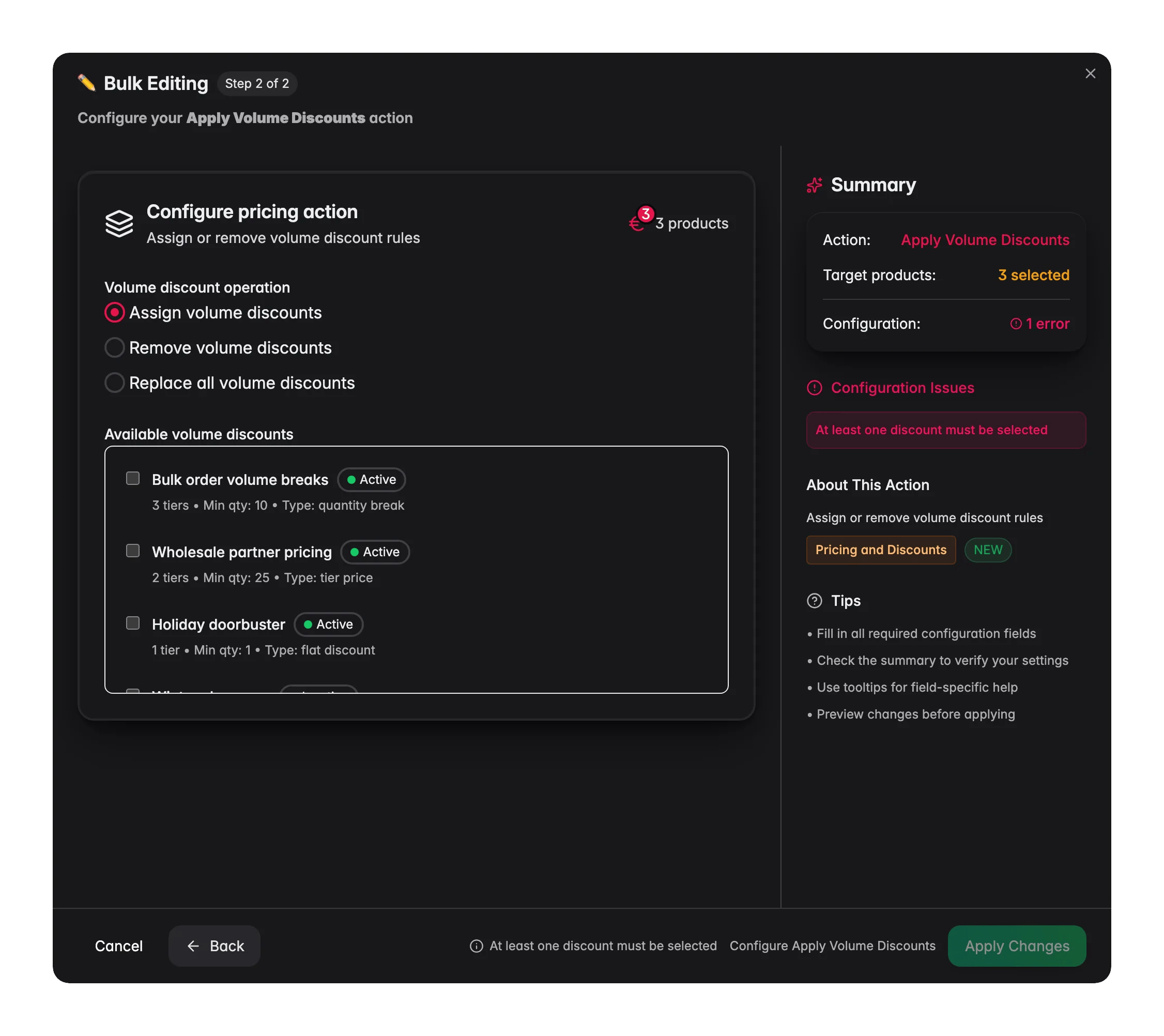
Pick Assign to add rules, Remove to detach them, or Replace to clear existing rules and set new ones.
4
Pick the rules
Select from your available discount rules. Each one shows its status, tier count, and minimum quantity.
5
Apply
Click Apply to update every selected product.
Options
Each rule in the list shows:
- Status: active or inactive
- Tier count: how many pricing tiers it has
- Minimum quantity: the lowest quantity that triggers a discount
Tips
- Leave Check discount compatibility on. It stops you from assigning a discount that clashes with a product’s current pricing.
- Need to set up the rules first? Configure them in your pricing settings, then come back to assign them in bulk.
Related
Change Price
Adjust base prices across products in one action.
Set Special Price
Schedule sale prices for promotions and clearances.