

Set a special price
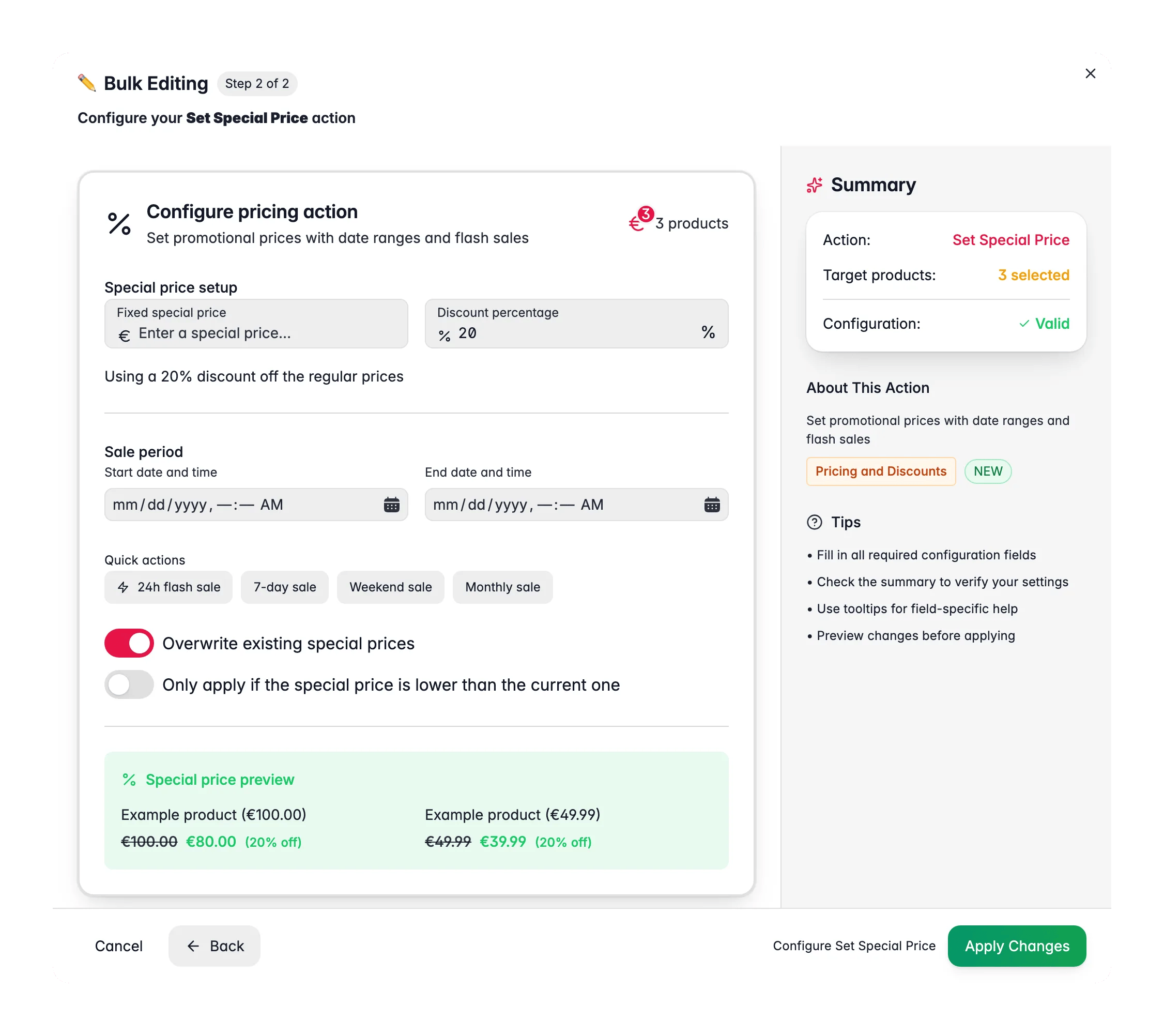
1
Select products
Check the products you want to put on sale, or use filters and select all matching results.
2
Open Bulk Edit and choose Set Special Price
Click Bulk Editing, then search for “Set Special Price” or find it under Pricing & Discounts.
3
Set the price
Choose a fixed special price (for example €9.99) or a discount percentage (for example 20% off).
4
Set the sale period (optional)
Pick start and end dates, or use a quick preset for common sale lengths.
5
Set options and apply
Decide whether to overwrite existing special prices, then click Apply.
Options
Quick sale presets
Tips
- Use Discount Percentage when products have different base prices. Each product gets its own calculated special price.
- Turn on Only apply if lower than current price so you never accidentally raise a price that already has a deeper discount.
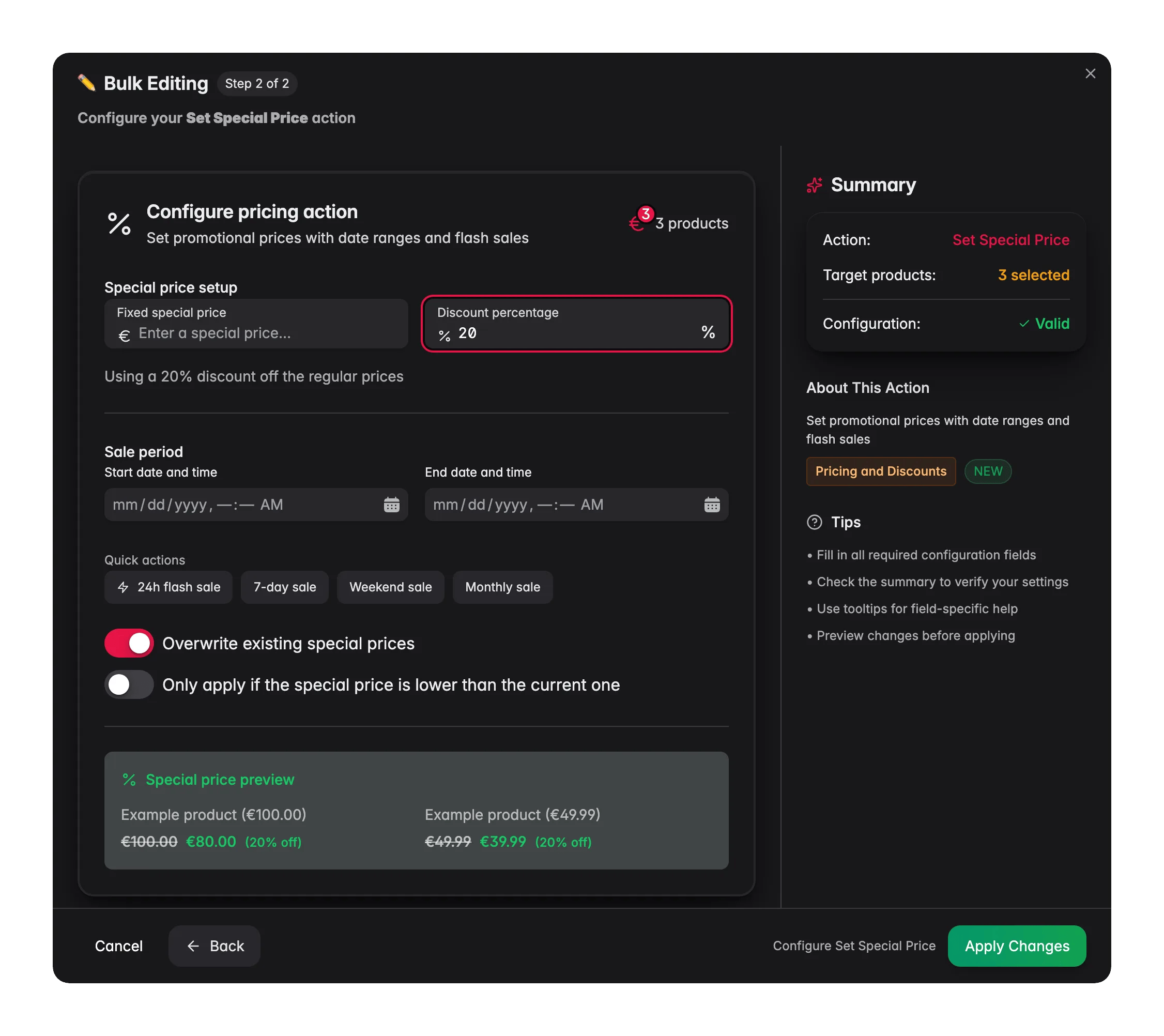
- The preview shows two example products with before and after prices, so you can check the result before you apply.
Related
Change Price
Adjust regular prices in bulk.
Apply Volume Discounts
Set tiered pricing for larger quantities.