

Scan a barcode
The Scan a barcode card gives you three ways in:- Camera: the camera starts on its own. Hold the barcode in front of it. Use Stop camera and Start camera to switch it off and on. If your browser blocked the camera, allow it there or use one of the other two options.
- Upload a photo: pick a photo of the barcode. If no barcode is found, try a sharper, closer shot.
- Or type the EAN: type the code and click Look up. WISEPIM accepts EAN-13, EAN-8 and UPC-A codes and checks the check digit.
The lookup searches your own project only, on the EAN, UPC and SKU of your products. It doesn’t look the code up in an external barcode database. That is what web research is for.
Read the result
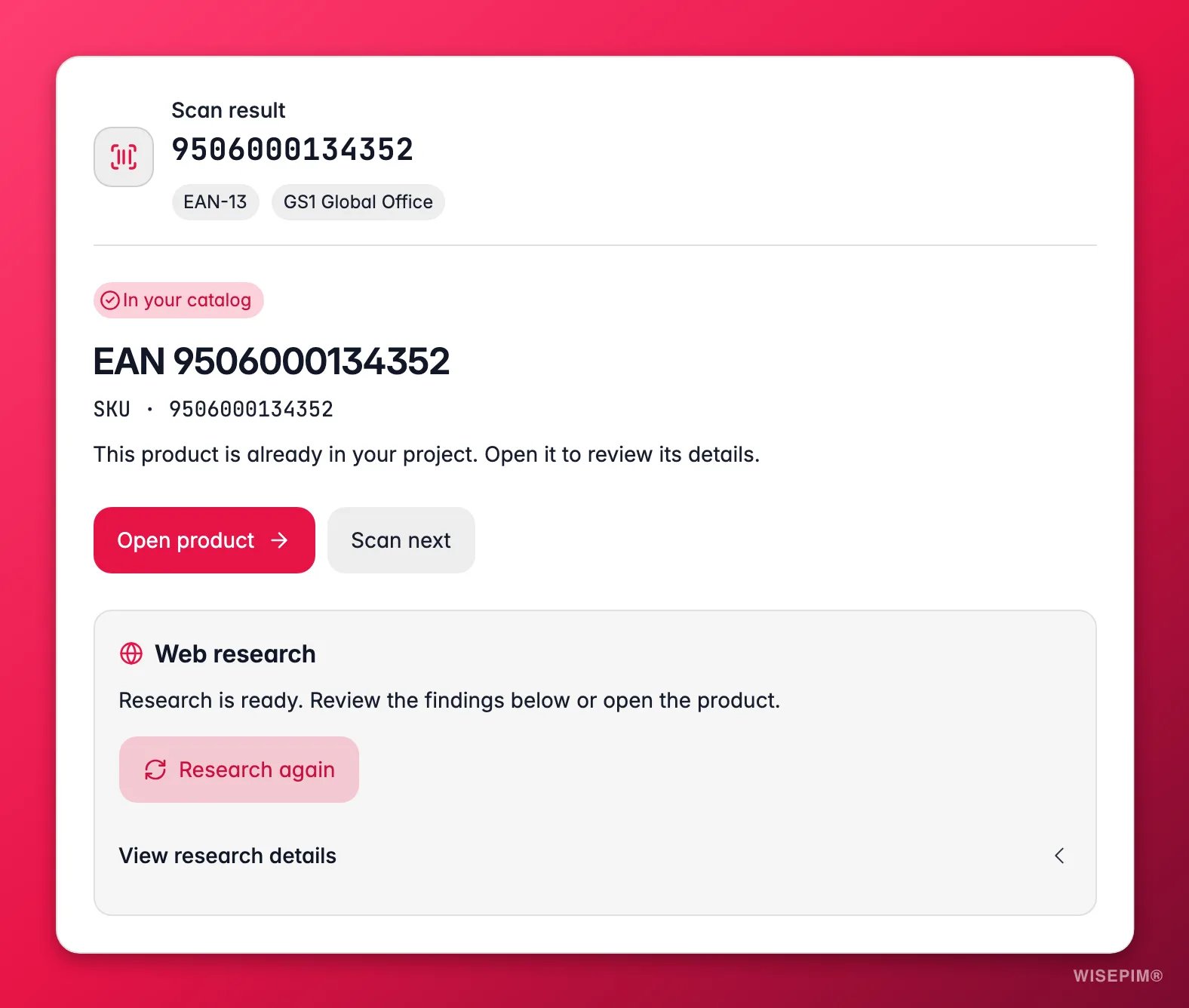
The Scan result card shows the code, its format and the GS1 country prefix, and one of these states:
A product added from the scanner is named
EAN followed by the code, with the EAN as its SKU, so research has somewhere to land. Rename it once research has found the real name.
Run web research
The Web research section finds product details and sources online. Click Run web research, or let it start on its own (see below). You can scan the next product while it runs; the results also land in the product’s Research tab. When it’s done, click View research details to see the findings, or Research again to run it once more.Web research is available from the Growth plan. A product researched recently isn’t researched again unless you click Research again.
Scanner settings
The Scanner settings card has two switches. Both are on by default and remembered per project on this device.
Recent scans lists the barcodes you scanned, so you can scan one again with a click. Clear empties the list.
Act on what you find
Several new products in a row
Several new products in a row
Leave both settings on and scan one product after the other. Each one is added and researched while you scan the next. Review them afterwards on the Products page.
You only want to check stock against your catalog
You only want to check stock against your catalog
Switch off Save unknown barcodes to this project. The scanner tells you what’s in your catalog without adding anything.
The camera doesn't start
The camera doesn't start
Allow camera access for WISEPIM in your browser and click Try camera again. On a computer without a camera, upload a photo or type the code.
Research found the product, but the name is still EAN plus the code
Research found the product, but the name is still EAN plus the code
Open the product and apply the research findings, or run enrichment to write the title and description.
Related
Importing Products
All the other ways to bring products into WISEPIM.
Web Research
What research looks for and how it fills your products.
Creating Products
Add a single product by hand.
Command Menu
Open the scanner and other pages with ⌘K.