

Before you start: you need a project with products, an import source you use regularly, and a prompt you are happy with in your Prompt Library.
Capture the run you already do
Do tomorrow’s run by hand one last time, and pay attention to every choice you make. Each choice becomes a setting in the automation, and the reason this comes first is unglamorous: an automation you build from memory fails silently, while one you build from a run you just watched fails loudly during its test.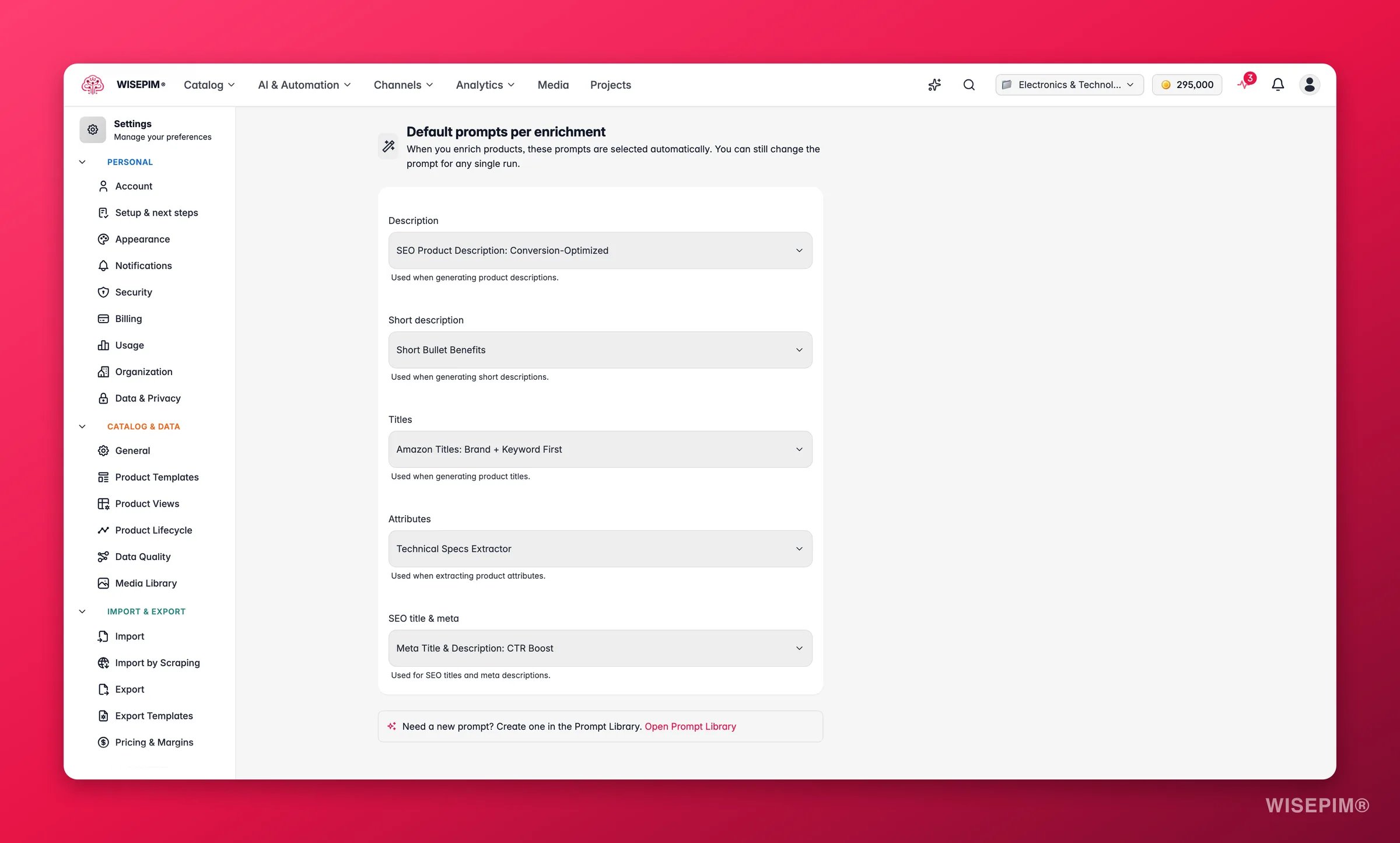
1
Run it manually and note every click
Filter, select, enrich. Write down three things: the filter conditions, the enrichment type you picked, and the prompt. That short list is the specification for your automation.
2
Promote your prompts to project defaults
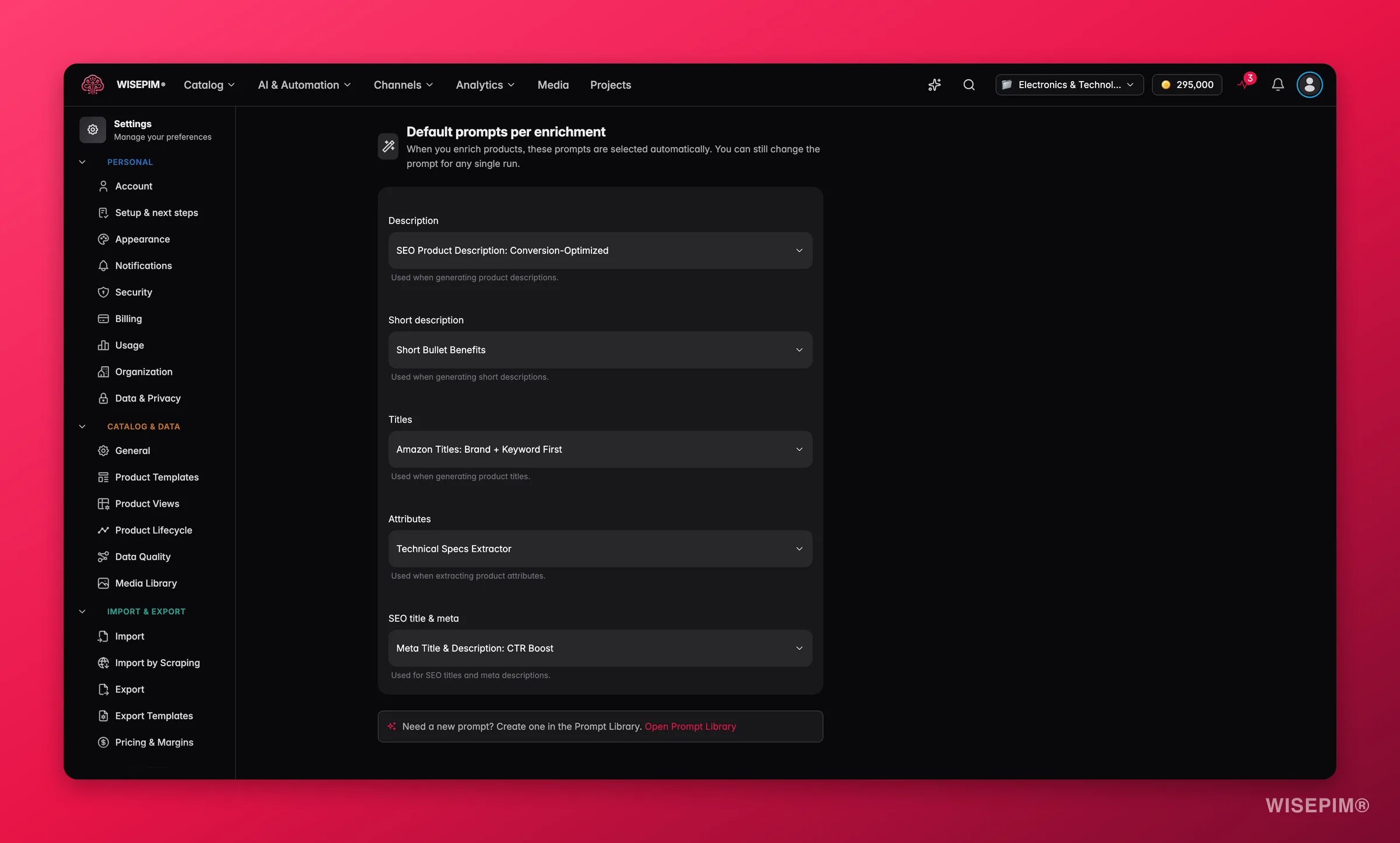
Set your default prompts in Enrich Prompts settings. They are project-level, so the whole team enriches with the same instructions, and Auto-Fill uses them without anyone choosing a prompt. Do this before you automate, because an automation should not depend on a choice a human remembers to make.
3
Refine the prompt against real products
Open the Prompt Lab, load a real SKU, and iterate until the output is right on a few representative products, including thin ones. Unattended runs have no reviewer, so the prompt has to hold up on its own.
4
Save the filter you always apply
In the product filters, build the conditions you use every morning and save them as a named filter set. Saved sets live on your account, and the conditions in them are exactly what you will re-enter as the automation’s selection criteria.
5
Decide who should hear about it
Pick the person or channel that should be told when a run finishes. An automation nobody hears from is an automation nobody trusts.
Wire the flow
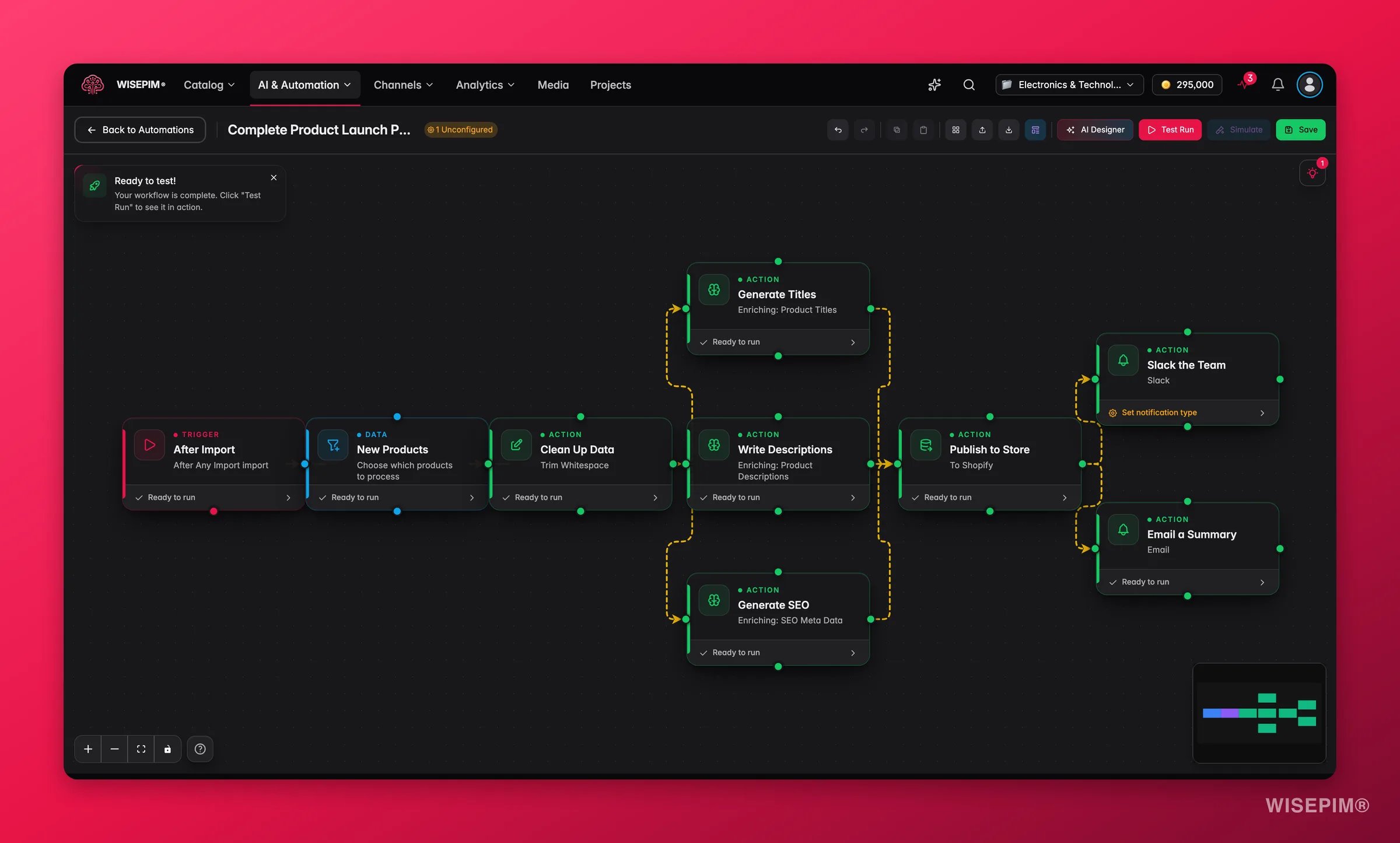
Now rebuild that same run on a canvas in the visual builder. Start from something that already works rather than an empty page, and change only what you need.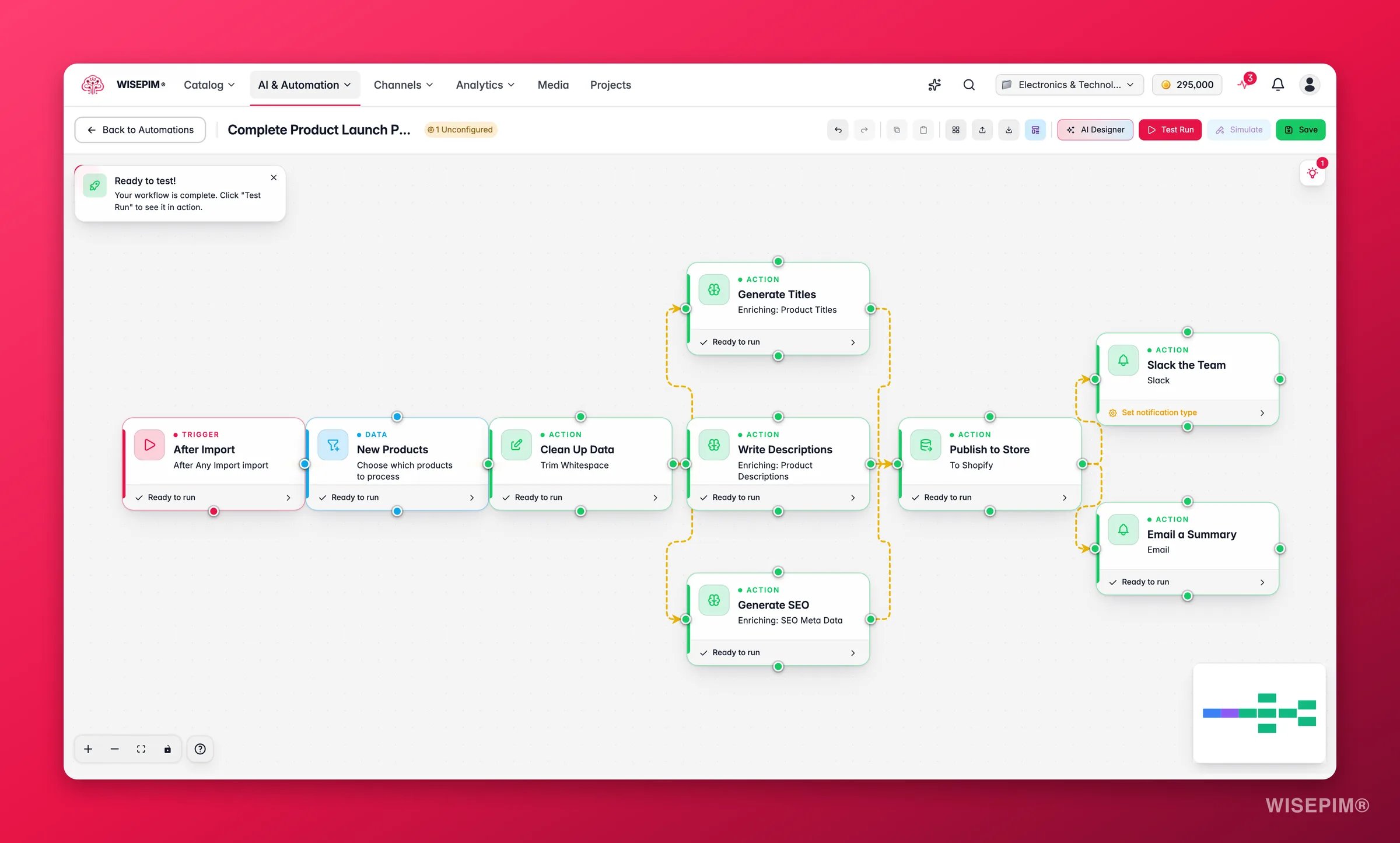
1
Start from a template
Go to Automations → Templates and open the AI Content tab. New Product Content Generation is a beginner template that generates titles, descriptions, and SEO meta for new products after any import - the exact shape you want. Click Use This Template and the builder opens with the nodes already placed and connected.
2
Set the trigger to After Import
Click the trigger node on the canvas to open its settings in the right panel, and choose the After Import trigger. It fires the moment an import finishes, which is when supplier data is at its most incomplete. Set its import type filter if only one source should start the run; leave it empty and every import triggers it.
3
Select only the products that just arrived
Open the Select Products data node and re-enter the conditions from your saved filter set. This is the step that keeps the automation from re-enriching your whole catalog every night, so check its count before you move on.
4
Pick the enrichment
In the AI enrichment action node, choose Auto-Fill to fill the gaps a feed left behind, or Bulk Enrich when you deliberately want to replace existing content. Auto-Fill uses the defaults you set in step two, so there is nothing else to configure.
5
Branch if two groups need different treatment
If products with no description need one thing and the rest need another, split the flow with a Condition logic node and merge the paths back before the final step. Skip this until the simple version works end to end.
6
Notify, test, then activate
End with a notification node. Every node needs a green checkmark before you can save - an amber icon means it still needs configuring. Then hit Test Run in the toolbar and watch each node light up in the execution panel. Activate only once the test processes the number of products you expected, not merely once it goes green.
If placing nodes is not your idea of fun, the builder’s AI Designer drafts a workflow from a plain-language description. Treat the draft as a first pass and open every node to check filters and destinations before you activate it.
Add the safety net
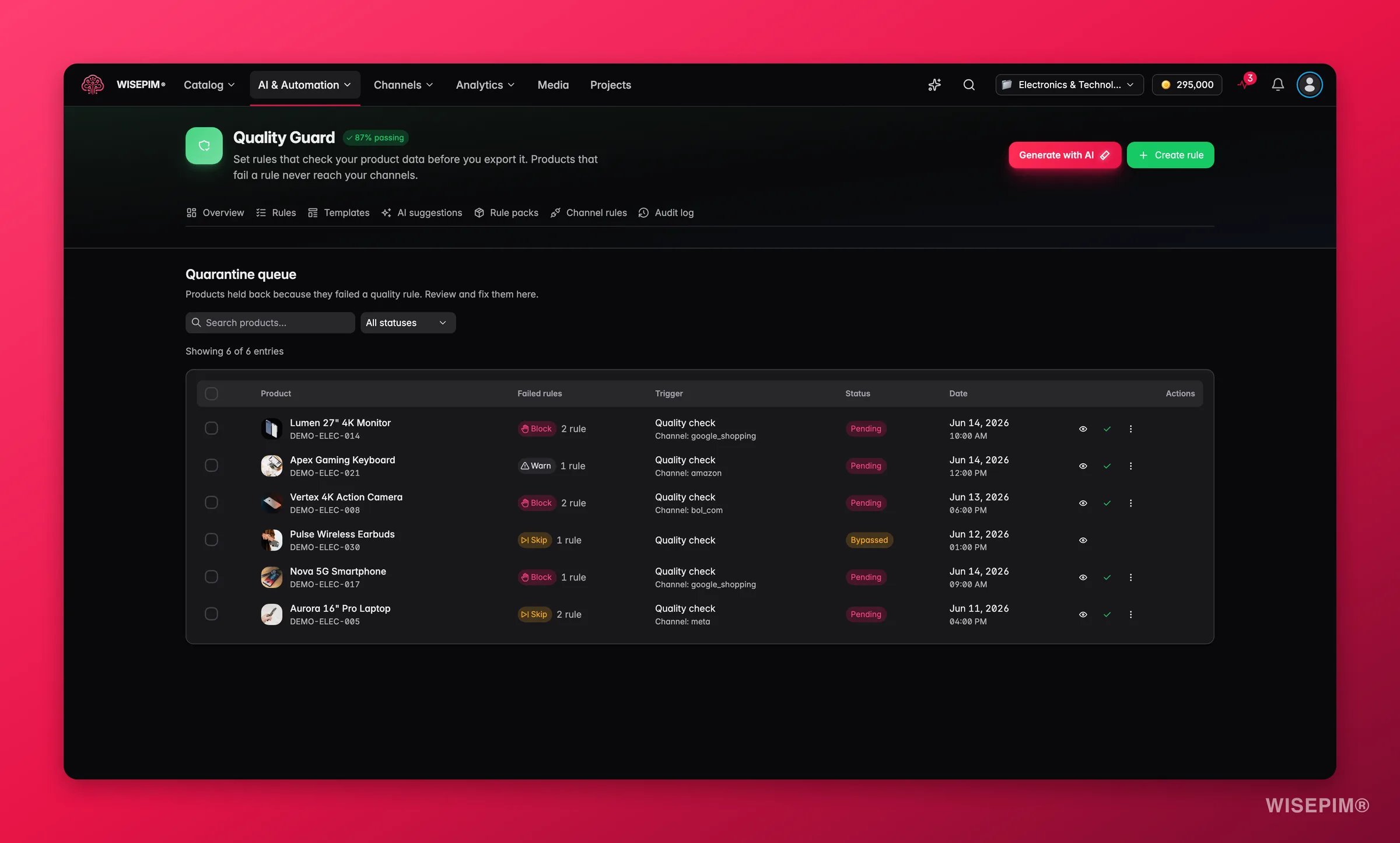
This is the part you could never do manually, and it is what turns a scheduled job into a catalog that repairs itself. Quality Guard scores your products; the Quality Changed trigger reacts when that score moves. Two automations, two triggers, the same three steps behind each: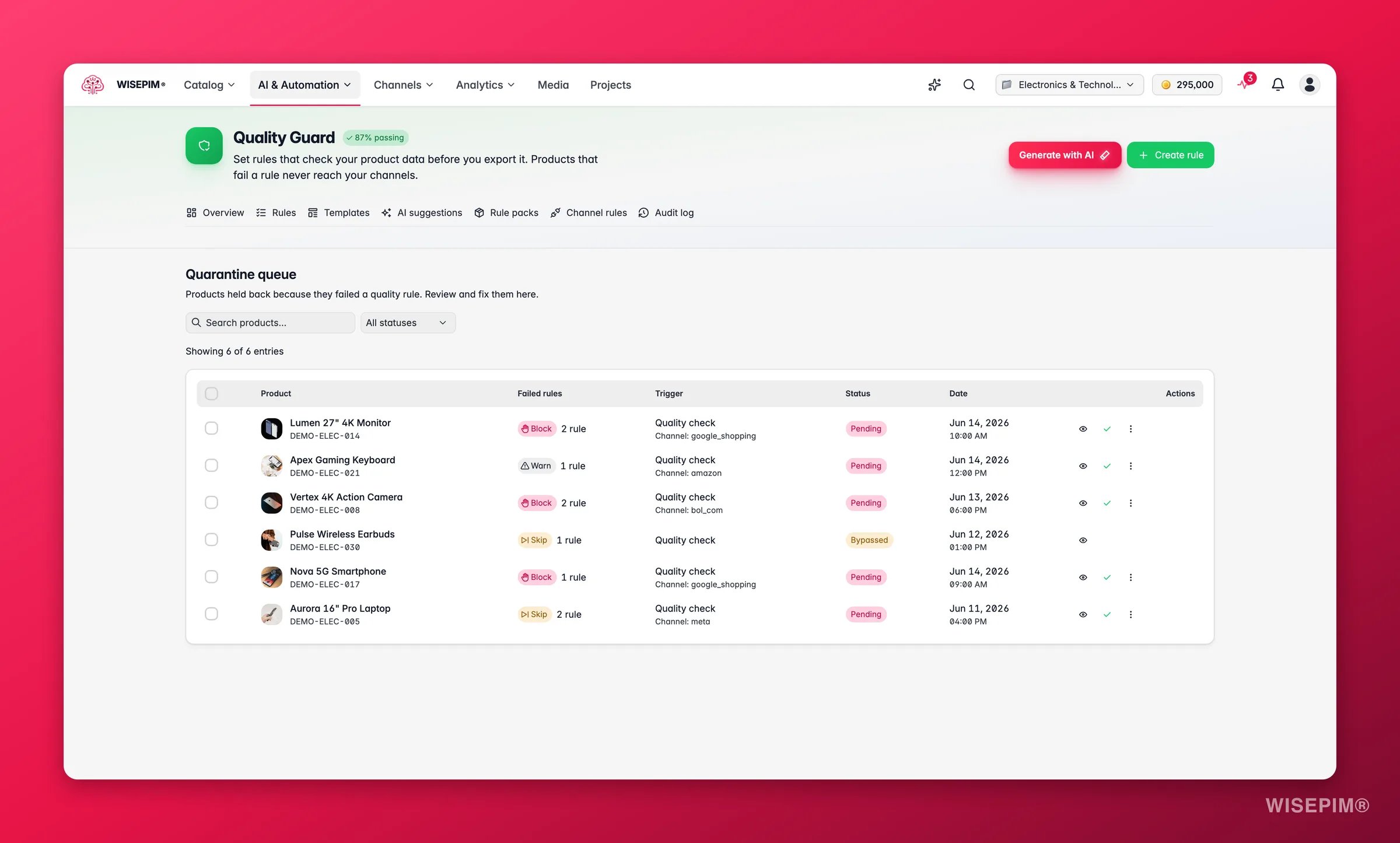
1
Understand what a drop actually costs you
Rules with Block severity send failing products to quarantine, where they cannot be exported, synced, or published until someone acts. Left alone, a bad import quietly stops products reaching your channels.
2
Create a second automation on Quality Changed
Back on the Automations page, click Create Automation, then click the trigger node and pick Quality Changed. Set Direction to decreased and use the optional Threshold so it only fires on a meaningful move, not on every one-point wobble. Keep this separate from the first pipeline: it has a different trigger and it must keep working even while you are editing the other one.
3
Re-enrich what slipped
Chain a Select Products node and an AI enrichment node behind it, the same pair you used in the first pipeline. The products that just lost score are the products that get rewritten.
4
Notify a human anyway
Finish with a notification. The automation handles the fix; the message tells you a fix was needed, which is how you spot a supplier whose feed keeps degrading.
How to tell it worked
Give it a week of real imports before you judge it. These are the numbers that tell you whether the pipeline is earning its place.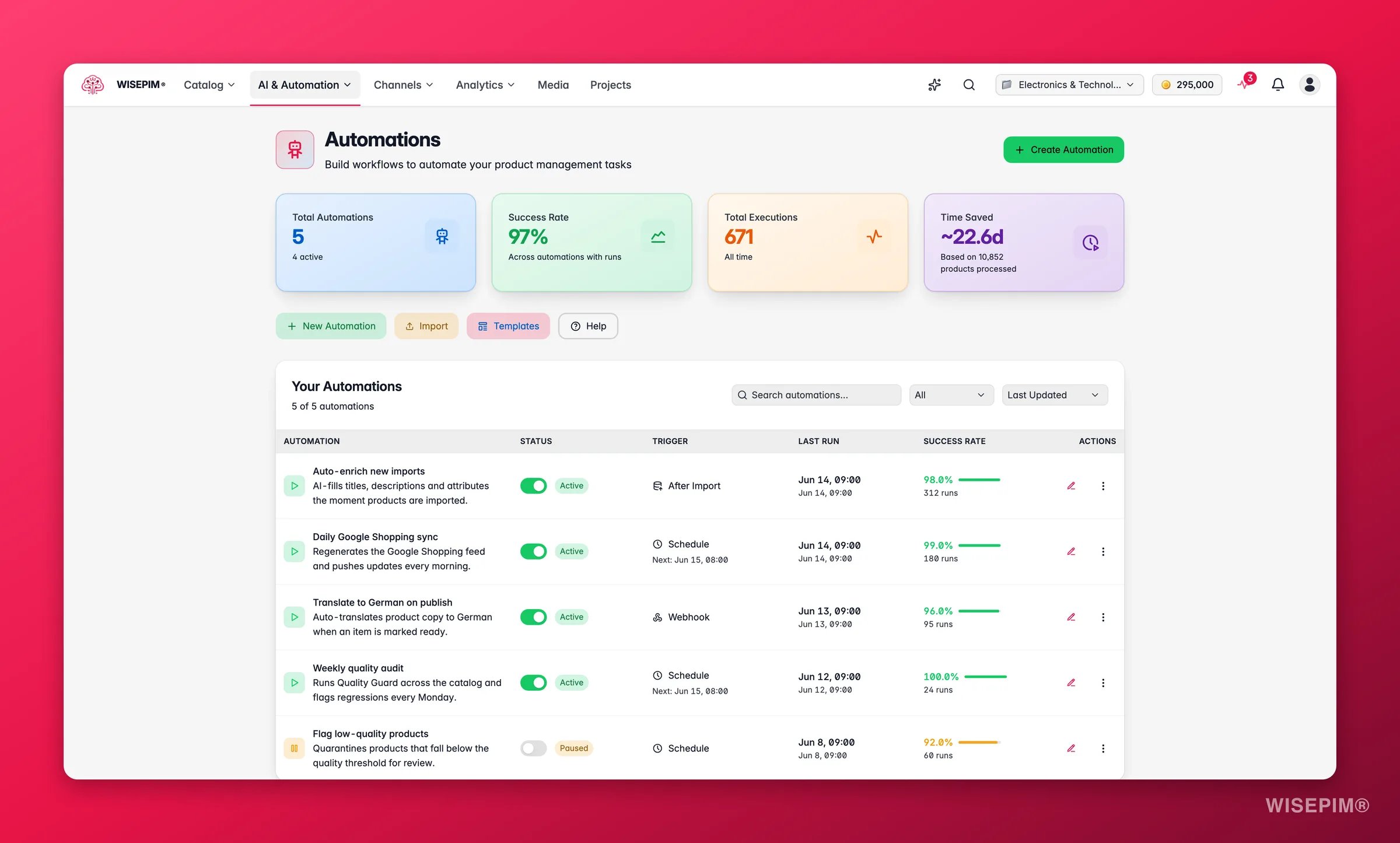
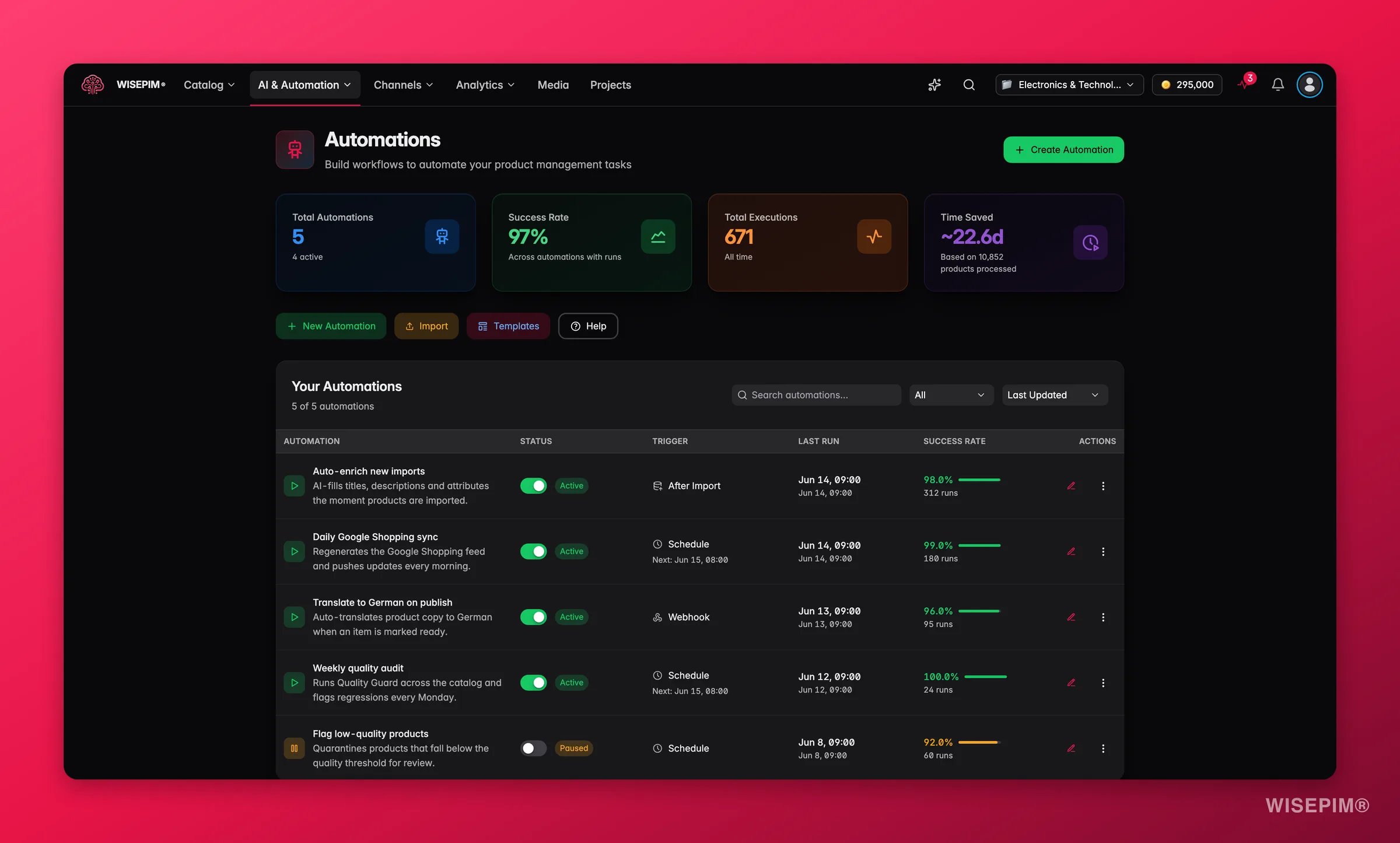
A healthy pipeline is boring: green runs in the Process Tracker you never started, a quarantine queue that stays near zero, and a notification each morning you can read in five seconds.
When it doesn’t work
It ran, but nothing got enriched
It ran, but nothing got enriched
Almost always the Select Products node. Open it, check the filter conditions and the condition logic, then run the same conditions in the filter modal on the Products page and compare the counts - if they disagree, the node is the problem. A Minimum matches setting that is never met will also stop the workflow before it ever reaches the enrichment node.
The success rate dropped below 80 %
The success rate dropped below 80 %
Open View History on the automation from the automations list, then open that run in the Process Tracker. Failures are grouped for you: when every failure shares one root cause the task says All N failures share one cause and names it, which turns a wall of red rows into one thing to fix. Fix it, then Retry failed rather than re-running the whole job.
A run stopped because credits ran out
A run stopped because credits ran out
The enrichment node checks your balance before it starts, so nothing is charged for a run that cannot complete. Top up, then use Resume in the Process Tracker: it processes only the items that were never handled and does not charge again for the ones that were. Resume needs the task to be at rest - stopped, failed, cancelled, or completed with errors, so stop a stuck task first.
The Quality Changed automation fires far too often
The Quality Changed automation fires far too often
Open the trigger and set a threshold so small score movements are ignored, and confirm the direction is set to decreased rather than any change. A trigger with no threshold reacts to every recalculation.
The unattended content is off-brand
The unattended content is off-brand
Nobody is reviewing output any more, so the prompt has to carry the brand on its own. Take it back to the Prompt Lab, test it on products from several categories, and fill in your Knowledge Library so the AI has your brand context to draw on. Re-save the improved prompt as the default in Enrich Prompts.
Related
Automations overview
Manage, monitor, and read the success rate of every workflow you build.
Automation triggers
The full reference for all seven triggers, including After Import and Quality Changed.
Run a weekly catalog health routine
The 45-minute Monday round that checks whether your automations are still behaving.
Onboard a supplier catalog end to end
Where the incoming feed comes from that this pipeline cleans up.