Turn a supplier CSV, XML feed, or bare website into classified, researched, sellable products in your own structure, without retyping a single spec.
A new supplier sends you 4,000 products in whatever shape they happen to keep them: a spreadsheet with mystery column names, an XML feed, a BMEcat file, or nothing at all except a website. None of it matches your categories, half the specs are missing, and the descriptions are written for someone else’s shop. Retyping is not an option and importing it raw just moves the mess into your catalog.The fix is an order of operations: decide how the data gets in, make sure the slots it should land in already exist, bring in a small capped batch, then fill facts before words. Budget about 90 minutes for your first supplier, and far less for every one after: the setup is reusable. Moving your own catalog off an old platform rather than taking on a supplier’s range? That is migrate your catalog.
Before you start: get whatever the supplier can give you (a file, a feed URL, or just their catalog URL), and know which of their categories you actually intend to sell. See importing products for what each format needs.
What you’ll get: the supplier’s range in your own category and attribute structure, with verified identifiers and specs, content written in your voice, and a repeatable setup for their next update.
Choose by what the supplier can hand over, not by what you are used to. Ask for the most structured thing they have, then take the highest route in this table they can actually deliver. Every row below the first costs you more setup, and the ones near the bottom carry less of the supplier’s own structure with them.
Connect your browser once, then import the pages you open; check the first products before you import many
1
Rule out a zero-file route before you touch a file
If your supplier is TechData, or delivers through WebshopImporter, which is also how the Shots feed arrives, connect the integration and none of the rest of this section applies.
2
Open the route you picked from the right place
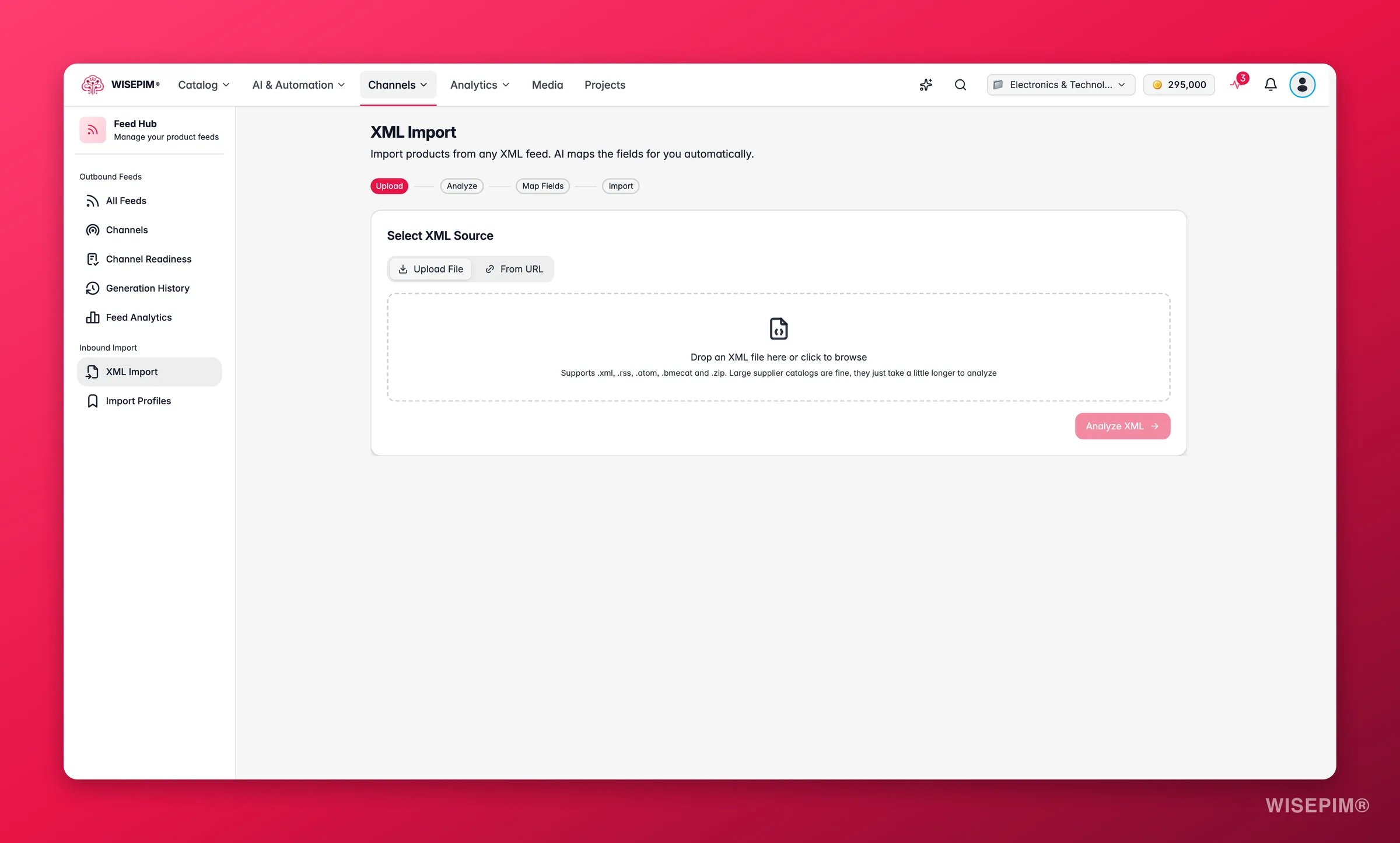
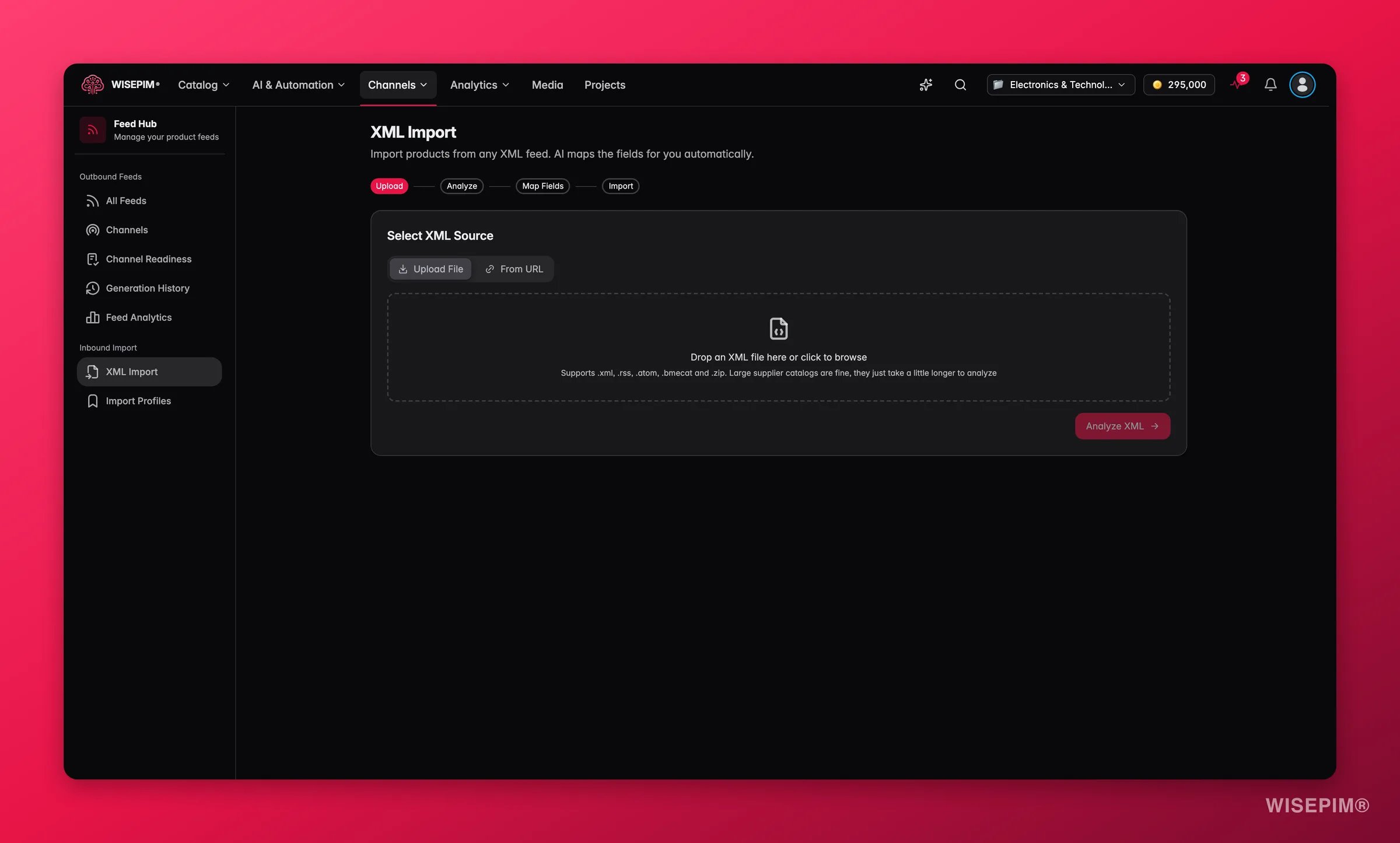
File and website routes start on the Products page: click Import in the toolbar and choose CSV Import or From a website or URL. Feed routes start in Feed Hub under XML Import, where you paste the URL or upload the file.
3
Check the count the importer reports back
Every route shows you what it found before it commits: Here’s what we found with the row count and how many products are new or already exist for a file, the item count and XPaths for a feed, the products the extension finds on a page. Compare it to the number of products you expect. A mismatch here is cheap; the same mismatch after 4,000 products land is not.
4
Spend your review on the low-confidence rows only
For a feed, AI proposes a mapping per field with a confidence chip: accept the confident ones and read the rest. For a file, known column names are matched first and AI picks a field for the rest, with every AI pick marked. A wrong guess you wave through is what quietly fills the wrong attribute on every product.
5
Save the setup before you run it again
A file’s choices are remembered for the next file with the same columns. Save them for good with Advanced > Save these choices as an import profile, and save a feed mapping as an Import Profile in Feed Hub. This is the step that makes the supplier’s next file a five-minute job instead of a repeat of today. When a supplier’s columns change, WISEPIM warns you before you import, and values you edited or verified by hand stay when the next file arrives. A Feed Hub Import Profile can be scheduled to pull updates on its own.
This is the step everyone does last and should do first. Classification decides which attribute slots exist on a product, and everything downstream, from research to enrichment to a wholesale feed, can only fill slots that already exist.
1
Find the classes this supplier's range belongs to
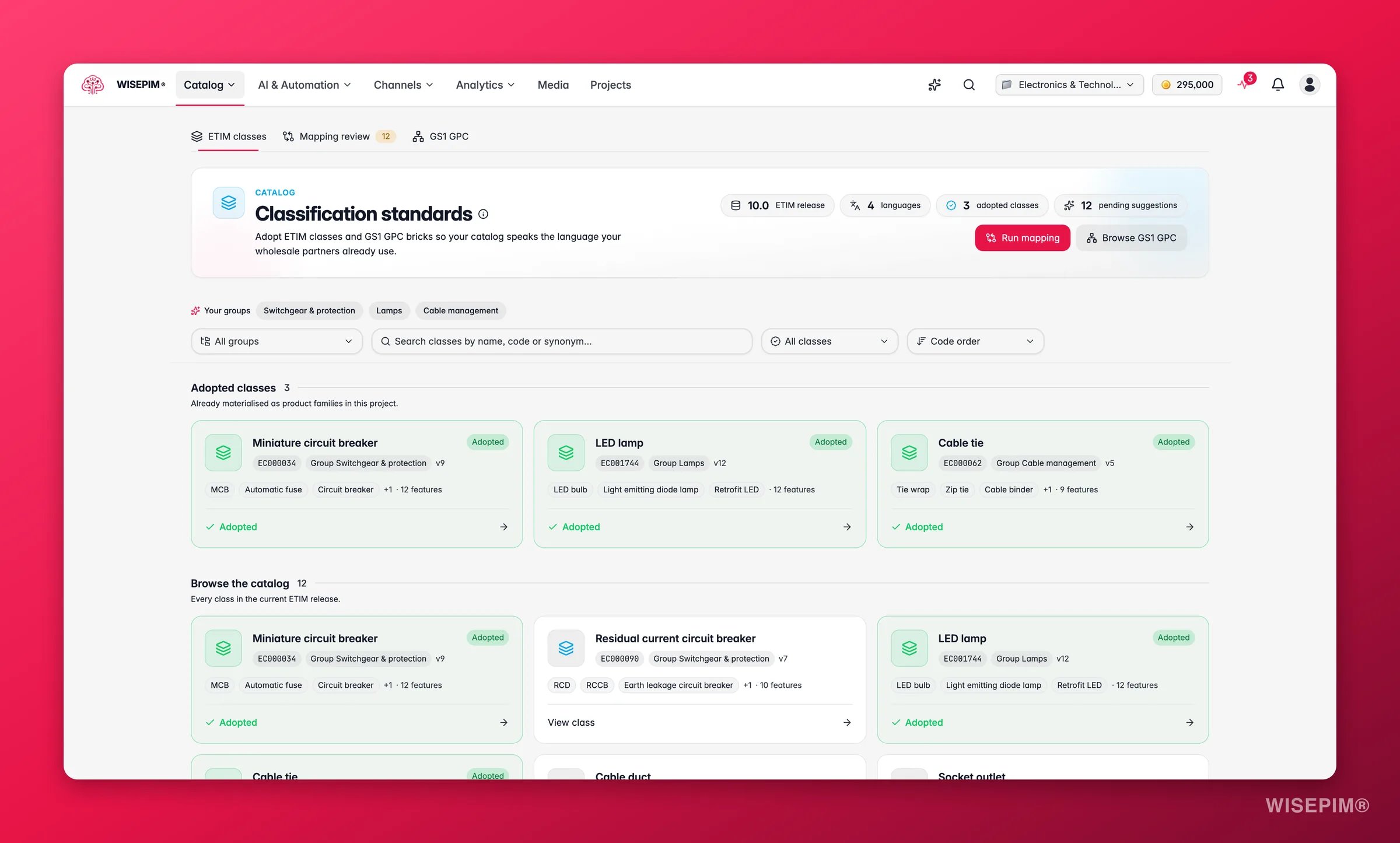
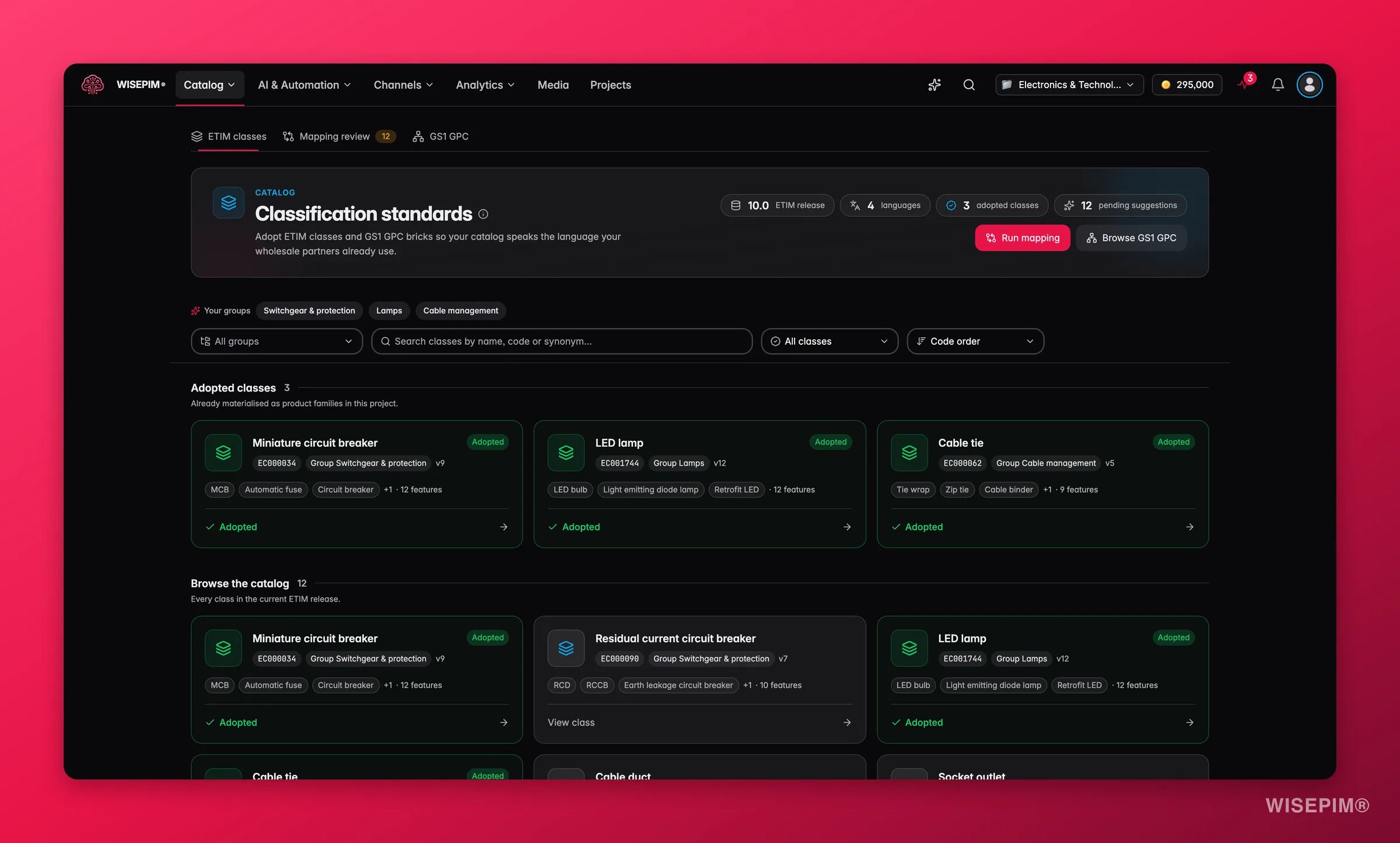
Go to Products > Classification and search the ETIM classes tab by name, code, or trade synonym. Click View class before you adopt anything: the feature table is the honest answer to “which attributes will these products need to carry?”
2
Adopt the classes you need
Click Adopt class. WISEPIM builds a ready-to-use product family from the standard, with one attribute per feature, its value lists, and its prescribed units. Products assigned to that family get the attributes immediately.
3
Bring in the categories too
On the GS1 GPC tab, drill to the bricks you sell and click Add as category. The full parent path is created with them, so imported products land in the right place in your tree instead of in a duplicate one next to it.
4
Link the families you already have
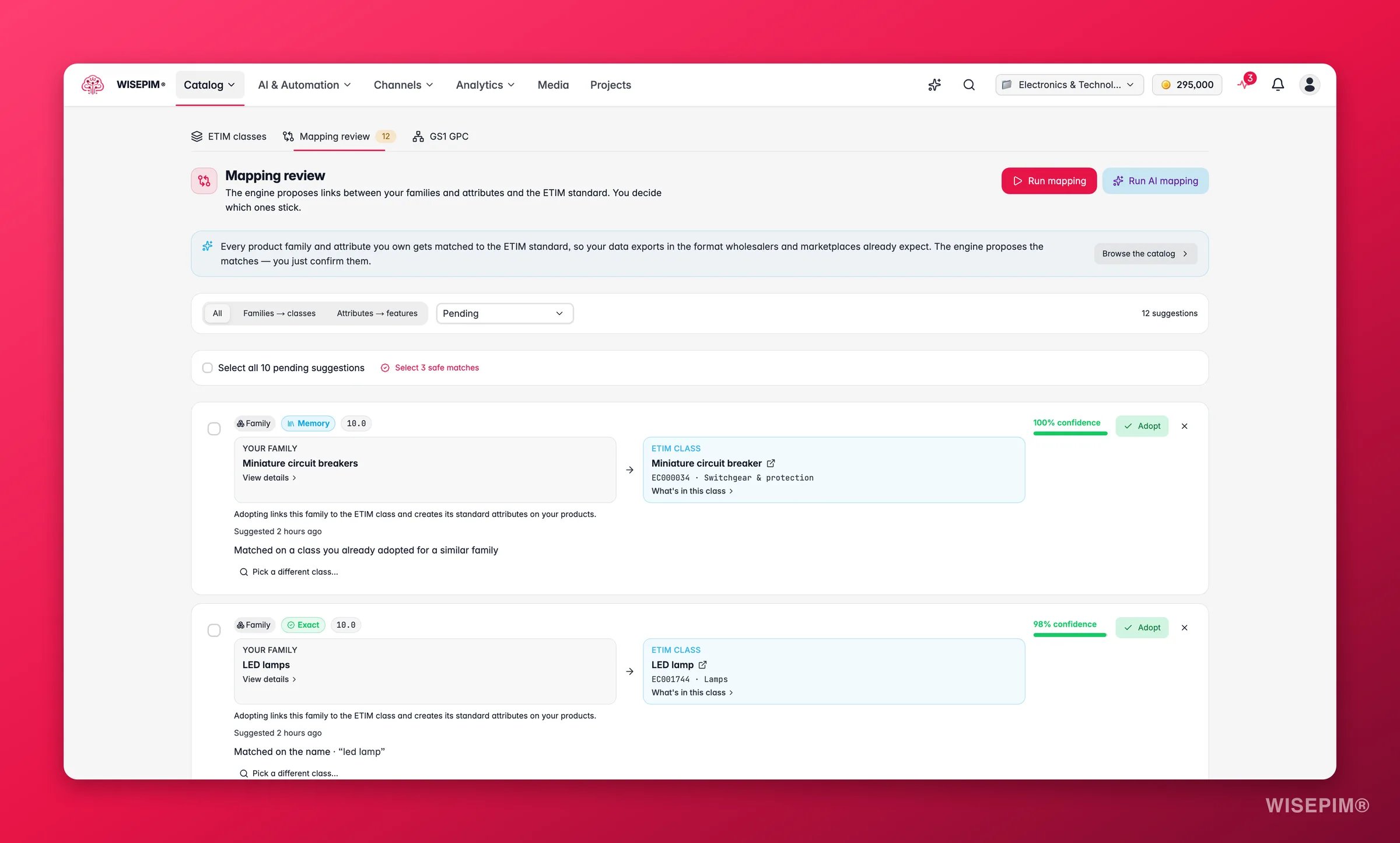
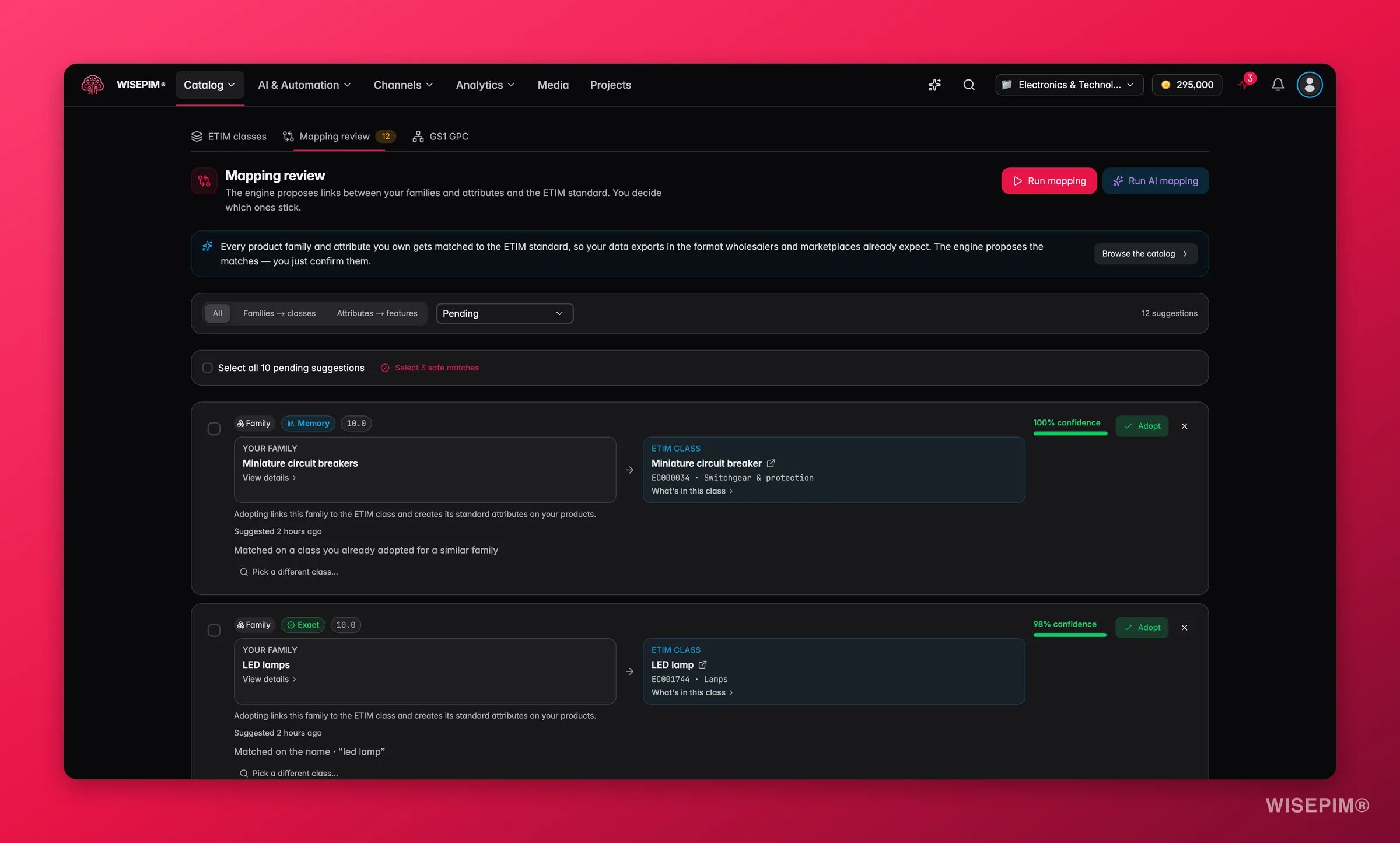
If you already have families and attributes, open the Mapping review tab, click Run mapping, then use Select safe matches to bulk-adopt the high-confidence proposals and hand-review the fuzzy and AI tiers. Your corrections are remembered, so the next supplier’s range needs less review than this one.
5
Switch on auto-classification for imports
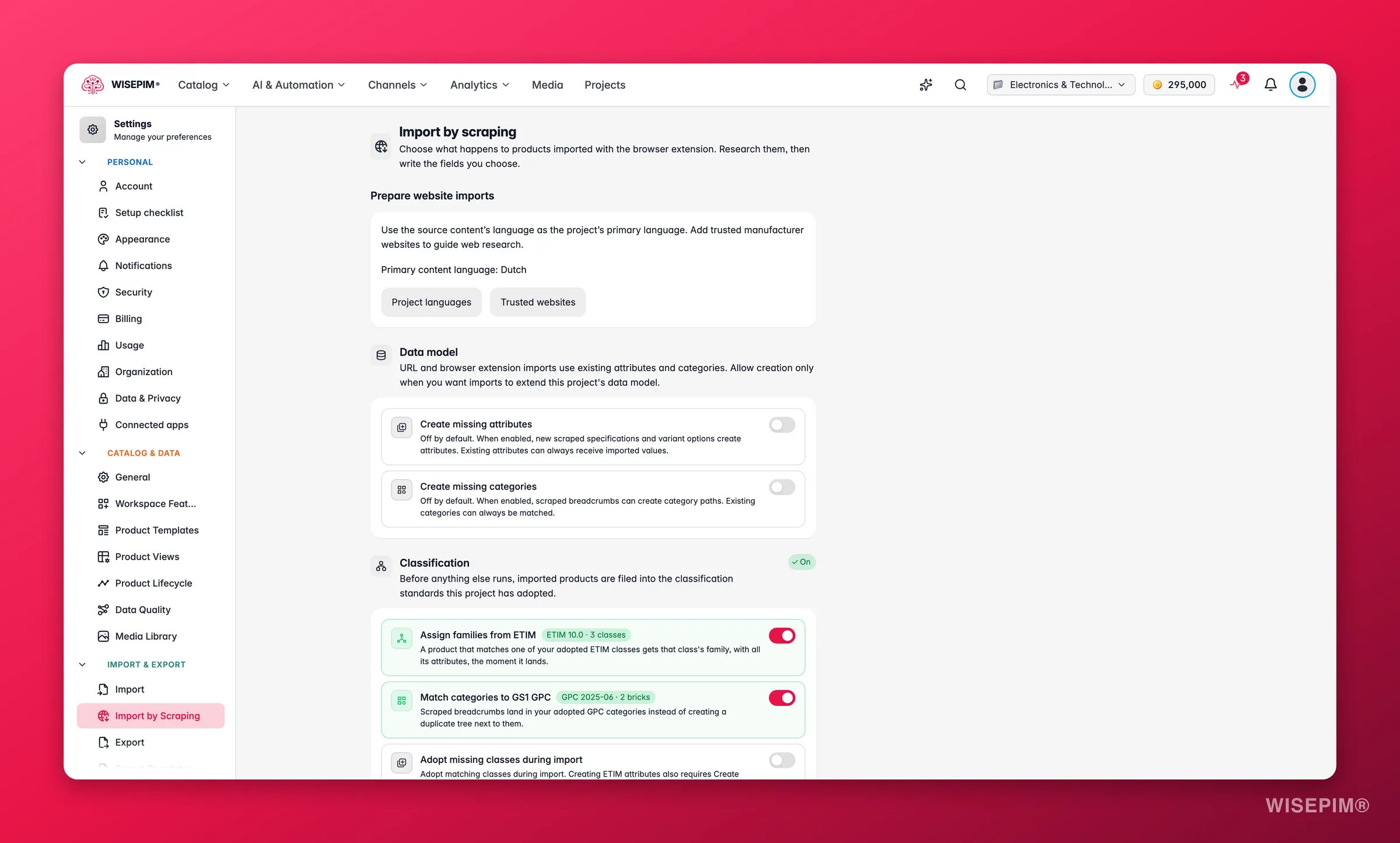
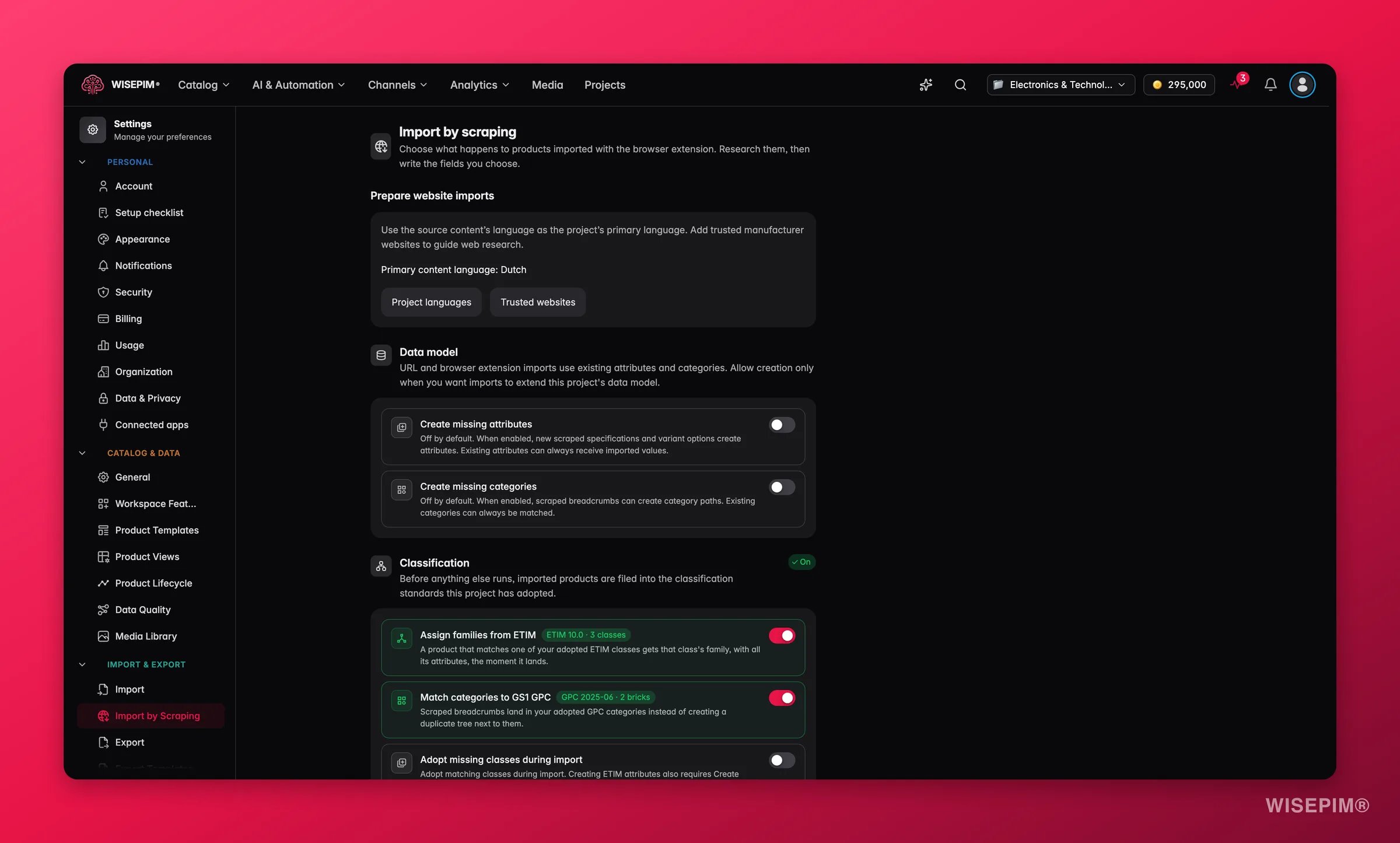
In Settings > Import by Scraping, the Classification section files incoming extension imports into your adopted ETIM classes and GPC categories as they land. Turn it on before the import, not after: it costs no credits, and it runs ahead of the enrichment chain so the family is already there when enrichment looks for attributes to fill.
6
Decide whether imports may extend your data model
On the same page, the Data model switches decide what happens to specs and breadcrumbs that match nothing you have. Create missing attributes turns new specs into attributes, Create missing categories turns breadcrumbs into category paths. With a switch off, values only fill what exists and the import report lists what was left out. For a file import, the review’s Not in WISEPIM yet columns and Create categories that don’t exist yet make the same choice per file.
Never point a fresh supplier feed at your whole catalog with enrichment switched on. Cap it, look at the result, then scale.
1
Take only the categories you sell
Suppliers ship their whole range. Add import filters in Settings > Import so only the products you actually carry come in. These are project-wide defaults that apply to every import anyone on your team runs, so set them before the first batch rather than deleting products afterwards.
2
Decide what runs automatically after the import
For browser extension imports, turn on the enrichment chain in Import by Scraping settings: web research first so verified facts land before anything is written, then Bulk Enrich for the fields you pick. For file and platform imports, use an After Importautomation trigger instead, optionally filtered to that one import source.
3
Keep the first run small
Import a handful of pages with the extension, or a trimmed file. The chain runs on every product an import brings in, so a misconfigured chain on 2,000 products is an expensive way to learn.
4
Read the batch before you widen it
Open a few of the imported products by hand. Check that the family and category are right, the attributes landed where you expected, and the generated text is usable. Fix the configuration, then run the full import. Everything you correct now is a correction you do not repeat 4,000 times.
Fill the facts, then the words, then the structure
Supplier data is thin on specs and thick on someone else’s marketing copy. Research first: writing on top of verified facts is a different quality of output than writing on top of a guess.
1
Run web research on the strongest identifier
Filter to the batch, click Enrich with AI in the Products toolbar, and start Web Research. EAN/GTIN is the most accurate identifier because it is globally unique; fall back to Brand + MPN or Brand + Name when the supplier gave you no barcodes. Test the settings on a single product from its edit page first if you are unsure.
2
Let it fill the identifiers the supplier left out
Research can discover missing EAN, UPC, MPN, and model numbers. Identifiers follow stricter rules than other fields: they only ever land in empty fields, every value is checksum-validated, and a value that conflicts with yours is flagged instead of overwriting it.
3
Write the fields a supplier feed is worst at
From the same Enrich with AI modal, run Bulk Enrich on descriptions, titles, and SEO meta to replace inherited copy with your own. Run it after research, not before, so the writing is built on the facts you just verified. Reach for Auto-Fill instead when you only want to fill gaps and keep what is already there.
4
Give the flat rows a structure
Supplier files list every size and color as its own row. Select the ones that belong together, click Edit on the selection bar, and use Group as Variants to attach them to one parent, so channels get a single configurable listing instead of twenty look-alikes. Next time, the file import’s Variants card can group them during the import itself.
5
Verify the batch as a batch
Every product remembers where it first came from, and that record never changes. Open Filters > Advanced filters on the Products page and filter on Import Source to isolate exactly this supplier’s products, then read the quality scores and the Presets counts across that set alone.
The extension finds no products on the supplier's page
Open a single product page instead of a listing, or use Import this page as a product in the extension. See Web Scraping Import.
The supplier's site blocks automated access
The extension imports the page your own browser loaded, so bot protection doesn’t apply. Install it, click Connect this browser once for your account, open the supplier’s product pages and pick the project in the extension. When WISEPIM has to fetch a page itself and gets blocked, it retries once through a connection in the site’s own country and otherwise names the cause. See Web Scraping Import.
Web research found nothing for a lot of products
Usually the identifier is wrong, or the product is too new or too niche to have public data. Try a different identifier type: if EAN returns nothing, Brand + Name or model number often does. See Web Research.
Fewer products imported than the supplier's file contains
For a file, the review lists the rows that can’t be imported and why, and Download these rows gives you a file to fix. Check What this import does too: Only update existing products leaves new products out on purpose. For platform imports, check your import filters in Import settings and your validation mode. Distributor feeds can have their own rules too: TechData only imports an article that has both a price line and a stock line.
The BMEcat imported, but the ETIM features look off
The catalog most likely declares an ETIM release you have not installed. WISEPIM warns you and applies the features against your newest installed release instead, which is usually close but not identical. If your partner needs an exact match, import the declared release from Classification first, then re-run the import.
Adopt the classes and categories that give imported products their attribute slots.
Feed Hub
XML, RSS, and BMEcat import with AI mapping and reusable import profiles.
Build a pipeline that runs itself
Promote this manual sequence into an automation once it works.
Migrate platforms without losing data
The same middle-layer approach, applied to replatforming instead of a supplier.
{"docsConfig":{"theme":"mint","$schema":"https://mintlify.com/docs.json","name":"WISEPIM Documentation","description":"Documentation for WISEPIM, the AI-powered product information management (PIM) platform: import, enrich, translate and publish product content, connect e-commerce platforms and marketplaces, automate catalog work, and build on the WISEPIM Public API.","colors":{"primary":"#E71447","light":"#E71447","dark":"#E71447"},"logo":{"light":"https://mintcdn.com/swiftsyncai/CpcHeNUil_YXkrs1/logo/wisepim-logo-horizontal-transparant-lightmode.png?fit=max\u0026auto=format\u0026n=CpcHeNUil_YXkrs1\u0026q=85\u0026s=fb18d37ec9d57e2050a1acb063cd8424","dark":"https://mintcdn.com/swiftsyncai/CpcHeNUil_YXkrs1/logo/wisepim-logo-horizontal-transparant-darkmode.png?fit=max\u0026auto=format\u0026n=CpcHeNUil_YXkrs1\u0026q=85\u0026s=f908843e7a886bf8143cb9bc525b7b86"},"favicon":"https://mintcdn.com/swiftsyncai/CpcHeNUil_YXkrs1/favicon.png?fit=max\u0026auto=format\u0026n=CpcHeNUil_YXkrs1\u0026q=85\u0026s=50f7573d74bc7da293b9931d815b2bb3","api":{"openapi":"openapi.json","playground":{"display":"interactive"},"examples":{"defaults":"required","languages":["curl","python","javascript"]}},"appearance":{"default":"system"},"background":{"decoration":"gradient"},"navbar":{"links":[{"href":"https://wisepim.com/contact","label":"Support"}],"primary":{"type":"button","label":"Go to WISEPIM","href":"https://wisepim.com/products"}},"footer":{"socials":{"youtube":"https://www.youtube.com/channel/UC5sQ48mV3sYEBme01xvVIXw","linkedin":"https://linkedin.com/company/wisepim"}},"search":{"prompt":"What are you looking for?"},"seo":{"metatags":{"og:site_name":"WISEPIM Documentation","og:type":"website","twitter:card":"summary_large_image"},"organization":{"name":"WISEPIM","legalName":"WISEPIM B.V.","url":"https://wisepim.com","logo":"https://docs.wisepim.com/logo/wisepim-logo-horizontal-transparant-lightmode.png","sameAs":["https://linkedin.com/company/wisepim","https://www.youtube.com/channel/UC5sQ48mV3sYEBme01xvVIXw"]},"indexing":"all"},"fonts":{"family":"Inter"},"icons":{"library":"lucide"},"styling":{"eyebrows":"breadcrumbs","latex":true},"integrations":{"ga4":{"measurementId":"G-6NXPFG6S4Z"}},"errors":{"404":{"redirect":false,"title":"This page moved or never existed","description":"No worries, use the search above (or press Cmd+K) to find what you were looking for, or head back to the [introduction](/en/introduction)."}},"contextual":{"options":[{"title":"Ask WISEPIM AI","description":"Open the WISEPIM AI chat with this page as the question","icon":"sparkles","href":{"base":"https://wisepim.com/chat","query":[{"key":"prompt","value":"I am reading the WISEPIM documentation page https://docs.wisepim.com$path and I have a question about it. Answer in the language of that page.\n\nMy question: "}]}},"copy","view","chatgpt","claude","perplexity","mcp"],"display":"header"},"thumbnails":{"appearance":"dark","background":"https://mintcdn.com/swiftsyncai/2_3RgILsRdlQxjn6/images/og-background.png?fit=max\u0026auto=format\u0026n=2_3RgILsRdlQxjn6\u0026q=85\u0026s=f55698f3b0dd04d58e5f67b096de1f26","fonts":{"family":"Inter"}},"navigation":{"global":{"anchors":[{"anchor":"Homepage","icon":"house","href":"https://wisepim.com"},{"anchor":"Latest changes","icon":"history","href":"https://wisepim.com/changelog"},{"anchor":"Blog","icon":"newspaper","href":"https://wisepim.com/blog"}]},"languages":[{"language":"en","href":"en/introduction"},{"language":"nl","href":"nl/introduction"},{"language":"de","href":"de/introduction"},{"language":"es","href":"es/introduction"}]}},"deployment":{"deploymentMetadataValue":{"subdomain":"swiftsyncai","hasAudioNarration":false,"actualSubdomain":"swiftsyncai","customDomains":["docs.wisepim.com"],"gitSource":{"type":"github","owner":"lldiegon","repo":"wisepim-docs","deployBranch":"main","contentDirectory":"","isPrivate":true,"mountPath":"","label":""},"chroma":{"liveDeploymentHistoryId":"6ae29ae907aeaf4d1afc5884","collectionId":"bbceb7eb-5a5b-4c95-b655-48d98646c6ca","schemaVersion":"v3","latestBuiltDeploymentHistoryId":"6ae29ae907aeaf4d1afc5884"},"entitlements":{},"buildId":"6ae29ae907aeaf4d1afc5884","clientVersion":"0.0.4043","searchFilterCounts":[{"language":"en","tag":"Documentation","count":283},{"language":"de","tag":"Dokumentation","count":183},{"language":"es","tag":"Documentación","count":183},{"language":"nl","tag":"Documentatie","count":183},{"language":"en","tag":"API Reference","count":100},{"language":"en","tag":"Products","count":67},{"language":"de","tag":"Produkte","count":61},{"language":"es","tag":"Productos","count":61},{"language":"nl","tag":"Producten","count":61},{"language":"de","tag":"Erstellen \u0026 Bearbeiten","count":41},{"language":"de","tag":"Einstellungen","count":41},{"language":"en","tag":"Creating \u0026 Editing","count":41},{"language":"en","tag":"Settings","count":41},{"language":"es","tag":"Crear y Editar","count":41},{"language":"es","tag":"Configuración","count":41},{"language":"nl","tag":"Aanmaken \u0026 Bewerken","count":41},{"language":"nl","tag":"Instellingen","count":41},{"language":"de","tag":"Analytics","count":38},{"language":"en","tag":"Analytics","count":38},{"language":"es","tag":"Analytics","count":38},{"language":"nl","tag":"Analytics","count":38},{"language":"de","tag":"Massenaktionen","count":34},{"language":"en","tag":"Bulk Actions","count":34},{"language":"es","tag":"Acciones Masivas","count":34},{"language":"nl","tag":"Bulkacties","count":34},{"language":"de","tag":"Integrationen","count":30},{"language":"en","tag":"Integrations","count":30},{"language":"es","tag":"Integraciones","count":30},{"language":"nl","tag":"Integraties","count":30},{"language":"de","tag":"Projekt","count":29},{"language":"en","tag":"Project","count":29},{"language":"es","tag":"Proyecto","count":29},{"language":"nl","tag":"Project","count":29},{"language":"de","tag":"Anleitungen","count":20},{"language":"en","tag":"Guides","count":20},{"language":"es","tag":"Guías","count":20},{"language":"nl","tag":"Handleidingen","count":20},{"language":"de","tag":"KI \u0026 Anreicherung","count":19},{"language":"es","tag":"IA y Enriquecimiento","count":19},{"language":"nl","tag":"AI \u0026 Verrijking","count":19}]},"assistantConfig":{},"basePath":"","hasChatPermissions":false,"hasWebMcpPermissions":false,"toggles":[{"name":"kill-isr","enabled":true,"variant":{"name":"disabled","enabled":false,"feature_enabled":true},"impressionData":false},{"name":"agent-mintlify-slack","enabled":true,"variant":{"name":"disabled","enabled":false,"feature_enabled":true},"impressionData":false},{"name":"agent-integrations-settings","enabled":true,"variant":{"name":"disabled","enabled":false,"feature_enabled":true},"impressionData":false},{"name":"automations-pr-grouping","enabled":true,"variant":{"name":"disabled","enabled":false,"feature_enabled":true},"impressionData":false},{"name":"custom-prefix","enabled":true,"variant":{"name":"disabled","enabled":false,"feature_enabled":true},"impressionData":false},{"name":"analytics-v7","enabled":true,"variant":{"name":"disabled","enabled":false,"feature_enabled":true},"impressionData":false},{"name":"user-flows-analytics","enabled":true,"variant":{"name":"disabled","enabled":false,"feature_enabled":true},"impressionData":false},{"name":"no-publish-flow","enabled":true,"variant":{"name":"disabled","enabled":false,"feature_enabled":true},"impressionData":false},{"name":"workos-onboarding","enabled":true,"variant":{"name":"disabled","enabled":false,"feature_enabled":true},"impressionData":false},{"name":"llms-txt-v2","enabled":true,"variant":{"name":"disabled","enabled":false,"feature_enabled":true},"impressionData":false},{"name":"snapshot-serving-live","enabled":true,"variant":{"name":"disabled","enabled":false,"feature_enabled":true},"impressionData":false},{"name":"stripTemperatureMiddleware","enabled":true,"variant":{"name":"disabled","enabled":false,"feature_enabled":true},"impressionData":false},{"name":"support-platform-pylon-zendesk","enabled":true,"variant":{"name":"disabled","enabled":false,"feature_enabled":true},"impressionData":false},{"name":"snapshot-serving","enabled":true,"variant":{"name":"disabled","enabled":false,"feature_enabled":true},"impressionData":false},{"name":"instant-rollback","enabled":true,"variant":{"name":"disabled","enabled":false,"feature_enabled":true},"impressionData":false},{"name":"granular-notifications-server","enabled":true,"variant":{"name":"disabled","enabled":false,"feature_enabled":true},"impressionData":false},{"name":"granular-notifications","enabled":true,"variant":{"name":"disabled","enabled":false,"feature_enabled":true},"impressionData":false},{"name":"automations-fable","enabled":true,"variant":{"name":"disabled","enabled":false,"feature_enabled":true},"impressionData":false},{"name":"fixed-ai-action-pricing","enabled":true,"variant":{"name":"disabled","enabled":false,"feature_enabled":true},"impressionData":false},{"name":"automation-resolve-merge-conflict","enabled":true,"variant":{"name":"disabled","enabled":false,"feature_enabled":true},"impressionData":false},{"name":"scoped-publishing","enabled":true,"variant":{"name":"disabled","enabled":false,"feature_enabled":true},"impressionData":false},{"name":"mintql","enabled":true,"variant":{"name":"disabled","enabled":false,"feature_enabled":true},"impressionData":false},{"name":"page-level-analytics","enabled":true,"variant":{"name":"disabled","enabled":false,"feature_enabled":true},"impressionData":false},{"name":"editor-version-history-v2","enabled":true,"variant":{"name":"disabled","enabled":false,"feature_enabled":true},"impressionData":false},{"name":"billing-page-v2","enabled":true,"variant":{"name":"disabled","enabled":false,"feature_enabled":true},"impressionData":false},{"name":"full-page-search","enabled":true,"variant":{"name":"disabled","enabled":false,"feature_enabled":true},"impressionData":false},{"name":"workspace-projects","enabled":true,"variant":{"name":"disabled","enabled":false,"feature_enabled":true},"impressionData":false},{"name":"assistant-v5","enabled":true,"variant":{"name":"disabled","enabled":false,"feature_enabled":true},"impressionData":false},{"name":"byok-sep-25","enabled":true,"variant":{"name":"disabled","enabled":false,"feature_enabled":true},"impressionData":false},{"name":"fork-pr-previews","enabled":true,"variant":{"name":"disabled","enabled":false,"feature_enabled":true},"impressionData":false},{"name":"revalidation-jwt","enabled":true,"variant":{"name":"disabled","enabled":false,"feature_enabled":true},"impressionData":false},{"name":"vite-origin","enabled":true,"variant":{"name":"disabled","enabled":false,"feature_enabled":true},"impressionData":false},{"name":"billing-updated-9-15","enabled":true,"variant":{"name":"disabled","enabled":false,"feature_enabled":true},"impressionData":false},{"name":"workos-sso-scim","enabled":true,"variant":{"name":"disabled","enabled":false,"feature_enabled":true},"impressionData":false},{"name":"hobby-abuse-scan","enabled":true,"variant":{"name":"disabled","enabled":false,"feature_enabled":true},"impressionData":false},{"name":"dashboard-inbox","enabled":true,"variant":{"name":"disabled","enabled":false,"feature_enabled":true},"impressionData":false},{"name":"workos-signup","enabled":true,"variant":{"name":"disabled","enabled":false,"feature_enabled":true},"impressionData":false},{"name":"turbopuffer-dual-write","enabled":true,"variant":{"name":"disabled","enabled":false,"feature_enabled":true},"impressionData":false},{"name":"workos-enabled","enabled":true,"variant":{"name":"disabled","enabled":false,"feature_enabled":true},"impressionData":false},{"name":"approve-review-flow","enabled":true,"variant":{"name":"disabled","enabled":false,"feature_enabled":true},"impressionData":false}],"googleFontsInlined":false},"customCss":[{"filePath":"style.css","content":"img.nav-logo{height:2rem}#theme-preference-menu-trigger{display:none!important}#wisepim-theme-toggle{position:relative;width:34px;height:34px;padding:0;display:flex;align-items:center;justify-content:center;border-radius:.5rem;cursor:pointer;background:0 0;border:0;color:rgb(107 114 128)}#wisepim-theme-toggle:hover{color:rgb(55 65 81);background:rgba(0,0,0,.05)}html.dark #wisepim-theme-toggle{color:rgb(156 163 175)}html.dark #wisepim-theme-toggle:hover{color:rgb(229 231 235);background:rgba(255,255,255,.08)}#wisepim-theme-toggle .wp-tt-icon{position:absolute;transition:transform .5s cubic-bezier(.4,0,.2,1),opacity .25s ease}html:not(.dark) #wisepim-theme-toggle .wp-tt-sun{opacity:1;transform:rotate(0deg) scale(1)}html:not(.dark) #wisepim-theme-toggle .wp-tt-moon{opacity:0;transform:rotate(90deg) scale(.4)}html.dark #wisepim-theme-toggle .wp-tt-sun{opacity:0;transform:rotate(-90deg) scale(.4)}html.dark #wisepim-theme-toggle .wp-tt-moon{opacity:1;transform:rotate(0deg) scale(1)}#wisepim-tooltip{position:fixed;z-index:60;max-width:20rem;padding:.4rem .6rem;border-radius:.5rem;font-size:.75rem;line-height:1.4;font-weight:500;text-align:center;color:rgb(243 244 246);background:rgb(24 24 27);box-shadow:0 6px 20px rgba(0,0,0,.18);pointer-events:none;opacity:0;transform:translateY(-3px) scale(.97);transition:opacity .14s ease,transform .18s cubic-bezier(.16,1,.3,1)}#wisepim-tooltip[data-visible=true]{opacity:1;transform:translateY(0) scale(1)}#wisepim-tooltip::before{content:'';position:absolute;top:-3px;left:var(--wp-tip-arrow, 50%);width:8px;height:8px;margin-left:-4px;border-radius:1px;background:inherit;transform:rotate(45deg)}html.dark #wisepim-tooltip{color:rgb(24 24 27);background:rgb(240 240 243);box-shadow:0 6px 20px rgba(0,0,0,.45)}@media (prefers-reduced-motion:reduce){#wisepim-tooltip{transition:opacity .01s linear;transform:none}#wisepim-tooltip[data-visible=true]{transform:none}}::view-transition-group(root),::view-transition-image-pair(root),::view-transition-new(root),::view-transition-old(root){animation:none;mix-blend-mode:normal}::view-transition-old(root){z-index:1}::view-transition-new(root){z-index:9999;will-change:clip-path}img[src^=\"/images/connectors/\"]{background:#fff;border-radius:4px;object-fit:contain}.connector-brand{display:inline-flex;align-items:center;justify-content:center;background:#fff;border:1px solid #e5e7eb;border-radius:16px;padding:16px;margin:0 0 16px}.connector-brand img{display:block;width:96px;height:64px;margin:0;object-fit:contain}"}],"page":{"pagePath":"en/guides/onboard-a-supplier-catalog","slug":"/en/guides/onboard-a-supplier-catalog","pageMetadata":{"title":"Onboard a supplier catalog end to end","sidebarTitle":"Supplier onboarding","description":"Turn a supplier CSV, XML feed, or bare website into classified, researched, sellable products in your own structure, without retyping a single spec.","icon":"truck","keywords":["onboard a new supplier","import supplier product data","supplier feed to webshop","bmecat xml import","classify supplier products","enrich supplier catalog"],"tag":"New","href":"/en/guides/onboard-a-supplier-catalog"},"description":{"compiledSource":"\"use strict\";\nconst {jsx: _jsx} = arguments[0];\nconst {useMDXComponents: _provideComponents} = arguments[0];\nfunction _createMdxContent(props) {\n const _components = {\n p: \"p\",\n ..._provideComponents(),\n ...props.components\n };\n return _jsx(_components.p, {\n children: \"Turn a supplier CSV, XML feed, or bare website into classified, researched, sellable products in your own structure, without retyping a single spec.\"\n });\n}\nfunction MDXContent(props = {}) {\n const {wrapper: MDXLayout} = {\n ..._provideComponents(),\n ...props.components\n };\n return MDXLayout ? _jsx(MDXLayout, {\n ...props,\n children: _jsx(_createMdxContent, {\n ...props\n })\n }) : _createMdxContent(props);\n}\nreturn {\n default: MDXContent\n};\n","frontmatter":{},"scope":{}},"pageType":"default","mdx":{"mdxSource":{"compiledSource":"\"use strict\";const{Fragment:_Fragment,jsx:_jsx,jsxs:_jsxs}=arguments[0];const{useMDXComponents:_provideComponents}=arguments[0];function _createMdxContent(props){const _components={a:`a`,em:`em`,p:`p`,strong:`strong`,tbody:`tbody`,td:`td`,th:`th`,thead:`thead`,tr:`tr`,..._provideComponents(),...props.components},{Accordion,AccordionGroup,Card,CardGroup,Heading,Info,OptimizedImage,Step,Steps,Table,Tip}=_components;if(!Accordion)_missingMdxReference(`Accordion`,true);if(!AccordionGroup)_missingMdxReference(`AccordionGroup`,true);if(!Card)_missingMdxReference(`Card`,true);if(!CardGroup)_missingMdxReference(`CardGroup`,true);if(!Heading)_missingMdxReference(`Heading`,true);if(!Info)_missingMdxReference(`Info`,true);if(!OptimizedImage)_missingMdxReference(`OptimizedImage`,true);if(!Step)_missingMdxReference(`Step`,true);if(!Steps)_missingMdxReference(`Steps`,true);if(!Table)_missingMdxReference(`Table`,true);if(!Tip)_missingMdxReference(`Tip`,true);return _jsxs(_Fragment,{children:[_jsx(_components.p,{children:`A new supplier sends you 4,000 products in whatever shape they happen to keep them: a spreadsheet with mystery column names, an XML feed, a BMEcat file, or nothing at all except a website. None of it matches your categories, half the specs are missing, and the descriptions are written for someone else’s shop. Retyping is not an option and importing it raw just moves the mess into your catalog.`}),`\n`,_jsxs(_components.p,{children:[`The fix is an order of operations: decide how the data gets in, make sure the slots it should land in already exist, bring in a small capped batch, then fill facts before words. Budget about 90 minutes for your first supplier, and far less for every one after: the setup is reusable. Moving your `,_jsx(_components.em,{children:`own`}),` catalog off an old platform rather than taking on a supplier’s range? That is `,_jsx(_components.a,{href:`/en/guides/migrate-your-catalog`,children:`migrate your catalog`}),`.`]}),`\n`,_jsx(Info,{children:_jsxs(_components.p,{children:[_jsx(_components.strong,{children:`Before you start:`}),` get whatever the supplier can give you (a file, a feed URL, or just their catalog URL), and know which of their categories you actually intend to sell. See `,_jsx(_components.a,{href:`/en/essentials/importing-products`,children:`importing products`}),` for what each format needs.`]})}),`\n`,_jsx(Tip,{children:_jsxs(_components.p,{children:[_jsx(_components.strong,{children:`What you’ll get:`}),` the supplier’s range in your own category and attribute structure, with verified identifiers and specs, content written in your voice, and a repeatable setup for their next update.`]})}),`\n`,_jsx(Heading,{level:`2`,id:`pick-your-intake-route`,children:`Pick your intake route`}),`\n`,_jsx(_components.p,{children:`Choose by what the supplier can hand over, not by what you are used to. Ask for the most structured thing they have, then take the highest route in this table they can actually deliver. Every row below the first costs you more setup, and the ones near the bottom carry less of the supplier’s own structure with them.`}),`\n`,_jsx(OptimizedImage,{className:`mint-block dark:mint-hidden`,src:`https://mintcdn.com/swiftsyncai/CWxoCL6DT-ox53OB/images/marketing-screenshots/feed-hub/feed-hub-import-light-branded.webp?fit=max\u0026auto=format\u0026n=CWxoCL6DT-ox53OB\u0026q=85\u0026s=455114aa448ddcc44d9d3ea4322e90a7`,alt:`WISEPIM Feed Hub XML import with field auto-mapping`,\"data-og-width\":`2400`,width:`2400`,\"data-og-height\":`1445`,height:`1445`,\"data-path\":`images/marketing-screenshots/feed-hub/feed-hub-import-light-branded.webp`,\"data-optimize\":`true`,\"data-opv\":`3`,srcset:`https://mintcdn.com/swiftsyncai/CWxoCL6DT-ox53OB/images/marketing-screenshots/feed-hub/feed-hub-import-light-branded.webp?w=280\u0026fit=max\u0026auto=format\u0026n=CWxoCL6DT-ox53OB\u0026q=85\u0026s=50609f67eca258b2473e74a2e1976102 280w, https://mintcdn.com/swiftsyncai/CWxoCL6DT-ox53OB/images/marketing-screenshots/feed-hub/feed-hub-import-light-branded.webp?w=560\u0026fit=max\u0026auto=format\u0026n=CWxoCL6DT-ox53OB\u0026q=85\u0026s=ed964cc1c6d947aa17779dcca3a830cb 560w, https://mintcdn.com/swiftsyncai/CWxoCL6DT-ox53OB/images/marketing-screenshots/feed-hub/feed-hub-import-light-branded.webp?w=840\u0026fit=max\u0026auto=format\u0026n=CWxoCL6DT-ox53OB\u0026q=85\u0026s=637bea6521dfb071176e068cf614fe1a 840w, https://mintcdn.com/swiftsyncai/CWxoCL6DT-ox53OB/images/marketing-screenshots/feed-hub/feed-hub-import-light-branded.webp?w=1100\u0026fit=max\u0026auto=format\u0026n=CWxoCL6DT-ox53OB\u0026q=85\u0026s=178b4596bec8a8071eeec1dbab644185 1100w, https://mintcdn.com/swiftsyncai/CWxoCL6DT-ox53OB/images/marketing-screenshots/feed-hub/feed-hub-import-light-branded.webp?w=1650\u0026fit=max\u0026auto=format\u0026n=CWxoCL6DT-ox53OB\u0026q=85\u0026s=e91f2b1121f6c2b720f00be005a4c7bf 1650w, https://mintcdn.com/swiftsyncai/CWxoCL6DT-ox53OB/images/marketing-screenshots/feed-hub/feed-hub-import-light-branded.webp?w=2500\u0026fit=max\u0026auto=format\u0026n=CWxoCL6DT-ox53OB\u0026q=85\u0026s=1e441c559fbbd68ada6b24988fce90f6 2500w`}),`\n`,_jsx(OptimizedImage,{className:`mint-hidden dark:mint-block`,src:`https://mintcdn.com/swiftsyncai/xA7pMwWWlOw0uI_9/images/marketing-screenshots/feed-hub/feed-hub-import-dark-branded.webp?fit=max\u0026auto=format\u0026n=xA7pMwWWlOw0uI_9\u0026q=85\u0026s=77721c899df4bcd4e7e700fb284e8bd3`,alt:`WISEPIM Feed Hub XML import with field auto-mapping`,\"data-og-width\":`2400`,width:`2400`,\"data-og-height\":`1445`,height:`1445`,\"data-path\":`images/marketing-screenshots/feed-hub/feed-hub-import-dark-branded.webp`,\"data-optimize\":`true`,\"data-opv\":`3`,srcset:`https://mintcdn.com/swiftsyncai/xA7pMwWWlOw0uI_9/images/marketing-screenshots/feed-hub/feed-hub-import-dark-branded.webp?w=280\u0026fit=max\u0026auto=format\u0026n=xA7pMwWWlOw0uI_9\u0026q=85\u0026s=fda6fc233c64f74746e5980e3584f24d 280w, https://mintcdn.com/swiftsyncai/xA7pMwWWlOw0uI_9/images/marketing-screenshots/feed-hub/feed-hub-import-dark-branded.webp?w=560\u0026fit=max\u0026auto=format\u0026n=xA7pMwWWlOw0uI_9\u0026q=85\u0026s=61ea8fd1286bea5651f8232c33cce18d 560w, https://mintcdn.com/swiftsyncai/xA7pMwWWlOw0uI_9/images/marketing-screenshots/feed-hub/feed-hub-import-dark-branded.webp?w=840\u0026fit=max\u0026auto=format\u0026n=xA7pMwWWlOw0uI_9\u0026q=85\u0026s=9f8d6413c51795db392c18e449ce3a3d 840w, https://mintcdn.com/swiftsyncai/xA7pMwWWlOw0uI_9/images/marketing-screenshots/feed-hub/feed-hub-import-dark-branded.webp?w=1100\u0026fit=max\u0026auto=format\u0026n=xA7pMwWWlOw0uI_9\u0026q=85\u0026s=f04e96e1c94d2557bfa00cf0a8493900 1100w, https://mintcdn.com/swiftsyncai/xA7pMwWWlOw0uI_9/images/marketing-screenshots/feed-hub/feed-hub-import-dark-branded.webp?w=1650\u0026fit=max\u0026auto=format\u0026n=xA7pMwWWlOw0uI_9\u0026q=85\u0026s=58fbd479ede2c08bc8c697cb03e7bf9e 1650w, https://mintcdn.com/swiftsyncai/xA7pMwWWlOw0uI_9/images/marketing-screenshots/feed-hub/feed-hub-import-dark-branded.webp?w=2500\u0026fit=max\u0026auto=format\u0026n=xA7pMwWWlOw0uI_9\u0026q=85\u0026s=0a2516113093d1b93a1c11c68289d4c4 2500w`}),`\n`,_jsxs(Table,{children:[_jsx(_components.thead,{children:_jsxs(_components.tr,{children:[_jsx(_components.th,{children:`What the supplier can give you`}),_jsx(_components.th,{children:`Route`}),_jsx(_components.th,{children:`What you set up, and what you get`})]})}),_jsxs(_components.tbody,{children:[_jsxs(_components.tr,{children:[_jsx(_components.td,{children:`A supported distributor account`}),_jsxs(_components.td,{children:[`A direct `,_jsx(_components.a,{href:`/en/essentials/integrations`,children:`integration`})]}),_jsx(_components.td,{children:`Credentials once, no files ever, at the supplier’s own update cadence`})]}),_jsxs(_components.tr,{children:[_jsx(_components.td,{children:`A BMEcat file`}),_jsxs(_components.td,{children:[_jsx(_components.a,{href:`/en/essentials/feed-hub`,children:`Feed Hub`}),` > `,_jsx(_components.strong,{children:`XML Import`})]}),_jsx(_components.td,{children:`Almost nothing: the catalog carries its own ETIM classes and features`})]}),_jsxs(_components.tr,{children:[_jsx(_components.td,{children:`XML, RSS, Atom, or a zipped catalog`}),_jsxs(_components.td,{children:[_jsx(_components.a,{href:`/en/essentials/feed-hub`,children:`Feed Hub`}),` > `,_jsx(_components.strong,{children:`XML Import`})]}),_jsx(_components.td,{children:`AI-proposed field mapping, saved as an Import Profile you can schedule`})]}),_jsxs(_components.tr,{children:[_jsx(_components.td,{children:`A CSV, Excel, JSON or XML file`}),_jsx(_components.td,{children:_jsx(_components.a,{href:`/en/essentials/importing-products`,children:`File import`})}),_jsx(_components.td,{children:`Choices WISEPIM remembers per column layout, saved as an import profile for every future file`})]}),_jsxs(_components.tr,{children:[_jsx(_components.td,{children:`A public website and nothing else`}),_jsxs(_components.td,{children:[`The `,_jsx(_components.a,{href:`/en/essentials/web-scraping-import`,children:`browser extension`})]}),_jsx(_components.td,{children:`Connect your browser once, then import the pages you open; check the first products before you import many`})]})]})]}),`\n`,_jsxs(Steps,{children:[_jsx(Step,{title:`Rule out a zero-file route before you touch a file`,children:_jsxs(_components.p,{children:[`If your supplier is `,_jsx(_components.a,{href:`/en/integrations/techdata`,children:`TechData`}),`, or delivers through `,_jsx(_components.a,{href:`/en/integrations/webshopimporter`,children:`WebshopImporter`}),`, which is also how the `,_jsx(_components.a,{href:`/en/integrations/suppliers/Shots`,children:`Shots`}),` feed arrives, connect the integration and none of the rest of this section applies.`]})}),_jsx(Step,{title:`Open the route you picked from the right place`,children:_jsxs(_components.p,{children:[`File and website routes start on the `,_jsx(_components.a,{href:`/en/essentials/managing-products`,children:`Products`}),` page: click `,_jsx(_components.strong,{children:`Import`}),` in the toolbar and choose `,_jsx(_components.strong,{children:`CSV Import`}),` or `,_jsx(_components.strong,{children:`From a website or URL`}),`. Feed routes start in `,_jsx(_components.a,{href:`/en/essentials/feed-hub`,children:`Feed Hub`}),` under `,_jsx(_components.strong,{children:`XML Import`}),`, where you paste the URL or upload the file.`]})}),_jsx(Step,{title:`Check the count the importer reports back`,children:_jsxs(_components.p,{children:[`Every route shows you what it found before it commits: `,_jsx(_components.strong,{children:`Here’s what we found`}),` with the row count and how many products are new or already exist for a file, the item count and XPaths for a feed, the products the extension finds on a page. Compare it to the number of products you expect. A mismatch here is cheap; the same mismatch after 4,000 products land is not.`]})}),_jsx(Step,{title:`Spend your review on the low-confidence rows only`,children:_jsx(_components.p,{children:`For a feed, AI proposes a mapping per field with a confidence chip: accept the confident ones and read the rest. For a file, known column names are matched first and AI picks a field for the rest, with every AI pick marked. A wrong guess you wave through is what quietly fills the wrong attribute on every product.`})}),_jsx(Step,{title:`Save the setup before you run it again`,children:_jsxs(_components.p,{children:[`A file’s choices are remembered for the next file with the same columns. Save them for good with `,_jsx(_components.strong,{children:`Advanced`}),` > `,_jsx(_components.strong,{children:`Save these choices`}),` as an import profile, and save a feed mapping as an `,_jsx(_components.strong,{children:`Import Profile`}),` in Feed Hub. This is the step that makes the supplier’s `,_jsx(_components.em,{children:`next`}),` file a five-minute job instead of a repeat of today. When a supplier’s columns change, WISEPIM warns you before you import, and values you edited or verified by hand stay when the next file arrives. A Feed Hub Import Profile can be scheduled to pull updates on its own.`]})})]}),`\n`,_jsx(Heading,{level:`2`,id:`adopt-your-standards-before-the-products-land`,children:`Adopt your standards before the products land`}),`\n`,_jsx(_components.p,{children:`This is the step everyone does last and should do first. Classification decides which attribute slots exist on a product, and everything downstream, from research to enrichment to a wholesale feed, can only fill slots that already exist.`}),`\n`,_jsx(OptimizedImage,{className:`mint-block dark:mint-hidden`,src:`https://mintcdn.com/swiftsyncai/TVgrWFPYVJttIWR8/images/marketing-screenshots/classification/classification-light-branded.webp?fit=max\u0026auto=format\u0026n=TVgrWFPYVJttIWR8\u0026q=85\u0026s=4714c12ad183559d6a24dcc6fb385a1d`,alt:`WISEPIM classification hub with the imported ETIM release, adopted classes and the browsable ETIM class catalog`,\"data-og-width\":`2400`,width:`2400`,\"data-og-height\":`1445`,height:`1445`,\"data-path\":`images/marketing-screenshots/classification/classification-light-branded.webp`,\"data-optimize\":`true`,\"data-opv\":`3`,srcset:`https://mintcdn.com/swiftsyncai/TVgrWFPYVJttIWR8/images/marketing-screenshots/classification/classification-light-branded.webp?w=280\u0026fit=max\u0026auto=format\u0026n=TVgrWFPYVJttIWR8\u0026q=85\u0026s=3e75859c3f3ffbcb696e6db2f5e1c63b 280w, https://mintcdn.com/swiftsyncai/TVgrWFPYVJttIWR8/images/marketing-screenshots/classification/classification-light-branded.webp?w=560\u0026fit=max\u0026auto=format\u0026n=TVgrWFPYVJttIWR8\u0026q=85\u0026s=b1dd549d951af5bf17a16639413211bc 560w, https://mintcdn.com/swiftsyncai/TVgrWFPYVJttIWR8/images/marketing-screenshots/classification/classification-light-branded.webp?w=840\u0026fit=max\u0026auto=format\u0026n=TVgrWFPYVJttIWR8\u0026q=85\u0026s=33adf9cd0c7df09163ccdb19def77d37 840w, https://mintcdn.com/swiftsyncai/TVgrWFPYVJttIWR8/images/marketing-screenshots/classification/classification-light-branded.webp?w=1100\u0026fit=max\u0026auto=format\u0026n=TVgrWFPYVJttIWR8\u0026q=85\u0026s=1f01f8a6baa34cc4e0dc7355c504bbad 1100w, https://mintcdn.com/swiftsyncai/TVgrWFPYVJttIWR8/images/marketing-screenshots/classification/classification-light-branded.webp?w=1650\u0026fit=max\u0026auto=format\u0026n=TVgrWFPYVJttIWR8\u0026q=85\u0026s=bcd07d26ee31b56c21a94e76d103cbb9 1650w, https://mintcdn.com/swiftsyncai/TVgrWFPYVJttIWR8/images/marketing-screenshots/classification/classification-light-branded.webp?w=2500\u0026fit=max\u0026auto=format\u0026n=TVgrWFPYVJttIWR8\u0026q=85\u0026s=35d2af869a9e8662975f73c906eae157 2500w`}),`\n`,_jsx(OptimizedImage,{className:`mint-hidden dark:mint-block`,src:`https://mintcdn.com/swiftsyncai/TVgrWFPYVJttIWR8/images/marketing-screenshots/classification/classification-dark-branded.webp?fit=max\u0026auto=format\u0026n=TVgrWFPYVJttIWR8\u0026q=85\u0026s=485731d35c8ef043bac4f225c1f35524`,alt:`WISEPIM classification hub with the imported ETIM release, adopted classes and the browsable ETIM class catalog`,\"data-og-width\":`2400`,width:`2400`,\"data-og-height\":`1445`,height:`1445`,\"data-path\":`images/marketing-screenshots/classification/classification-dark-branded.webp`,\"data-optimize\":`true`,\"data-opv\":`3`,srcset:`https://mintcdn.com/swiftsyncai/TVgrWFPYVJttIWR8/images/marketing-screenshots/classification/classification-dark-branded.webp?w=280\u0026fit=max\u0026auto=format\u0026n=TVgrWFPYVJttIWR8\u0026q=85\u0026s=b7bccef7fae74d0aa923b926fa06989e 280w, https://mintcdn.com/swiftsyncai/TVgrWFPYVJttIWR8/images/marketing-screenshots/classification/classification-dark-branded.webp?w=560\u0026fit=max\u0026auto=format\u0026n=TVgrWFPYVJttIWR8\u0026q=85\u0026s=c26e75fd3dcb5bb2edeec6ecb5478a27 560w, https://mintcdn.com/swiftsyncai/TVgrWFPYVJttIWR8/images/marketing-screenshots/classification/classification-dark-branded.webp?w=840\u0026fit=max\u0026auto=format\u0026n=TVgrWFPYVJttIWR8\u0026q=85\u0026s=fca1856d7581e5cec176a4e2e20d3ff3 840w, https://mintcdn.com/swiftsyncai/TVgrWFPYVJttIWR8/images/marketing-screenshots/classification/classification-dark-branded.webp?w=1100\u0026fit=max\u0026auto=format\u0026n=TVgrWFPYVJttIWR8\u0026q=85\u0026s=9b7c9d44266d7f36978e6ea52c6fd63b 1100w, https://mintcdn.com/swiftsyncai/TVgrWFPYVJttIWR8/images/marketing-screenshots/classification/classification-dark-branded.webp?w=1650\u0026fit=max\u0026auto=format\u0026n=TVgrWFPYVJttIWR8\u0026q=85\u0026s=a2440286f97925979542bb62b9fda032 1650w, https://mintcdn.com/swiftsyncai/TVgrWFPYVJttIWR8/images/marketing-screenshots/classification/classification-dark-branded.webp?w=2500\u0026fit=max\u0026auto=format\u0026n=TVgrWFPYVJttIWR8\u0026q=85\u0026s=185362644c9179dadbb4a7376730c8d0 2500w`}),`\n`,_jsxs(Steps,{children:[_jsx(Step,{title:`Find the classes this supplier's range belongs to`,children:_jsxs(_components.p,{children:[`Go to `,_jsx(_components.strong,{children:`Products`}),` > `,_jsx(_components.strong,{children:_jsx(_components.a,{href:`/en/products/classification`,children:`Classification`})}),` and search the `,_jsx(_components.strong,{children:`ETIM classes`}),` tab by name, code, or trade synonym. Click `,_jsx(_components.strong,{children:`View class`}),` before you adopt anything: the feature table is the honest answer to “which attributes will these products need to carry?”`]})}),_jsx(Step,{title:`Adopt the classes you need`,children:_jsxs(_components.p,{children:[`Click `,_jsx(_components.strong,{children:`Adopt class`}),`. WISEPIM builds a ready-to-use `,_jsx(_components.a,{href:`/en/products/product-families`,children:`product family`}),` from the standard, with one attribute per feature, its value lists, and its prescribed units. Products assigned to that family get the attributes immediately.`]})}),_jsx(Step,{title:`Bring in the categories too`,children:_jsxs(_components.p,{children:[`On the `,_jsx(_components.strong,{children:`GS1 GPC`}),` tab, drill to the bricks you sell and click `,_jsx(_components.strong,{children:`Add as category`}),`. The full parent path is created with them, so imported products land in the right place in your tree instead of in a duplicate one next to it.`]})}),_jsxs(Step,{title:`Link the families you already have`,children:[_jsxs(_components.p,{children:[`If you already have families and attributes, open the `,_jsx(_components.strong,{children:`Mapping review`}),` tab, click `,_jsx(_components.strong,{children:`Run mapping`}),`, then use `,_jsx(_components.strong,{children:`Select safe matches`}),` to bulk-adopt the high-confidence proposals and hand-review the fuzzy and AI tiers. Your corrections are remembered, so the next supplier’s range needs less review than this one.`]}),_jsx(OptimizedImage,{className:`mint-block dark:mint-hidden`,src:`https://mintcdn.com/swiftsyncai/TVgrWFPYVJttIWR8/images/marketing-screenshots/classification/classification-mapping-light-branded.webp?fit=max\u0026auto=format\u0026n=TVgrWFPYVJttIWR8\u0026q=85\u0026s=b337cdce97eb7445f8954ae97f42afe5`,alt:`WISEPIM ETIM mapping review queue with tiered suggestions, confidence scores and adopt or dismiss actions`,\"data-og-width\":`2400`,width:`2400`,\"data-og-height\":`1445`,height:`1445`,\"data-path\":`images/marketing-screenshots/classification/classification-mapping-light-branded.webp`,\"data-optimize\":`true`,\"data-opv\":`3`,srcset:`https://mintcdn.com/swiftsyncai/TVgrWFPYVJttIWR8/images/marketing-screenshots/classification/classification-mapping-light-branded.webp?w=280\u0026fit=max\u0026auto=format\u0026n=TVgrWFPYVJttIWR8\u0026q=85\u0026s=6004c61314edcfe8f861715ab4d94dbc 280w, https://mintcdn.com/swiftsyncai/TVgrWFPYVJttIWR8/images/marketing-screenshots/classification/classification-mapping-light-branded.webp?w=560\u0026fit=max\u0026auto=format\u0026n=TVgrWFPYVJttIWR8\u0026q=85\u0026s=b68f75f85c4e5d02cc76515d93301298 560w, https://mintcdn.com/swiftsyncai/TVgrWFPYVJttIWR8/images/marketing-screenshots/classification/classification-mapping-light-branded.webp?w=840\u0026fit=max\u0026auto=format\u0026n=TVgrWFPYVJttIWR8\u0026q=85\u0026s=56070e62e8ccbbf5b5feb4701085d494 840w, https://mintcdn.com/swiftsyncai/TVgrWFPYVJttIWR8/images/marketing-screenshots/classification/classification-mapping-light-branded.webp?w=1100\u0026fit=max\u0026auto=format\u0026n=TVgrWFPYVJttIWR8\u0026q=85\u0026s=9c3c2f80a699fbfca21c9df96667d270 1100w, https://mintcdn.com/swiftsyncai/TVgrWFPYVJttIWR8/images/marketing-screenshots/classification/classification-mapping-light-branded.webp?w=1650\u0026fit=max\u0026auto=format\u0026n=TVgrWFPYVJttIWR8\u0026q=85\u0026s=9fb0d25d421fc4c5d2411f1d54e54910 1650w, https://mintcdn.com/swiftsyncai/TVgrWFPYVJttIWR8/images/marketing-screenshots/classification/classification-mapping-light-branded.webp?w=2500\u0026fit=max\u0026auto=format\u0026n=TVgrWFPYVJttIWR8\u0026q=85\u0026s=27c24b67ca6340da2ee091de55dde6fa 2500w`}),_jsx(OptimizedImage,{className:`mint-hidden dark:mint-block`,src:`https://mintcdn.com/swiftsyncai/TVgrWFPYVJttIWR8/images/marketing-screenshots/classification/classification-mapping-dark-branded.webp?fit=max\u0026auto=format\u0026n=TVgrWFPYVJttIWR8\u0026q=85\u0026s=7fe165713e6b7d55d661a9ebb1766888`,alt:`WISEPIM ETIM mapping review queue with tiered suggestions, confidence scores and adopt or dismiss actions`,\"data-og-width\":`2400`,width:`2400`,\"data-og-height\":`1445`,height:`1445`,\"data-path\":`images/marketing-screenshots/classification/classification-mapping-dark-branded.webp`,\"data-optimize\":`true`,\"data-opv\":`3`,srcset:`https://mintcdn.com/swiftsyncai/TVgrWFPYVJttIWR8/images/marketing-screenshots/classification/classification-mapping-dark-branded.webp?w=280\u0026fit=max\u0026auto=format\u0026n=TVgrWFPYVJttIWR8\u0026q=85\u0026s=48c61fd951e7dc8c6bb30aeed1f7492f 280w, https://mintcdn.com/swiftsyncai/TVgrWFPYVJttIWR8/images/marketing-screenshots/classification/classification-mapping-dark-branded.webp?w=560\u0026fit=max\u0026auto=format\u0026n=TVgrWFPYVJttIWR8\u0026q=85\u0026s=ac9a833f372a2f28b07da3318544510a 560w, https://mintcdn.com/swiftsyncai/TVgrWFPYVJttIWR8/images/marketing-screenshots/classification/classification-mapping-dark-branded.webp?w=840\u0026fit=max\u0026auto=format\u0026n=TVgrWFPYVJttIWR8\u0026q=85\u0026s=e1795c1a11d307cee2564df28bc73f5f 840w, https://mintcdn.com/swiftsyncai/TVgrWFPYVJttIWR8/images/marketing-screenshots/classification/classification-mapping-dark-branded.webp?w=1100\u0026fit=max\u0026auto=format\u0026n=TVgrWFPYVJttIWR8\u0026q=85\u0026s=2555daa9f6ab8d6b5f0e2e4613a8bd88 1100w, https://mintcdn.com/swiftsyncai/TVgrWFPYVJttIWR8/images/marketing-screenshots/classification/classification-mapping-dark-branded.webp?w=1650\u0026fit=max\u0026auto=format\u0026n=TVgrWFPYVJttIWR8\u0026q=85\u0026s=5293df7b58dce270fa2428fae403f989 1650w, https://mintcdn.com/swiftsyncai/TVgrWFPYVJttIWR8/images/marketing-screenshots/classification/classification-mapping-dark-branded.webp?w=2500\u0026fit=max\u0026auto=format\u0026n=TVgrWFPYVJttIWR8\u0026q=85\u0026s=b066210e6ee20412d24feef0bb7ac0a0 2500w`})]}),_jsx(Step,{title:`Switch on auto-classification for imports`,children:_jsxs(_components.p,{children:[`In `,_jsx(_components.strong,{children:`Settings`}),` > `,_jsx(_components.strong,{children:_jsx(_components.a,{href:`/en/settings/import-by-scraping`,children:`Import by Scraping`})}),`, the `,_jsx(_components.strong,{children:`Classification`}),` section files incoming extension imports into your adopted ETIM classes and GPC categories as they land. Turn it on before the import, not after: it costs no credits, and it runs ahead of the enrichment chain so the family is already there when enrichment looks for attributes to fill.`]})}),_jsx(Step,{title:`Decide whether imports may extend your data model`,children:_jsxs(_components.p,{children:[`On the same page, the `,_jsx(_components.strong,{children:`Data model`}),` switches decide what happens to specs and breadcrumbs that match nothing you have. `,_jsx(_components.strong,{children:`Create missing attributes`}),` turns new specs into attributes, `,_jsx(_components.strong,{children:`Create missing categories`}),` turns breadcrumbs into category paths. With a switch off, values only fill what exists and the import report lists what was left out. For a file import, the review’s `,_jsx(_components.strong,{children:`Not in WISEPIM yet`}),` columns and `,_jsx(_components.strong,{children:`Create categories that don’t exist yet`}),` make the same choice per file.`]})})]}),`\n`,_jsx(Heading,{level:`2`,id:`import-a-capped-first-batch-enriched-on-arrival`,children:`Import a capped first batch, enriched on arrival`}),`\n`,_jsx(_components.p,{children:`Never point a fresh supplier feed at your whole catalog with enrichment switched on. Cap it, look at the result, then scale.`}),`\n`,_jsx(OptimizedImage,{className:`mint-block dark:mint-hidden`,src:`https://mintcdn.com/swiftsyncai/ZhFouQkYEPBbUtsa/images/marketing-screenshots/settings/settings-import-by-scraping-light-branded.webp?fit=max\u0026auto=format\u0026n=ZhFouQkYEPBbUtsa\u0026q=85\u0026s=18dc19878d223586653e209517a94da3`,alt:`WISEPIM import by scraping settings chaining web research and Bulk Enrich onto every product the browser extension brings in`,\"data-og-width\":`2400`,width:`2400`,\"data-og-height\":`1445`,height:`1445`,\"data-path\":`images/marketing-screenshots/settings/settings-import-by-scraping-light-branded.webp`,\"data-optimize\":`true`,\"data-opv\":`3`,srcset:`https://mintcdn.com/swiftsyncai/ZhFouQkYEPBbUtsa/images/marketing-screenshots/settings/settings-import-by-scraping-light-branded.webp?w=280\u0026fit=max\u0026auto=format\u0026n=ZhFouQkYEPBbUtsa\u0026q=85\u0026s=3beea204b0cf203048006322d478b6c5 280w, https://mintcdn.com/swiftsyncai/ZhFouQkYEPBbUtsa/images/marketing-screenshots/settings/settings-import-by-scraping-light-branded.webp?w=560\u0026fit=max\u0026auto=format\u0026n=ZhFouQkYEPBbUtsa\u0026q=85\u0026s=999d9e013334d486879523dce57374dc 560w, https://mintcdn.com/swiftsyncai/ZhFouQkYEPBbUtsa/images/marketing-screenshots/settings/settings-import-by-scraping-light-branded.webp?w=840\u0026fit=max\u0026auto=format\u0026n=ZhFouQkYEPBbUtsa\u0026q=85\u0026s=9fd85a67f13a26d90fab8d5d51c2997f 840w, https://mintcdn.com/swiftsyncai/ZhFouQkYEPBbUtsa/images/marketing-screenshots/settings/settings-import-by-scraping-light-branded.webp?w=1100\u0026fit=max\u0026auto=format\u0026n=ZhFouQkYEPBbUtsa\u0026q=85\u0026s=4e48b618629e358b228485141e70858a 1100w, https://mintcdn.com/swiftsyncai/ZhFouQkYEPBbUtsa/images/marketing-screenshots/settings/settings-import-by-scraping-light-branded.webp?w=1650\u0026fit=max\u0026auto=format\u0026n=ZhFouQkYEPBbUtsa\u0026q=85\u0026s=d403f6386f7c7442a46196d8b0a04335 1650w, https://mintcdn.com/swiftsyncai/ZhFouQkYEPBbUtsa/images/marketing-screenshots/settings/settings-import-by-scraping-light-branded.webp?w=2500\u0026fit=max\u0026auto=format\u0026n=ZhFouQkYEPBbUtsa\u0026q=85\u0026s=b3f9601f4a177727f6a079f1b32ee0c8 2500w`}),`\n`,_jsx(OptimizedImage,{className:`mint-hidden dark:mint-block`,src:`https://mintcdn.com/swiftsyncai/ZhFouQkYEPBbUtsa/images/marketing-screenshots/settings/settings-import-by-scraping-dark-branded.webp?fit=max\u0026auto=format\u0026n=ZhFouQkYEPBbUtsa\u0026q=85\u0026s=99bc030af25e3a837e491da33bff33e1`,alt:`WISEPIM import by scraping settings chaining web research and Bulk Enrich onto every product the browser extension brings in`,\"data-og-width\":`2400`,width:`2400`,\"data-og-height\":`1445`,height:`1445`,\"data-path\":`images/marketing-screenshots/settings/settings-import-by-scraping-dark-branded.webp`,\"data-optimize\":`true`,\"data-opv\":`3`,srcset:`https://mintcdn.com/swiftsyncai/ZhFouQkYEPBbUtsa/images/marketing-screenshots/settings/settings-import-by-scraping-dark-branded.webp?w=280\u0026fit=max\u0026auto=format\u0026n=ZhFouQkYEPBbUtsa\u0026q=85\u0026s=baf94fbfe667c431dc41d0c9dd7c035b 280w, https://mintcdn.com/swiftsyncai/ZhFouQkYEPBbUtsa/images/marketing-screenshots/settings/settings-import-by-scraping-dark-branded.webp?w=560\u0026fit=max\u0026auto=format\u0026n=ZhFouQkYEPBbUtsa\u0026q=85\u0026s=25d1e41686a1ba4fc0ba89aa2cf295ba 560w, https://mintcdn.com/swiftsyncai/ZhFouQkYEPBbUtsa/images/marketing-screenshots/settings/settings-import-by-scraping-dark-branded.webp?w=840\u0026fit=max\u0026auto=format\u0026n=ZhFouQkYEPBbUtsa\u0026q=85\u0026s=ddecb63112b96d766876daf7290df732 840w, https://mintcdn.com/swiftsyncai/ZhFouQkYEPBbUtsa/images/marketing-screenshots/settings/settings-import-by-scraping-dark-branded.webp?w=1100\u0026fit=max\u0026auto=format\u0026n=ZhFouQkYEPBbUtsa\u0026q=85\u0026s=9a8f2e2a494afdb138c29b97a915646c 1100w, https://mintcdn.com/swiftsyncai/ZhFouQkYEPBbUtsa/images/marketing-screenshots/settings/settings-import-by-scraping-dark-branded.webp?w=1650\u0026fit=max\u0026auto=format\u0026n=ZhFouQkYEPBbUtsa\u0026q=85\u0026s=4c0e82facb0dda6fc74c309fc5855c35 1650w, https://mintcdn.com/swiftsyncai/ZhFouQkYEPBbUtsa/images/marketing-screenshots/settings/settings-import-by-scraping-dark-branded.webp?w=2500\u0026fit=max\u0026auto=format\u0026n=ZhFouQkYEPBbUtsa\u0026q=85\u0026s=621281c9b6bad8079f96bd5060f1675b 2500w`}),`\n`,_jsxs(Steps,{children:[_jsx(Step,{title:`Take only the categories you sell`,children:_jsxs(_components.p,{children:[`Suppliers ship their whole range. Add import filters in `,_jsx(_components.strong,{children:`Settings`}),` > `,_jsx(_components.strong,{children:_jsx(_components.a,{href:`/en/settings/import`,children:`Import`})}),` so only the products you actually carry come in. These are project-wide defaults that apply to every import anyone on your team runs, so set them before the first batch rather than deleting products afterwards.`]})}),_jsx(Step,{title:`Decide what runs automatically after the import`,children:_jsxs(_components.p,{children:[`For browser extension imports, turn on the enrichment chain in `,_jsx(_components.a,{href:`/en/settings/import-by-scraping`,children:`Import by Scraping settings`}),`: web research first so verified facts land before anything is written, then `,_jsx(_components.a,{href:`/en/ai/bulk-enrich`,children:`Bulk Enrich`}),` for the fields you pick. For file and platform imports, use an `,_jsx(_components.strong,{children:`After Import`}),` `,_jsx(_components.a,{href:`/en/automations/triggers`,children:`automation trigger`}),` instead, optionally filtered to that one import source.`]})}),_jsx(Step,{title:`Keep the first run small`,children:_jsx(_components.p,{children:`Import a handful of pages with the extension, or a trimmed file. The chain runs on every product an import brings in, so a misconfigured chain on 2,000 products is an expensive way to learn.`})}),_jsx(Step,{title:`Read the batch before you widen it`,children:_jsx(_components.p,{children:`Open a few of the imported products by hand. Check that the family and category are right, the attributes landed where you expected, and the generated text is usable. Fix the configuration, then run the full import. Everything you correct now is a correction you do not repeat 4,000 times.`})})]}),`\n`,_jsx(Heading,{level:`2`,id:`fill-the-facts-then-the-words-then-the-structure`,children:`Fill the facts, then the words, then the structure`}),`\n`,_jsx(_components.p,{children:`Supplier data is thin on specs and thick on someone else’s marketing copy. Research first: writing on top of verified facts is a different quality of output than writing on top of a guess.`}),`\n`,_jsx(OptimizedImage,{className:`mint-block dark:mint-hidden`,src:`https://mintcdn.com/swiftsyncai/eQkaGoRDrDcZIsGf/images/marketing-screenshots/products/products-enrich-web-research-light-transparent.webp?fit=max\u0026auto=format\u0026n=eQkaGoRDrDcZIsGf\u0026q=85\u0026s=728b6d74396aa0456f4efb1ef3615b25`,alt:`Enriching products with AI, web research in WISEPIM`,\"data-og-width\":`2252`,width:`2252`,\"data-og-height\":`1884`,height:`1884`,\"data-path\":`images/marketing-screenshots/products/products-enrich-web-research-light-transparent.webp`,\"data-optimize\":`true`,\"data-opv\":`3`,srcset:`https://mintcdn.com/swiftsyncai/eQkaGoRDrDcZIsGf/images/marketing-screenshots/products/products-enrich-web-research-light-transparent.webp?w=280\u0026fit=max\u0026auto=format\u0026n=eQkaGoRDrDcZIsGf\u0026q=85\u0026s=8653262d5d9ddb3cc257819488988183 280w, https://mintcdn.com/swiftsyncai/eQkaGoRDrDcZIsGf/images/marketing-screenshots/products/products-enrich-web-research-light-transparent.webp?w=560\u0026fit=max\u0026auto=format\u0026n=eQkaGoRDrDcZIsGf\u0026q=85\u0026s=7416123d49dd43dcd9ac10309a279b89 560w, https://mintcdn.com/swiftsyncai/eQkaGoRDrDcZIsGf/images/marketing-screenshots/products/products-enrich-web-research-light-transparent.webp?w=840\u0026fit=max\u0026auto=format\u0026n=eQkaGoRDrDcZIsGf\u0026q=85\u0026s=33e27c9b4cc3f119b255eba7f75c716e 840w, https://mintcdn.com/swiftsyncai/eQkaGoRDrDcZIsGf/images/marketing-screenshots/products/products-enrich-web-research-light-transparent.webp?w=1100\u0026fit=max\u0026auto=format\u0026n=eQkaGoRDrDcZIsGf\u0026q=85\u0026s=2c1f959eaf9b0b9ae537835f56d70581 1100w, https://mintcdn.com/swiftsyncai/eQkaGoRDrDcZIsGf/images/marketing-screenshots/products/products-enrich-web-research-light-transparent.webp?w=1650\u0026fit=max\u0026auto=format\u0026n=eQkaGoRDrDcZIsGf\u0026q=85\u0026s=2f0a02ab2defb39ee497d604fcb1e28a 1650w, https://mintcdn.com/swiftsyncai/eQkaGoRDrDcZIsGf/images/marketing-screenshots/products/products-enrich-web-research-light-transparent.webp?w=2500\u0026fit=max\u0026auto=format\u0026n=eQkaGoRDrDcZIsGf\u0026q=85\u0026s=4c5fb90f6044d0e8b9af01d7c06067a3 2500w`}),`\n`,_jsx(OptimizedImage,{className:`mint-hidden dark:mint-block`,src:`https://mintcdn.com/swiftsyncai/eQkaGoRDrDcZIsGf/images/marketing-screenshots/products/products-enrich-web-research-dark-transparent.webp?fit=max\u0026auto=format\u0026n=eQkaGoRDrDcZIsGf\u0026q=85\u0026s=ff3d15afc6f79b7d1f67214ab76a6103`,alt:`Enriching products with AI, web research in WISEPIM`,\"data-og-width\":`2252`,width:`2252`,\"data-og-height\":`1884`,height:`1884`,\"data-path\":`images/marketing-screenshots/products/products-enrich-web-research-dark-transparent.webp`,\"data-optimize\":`true`,\"data-opv\":`3`,srcset:`https://mintcdn.com/swiftsyncai/eQkaGoRDrDcZIsGf/images/marketing-screenshots/products/products-enrich-web-research-dark-transparent.webp?w=280\u0026fit=max\u0026auto=format\u0026n=eQkaGoRDrDcZIsGf\u0026q=85\u0026s=4ec74b0ae0f808961b6d7e567d75bd04 280w, https://mintcdn.com/swiftsyncai/eQkaGoRDrDcZIsGf/images/marketing-screenshots/products/products-enrich-web-research-dark-transparent.webp?w=560\u0026fit=max\u0026auto=format\u0026n=eQkaGoRDrDcZIsGf\u0026q=85\u0026s=e2563aeb2d0f0a8a9764f3fef0e60a15 560w, https://mintcdn.com/swiftsyncai/eQkaGoRDrDcZIsGf/images/marketing-screenshots/products/products-enrich-web-research-dark-transparent.webp?w=840\u0026fit=max\u0026auto=format\u0026n=eQkaGoRDrDcZIsGf\u0026q=85\u0026s=a9ece5e7bf60a1ca044f9c39b5b697c1 840w, https://mintcdn.com/swiftsyncai/eQkaGoRDrDcZIsGf/images/marketing-screenshots/products/products-enrich-web-research-dark-transparent.webp?w=1100\u0026fit=max\u0026auto=format\u0026n=eQkaGoRDrDcZIsGf\u0026q=85\u0026s=7fe7ecadca2f9b0152d3a99f148ec33a 1100w, https://mintcdn.com/swiftsyncai/eQkaGoRDrDcZIsGf/images/marketing-screenshots/products/products-enrich-web-research-dark-transparent.webp?w=1650\u0026fit=max\u0026auto=format\u0026n=eQkaGoRDrDcZIsGf\u0026q=85\u0026s=29e02d1f85d4e91bae7186a6750ef377 1650w, https://mintcdn.com/swiftsyncai/eQkaGoRDrDcZIsGf/images/marketing-screenshots/products/products-enrich-web-research-dark-transparent.webp?w=2500\u0026fit=max\u0026auto=format\u0026n=eQkaGoRDrDcZIsGf\u0026q=85\u0026s=34927110a79f36376c88d96ca05f4572 2500w`}),`\n`,_jsxs(Steps,{children:[_jsx(Step,{title:`Run web research on the strongest identifier`,children:_jsxs(_components.p,{children:[`Filter to the batch, click `,_jsx(_components.strong,{children:`Enrich with AI`}),` in the Products toolbar, and start `,_jsx(_components.a,{href:`/en/ai/web-research`,children:`Web Research`}),`. EAN/GTIN is the most accurate identifier because it is globally unique; fall back to Brand + MPN or Brand + Name when the supplier gave you no barcodes. Test the settings on a single product from its edit page first if you are unsure.`]})}),_jsx(Step,{title:`Let it fill the identifiers the supplier left out`,children:_jsx(_components.p,{children:`Research can discover missing EAN, UPC, MPN, and model numbers. Identifiers follow stricter rules than other fields: they only ever land in empty fields, every value is checksum-validated, and a value that conflicts with yours is flagged instead of overwriting it.`})}),_jsx(Step,{title:`Write the fields a supplier feed is worst at`,children:_jsxs(_components.p,{children:[`From the same `,_jsx(_components.strong,{children:`Enrich with AI`}),` modal, run `,_jsx(_components.a,{href:`/en/ai/bulk-enrich`,children:`Bulk Enrich`}),` on descriptions, titles, and SEO meta to replace inherited copy with your own. Run it after research, not before, so the writing is built on the facts you just verified. Reach for `,_jsx(_components.a,{href:`/en/ai/auto-fill`,children:`Auto-Fill`}),` instead when you only want to fill gaps and keep what is already there.`]})}),_jsx(Step,{title:`Give the flat rows a structure`,children:_jsxs(_components.p,{children:[`Supplier files list every size and color as its own row. Select the ones that belong together, click `,_jsx(_components.strong,{children:`Edit`}),` on the selection bar, and use `,_jsx(_components.a,{href:`/en/essentials/bulk-editing/group-as-variants`,children:`Group as Variants`}),` to attach them to one parent, so channels get a single configurable listing instead of twenty look-alikes. Next time, the file import’s `,_jsx(_components.strong,{children:`Variants`}),` card can group them during the import itself.`]})}),_jsx(Step,{title:`Verify the batch as a batch`,children:_jsxs(_components.p,{children:[`Every product remembers where it first came from, and that record never changes. Open `,_jsx(_components.strong,{children:`Filters`}),` > `,_jsx(_components.strong,{children:`Advanced filters`}),` on the `,_jsx(_components.a,{href:`/en/products/filtering-products`,children:`Products page`}),` and filter on `,_jsx(_components.strong,{children:`Import Source`}),` to isolate exactly this supplier’s products, then read the quality scores and the `,_jsx(_components.strong,{children:`Presets`}),` counts across that set alone.`]})})]}),`\n`,_jsx(Heading,{level:`2`,id:`how-to-tell-it-worked`,children:`How to tell it worked`}),`\n`,_jsxs(Table,{children:[_jsx(_components.thead,{children:_jsxs(_components.tr,{children:[_jsx(_components.th,{children:`Signal`}),_jsx(_components.th,{children:`Where to look`}),_jsx(_components.th,{children:`When it moves`})]})}),_jsxs(_components.tbody,{children:[_jsxs(_components.tr,{children:[_jsx(_components.td,{children:`The right products arrived`}),_jsxs(_components.td,{children:[`Filter by `,_jsx(_components.strong,{children:`Import Source`}),` and compare the count to what the importer previewed`]}),_jsx(_components.td,{children:`When the import finishes: seconds to minutes for a file, longer for many extension imports`})]}),_jsxs(_components.tr,{children:[_jsx(_components.td,{children:`Products carry the standard’s attributes`}),_jsxs(_components.td,{children:[`The `,_jsx(_components.strong,{children:`ETIM`}),` tab on a product, with its conformance score and per-feature checklist`]}),_jsx(_components.td,{children:`As soon as the product has a family linked to an ETIM class`})]}),_jsxs(_components.tr,{children:[_jsx(_components.td,{children:`Facts were found, not invented`}),_jsxs(_components.td,{children:[`The `,_jsx(_components.strong,{children:`Web Research`}),` tab on a product’s edit page, with its sources listed`]}),_jsxs(_components.td,{children:[`When the research run completes in the `,_jsx(_components.a,{href:`/en/other-features/process-tracker`,children:`Process Tracker`})]})]}),_jsxs(_components.tr,{children:[_jsx(_components.td,{children:`Identifier gaps closed`}),_jsx(_components.td,{children:`The EAN/GTIN and MPN fields, plus any conflicts flagged rather than overwritten`}),_jsx(_components.td,{children:`After research: empty fields only, every value checksum-validated`})]}),_jsxs(_components.tr,{children:[_jsx(_components.td,{children:`The batch is sellable`}),_jsxs(_components.td,{children:[_jsx(_components.a,{href:`/en/analytics/data-quality`,children:`Data Quality`}),` scores and the `,_jsx(_components.strong,{children:`Presets`}),` counts, filtered to this supplier`]}),_jsxs(_components.td,{children:[`Once enrichment finishes; force a refresh with `,_jsx(_components.a,{href:`/en/essentials/bulk-editing/recalculate-quality`,children:`Recalculate Data Quality`})]})]})]})]}),`\n`,_jsx(Heading,{level:`2`,id:`when-it-doesn’t-work`,children:`When it doesn’t work`}),`\n`,_jsxs(AccordionGroup,{children:[_jsx(Accordion,{icon:`circle-alert`,title:`The extension finds no products on the supplier's page`,id:`the-extension-finds-no-products-on-the-suppliers-page`,children:_jsxs(_components.p,{children:[`Open a single product page instead of a listing, or use `,_jsx(_components.strong,{children:`Import this page as a product`}),` in the extension. See `,_jsx(_components.a,{href:`/en/essentials/web-scraping-import`,children:`Web Scraping Import`}),`.`]})}),_jsx(Accordion,{icon:`circle-alert`,title:`The supplier's site blocks automated access`,id:`the-suppliers-site-blocks-automated-access`,children:_jsxs(_components.p,{children:[`The extension imports the page your own browser loaded, so bot protection doesn’t apply. Install it, click `,_jsx(_components.strong,{children:`Connect this browser`}),` once for your account, open the supplier’s product pages and pick the project in the extension. When WISEPIM has to fetch a page itself and gets blocked, it retries once through a connection in the site’s own country and otherwise names the cause. See `,_jsx(_components.a,{href:`/en/essentials/web-scraping-import`,children:`Web Scraping Import`}),`.`]})}),_jsx(Accordion,{icon:`circle-alert`,title:`Web research found nothing for a lot of products`,id:`web-research-found-nothing-for-a-lot-of-products`,children:_jsxs(_components.p,{children:[`Usually the identifier is wrong, or the product is too new or too niche to have public data. Try a different identifier type: if EAN returns nothing, Brand + Name or model number often does. See `,_jsx(_components.a,{href:`/en/ai/web-research`,children:`Web Research`}),`.`]})}),_jsx(Accordion,{icon:`circle-alert`,title:`Fewer products imported than the supplier's file contains`,id:`fewer-products-imported-than-the-suppliers-file-contains`,children:_jsxs(_components.p,{children:[`For a file, the review lists the rows that can’t be imported and why, and `,_jsx(_components.strong,{children:`Download these rows`}),` gives you a file to fix. Check `,_jsx(_components.strong,{children:`What this import does`}),` too: `,_jsx(_components.strong,{children:`Only update existing products`}),` leaves new products out on purpose. For platform imports, check your import filters in `,_jsx(_components.a,{href:`/en/settings/import`,children:`Import settings`}),` and your validation mode. Distributor feeds can have their own rules too: `,_jsx(_components.a,{href:`/en/integrations/techdata`,children:`TechData`}),` only imports an article that has both a price line and a stock line.`]})}),_jsx(Accordion,{icon:`circle-alert`,title:`The BMEcat imported, but the ETIM features look off`,id:`the-bmecat-imported-but-the-etim-features-look-off`,children:_jsxs(_components.p,{children:[`The catalog most likely declares an ETIM release you have not installed. WISEPIM warns you and applies the features against your newest installed release instead, which is usually close but not identical. If your partner needs an exact match, import the declared release from `,_jsx(_components.a,{href:`/en/products/classification`,children:`Classification`}),` first, then re-run the import.`]})})]}),`\n`,_jsx(Heading,{level:`2`,id:`related`,children:`Related`}),`\n`,_jsxs(CardGroup,{cols:2,children:[_jsx(Card,{title:`Classification (ETIM \u0026 GS1 GPC)`,icon:`network`,href:`/en/products/classification`,children:_jsx(_components.p,{children:`Adopt the classes and categories that give imported products their attribute slots.`})}),_jsx(Card,{title:`Feed Hub`,icon:`rss`,href:`/en/essentials/feed-hub`,children:_jsx(_components.p,{children:`XML, RSS, and BMEcat import with AI mapping and reusable import profiles.`})}),_jsx(Card,{title:`Build a pipeline that runs itself`,icon:`workflow`,href:`/en/guides/automate-your-enrichment-pipeline`,children:_jsx(_components.p,{children:`Promote this manual sequence into an automation once it works.`})}),_jsx(Card,{title:`Migrate platforms without losing data`,icon:`arrow-right-left`,href:`/en/guides/migrate-your-catalog`,children:_jsx(_components.p,{children:`The same middle-layer approach, applied to replatforming instead of a supplier.`})})]})]})}function MDXContent(props={}){const{wrapper:MDXLayout}={..._provideComponents(),...props.components};return MDXLayout?_jsx(MDXLayout,{...props,children:_jsx(_createMdxContent,{...props})}):_createMdxContent(props)}return{default:MDXContent};function _missingMdxReference(id,component){throw new Error(`Expected `+(component?`component`:`object`)+\" `\"+id+\"` to be defined: you likely forgot to import, pass, or provide it.\")}","frontmatter":{},"scope":{"config":{},"pageMetadata":{"title":"Onboard a supplier catalog end to end","sidebarTitle":"Supplier onboarding","description":"Turn a supplier CSV, XML feed, or bare website into classified, researched, sellable products in your own structure, without retyping a single spec.","icon":"truck","keywords":["onboard a new supplier","import supplier product data","supplier feed to webshop","bmecat xml import","classify supplier products","enrich supplier catalog"],"tag":"New","href":"/en/guides/onboard-a-supplier-catalog"}}},"mdxSourceWithNoJs":null},"mdxExtracts":{"tableOfContents":[{"title":"Pick your intake route","slug":"pick-your-intake-route","depth":2,"children":[]},{"title":"Adopt your standards before the products land","slug":"adopt-your-standards-before-the-products-land","depth":2,"children":[]},{"title":"Import a capped first batch, enriched on arrival","slug":"import-a-capped-first-batch-enriched-on-arrival","depth":2,"children":[]},{"title":"Fill the facts, then the words, then the structure","slug":"fill-the-facts-then-the-words-then-the-structure","depth":2,"children":[]},{"title":"How to tell it worked","slug":"how-to-tell-it-worked","depth":2,"children":[]},{"title":"When it doesn’t work","slug":"when-it-doesn’t-work","depth":2,"children":[]},{"title":"Related","slug":"related","depth":2,"children":[]}],"codeExamples":{}},"jsLinks":["/_mintlify/custom/swiftsyncai/9986cf3b3b72f587/theme-toggle.js","/_mintlify/custom/swiftsyncai/1bff8e31282c4d8f/hreflang.js","/_mintlify/custom/swiftsyncai/aa53ad39d1d4d71d/ask-ai.js","/_mintlify/custom/swiftsyncai/97fb2aa691253ef4/app-link.js","/_mintlify/custom/swiftsyncai/504d556d6549322a/i18n.js","/_mintlify/custom/swiftsyncai/55d6dc74327601f8/tooltips.js","/_mintlify/custom/swiftsyncai/a12705721d8951a9/webmcp.js"],"dynamicCss":".mint-block {\n display: block\n}\n.mint-hidden {\n display: none\n}\n.dark\\:mint-block:is(.dark *) {\n display: block\n}\n.dark\\:mint-hidden:is(.dark *) {\n display: none\n}","subdomain":"swiftsyncai","siteName":"WISEPIM Documentation","title":"Onboard a supplier catalog end to end - WISEPIM Documentation","navMaps":{"firstHrefInVersion":{},"firstHrefInLanguage":{"en":{"href":"/en/guides/onboard-a-supplier-catalog","matchLevel":0},"nl":{"href":"/nl/guides/onboard-a-supplier-catalog","matchLevel":1},"de":{"href":"/de/guides/onboard-a-supplier-catalog","matchLevel":1},"es":{"href":"/es/guides/onboard-a-supplier-catalog","matchLevel":1}}},"lastModified":"2026-10-28T23:13:25.072Z","originalFileLocation":"en/guides/onboard-a-supplier-catalog.mdx","locale":"en"},"headHtml":"\u003cscript data-mint-head>(function(){var d=document.documentElement,p=null;if(!p){try{p=localStorage.getItem(\"isDarkMode\")}catch(e){}if(p==='true')p='dark';else if(p==='false')p='light';if(p!=='light'\u0026\u0026p!=='dark'\u0026\u0026p!=='system')p=\"system\"}var r=p==='system'?(matchMedia(\"(prefers-color-scheme: dark)\").matches?'dark':'light'):p;d.classList.remove(r==='dark'?'light':'dark');d.classList.add(r);d.setAttribute(\"data-theme-preference\",p)})();\u003c/script>\u003cmeta data-mint-head name=\"description\" content=\"Turn a supplier CSV, XML feed, or bare website into classified, researched, sellable products in your own structure, without retyping a single spec.\">\u003cmeta data-mint-head name=\"application-name\" content=\"WISEPIM Documentation\">\u003cmeta data-mint-head name=\"generator\" content=\"Mintlify\">\u003clink data-mint-head rel=\"icon\" type=\"image/png\" sizes=\"192x192\" href=\"/mintlify-assets/_mintlify/favicons/swiftsyncai/prPmMl6ADGPl2x5Q/_generated/favicon/android-chrome-192x192.png\" media=\"(prefers-color-scheme: light)\">\u003clink data-mint-head rel=\"apple-touch-icon\" type=\"image/png\" sizes=\"180x180\" href=\"/mintlify-assets/_mintlify/favicons/swiftsyncai/prPmMl6ADGPl2x5Q/_generated/favicon/apple-touch-icon.png\">\u003clink data-mint-head rel=\"icon\" type=\"image/png\" sizes=\"16x16\" href=\"/mintlify-assets/_mintlify/favicons/swiftsyncai/prPmMl6ADGPl2x5Q/_generated/favicon/favicon-16x16.png\" media=\"(prefers-color-scheme: light)\">\u003clink data-mint-head rel=\"icon\" type=\"image/png\" sizes=\"32x32\" href=\"/mintlify-assets/_mintlify/favicons/swiftsyncai/prPmMl6ADGPl2x5Q/_generated/favicon/favicon-32x32.png\" media=\"(prefers-color-scheme: light)\">\u003clink data-mint-head rel=\"shortcut icon\" type=\"image/x-icon\" href=\"/mintlify-assets/_mintlify/favicons/swiftsyncai/prPmMl6ADGPl2x5Q/_generated/favicon/favicon.ico\" media=\"(prefers-color-scheme: light)\">\u003clink data-mint-head rel=\"icon\" type=\"image/png\" sizes=\"192x192\" href=\"/mintlify-assets/_mintlify/favicons/swiftsyncai/prPmMl6ADGPl2x5Q/_generated/favicon-dark/android-chrome-192x192.png\" media=\"(prefers-color-scheme: dark)\">\u003clink data-mint-head rel=\"icon\" type=\"image/png\" sizes=\"16x16\" href=\"/mintlify-assets/_mintlify/favicons/swiftsyncai/prPmMl6ADGPl2x5Q/_generated/favicon-dark/favicon-16x16.png\" media=\"(prefers-color-scheme: dark)\">\u003clink data-mint-head rel=\"icon\" type=\"image/png\" sizes=\"32x32\" href=\"/mintlify-assets/_mintlify/favicons/swiftsyncai/prPmMl6ADGPl2x5Q/_generated/favicon-dark/favicon-32x32.png\" media=\"(prefers-color-scheme: dark)\">\u003clink data-mint-head rel=\"shortcut icon\" type=\"image/x-icon\" href=\"/mintlify-assets/_mintlify/favicons/swiftsyncai/prPmMl6ADGPl2x5Q/_generated/favicon-dark/favicon.ico\" media=\"(prefers-color-scheme: dark)\">\u003cmeta data-mint-head property=\"og:title\" content=\"Onboard a supplier catalog end to end - WISEPIM Documentation\">\u003cmeta data-mint-head property=\"og:description\" content=\"Turn a supplier CSV, XML feed, or bare website into classified, researched, sellable products in your own structure, without retyping a single spec.\">\u003cmeta data-mint-head property=\"og:site_name\" content=\"WISEPIM Documentation\">\u003cmeta data-mint-head property=\"og:url\" content=\"https://docs.wisepim.com/en/guides/onboard-a-supplier-catalog\">\u003cmeta data-mint-head property=\"og:type\" content=\"website\">\u003cmeta data-mint-head property=\"og:image\" content=\"https://swiftsyncai.mintlify.app/_mintlify/api/og/v2?division=Get+started+%26+migrate\u0026amp;title=Onboard+a+supplier+catalog+end+to+end\u0026amp;description=Turn+a+supplier+CSV%2C+XML+feed%2C+or+bare+website+into+classified%2C+researched%2C+sellable+products+in+your+own+structure%2C+without+retyping+a+single+spec.\u0026amp;theme=7db21e91a519f8adccd39f40\u0026amp;signature=1934e183bd7724e7a7b98678393fdd9f38925223dccaffbad43f638cd4208f11\">\u003cmeta data-mint-head property=\"og:image:width\" content=\"1200\">\u003cmeta data-mint-head property=\"og:image:height\" content=\"630\">\u003cmeta data-mint-head name=\"twitter:card\" content=\"summary_large_image\">\u003cmeta data-mint-head name=\"twitter:title\" content=\"Onboard a supplier catalog end to end - WISEPIM Documentation\">\u003cmeta data-mint-head name=\"twitter:description\" content=\"Turn a supplier CSV, XML feed, or bare website into classified, researched, sellable products in your own structure, without retyping a single spec.\">\u003cmeta data-mint-head name=\"twitter:image\" content=\"https://swiftsyncai.mintlify.app/_mintlify/api/og/v2?division=Get+started+%26+migrate\u0026amp;title=Onboard+a+supplier+catalog+end+to+end\u0026amp;description=Turn+a+supplier+CSV%2C+XML+feed%2C+or+bare+website+into+classified%2C+researched%2C+sellable+products+in+your+own+structure%2C+without+retyping+a+single+spec.\u0026amp;theme=7db21e91a519f8adccd39f40\u0026amp;signature=1934e183bd7724e7a7b98678393fdd9f38925223dccaffbad43f638cd4208f11\">\u003cmeta data-mint-head name=\"twitter:image:width\" content=\"1200\">\u003cmeta data-mint-head name=\"twitter:image:height\" content=\"630\">\u003cmeta data-mint-head name=\"msapplication-config\" content=\"/mintlify-assets/_mintlify/favicons/swiftsyncai/prPmMl6ADGPl2x5Q/_generated/favicon/browserconfig.xml\">\u003cmeta data-mint-head name=\"apple-mobile-web-app-title\" content=\"WISEPIM Documentation\">\u003cmeta data-mint-head name=\"msapplication-TileColor\" content=\"#E71447\">\u003clink data-mint-head rel=\"canonical\" href=\"https://docs.wisepim.com/en/guides/onboard-a-supplier-catalog\">\u003clink data-mint-head rel=\"alternate\" type=\"application/xml\" href=\"/sitemap.xml\">\u003clink data-mint-head rel=\"alternate\" type=\"text/markdown\" href=\"/en/guides/onboard-a-supplier-catalog.md\">\u003clink data-mint-head rel=\"alternate\" hreflang=\"en\" href=\"https://docs.wisepim.com/en/guides/onboard-a-supplier-catalog\">\u003clink data-mint-head rel=\"alternate\" hreflang=\"nl\" href=\"https://docs.wisepim.com/nl/guides/onboard-a-supplier-catalog\">\u003clink data-mint-head rel=\"alternate\" hreflang=\"de\" href=\"https://docs.wisepim.com/de/guides/onboard-a-supplier-catalog\">\u003clink data-mint-head rel=\"alternate\" hreflang=\"es\" href=\"https://docs.wisepim.com/es/guides/onboard-a-supplier-catalog\">\u003clink data-mint-head rel=\"alternate\" hreflang=\"x-default\" href=\"https://docs.wisepim.com/en/guides/onboard-a-supplier-catalog\">\u003cscript data-mint-head type=\"application/ld+json\">{\"@context\":\"https://schema.org\",\"@graph\":[{\"@type\":\"Organization\",\"@id\":\"https://wisepim.com/#organization\",\"name\":\"WISEPIM\",\"legalName\":\"WISEPIM B.V.\",\"url\":\"https://wisepim.com\",\"logo\":{\"@type\":\"ImageObject\",\"url\":\"https://docs.wisepim.com/logo/wisepim-logo-horizontal-transparant-lightmode.png\"},\"sameAs\":[\"https://linkedin.com/company/wisepim\",\"https://www.youtube.com/channel/UC5sQ48mV3sYEBme01xvVIXw\"]},{\"@type\":\"WebSite\",\"@id\":\"https://docs.wisepim.com#website\",\"name\":\"WISEPIM Documentation\",\"url\":\"https://docs.wisepim.com\",\"publisher\":{\"@id\":\"https://wisepim.com/#organization\"}},{\"@type\":\"WebPage\",\"@id\":\"https://docs.wisepim.com/en/guides/onboard-a-supplier-catalog#webpage\",\"url\":\"https://docs.wisepim.com/en/guides/onboard-a-supplier-catalog\",\"name\":\"Onboard a supplier catalog end to end\",\"description\":\"Turn a supplier CSV, XML feed, or bare website into classified, researched, sellable products in your own structure, without retyping a single spec.\",\"dateModified\":\"2026-10-28T23:13:25.072Z\",\"isPartOf\":{\"@id\":\"https://docs.wisepim.com#website\"},\"breadcrumb\":{\"@id\":\"https://docs.wisepim.com/en/guides/onboard-a-supplier-catalog#breadcrumb\"}},{\"@type\":\"BreadcrumbList\",\"@id\":\"https://docs.wisepim.com/en/guides/onboard-a-supplier-catalog#breadcrumb\",\"itemListElement\":[{\"@type\":\"ListItem\",\"position\":1,\"name\":\"Get started \u0026 migrate\",\"item\":\"https://docs.wisepim.com/en/guides/first-catalog/set-up\"},{\"@type\":\"ListItem\",\"position\":2,\"name\":\"Onboard a supplier catalog end to end\",\"item\":\"https://docs.wisepim.com/en/guides/onboard-a-supplier-catalog\"}]},{\"@type\":[\"Article\",\"TechArticle\"],\"@id\":\"https://docs.wisepim.com/en/guides/onboard-a-supplier-catalog#article\",\"headline\":\"Onboard a supplier catalog end to end\",\"name\":\"Onboard a supplier catalog end to end\",\"description\":\"Turn a supplier CSV, XML feed, or bare website into classified, researched, sellable products in your own structure, without retyping a single spec.\",\"url\":\"https://docs.wisepim.com/en/guides/onboard-a-supplier-catalog\",\"mainEntityOfPage\":{\"@id\":\"https://docs.wisepim.com/en/guides/onboard-a-supplier-catalog#webpage\"},\"dateModified\":\"2026-10-28T23:13:25.072Z\",\"keywords\":\"onboard a new supplier, import supplier product data, supplier feed to webshop, bmecat xml import, classify supplier products, enrich supplier catalog\",\"publisher\":{\"@id\":\"https://wisepim.com/#organization\"},\"isPartOf\":{\"@id\":\"https://docs.wisepim.com#website\"}}]}\u003c/script>\u003cscript data-mint-head type=\"application/ld+json\">{\"@context\":\"https://schema.org\",\"@type\":\"WebSite\",\"name\":\"WISEPIM Documentation\",\"creator\":{\"@type\":\"Organization\",\"name\":\"Mintlify\",\"url\":\"https://mintlify.com\"}}\u003c/script>","siteName":"WISEPIM Documentation","nav":{"global":{"anchors":[{"anchor":"Homepage","icon":"house","href":"https://wisepim.com"},{"anchor":"Latest changes","icon":"history","href":"https://wisepim.com/changelog"},{"anchor":"Blog","icon":"newspaper","href":"https://wisepim.com/blog"}]},"languages":[{"language":"en","tabs":[{"tab":"Documentation","pages":[{"title":"Documentation","href":"/en/introduction"}]},{"tab":"Guides","groups":[{"group":"Overview","pages":[{"title":"Guides","sidebarTitle":"Overview","icon":"map","tag":"New","href":"/en/guides/overview"}]},{"group":"Get started \u0026 migrate","pages":[{"group":"Your first catalog","icon":"rocket","pages":[{"title":"Set up WISEPIM before you import","sidebarTitle":"1. Set up","icon":"settings-2","tag":"New","href":"/en/guides/first-catalog/set-up"},{"title":"Import your catalog safely","sidebarTitle":"2. Import","icon":"download","tag":"New","href":"/en/guides/first-catalog/import"},{"title":"Clean and structure what you imported","sidebarTitle":"3. Clean","icon":"eraser","tag":"New","href":"/en/guides/first-catalog/clean"},{"title":"Enrich your catalog with AI","sidebarTitle":"4. Enrich","icon":"wand-sparkles","tag":"New","href":"/en/guides/first-catalog/enrich"},{"title":"Publish your first enriched catalog","sidebarTitle":"5. Publish","icon":"upload","tag":"New","href":"/en/guides/first-catalog/publish"}]},{"title":"Migrate platforms without losing data","sidebarTitle":"Migrate your catalog","icon":"arrow-right-left","tag":"New","href":"/en/guides/migrate-your-catalog"},{"title":"Use WISEPIM as a smart layer on your PIM","sidebarTitle":"Smart layer on your PIM","description":"Keep Akeneo or your existing PIM as the system of record and put WISEPIM on top as the AI layer: import, enrich, gate, and send the results back.","icon":"layers","tag":"New","href":"/en/guides/smart-layer-on-your-pim"},{"title":"Onboard a supplier catalog end to end","sidebarTitle":"Supplier onboarding","icon":"truck","tag":"New","href":"/en/guides/onboard-a-supplier-catalog"}]},{"group":"Clean up your data","pages":[{"title":"Clean up a catalog you inherited","sidebarTitle":"Inherited catalog","description":"You inherited someone else's messy product catalog. Here is the order to clean it in, from a baseline to a quality floor that stops it sliding back.","icon":"brush-cleaning","tag":"New","href":"/en/guides/clean-up-an-inherited-catalog"},{"title":"Make brand names and terms consistent","sidebarTitle":"Consistent terminology","icon":"spell-check","tag":"New","href":"/en/guides/make-terminology-consistent"}]},{"group":"Grow sales","pages":[{"title":"Turn impressions into clicks","sidebarTitle":"Win more clicks","icon":"mouse-pointer-click","tag":"New","href":"/en/guides/win-clicks-you-already-rank-for"},{"title":"Teach WISEPIM your house style","sidebarTitle":"House style","icon":"palette","tag":"New","href":"/en/guides/teach-wisepim-your-house-style"},{"title":"Launch a new market language you trust","sidebarTitle":"New language","icon":"languages","tag":"New","href":"/en/guides/launch-a-new-language"}]},{"group":"Reduce returns","pages":[{"title":"Cut your return rate with better data","sidebarTitle":"Cut returns","icon":"package-x","tag":"New","href":"/en/guides/cut-your-return-rate"}]},{"group":"Sell on more channels","pages":[{"title":"Launch on a channel without rejections","sidebarTitle":"New channel launch","icon":"store","tag":"New","href":"/en/guides/launch-on-a-new-channel"},{"title":"Send a different price per channel","sidebarTitle":"Per-channel pricing","icon":"coins","tag":"New","href":"/en/guides/price-per-channel"},{"title":"Sell to wholesalers with ETIM and BMEcat","sidebarTitle":"Wholesale \u0026 B2B","icon":"warehouse","tag":"New","href":"/en/guides/sell-to-wholesalers"}]},{"group":"Operate at scale","pages":[{"title":"Build a pipeline that runs itself","sidebarTitle":"Automate enrichment","icon":"workflow","tag":"New","href":"/en/guides/automate-your-enrichment-pipeline"},{"title":"Run a weekly catalog health routine","sidebarTitle":"Weekly routine","icon":"calendar-check","tag":"New","href":"/en/guides/weekly-maintenance-routine"}]}]},{"tab":"Integrations","pages":[{"title":"Integrations","href":"/en/integrations/supported-platforms"}]}]},{"language":"nl","pages":[{"title":"nl","href":"/nl/guides/onboard-a-supplier-catalog"}]},{"language":"de","pages":[{"title":"de","href":"/de/guides/onboard-a-supplier-catalog"}]},{"language":"es","pages":[{"title":"es","href":"/es/guides/onboard-a-supplier-catalog"}]}]},"basePath":"","title":"Onboard a supplier catalog end to end - WISEPIM Documentation","buildId":"dpl_G9nrg4qeJSZtah1Ziwbc2n6WkLch","deploymentId":"dpl_G9nrg4qeJSZtah1Ziwbc2n6WkLch","dynamics":["a74be98ba7"],"chunks":["zoom-image-lightbox-DL4wrF0w.js","lightbox-handle-r17bVUz3.js"]}