

Before you start: you need a project with products and at least one connected channel under Integrations. Reports that read sales data, like Smart Insights, also need order history to say anything useful.
Read the signals - about 15 minutes
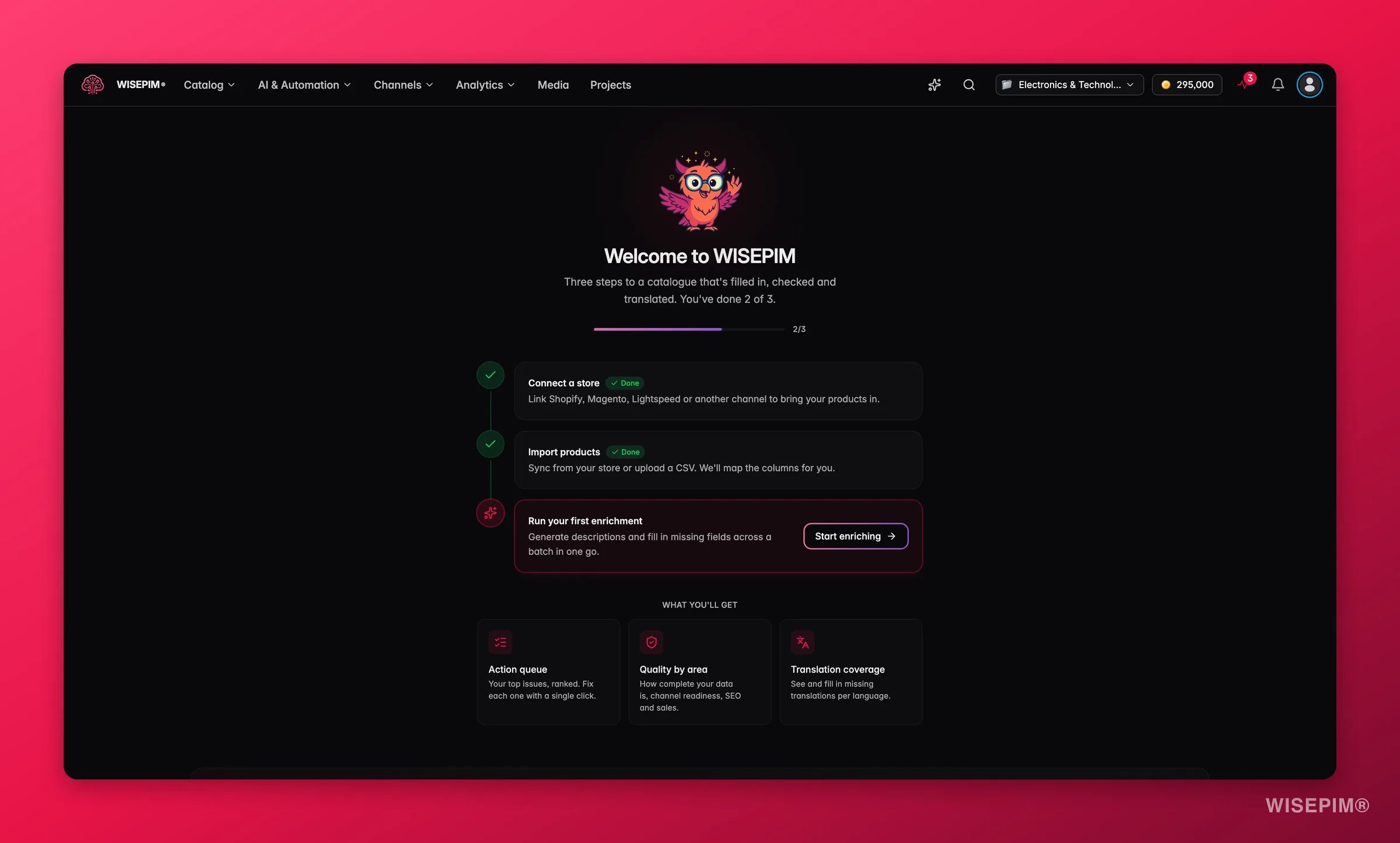
The first four stops are read-only, and they run broadest to narrowest: your whole catalog, then the money, then the market, then the plumbing. Write findings down instead of acting on them. The one exception is stop 4 - a red channel is costing you sales right now, so that one you fix on sight.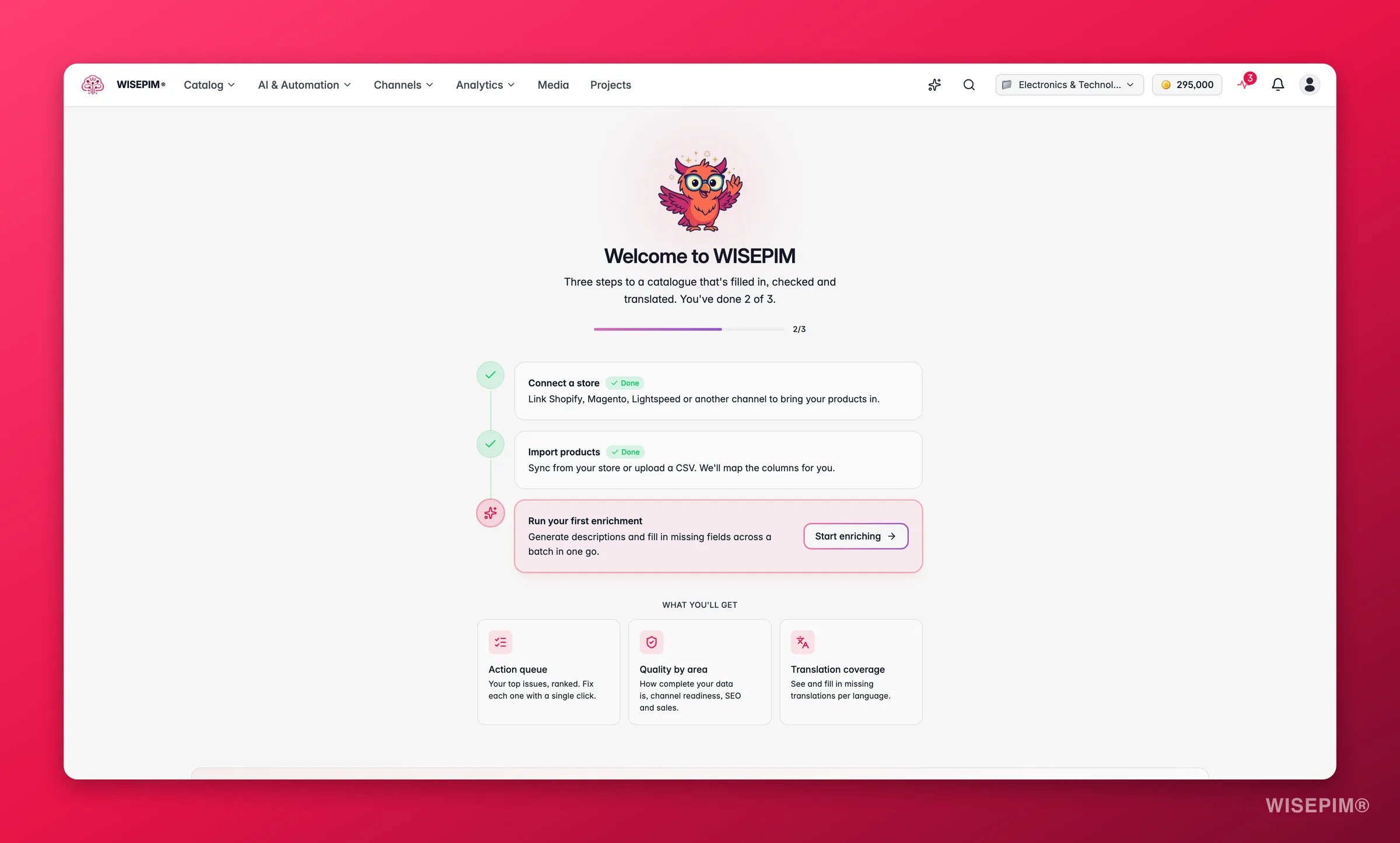
1
Overview - score, briefing, action queue
Start at the Overview. Read the health score and its trend, then the daily briefing, then skim the action queue, which is already ranked by how much each gap moves your score. A drop since last week almost always traces back to an import or a sync that brought in incomplete data, and the recent-activity feed will name it.
2
Smart Insights - recoverable, at risk, upside
Open Smart Insights. Its rollup splits everything into money you are losing to a fixable cause, metrics heading the wrong way, and upside worth chasing. A large recoverable total spread over only a handful of SKUs is the highest-value thing on your screen this morning; note it and move on.
3
Competitor Intelligence - what your rivals did
Read What changed since last analysis on Competitor Intelligence, then the Start here card: it names your single highest-impact move with impact and effort chips, so you can judge it in seconds. Note it - it is a strong candidate for the build at the end of the round.
4
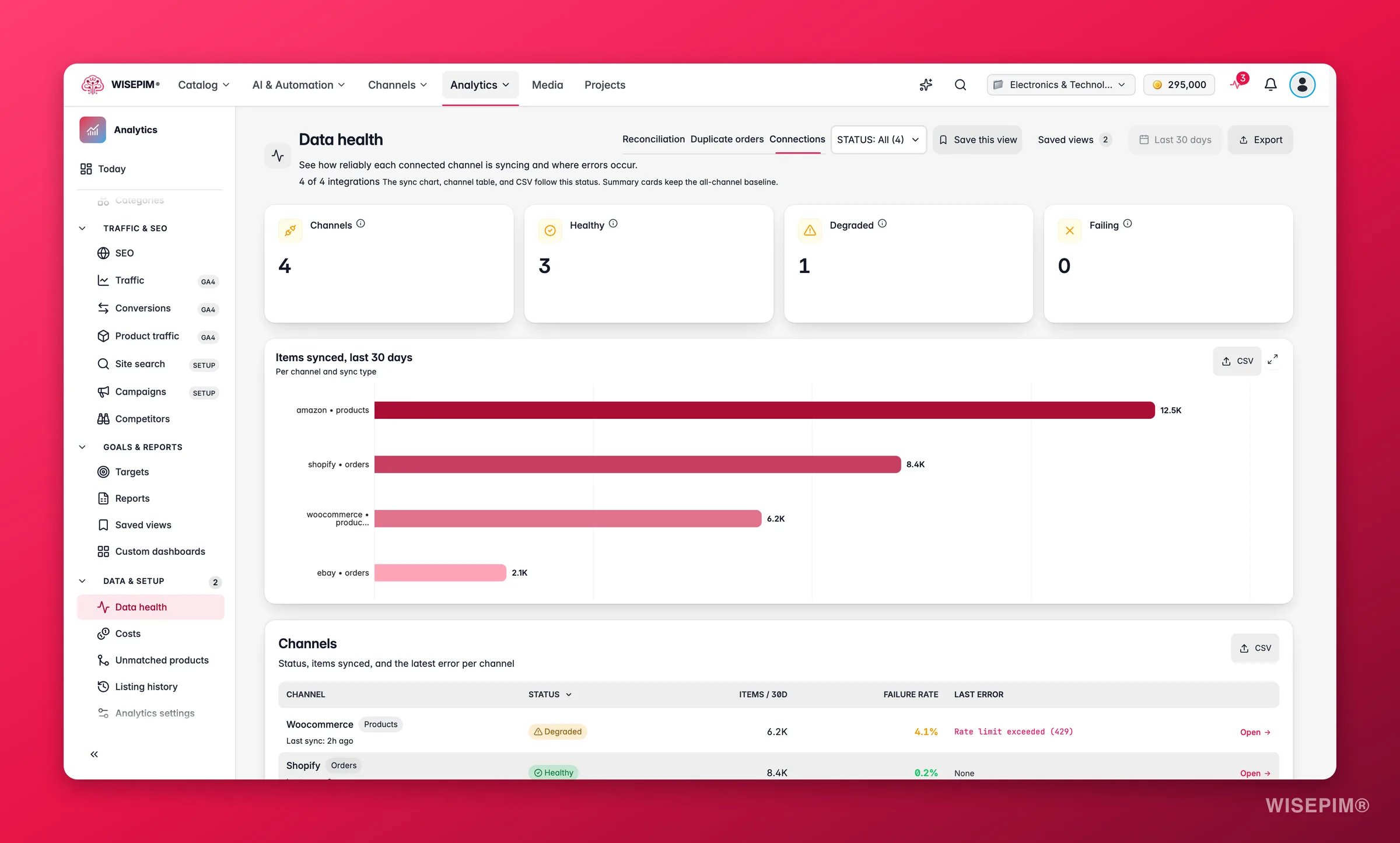
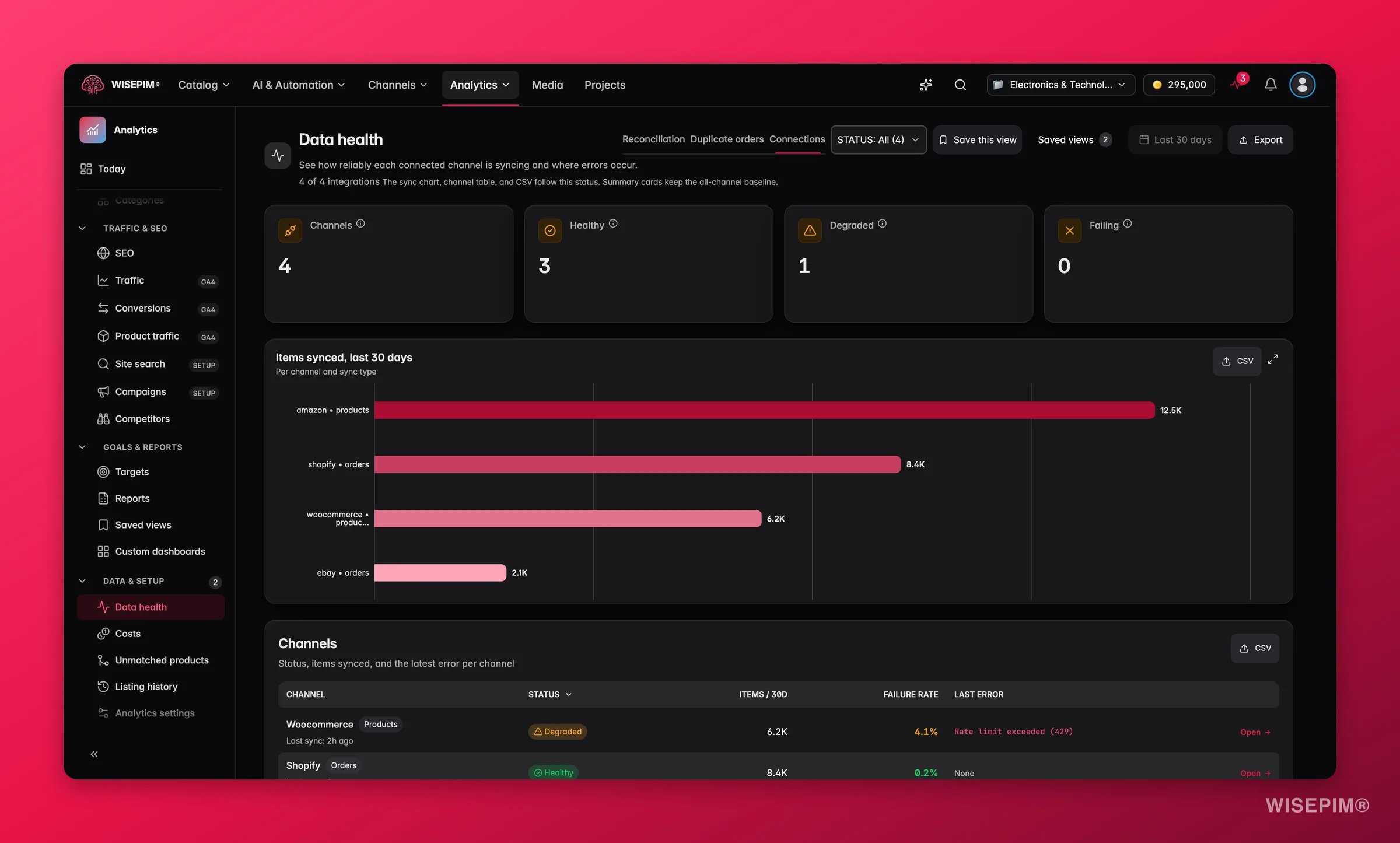
Integration Health - any amber or red
The stop that catches silent failures, and the one place you break the read-only rule. Integration Health lists every connected channel with its last sync, failure rate, and last error. Under 3% failure over 30 days is healthy; 3–10% is amber and worth investigating; 10% or more is red and means customers are seeing stale prices, stock, or content right now. The Last error column is your diagnosis - it usually says outright whether a token expired or a product was rejected.
Clear the queues - about 20 minutes
Now act, in this order: the queue that is actively blocking revenue first, then the counts, then the two systems that fail without telling you. This is the housekeeping that stops small problems compounding into the score drop you would otherwise read about next Monday.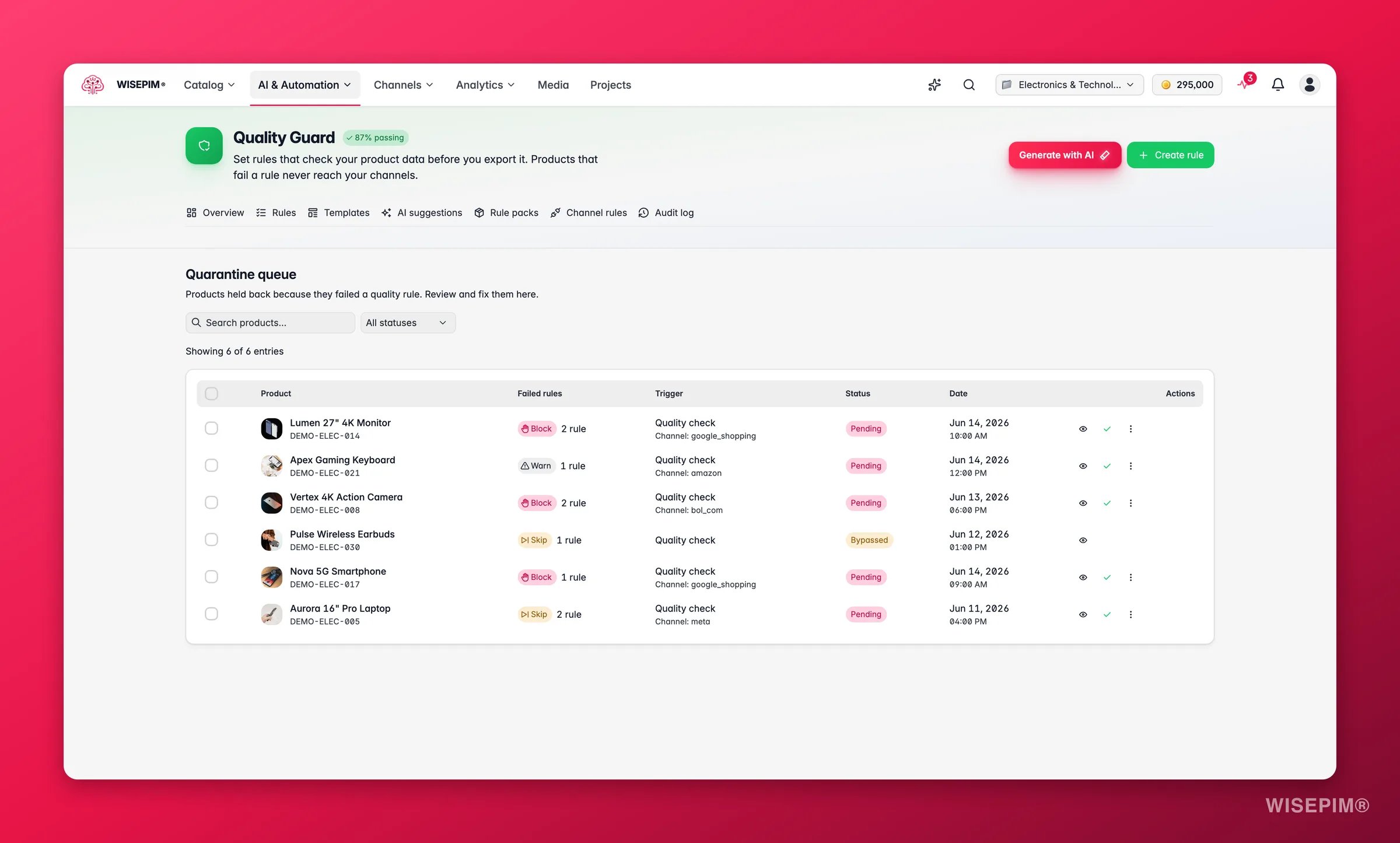
1
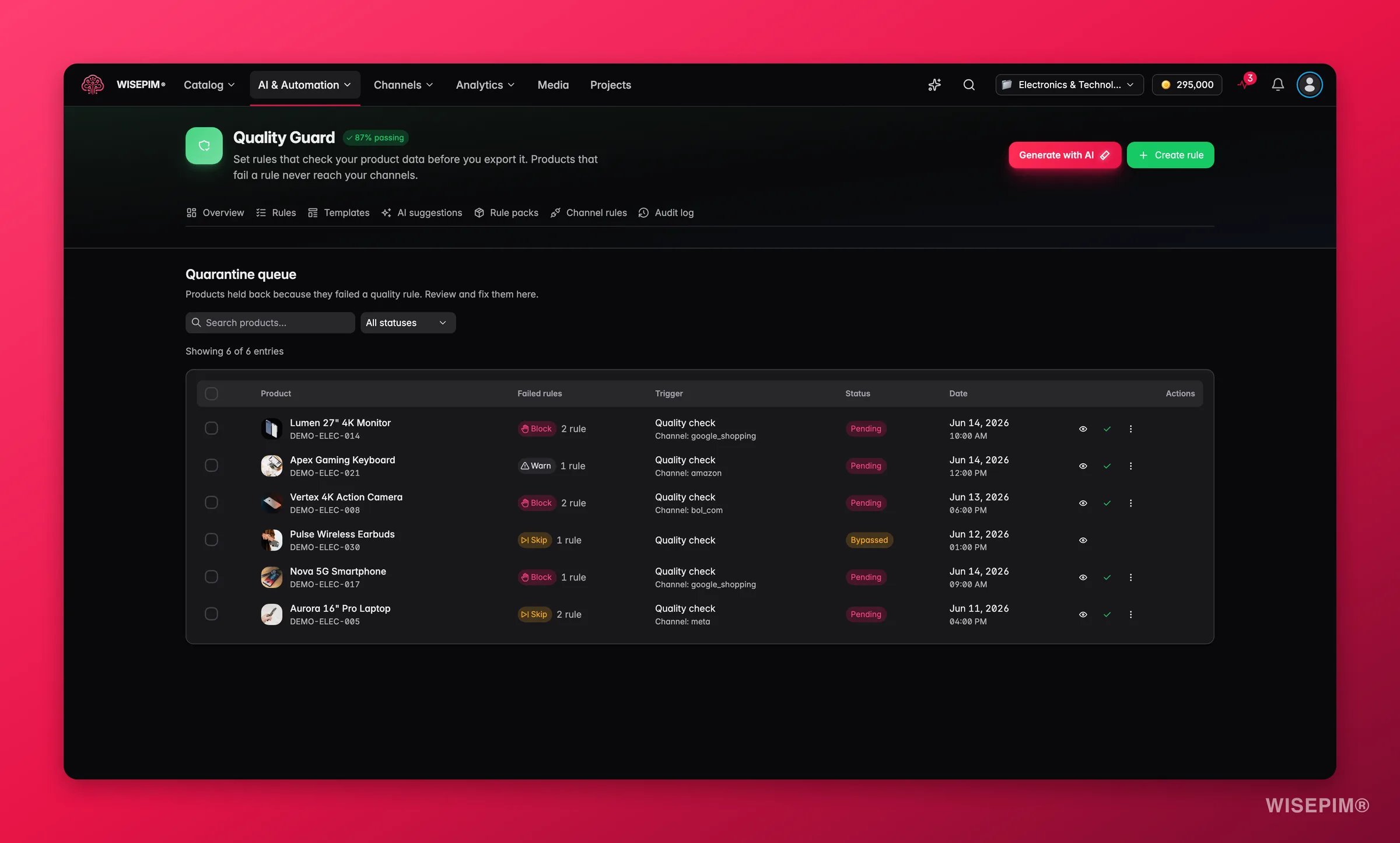
Take the quarantine queue to zero
Nothing in quarantine can be exported, synced, or published, so every entry is a product not earning. Open each one to see the field, the expected value, and the actual value, fix the data, and resolve. After a bulk fix, use bulk resolve to clear the affected entries in one go rather than clicking through them.
2
Check the Quick Fixes preset counts
On the Products page, open the filter modal and go to the Presets tab. Each preset card carries a live count, so the Quick Fixes group - low quality, unreviewed, no image, no category - works as a weekly scoreboard. Compare against last week and work only the one that grew; the others can wait a week without costing you anything.
3
Recalculate feed quality and diff the last generation
In Feed Hub, open each main feed, click Recalculate on the Feed Quality panel, and read which of the six dimensions is weakest. Then open Generation History, select the two most recent versions, and click Compare. An unexpected drop in product count is the cheapest problem you will ever catch, and it is invisible on every other screen in this routine.
4
Read the automation success rates
Open the automations dashboard and scan the success rate on every workflow whose status is Active. Anything below 80 % needs View History opened, because unlike a manual job, a failing automation never tells you it stopped working - it just quietly stops doing the thing you stopped doing by hand.
Finish with one build - the rest of the hour
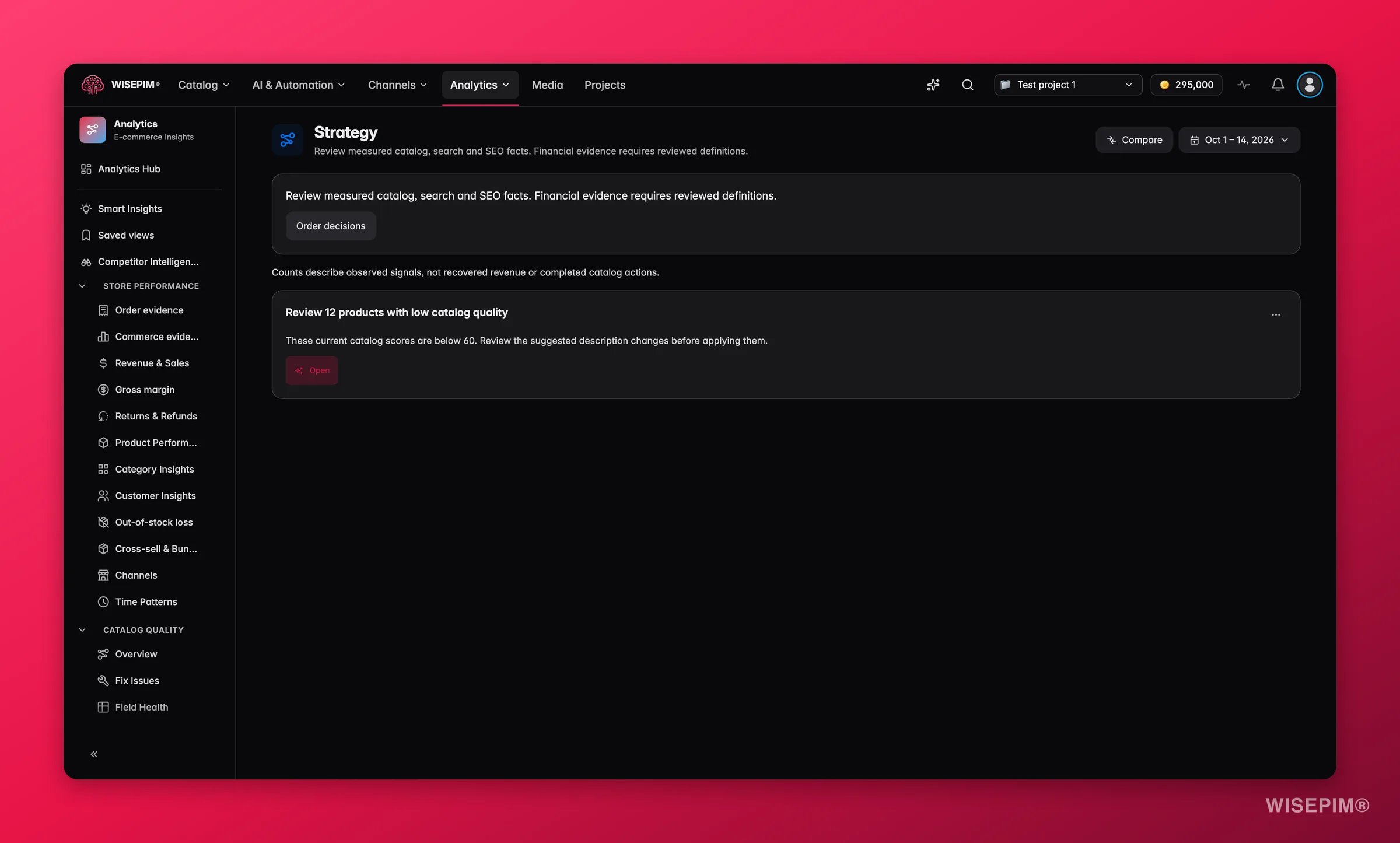
The time you have left goes into building something, not reading a tenth dashboard. Open the Strategy report, toggle Quick wins only, and ship exactly one initiative from the top. Each opens a drawer with the estimated revenue impact and its confidence, the affected products, and a one-click action that starts the work. Pick the one that matches what stops 1 to 4 told you, and close it before you open another.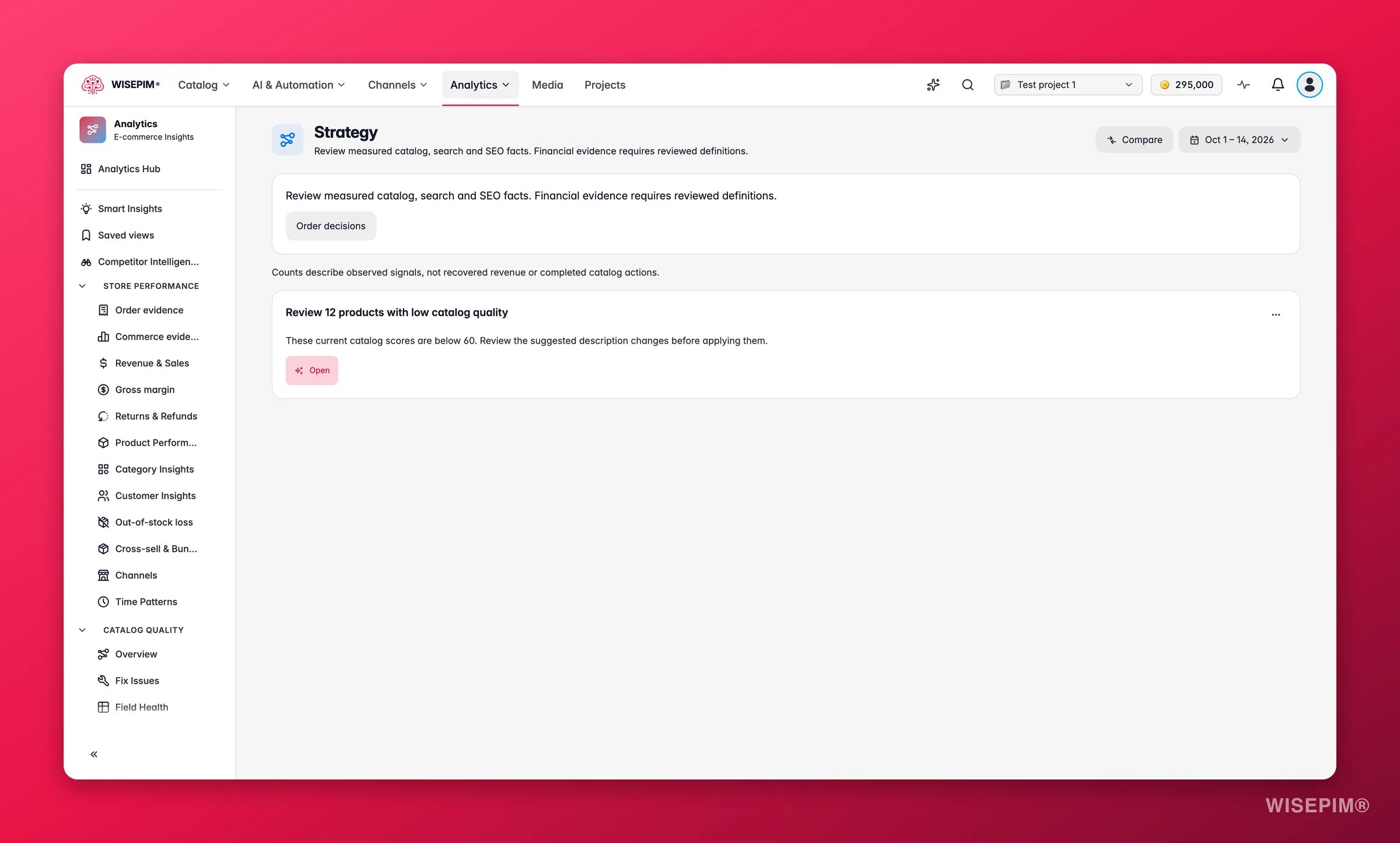
How to tell it worked
A healthy week looks unremarkable: every channel green, the quarantine queue empty, and a catalog score that is flat or slightly up. Drama is the signal, not the numbers themselves. Run the round three or four times and the week-over-week deltas start doing the work for you, because by then you know what normal looks like. This is the table to keep. Work it top to bottom.If stops 1 to 4 turn up nothing and stops 5 to 8 are already clean, finish early. The routine is a check, not a quota.
When it doesn’t work
The whole round takes two hours, not one
The whole round takes two hours, not one
You are fixing during the reading half. Keep stops 1 to 4 read-only - write findings down instead of acting on them, and let those notes decide where the clearing time goes. Everything on the Overview action queue and in Strategy is already ranked by impact, so working top-down and stopping when the hour is up is the cheapest possible way to run out of time.
The quarantine queue never actually reaches zero
The quarantine queue never actually reaches zero
You are treating symptoms. One root cause often breaks several rules at once, so fix the underlying field and then Bulk Resolve the entries it cleared, rather than clicking through them one by one. For entries that are genuine, permanent exceptions, Bypass with a written reason so they stop reappearing - the reason is kept in the audit log. If you find yourself bypassing the same rule every week, the rule or the incoming data needs changing, not the entries.
A channel is amber and the error message means nothing to me
A channel is amber and the error message means nothing to me
Start with the credentials. A failure rate that climbs gradually into the 3–10 % band is the classic signature of an expired token or a rotated API key, and the error is usually a 401 or 403; re-test the connection from Integrations. If the error names a field instead, the channel is rejecting products for missing data - fill it with a bulk edit today, then write the Quality Guard rule that stops it recurring. If several channels went amber in the same week, suspect one upstream cause, usually a bulk import that landed products missing a required field.
Competitor Intelligence says 'partial results'
Competitor Intelligence says 'partial results'
One of your competitors blocked the scrape. The message names which shops could not be read, and the rest of the analysis is still valid. Try that competitor again on the next run, or spend the slot on a rival you actually lose deals to. See Competitor Intelligence.
The score dropped and nothing on the list explains it
The score dropped and nothing on the list explains it
Check the recent-activity feed on the Overview for an import or sync around the time of the drop, then open the Process Tracker to see what that job actually did. A batch of thin products arriving at once is the usual cause, and the action queue will already list the gaps they introduced.
Related
Overview dashboard
The health score, daily briefing, and ranked action queue this routine starts from.
Smart Insights
One ranked feed of what changed and why, with an action on every signal.
Build a pipeline that runs itself
Take the parts of this round that repeat every week and hand them to an automation.
Clean up a catalog you inherited
Do this first if your Monday round keeps surfacing the same structural mess.