Your feed keeps getting disapproved. Sequence channel readiness, rule packs, bulk fixes and feed validation into one clean launch instead of four.
Someone in the business has decided you’re selling on Google Shopping, Kaufland, or Meta next month. You export a feed, the channel eats it, and half your catalog comes back disapproved - missing GTIN, missing brand, title too long. Then you fix a few products, resubmit, and wait another day to find out what else is wrong.The fix is to stop discovering requirements one rejection at a time. WISEPIM can tell you what a channel wants before you send anything, and this guide puts those checks in the order that avoids rework. Budget half a day for your first channel, and about an hour for each one after that.
Before you start: connect the channel (or at least know which one you’re targeting) under Integrations, and have a catalog with products in it. Marketplace-specific credentials are covered on the Kaufland and Mirakl pages.
What you’ll get: a feed the channel accepts on the first submission, and a compliance number you can watch instead of waiting for a rejection email.
Four surfaces shape what a channel receives, and mixing them up is the main reason a launch takes three attempts. Read this table once and the rest of the guide is just execution.
Surface
The question it answers
Where it sits
Channel Readiness
Across my whole catalog, how much is listable on this channel, and which field is the gap?
That table is also the order. Readiness tells you what to fix, rules keep it fixed, the feed gets built on data that is already clean, and quarantine is the last gate you clear before the first sync. Build the feed first and you will rebuild it after every data fix.
Do this before you touch a single product. Readiness gives you today’s snapshot; a rule pack turns the same requirements into checks that keep running after you stop looking.
1
Open Channel Readiness and pick your target channel
On the Channel Readiness page, pick the channels you sell on. Each one gets a card: a percentage ready for that channel, coverage bars per required field, and chips counting the products missing each one. Write the percentage down - it is your before number.
2
Find the single field blocking the most products
The coverage bars rank themselves for you. One field is almost always responsible for most of the gap - usually GTIN or brand. Each card carries a Fix button that opens the AI fix drawer with exactly those products preloaded, so the biggest gap in your launch is one pass rather than a project.
3
Install the channel's rule pack in Quality Guard
A readiness percentage is a snapshot that goes stale. Open the Rule Packs tab in Quality Guard and install the pre-built bundle for your channel: its requirements land as channel-scoped rules in one click and re-run on every export from then on. The Google Shopping pack covers GTIN, brand, product category, image requirements, and title formatting.
4
Start the pack on Warn severity
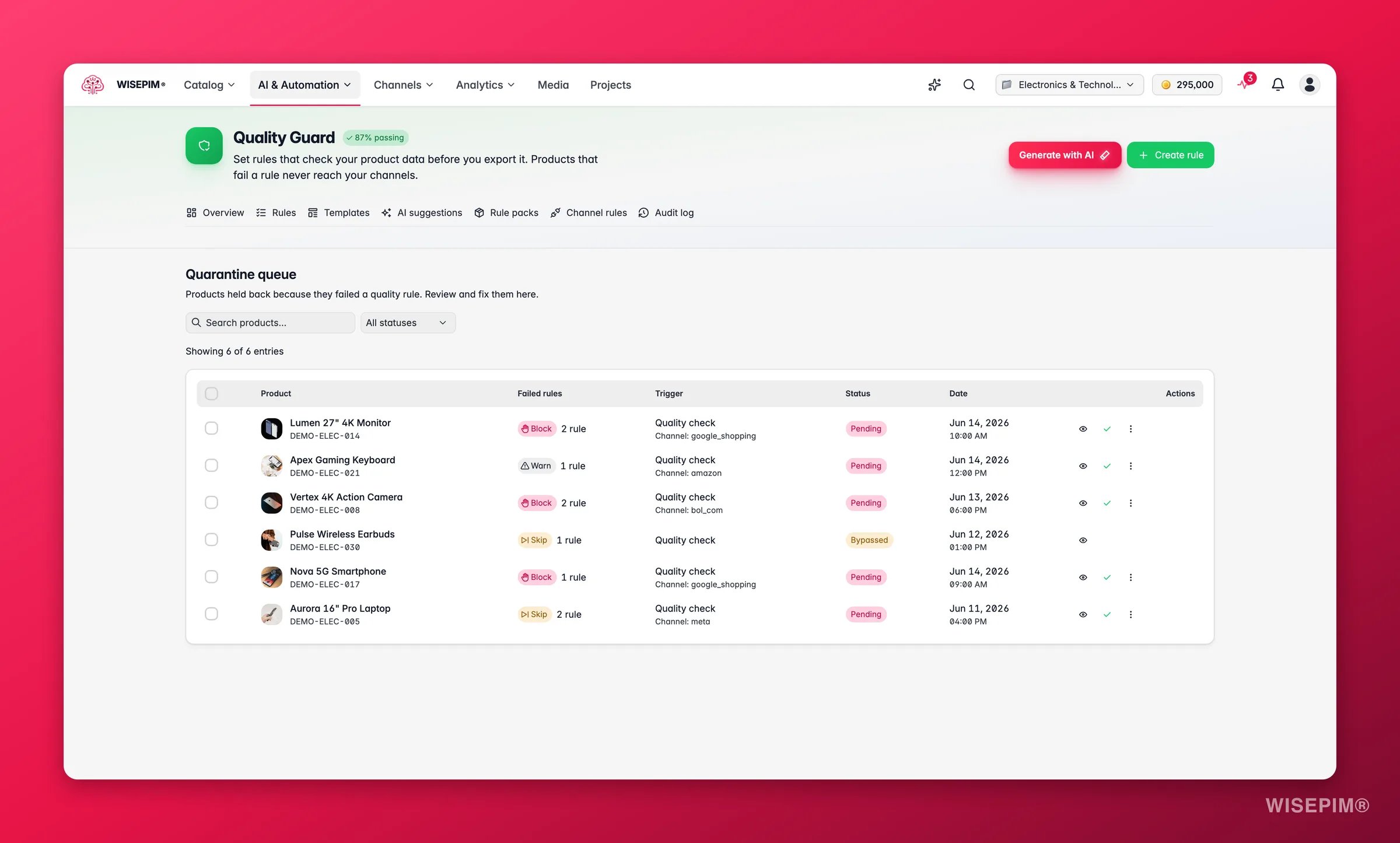
Severity decides what happens on failure: Block quarantines the product, Skip silently leaves it out, Warn lets it through and logs it. Start on Warn so you can measure the real size of the problem without holding up an export you still need today. You switch to Block in the last section, once the data is clean.
5
Note today's compliance rate on Channel Rules
Channel Rules is a filtered view of the same rules, grouped by destination. Find your channel - if it’s still listed under Unconfigured Channels, click Add Rules, and write down its compliance rate. Green means 80% or more of covered products pass, amber 60–79%, red below 60%. This is the one number you’ll watch for the rest of the launch.
You now know which rule fails and how often. Never fix these product by product - filter to the violators and act on the whole set at once.
1
Filter to the products that violate one rule
On the Products page, open the filter modal and switch to the Compliance tab. Pick the failing rule and choose Violates. The rule’s own scope is applied automatically, so you get exactly the products it targets, with a live count before you commit.
2
Fix flat, factual fields with a bulk edit
Anything that’s a known value - a brand you can set per supplier, a category assignment, a stock status - belongs in bulk editing rather than in AI. It’s instant and it costs no credits.
3
Extract missing specs from text you already have
When a channel wants colour, material, or size and the information is buried in your descriptions, run AI attribute extraction on the filtered set. It only fills attributes that already exist on the product’s family, so nothing unexpected appears in your structure.
4
Fill missing identifiers with Web Research
GTIN, UPC, MPN, and model number can’t be written - they have to be found. Run Web Research on the filtered set and switch on the identifiers you need under Identifiers to discover. Identifiers follow stricter rules than anything else research writes: they only ever go into empty fields, every value is checksum-validated, and a value that conflicts with yours is flagged rather than written over it.
5
Re-check the same filter
Run the Compliance filter again with the same rule. The count should have dropped. Work down the rules in order of how many products they fail, and stop when the remaining ones are genuine exceptions rather than data gaps.
Only now is it worth creating the feed, because a feed is a snapshot of data you have already cleaned. Everything from here happens in Feed Hub.
1
Create the feed from the channel preset
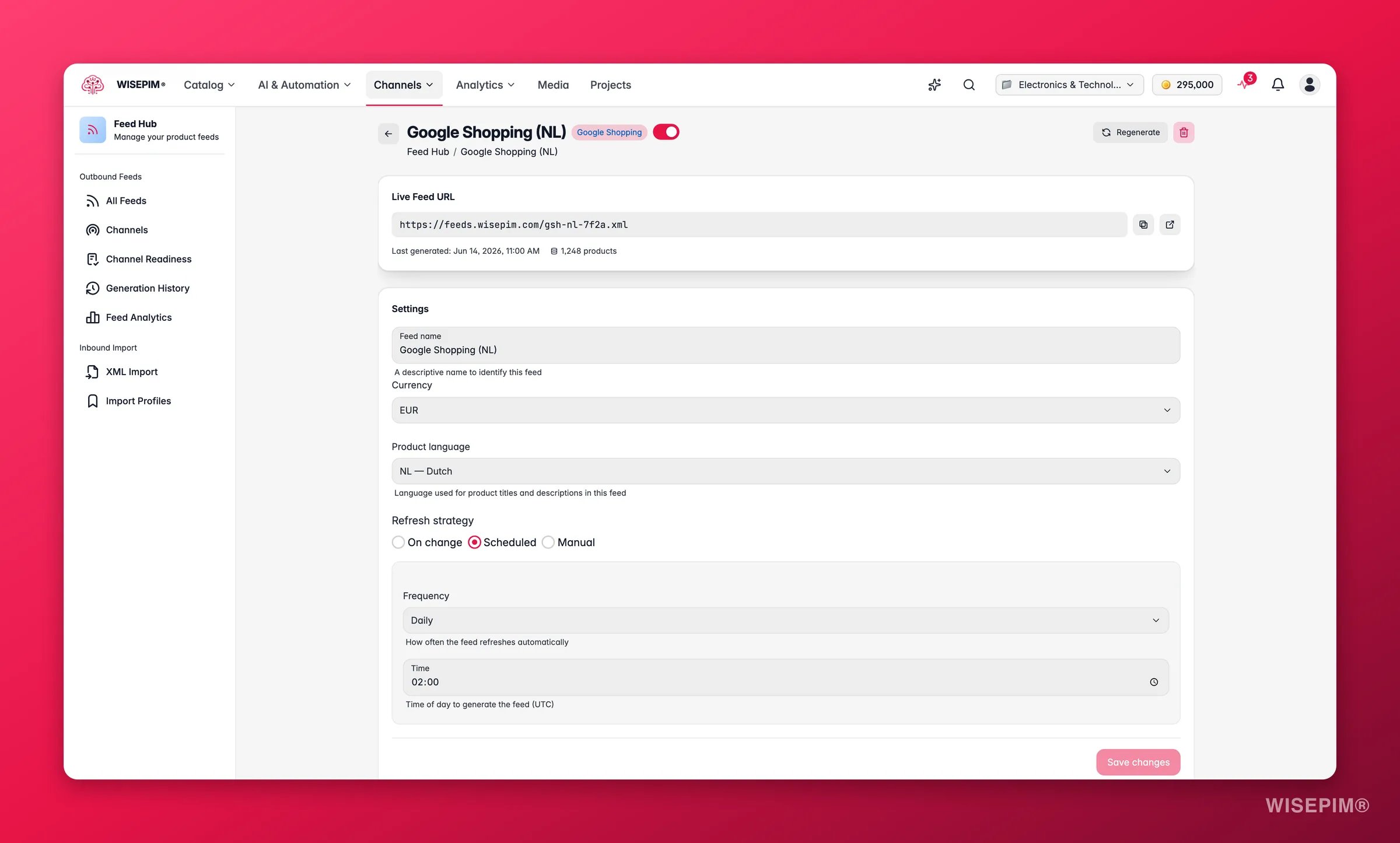
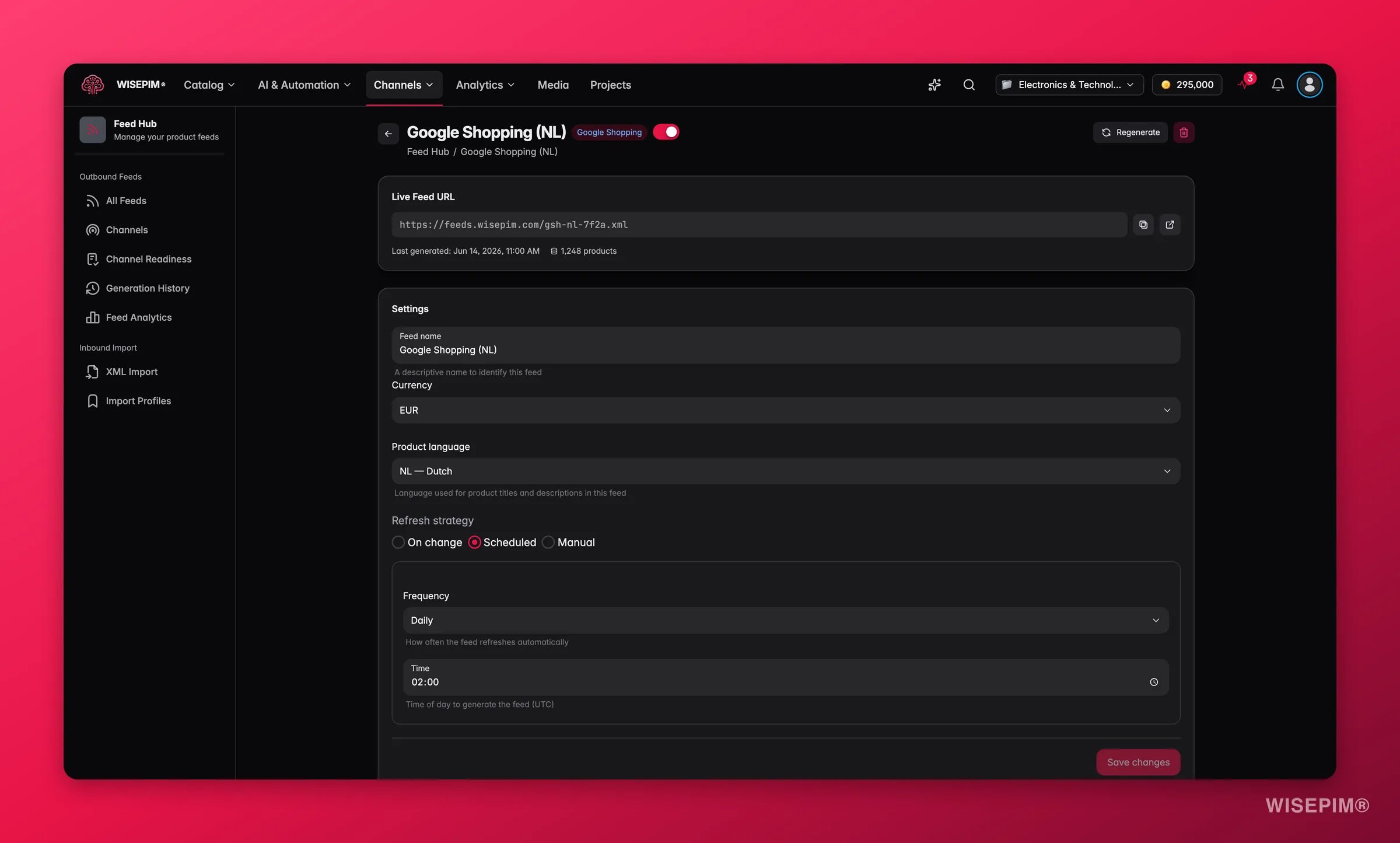
Click Create Feed on the Feed Hub overview and pick your channel in the two-step wizard. The preset sets sensible defaults; you set the name, product language, currency, and refresh strategy. Selling in more than one language? One feed per language - most channels expect a separate URL per market.
2
Let AI map the fields, then check the required ones
On the feed’s Field Mappings, Auto-map matches on field names and AI Auto-map handles the cases where your names and the channel’s don’t line up. Review the required fields yourself afterwards, and add a fallback value on any field where your primary source is sometimes empty.
3
Narrow the scope, then filter out the weak products
Two different controls, in this order. Product Scope decides who is eligible at all - categories, product families, whether out-of-stock counts. Filter rules then drop the products that would embarrass you: no price, no image, quality score below a threshold. Hit Preview to see how many each rule removes before you save, because this is where a feed silently loses half its catalog.
4
Run Feed Validation and read the feed quality score
Validate checks each individual product against the channel’s field requirements and lists errors and warnings per product - that is your rejection list, written before the channel writes it. The Feed Quality panel scores the feed itself across six dimensions, including GTIN/EAN coverage and title quality. Fix, regenerate, then Recalculate.
Only now do the rules become blocking. Flip severity first, empty the queue that flip creates, and give the channel its URL last - in the other order you hand a platform a feed that quarantine is quietly shrinking.
1
Switch your channel rules from Warn to Block
Now that the data is clean, Block severity is protection rather than an obstacle. From here, a product that breaks a channel requirement is held instead of shipped.
2
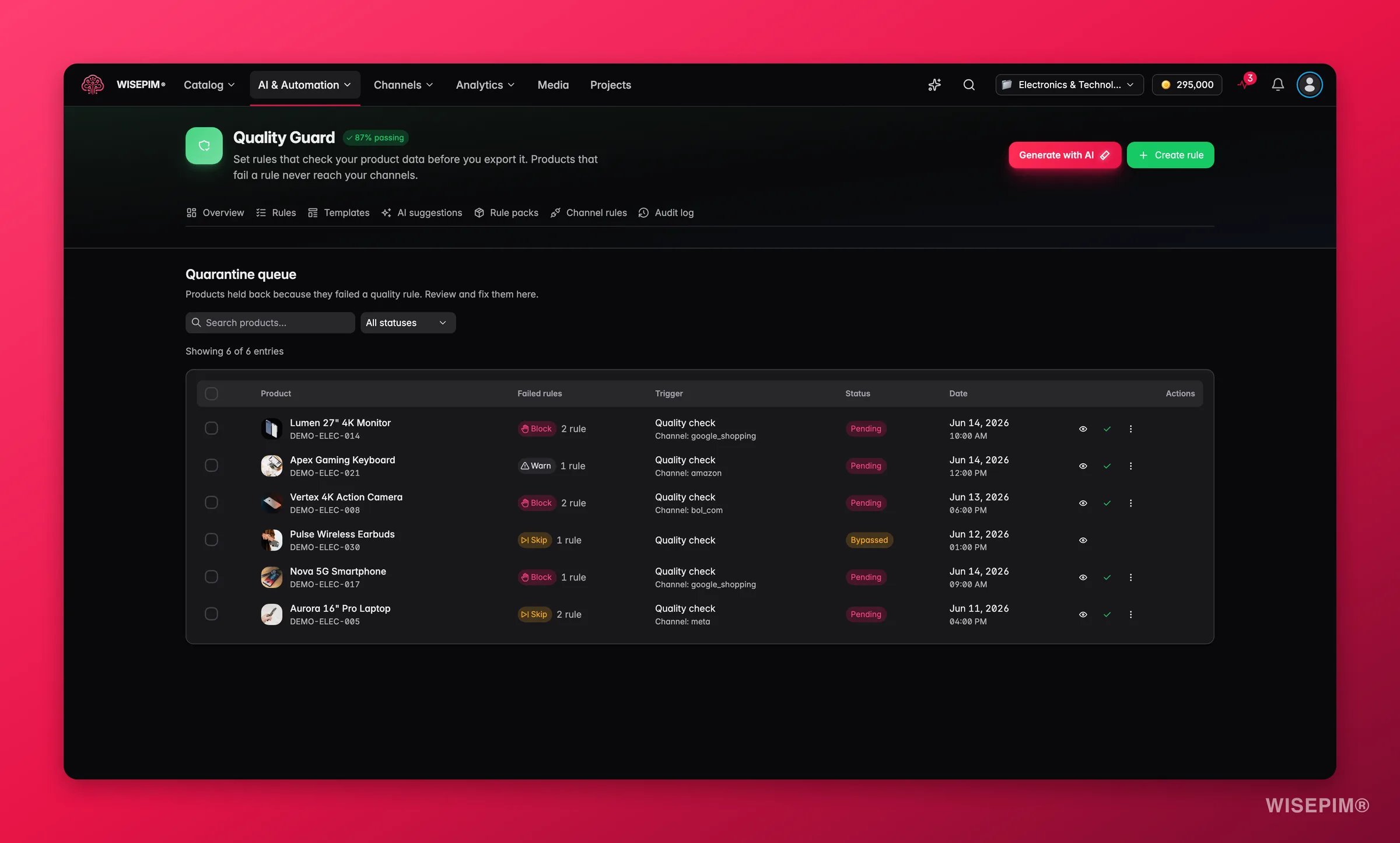
Empty the quarantine queue
This is the step people miss. Nothing in quarantine can be exported, synced, or published - so if products vanish from a launch with no error anywhere, quarantine is the first place to look. Open an entry to see the exact field, operator, expected value, and actual value, fix the data, then Bulk Resolve the entries you fixed together. For a genuine exception the channel will accept anyway, Bypass it with a reason instead; the reason goes to the audit log under your name.
3
Check the price you're about to send
Marketplace fees change what a healthy price looks like. If this channel takes a commission, set up the markup before the first sync rather than after the first invoice - see Send a different price per channel.
4
Submit the feed URL and pick a refresh strategy
Each feed has its own hosted URL that the channel fetches on its own. Choose Scheduled or On change so you’re not regenerating by hand, and give the platform its first fetch.
5
Watch the first week
Integration Health tells you whether the sync itself is reliable; Channel Analytics tells you whether the channel is earning. Check the first before you judge the second.
The feed generated fine but the channel received far fewer products than I expected
Three silent shrinkers, in the order worth checking. Quarantine holds every product a Block-severity rule caught, and nothing held there can be exported, synced, or published. Your feed’s Filter rules may be removing more than you intended - hit Preview to see the real number per rule. And Product Scope may never have included them: an out-of-stock toggle or a category selection narrows the feed before any rule runs. Feed Hub’s Generation History settles it - compare the last two versions and read the product count.
Compliance went red the moment I installed the rule pack
Red means below 60%, and it is the pack telling you the truth about data you already had. Keep the rules on Warn, open the Quality Guard dashboard’s Top Failing Rules list, and work it from the top using the Compliance filter - one rule at a time, in bulk. Switch to Block only when the rate is where you want it. Installing a pack straight onto Block on a large catalog can hold up your next export.
Feed validation passes but the channel still rejects listings
Readiness and validation are scored on the required fields WISEPIM tracks for that channel - required fields it doesn’t track are flagged rather than guessed. For marketplaces, the remaining gap is usually platform-side setup: category mapping, shipping attributes, or account configuration. See Kaufland or Mirakl for what that channel needs on its own side.
Web Research didn't find a GTIN for a chunk of my products
The identifier you searched with was the wrong key. If EAN returns nothing, switch the picker to Brand + Name or Model Number - technical products are far better indexed by model. Some products genuinely have no public barcode; for those the identifier has to come from your supplier. A wrong barcode is worse than an empty one, which is why conflicts are flagged rather than written.
It synced once, then went stale
Open Integration Health and read the Last error column - it names the cause without you logging into the platform. A failure rate that climbs gradually past 3% is the classic signature of a rotated API key or an expired token: re-test the connection from Integrations. A burst of validation failures instead means the channel is rejecting products for a missing field, and the error usually names it - that field belongs in your channel rules, not in a retry.
Every option behind feeds, channel readiness, validation, and feed quality.
Channel Rules
The per-channel compliance view you’ll watch through the launch.
Send a different price per channel
Cover a marketplace fee at export time without touching your stored prices.
Sell to wholesalers with ETIM and BMEcat
The B2B version of this launch: standards-based classification and a BMEcat catalog.
{"docsConfig":{"theme":"mint","$schema":"https://mintlify.com/docs.json","name":"WISEPIM Documentation","description":"Documentation for WISEPIM, the AI-powered product information management (PIM) platform: import, enrich, translate and publish product content, connect e-commerce platforms and marketplaces, automate catalog work, and build on the WISEPIM Public API.","colors":{"primary":"#E71447","light":"#E71447","dark":"#E71447"},"logo":{"light":"https://mintcdn.com/swiftsyncai/CpcHeNUil_YXkrs1/logo/wisepim-logo-horizontal-transparant-lightmode.png?fit=max\u0026auto=format\u0026n=CpcHeNUil_YXkrs1\u0026q=85\u0026s=fb18d37ec9d57e2050a1acb063cd8424","dark":"https://mintcdn.com/swiftsyncai/CpcHeNUil_YXkrs1/logo/wisepim-logo-horizontal-transparant-darkmode.png?fit=max\u0026auto=format\u0026n=CpcHeNUil_YXkrs1\u0026q=85\u0026s=f908843e7a886bf8143cb9bc525b7b86"},"favicon":"https://mintcdn.com/swiftsyncai/CpcHeNUil_YXkrs1/favicon.png?fit=max\u0026auto=format\u0026n=CpcHeNUil_YXkrs1\u0026q=85\u0026s=50f7573d74bc7da293b9931d815b2bb3","api":{"openapi":"openapi.json","playground":{"display":"interactive"},"examples":{"defaults":"required","languages":["curl","python","javascript"]}},"appearance":{"default":"system"},"background":{"decoration":"gradient"},"navbar":{"links":[{"href":"https://wisepim.com/contact","label":"Support"}],"primary":{"type":"button","label":"Go to WISEPIM","href":"https://wisepim.com/products"}},"footer":{"socials":{"youtube":"https://www.youtube.com/channel/UC5sQ48mV3sYEBme01xvVIXw","linkedin":"https://linkedin.com/company/wisepim"}},"search":{"prompt":"What are you looking for?"},"seo":{"metatags":{"og:site_name":"WISEPIM Documentation","og:type":"website","twitter:card":"summary_large_image"},"organization":{"name":"WISEPIM","legalName":"WISEPIM B.V.","url":"https://wisepim.com","logo":"https://docs.wisepim.com/logo/wisepim-logo-horizontal-transparant-lightmode.png","sameAs":["https://linkedin.com/company/wisepim","https://www.youtube.com/channel/UC5sQ48mV3sYEBme01xvVIXw"]},"indexing":"all"},"fonts":{"family":"Inter"},"icons":{"library":"lucide"},"styling":{"eyebrows":"breadcrumbs","latex":true},"integrations":{"ga4":{"measurementId":"G-6NXPFG6S4Z"}},"errors":{"404":{"redirect":false,"title":"This page moved or never existed","description":"No worries, use the search above (or press Cmd+K) to find what you were looking for, or head back to the [introduction](/en/introduction)."}},"contextual":{"options":[{"title":"Ask WISEPIM AI","description":"Open the WISEPIM AI chat with this page as the question","icon":"sparkles","href":{"base":"https://wisepim.com/chat","query":[{"key":"prompt","value":"I am reading the WISEPIM documentation page https://docs.wisepim.com$path and I have a question about it. Answer in the language of that page.\n\nMy question: "}]}},"copy","view","chatgpt","claude","perplexity","mcp"],"display":"header"},"thumbnails":{"appearance":"dark","background":"https://mintcdn.com/swiftsyncai/2_3RgILsRdlQxjn6/images/og-background.png?fit=max\u0026auto=format\u0026n=2_3RgILsRdlQxjn6\u0026q=85\u0026s=f55698f3b0dd04d58e5f67b096de1f26","fonts":{"family":"Inter"}},"navigation":{"global":{"anchors":[{"anchor":"Homepage","icon":"house","href":"https://wisepim.com"},{"anchor":"Latest changes","icon":"history","href":"https://wisepim.com/changelog"},{"anchor":"Blog","icon":"newspaper","href":"https://wisepim.com/blog"}]},"languages":[{"language":"en","href":"en/introduction"},{"language":"nl","href":"nl/introduction"},{"language":"de","href":"de/introduction"},{"language":"es","href":"es/introduction"}]}},"deployment":{"deploymentMetadataValue":{"subdomain":"swiftsyncai","hasAudioNarration":false,"actualSubdomain":"swiftsyncai","customDomains":["docs.wisepim.com"],"gitSource":{"type":"github","owner":"lldiegon","repo":"wisepim-docs","deployBranch":"main","contentDirectory":"","isPrivate":true,"mountPath":"","label":""},"chroma":{"liveDeploymentHistoryId":"6ae29ae907aeaf4d1afc5884","collectionId":"bbceb7eb-5a5b-4c95-b655-48d98646c6ca","schemaVersion":"v3","latestBuiltDeploymentHistoryId":"6ae29ae907aeaf4d1afc5884"},"entitlements":{},"buildId":"6ae29ae907aeaf4d1afc5884","clientVersion":"0.0.4043","searchFilterCounts":[{"language":"en","tag":"Documentation","count":283},{"language":"de","tag":"Dokumentation","count":183},{"language":"es","tag":"Documentación","count":183},{"language":"nl","tag":"Documentatie","count":183},{"language":"en","tag":"API Reference","count":100},{"language":"en","tag":"Products","count":67},{"language":"de","tag":"Produkte","count":61},{"language":"es","tag":"Productos","count":61},{"language":"nl","tag":"Producten","count":61},{"language":"de","tag":"Erstellen \u0026 Bearbeiten","count":41},{"language":"de","tag":"Einstellungen","count":41},{"language":"en","tag":"Creating \u0026 Editing","count":41},{"language":"en","tag":"Settings","count":41},{"language":"es","tag":"Crear y Editar","count":41},{"language":"es","tag":"Configuración","count":41},{"language":"nl","tag":"Aanmaken \u0026 Bewerken","count":41},{"language":"nl","tag":"Instellingen","count":41},{"language":"de","tag":"Analytics","count":38},{"language":"en","tag":"Analytics","count":38},{"language":"es","tag":"Analytics","count":38},{"language":"nl","tag":"Analytics","count":38},{"language":"de","tag":"Massenaktionen","count":34},{"language":"en","tag":"Bulk Actions","count":34},{"language":"es","tag":"Acciones Masivas","count":34},{"language":"nl","tag":"Bulkacties","count":34},{"language":"de","tag":"Integrationen","count":30},{"language":"en","tag":"Integrations","count":30},{"language":"es","tag":"Integraciones","count":30},{"language":"nl","tag":"Integraties","count":30},{"language":"de","tag":"Projekt","count":29},{"language":"en","tag":"Project","count":29},{"language":"es","tag":"Proyecto","count":29},{"language":"nl","tag":"Project","count":29},{"language":"de","tag":"Anleitungen","count":20},{"language":"en","tag":"Guides","count":20},{"language":"es","tag":"Guías","count":20},{"language":"nl","tag":"Handleidingen","count":20},{"language":"de","tag":"KI \u0026 Anreicherung","count":19},{"language":"es","tag":"IA y Enriquecimiento","count":19},{"language":"nl","tag":"AI \u0026 Verrijking","count":19}]},"assistantConfig":{},"basePath":"","hasChatPermissions":false,"hasWebMcpPermissions":false,"toggles":[{"name":"kill-isr","enabled":true,"variant":{"name":"disabled","enabled":false,"feature_enabled":true},"impressionData":false},{"name":"agent-mintlify-slack","enabled":true,"variant":{"name":"disabled","enabled":false,"feature_enabled":true},"impressionData":false},{"name":"agent-integrations-settings","enabled":true,"variant":{"name":"disabled","enabled":false,"feature_enabled":true},"impressionData":false},{"name":"automations-pr-grouping","enabled":true,"variant":{"name":"disabled","enabled":false,"feature_enabled":true},"impressionData":false},{"name":"custom-prefix","enabled":true,"variant":{"name":"disabled","enabled":false,"feature_enabled":true},"impressionData":false},{"name":"analytics-v7","enabled":true,"variant":{"name":"disabled","enabled":false,"feature_enabled":true},"impressionData":false},{"name":"user-flows-analytics","enabled":true,"variant":{"name":"disabled","enabled":false,"feature_enabled":true},"impressionData":false},{"name":"no-publish-flow","enabled":true,"variant":{"name":"disabled","enabled":false,"feature_enabled":true},"impressionData":false},{"name":"workos-onboarding","enabled":true,"variant":{"name":"disabled","enabled":false,"feature_enabled":true},"impressionData":false},{"name":"llms-txt-v2","enabled":true,"variant":{"name":"disabled","enabled":false,"feature_enabled":true},"impressionData":false},{"name":"snapshot-serving-live","enabled":true,"variant":{"name":"disabled","enabled":false,"feature_enabled":true},"impressionData":false},{"name":"stripTemperatureMiddleware","enabled":true,"variant":{"name":"disabled","enabled":false,"feature_enabled":true},"impressionData":false},{"name":"support-platform-pylon-zendesk","enabled":true,"variant":{"name":"disabled","enabled":false,"feature_enabled":true},"impressionData":false},{"name":"snapshot-serving","enabled":true,"variant":{"name":"disabled","enabled":false,"feature_enabled":true},"impressionData":false},{"name":"instant-rollback","enabled":true,"variant":{"name":"disabled","enabled":false,"feature_enabled":true},"impressionData":false},{"name":"granular-notifications-server","enabled":true,"variant":{"name":"disabled","enabled":false,"feature_enabled":true},"impressionData":false},{"name":"granular-notifications","enabled":true,"variant":{"name":"disabled","enabled":false,"feature_enabled":true},"impressionData":false},{"name":"automations-fable","enabled":true,"variant":{"name":"disabled","enabled":false,"feature_enabled":true},"impressionData":false},{"name":"fixed-ai-action-pricing","enabled":true,"variant":{"name":"disabled","enabled":false,"feature_enabled":true},"impressionData":false},{"name":"automation-resolve-merge-conflict","enabled":true,"variant":{"name":"disabled","enabled":false,"feature_enabled":true},"impressionData":false},{"name":"scoped-publishing","enabled":true,"variant":{"name":"disabled","enabled":false,"feature_enabled":true},"impressionData":false},{"name":"mintql","enabled":true,"variant":{"name":"disabled","enabled":false,"feature_enabled":true},"impressionData":false},{"name":"page-level-analytics","enabled":true,"variant":{"name":"disabled","enabled":false,"feature_enabled":true},"impressionData":false},{"name":"editor-version-history-v2","enabled":true,"variant":{"name":"disabled","enabled":false,"feature_enabled":true},"impressionData":false},{"name":"billing-page-v2","enabled":true,"variant":{"name":"disabled","enabled":false,"feature_enabled":true},"impressionData":false},{"name":"full-page-search","enabled":true,"variant":{"name":"disabled","enabled":false,"feature_enabled":true},"impressionData":false},{"name":"workspace-projects","enabled":true,"variant":{"name":"disabled","enabled":false,"feature_enabled":true},"impressionData":false},{"name":"assistant-v5","enabled":true,"variant":{"name":"disabled","enabled":false,"feature_enabled":true},"impressionData":false},{"name":"byok-sep-25","enabled":true,"variant":{"name":"disabled","enabled":false,"feature_enabled":true},"impressionData":false},{"name":"fork-pr-previews","enabled":true,"variant":{"name":"disabled","enabled":false,"feature_enabled":true},"impressionData":false},{"name":"revalidation-jwt","enabled":true,"variant":{"name":"disabled","enabled":false,"feature_enabled":true},"impressionData":false},{"name":"vite-origin","enabled":true,"variant":{"name":"disabled","enabled":false,"feature_enabled":true},"impressionData":false},{"name":"billing-updated-9-15","enabled":true,"variant":{"name":"disabled","enabled":false,"feature_enabled":true},"impressionData":false},{"name":"workos-sso-scim","enabled":true,"variant":{"name":"disabled","enabled":false,"feature_enabled":true},"impressionData":false},{"name":"hobby-abuse-scan","enabled":true,"variant":{"name":"disabled","enabled":false,"feature_enabled":true},"impressionData":false},{"name":"dashboard-inbox","enabled":true,"variant":{"name":"disabled","enabled":false,"feature_enabled":true},"impressionData":false},{"name":"workos-signup","enabled":true,"variant":{"name":"disabled","enabled":false,"feature_enabled":true},"impressionData":false},{"name":"turbopuffer-dual-write","enabled":true,"variant":{"name":"disabled","enabled":false,"feature_enabled":true},"impressionData":false},{"name":"workos-enabled","enabled":true,"variant":{"name":"disabled","enabled":false,"feature_enabled":true},"impressionData":false},{"name":"approve-review-flow","enabled":true,"variant":{"name":"disabled","enabled":false,"feature_enabled":true},"impressionData":false}],"googleFontsInlined":false},"customCss":[{"filePath":"style.css","content":"img.nav-logo{height:2rem}#theme-preference-menu-trigger{display:none!important}#wisepim-theme-toggle{position:relative;width:34px;height:34px;padding:0;display:flex;align-items:center;justify-content:center;border-radius:.5rem;cursor:pointer;background:0 0;border:0;color:rgb(107 114 128)}#wisepim-theme-toggle:hover{color:rgb(55 65 81);background:rgba(0,0,0,.05)}html.dark #wisepim-theme-toggle{color:rgb(156 163 175)}html.dark #wisepim-theme-toggle:hover{color:rgb(229 231 235);background:rgba(255,255,255,.08)}#wisepim-theme-toggle .wp-tt-icon{position:absolute;transition:transform .5s cubic-bezier(.4,0,.2,1),opacity .25s ease}html:not(.dark) #wisepim-theme-toggle .wp-tt-sun{opacity:1;transform:rotate(0deg) scale(1)}html:not(.dark) #wisepim-theme-toggle .wp-tt-moon{opacity:0;transform:rotate(90deg) scale(.4)}html.dark #wisepim-theme-toggle .wp-tt-sun{opacity:0;transform:rotate(-90deg) scale(.4)}html.dark #wisepim-theme-toggle .wp-tt-moon{opacity:1;transform:rotate(0deg) scale(1)}#wisepim-tooltip{position:fixed;z-index:60;max-width:20rem;padding:.4rem .6rem;border-radius:.5rem;font-size:.75rem;line-height:1.4;font-weight:500;text-align:center;color:rgb(243 244 246);background:rgb(24 24 27);box-shadow:0 6px 20px rgba(0,0,0,.18);pointer-events:none;opacity:0;transform:translateY(-3px) scale(.97);transition:opacity .14s ease,transform .18s cubic-bezier(.16,1,.3,1)}#wisepim-tooltip[data-visible=true]{opacity:1;transform:translateY(0) scale(1)}#wisepim-tooltip::before{content:'';position:absolute;top:-3px;left:var(--wp-tip-arrow, 50%);width:8px;height:8px;margin-left:-4px;border-radius:1px;background:inherit;transform:rotate(45deg)}html.dark #wisepim-tooltip{color:rgb(24 24 27);background:rgb(240 240 243);box-shadow:0 6px 20px rgba(0,0,0,.45)}@media (prefers-reduced-motion:reduce){#wisepim-tooltip{transition:opacity .01s linear;transform:none}#wisepim-tooltip[data-visible=true]{transform:none}}::view-transition-group(root),::view-transition-image-pair(root),::view-transition-new(root),::view-transition-old(root){animation:none;mix-blend-mode:normal}::view-transition-old(root){z-index:1}::view-transition-new(root){z-index:9999;will-change:clip-path}img[src^=\"/images/connectors/\"]{background:#fff;border-radius:4px;object-fit:contain}.connector-brand{display:inline-flex;align-items:center;justify-content:center;background:#fff;border:1px solid #e5e7eb;border-radius:16px;padding:16px;margin:0 0 16px}.connector-brand img{display:block;width:96px;height:64px;margin:0;object-fit:contain}"}],"page":{"pagePath":"en/guides/launch-on-a-new-channel","slug":"/en/guides/launch-on-a-new-channel","pageMetadata":{"title":"Launch on a channel without rejections","sidebarTitle":"New channel launch","description":"Your feed keeps getting disapproved. Sequence channel readiness, rule packs, bulk fixes and feed validation into one clean launch instead of four.","icon":"store","keywords":["google shopping feed disapproved","marketplace listing rejected","channel readiness","product feed validation","launch new sales channel","feed requirements"],"tag":"New","href":"/en/guides/launch-on-a-new-channel"},"description":{"compiledSource":"\"use strict\";\nconst {jsx: _jsx} = arguments[0];\nconst {useMDXComponents: _provideComponents} = arguments[0];\nfunction _createMdxContent(props) {\n const _components = {\n p: \"p\",\n ..._provideComponents(),\n ...props.components\n };\n return _jsx(_components.p, {\n children: \"Your feed keeps getting disapproved. Sequence channel readiness, rule packs, bulk fixes and feed validation into one clean launch instead of four.\"\n });\n}\nfunction MDXContent(props = {}) {\n const {wrapper: MDXLayout} = {\n ..._provideComponents(),\n ...props.components\n };\n return MDXLayout ? _jsx(MDXLayout, {\n ...props,\n children: _jsx(_createMdxContent, {\n ...props\n })\n }) : _createMdxContent(props);\n}\nreturn {\n default: MDXContent\n};\n","frontmatter":{},"scope":{}},"pageType":"default","mdx":{"mdxSource":{"compiledSource":"\"use strict\";const{Fragment:_Fragment,jsx:_jsx,jsxs:_jsxs}=arguments[0];const{useMDXComponents:_provideComponents}=arguments[0];function _createMdxContent(props){const _components={a:`a`,em:`em`,p:`p`,strong:`strong`,tbody:`tbody`,td:`td`,th:`th`,thead:`thead`,tr:`tr`,..._provideComponents(),...props.components},{Accordion,AccordionGroup,Card,CardGroup,Heading,Info,Mermaid,OptimizedImage,Step,Steps,Table,Tip}=_components;if(!Accordion)_missingMdxReference(`Accordion`,true);if(!AccordionGroup)_missingMdxReference(`AccordionGroup`,true);if(!Card)_missingMdxReference(`Card`,true);if(!CardGroup)_missingMdxReference(`CardGroup`,true);if(!Heading)_missingMdxReference(`Heading`,true);if(!Info)_missingMdxReference(`Info`,true);if(!Mermaid)_missingMdxReference(`Mermaid`,true);if(!OptimizedImage)_missingMdxReference(`OptimizedImage`,true);if(!Step)_missingMdxReference(`Step`,true);if(!Steps)_missingMdxReference(`Steps`,true);if(!Table)_missingMdxReference(`Table`,true);if(!Tip)_missingMdxReference(`Tip`,true);return _jsxs(_Fragment,{children:[_jsx(_components.p,{children:`Someone in the business has decided you’re selling on Google Shopping, Kaufland, or Meta next month. You export a feed, the channel eats it, and half your catalog comes back disapproved - missing GTIN, missing brand, title too long. Then you fix a few products, resubmit, and wait another day to find out what else is wrong.`}),`\n`,_jsxs(_components.p,{children:[`The fix is to stop discovering requirements one rejection at a time. WISEPIM can tell you what a channel wants `,_jsx(_components.em,{children:`before`}),` you send anything, and this guide puts those checks in the order that avoids rework. Budget half a day for your first channel, and about an hour for each one after that.`]}),`\n`,_jsx(Info,{children:_jsxs(_components.p,{children:[_jsx(_components.strong,{children:`Before you start:`}),` connect the channel (or at least know which one you’re targeting) under `,_jsx(_components.a,{href:`/en/integrations/supported-platforms`,children:`Integrations`}),`, and have a catalog with products in it. Marketplace-specific credentials are covered on the `,_jsx(_components.a,{href:`/en/integrations/kaufland`,children:`Kaufland`}),` and `,_jsx(_components.a,{href:`/en/integrations/mirakl`,children:`Mirakl`}),` pages.`]})}),`\n`,_jsx(Tip,{children:_jsxs(_components.p,{children:[_jsx(_components.strong,{children:`What you’ll get:`}),` a feed the channel accepts on the first submission, and a compliance number you can watch instead of waiting for a rejection email.`]})}),`\n`,_jsx(Heading,{level:`2`,id:`which-tool-does-what`,children:`Which tool does what`}),`\n`,_jsx(_components.p,{children:`Four surfaces shape what a channel receives, and mixing them up is the main reason a launch takes three attempts. Read this table once and the rest of the guide is just execution.`}),`\n`,_jsxs(Table,{children:[_jsx(_components.thead,{children:_jsxs(_components.tr,{children:[_jsx(_components.th,{children:`Surface`}),_jsx(_components.th,{children:`The question it answers`}),_jsx(_components.th,{children:`Where it sits`})]})}),_jsxs(_components.tbody,{children:[_jsxs(_components.tr,{children:[_jsx(_components.td,{children:_jsx(_components.strong,{children:`Channel Readiness`})}),_jsx(_components.td,{children:`Across my whole catalog, how much is listable on this channel, and which field is the gap?`}),_jsxs(_components.td,{children:[`Its own page in `,_jsx(_components.a,{href:`/en/essentials/feed-hub`,children:`Feed Hub`})]})]}),_jsxs(_components.tr,{children:[_jsx(_components.td,{children:_jsx(_components.strong,{children:`Rule packs and channel rules`})}),_jsx(_components.td,{children:`Which products break this channel’s requirements, on every export, permanently?`}),_jsxs(_components.td,{children:[_jsx(_components.a,{href:`/en/quality-guard/overview`,children:`Quality Guard`}),` and `,_jsx(_components.a,{href:`/en/quality-guard/channel-rules`,children:`Channel Rules`})]})]}),_jsxs(_components.tr,{children:[_jsx(_components.td,{children:_jsx(_components.strong,{children:`Feed validation and feed quality`})}),_jsx(_components.td,{children:`Does this one feed, as configured, satisfy the channel field by field?`}),_jsx(_components.td,{children:`The feed’s own page in Feed Hub`})]}),_jsxs(_components.tr,{children:[_jsx(_components.td,{children:_jsx(_components.strong,{children:`Quarantine`})}),_jsx(_components.td,{children:`Which products are being held back right now, and why?`}),_jsx(_components.td,{children:_jsx(_components.a,{href:`/en/quality-guard/quarantine`,children:`Quality Guard → Quarantine`})})]})]})]}),`\n`,_jsx(_components.p,{children:`That table is also the order. Readiness tells you what to fix, rules keep it fixed, the feed gets built on data that is already clean, and quarantine is the last gate you clear before the first sync. Build the feed first and you will rebuild it after every data fix.`}),`\n`,_jsx(Mermaid,{chart:`flowchart LR\n A[Channel Readiness] --> B[Rule pack on Warn]\n B --> C[Bulk fix data]\n C --> D[Build feed]\n D --> E[Validate feed]\n E --> F[Switch to Block]\n F --> G[Clear quarantine]\n G --> H[First sync]`}),`\n`,_jsx(Heading,{level:`2`,id:`see-what-the-channel-actually-wants`,children:`See what the channel actually wants`}),`\n`,_jsx(_components.p,{children:`Do this before you touch a single product. Readiness gives you today’s snapshot; a rule pack turns the same requirements into checks that keep running after you stop looking.`}),`\n`,_jsx(OptimizedImage,{className:`mint-block dark:mint-hidden`,src:`https://mintcdn.com/swiftsyncai/xA7pMwWWlOw0uI_9/images/marketing-screenshots/feed-hub/feed-hub-channel-readiness-light-branded.webp?fit=max\u0026auto=format\u0026n=xA7pMwWWlOw0uI_9\u0026q=85\u0026s=09f72f297f993d8fdbcdde82c9186cd9`,alt:`WISEPIM Channel Readiness with per-channel readiness scores, required-field coverage bars and one-click fixes`,\"data-og-width\":`2400`,width:`2400`,\"data-og-height\":`1445`,height:`1445`,\"data-path\":`images/marketing-screenshots/feed-hub/feed-hub-channel-readiness-light-branded.webp`,\"data-optimize\":`true`,\"data-opv\":`3`,srcset:`https://mintcdn.com/swiftsyncai/xA7pMwWWlOw0uI_9/images/marketing-screenshots/feed-hub/feed-hub-channel-readiness-light-branded.webp?w=280\u0026fit=max\u0026auto=format\u0026n=xA7pMwWWlOw0uI_9\u0026q=85\u0026s=a95fb380cd163c674f3d3f1a8b901254 280w, https://mintcdn.com/swiftsyncai/xA7pMwWWlOw0uI_9/images/marketing-screenshots/feed-hub/feed-hub-channel-readiness-light-branded.webp?w=560\u0026fit=max\u0026auto=format\u0026n=xA7pMwWWlOw0uI_9\u0026q=85\u0026s=c498e8fb4de84beaae5ef145297abbb2 560w, https://mintcdn.com/swiftsyncai/xA7pMwWWlOw0uI_9/images/marketing-screenshots/feed-hub/feed-hub-channel-readiness-light-branded.webp?w=840\u0026fit=max\u0026auto=format\u0026n=xA7pMwWWlOw0uI_9\u0026q=85\u0026s=675e5b99e08b8279fa17a7480cc8a709 840w, https://mintcdn.com/swiftsyncai/xA7pMwWWlOw0uI_9/images/marketing-screenshots/feed-hub/feed-hub-channel-readiness-light-branded.webp?w=1100\u0026fit=max\u0026auto=format\u0026n=xA7pMwWWlOw0uI_9\u0026q=85\u0026s=b80aedff7ca178644f04a1b01b8dc866 1100w, https://mintcdn.com/swiftsyncai/xA7pMwWWlOw0uI_9/images/marketing-screenshots/feed-hub/feed-hub-channel-readiness-light-branded.webp?w=1650\u0026fit=max\u0026auto=format\u0026n=xA7pMwWWlOw0uI_9\u0026q=85\u0026s=1cf9349855bceee6fc722534d862e27d 1650w, https://mintcdn.com/swiftsyncai/xA7pMwWWlOw0uI_9/images/marketing-screenshots/feed-hub/feed-hub-channel-readiness-light-branded.webp?w=2500\u0026fit=max\u0026auto=format\u0026n=xA7pMwWWlOw0uI_9\u0026q=85\u0026s=73757e918cd64c4e1e11884715321ddf 2500w`}),`\n`,_jsx(OptimizedImage,{className:`mint-hidden dark:mint-block`,src:`https://mintcdn.com/swiftsyncai/xA7pMwWWlOw0uI_9/images/marketing-screenshots/feed-hub/feed-hub-channel-readiness-dark-branded.webp?fit=max\u0026auto=format\u0026n=xA7pMwWWlOw0uI_9\u0026q=85\u0026s=ae02099f4e5140176e8738a7c5532b8a`,alt:`WISEPIM Channel Readiness with per-channel readiness scores, required-field coverage bars and one-click fixes`,\"data-og-width\":`2400`,width:`2400`,\"data-og-height\":`1445`,height:`1445`,\"data-path\":`images/marketing-screenshots/feed-hub/feed-hub-channel-readiness-dark-branded.webp`,\"data-optimize\":`true`,\"data-opv\":`3`,srcset:`https://mintcdn.com/swiftsyncai/xA7pMwWWlOw0uI_9/images/marketing-screenshots/feed-hub/feed-hub-channel-readiness-dark-branded.webp?w=280\u0026fit=max\u0026auto=format\u0026n=xA7pMwWWlOw0uI_9\u0026q=85\u0026s=d5d19a2cf9623785412962774c5fa588 280w, https://mintcdn.com/swiftsyncai/xA7pMwWWlOw0uI_9/images/marketing-screenshots/feed-hub/feed-hub-channel-readiness-dark-branded.webp?w=560\u0026fit=max\u0026auto=format\u0026n=xA7pMwWWlOw0uI_9\u0026q=85\u0026s=cc1198b0563ec72899505e86d5a8a63b 560w, https://mintcdn.com/swiftsyncai/xA7pMwWWlOw0uI_9/images/marketing-screenshots/feed-hub/feed-hub-channel-readiness-dark-branded.webp?w=840\u0026fit=max\u0026auto=format\u0026n=xA7pMwWWlOw0uI_9\u0026q=85\u0026s=3d6b0e92c547c198518d72c3637480ee 840w, https://mintcdn.com/swiftsyncai/xA7pMwWWlOw0uI_9/images/marketing-screenshots/feed-hub/feed-hub-channel-readiness-dark-branded.webp?w=1100\u0026fit=max\u0026auto=format\u0026n=xA7pMwWWlOw0uI_9\u0026q=85\u0026s=7b0a39a67bb9b5bd18a8e81a2b74b1e5 1100w, https://mintcdn.com/swiftsyncai/xA7pMwWWlOw0uI_9/images/marketing-screenshots/feed-hub/feed-hub-channel-readiness-dark-branded.webp?w=1650\u0026fit=max\u0026auto=format\u0026n=xA7pMwWWlOw0uI_9\u0026q=85\u0026s=ab661125f633e20d43060e00bd37723f 1650w, https://mintcdn.com/swiftsyncai/xA7pMwWWlOw0uI_9/images/marketing-screenshots/feed-hub/feed-hub-channel-readiness-dark-branded.webp?w=2500\u0026fit=max\u0026auto=format\u0026n=xA7pMwWWlOw0uI_9\u0026q=85\u0026s=6fd369d51dd55d99f51da540e3e9b0ef 2500w`}),`\n`,_jsxs(Steps,{children:[_jsx(Step,{title:`Open Channel Readiness and pick your target channel`,children:_jsx(_components.p,{children:`On the Channel Readiness page, pick the channels you sell on. Each one gets a card: a percentage ready for that channel, coverage bars per required field, and chips counting the products missing each one. Write the percentage down - it is your before number.`})}),_jsx(Step,{title:`Find the single field blocking the most products`,children:_jsxs(_components.p,{children:[`The coverage bars rank themselves for you. One field is almost always responsible for most of the gap - usually GTIN or brand. Each card carries a `,_jsx(_components.strong,{children:`Fix`}),` button that opens the AI fix drawer with exactly those products preloaded, so the biggest gap in your launch is one pass rather than a project.`]})}),_jsx(Step,{title:`Install the channel's rule pack in Quality Guard`,children:_jsxs(_components.p,{children:[`A readiness percentage is a snapshot that goes stale. Open the `,_jsx(_components.strong,{children:`Rule Packs`}),` tab in `,_jsx(_components.a,{href:`/en/quality-guard/overview`,children:`Quality Guard`}),` and install the pre-built bundle for your channel: its requirements land as channel-scoped rules in one click and re-run on every export from then on. The Google Shopping pack covers GTIN, brand, product category, image requirements, and title formatting.`]})}),_jsx(Step,{title:`Start the pack on Warn severity`,children:_jsxs(_components.p,{children:[`Severity decides what happens on failure: `,_jsx(_components.strong,{children:`Block`}),` quarantines the product, `,_jsx(_components.strong,{children:`Skip`}),` silently leaves it out, `,_jsx(_components.strong,{children:`Warn`}),` lets it through and logs it. Start on Warn so you can measure the real size of the problem without holding up an export you still need today. You switch to Block in the last section, once the data is clean.`]})}),_jsx(Step,{title:`Note today's compliance rate on Channel Rules`,children:_jsxs(_components.p,{children:[_jsx(_components.a,{href:`/en/quality-guard/channel-rules`,children:`Channel Rules`}),` is a filtered view of the same rules, grouped by destination. Find your channel - if it’s still listed under `,_jsx(_components.strong,{children:`Unconfigured Channels`}),`, click `,_jsx(_components.strong,{children:`Add Rules`}),`, and write down its compliance rate. Green means 80% or more of covered products pass, amber 60–79%, red below 60%. This is the one number you’ll watch for the rest of the launch.`]})})]}),`\n`,_jsx(Heading,{level:`2`,id:`fix-the-blockers-in-bulk`,children:`Fix the blockers in bulk`}),`\n`,_jsx(_components.p,{children:`You now know which rule fails and how often. Never fix these product by product - filter to the violators and act on the whole set at once.`}),`\n`,_jsx(OptimizedImage,{className:`mint-block dark:mint-hidden`,src:`https://mintcdn.com/swiftsyncai/eQkaGoRDrDcZIsGf/images/marketing-screenshots/products/products-filters-compliance-light-transparent.webp?fit=max\u0026auto=format\u0026n=eQkaGoRDrDcZIsGf\u0026q=85\u0026s=262043f6dfada63a9b8ff95db0f78c12`,alt:`Filtering products by a Quality Guard rule in WISEPIM`,\"data-og-width\":`2252`,width:`2252`,\"data-og-height\":`1724`,height:`1724`,\"data-path\":`images/marketing-screenshots/products/products-filters-compliance-light-transparent.webp`,\"data-optimize\":`true`,\"data-opv\":`3`,srcset:`https://mintcdn.com/swiftsyncai/eQkaGoRDrDcZIsGf/images/marketing-screenshots/products/products-filters-compliance-light-transparent.webp?w=280\u0026fit=max\u0026auto=format\u0026n=eQkaGoRDrDcZIsGf\u0026q=85\u0026s=0f70c714c98b20d2d62f75f53baca4f5 280w, https://mintcdn.com/swiftsyncai/eQkaGoRDrDcZIsGf/images/marketing-screenshots/products/products-filters-compliance-light-transparent.webp?w=560\u0026fit=max\u0026auto=format\u0026n=eQkaGoRDrDcZIsGf\u0026q=85\u0026s=40ee2e2f801ea805142a11b8d1486af2 560w, https://mintcdn.com/swiftsyncai/eQkaGoRDrDcZIsGf/images/marketing-screenshots/products/products-filters-compliance-light-transparent.webp?w=840\u0026fit=max\u0026auto=format\u0026n=eQkaGoRDrDcZIsGf\u0026q=85\u0026s=d5ccc5b57bf848cccdab1d6878955cbd 840w, https://mintcdn.com/swiftsyncai/eQkaGoRDrDcZIsGf/images/marketing-screenshots/products/products-filters-compliance-light-transparent.webp?w=1100\u0026fit=max\u0026auto=format\u0026n=eQkaGoRDrDcZIsGf\u0026q=85\u0026s=b557cb7ca6e1d0d6a4b85e47912973e3 1100w, https://mintcdn.com/swiftsyncai/eQkaGoRDrDcZIsGf/images/marketing-screenshots/products/products-filters-compliance-light-transparent.webp?w=1650\u0026fit=max\u0026auto=format\u0026n=eQkaGoRDrDcZIsGf\u0026q=85\u0026s=50ae434f0f7d5f40e373cb572aac92fa 1650w, https://mintcdn.com/swiftsyncai/eQkaGoRDrDcZIsGf/images/marketing-screenshots/products/products-filters-compliance-light-transparent.webp?w=2500\u0026fit=max\u0026auto=format\u0026n=eQkaGoRDrDcZIsGf\u0026q=85\u0026s=83eeb35b710554edd3162ec02fe8f34a 2500w`}),`\n`,_jsx(OptimizedImage,{className:`mint-hidden dark:mint-block`,src:`https://mintcdn.com/swiftsyncai/eQkaGoRDrDcZIsGf/images/marketing-screenshots/products/products-filters-compliance-dark-transparent.webp?fit=max\u0026auto=format\u0026n=eQkaGoRDrDcZIsGf\u0026q=85\u0026s=89fc4111e971333f7178fe0e4eab8738`,alt:`Filtering products by a Quality Guard rule in WISEPIM`,\"data-og-width\":`2252`,width:`2252`,\"data-og-height\":`1724`,height:`1724`,\"data-path\":`images/marketing-screenshots/products/products-filters-compliance-dark-transparent.webp`,\"data-optimize\":`true`,\"data-opv\":`3`,srcset:`https://mintcdn.com/swiftsyncai/eQkaGoRDrDcZIsGf/images/marketing-screenshots/products/products-filters-compliance-dark-transparent.webp?w=280\u0026fit=max\u0026auto=format\u0026n=eQkaGoRDrDcZIsGf\u0026q=85\u0026s=b62f248050b21b3621fd9b68542f1d3d 280w, https://mintcdn.com/swiftsyncai/eQkaGoRDrDcZIsGf/images/marketing-screenshots/products/products-filters-compliance-dark-transparent.webp?w=560\u0026fit=max\u0026auto=format\u0026n=eQkaGoRDrDcZIsGf\u0026q=85\u0026s=41f87d92d64a699c0f1e5f700b8db351 560w, https://mintcdn.com/swiftsyncai/eQkaGoRDrDcZIsGf/images/marketing-screenshots/products/products-filters-compliance-dark-transparent.webp?w=840\u0026fit=max\u0026auto=format\u0026n=eQkaGoRDrDcZIsGf\u0026q=85\u0026s=34e6c0b0b224d3889071fc9195ad7793 840w, https://mintcdn.com/swiftsyncai/eQkaGoRDrDcZIsGf/images/marketing-screenshots/products/products-filters-compliance-dark-transparent.webp?w=1100\u0026fit=max\u0026auto=format\u0026n=eQkaGoRDrDcZIsGf\u0026q=85\u0026s=badfc82fef5a0e44426163a24aa70996 1100w, https://mintcdn.com/swiftsyncai/eQkaGoRDrDcZIsGf/images/marketing-screenshots/products/products-filters-compliance-dark-transparent.webp?w=1650\u0026fit=max\u0026auto=format\u0026n=eQkaGoRDrDcZIsGf\u0026q=85\u0026s=b1215d5387cbe6a1bcc18f9cc3817e80 1650w, https://mintcdn.com/swiftsyncai/eQkaGoRDrDcZIsGf/images/marketing-screenshots/products/products-filters-compliance-dark-transparent.webp?w=2500\u0026fit=max\u0026auto=format\u0026n=eQkaGoRDrDcZIsGf\u0026q=85\u0026s=0ef542edb2b46856b9a3c85e4f4b4278 2500w`}),`\n`,_jsxs(Steps,{children:[_jsx(Step,{title:`Filter to the products that violate one rule`,children:_jsxs(_components.p,{children:[`On the Products page, open the `,_jsx(_components.a,{href:`/en/products/filtering-products`,children:`filter modal`}),` and switch to the `,_jsx(_components.strong,{children:`Compliance`}),` tab. Pick the failing rule and choose `,_jsx(_components.strong,{children:`Violates`}),`. The rule’s own scope is applied automatically, so you get exactly the products it targets, with a live count before you commit.`]})}),_jsx(Step,{title:`Fix flat, factual fields with a bulk edit`,children:_jsxs(_components.p,{children:[`Anything that’s a known value - a brand you can set per supplier, a category assignment, a stock status - belongs in `,_jsx(_components.a,{href:`/en/essentials/bulk-editing`,children:`bulk editing`}),` rather than in AI. It’s instant and it costs no credits.`]})}),_jsx(Step,{title:`Extract missing specs from text you already have`,children:_jsxs(_components.p,{children:[`When a channel wants colour, material, or size and the information is buried in your descriptions, run `,_jsx(_components.a,{href:`/en/ai/attributes`,children:`AI attribute extraction`}),` on the filtered set. It only fills attributes that already exist on the product’s family, so nothing unexpected appears in your structure.`]})}),_jsx(Step,{title:`Fill missing identifiers with Web Research`,children:_jsxs(_components.p,{children:[`GTIN, UPC, MPN, and model number can’t be written - they have to be found. Run `,_jsx(_components.a,{href:`/en/ai/web-research`,children:`Web Research`}),` on the filtered set and switch on the identifiers you need under `,_jsx(_components.strong,{children:`Identifiers to discover`}),`. Identifiers follow stricter rules than anything else research writes: they only ever go into empty fields, every value is checksum-validated, and a value that conflicts with yours is flagged rather than written over it.`]})}),_jsx(Step,{title:`Re-check the same filter`,children:_jsx(_components.p,{children:`Run the Compliance filter again with the same rule. The count should have dropped. Work down the rules in order of how many products they fail, and stop when the remaining ones are genuine exceptions rather than data gaps.`})})]}),`\n`,_jsx(Heading,{level:`2`,id:`build-the-feed-and-validate-it-before-you-submit`,children:`Build the feed and validate it before you submit`}),`\n`,_jsxs(_components.p,{children:[`Only now is it worth creating the feed, because a feed is a snapshot of data you have already cleaned. Everything from here happens in `,_jsx(_components.a,{href:`/en/essentials/feed-hub`,children:`Feed Hub`}),`.`]}),`\n`,_jsx(OptimizedImage,{className:`mint-block dark:mint-hidden`,src:`https://mintcdn.com/swiftsyncai/A33RHML1EfMeY4ZQ/images/marketing-screenshots/feed-hub/feed-hub-feed-detail-light-branded.webp?fit=max\u0026auto=format\u0026n=A33RHML1EfMeY4ZQ\u0026q=85\u0026s=da748a5d5bad0f118a6a3cc336f9ae3d`,alt:`WISEPIM Feed Hub feed editor with field mappings, scheduling and a feed quality score`,\"data-og-width\":`2400`,width:`2400`,\"data-og-height\":`1445`,height:`1445`,\"data-path\":`images/marketing-screenshots/feed-hub/feed-hub-feed-detail-light-branded.webp`,\"data-optimize\":`true`,\"data-opv\":`3`,srcset:`https://mintcdn.com/swiftsyncai/A33RHML1EfMeY4ZQ/images/marketing-screenshots/feed-hub/feed-hub-feed-detail-light-branded.webp?w=280\u0026fit=max\u0026auto=format\u0026n=A33RHML1EfMeY4ZQ\u0026q=85\u0026s=df622beeb671431ad9a534cc1d29cc9f 280w, https://mintcdn.com/swiftsyncai/A33RHML1EfMeY4ZQ/images/marketing-screenshots/feed-hub/feed-hub-feed-detail-light-branded.webp?w=560\u0026fit=max\u0026auto=format\u0026n=A33RHML1EfMeY4ZQ\u0026q=85\u0026s=d473c349855fe7cd63e8456c081a88cc 560w, https://mintcdn.com/swiftsyncai/A33RHML1EfMeY4ZQ/images/marketing-screenshots/feed-hub/feed-hub-feed-detail-light-branded.webp?w=840\u0026fit=max\u0026auto=format\u0026n=A33RHML1EfMeY4ZQ\u0026q=85\u0026s=2db497125f5ec6f0a8a6cd7015c41f44 840w, https://mintcdn.com/swiftsyncai/A33RHML1EfMeY4ZQ/images/marketing-screenshots/feed-hub/feed-hub-feed-detail-light-branded.webp?w=1100\u0026fit=max\u0026auto=format\u0026n=A33RHML1EfMeY4ZQ\u0026q=85\u0026s=a74b24482f8d995d9a7273de9960b1ab 1100w, https://mintcdn.com/swiftsyncai/A33RHML1EfMeY4ZQ/images/marketing-screenshots/feed-hub/feed-hub-feed-detail-light-branded.webp?w=1650\u0026fit=max\u0026auto=format\u0026n=A33RHML1EfMeY4ZQ\u0026q=85\u0026s=65789671e74e0c3c514eae2d6aebb5de 1650w, https://mintcdn.com/swiftsyncai/A33RHML1EfMeY4ZQ/images/marketing-screenshots/feed-hub/feed-hub-feed-detail-light-branded.webp?w=2500\u0026fit=max\u0026auto=format\u0026n=A33RHML1EfMeY4ZQ\u0026q=85\u0026s=79b39c955b99bbdfc616e0be836c3ba9 2500w`}),`\n`,_jsx(OptimizedImage,{className:`mint-hidden dark:mint-block`,src:`https://mintcdn.com/swiftsyncai/A33RHML1EfMeY4ZQ/images/marketing-screenshots/feed-hub/feed-hub-feed-detail-dark-branded.webp?fit=max\u0026auto=format\u0026n=A33RHML1EfMeY4ZQ\u0026q=85\u0026s=cdf00a89cba9c9ca7175461b99cb0f1d`,alt:`WISEPIM Feed Hub feed editor with field mappings, scheduling and a feed quality score`,\"data-og-width\":`2400`,width:`2400`,\"data-og-height\":`1445`,height:`1445`,\"data-path\":`images/marketing-screenshots/feed-hub/feed-hub-feed-detail-dark-branded.webp`,\"data-optimize\":`true`,\"data-opv\":`3`,srcset:`https://mintcdn.com/swiftsyncai/A33RHML1EfMeY4ZQ/images/marketing-screenshots/feed-hub/feed-hub-feed-detail-dark-branded.webp?w=280\u0026fit=max\u0026auto=format\u0026n=A33RHML1EfMeY4ZQ\u0026q=85\u0026s=37b6c3ab4439388b0d29c00c18641939 280w, https://mintcdn.com/swiftsyncai/A33RHML1EfMeY4ZQ/images/marketing-screenshots/feed-hub/feed-hub-feed-detail-dark-branded.webp?w=560\u0026fit=max\u0026auto=format\u0026n=A33RHML1EfMeY4ZQ\u0026q=85\u0026s=d5cc0223d8959f471d8fc9f5ee4e9962 560w, https://mintcdn.com/swiftsyncai/A33RHML1EfMeY4ZQ/images/marketing-screenshots/feed-hub/feed-hub-feed-detail-dark-branded.webp?w=840\u0026fit=max\u0026auto=format\u0026n=A33RHML1EfMeY4ZQ\u0026q=85\u0026s=92c8de11dadbe1becf34b90f68fb14ad 840w, https://mintcdn.com/swiftsyncai/A33RHML1EfMeY4ZQ/images/marketing-screenshots/feed-hub/feed-hub-feed-detail-dark-branded.webp?w=1100\u0026fit=max\u0026auto=format\u0026n=A33RHML1EfMeY4ZQ\u0026q=85\u0026s=e40e46ff48b68116239dc26d0dbc0829 1100w, https://mintcdn.com/swiftsyncai/A33RHML1EfMeY4ZQ/images/marketing-screenshots/feed-hub/feed-hub-feed-detail-dark-branded.webp?w=1650\u0026fit=max\u0026auto=format\u0026n=A33RHML1EfMeY4ZQ\u0026q=85\u0026s=2ba09a783c9d97e50858405f4ef1c473 1650w, https://mintcdn.com/swiftsyncai/A33RHML1EfMeY4ZQ/images/marketing-screenshots/feed-hub/feed-hub-feed-detail-dark-branded.webp?w=2500\u0026fit=max\u0026auto=format\u0026n=A33RHML1EfMeY4ZQ\u0026q=85\u0026s=a6b740a3cceccaf4ba6d20623b1dcd45 2500w`}),`\n`,_jsxs(Steps,{children:[_jsx(Step,{title:`Create the feed from the channel preset`,children:_jsxs(_components.p,{children:[`Click `,_jsx(_components.strong,{children:`Create Feed`}),` on the Feed Hub overview and pick your channel in the two-step wizard. The preset sets sensible defaults; you set the name, product language, currency, and refresh strategy. Selling in more than one language? One feed per language - most channels expect a separate URL per market.`]})}),_jsx(Step,{title:`Let AI map the fields, then check the required ones`,children:_jsxs(_components.p,{children:[`On the feed’s `,_jsx(_components.strong,{children:`Field Mappings`}),`, `,_jsx(_components.strong,{children:`Auto-map`}),` matches on field names and `,_jsx(_components.strong,{children:`AI Auto-map`}),` handles the cases where your names and the channel’s don’t line up. Review the required fields yourself afterwards, and add a `,_jsx(_components.strong,{children:`fallback`}),` value on any field where your primary source is sometimes empty.`]})}),_jsx(Step,{title:`Narrow the scope, then filter out the weak products`,children:_jsxs(_components.p,{children:[`Two different controls, in this order. `,_jsx(_components.strong,{children:`Product Scope`}),` decides who is eligible at all - categories, product families, whether out-of-stock counts. `,_jsx(_components.strong,{children:`Filter rules`}),` then drop the products that would embarrass you: no price, no image, quality score below a threshold. Hit `,_jsx(_components.strong,{children:`Preview`}),` to see how many each rule removes before you save, because this is where a feed silently loses half its catalog.`]})}),_jsx(Step,{title:`Run Feed Validation and read the feed quality score`,children:_jsxs(_components.p,{children:[_jsx(_components.strong,{children:`Validate`}),` checks each individual product against the channel’s field requirements and lists errors and warnings per product - that is your rejection list, written before the channel writes it. The `,_jsx(_components.strong,{children:`Feed Quality`}),` panel scores the feed itself across six dimensions, including GTIN/EAN coverage and title quality. Fix, regenerate, then `,_jsx(_components.strong,{children:`Recalculate`}),`.`]})})]}),`\n`,_jsx(Heading,{level:`2`,id:`clear-quarantine-then-go-live`,children:`Clear quarantine, then go live`}),`\n`,_jsx(_components.p,{children:`Only now do the rules become blocking. Flip severity first, empty the queue that flip creates, and give the channel its URL last - in the other order you hand a platform a feed that quarantine is quietly shrinking.`}),`\n`,_jsx(OptimizedImage,{className:`mint-block dark:mint-hidden`,src:`https://mintcdn.com/swiftsyncai/51gAGzJGtmEayInn/images/marketing-screenshots/quality-guard/quality-guard-quarantine-light-branded.webp?fit=max\u0026auto=format\u0026n=51gAGzJGtmEayInn\u0026q=85\u0026s=612f547fbdc58a1dd29f1fbaf2dff6fb`,alt:`WISEPIM Quality Guard quarantine holding non-compliant products before sync`,\"data-og-width\":`2400`,width:`2400`,\"data-og-height\":`1445`,height:`1445`,\"data-path\":`images/marketing-screenshots/quality-guard/quality-guard-quarantine-light-branded.webp`,\"data-optimize\":`true`,\"data-opv\":`3`,srcset:`https://mintcdn.com/swiftsyncai/51gAGzJGtmEayInn/images/marketing-screenshots/quality-guard/quality-guard-quarantine-light-branded.webp?w=280\u0026fit=max\u0026auto=format\u0026n=51gAGzJGtmEayInn\u0026q=85\u0026s=e5303d4ab1f962bb7c3edca8533aee4d 280w, https://mintcdn.com/swiftsyncai/51gAGzJGtmEayInn/images/marketing-screenshots/quality-guard/quality-guard-quarantine-light-branded.webp?w=560\u0026fit=max\u0026auto=format\u0026n=51gAGzJGtmEayInn\u0026q=85\u0026s=de10ae1bfc6bafeef7ae1755d117486a 560w, https://mintcdn.com/swiftsyncai/51gAGzJGtmEayInn/images/marketing-screenshots/quality-guard/quality-guard-quarantine-light-branded.webp?w=840\u0026fit=max\u0026auto=format\u0026n=51gAGzJGtmEayInn\u0026q=85\u0026s=cce51a78cc3d6f39af42f7f24f6d5661 840w, https://mintcdn.com/swiftsyncai/51gAGzJGtmEayInn/images/marketing-screenshots/quality-guard/quality-guard-quarantine-light-branded.webp?w=1100\u0026fit=max\u0026auto=format\u0026n=51gAGzJGtmEayInn\u0026q=85\u0026s=cdd1df8fa152bb2442c854f19cd3148b 1100w, https://mintcdn.com/swiftsyncai/51gAGzJGtmEayInn/images/marketing-screenshots/quality-guard/quality-guard-quarantine-light-branded.webp?w=1650\u0026fit=max\u0026auto=format\u0026n=51gAGzJGtmEayInn\u0026q=85\u0026s=5faae939fe03748af46b6d75c54434b3 1650w, https://mintcdn.com/swiftsyncai/51gAGzJGtmEayInn/images/marketing-screenshots/quality-guard/quality-guard-quarantine-light-branded.webp?w=2500\u0026fit=max\u0026auto=format\u0026n=51gAGzJGtmEayInn\u0026q=85\u0026s=2bfb69e0e58070e2a5d00b8c603d9ff8 2500w`}),`\n`,_jsx(OptimizedImage,{className:`mint-hidden dark:mint-block`,src:`https://mintcdn.com/swiftsyncai/51gAGzJGtmEayInn/images/marketing-screenshots/quality-guard/quality-guard-quarantine-dark-branded.webp?fit=max\u0026auto=format\u0026n=51gAGzJGtmEayInn\u0026q=85\u0026s=d509dd3ca1c6c06f7930dd43d3ec87da`,alt:`WISEPIM Quality Guard quarantine holding non-compliant products before sync`,\"data-og-width\":`2400`,width:`2400`,\"data-og-height\":`1445`,height:`1445`,\"data-path\":`images/marketing-screenshots/quality-guard/quality-guard-quarantine-dark-branded.webp`,\"data-optimize\":`true`,\"data-opv\":`3`,srcset:`https://mintcdn.com/swiftsyncai/51gAGzJGtmEayInn/images/marketing-screenshots/quality-guard/quality-guard-quarantine-dark-branded.webp?w=280\u0026fit=max\u0026auto=format\u0026n=51gAGzJGtmEayInn\u0026q=85\u0026s=3285be5c2cd246d863e2367ae31dcf57 280w, https://mintcdn.com/swiftsyncai/51gAGzJGtmEayInn/images/marketing-screenshots/quality-guard/quality-guard-quarantine-dark-branded.webp?w=560\u0026fit=max\u0026auto=format\u0026n=51gAGzJGtmEayInn\u0026q=85\u0026s=4fff8495fca5deaafba06fcf8a3b3087 560w, https://mintcdn.com/swiftsyncai/51gAGzJGtmEayInn/images/marketing-screenshots/quality-guard/quality-guard-quarantine-dark-branded.webp?w=840\u0026fit=max\u0026auto=format\u0026n=51gAGzJGtmEayInn\u0026q=85\u0026s=b5ba06501404064b52b53ec12ad8adcc 840w, https://mintcdn.com/swiftsyncai/51gAGzJGtmEayInn/images/marketing-screenshots/quality-guard/quality-guard-quarantine-dark-branded.webp?w=1100\u0026fit=max\u0026auto=format\u0026n=51gAGzJGtmEayInn\u0026q=85\u0026s=98ebafcaf62be4b6922b3e7c11b7cac4 1100w, https://mintcdn.com/swiftsyncai/51gAGzJGtmEayInn/images/marketing-screenshots/quality-guard/quality-guard-quarantine-dark-branded.webp?w=1650\u0026fit=max\u0026auto=format\u0026n=51gAGzJGtmEayInn\u0026q=85\u0026s=e87dc7f606963c3fc7a762178af70084 1650w, https://mintcdn.com/swiftsyncai/51gAGzJGtmEayInn/images/marketing-screenshots/quality-guard/quality-guard-quarantine-dark-branded.webp?w=2500\u0026fit=max\u0026auto=format\u0026n=51gAGzJGtmEayInn\u0026q=85\u0026s=407eff7ef8cb07b87bcfc282f8ce5773 2500w`}),`\n`,_jsxs(Steps,{children:[_jsx(Step,{title:`Switch your channel rules from Warn to Block`,children:_jsx(_components.p,{children:`Now that the data is clean, Block severity is protection rather than an obstacle. From here, a product that breaks a channel requirement is held instead of shipped.`})}),_jsx(Step,{title:`Empty the quarantine queue`,children:_jsxs(_components.p,{children:[`This is the step people miss. Nothing in `,_jsx(_components.a,{href:`/en/quality-guard/quarantine`,children:`quarantine`}),` can be exported, synced, or published - so if products vanish from a launch with no error anywhere, quarantine is the first place to look. Open an entry to see the exact field, operator, expected value, and actual value, fix the data, then `,_jsx(_components.strong,{children:`Bulk Resolve`}),` the entries you fixed together. For a genuine exception the channel will accept anyway, `,_jsx(_components.strong,{children:`Bypass`}),` it with a reason instead; the reason goes to the `,_jsx(_components.a,{href:`/en/quality-guard/audit-log`,children:`audit log`}),` under your name.`]})}),_jsx(Step,{title:`Check the price you're about to send`,children:_jsxs(_components.p,{children:[`Marketplace fees change what a healthy price looks like. If this channel takes a commission, set up the markup before the first sync rather than after the first invoice - see `,_jsx(_components.a,{href:`/en/guides/price-per-channel`,children:`Send a different price per channel`}),`.`]})}),_jsx(Step,{title:`Submit the feed URL and pick a refresh strategy`,children:_jsxs(_components.p,{children:[`Each feed has its own hosted URL that the channel fetches on its own. Choose `,_jsx(_components.strong,{children:`Scheduled`}),` or `,_jsx(_components.strong,{children:`On change`}),` so you’re not regenerating by hand, and give the platform its first fetch.`]})}),_jsx(Step,{title:`Watch the first week`,children:_jsxs(_components.p,{children:[_jsx(_components.a,{href:`/en/analytics/integration-health`,children:`Integration Health`}),` tells you whether the sync itself is reliable; `,_jsx(_components.a,{href:`/en/analytics/channels`,children:`Channel Analytics`}),` tells you whether the channel is earning. Check the first before you judge the second.`]})})]}),`\n`,_jsx(Heading,{level:`2`,id:`how-to-tell-it-worked`,children:`How to tell it worked`}),`\n`,_jsxs(Table,{children:[_jsx(_components.thead,{children:_jsxs(_components.tr,{children:[_jsx(_components.th,{children:`Signal`}),_jsx(_components.th,{children:`Where to look`}),_jsx(_components.th,{children:`When it moves`})]})}),_jsxs(_components.tbody,{children:[_jsxs(_components.tr,{children:[_jsx(_components.td,{children:`Percentage ready for the channel`}),_jsxs(_components.td,{children:[`Channel Readiness in `,_jsx(_components.a,{href:`/en/essentials/feed-hub`,children:`Feed Hub`})]}),_jsx(_components.td,{children:`After each bulk fix, once field coverage recalculates`})]}),_jsxs(_components.tr,{children:[_jsx(_components.td,{children:`Channel compliance rate`}),_jsxs(_components.td,{children:[_jsx(_components.a,{href:`/en/quality-guard/channel-rules`,children:`Channel Rules`}),` - you want green, 80%+`]}),_jsx(_components.td,{children:`On the next check run against that channel’s rules`})]}),_jsxs(_components.tr,{children:[_jsx(_components.td,{children:`Per-product errors`}),_jsxs(_components.td,{children:[_jsx(_components.strong,{children:`Validate`}),` on the feed`]}),_jsx(_components.td,{children:`Same session - the list appears as soon as the run finishes`})]}),_jsxs(_components.tr,{children:[_jsx(_components.td,{children:`Feed quality score`}),_jsxs(_components.td,{children:[`Feed Quality panel, after `,_jsx(_components.strong,{children:`Recalculate`})]}),_jsx(_components.td,{children:`Same session, once you regenerate following a data fix`})]}),_jsxs(_components.tr,{children:[_jsx(_components.td,{children:`Quarantined products`}),_jsx(_components.td,{children:_jsx(_components.a,{href:`/en/quality-guard/overview`,children:`Quality Guard dashboard`})}),_jsx(_components.td,{children:`As you resolve entries; take it to zero before the first sync`})]}),_jsxs(_components.tr,{children:[_jsx(_components.td,{children:`Sync failure rate`}),_jsx(_components.td,{children:_jsx(_components.a,{href:`/en/analytics/integration-health`,children:`Integration Health`})}),_jsx(_components.td,{children:`First runs appear within a day; under 3% over the rolling 30 days is healthy`})]}),_jsxs(_components.tr,{children:[_jsx(_components.td,{children:`Revenue and AOV for the new channel`}),_jsx(_components.td,{children:_jsx(_components.a,{href:`/en/analytics/channels`,children:`Channel Analytics`})}),_jsx(_components.td,{children:`Only once orders arrive - judge the sync first, the channel second`})]})]})]}),`\n`,_jsx(Heading,{level:`2`,id:`when-it-doesn’t-work`,children:`When it doesn’t work`}),`\n`,_jsxs(AccordionGroup,{children:[_jsx(Accordion,{icon:`circle-alert`,title:`The feed generated fine but the channel received far fewer products than I expected`,id:`the-feed-generated-fine-but-the-channel-received-far-fewer-products-than-i-expected`,children:_jsxs(_components.p,{children:[`Three silent shrinkers, in the order worth checking. `,_jsx(_components.a,{href:`/en/quality-guard/quarantine`,children:`Quarantine`}),` holds every product a Block-severity rule caught, and nothing held there can be exported, synced, or published. Your feed’s `,_jsx(_components.strong,{children:`Filter rules`}),` may be removing more than you intended - hit `,_jsx(_components.strong,{children:`Preview`}),` to see the real number per rule. And `,_jsx(_components.strong,{children:`Product Scope`}),` may never have included them: an out-of-stock toggle or a category selection narrows the feed before any rule runs. Feed Hub’s `,_jsx(_components.strong,{children:`Generation History`}),` settles it - compare the last two versions and read the product count.`]})}),_jsx(Accordion,{icon:`circle-alert`,title:`Compliance went red the moment I installed the rule pack`,id:`compliance-went-red-the-moment-i-installed-the-rule-pack`,children:_jsxs(_components.p,{children:[`Red means below 60%, and it is the pack telling you the truth about data you already had. Keep the rules on `,_jsx(_components.strong,{children:`Warn`}),`, open the Quality Guard dashboard’s `,_jsx(_components.strong,{children:`Top Failing Rules`}),` list, and work it from the top using the Compliance filter - one rule at a time, in bulk. Switch to `,_jsx(_components.strong,{children:`Block`}),` only when the rate is where you want it. Installing a pack straight onto Block on a large catalog can hold up your next export.`]})}),_jsx(Accordion,{icon:`circle-alert`,title:`Feed validation passes but the channel still rejects listings`,id:`feed-validation-passes-but-the-channel-still-rejects-listings`,children:_jsxs(_components.p,{children:[`Readiness and validation are scored on the required fields WISEPIM tracks for that channel - required fields it doesn’t track are flagged rather than guessed. For marketplaces, the remaining gap is usually platform-side setup: category mapping, shipping attributes, or account configuration. See `,_jsx(_components.a,{href:`/en/integrations/kaufland`,children:`Kaufland`}),` or `,_jsx(_components.a,{href:`/en/integrations/mirakl`,children:`Mirakl`}),` for what that channel needs on its own side.`]})}),_jsx(Accordion,{icon:`circle-alert`,title:`Web Research didn't find a GTIN for a chunk of my products`,id:`web-research-didnt-find-a-gtin-for-a-chunk-of-my-products`,children:_jsxs(_components.p,{children:[`The identifier you searched with was the wrong key. If EAN returns nothing, switch the picker to `,_jsx(_components.strong,{children:`Brand + Name`}),` or `,_jsx(_components.strong,{children:`Model Number`}),` - technical products are far better indexed by model. Some products genuinely have no public barcode; for those the identifier has to come from your supplier. A wrong barcode is worse than an empty one, which is why conflicts are flagged rather than written.`]})}),_jsx(Accordion,{icon:`circle-alert`,title:`It synced once, then went stale`,id:`it-synced-once-then-went-stale`,children:_jsxs(_components.p,{children:[`Open `,_jsx(_components.a,{href:`/en/analytics/integration-health`,children:`Integration Health`}),` and read the `,_jsx(_components.strong,{children:`Last error`}),` column - it names the cause without you logging into the platform. A failure rate that climbs gradually past 3% is the classic signature of a rotated API key or an expired token: re-test the connection from `,_jsx(_components.a,{href:`/en/integrations/supported-platforms`,children:`Integrations`}),`. A burst of validation failures instead means the channel is rejecting products for a missing field, and the error usually names it - that field belongs in your channel rules, not in a retry.`]})})]}),`\n`,_jsx(Heading,{level:`2`,id:`related`,children:`Related`}),`\n`,_jsxs(CardGroup,{cols:2,children:[_jsx(Card,{title:`Feed Hub`,icon:`rss`,href:`/en/essentials/feed-hub`,children:_jsx(_components.p,{children:`Every option behind feeds, channel readiness, validation, and feed quality.`})}),_jsx(Card,{title:`Channel Rules`,icon:`plug`,href:`/en/quality-guard/channel-rules`,children:_jsx(_components.p,{children:`The per-channel compliance view you’ll watch through the launch.`})}),_jsx(Card,{title:`Send a different price per channel`,icon:`coins`,href:`/en/guides/price-per-channel`,children:_jsx(_components.p,{children:`Cover a marketplace fee at export time without touching your stored prices.`})}),_jsx(Card,{title:`Sell to wholesalers with ETIM and BMEcat`,icon:`warehouse`,href:`/en/guides/sell-to-wholesalers`,children:_jsx(_components.p,{children:`The B2B version of this launch: standards-based classification and a BMEcat catalog.`})})]})]})}function MDXContent(props={}){const{wrapper:MDXLayout}={..._provideComponents(),...props.components};return MDXLayout?_jsx(MDXLayout,{...props,children:_jsx(_createMdxContent,{...props})}):_createMdxContent(props)}return{default:MDXContent};function _missingMdxReference(id,component){throw new Error(`Expected `+(component?`component`:`object`)+\" `\"+id+\"` to be defined: you likely forgot to import, pass, or provide it.\")}","frontmatter":{},"scope":{"config":{},"pageMetadata":{"title":"Launch on a channel without rejections","sidebarTitle":"New channel launch","description":"Your feed keeps getting disapproved. Sequence channel readiness, rule packs, bulk fixes and feed validation into one clean launch instead of four.","icon":"store","keywords":["google shopping feed disapproved","marketplace listing rejected","channel readiness","product feed validation","launch new sales channel","feed requirements"],"tag":"New","href":"/en/guides/launch-on-a-new-channel"}}},"mdxSourceWithNoJs":null},"mdxExtracts":{"tableOfContents":[{"title":"Which tool does what","slug":"which-tool-does-what","depth":2,"children":[]},{"title":"See what the channel actually wants","slug":"see-what-the-channel-actually-wants","depth":2,"children":[]},{"title":"Fix the blockers in bulk","slug":"fix-the-blockers-in-bulk","depth":2,"children":[]},{"title":"Build the feed and validate it before you submit","slug":"build-the-feed-and-validate-it-before-you-submit","depth":2,"children":[]},{"title":"Clear quarantine, then go live","slug":"clear-quarantine-then-go-live","depth":2,"children":[]},{"title":"How to tell it worked","slug":"how-to-tell-it-worked","depth":2,"children":[]},{"title":"When it doesn’t work","slug":"when-it-doesn’t-work","depth":2,"children":[]},{"title":"Related","slug":"related","depth":2,"children":[]}],"codeExamples":{}},"jsLinks":["/_mintlify/custom/swiftsyncai/9986cf3b3b72f587/theme-toggle.js","/_mintlify/custom/swiftsyncai/1bff8e31282c4d8f/hreflang.js","/_mintlify/custom/swiftsyncai/aa53ad39d1d4d71d/ask-ai.js","/_mintlify/custom/swiftsyncai/97fb2aa691253ef4/app-link.js","/_mintlify/custom/swiftsyncai/504d556d6549322a/i18n.js","/_mintlify/custom/swiftsyncai/55d6dc74327601f8/tooltips.js","/_mintlify/custom/swiftsyncai/a12705721d8951a9/webmcp.js"],"dynamicCss":".mint-block {\n display: block\n}\n.mint-hidden {\n display: none\n}\n.dark\\:mint-block:is(.dark *) {\n display: block\n}\n.dark\\:mint-hidden:is(.dark *) {\n display: none\n}","subdomain":"swiftsyncai","siteName":"WISEPIM Documentation","title":"Launch on a channel without rejections - WISEPIM Documentation","navMaps":{"firstHrefInVersion":{},"firstHrefInLanguage":{"en":{"href":"/en/guides/launch-on-a-new-channel","matchLevel":0},"nl":{"href":"/nl/guides/launch-on-a-new-channel","matchLevel":1},"de":{"href":"/de/guides/launch-on-a-new-channel","matchLevel":1},"es":{"href":"/es/guides/launch-on-a-new-channel","matchLevel":1}}},"lastModified":"2026-10-28T23:13:25.069Z","originalFileLocation":"en/guides/launch-on-a-new-channel.mdx","locale":"en"},"headHtml":"\u003cscript data-mint-head>(function(){var d=document.documentElement,p=null;if(!p){try{p=localStorage.getItem(\"isDarkMode\")}catch(e){}if(p==='true')p='dark';else if(p==='false')p='light';if(p!=='light'\u0026\u0026p!=='dark'\u0026\u0026p!=='system')p=\"system\"}var r=p==='system'?(matchMedia(\"(prefers-color-scheme: dark)\").matches?'dark':'light'):p;d.classList.remove(r==='dark'?'light':'dark');d.classList.add(r);d.setAttribute(\"data-theme-preference\",p)})();\u003c/script>\u003cmeta data-mint-head name=\"description\" content=\"Your feed keeps getting disapproved. Sequence channel readiness, rule packs, bulk fixes and feed validation into one clean launch instead of four.\">\u003cmeta data-mint-head name=\"application-name\" content=\"WISEPIM Documentation\">\u003cmeta data-mint-head name=\"generator\" content=\"Mintlify\">\u003clink data-mint-head rel=\"icon\" type=\"image/png\" sizes=\"192x192\" href=\"/mintlify-assets/_mintlify/favicons/swiftsyncai/prPmMl6ADGPl2x5Q/_generated/favicon/android-chrome-192x192.png\" media=\"(prefers-color-scheme: light)\">\u003clink data-mint-head rel=\"apple-touch-icon\" type=\"image/png\" sizes=\"180x180\" href=\"/mintlify-assets/_mintlify/favicons/swiftsyncai/prPmMl6ADGPl2x5Q/_generated/favicon/apple-touch-icon.png\">\u003clink data-mint-head rel=\"icon\" type=\"image/png\" sizes=\"16x16\" href=\"/mintlify-assets/_mintlify/favicons/swiftsyncai/prPmMl6ADGPl2x5Q/_generated/favicon/favicon-16x16.png\" media=\"(prefers-color-scheme: light)\">\u003clink data-mint-head rel=\"icon\" type=\"image/png\" sizes=\"32x32\" href=\"/mintlify-assets/_mintlify/favicons/swiftsyncai/prPmMl6ADGPl2x5Q/_generated/favicon/favicon-32x32.png\" media=\"(prefers-color-scheme: light)\">\u003clink data-mint-head rel=\"shortcut icon\" type=\"image/x-icon\" href=\"/mintlify-assets/_mintlify/favicons/swiftsyncai/prPmMl6ADGPl2x5Q/_generated/favicon/favicon.ico\" media=\"(prefers-color-scheme: light)\">\u003clink data-mint-head rel=\"icon\" type=\"image/png\" sizes=\"192x192\" href=\"/mintlify-assets/_mintlify/favicons/swiftsyncai/prPmMl6ADGPl2x5Q/_generated/favicon-dark/android-chrome-192x192.png\" media=\"(prefers-color-scheme: dark)\">\u003clink data-mint-head rel=\"icon\" type=\"image/png\" sizes=\"16x16\" href=\"/mintlify-assets/_mintlify/favicons/swiftsyncai/prPmMl6ADGPl2x5Q/_generated/favicon-dark/favicon-16x16.png\" media=\"(prefers-color-scheme: dark)\">\u003clink data-mint-head rel=\"icon\" type=\"image/png\" sizes=\"32x32\" href=\"/mintlify-assets/_mintlify/favicons/swiftsyncai/prPmMl6ADGPl2x5Q/_generated/favicon-dark/favicon-32x32.png\" media=\"(prefers-color-scheme: dark)\">\u003clink data-mint-head rel=\"shortcut icon\" type=\"image/x-icon\" href=\"/mintlify-assets/_mintlify/favicons/swiftsyncai/prPmMl6ADGPl2x5Q/_generated/favicon-dark/favicon.ico\" media=\"(prefers-color-scheme: dark)\">\u003cmeta data-mint-head property=\"og:title\" content=\"Launch on a channel without rejections - WISEPIM Documentation\">\u003cmeta data-mint-head property=\"og:description\" content=\"Your feed keeps getting disapproved. Sequence channel readiness, rule packs, bulk fixes and feed validation into one clean launch instead of four.\">\u003cmeta data-mint-head property=\"og:site_name\" content=\"WISEPIM Documentation\">\u003cmeta data-mint-head property=\"og:url\" content=\"https://docs.wisepim.com/en/guides/launch-on-a-new-channel\">\u003cmeta data-mint-head property=\"og:type\" content=\"website\">\u003cmeta data-mint-head property=\"og:image\" content=\"https://swiftsyncai.mintlify.app/_mintlify/api/og/v2?division=Sell+on+more+channels\u0026amp;title=Launch+on+a+channel+without+rejections\u0026amp;description=Your+feed+keeps+getting+disapproved.+Sequence+channel+readiness%2C+rule+packs%2C+bulk+fixes+and+feed+validation+into+one+clean+launch+instead+of+four.\u0026amp;theme=7db21e91a519f8adccd39f40\u0026amp;signature=881361d8dc289787daac4f060086b1aefb6238791f85e85b59a87a2df51b4d60\">\u003cmeta data-mint-head property=\"og:image:width\" content=\"1200\">\u003cmeta data-mint-head property=\"og:image:height\" content=\"630\">\u003cmeta data-mint-head name=\"twitter:card\" content=\"summary_large_image\">\u003cmeta data-mint-head name=\"twitter:title\" content=\"Launch on a channel without rejections - WISEPIM Documentation\">\u003cmeta data-mint-head name=\"twitter:description\" content=\"Your feed keeps getting disapproved. Sequence channel readiness, rule packs, bulk fixes and feed validation into one clean launch instead of four.\">\u003cmeta data-mint-head name=\"twitter:image\" content=\"https://swiftsyncai.mintlify.app/_mintlify/api/og/v2?division=Sell+on+more+channels\u0026amp;title=Launch+on+a+channel+without+rejections\u0026amp;description=Your+feed+keeps+getting+disapproved.+Sequence+channel+readiness%2C+rule+packs%2C+bulk+fixes+and+feed+validation+into+one+clean+launch+instead+of+four.\u0026amp;theme=7db21e91a519f8adccd39f40\u0026amp;signature=881361d8dc289787daac4f060086b1aefb6238791f85e85b59a87a2df51b4d60\">\u003cmeta data-mint-head name=\"twitter:image:width\" content=\"1200\">\u003cmeta data-mint-head name=\"twitter:image:height\" content=\"630\">\u003cmeta data-mint-head name=\"msapplication-config\" content=\"/mintlify-assets/_mintlify/favicons/swiftsyncai/prPmMl6ADGPl2x5Q/_generated/favicon/browserconfig.xml\">\u003cmeta data-mint-head name=\"apple-mobile-web-app-title\" content=\"WISEPIM Documentation\">\u003cmeta data-mint-head name=\"msapplication-TileColor\" content=\"#E71447\">\u003clink data-mint-head rel=\"canonical\" href=\"https://docs.wisepim.com/en/guides/launch-on-a-new-channel\">\u003clink data-mint-head rel=\"alternate\" type=\"application/xml\" href=\"/sitemap.xml\">\u003clink data-mint-head rel=\"alternate\" type=\"text/markdown\" href=\"/en/guides/launch-on-a-new-channel.md\">\u003clink data-mint-head rel=\"alternate\" hreflang=\"en\" href=\"https://docs.wisepim.com/en/guides/launch-on-a-new-channel\">\u003clink data-mint-head rel=\"alternate\" hreflang=\"nl\" href=\"https://docs.wisepim.com/nl/guides/launch-on-a-new-channel\">\u003clink data-mint-head rel=\"alternate\" hreflang=\"de\" href=\"https://docs.wisepim.com/de/guides/launch-on-a-new-channel\">\u003clink data-mint-head rel=\"alternate\" hreflang=\"es\" href=\"https://docs.wisepim.com/es/guides/launch-on-a-new-channel\">\u003clink data-mint-head rel=\"alternate\" hreflang=\"x-default\" href=\"https://docs.wisepim.com/en/guides/launch-on-a-new-channel\">\u003cscript data-mint-head type=\"application/ld+json\">{\"@context\":\"https://schema.org\",\"@graph\":[{\"@type\":\"Organization\",\"@id\":\"https://wisepim.com/#organization\",\"name\":\"WISEPIM\",\"legalName\":\"WISEPIM B.V.\",\"url\":\"https://wisepim.com\",\"logo\":{\"@type\":\"ImageObject\",\"url\":\"https://docs.wisepim.com/logo/wisepim-logo-horizontal-transparant-lightmode.png\"},\"sameAs\":[\"https://linkedin.com/company/wisepim\",\"https://www.youtube.com/channel/UC5sQ48mV3sYEBme01xvVIXw\"]},{\"@type\":\"WebSite\",\"@id\":\"https://docs.wisepim.com#website\",\"name\":\"WISEPIM Documentation\",\"url\":\"https://docs.wisepim.com\",\"publisher\":{\"@id\":\"https://wisepim.com/#organization\"}},{\"@type\":\"WebPage\",\"@id\":\"https://docs.wisepim.com/en/guides/launch-on-a-new-channel#webpage\",\"url\":\"https://docs.wisepim.com/en/guides/launch-on-a-new-channel\",\"name\":\"Launch on a channel without rejections\",\"description\":\"Your feed keeps getting disapproved. Sequence channel readiness, rule packs, bulk fixes and feed validation into one clean launch instead of four.\",\"dateModified\":\"2026-10-28T23:13:25.069Z\",\"isPartOf\":{\"@id\":\"https://docs.wisepim.com#website\"},\"breadcrumb\":{\"@id\":\"https://docs.wisepim.com/en/guides/launch-on-a-new-channel#breadcrumb\"}},{\"@type\":\"BreadcrumbList\",\"@id\":\"https://docs.wisepim.com/en/guides/launch-on-a-new-channel#breadcrumb\",\"itemListElement\":[{\"@type\":\"ListItem\",\"position\":1,\"name\":\"WISEPIM Documentation\",\"item\":\"https://docs.wisepim.com\"},{\"@type\":\"ListItem\",\"position\":2,\"name\":\"Launch on a channel without rejections\",\"item\":\"https://docs.wisepim.com/en/guides/launch-on-a-new-channel\"}]},{\"@type\":[\"Article\",\"TechArticle\"],\"@id\":\"https://docs.wisepim.com/en/guides/launch-on-a-new-channel#article\",\"headline\":\"Launch on a channel without rejections\",\"name\":\"Launch on a channel without rejections\",\"description\":\"Your feed keeps getting disapproved. Sequence channel readiness, rule packs, bulk fixes and feed validation into one clean launch instead of four.\",\"url\":\"https://docs.wisepim.com/en/guides/launch-on-a-new-channel\",\"mainEntityOfPage\":{\"@id\":\"https://docs.wisepim.com/en/guides/launch-on-a-new-channel#webpage\"},\"dateModified\":\"2026-10-28T23:13:25.069Z\",\"keywords\":\"google shopping feed disapproved, marketplace listing rejected, channel readiness, product feed validation, launch new sales channel, feed requirements\",\"publisher\":{\"@id\":\"https://wisepim.com/#organization\"},\"isPartOf\":{\"@id\":\"https://docs.wisepim.com#website\"}}]}\u003c/script>\u003cscript data-mint-head type=\"application/ld+json\">{\"@context\":\"https://schema.org\",\"@type\":\"WebSite\",\"name\":\"WISEPIM Documentation\",\"creator\":{\"@type\":\"Organization\",\"name\":\"Mintlify\",\"url\":\"https://mintlify.com\"}}\u003c/script>","siteName":"WISEPIM Documentation","nav":{"global":{"anchors":[{"anchor":"Homepage","icon":"house","href":"https://wisepim.com"},{"anchor":"Latest changes","icon":"history","href":"https://wisepim.com/changelog"},{"anchor":"Blog","icon":"newspaper","href":"https://wisepim.com/blog"}]},"languages":[{"language":"en","tabs":[{"tab":"Documentation","pages":[{"title":"Documentation","href":"/en/introduction"}]},{"tab":"Guides","groups":[{"group":"Overview","pages":[{"title":"Guides","sidebarTitle":"Overview","icon":"map","tag":"New","href":"/en/guides/overview"}]},{"group":"Get started \u0026 migrate","pages":[{"group":"Your first catalog","icon":"rocket","pages":[{"title":"Set up WISEPIM before you import","sidebarTitle":"1. Set up","icon":"settings-2","tag":"New","href":"/en/guides/first-catalog/set-up"},{"title":"Import your catalog safely","sidebarTitle":"2. Import","icon":"download","tag":"New","href":"/en/guides/first-catalog/import"},{"title":"Clean and structure what you imported","sidebarTitle":"3. Clean","icon":"eraser","tag":"New","href":"/en/guides/first-catalog/clean"},{"title":"Enrich your catalog with AI","sidebarTitle":"4. Enrich","icon":"wand-sparkles","tag":"New","href":"/en/guides/first-catalog/enrich"},{"title":"Publish your first enriched catalog","sidebarTitle":"5. Publish","icon":"upload","tag":"New","href":"/en/guides/first-catalog/publish"}]},{"title":"Migrate platforms without losing data","sidebarTitle":"Migrate your catalog","icon":"arrow-right-left","tag":"New","href":"/en/guides/migrate-your-catalog"},{"title":"Use WISEPIM as a smart layer on your PIM","sidebarTitle":"Smart layer on your PIM","icon":"layers","tag":"New","href":"/en/guides/smart-layer-on-your-pim"},{"title":"Onboard a supplier catalog end to end","sidebarTitle":"Supplier onboarding","icon":"truck","tag":"New","href":"/en/guides/onboard-a-supplier-catalog"}]},{"group":"Clean up your data","pages":[{"title":"Clean up a catalog you inherited","sidebarTitle":"Inherited catalog","icon":"brush-cleaning","tag":"New","href":"/en/guides/clean-up-an-inherited-catalog"},{"title":"Make brand names and terms consistent","sidebarTitle":"Consistent terminology","icon":"spell-check","tag":"New","href":"/en/guides/make-terminology-consistent"}]},{"group":"Grow sales","pages":[{"title":"Turn impressions into clicks","sidebarTitle":"Win more clicks","icon":"mouse-pointer-click","tag":"New","href":"/en/guides/win-clicks-you-already-rank-for"},{"title":"Teach WISEPIM your house style","sidebarTitle":"House style","icon":"palette","tag":"New","href":"/en/guides/teach-wisepim-your-house-style"},{"title":"Launch a new market language you trust","sidebarTitle":"New language","icon":"languages","tag":"New","href":"/en/guides/launch-a-new-language"}]},{"group":"Reduce returns","pages":[{"title":"Cut your return rate with better data","sidebarTitle":"Cut returns","description":"Returns are eating your margin. Treat them as a data problem: find the content causing them, fix the worst offenders, and prove the rate moved.","icon":"package-x","tag":"New","href":"/en/guides/cut-your-return-rate"}]},{"group":"Sell on more channels","pages":[{"title":"Launch on a channel without rejections","sidebarTitle":"New channel launch","icon":"store","tag":"New","href":"/en/guides/launch-on-a-new-channel"},{"title":"Send a different price per channel","sidebarTitle":"Per-channel pricing","description":"A marketplace fee is eating your margin. Add a per-channel markup at export time, with safeguards, and never change the prices you have stored.","icon":"coins","tag":"New","href":"/en/guides/price-per-channel"},{"title":"Sell to wholesalers with ETIM and BMEcat","sidebarTitle":"Wholesale \u0026 B2B","icon":"warehouse","tag":"New","href":"/en/guides/sell-to-wholesalers"}]},{"group":"Operate at scale","pages":[{"title":"Build a pipeline that runs itself","sidebarTitle":"Automate enrichment","icon":"workflow","tag":"New","href":"/en/guides/automate-your-enrichment-pipeline"},{"title":"Run a weekly catalog health routine","sidebarTitle":"Weekly routine","icon":"calendar-check","tag":"New","href":"/en/guides/weekly-maintenance-routine"}]}]},{"tab":"Integrations","pages":[{"title":"Integrations","href":"/en/integrations/supported-platforms"}]}]},{"language":"nl","pages":[{"title":"nl","href":"/nl/guides/launch-on-a-new-channel"}]},{"language":"de","pages":[{"title":"de","href":"/de/guides/launch-on-a-new-channel"}]},{"language":"es","pages":[{"title":"es","href":"/es/guides/launch-on-a-new-channel"}]}]},"basePath":"","title":"Launch on a channel without rejections - WISEPIM Documentation","buildId":"dpl_G9nrg4qeJSZtah1Ziwbc2n6WkLch","deploymentId":"dpl_G9nrg4qeJSZtah1Ziwbc2n6WkLch","dynamics":["a74be98ba7"],"chunks":["zoom-image-lightbox-DL4wrF0w.js","lightbox-handle-r17bVUz3.js"]}