Half your catalog says SoundMax, the other half Sound Max. Collapse every spelling variant, then make the approved wording stick across imports and languages.
Your brand filter lists “SoundMax”, “Sound Max”, “SOUNDMAX” and “Soundmax ” with a trailing space as four different brands. Shoppers filtering by brand see a quarter of the range. Your feeds ship four values where the channel expects one. It happens to everyone who imports from more than one source, and it happens again with every new supplier file unless you close the door behind you.Fixing it is three jobs: find every variant, collapse them into one, and make the approved spelling the only one that survives the next import. Budget about an hour per term family. If the whole catalog is a mess and not just its vocabulary, run clean up a catalog you inherited first - its whitespace and case pass is what makes the matching below reliable.
Before you start: decide which spelling is correct before you touch anything, ideally from the brand’s own site. Everything below is a bulk edit, so link a term to the wrong master and you will be running the whole pass twice.
What you’ll get: one spelling per term across the catalog, an approved-terms dictionary you can re-apply after every import, and a rule that flags the old variants if they come back.
Replacing the variants you happen to have noticed leaves the ones you have not. Build the full list first.
1
Cast a wide net first
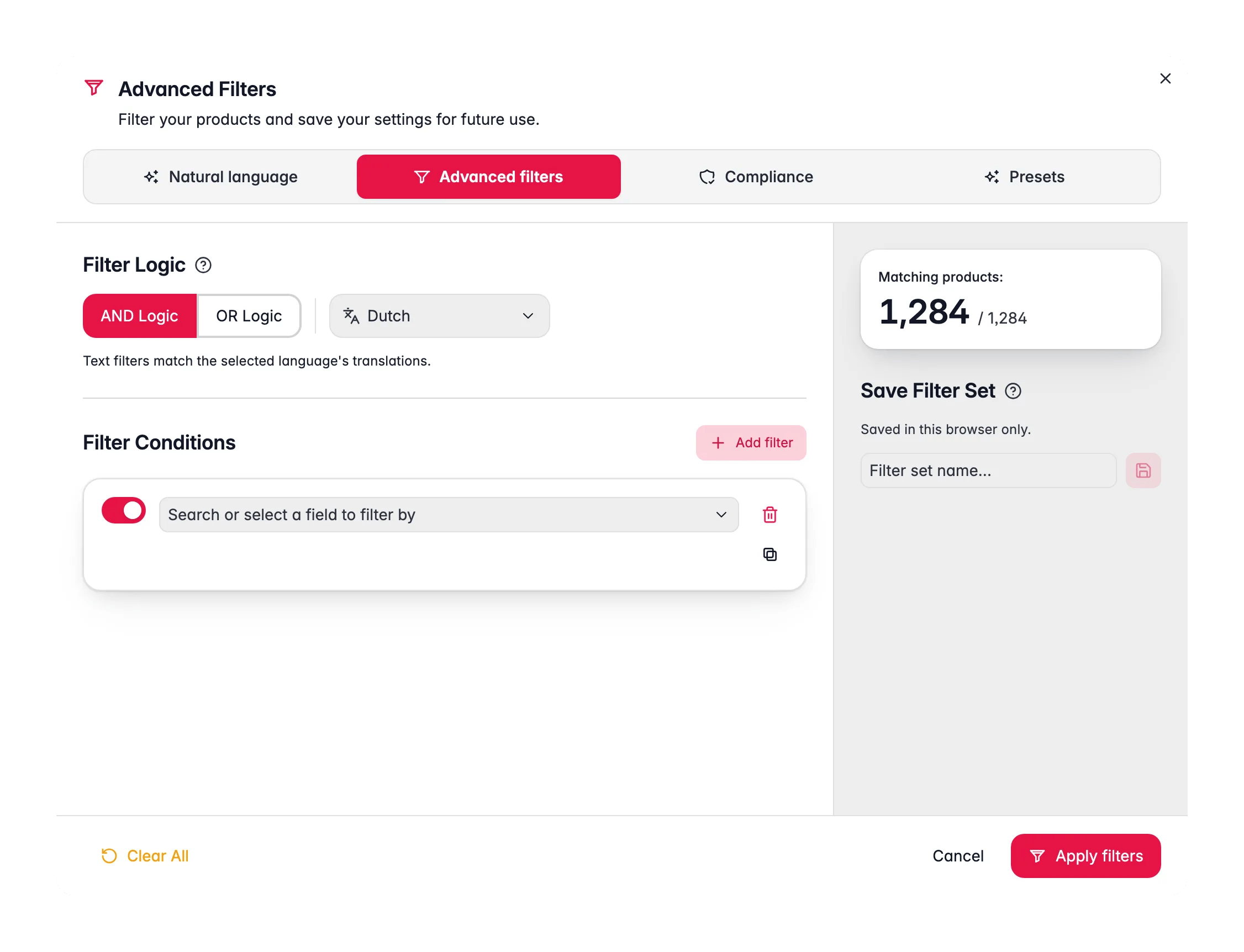
On the Products page, click Filters next to the search bar, open the Advanced filters tab, and filter the Brand field (or whichever field holds the term) with contains and the shortest distinctive fragment: sound, not SoundMax. The summary panel previews the match count while you build, so you can see how wide you have cast before applying anything.
2
Separate the variants from each other
Now narrow with the operators that distinguish near-identical values: case-sensitive equals to isolate one capitalisation, regex match for spacing and punctuation differences, starts with and ends with for prefix and suffix noise. Write down the count behind each variant - those numbers are how you will know the replacement worked. See filtering products for the full operator list.
3
Confirm you are fixing wording, not duplicates
Terminology drift and duplicate products often arrive in the same supplier file, and rewriting text across a set that is half duplicates means doing it twice. A quick is duplicate check on SKU settles it; if it comes back full, resolve the duplicates first with clean up a catalog you inherited.
4
Save the query as a filter set
Name it in the Save filter set box and save. You will re-run this exact filter after the replacement to prove the variant is gone, and after every future import to check it has not come back.
Order matters here for the same reason it does in any text cleanup: a hidden trailing space or an unexpected capital is what makes a replacement silently miss a few hundred products. Three bulk actions look interchangeable and are not, so pick deliberately.
Applying your whole approved list at once, repeatedly
Nothing happens until the dictionary exists - see the next section
1
Trim the whitespace first
Select your products, click Bulk Edit in the Products toolbar, and run Trim Whitespace over the fields that hold the term. Soundmax and Soundmax are two values to a filter and two facets to a storefront, and no later step will match both reliably while the space is still there.
2
Replace one variant at a time
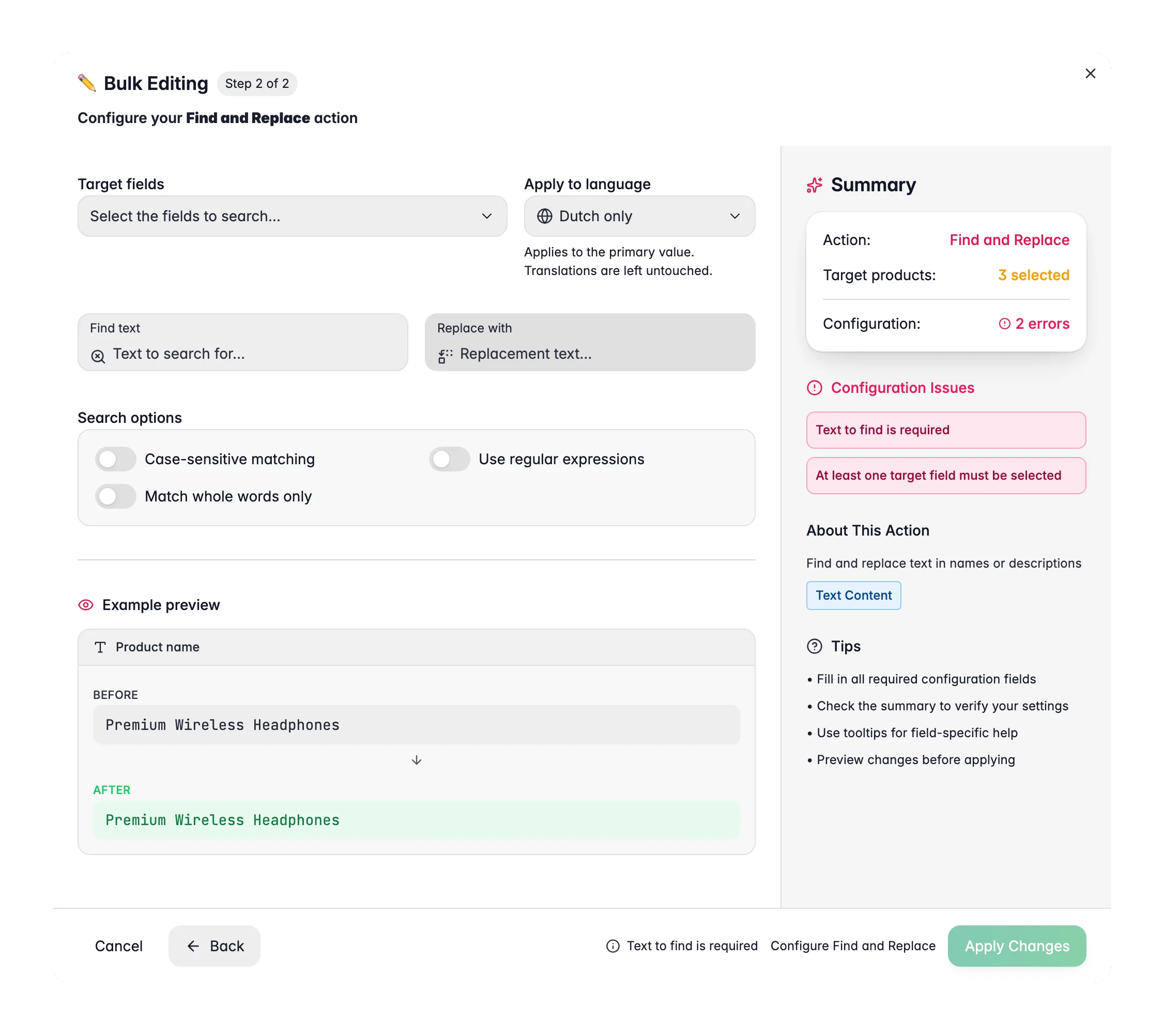
Run Find and Replace once per variant, targeting every field the term appears in: name, descriptions, SEO fields, brand, supplier, custom text attributes. Turn on Match whole words only so a short term is not rewritten inside a longer word, and leave Case sensitive off so every capitalisation of that variant is caught in the one run.
3
Standardize case only where a uniform style is right
Reach for Standardize Text Case only on a field that genuinely should read one way throughout. Run it after the replacements, not before: a Title Case pass over a field you have already corrected will re-capitalize the exact brand strings you just fixed. Keep the field selection narrow and read the live before/after preview.
4
Re-run your saved filter
Load the filter set from the first section. Every variant should now return zero products and the approved spelling should hold the combined count. If a variant still has matches, you missed a field, not a product.
Everything so far was a one-off. The dictionary is what makes it repeatable, and it is the input to a bulk action most people never find on their own.
1
Add each term to the Dictionary
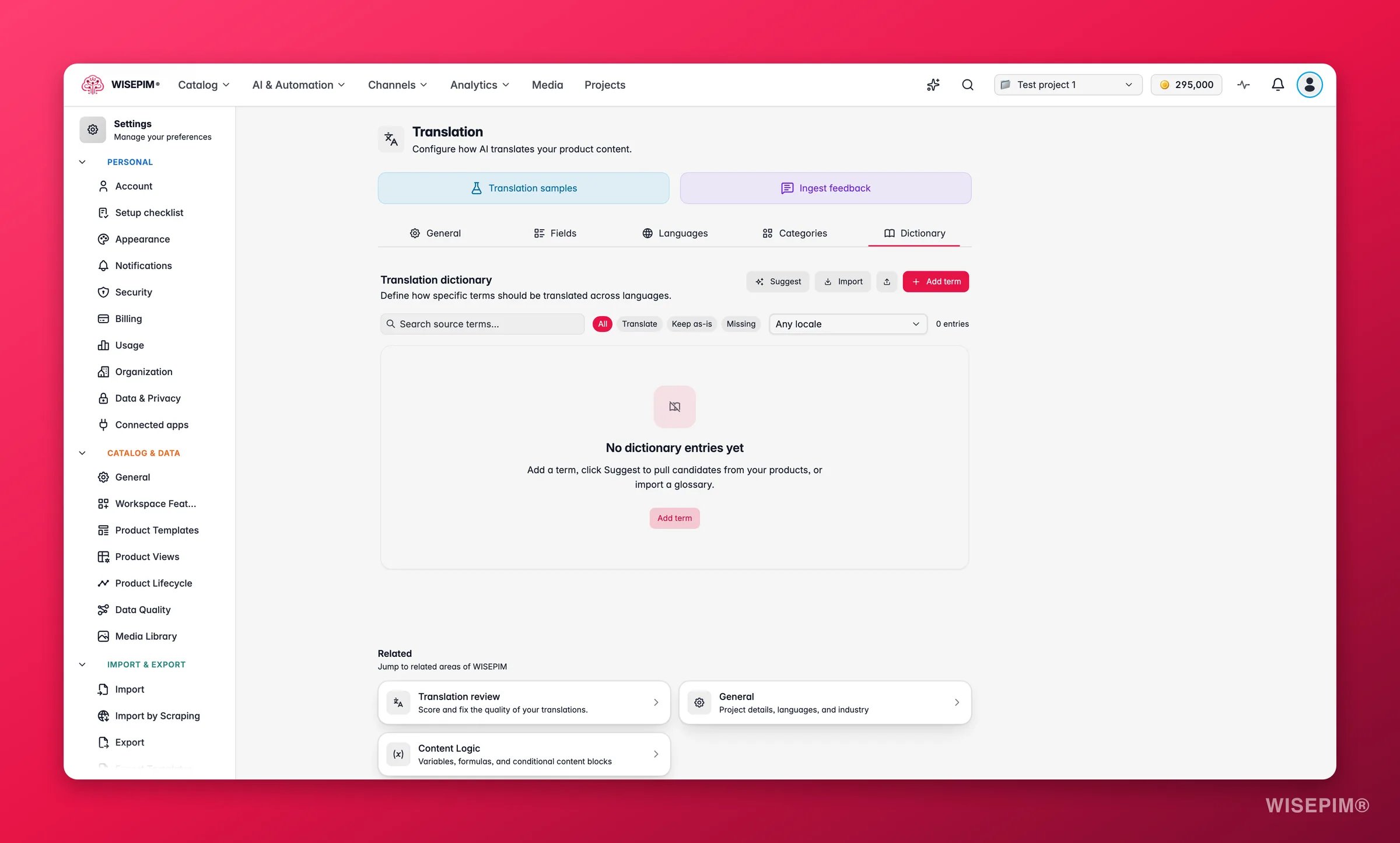
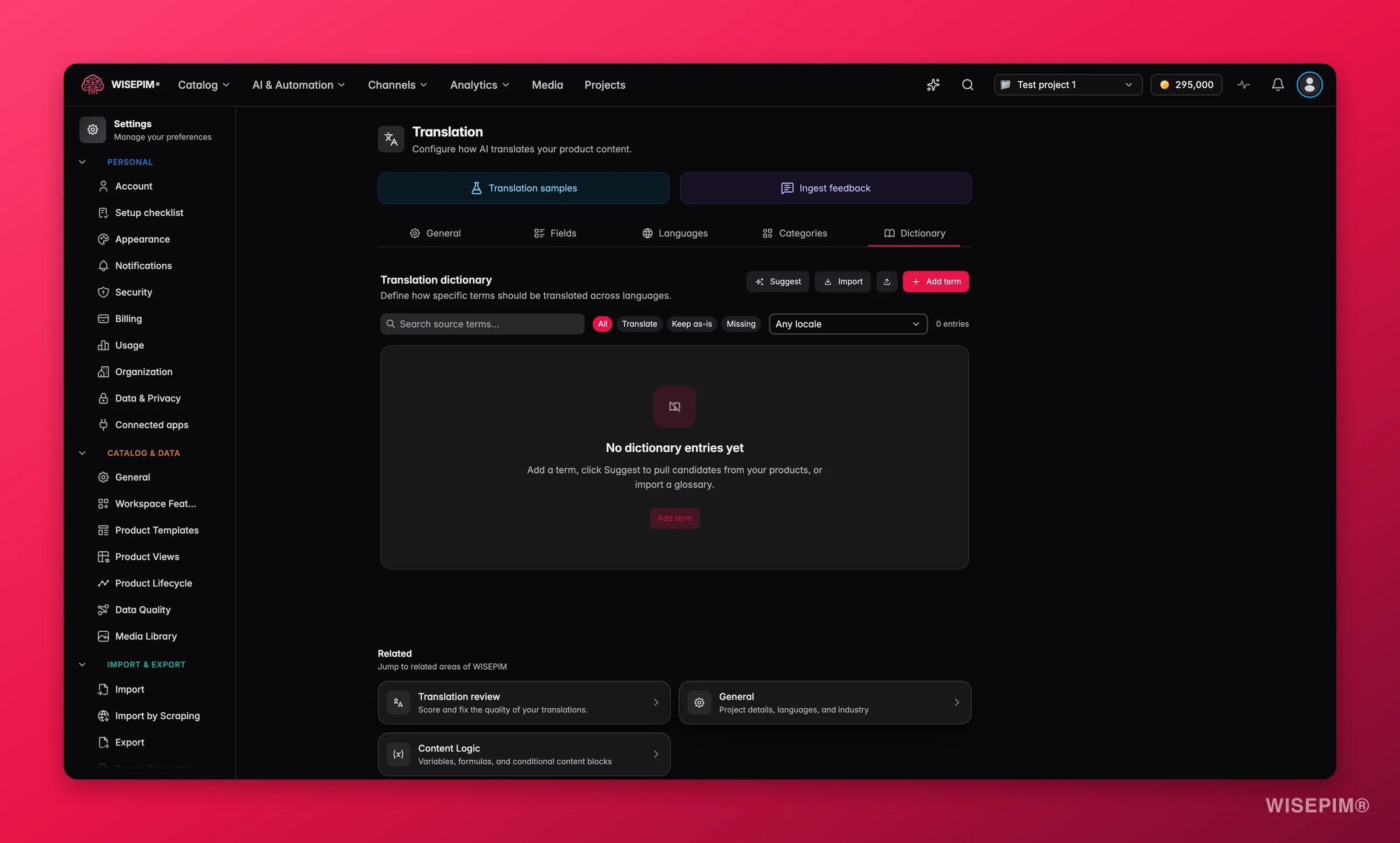
Go to Settings → Translation → Dictionary and click + Add term: enter the source term and the exact wording you want in each language. Add context where a term is ambiguous, so “mouse” as an audio category and “mouse” as a computer peripheral do not collide.
2
Lock the names that must never change
Turn on Keep as-is for brand names, product codes, and trademarks. That is what stops a translation run from helpfully rendering your brand into German, and it is why the dictionary is worth building even if you sell in one language today.
3
Enter them in bulk if you have a list
The Dictionary has a Bulk edit text mode for adding many terms at once, which is far quicker than clicking through entries when you are transcribing a brand style guide.
4
Apply the dictionary to the whole catalog
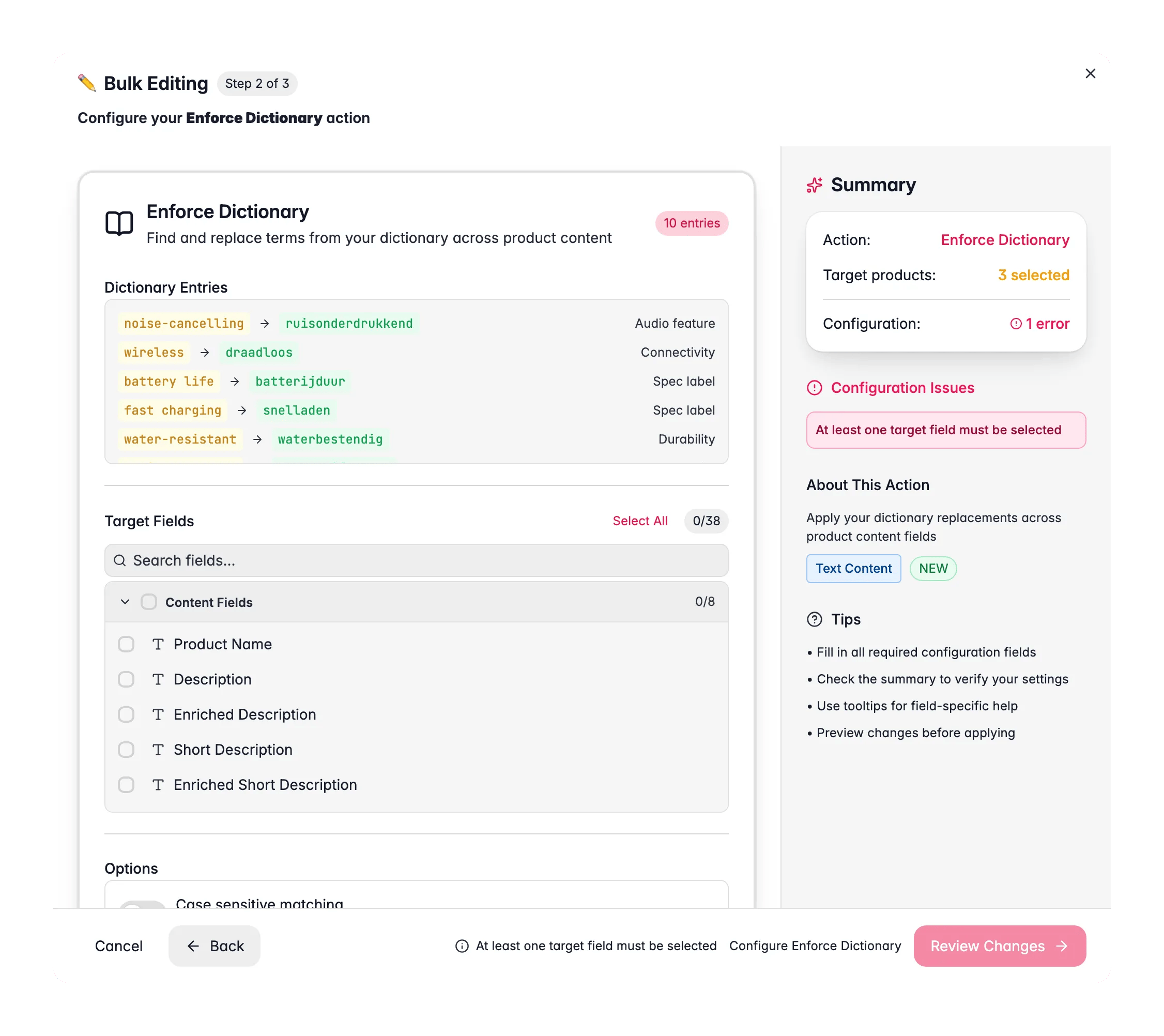
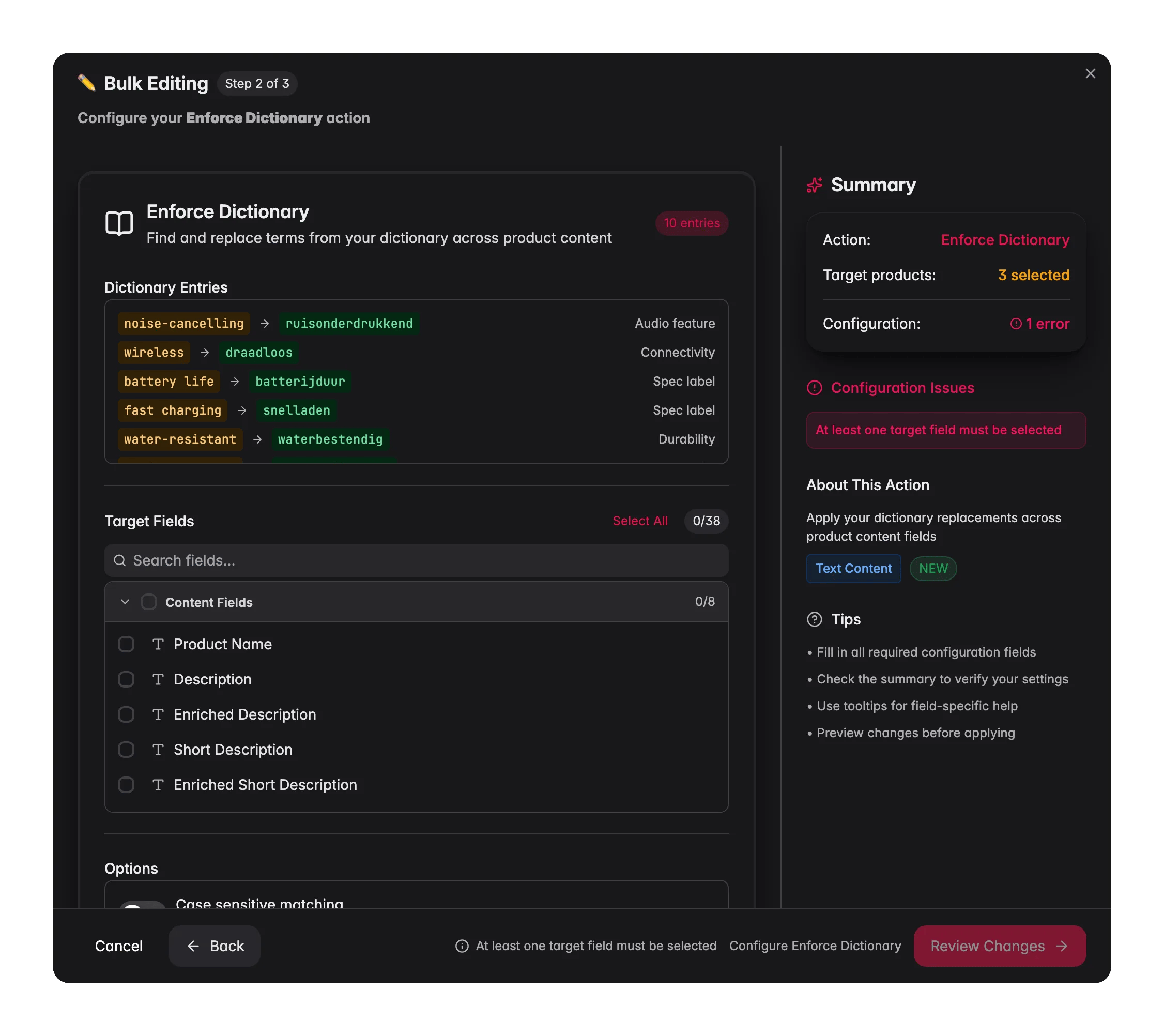
Select your products, click Bulk Edit, and pick Enforce Dictionary under Text & Content. It reads your active dictionary entries and swaps the source terms for the approved wording across the fields you choose, including the translated fields per language, which is the part a manual find-and-replace pass almost always misses. Terms you locked to stay as-is are skipped rather than rewritten.
5
Make it part of every import
Run Enforce Dictionary after each new supplier file lands. A feed brings its own vocabulary with it, and one bulk action costs you less than the filtering you did in section one.
The dictionary fixes wording you already have; this section is about wording that has not arrived yet. Do it now, while you still remember which spellings were wrong - in three months the retired variants are exactly what nobody can list from memory.
1
Replace free text with a fixed list of values
The most durable fix is structural: where the possible values are known in advance, a select attribute backed by a shared options set means nobody can type a fifth spelling, because there is nothing to type into. Set this up in attributes.
2
Add a Quality Guard rule for the old variants
In Quality Guard, click Create Rule and add a condition on the product name or description with the does not include operator and the retired spelling as its value. Set the trigger mode to The product matches them, which is what turns the rule into a detector for wording you have banned rather than a requirement.
3
Keep it at Warn severity
Warn logs the failure and lets the product export anyway. A misspelled brand is worth flagging, not worth stopping a sync over. Check the live impact preview before saving to see how many products the rule catches today.
4
Turn on auto-learn once your reviews look right
Back on the Dictionary tab, Auto-learn glossary from reviews grows the dictionary from wording inconsistencies your linguistic reviews are highly confident about. It is off by default, and leaving it off until your first reviews read sensibly is the point: you want the reviews trustworthy before they start writing entries. Your own terms and anything marked Keep as-is always win.
The filter counts are the honest test, and you get them in seconds. Treat the channel-side signals as confirmation that the change reached the outside world.
A short term matched as a fragment of a longer one. Turn on Match whole words only and re-run. For patterns rather than fixed strings, enable regular expressions and test on a small selection first. See Find and Replace.
One capitalisation of the variant survived the replacement
Case-sensitive matching is off by default, which normally catches every capitalisation at once, so a survivor points at a field you did not include in the target-field list rather than at the matching options. Re-run with the missing fields selected.
Enforce Dictionary ran but nothing changed
Only active dictionary entries are applied, and entries locked to stay as they are get skipped by design. Open the Dictionary tab in Translation settings and confirm the term is there with the replacement you expect, then re-run with the right target fields selected.
Standardizing case flattened a name that was styled on purpose
Names with intentional internal capitals are exactly what the live preview in Standardize Text Case exists to catch. Repair the values with a find-and-replace, then add the term to the dictionary with Keep as-is so translation runs leave it alone too.
The variants came back with the next supplier file
A feed carries its own vocabulary and nothing in the import knows about your preferences. Run Enforce Dictionary as a standing step after each import, and move the field to a select attribute with a shared options set so free text is no longer possible.
The bulk action that applies your approved terms across the catalog.
Translation settings
Where the dictionary lives, including keep-as-is and auto-learn.
Inherited catalog
The full cleanup sequence this terminology pass belongs to.
House style
Teach WISEPIM to write new content in your approved wording from the start.
{"docsConfig":{"theme":"mint","$schema":"https://mintlify.com/docs.json","name":"WISEPIM Documentation","description":"Documentation for WISEPIM, the AI-powered product information management (PIM) platform: import, enrich, translate and publish product content, connect e-commerce platforms and marketplaces, automate catalog work, and build on the WISEPIM Public API.","colors":{"primary":"#E71447","light":"#E71447","dark":"#E71447"},"logo":{"light":"https://mintcdn.com/swiftsyncai/CpcHeNUil_YXkrs1/logo/wisepim-logo-horizontal-transparant-lightmode.png?fit=max\u0026auto=format\u0026n=CpcHeNUil_YXkrs1\u0026q=85\u0026s=fb18d37ec9d57e2050a1acb063cd8424","dark":"https://mintcdn.com/swiftsyncai/CpcHeNUil_YXkrs1/logo/wisepim-logo-horizontal-transparant-darkmode.png?fit=max\u0026auto=format\u0026n=CpcHeNUil_YXkrs1\u0026q=85\u0026s=f908843e7a886bf8143cb9bc525b7b86"},"favicon":"https://mintcdn.com/swiftsyncai/CpcHeNUil_YXkrs1/favicon.png?fit=max\u0026auto=format\u0026n=CpcHeNUil_YXkrs1\u0026q=85\u0026s=50f7573d74bc7da293b9931d815b2bb3","api":{"openapi":"openapi.json","playground":{"display":"interactive"},"examples":{"defaults":"required","languages":["curl","python","javascript"]}},"appearance":{"default":"system"},"background":{"decoration":"gradient"},"navbar":{"links":[{"href":"https://wisepim.com/contact","label":"Support"}],"primary":{"type":"button","label":"Go to WISEPIM","href":"https://wisepim.com/products"}},"footer":{"socials":{"youtube":"https://www.youtube.com/channel/UC5sQ48mV3sYEBme01xvVIXw","linkedin":"https://linkedin.com/company/wisepim"}},"search":{"prompt":"What are you looking for?"},"seo":{"metatags":{"og:site_name":"WISEPIM Documentation","og:type":"website","twitter:card":"summary_large_image"},"organization":{"name":"WISEPIM","legalName":"WISEPIM B.V.","url":"https://wisepim.com","logo":"https://docs.wisepim.com/logo/wisepim-logo-horizontal-transparant-lightmode.png","sameAs":["https://linkedin.com/company/wisepim","https://www.youtube.com/channel/UC5sQ48mV3sYEBme01xvVIXw"]},"indexing":"all"},"fonts":{"family":"Inter"},"icons":{"library":"lucide"},"styling":{"eyebrows":"breadcrumbs","latex":true},"integrations":{"ga4":{"measurementId":"G-6NXPFG6S4Z"}},"errors":{"404":{"redirect":false,"title":"This page moved or never existed","description":"No worries, use the search above (or press Cmd+K) to find what you were looking for, or head back to the [introduction](/en/introduction)."}},"contextual":{"options":[{"title":"Ask WISEPIM AI","description":"Open the WISEPIM AI chat with this page as the question","icon":"sparkles","href":{"base":"https://wisepim.com/chat","query":[{"key":"prompt","value":"I am reading the WISEPIM documentation page https://docs.wisepim.com$path and I have a question about it. Answer in the language of that page.\n\nMy question: "}]}},"copy","view","chatgpt","claude","perplexity","mcp"],"display":"header"},"thumbnails":{"appearance":"dark","background":"https://mintcdn.com/swiftsyncai/2_3RgILsRdlQxjn6/images/og-background.png?fit=max\u0026auto=format\u0026n=2_3RgILsRdlQxjn6\u0026q=85\u0026s=f55698f3b0dd04d58e5f67b096de1f26","fonts":{"family":"Inter"}},"navigation":{"global":{"anchors":[{"anchor":"Homepage","icon":"house","href":"https://wisepim.com"},{"anchor":"Latest changes","icon":"history","href":"https://wisepim.com/changelog"},{"anchor":"Blog","icon":"newspaper","href":"https://wisepim.com/blog"}]},"languages":[{"language":"en","href":"en/introduction"},{"language":"nl","href":"nl/introduction"},{"language":"de","href":"de/introduction"},{"language":"es","href":"es/introduction"}]}},"deployment":{"deploymentMetadataValue":{"subdomain":"swiftsyncai","hasAudioNarration":false,"actualSubdomain":"swiftsyncai","customDomains":["docs.wisepim.com"],"gitSource":{"type":"github","owner":"lldiegon","repo":"wisepim-docs","deployBranch":"main","contentDirectory":"","isPrivate":true,"mountPath":"","label":""},"chroma":{"liveDeploymentHistoryId":"6ae29ae907aeaf4d1afc5884","collectionId":"bbceb7eb-5a5b-4c95-b655-48d98646c6ca","schemaVersion":"v3","latestBuiltDeploymentHistoryId":"6ae29ae907aeaf4d1afc5884"},"entitlements":{},"buildId":"6ae29ae907aeaf4d1afc5884","clientVersion":"0.0.4043","searchFilterCounts":[{"language":"en","tag":"Documentation","count":283},{"language":"de","tag":"Dokumentation","count":183},{"language":"es","tag":"Documentación","count":183},{"language":"nl","tag":"Documentatie","count":183},{"language":"en","tag":"API Reference","count":100},{"language":"en","tag":"Products","count":67},{"language":"de","tag":"Produkte","count":61},{"language":"es","tag":"Productos","count":61},{"language":"nl","tag":"Producten","count":61},{"language":"de","tag":"Erstellen \u0026 Bearbeiten","count":41},{"language":"de","tag":"Einstellungen","count":41},{"language":"en","tag":"Creating \u0026 Editing","count":41},{"language":"en","tag":"Settings","count":41},{"language":"es","tag":"Crear y Editar","count":41},{"language":"es","tag":"Configuración","count":41},{"language":"nl","tag":"Aanmaken \u0026 Bewerken","count":41},{"language":"nl","tag":"Instellingen","count":41},{"language":"de","tag":"Analytics","count":38},{"language":"en","tag":"Analytics","count":38},{"language":"es","tag":"Analytics","count":38},{"language":"nl","tag":"Analytics","count":38},{"language":"de","tag":"Massenaktionen","count":34},{"language":"en","tag":"Bulk Actions","count":34},{"language":"es","tag":"Acciones Masivas","count":34},{"language":"nl","tag":"Bulkacties","count":34},{"language":"de","tag":"Integrationen","count":30},{"language":"en","tag":"Integrations","count":30},{"language":"es","tag":"Integraciones","count":30},{"language":"nl","tag":"Integraties","count":30},{"language":"de","tag":"Projekt","count":29},{"language":"en","tag":"Project","count":29},{"language":"es","tag":"Proyecto","count":29},{"language":"nl","tag":"Project","count":29},{"language":"de","tag":"Anleitungen","count":20},{"language":"en","tag":"Guides","count":20},{"language":"es","tag":"Guías","count":20},{"language":"nl","tag":"Handleidingen","count":20},{"language":"de","tag":"KI \u0026 Anreicherung","count":19},{"language":"es","tag":"IA y Enriquecimiento","count":19},{"language":"nl","tag":"AI \u0026 Verrijking","count":19}]},"assistantConfig":{},"basePath":"","hasChatPermissions":false,"hasWebMcpPermissions":false,"toggles":[{"name":"kill-isr","enabled":true,"variant":{"name":"disabled","enabled":false,"feature_enabled":true},"impressionData":false},{"name":"agent-mintlify-slack","enabled":true,"variant":{"name":"disabled","enabled":false,"feature_enabled":true},"impressionData":false},{"name":"agent-integrations-settings","enabled":true,"variant":{"name":"disabled","enabled":false,"feature_enabled":true},"impressionData":false},{"name":"automations-pr-grouping","enabled":true,"variant":{"name":"disabled","enabled":false,"feature_enabled":true},"impressionData":false},{"name":"custom-prefix","enabled":true,"variant":{"name":"disabled","enabled":false,"feature_enabled":true},"impressionData":false},{"name":"analytics-v7","enabled":true,"variant":{"name":"disabled","enabled":false,"feature_enabled":true},"impressionData":false},{"name":"user-flows-analytics","enabled":true,"variant":{"name":"disabled","enabled":false,"feature_enabled":true},"impressionData":false},{"name":"no-publish-flow","enabled":true,"variant":{"name":"disabled","enabled":false,"feature_enabled":true},"impressionData":false},{"name":"workos-onboarding","enabled":true,"variant":{"name":"disabled","enabled":false,"feature_enabled":true},"impressionData":false},{"name":"llms-txt-v2","enabled":true,"variant":{"name":"disabled","enabled":false,"feature_enabled":true},"impressionData":false},{"name":"snapshot-serving-live","enabled":true,"variant":{"name":"disabled","enabled":false,"feature_enabled":true},"impressionData":false},{"name":"stripTemperatureMiddleware","enabled":true,"variant":{"name":"disabled","enabled":false,"feature_enabled":true},"impressionData":false},{"name":"support-platform-pylon-zendesk","enabled":true,"variant":{"name":"disabled","enabled":false,"feature_enabled":true},"impressionData":false},{"name":"snapshot-serving","enabled":true,"variant":{"name":"disabled","enabled":false,"feature_enabled":true},"impressionData":false},{"name":"instant-rollback","enabled":true,"variant":{"name":"disabled","enabled":false,"feature_enabled":true},"impressionData":false},{"name":"granular-notifications-server","enabled":true,"variant":{"name":"disabled","enabled":false,"feature_enabled":true},"impressionData":false},{"name":"granular-notifications","enabled":true,"variant":{"name":"disabled","enabled":false,"feature_enabled":true},"impressionData":false},{"name":"automations-fable","enabled":true,"variant":{"name":"disabled","enabled":false,"feature_enabled":true},"impressionData":false},{"name":"fixed-ai-action-pricing","enabled":true,"variant":{"name":"disabled","enabled":false,"feature_enabled":true},"impressionData":false},{"name":"automation-resolve-merge-conflict","enabled":true,"variant":{"name":"disabled","enabled":false,"feature_enabled":true},"impressionData":false},{"name":"scoped-publishing","enabled":true,"variant":{"name":"disabled","enabled":false,"feature_enabled":true},"impressionData":false},{"name":"mintql","enabled":true,"variant":{"name":"disabled","enabled":false,"feature_enabled":true},"impressionData":false},{"name":"page-level-analytics","enabled":true,"variant":{"name":"disabled","enabled":false,"feature_enabled":true},"impressionData":false},{"name":"editor-version-history-v2","enabled":true,"variant":{"name":"disabled","enabled":false,"feature_enabled":true},"impressionData":false},{"name":"billing-page-v2","enabled":true,"variant":{"name":"disabled","enabled":false,"feature_enabled":true},"impressionData":false},{"name":"full-page-search","enabled":true,"variant":{"name":"disabled","enabled":false,"feature_enabled":true},"impressionData":false},{"name":"workspace-projects","enabled":true,"variant":{"name":"disabled","enabled":false,"feature_enabled":true},"impressionData":false},{"name":"assistant-v5","enabled":true,"variant":{"name":"disabled","enabled":false,"feature_enabled":true},"impressionData":false},{"name":"byok-sep-25","enabled":true,"variant":{"name":"disabled","enabled":false,"feature_enabled":true},"impressionData":false},{"name":"fork-pr-previews","enabled":true,"variant":{"name":"disabled","enabled":false,"feature_enabled":true},"impressionData":false},{"name":"revalidation-jwt","enabled":true,"variant":{"name":"disabled","enabled":false,"feature_enabled":true},"impressionData":false},{"name":"vite-origin","enabled":true,"variant":{"name":"disabled","enabled":false,"feature_enabled":true},"impressionData":false},{"name":"billing-updated-9-15","enabled":true,"variant":{"name":"disabled","enabled":false,"feature_enabled":true},"impressionData":false},{"name":"workos-sso-scim","enabled":true,"variant":{"name":"disabled","enabled":false,"feature_enabled":true},"impressionData":false},{"name":"hobby-abuse-scan","enabled":true,"variant":{"name":"disabled","enabled":false,"feature_enabled":true},"impressionData":false},{"name":"dashboard-inbox","enabled":true,"variant":{"name":"disabled","enabled":false,"feature_enabled":true},"impressionData":false},{"name":"workos-signup","enabled":true,"variant":{"name":"disabled","enabled":false,"feature_enabled":true},"impressionData":false},{"name":"turbopuffer-dual-write","enabled":true,"variant":{"name":"disabled","enabled":false,"feature_enabled":true},"impressionData":false},{"name":"workos-enabled","enabled":true,"variant":{"name":"disabled","enabled":false,"feature_enabled":true},"impressionData":false},{"name":"approve-review-flow","enabled":true,"variant":{"name":"disabled","enabled":false,"feature_enabled":true},"impressionData":false}],"googleFontsInlined":false},"customCss":[{"filePath":"style.css","content":"img.nav-logo{height:2rem}#theme-preference-menu-trigger{display:none!important}#wisepim-theme-toggle{position:relative;width:34px;height:34px;padding:0;display:flex;align-items:center;justify-content:center;border-radius:.5rem;cursor:pointer;background:0 0;border:0;color:rgb(107 114 128)}#wisepim-theme-toggle:hover{color:rgb(55 65 81);background:rgba(0,0,0,.05)}html.dark #wisepim-theme-toggle{color:rgb(156 163 175)}html.dark #wisepim-theme-toggle:hover{color:rgb(229 231 235);background:rgba(255,255,255,.08)}#wisepim-theme-toggle .wp-tt-icon{position:absolute;transition:transform .5s cubic-bezier(.4,0,.2,1),opacity .25s ease}html:not(.dark) #wisepim-theme-toggle .wp-tt-sun{opacity:1;transform:rotate(0deg) scale(1)}html:not(.dark) #wisepim-theme-toggle .wp-tt-moon{opacity:0;transform:rotate(90deg) scale(.4)}html.dark #wisepim-theme-toggle .wp-tt-sun{opacity:0;transform:rotate(-90deg) scale(.4)}html.dark #wisepim-theme-toggle .wp-tt-moon{opacity:1;transform:rotate(0deg) scale(1)}#wisepim-tooltip{position:fixed;z-index:60;max-width:20rem;padding:.4rem .6rem;border-radius:.5rem;font-size:.75rem;line-height:1.4;font-weight:500;text-align:center;color:rgb(243 244 246);background:rgb(24 24 27);box-shadow:0 6px 20px rgba(0,0,0,.18);pointer-events:none;opacity:0;transform:translateY(-3px) scale(.97);transition:opacity .14s ease,transform .18s cubic-bezier(.16,1,.3,1)}#wisepim-tooltip[data-visible=true]{opacity:1;transform:translateY(0) scale(1)}#wisepim-tooltip::before{content:'';position:absolute;top:-3px;left:var(--wp-tip-arrow, 50%);width:8px;height:8px;margin-left:-4px;border-radius:1px;background:inherit;transform:rotate(45deg)}html.dark #wisepim-tooltip{color:rgb(24 24 27);background:rgb(240 240 243);box-shadow:0 6px 20px rgba(0,0,0,.45)}@media (prefers-reduced-motion:reduce){#wisepim-tooltip{transition:opacity .01s linear;transform:none}#wisepim-tooltip[data-visible=true]{transform:none}}::view-transition-group(root),::view-transition-image-pair(root),::view-transition-new(root),::view-transition-old(root){animation:none;mix-blend-mode:normal}::view-transition-old(root){z-index:1}::view-transition-new(root){z-index:9999;will-change:clip-path}img[src^=\"/images/connectors/\"]{background:#fff;border-radius:4px;object-fit:contain}.connector-brand{display:inline-flex;align-items:center;justify-content:center;background:#fff;border:1px solid #e5e7eb;border-radius:16px;padding:16px;margin:0 0 16px}.connector-brand img{display:block;width:96px;height:64px;margin:0;object-fit:contain}"}],"page":{"pagePath":"en/guides/make-terminology-consistent","slug":"/en/guides/make-terminology-consistent","pageMetadata":{"title":"Make brand names and terms consistent","sidebarTitle":"Consistent terminology","description":"Half your catalog says SoundMax, the other half Sound Max. Collapse every spelling variant, then make the approved wording stick across imports and languages.","icon":"spell-check","keywords":["inconsistent brand names","standardize product terminology","fix spelling variants catalog","controlled vocabulary product data","approved terms glossary","merge duplicate brand values"],"tag":"New","href":"/en/guides/make-terminology-consistent"},"description":{"compiledSource":"\"use strict\";\nconst {jsx: _jsx} = arguments[0];\nconst {useMDXComponents: _provideComponents} = arguments[0];\nfunction _createMdxContent(props) {\n const _components = {\n p: \"p\",\n ..._provideComponents(),\n ...props.components\n };\n return _jsx(_components.p, {\n children: \"Half your catalog says SoundMax, the other half Sound Max. Collapse every spelling variant, then make the approved wording stick across imports and languages.\"\n });\n}\nfunction MDXContent(props = {}) {\n const {wrapper: MDXLayout} = {\n ..._provideComponents(),\n ...props.components\n };\n return MDXLayout ? _jsx(MDXLayout, {\n ...props,\n children: _jsx(_createMdxContent, {\n ...props\n })\n }) : _createMdxContent(props);\n}\nreturn {\n default: MDXContent\n};\n","frontmatter":{},"scope":{}},"pageType":"default","mdx":{"mdxSource":{"compiledSource":"\"use strict\";const{Fragment:_Fragment,jsx:_jsx,jsxs:_jsxs}=arguments[0];const{useMDXComponents:_provideComponents}=arguments[0];function _createMdxContent(props){const _components={a:`a`,code:`code`,p:`p`,strong:`strong`,tbody:`tbody`,td:`td`,th:`th`,thead:`thead`,tr:`tr`,..._provideComponents(),...props.components},{Accordion,AccordionGroup,Card,CardGroup,Heading,Info,OptimizedImage,Step,Steps,Table,Tip}=_components;if(!Accordion)_missingMdxReference(`Accordion`,true);if(!AccordionGroup)_missingMdxReference(`AccordionGroup`,true);if(!Card)_missingMdxReference(`Card`,true);if(!CardGroup)_missingMdxReference(`CardGroup`,true);if(!Heading)_missingMdxReference(`Heading`,true);if(!Info)_missingMdxReference(`Info`,true);if(!OptimizedImage)_missingMdxReference(`OptimizedImage`,true);if(!Step)_missingMdxReference(`Step`,true);if(!Steps)_missingMdxReference(`Steps`,true);if(!Table)_missingMdxReference(`Table`,true);if(!Tip)_missingMdxReference(`Tip`,true);return _jsxs(_Fragment,{children:[_jsx(_components.p,{children:`Your brand filter lists “SoundMax”, “Sound Max”, “SOUNDMAX” and “Soundmax ” with a trailing space as four different brands. Shoppers filtering by brand see a quarter of the range. Your feeds ship four values where the channel expects one. It happens to everyone who imports from more than one source, and it happens again with every new supplier file unless you close the door behind you.`}),`\n`,_jsxs(_components.p,{children:[`Fixing it is three jobs: find every variant, collapse them into one, and make the approved spelling the only one that survives the next import. Budget about an hour per term family. If the whole catalog is a mess and not just its vocabulary, run `,_jsx(_components.a,{href:`/en/guides/clean-up-an-inherited-catalog`,children:`clean up a catalog you inherited`}),` first - its whitespace and case pass is what makes the matching below reliable.`]}),`\n`,_jsx(Info,{children:_jsxs(_components.p,{children:[_jsx(_components.strong,{children:`Before you start:`}),` decide which spelling is correct before you touch anything, ideally from the brand’s own site. Everything below is a bulk edit, so link a term to the wrong master and you will be running the whole pass twice.`]})}),`\n`,_jsx(Tip,{children:_jsxs(_components.p,{children:[_jsx(_components.strong,{children:`What you’ll get:`}),` one spelling per term across the catalog, an approved-terms dictionary you can re-apply after every import, and a rule that flags the old variants if they come back.`]})}),`\n`,_jsx(Heading,{level:`2`,id:`find-every-variant-before-you-replace-anything`,children:`Find every variant before you replace anything`}),`\n`,_jsx(_components.p,{children:`Replacing the variants you happen to have noticed leaves the ones you have not. Build the full list first.`}),`\n`,_jsx(OptimizedImage,{className:`mint-block dark:mint-hidden`,src:`https://mintcdn.com/swiftsyncai/n0SrIIRZ4vgDtB9v/images/marketing-screenshots/products/products-filters-advanced-light-transparent.webp?fit=max\u0026auto=format\u0026n=n0SrIIRZ4vgDtB9v\u0026q=85\u0026s=d5731fca446cd53e3c739b0d9d0adfb1`,alt:`Building advanced product filter conditions in WISEPIM`,\"data-og-width\":`2252`,width:`2252`,\"data-og-height\":`1724`,height:`1724`,\"data-path\":`images/marketing-screenshots/products/products-filters-advanced-light-transparent.webp`,\"data-optimize\":`true`,\"data-opv\":`3`,srcset:`https://mintcdn.com/swiftsyncai/n0SrIIRZ4vgDtB9v/images/marketing-screenshots/products/products-filters-advanced-light-transparent.webp?w=280\u0026fit=max\u0026auto=format\u0026n=n0SrIIRZ4vgDtB9v\u0026q=85\u0026s=83b983c24ffa821c42fc852350642c11 280w, https://mintcdn.com/swiftsyncai/n0SrIIRZ4vgDtB9v/images/marketing-screenshots/products/products-filters-advanced-light-transparent.webp?w=560\u0026fit=max\u0026auto=format\u0026n=n0SrIIRZ4vgDtB9v\u0026q=85\u0026s=70655779ca6f5f90e0aad4f313d54cbc 560w, https://mintcdn.com/swiftsyncai/n0SrIIRZ4vgDtB9v/images/marketing-screenshots/products/products-filters-advanced-light-transparent.webp?w=840\u0026fit=max\u0026auto=format\u0026n=n0SrIIRZ4vgDtB9v\u0026q=85\u0026s=72118d183bb25022870b7262a77fc576 840w, https://mintcdn.com/swiftsyncai/n0SrIIRZ4vgDtB9v/images/marketing-screenshots/products/products-filters-advanced-light-transparent.webp?w=1100\u0026fit=max\u0026auto=format\u0026n=n0SrIIRZ4vgDtB9v\u0026q=85\u0026s=69a994fdf979d8de3c77cb4828da7dfe 1100w, https://mintcdn.com/swiftsyncai/n0SrIIRZ4vgDtB9v/images/marketing-screenshots/products/products-filters-advanced-light-transparent.webp?w=1650\u0026fit=max\u0026auto=format\u0026n=n0SrIIRZ4vgDtB9v\u0026q=85\u0026s=57e9d64554d53e72e1ff2c3197d2f879 1650w, https://mintcdn.com/swiftsyncai/n0SrIIRZ4vgDtB9v/images/marketing-screenshots/products/products-filters-advanced-light-transparent.webp?w=2500\u0026fit=max\u0026auto=format\u0026n=n0SrIIRZ4vgDtB9v\u0026q=85\u0026s=c68f721c1ea63fde6b182e01b21a3c80 2500w`}),`\n`,_jsx(OptimizedImage,{className:`mint-hidden dark:mint-block`,src:`https://mintcdn.com/swiftsyncai/n0SrIIRZ4vgDtB9v/images/marketing-screenshots/products/products-filters-advanced-dark-transparent.webp?fit=max\u0026auto=format\u0026n=n0SrIIRZ4vgDtB9v\u0026q=85\u0026s=cd0abd4237f2a76b95191cbf5ea9815a`,alt:`Building advanced product filter conditions in WISEPIM`,\"data-og-width\":`2252`,width:`2252`,\"data-og-height\":`1724`,height:`1724`,\"data-path\":`images/marketing-screenshots/products/products-filters-advanced-dark-transparent.webp`,\"data-optimize\":`true`,\"data-opv\":`3`,srcset:`https://mintcdn.com/swiftsyncai/n0SrIIRZ4vgDtB9v/images/marketing-screenshots/products/products-filters-advanced-dark-transparent.webp?w=280\u0026fit=max\u0026auto=format\u0026n=n0SrIIRZ4vgDtB9v\u0026q=85\u0026s=06f19e89ba19d09665927a121541d262 280w, https://mintcdn.com/swiftsyncai/n0SrIIRZ4vgDtB9v/images/marketing-screenshots/products/products-filters-advanced-dark-transparent.webp?w=560\u0026fit=max\u0026auto=format\u0026n=n0SrIIRZ4vgDtB9v\u0026q=85\u0026s=ad7e2fbb3333bc9090d443029920b909 560w, https://mintcdn.com/swiftsyncai/n0SrIIRZ4vgDtB9v/images/marketing-screenshots/products/products-filters-advanced-dark-transparent.webp?w=840\u0026fit=max\u0026auto=format\u0026n=n0SrIIRZ4vgDtB9v\u0026q=85\u0026s=77ed614660bfdaf9198b729da80becea 840w, https://mintcdn.com/swiftsyncai/n0SrIIRZ4vgDtB9v/images/marketing-screenshots/products/products-filters-advanced-dark-transparent.webp?w=1100\u0026fit=max\u0026auto=format\u0026n=n0SrIIRZ4vgDtB9v\u0026q=85\u0026s=b6ddb268af693837a4d0be1bd5843c12 1100w, https://mintcdn.com/swiftsyncai/n0SrIIRZ4vgDtB9v/images/marketing-screenshots/products/products-filters-advanced-dark-transparent.webp?w=1650\u0026fit=max\u0026auto=format\u0026n=n0SrIIRZ4vgDtB9v\u0026q=85\u0026s=8e56bf012f495e56339f70ed6f0e6a5a 1650w, https://mintcdn.com/swiftsyncai/n0SrIIRZ4vgDtB9v/images/marketing-screenshots/products/products-filters-advanced-dark-transparent.webp?w=2500\u0026fit=max\u0026auto=format\u0026n=n0SrIIRZ4vgDtB9v\u0026q=85\u0026s=0f361339864528e4fbe1ff7957ecca4d 2500w`}),`\n`,_jsxs(Steps,{children:[_jsx(Step,{title:`Cast a wide net first`,children:_jsxs(_components.p,{children:[`On the `,_jsx(_components.a,{href:`/en/essentials/managing-products`,children:`Products`}),` page, click `,_jsx(_components.strong,{children:`Filters`}),` next to the search bar, open the `,_jsx(_components.strong,{children:`Advanced filters`}),` tab, and filter the `,_jsx(_components.strong,{children:`Brand`}),` field (or whichever field holds the term) with `,_jsx(_components.strong,{children:`contains`}),` and the shortest distinctive fragment: `,_jsx(_components.code,{children:`sound`}),`, not `,_jsx(_components.code,{children:`SoundMax`}),`. The summary panel previews the match count while you build, so you can see how wide you have cast before applying anything.`]})}),_jsx(Step,{title:`Separate the variants from each other`,children:_jsxs(_components.p,{children:[`Now narrow with the operators that distinguish near-identical values: `,_jsx(_components.strong,{children:`case-sensitive equals`}),` to isolate one capitalisation, `,_jsx(_components.strong,{children:`regex match`}),` for spacing and punctuation differences, `,_jsx(_components.strong,{children:`starts with`}),` and `,_jsx(_components.strong,{children:`ends with`}),` for prefix and suffix noise. Write down the count behind each variant - those numbers are how you will know the replacement worked. See `,_jsx(_components.a,{href:`/en/products/filtering-products`,children:`filtering products`}),` for the full operator list.`]})}),_jsx(Step,{title:`Confirm you are fixing wording, not duplicates`,children:_jsxs(_components.p,{children:[`Terminology drift and duplicate products often arrive in the same supplier file, and rewriting text across a set that is half duplicates means doing it twice. A quick `,_jsx(_components.strong,{children:`is duplicate`}),` check on `,_jsx(_components.strong,{children:`SKU`}),` settles it; if it comes back full, resolve the duplicates first with `,_jsx(_components.a,{href:`/en/guides/clean-up-an-inherited-catalog`,children:`clean up a catalog you inherited`}),`.`]})}),_jsx(Step,{title:`Save the query as a filter set`,children:_jsxs(_components.p,{children:[`Name it in the `,_jsx(_components.strong,{children:`Save filter set`}),` box and save. You will re-run this exact filter after the replacement to prove the variant is gone, and after every future import to check it has not come back.`]})})]}),`\n`,_jsx(Heading,{level:`2`,id:`collapse-the-variants-into-one-spelling`,children:`Collapse the variants into one spelling`}),`\n`,_jsx(_components.p,{children:`Order matters here for the same reason it does in any text cleanup: a hidden trailing space or an unexpected capital is what makes a replacement silently miss a few hundred products. Three bulk actions look interchangeable and are not, so pick deliberately.`}),`\n`,_jsxs(Table,{children:[_jsx(_components.thead,{children:_jsxs(_components.tr,{children:[_jsx(_components.th,{children:`Use`}),_jsx(_components.th,{children:`When`}),_jsx(_components.th,{children:`Watch out for`})]})}),_jsxs(_components.tbody,{children:[_jsxs(_components.tr,{children:[_jsx(_components.td,{children:_jsx(_components.a,{href:`/en/essentials/bulk-editing/find-replace`,children:`Find and Replace`})}),_jsx(_components.td,{children:`One known variant becomes one known spelling`}),_jsx(_components.td,{children:`Short terms matching inside longer words`})]}),_jsxs(_components.tr,{children:[_jsx(_components.td,{children:_jsx(_components.a,{href:`/en/essentials/bulk-editing/standardize-case`,children:`Standardize Text Case`})}),_jsx(_components.td,{children:`A whole field should read one way, such as names in Title Case`}),_jsx(_components.td,{children:`Values styled on purpose getting flattened`})]}),_jsxs(_components.tr,{children:[_jsx(_components.td,{children:_jsx(_components.a,{href:`/en/essentials/bulk-editing/enforce-dictionary`,children:`Enforce Dictionary`})}),_jsx(_components.td,{children:`Applying your whole approved list at once, repeatedly`}),_jsx(_components.td,{children:`Nothing happens until the dictionary exists - see the next section`})]})]})]}),`\n`,_jsx(OptimizedImage,{className:`mint-block dark:mint-hidden`,src:`https://mintcdn.com/swiftsyncai/qG3QfnM7eXVnB50s/images/marketing-screenshots/products/products-bulk-edit-find-replace-light-transparent.webp?fit=max\u0026auto=format\u0026n=qG3QfnM7eXVnB50s\u0026q=85\u0026s=4be9d8602b6e21027161bd6657609518`,alt:`Bulk editing, Find and Replace across many products at once in WISEPIM`,\"data-og-width\":`2252`,width:`2252`,\"data-og-height\":`2004`,height:`2004`,\"data-path\":`images/marketing-screenshots/products/products-bulk-edit-find-replace-light-transparent.webp`,\"data-optimize\":`true`,\"data-opv\":`3`,srcset:`https://mintcdn.com/swiftsyncai/qG3QfnM7eXVnB50s/images/marketing-screenshots/products/products-bulk-edit-find-replace-light-transparent.webp?w=280\u0026fit=max\u0026auto=format\u0026n=qG3QfnM7eXVnB50s\u0026q=85\u0026s=4f2d31c8ccf34672538f6e900dd06f07 280w, https://mintcdn.com/swiftsyncai/qG3QfnM7eXVnB50s/images/marketing-screenshots/products/products-bulk-edit-find-replace-light-transparent.webp?w=560\u0026fit=max\u0026auto=format\u0026n=qG3QfnM7eXVnB50s\u0026q=85\u0026s=bc1206caa30d7d4010b30946bccf129f 560w, https://mintcdn.com/swiftsyncai/qG3QfnM7eXVnB50s/images/marketing-screenshots/products/products-bulk-edit-find-replace-light-transparent.webp?w=840\u0026fit=max\u0026auto=format\u0026n=qG3QfnM7eXVnB50s\u0026q=85\u0026s=27d391b488f062ad7b8033e04b7b0809 840w, https://mintcdn.com/swiftsyncai/qG3QfnM7eXVnB50s/images/marketing-screenshots/products/products-bulk-edit-find-replace-light-transparent.webp?w=1100\u0026fit=max\u0026auto=format\u0026n=qG3QfnM7eXVnB50s\u0026q=85\u0026s=50a98bb974c03618fe40f3ee72f6d62d 1100w, https://mintcdn.com/swiftsyncai/qG3QfnM7eXVnB50s/images/marketing-screenshots/products/products-bulk-edit-find-replace-light-transparent.webp?w=1650\u0026fit=max\u0026auto=format\u0026n=qG3QfnM7eXVnB50s\u0026q=85\u0026s=2b2f856b0bc2e99080905d570e9ba6b9 1650w, https://mintcdn.com/swiftsyncai/qG3QfnM7eXVnB50s/images/marketing-screenshots/products/products-bulk-edit-find-replace-light-transparent.webp?w=2500\u0026fit=max\u0026auto=format\u0026n=qG3QfnM7eXVnB50s\u0026q=85\u0026s=8239ccca72c04f363aac42589a56051c 2500w`}),`\n`,_jsx(OptimizedImage,{className:`mint-hidden dark:mint-block`,src:`https://mintcdn.com/swiftsyncai/qG3QfnM7eXVnB50s/images/marketing-screenshots/products/products-bulk-edit-find-replace-dark-transparent.webp?fit=max\u0026auto=format\u0026n=qG3QfnM7eXVnB50s\u0026q=85\u0026s=1986e178a895b16bef9c8b9ed1966fe1`,alt:`Bulk editing, Find and Replace across many products at once in WISEPIM`,\"data-og-width\":`2252`,width:`2252`,\"data-og-height\":`2004`,height:`2004`,\"data-path\":`images/marketing-screenshots/products/products-bulk-edit-find-replace-dark-transparent.webp`,\"data-optimize\":`true`,\"data-opv\":`3`,srcset:`https://mintcdn.com/swiftsyncai/qG3QfnM7eXVnB50s/images/marketing-screenshots/products/products-bulk-edit-find-replace-dark-transparent.webp?w=280\u0026fit=max\u0026auto=format\u0026n=qG3QfnM7eXVnB50s\u0026q=85\u0026s=388f4d17f92e0b78d6bc7c4e3a80331e 280w, https://mintcdn.com/swiftsyncai/qG3QfnM7eXVnB50s/images/marketing-screenshots/products/products-bulk-edit-find-replace-dark-transparent.webp?w=560\u0026fit=max\u0026auto=format\u0026n=qG3QfnM7eXVnB50s\u0026q=85\u0026s=9a2f2bd5d67a4ede63db5deca30aa061 560w, https://mintcdn.com/swiftsyncai/qG3QfnM7eXVnB50s/images/marketing-screenshots/products/products-bulk-edit-find-replace-dark-transparent.webp?w=840\u0026fit=max\u0026auto=format\u0026n=qG3QfnM7eXVnB50s\u0026q=85\u0026s=74b0b5990b5ebb8d87d0c8c8d35f9a19 840w, https://mintcdn.com/swiftsyncai/qG3QfnM7eXVnB50s/images/marketing-screenshots/products/products-bulk-edit-find-replace-dark-transparent.webp?w=1100\u0026fit=max\u0026auto=format\u0026n=qG3QfnM7eXVnB50s\u0026q=85\u0026s=6f42d079c175d7fde31258b604c49f6e 1100w, https://mintcdn.com/swiftsyncai/qG3QfnM7eXVnB50s/images/marketing-screenshots/products/products-bulk-edit-find-replace-dark-transparent.webp?w=1650\u0026fit=max\u0026auto=format\u0026n=qG3QfnM7eXVnB50s\u0026q=85\u0026s=59f7d792fd031f61b57c1e239419241e 1650w, https://mintcdn.com/swiftsyncai/qG3QfnM7eXVnB50s/images/marketing-screenshots/products/products-bulk-edit-find-replace-dark-transparent.webp?w=2500\u0026fit=max\u0026auto=format\u0026n=qG3QfnM7eXVnB50s\u0026q=85\u0026s=db67b4ed330e3b050a1228ec0c8388cf 2500w`}),`\n`,_jsxs(Steps,{children:[_jsx(Step,{title:`Trim the whitespace first`,children:_jsxs(_components.p,{children:[`Select your products, click `,_jsx(_components.strong,{children:`Bulk Edit`}),` in the Products toolbar, and run `,_jsx(_components.a,{href:`/en/essentials/bulk-editing/trim-whitespace`,children:`Trim Whitespace`}),` over the fields that hold the term. `,_jsx(_components.code,{children:`Soundmax `}),` and `,_jsx(_components.code,{children:`Soundmax`}),` are two values to a filter and two facets to a storefront, and no later step will match both reliably while the space is still there.`]})}),_jsx(Step,{title:`Replace one variant at a time`,children:_jsxs(_components.p,{children:[`Run `,_jsx(_components.a,{href:`/en/essentials/bulk-editing/find-replace`,children:`Find and Replace`}),` once per variant, targeting every field the term appears in: name, descriptions, SEO fields, brand, supplier, custom text attributes. Turn on `,_jsx(_components.strong,{children:`Match whole words only`}),` so a short term is not rewritten inside a longer word, and leave `,_jsx(_components.strong,{children:`Case sensitive`}),` off so every capitalisation of that variant is caught in the one run.`]})}),_jsx(Step,{title:`Standardize case only where a uniform style is right`,children:_jsxs(_components.p,{children:[`Reach for `,_jsx(_components.a,{href:`/en/essentials/bulk-editing/standardize-case`,children:`Standardize Text Case`}),` only on a field that genuinely should read one way throughout. Run it after the replacements, not before: a Title Case pass over a field you have already corrected will re-capitalize the exact brand strings you just fixed. Keep the field selection narrow and read the live before/after preview.`]})}),_jsx(Step,{title:`Re-run your saved filter`,children:_jsx(_components.p,{children:`Load the filter set from the first section. Every variant should now return zero products and the approved spelling should hold the combined count. If a variant still has matches, you missed a field, not a product.`})})]}),`\n`,_jsx(Heading,{level:`2`,id:`write-the-approved-terms-down-once`,children:`Write the approved terms down once`}),`\n`,_jsx(_components.p,{children:`Everything so far was a one-off. The dictionary is what makes it repeatable, and it is the input to a bulk action most people never find on their own.`}),`\n`,_jsx(OptimizedImage,{className:`mint-block dark:mint-hidden`,src:`https://mintcdn.com/swiftsyncai/r6VDtpfGWKxkvc1j/images/marketing-screenshots/settings/settings-translation-dictionary-light-branded.webp?fit=max\u0026auto=format\u0026n=r6VDtpfGWKxkvc1j\u0026q=85\u0026s=cf6a3eceaab67a0245192e1c57d6c6c6`,alt:`WISEPIM translation dictionary with multilingual term mappings and do-not-translate brand terms`,\"data-og-width\":`2400`,width:`2400`,\"data-og-height\":`1445`,height:`1445`,\"data-path\":`images/marketing-screenshots/settings/settings-translation-dictionary-light-branded.webp`,\"data-optimize\":`true`,\"data-opv\":`3`,srcset:`https://mintcdn.com/swiftsyncai/r6VDtpfGWKxkvc1j/images/marketing-screenshots/settings/settings-translation-dictionary-light-branded.webp?w=280\u0026fit=max\u0026auto=format\u0026n=r6VDtpfGWKxkvc1j\u0026q=85\u0026s=fb8a704d0d342585d4b447c101eae787 280w, https://mintcdn.com/swiftsyncai/r6VDtpfGWKxkvc1j/images/marketing-screenshots/settings/settings-translation-dictionary-light-branded.webp?w=560\u0026fit=max\u0026auto=format\u0026n=r6VDtpfGWKxkvc1j\u0026q=85\u0026s=3f54b1e44ca301e7743dae1c692ca5ef 560w, https://mintcdn.com/swiftsyncai/r6VDtpfGWKxkvc1j/images/marketing-screenshots/settings/settings-translation-dictionary-light-branded.webp?w=840\u0026fit=max\u0026auto=format\u0026n=r6VDtpfGWKxkvc1j\u0026q=85\u0026s=b05220f1decbe8aee338b82925619929 840w, https://mintcdn.com/swiftsyncai/r6VDtpfGWKxkvc1j/images/marketing-screenshots/settings/settings-translation-dictionary-light-branded.webp?w=1100\u0026fit=max\u0026auto=format\u0026n=r6VDtpfGWKxkvc1j\u0026q=85\u0026s=86d1f9ac0683590cb00fdf0c0a6b0c2d 1100w, https://mintcdn.com/swiftsyncai/r6VDtpfGWKxkvc1j/images/marketing-screenshots/settings/settings-translation-dictionary-light-branded.webp?w=1650\u0026fit=max\u0026auto=format\u0026n=r6VDtpfGWKxkvc1j\u0026q=85\u0026s=8410e9fbd895b86608a87f1cdade830d 1650w, https://mintcdn.com/swiftsyncai/r6VDtpfGWKxkvc1j/images/marketing-screenshots/settings/settings-translation-dictionary-light-branded.webp?w=2500\u0026fit=max\u0026auto=format\u0026n=r6VDtpfGWKxkvc1j\u0026q=85\u0026s=9741676c1c43528f06385b2665483f2f 2500w`}),`\n`,_jsx(OptimizedImage,{className:`mint-hidden dark:mint-block`,src:`https://mintcdn.com/swiftsyncai/r6VDtpfGWKxkvc1j/images/marketing-screenshots/settings/settings-translation-dictionary-dark-branded.webp?fit=max\u0026auto=format\u0026n=r6VDtpfGWKxkvc1j\u0026q=85\u0026s=430bc6a5c6ec24fbe28b1dbfd37ecf7f`,alt:`WISEPIM translation dictionary with multilingual term mappings and do-not-translate brand terms`,\"data-og-width\":`2400`,width:`2400`,\"data-og-height\":`1445`,height:`1445`,\"data-path\":`images/marketing-screenshots/settings/settings-translation-dictionary-dark-branded.webp`,\"data-optimize\":`true`,\"data-opv\":`3`,srcset:`https://mintcdn.com/swiftsyncai/r6VDtpfGWKxkvc1j/images/marketing-screenshots/settings/settings-translation-dictionary-dark-branded.webp?w=280\u0026fit=max\u0026auto=format\u0026n=r6VDtpfGWKxkvc1j\u0026q=85\u0026s=01bff82995838a42a2e74bc36b574aa6 280w, https://mintcdn.com/swiftsyncai/r6VDtpfGWKxkvc1j/images/marketing-screenshots/settings/settings-translation-dictionary-dark-branded.webp?w=560\u0026fit=max\u0026auto=format\u0026n=r6VDtpfGWKxkvc1j\u0026q=85\u0026s=8ae8301008bb3c32fd04ba3c915ab958 560w, https://mintcdn.com/swiftsyncai/r6VDtpfGWKxkvc1j/images/marketing-screenshots/settings/settings-translation-dictionary-dark-branded.webp?w=840\u0026fit=max\u0026auto=format\u0026n=r6VDtpfGWKxkvc1j\u0026q=85\u0026s=8e7be591981f7b19e4e71441d7fe462d 840w, https://mintcdn.com/swiftsyncai/r6VDtpfGWKxkvc1j/images/marketing-screenshots/settings/settings-translation-dictionary-dark-branded.webp?w=1100\u0026fit=max\u0026auto=format\u0026n=r6VDtpfGWKxkvc1j\u0026q=85\u0026s=45184b3565d57e6bf1c6d4697a0b8729 1100w, https://mintcdn.com/swiftsyncai/r6VDtpfGWKxkvc1j/images/marketing-screenshots/settings/settings-translation-dictionary-dark-branded.webp?w=1650\u0026fit=max\u0026auto=format\u0026n=r6VDtpfGWKxkvc1j\u0026q=85\u0026s=11b64b6ad09e23ff79733665b29910d8 1650w, https://mintcdn.com/swiftsyncai/r6VDtpfGWKxkvc1j/images/marketing-screenshots/settings/settings-translation-dictionary-dark-branded.webp?w=2500\u0026fit=max\u0026auto=format\u0026n=r6VDtpfGWKxkvc1j\u0026q=85\u0026s=8eb1fca5dffc5c4e3bfb7f1552567d39 2500w`}),`\n`,_jsxs(Steps,{children:[_jsx(Step,{title:`Add each term to the Dictionary`,children:_jsxs(_components.p,{children:[`Go to `,_jsxs(_components.strong,{children:[`Settings → `,_jsx(_components.a,{href:`/en/settings/translation`,children:`Translation`}),` → Dictionary`]}),` and click `,_jsx(_components.strong,{children:`+ Add term`}),`: enter the source term and the exact wording you want in each language. Add context where a term is ambiguous, so “mouse” as an audio category and “mouse” as a computer peripheral do not collide.`]})}),_jsx(Step,{title:`Lock the names that must never change`,children:_jsxs(_components.p,{children:[`Turn on `,_jsx(_components.strong,{children:`Keep as-is`}),` for brand names, product codes, and trademarks. That is what stops a translation run from helpfully rendering your brand into German, and it is why the dictionary is worth building even if you sell in one language today.`]})}),_jsx(Step,{title:`Enter them in bulk if you have a list`,children:_jsxs(_components.p,{children:[`The Dictionary has a `,_jsx(_components.strong,{children:`Bulk edit`}),` text mode for adding many terms at once, which is far quicker than clicking through entries when you are transcribing a brand style guide.`]})}),_jsxs(Step,{title:`Apply the dictionary to the whole catalog`,children:[_jsxs(_components.p,{children:[`Select your products, click `,_jsx(_components.strong,{children:`Bulk Edit`}),`, and pick `,_jsx(_components.a,{href:`/en/essentials/bulk-editing/enforce-dictionary`,children:`Enforce Dictionary`}),` under `,_jsx(_components.strong,{children:`Text \u0026 Content`}),`. It reads your active dictionary entries and swaps the source terms for the approved wording across the fields you choose, including the translated fields per language, which is the part a manual find-and-replace pass almost always misses. Terms you locked to stay as-is are skipped rather than rewritten.`]}),_jsx(OptimizedImage,{className:`mint-block dark:mint-hidden`,src:`https://mintcdn.com/swiftsyncai/qG3QfnM7eXVnB50s/images/marketing-screenshots/products/products-bulk-edit-enforce-dictionary-light-transparent.webp?fit=max\u0026auto=format\u0026n=qG3QfnM7eXVnB50s\u0026q=85\u0026s=06ebe2d860ede38bf89a0380d289578d`,alt:`Bulk editing, Enforce Dictionary across many products at once in WISEPIM`,\"data-og-width\":`2252`,width:`2252`,\"data-og-height\":`2004`,height:`2004`,\"data-path\":`images/marketing-screenshots/products/products-bulk-edit-enforce-dictionary-light-transparent.webp`,\"data-optimize\":`true`,\"data-opv\":`3`,srcset:`https://mintcdn.com/swiftsyncai/qG3QfnM7eXVnB50s/images/marketing-screenshots/products/products-bulk-edit-enforce-dictionary-light-transparent.webp?w=280\u0026fit=max\u0026auto=format\u0026n=qG3QfnM7eXVnB50s\u0026q=85\u0026s=f2549f62ee1097bbbae3a382b6a33f69 280w, https://mintcdn.com/swiftsyncai/qG3QfnM7eXVnB50s/images/marketing-screenshots/products/products-bulk-edit-enforce-dictionary-light-transparent.webp?w=560\u0026fit=max\u0026auto=format\u0026n=qG3QfnM7eXVnB50s\u0026q=85\u0026s=491129ef19f58947d5441acada0ab372 560w, https://mintcdn.com/swiftsyncai/qG3QfnM7eXVnB50s/images/marketing-screenshots/products/products-bulk-edit-enforce-dictionary-light-transparent.webp?w=840\u0026fit=max\u0026auto=format\u0026n=qG3QfnM7eXVnB50s\u0026q=85\u0026s=0f8f5fc1b98df256d5638b5a1dbd3270 840w, https://mintcdn.com/swiftsyncai/qG3QfnM7eXVnB50s/images/marketing-screenshots/products/products-bulk-edit-enforce-dictionary-light-transparent.webp?w=1100\u0026fit=max\u0026auto=format\u0026n=qG3QfnM7eXVnB50s\u0026q=85\u0026s=31887c909dd3f6d599bd9eaceb20b4f4 1100w, https://mintcdn.com/swiftsyncai/qG3QfnM7eXVnB50s/images/marketing-screenshots/products/products-bulk-edit-enforce-dictionary-light-transparent.webp?w=1650\u0026fit=max\u0026auto=format\u0026n=qG3QfnM7eXVnB50s\u0026q=85\u0026s=6cf48aeb5b4e6f79880f153f5b3c34df 1650w, https://mintcdn.com/swiftsyncai/qG3QfnM7eXVnB50s/images/marketing-screenshots/products/products-bulk-edit-enforce-dictionary-light-transparent.webp?w=2500\u0026fit=max\u0026auto=format\u0026n=qG3QfnM7eXVnB50s\u0026q=85\u0026s=c3f0bbc6505a2e8e53e865e036fcee4e 2500w`}),_jsx(OptimizedImage,{className:`mint-hidden dark:mint-block`,src:`https://mintcdn.com/swiftsyncai/qG3QfnM7eXVnB50s/images/marketing-screenshots/products/products-bulk-edit-enforce-dictionary-dark-transparent.webp?fit=max\u0026auto=format\u0026n=qG3QfnM7eXVnB50s\u0026q=85\u0026s=2148eb8ebb6d1ccab662f4fa806671f5`,alt:`Bulk editing, Enforce Dictionary across many products at once in WISEPIM`,\"data-og-width\":`2252`,width:`2252`,\"data-og-height\":`2004`,height:`2004`,\"data-path\":`images/marketing-screenshots/products/products-bulk-edit-enforce-dictionary-dark-transparent.webp`,\"data-optimize\":`true`,\"data-opv\":`3`,srcset:`https://mintcdn.com/swiftsyncai/qG3QfnM7eXVnB50s/images/marketing-screenshots/products/products-bulk-edit-enforce-dictionary-dark-transparent.webp?w=280\u0026fit=max\u0026auto=format\u0026n=qG3QfnM7eXVnB50s\u0026q=85\u0026s=51feec6a723188dfed01798ca9b21aae 280w, https://mintcdn.com/swiftsyncai/qG3QfnM7eXVnB50s/images/marketing-screenshots/products/products-bulk-edit-enforce-dictionary-dark-transparent.webp?w=560\u0026fit=max\u0026auto=format\u0026n=qG3QfnM7eXVnB50s\u0026q=85\u0026s=4b5085062678650427f77454409da856 560w, https://mintcdn.com/swiftsyncai/qG3QfnM7eXVnB50s/images/marketing-screenshots/products/products-bulk-edit-enforce-dictionary-dark-transparent.webp?w=840\u0026fit=max\u0026auto=format\u0026n=qG3QfnM7eXVnB50s\u0026q=85\u0026s=425baca1b9ddc04c9109032ae63a9666 840w, https://mintcdn.com/swiftsyncai/qG3QfnM7eXVnB50s/images/marketing-screenshots/products/products-bulk-edit-enforce-dictionary-dark-transparent.webp?w=1100\u0026fit=max\u0026auto=format\u0026n=qG3QfnM7eXVnB50s\u0026q=85\u0026s=bc3acfa485e3b4c81ecb03db4534fc77 1100w, https://mintcdn.com/swiftsyncai/qG3QfnM7eXVnB50s/images/marketing-screenshots/products/products-bulk-edit-enforce-dictionary-dark-transparent.webp?w=1650\u0026fit=max\u0026auto=format\u0026n=qG3QfnM7eXVnB50s\u0026q=85\u0026s=e140c0825cf22c7523fc98685b259e41 1650w, https://mintcdn.com/swiftsyncai/qG3QfnM7eXVnB50s/images/marketing-screenshots/products/products-bulk-edit-enforce-dictionary-dark-transparent.webp?w=2500\u0026fit=max\u0026auto=format\u0026n=qG3QfnM7eXVnB50s\u0026q=85\u0026s=cd053463903d774dfcf43e429dae5099 2500w`})]}),_jsx(Step,{title:`Make it part of every import`,children:_jsx(_components.p,{children:`Run Enforce Dictionary after each new supplier file lands. A feed brings its own vocabulary with it, and one bulk action costs you less than the filtering you did in section one.`})})]}),`\n`,_jsx(Heading,{level:`2`,id:`stop-the-variants-coming-back`,children:`Stop the variants coming back`}),`\n`,_jsx(_components.p,{children:`The dictionary fixes wording you already have; this section is about wording that has not arrived yet. Do it now, while you still remember which spellings were wrong - in three months the retired variants are exactly what nobody can list from memory.`}),`\n`,_jsxs(Steps,{children:[_jsxs(Step,{title:`Replace free text with a fixed list of values`,children:[_jsxs(_components.p,{children:[`The most durable fix is structural: where the possible values are known in advance, a select attribute backed by a shared options set means nobody can type a fifth spelling, because there is nothing to type into. Set this up in `,_jsx(_components.a,{href:`/en/other-features/managing-attributes`,children:`attributes`}),`.`]}),_jsx(OptimizedImage,{className:`mint-block dark:mint-hidden`,src:`https://mintcdn.com/swiftsyncai/jl7-7OUIcGOW7dTY/images/marketing-screenshots/products/product-attribute-options-light-branded.webp?fit=max\u0026auto=format\u0026n=jl7-7OUIcGOW7dTY\u0026q=85\u0026s=3c406659f8e58a294d70931a53f6a8b5`,alt:`WISEPIM attribute options managing controlled value lists with per-set import handling and value previews`,\"data-og-width\":`2400`,width:`2400`,\"data-og-height\":`1445`,height:`1445`,\"data-path\":`images/marketing-screenshots/products/product-attribute-options-light-branded.webp`,\"data-optimize\":`true`,\"data-opv\":`3`,srcset:`https://mintcdn.com/swiftsyncai/jl7-7OUIcGOW7dTY/images/marketing-screenshots/products/product-attribute-options-light-branded.webp?w=280\u0026fit=max\u0026auto=format\u0026n=jl7-7OUIcGOW7dTY\u0026q=85\u0026s=889b4d6a082ebeb2c5b277f98cc53db7 280w, https://mintcdn.com/swiftsyncai/jl7-7OUIcGOW7dTY/images/marketing-screenshots/products/product-attribute-options-light-branded.webp?w=560\u0026fit=max\u0026auto=format\u0026n=jl7-7OUIcGOW7dTY\u0026q=85\u0026s=9774060cdcb374f93c7e750d85671672 560w, https://mintcdn.com/swiftsyncai/jl7-7OUIcGOW7dTY/images/marketing-screenshots/products/product-attribute-options-light-branded.webp?w=840\u0026fit=max\u0026auto=format\u0026n=jl7-7OUIcGOW7dTY\u0026q=85\u0026s=7b3d84f242980b49a2355e2ebd797d94 840w, https://mintcdn.com/swiftsyncai/jl7-7OUIcGOW7dTY/images/marketing-screenshots/products/product-attribute-options-light-branded.webp?w=1100\u0026fit=max\u0026auto=format\u0026n=jl7-7OUIcGOW7dTY\u0026q=85\u0026s=177e87ba5fbf82d5804f4c183f27d963 1100w, https://mintcdn.com/swiftsyncai/jl7-7OUIcGOW7dTY/images/marketing-screenshots/products/product-attribute-options-light-branded.webp?w=1650\u0026fit=max\u0026auto=format\u0026n=jl7-7OUIcGOW7dTY\u0026q=85\u0026s=aaa5253f52ab6f8b062fd7a17d3f7194 1650w, https://mintcdn.com/swiftsyncai/jl7-7OUIcGOW7dTY/images/marketing-screenshots/products/product-attribute-options-light-branded.webp?w=2500\u0026fit=max\u0026auto=format\u0026n=jl7-7OUIcGOW7dTY\u0026q=85\u0026s=0c6515a320a95e6d59cf93cc055d3d12 2500w`}),_jsx(OptimizedImage,{className:`mint-hidden dark:mint-block`,src:`https://mintcdn.com/swiftsyncai/jl7-7OUIcGOW7dTY/images/marketing-screenshots/products/product-attribute-options-dark-branded.webp?fit=max\u0026auto=format\u0026n=jl7-7OUIcGOW7dTY\u0026q=85\u0026s=43c7751b134921113aff70487e2436a2`,alt:`WISEPIM attribute options managing controlled value lists with per-set import handling and value previews`,\"data-og-width\":`2400`,width:`2400`,\"data-og-height\":`1445`,height:`1445`,\"data-path\":`images/marketing-screenshots/products/product-attribute-options-dark-branded.webp`,\"data-optimize\":`true`,\"data-opv\":`3`,srcset:`https://mintcdn.com/swiftsyncai/jl7-7OUIcGOW7dTY/images/marketing-screenshots/products/product-attribute-options-dark-branded.webp?w=280\u0026fit=max\u0026auto=format\u0026n=jl7-7OUIcGOW7dTY\u0026q=85\u0026s=6375fc2cec06adda200eb738f17781eb 280w, https://mintcdn.com/swiftsyncai/jl7-7OUIcGOW7dTY/images/marketing-screenshots/products/product-attribute-options-dark-branded.webp?w=560\u0026fit=max\u0026auto=format\u0026n=jl7-7OUIcGOW7dTY\u0026q=85\u0026s=29365992f8962b94be80a64267d728dd 560w, https://mintcdn.com/swiftsyncai/jl7-7OUIcGOW7dTY/images/marketing-screenshots/products/product-attribute-options-dark-branded.webp?w=840\u0026fit=max\u0026auto=format\u0026n=jl7-7OUIcGOW7dTY\u0026q=85\u0026s=3062f18e1cde27298a0dd8dd32e6b7cb 840w, https://mintcdn.com/swiftsyncai/jl7-7OUIcGOW7dTY/images/marketing-screenshots/products/product-attribute-options-dark-branded.webp?w=1100\u0026fit=max\u0026auto=format\u0026n=jl7-7OUIcGOW7dTY\u0026q=85\u0026s=51570bd4021b450ea0c8110df2e3f1e1 1100w, https://mintcdn.com/swiftsyncai/jl7-7OUIcGOW7dTY/images/marketing-screenshots/products/product-attribute-options-dark-branded.webp?w=1650\u0026fit=max\u0026auto=format\u0026n=jl7-7OUIcGOW7dTY\u0026q=85\u0026s=ac04f3301f6093de3aa3ccdc015722de 1650w, https://mintcdn.com/swiftsyncai/jl7-7OUIcGOW7dTY/images/marketing-screenshots/products/product-attribute-options-dark-branded.webp?w=2500\u0026fit=max\u0026auto=format\u0026n=jl7-7OUIcGOW7dTY\u0026q=85\u0026s=ec06c18b382c982b5b2850e27b546b6f 2500w`})]}),_jsx(Step,{title:`Add a Quality Guard rule for the old variants`,children:_jsxs(_components.p,{children:[`In `,_jsx(_components.a,{href:`/en/quality-guard/rules`,children:`Quality Guard`}),`, click `,_jsx(_components.strong,{children:`Create Rule`}),` and add a condition on the product name or description with the `,_jsx(_components.strong,{children:`does not include`}),` operator and the retired spelling as its value. Set the trigger mode to `,_jsx(_components.strong,{children:`The product matches them`}),`, which is what turns the rule into a detector for wording you have banned rather than a requirement.`]})}),_jsx(Step,{title:`Keep it at Warn severity`,children:_jsx(_components.p,{children:`Warn logs the failure and lets the product export anyway. A misspelled brand is worth flagging, not worth stopping a sync over. Check the live impact preview before saving to see how many products the rule catches today.`})}),_jsx(Step,{title:`Turn on auto-learn once your reviews look right`,children:_jsxs(_components.p,{children:[`Back on the `,_jsx(_components.strong,{children:`Dictionary`}),` tab, `,_jsx(_components.strong,{children:`Auto-learn glossary from reviews`}),` grows the dictionary from wording inconsistencies your `,_jsx(_components.a,{href:`/en/analytics/linguistic-review`,children:`linguistic reviews`}),` are highly confident about. It is off by default, and leaving it off until your first reviews read sensibly is the point: you want the reviews trustworthy before they start writing entries. Your own terms and anything marked `,_jsx(_components.strong,{children:`Keep as-is`}),` always win.`]})})]}),`\n`,_jsx(Heading,{level:`2`,id:`how-to-tell-it-worked`,children:`How to tell it worked`}),`\n`,_jsxs(Table,{children:[_jsx(_components.thead,{children:_jsxs(_components.tr,{children:[_jsx(_components.th,{children:`Signal`}),_jsx(_components.th,{children:`Where to look`}),_jsx(_components.th,{children:`When it moves`})]})}),_jsxs(_components.tbody,{children:[_jsxs(_components.tr,{children:[_jsx(_components.td,{children:`Each variant filter returns zero products`}),_jsx(_components.td,{children:`Your saved advanced filter set`}),_jsx(_components.td,{children:`Immediately after the find-and-replace pass`})]}),_jsxs(_components.tr,{children:[_jsx(_components.td,{children:`The approved spelling holds the combined count`}),_jsx(_components.td,{children:`Same filter, approved term`}),_jsx(_components.td,{children:`Same pass`})]}),_jsxs(_components.tr,{children:[_jsx(_components.td,{children:`Brand facets collapse to one entry per brand`}),_jsx(_components.td,{children:`Your storefront or channel feed`}),_jsx(_components.td,{children:`On the next export or sync`})]}),_jsxs(_components.tr,{children:[_jsx(_components.td,{children:`Dictionary terms come out identical everywhere`}),_jsx(_components.td,{children:_jsx(_components.a,{href:`/en/analytics/linguistic-review`,children:`Linguistic Review`})}),_jsx(_components.td,{children:`After the next translation run`})]}),_jsxs(_components.tr,{children:[_jsx(_components.td,{children:`Old spellings get flagged, not shipped`}),_jsx(_components.td,{children:_jsx(_components.a,{href:`/en/quality-guard/overview`,children:`Quality Guard`})}),_jsx(_components.td,{children:`On the next check after the rule goes active`})]})]})]}),`\n`,_jsx(_components.p,{children:`The filter counts are the honest test, and you get them in seconds. Treat the channel-side signals as confirmation that the change reached the outside world.`}),`\n`,_jsx(Heading,{level:`2`,id:`when-it-doesn’t-work`,children:`When it doesn’t work`}),`\n`,_jsxs(AccordionGroup,{children:[_jsx(Accordion,{icon:`circle-alert`,title:`Find and Replace changed text inside other words`,id:`find-and-replace-changed-text-inside-other-words`,children:_jsxs(_components.p,{children:[`A short term matched as a fragment of a longer one. Turn on `,_jsx(_components.strong,{children:`Match whole words only`}),` and re-run. For patterns rather than fixed strings, enable regular expressions and test on a small selection first. See `,_jsx(_components.a,{href:`/en/essentials/bulk-editing/find-replace`,children:`Find and Replace`}),`.`]})}),_jsx(Accordion,{icon:`circle-alert`,title:`One capitalisation of the variant survived the replacement`,id:`one-capitalisation-of-the-variant-survived-the-replacement`,children:_jsx(_components.p,{children:`Case-sensitive matching is off by default, which normally catches every capitalisation at once, so a survivor points at a field you did not include in the target-field list rather than at the matching options. Re-run with the missing fields selected.`})}),_jsx(Accordion,{icon:`circle-alert`,title:`Enforce Dictionary ran but nothing changed`,id:`enforce-dictionary-ran-but-nothing-changed`,children:_jsxs(_components.p,{children:[`Only active dictionary entries are applied, and entries locked to stay as they are get skipped by design. Open the `,_jsx(_components.strong,{children:`Dictionary`}),` tab in `,_jsx(_components.a,{href:`/en/settings/translation`,children:`Translation settings`}),` and confirm the term is there with the replacement you expect, then re-run with the right target fields selected.`]})}),_jsx(Accordion,{icon:`circle-alert`,title:`Standardizing case flattened a name that was styled on purpose`,id:`standardizing-case-flattened-a-name-that-was-styled-on-purpose`,children:_jsxs(_components.p,{children:[`Names with intentional internal capitals are exactly what the live preview in `,_jsx(_components.a,{href:`/en/essentials/bulk-editing/standardize-case`,children:`Standardize Text Case`}),` exists to catch. Repair the values with a find-and-replace, then add the term to the dictionary with `,_jsx(_components.strong,{children:`Keep as-is`}),` so translation runs leave it alone too.`]})}),_jsx(Accordion,{icon:`circle-alert`,title:`The variants came back with the next supplier file`,id:`the-variants-came-back-with-the-next-supplier-file`,children:_jsx(_components.p,{children:`A feed carries its own vocabulary and nothing in the import knows about your preferences. Run Enforce Dictionary as a standing step after each import, and move the field to a select attribute with a shared options set so free text is no longer possible.`})})]}),`\n`,_jsx(Heading,{level:`2`,id:`related`,children:`Related`}),`\n`,_jsxs(CardGroup,{cols:2,children:[_jsx(Card,{title:`Enforce Dictionary`,icon:`book-open`,href:`/en/essentials/bulk-editing/enforce-dictionary`,children:_jsx(_components.p,{children:`The bulk action that applies your approved terms across the catalog.`})}),_jsx(Card,{title:`Translation settings`,icon:`languages`,href:`/en/settings/translation`,children:_jsx(_components.p,{children:`Where the dictionary lives, including keep-as-is and auto-learn.`})}),_jsx(Card,{title:`Inherited catalog`,icon:`brush-cleaning`,href:`/en/guides/clean-up-an-inherited-catalog`,children:_jsx(_components.p,{children:`The full cleanup sequence this terminology pass belongs to.`})}),_jsx(Card,{title:`House style`,icon:`palette`,href:`/en/guides/teach-wisepim-your-house-style`,children:_jsx(_components.p,{children:`Teach WISEPIM to write new content in your approved wording from the start.`})})]})]})}function MDXContent(props={}){const{wrapper:MDXLayout}={..._provideComponents(),...props.components};return MDXLayout?_jsx(MDXLayout,{...props,children:_jsx(_createMdxContent,{...props})}):_createMdxContent(props)}return{default:MDXContent};function _missingMdxReference(id,component){throw new Error(`Expected `+(component?`component`:`object`)+\" `\"+id+\"` to be defined: you likely forgot to import, pass, or provide it.\")}","frontmatter":{},"scope":{"config":{},"pageMetadata":{"title":"Make brand names and terms consistent","sidebarTitle":"Consistent terminology","description":"Half your catalog says SoundMax, the other half Sound Max. Collapse every spelling variant, then make the approved wording stick across imports and languages.","icon":"spell-check","keywords":["inconsistent brand names","standardize product terminology","fix spelling variants catalog","controlled vocabulary product data","approved terms glossary","merge duplicate brand values"],"tag":"New","href":"/en/guides/make-terminology-consistent"}}},"mdxSourceWithNoJs":null},"mdxExtracts":{"tableOfContents":[{"title":"Find every variant before you replace anything","slug":"find-every-variant-before-you-replace-anything","depth":2,"children":[]},{"title":"Collapse the variants into one spelling","slug":"collapse-the-variants-into-one-spelling","depth":2,"children":[]},{"title":"Write the approved terms down once","slug":"write-the-approved-terms-down-once","depth":2,"children":[]},{"title":"Stop the variants coming back","slug":"stop-the-variants-coming-back","depth":2,"children":[]},{"title":"How to tell it worked","slug":"how-to-tell-it-worked","depth":2,"children":[]},{"title":"When it doesn’t work","slug":"when-it-doesn’t-work","depth":2,"children":[]},{"title":"Related","slug":"related","depth":2,"children":[]}],"codeExamples":{}},"jsLinks":["/_mintlify/custom/swiftsyncai/9986cf3b3b72f587/theme-toggle.js","/_mintlify/custom/swiftsyncai/1bff8e31282c4d8f/hreflang.js","/_mintlify/custom/swiftsyncai/aa53ad39d1d4d71d/ask-ai.js","/_mintlify/custom/swiftsyncai/97fb2aa691253ef4/app-link.js","/_mintlify/custom/swiftsyncai/504d556d6549322a/i18n.js","/_mintlify/custom/swiftsyncai/55d6dc74327601f8/tooltips.js","/_mintlify/custom/swiftsyncai/a12705721d8951a9/webmcp.js"],"dynamicCss":".mint-block {\n display: block\n}\n.mint-hidden {\n display: none\n}\n.dark\\:mint-block:is(.dark *) {\n display: block\n}\n.dark\\:mint-hidden:is(.dark *) {\n display: none\n}","subdomain":"swiftsyncai","siteName":"WISEPIM Documentation","title":"Make brand names and terms consistent - WISEPIM Documentation","navMaps":{"firstHrefInVersion":{},"firstHrefInLanguage":{"en":{"href":"/en/guides/make-terminology-consistent","matchLevel":0},"nl":{"href":"/nl/guides/make-terminology-consistent","matchLevel":1},"de":{"href":"/de/guides/make-terminology-consistent","matchLevel":1},"es":{"href":"/es/guides/make-terminology-consistent","matchLevel":1}}},"lastModified":"2026-10-28T23:13:25.076Z","originalFileLocation":"en/guides/make-terminology-consistent.mdx","locale":"en"},"headHtml":"\u003cscript data-mint-head>(function(){var d=document.documentElement,p=null;if(!p){try{p=localStorage.getItem(\"isDarkMode\")}catch(e){}if(p==='true')p='dark';else if(p==='false')p='light';if(p!=='light'\u0026\u0026p!=='dark'\u0026\u0026p!=='system')p=\"system\"}var r=p==='system'?(matchMedia(\"(prefers-color-scheme: dark)\").matches?'dark':'light'):p;d.classList.remove(r==='dark'?'light':'dark');d.classList.add(r);d.setAttribute(\"data-theme-preference\",p)})();\u003c/script>\u003cmeta data-mint-head name=\"description\" content=\"Half your catalog says SoundMax, the other half Sound Max. Collapse every spelling variant, then make the approved wording stick across imports and languages.\">\u003cmeta data-mint-head name=\"application-name\" content=\"WISEPIM Documentation\">\u003cmeta data-mint-head name=\"generator\" content=\"Mintlify\">\u003clink data-mint-head rel=\"icon\" type=\"image/png\" sizes=\"192x192\" href=\"/mintlify-assets/_mintlify/favicons/swiftsyncai/prPmMl6ADGPl2x5Q/_generated/favicon/android-chrome-192x192.png\" media=\"(prefers-color-scheme: light)\">\u003clink data-mint-head rel=\"apple-touch-icon\" type=\"image/png\" sizes=\"180x180\" href=\"/mintlify-assets/_mintlify/favicons/swiftsyncai/prPmMl6ADGPl2x5Q/_generated/favicon/apple-touch-icon.png\">\u003clink data-mint-head rel=\"icon\" type=\"image/png\" sizes=\"16x16\" href=\"/mintlify-assets/_mintlify/favicons/swiftsyncai/prPmMl6ADGPl2x5Q/_generated/favicon/favicon-16x16.png\" media=\"(prefers-color-scheme: light)\">\u003clink data-mint-head rel=\"icon\" type=\"image/png\" sizes=\"32x32\" href=\"/mintlify-assets/_mintlify/favicons/swiftsyncai/prPmMl6ADGPl2x5Q/_generated/favicon/favicon-32x32.png\" media=\"(prefers-color-scheme: light)\">\u003clink data-mint-head rel=\"shortcut icon\" type=\"image/x-icon\" href=\"/mintlify-assets/_mintlify/favicons/swiftsyncai/prPmMl6ADGPl2x5Q/_generated/favicon/favicon.ico\" media=\"(prefers-color-scheme: light)\">\u003clink data-mint-head rel=\"icon\" type=\"image/png\" sizes=\"192x192\" href=\"/mintlify-assets/_mintlify/favicons/swiftsyncai/prPmMl6ADGPl2x5Q/_generated/favicon-dark/android-chrome-192x192.png\" media=\"(prefers-color-scheme: dark)\">\u003clink data-mint-head rel=\"icon\" type=\"image/png\" sizes=\"16x16\" href=\"/mintlify-assets/_mintlify/favicons/swiftsyncai/prPmMl6ADGPl2x5Q/_generated/favicon-dark/favicon-16x16.png\" media=\"(prefers-color-scheme: dark)\">\u003clink data-mint-head rel=\"icon\" type=\"image/png\" sizes=\"32x32\" href=\"/mintlify-assets/_mintlify/favicons/swiftsyncai/prPmMl6ADGPl2x5Q/_generated/favicon-dark/favicon-32x32.png\" media=\"(prefers-color-scheme: dark)\">\u003clink data-mint-head rel=\"shortcut icon\" type=\"image/x-icon\" href=\"/mintlify-assets/_mintlify/favicons/swiftsyncai/prPmMl6ADGPl2x5Q/_generated/favicon-dark/favicon.ico\" media=\"(prefers-color-scheme: dark)\">\u003cmeta data-mint-head property=\"og:title\" content=\"Make brand names and terms consistent - WISEPIM Documentation\">\u003cmeta data-mint-head property=\"og:description\" content=\"Half your catalog says SoundMax, the other half Sound Max. Collapse every spelling variant, then make the approved wording stick across imports and languages.\">\u003cmeta data-mint-head property=\"og:site_name\" content=\"WISEPIM Documentation\">\u003cmeta data-mint-head property=\"og:url\" content=\"https://docs.wisepim.com/en/guides/make-terminology-consistent\">\u003cmeta data-mint-head property=\"og:type\" content=\"website\">\u003cmeta data-mint-head property=\"og:image\" content=\"https://swiftsyncai.mintlify.app/_mintlify/api/og/v2?division=Clean+up+your+data\u0026amp;title=Make+brand+names+and+terms+consistent\u0026amp;description=Half+your+catalog+says+SoundMax%2C+the+other+half+Sound+Max.+Collapse+every+spelling+variant%2C+then+make+the+approved+wording+stick+across+imports+and+languages.\u0026amp;theme=7db21e91a519f8adccd39f40\u0026amp;signature=603b3888630dd7f4366b105f3e9e9fb9c304f9a628f18768b98534d88a988124\">\u003cmeta data-mint-head property=\"og:image:width\" content=\"1200\">\u003cmeta data-mint-head property=\"og:image:height\" content=\"630\">\u003cmeta data-mint-head name=\"twitter:card\" content=\"summary_large_image\">\u003cmeta data-mint-head name=\"twitter:title\" content=\"Make brand names and terms consistent - WISEPIM Documentation\">\u003cmeta data-mint-head name=\"twitter:description\" content=\"Half your catalog says SoundMax, the other half Sound Max. Collapse every spelling variant, then make the approved wording stick across imports and languages.\">\u003cmeta data-mint-head name=\"twitter:image\" content=\"https://swiftsyncai.mintlify.app/_mintlify/api/og/v2?division=Clean+up+your+data\u0026amp;title=Make+brand+names+and+terms+consistent\u0026amp;description=Half+your+catalog+says+SoundMax%2C+the+other+half+Sound+Max.+Collapse+every+spelling+variant%2C+then+make+the+approved+wording+stick+across+imports+and+languages.\u0026amp;theme=7db21e91a519f8adccd39f40\u0026amp;signature=603b3888630dd7f4366b105f3e9e9fb9c304f9a628f18768b98534d88a988124\">\u003cmeta data-mint-head name=\"twitter:image:width\" content=\"1200\">\u003cmeta data-mint-head name=\"twitter:image:height\" content=\"630\">\u003cmeta data-mint-head name=\"msapplication-config\" content=\"/mintlify-assets/_mintlify/favicons/swiftsyncai/prPmMl6ADGPl2x5Q/_generated/favicon/browserconfig.xml\">\u003cmeta data-mint-head name=\"apple-mobile-web-app-title\" content=\"WISEPIM Documentation\">\u003cmeta data-mint-head name=\"msapplication-TileColor\" content=\"#E71447\">\u003clink data-mint-head rel=\"canonical\" href=\"https://docs.wisepim.com/en/guides/make-terminology-consistent\">\u003clink data-mint-head rel=\"alternate\" type=\"application/xml\" href=\"/sitemap.xml\">\u003clink data-mint-head rel=\"alternate\" type=\"text/markdown\" href=\"/en/guides/make-terminology-consistent.md\">\u003clink data-mint-head rel=\"alternate\" hreflang=\"en\" href=\"https://docs.wisepim.com/en/guides/make-terminology-consistent\">\u003clink data-mint-head rel=\"alternate\" hreflang=\"nl\" href=\"https://docs.wisepim.com/nl/guides/make-terminology-consistent\">\u003clink data-mint-head rel=\"alternate\" hreflang=\"de\" href=\"https://docs.wisepim.com/de/guides/make-terminology-consistent\">\u003clink data-mint-head rel=\"alternate\" hreflang=\"es\" href=\"https://docs.wisepim.com/es/guides/make-terminology-consistent\">\u003clink data-mint-head rel=\"alternate\" hreflang=\"x-default\" href=\"https://docs.wisepim.com/en/guides/make-terminology-consistent\">\u003cscript data-mint-head type=\"application/ld+json\">{\"@context\":\"https://schema.org\",\"@graph\":[{\"@type\":\"Organization\",\"@id\":\"https://wisepim.com/#organization\",\"name\":\"WISEPIM\",\"legalName\":\"WISEPIM B.V.\",\"url\":\"https://wisepim.com\",\"logo\":{\"@type\":\"ImageObject\",\"url\":\"https://docs.wisepim.com/logo/wisepim-logo-horizontal-transparant-lightmode.png\"},\"sameAs\":[\"https://linkedin.com/company/wisepim\",\"https://www.youtube.com/channel/UC5sQ48mV3sYEBme01xvVIXw\"]},{\"@type\":\"WebSite\",\"@id\":\"https://docs.wisepim.com#website\",\"name\":\"WISEPIM Documentation\",\"url\":\"https://docs.wisepim.com\",\"publisher\":{\"@id\":\"https://wisepim.com/#organization\"}},{\"@type\":\"WebPage\",\"@id\":\"https://docs.wisepim.com/en/guides/make-terminology-consistent#webpage\",\"url\":\"https://docs.wisepim.com/en/guides/make-terminology-consistent\",\"name\":\"Make brand names and terms consistent\",\"description\":\"Half your catalog says SoundMax, the other half Sound Max. Collapse every spelling variant, then make the approved wording stick across imports and languages.\",\"dateModified\":\"2026-10-28T23:13:25.076Z\",\"isPartOf\":{\"@id\":\"https://docs.wisepim.com#website\"},\"breadcrumb\":{\"@id\":\"https://docs.wisepim.com/en/guides/make-terminology-consistent#breadcrumb\"}},{\"@type\":\"BreadcrumbList\",\"@id\":\"https://docs.wisepim.com/en/guides/make-terminology-consistent#breadcrumb\",\"itemListElement\":[{\"@type\":\"ListItem\",\"position\":1,\"name\":\"Clean up your data\",\"item\":\"https://docs.wisepim.com/en/guides/clean-up-an-inherited-catalog\"},{\"@type\":\"ListItem\",\"position\":2,\"name\":\"Make brand names and terms consistent\",\"item\":\"https://docs.wisepim.com/en/guides/make-terminology-consistent\"}]},{\"@type\":[\"Article\",\"TechArticle\"],\"@id\":\"https://docs.wisepim.com/en/guides/make-terminology-consistent#article\",\"headline\":\"Make brand names and terms consistent\",\"name\":\"Make brand names and terms consistent\",\"description\":\"Half your catalog says SoundMax, the other half Sound Max. Collapse every spelling variant, then make the approved wording stick across imports and languages.\",\"url\":\"https://docs.wisepim.com/en/guides/make-terminology-consistent\",\"mainEntityOfPage\":{\"@id\":\"https://docs.wisepim.com/en/guides/make-terminology-consistent#webpage\"},\"dateModified\":\"2026-10-28T23:13:25.076Z\",\"keywords\":\"inconsistent brand names, standardize product terminology, fix spelling variants catalog, controlled vocabulary product data, approved terms glossary, merge duplicate brand values\",\"publisher\":{\"@id\":\"https://wisepim.com/#organization\"},\"isPartOf\":{\"@id\":\"https://docs.wisepim.com#website\"}}]}\u003c/script>\u003cscript data-mint-head type=\"application/ld+json\">{\"@context\":\"https://schema.org\",\"@type\":\"WebSite\",\"name\":\"WISEPIM Documentation\",\"creator\":{\"@type\":\"Organization\",\"name\":\"Mintlify\",\"url\":\"https://mintlify.com\"}}\u003c/script>","siteName":"WISEPIM Documentation","nav":{"global":{"anchors":[{"anchor":"Homepage","icon":"house","href":"https://wisepim.com"},{"anchor":"Latest changes","icon":"history","href":"https://wisepim.com/changelog"},{"anchor":"Blog","icon":"newspaper","href":"https://wisepim.com/blog"}]},"languages":[{"language":"en","tabs":[{"tab":"Documentation","pages":[{"title":"Documentation","href":"/en/introduction"}]},{"tab":"Guides","groups":[{"group":"Overview","pages":[{"title":"Guides","sidebarTitle":"Overview","icon":"map","tag":"New","href":"/en/guides/overview"}]},{"group":"Get started \u0026 migrate","pages":[{"group":"Your first catalog","icon":"rocket","pages":[{"title":"Set up WISEPIM before you import","sidebarTitle":"1. Set up","icon":"settings-2","tag":"New","href":"/en/guides/first-catalog/set-up"},{"title":"Import your catalog safely","sidebarTitle":"2. Import","icon":"download","tag":"New","href":"/en/guides/first-catalog/import"},{"title":"Clean and structure what you imported","sidebarTitle":"3. Clean","icon":"eraser","tag":"New","href":"/en/guides/first-catalog/clean"},{"title":"Enrich your catalog with AI","sidebarTitle":"4. Enrich","icon":"wand-sparkles","tag":"New","href":"/en/guides/first-catalog/enrich"},{"title":"Publish your first enriched catalog","sidebarTitle":"5. Publish","icon":"upload","tag":"New","href":"/en/guides/first-catalog/publish"}]},{"title":"Migrate platforms without losing data","sidebarTitle":"Migrate your catalog","icon":"arrow-right-left","tag":"New","href":"/en/guides/migrate-your-catalog"},{"title":"Use WISEPIM as a smart layer on your PIM","sidebarTitle":"Smart layer on your PIM","icon":"layers","tag":"New","href":"/en/guides/smart-layer-on-your-pim"},{"title":"Onboard a supplier catalog end to end","sidebarTitle":"Supplier onboarding","icon":"truck","tag":"New","href":"/en/guides/onboard-a-supplier-catalog"}]},{"group":"Clean up your data","pages":[{"title":"Clean up a catalog you inherited","sidebarTitle":"Inherited catalog","description":"You inherited someone else's messy product catalog. Here is the order to clean it in, from a baseline to a quality floor that stops it sliding back.","icon":"brush-cleaning","tag":"New","href":"/en/guides/clean-up-an-inherited-catalog"},{"title":"Make brand names and terms consistent","sidebarTitle":"Consistent terminology","icon":"spell-check","tag":"New","href":"/en/guides/make-terminology-consistent"}]},{"group":"Grow sales","pages":[{"title":"Turn impressions into clicks","sidebarTitle":"Win more clicks","description":"Your products rank on page one but nobody clicks them. Rewrite the snippets and copy that lose the click, then watch CTR move in the SEO report.","icon":"mouse-pointer-click","tag":"New","href":"/en/guides/win-clicks-you-already-rank-for"},{"title":"Teach WISEPIM your house style","sidebarTitle":"House style","icon":"palette","tag":"New","href":"/en/guides/teach-wisepim-your-house-style"},{"title":"Launch a new market language you trust","sidebarTitle":"New language","icon":"languages","tag":"New","href":"/en/guides/launch-a-new-language"}]},{"group":"Reduce returns","pages":[{"title":"Cut your return rate with better data","sidebarTitle":"Cut returns","icon":"package-x","tag":"New","href":"/en/guides/cut-your-return-rate"}]},{"group":"Sell on more channels","pages":[{"title":"Launch on a channel without rejections","sidebarTitle":"New channel launch","icon":"store","tag":"New","href":"/en/guides/launch-on-a-new-channel"},{"title":"Send a different price per channel","sidebarTitle":"Per-channel pricing","icon":"coins","tag":"New","href":"/en/guides/price-per-channel"},{"title":"Sell to wholesalers with ETIM and BMEcat","sidebarTitle":"Wholesale \u0026 B2B","icon":"warehouse","tag":"New","href":"/en/guides/sell-to-wholesalers"}]},{"group":"Operate at scale","pages":[{"title":"Build a pipeline that runs itself","sidebarTitle":"Automate enrichment","icon":"workflow","tag":"New","href":"/en/guides/automate-your-enrichment-pipeline"},{"title":"Run a weekly catalog health routine","sidebarTitle":"Weekly routine","icon":"calendar-check","tag":"New","href":"/en/guides/weekly-maintenance-routine"}]}]},{"tab":"Integrations","pages":[{"title":"Integrations","href":"/en/integrations/supported-platforms"}]}]},{"language":"nl","pages":[{"title":"nl","href":"/nl/guides/make-terminology-consistent"}]},{"language":"de","pages":[{"title":"de","href":"/de/guides/make-terminology-consistent"}]},{"language":"es","pages":[{"title":"es","href":"/es/guides/make-terminology-consistent"}]}]},"basePath":"","title":"Make brand names and terms consistent - WISEPIM Documentation","buildId":"dpl_G9nrg4qeJSZtah1Ziwbc2n6WkLch","deploymentId":"dpl_G9nrg4qeJSZtah1Ziwbc2n6WkLch","dynamics":["a74be98ba7"],"chunks":["zoom-image-lightbox-DL4wrF0w.js","lightbox-handle-r17bVUz3.js"]}