AI wrote thousands of descriptions and they all sound the same. Give it your brand context in the right order, then re-run the catalog and hear the difference.
You enriched 5,000 products and the copy is technically fine and completely forgettable. Every description opens the same way, nothing sounds like your brand, and half of it uses words your style guide bans. The instinct is to blame the AI, but the usual cause is that nobody told it who you are, so it wrote the only thing it could: average.The fix is an order of operations, not a setting. Budget about two hours for the setup and a short review after each run.
Before you start: pick a project in the project switcher, because Knowledge Library, Keywords, and prompt defaults are all project-scoped. If this is a brand-new project, do 1. Set up first - this guide is the deeper pass for a catalog that is already enriched and sounds generic.
What you’ll get: brand context the AI reads on every run, one proven prompt per content type set as your project default, and a re-enriched catalog that sounds like your team wrote it.
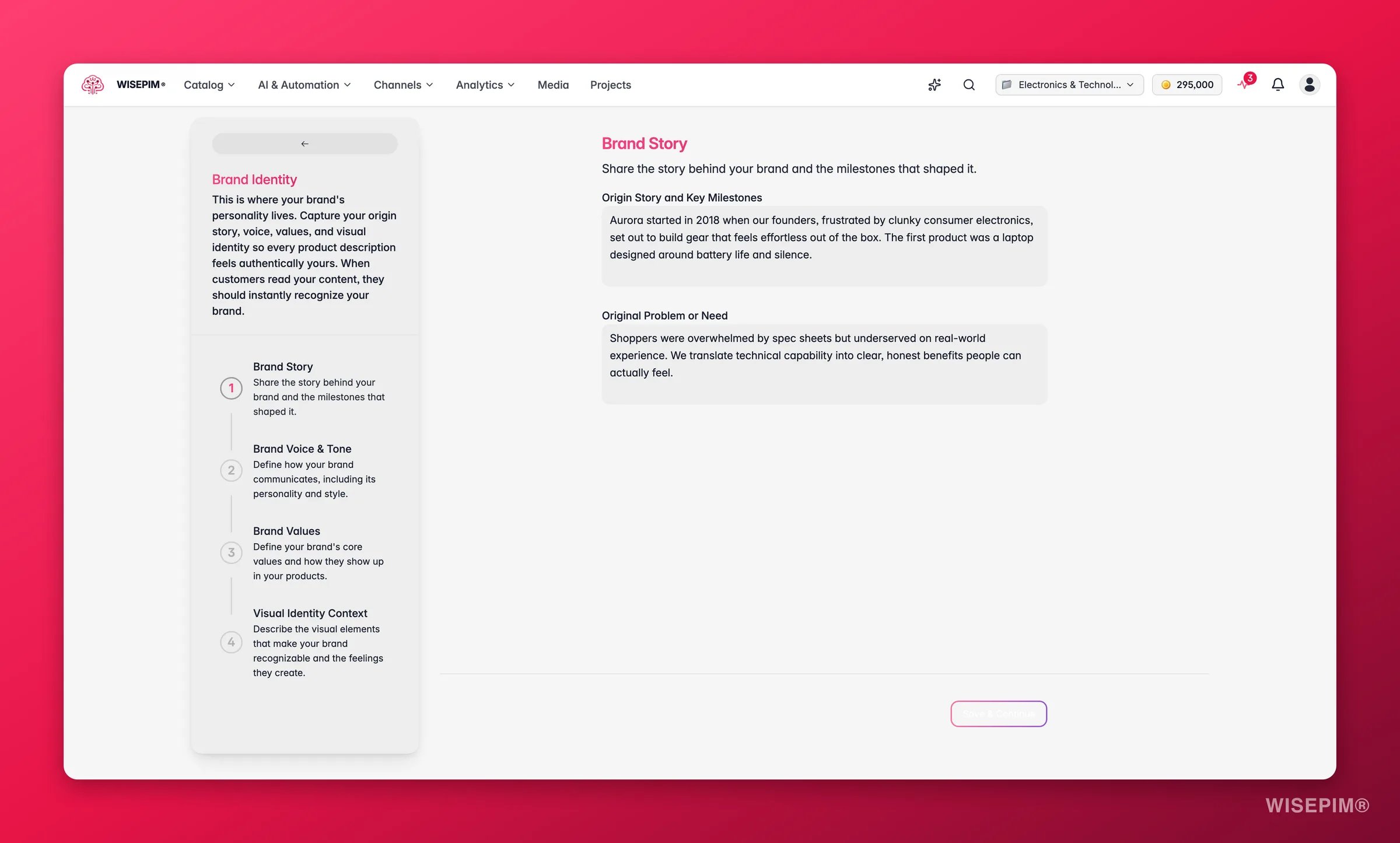
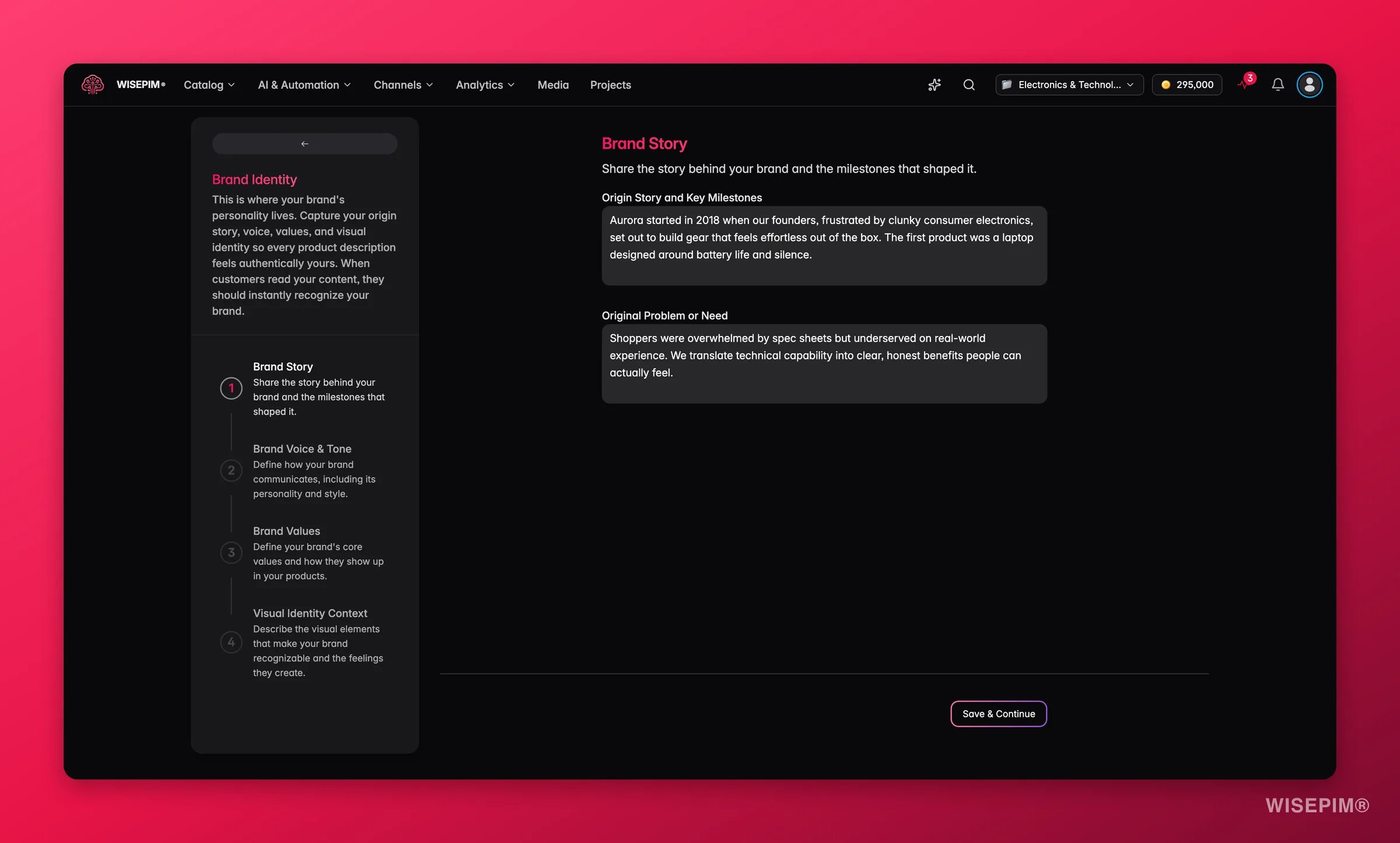
Do this before you touch a prompt. Every AI feature in WISEPIM reads from the Knowledge Library, so filling it once improves everything downstream at the same time - and a prompt tuned against an empty library is tuned against the wrong baseline, which means tuning it twice.
1
Open Brand identity and go deep, not wide
Open the Knowledge Library from the main menu and start with the Brand identity card: brand story, voice, and values. It is the foundation the other categories build on, and the first place to look whenever output feels off-brand later.
2
Paste from what you already have
Copy from existing brand guidelines, a tone-of-voice doc, or customer research. Writing it from scratch in the form is the slow route and usually produces vaguer input. Progress saves as you type.
3
Work one card at a time
Move on to Brand voice, Target audience, Value proposition, and Content requirements. Finishing a card before starting the next keeps your context coherent rather than half-answered everywhere, and the overview’s completion percentages show you which one to open next.
4
Be concrete, and write in the voice you want copied
Name tone adjectives, quote phrases your brand actually uses, and use the exact terms your industry uses. Vague input gives vague output, which is the whole problem you are here to solve.
5
Ban and mandate specific words
In Keywords, put off-brand wording and competitor names on the Negative tab so AI keeps them out, and your must-use terms on the Positive tab at High priority so they carry more weight. Scope them by locale and target field so they only appear where they belong.
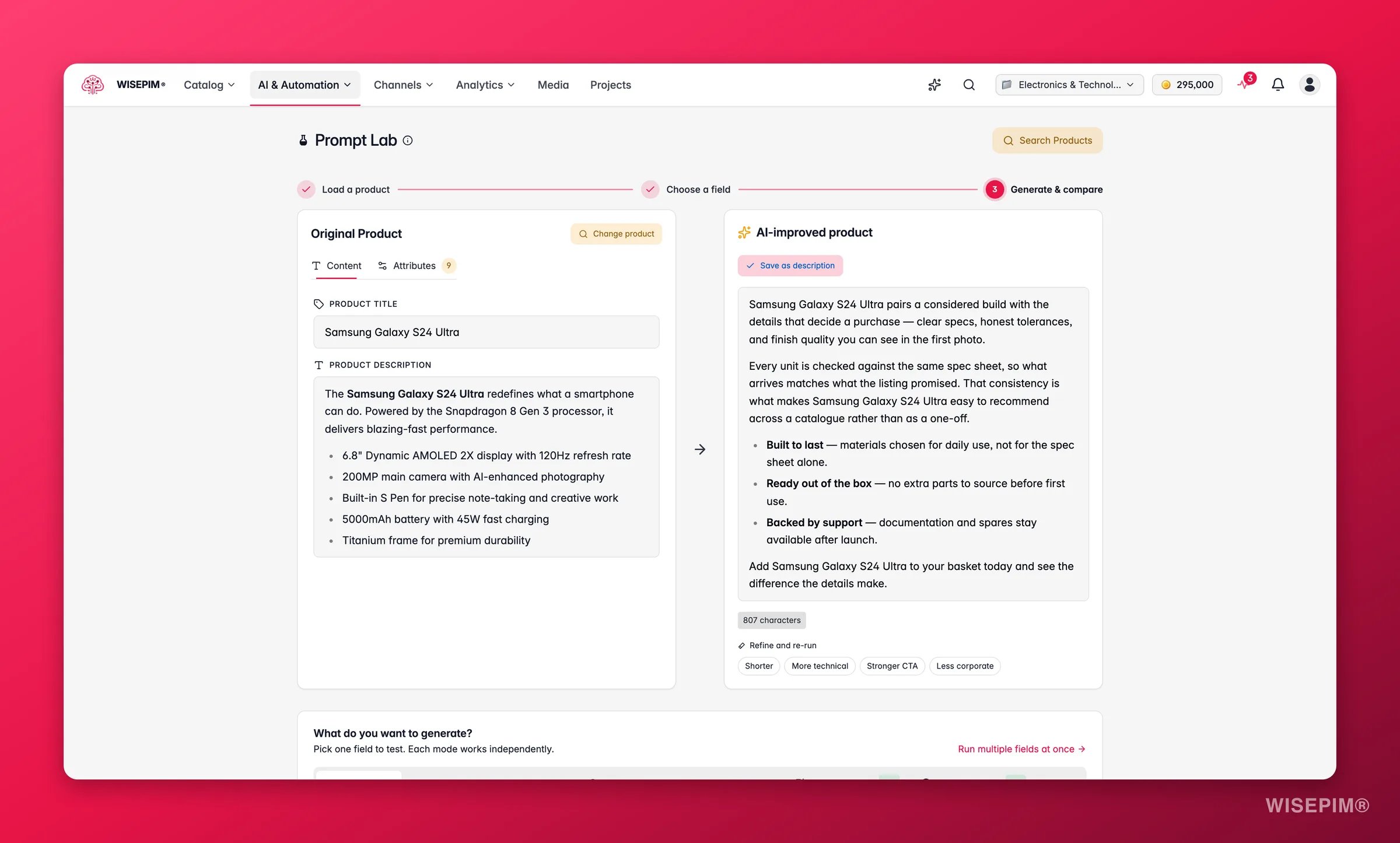
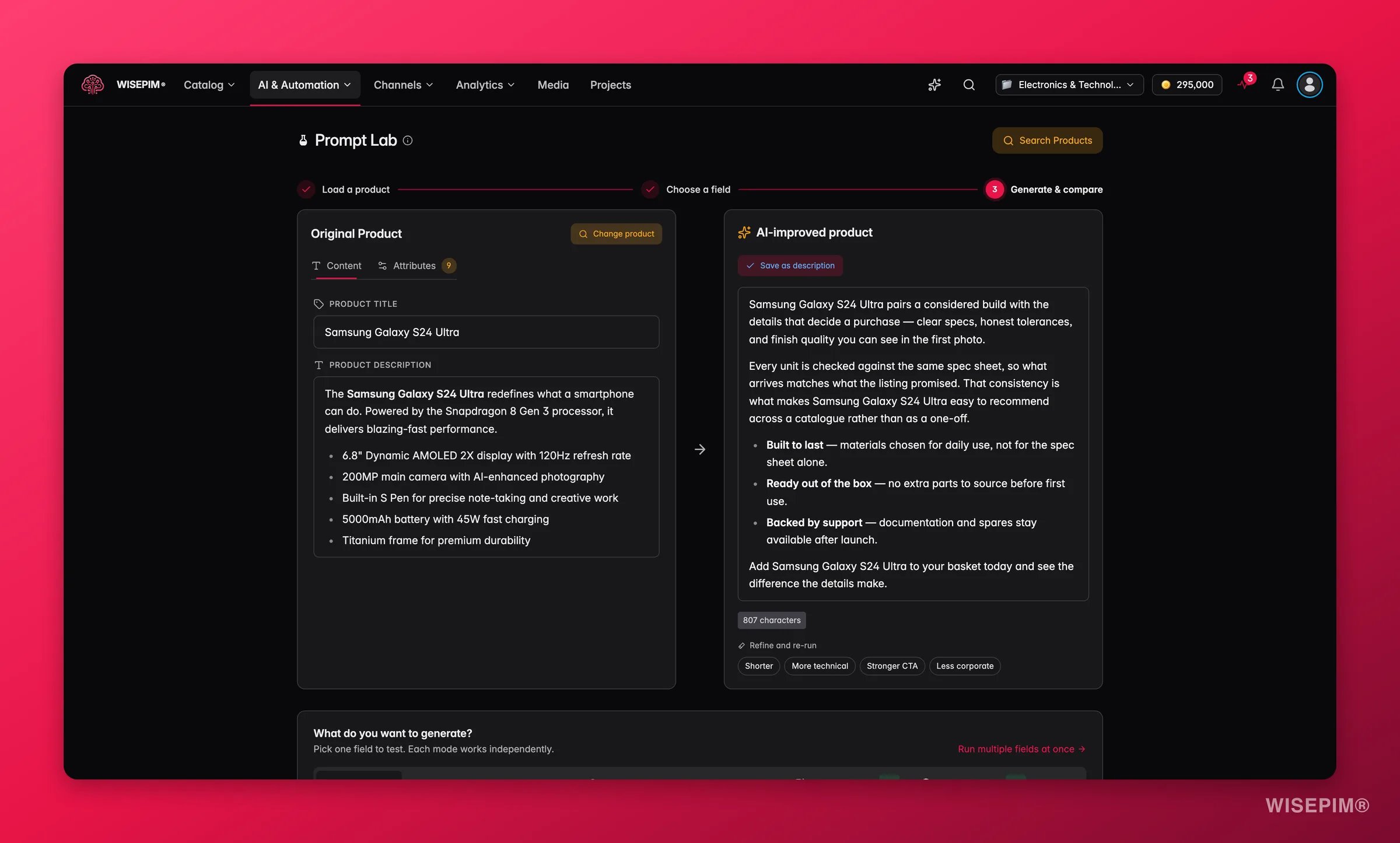
Now, and only now, work on prompts. Prompt Lab runs a prompt against a real product and shows the result beside the original, with nothing written to your catalog, so it is where you find out whether the brand context alone already fixed things.
1
Load a product that already has a description
Click Load Product and pull in a SKU from your current project. An existing description gives you a real before-and-after instead of a comparison against nothing.
2
Test once to get a baseline
Hit Test Prompt and read the output. This is what your brand context alone produces, and it is often already better than what you had. Each test takes roughly 30 to 60 seconds, which is why the next step matters.
3
Change one setting at a time
In the prompt configuration panel, adjust industry, purpose, tone of voice, or point of view, then test again. Changing several at once tells you the result improved but not which change did it.
4
Re-test on awkward products
Run the winning prompt across a few products from each category, including ones with minimal data. A prompt that only works on your best-documented product will disappoint at catalog scale - and that is the failure you cannot undo once it has run on 5,000 products.
5
Save it, then make it the default
Save the winner into your Prompt Library, then open Enrich Prompts settings and assign a default per content type. Nothing applies until you hit Save changes. Defaults mean your whole team enriches with the same voice without remembering which prompt to pick.
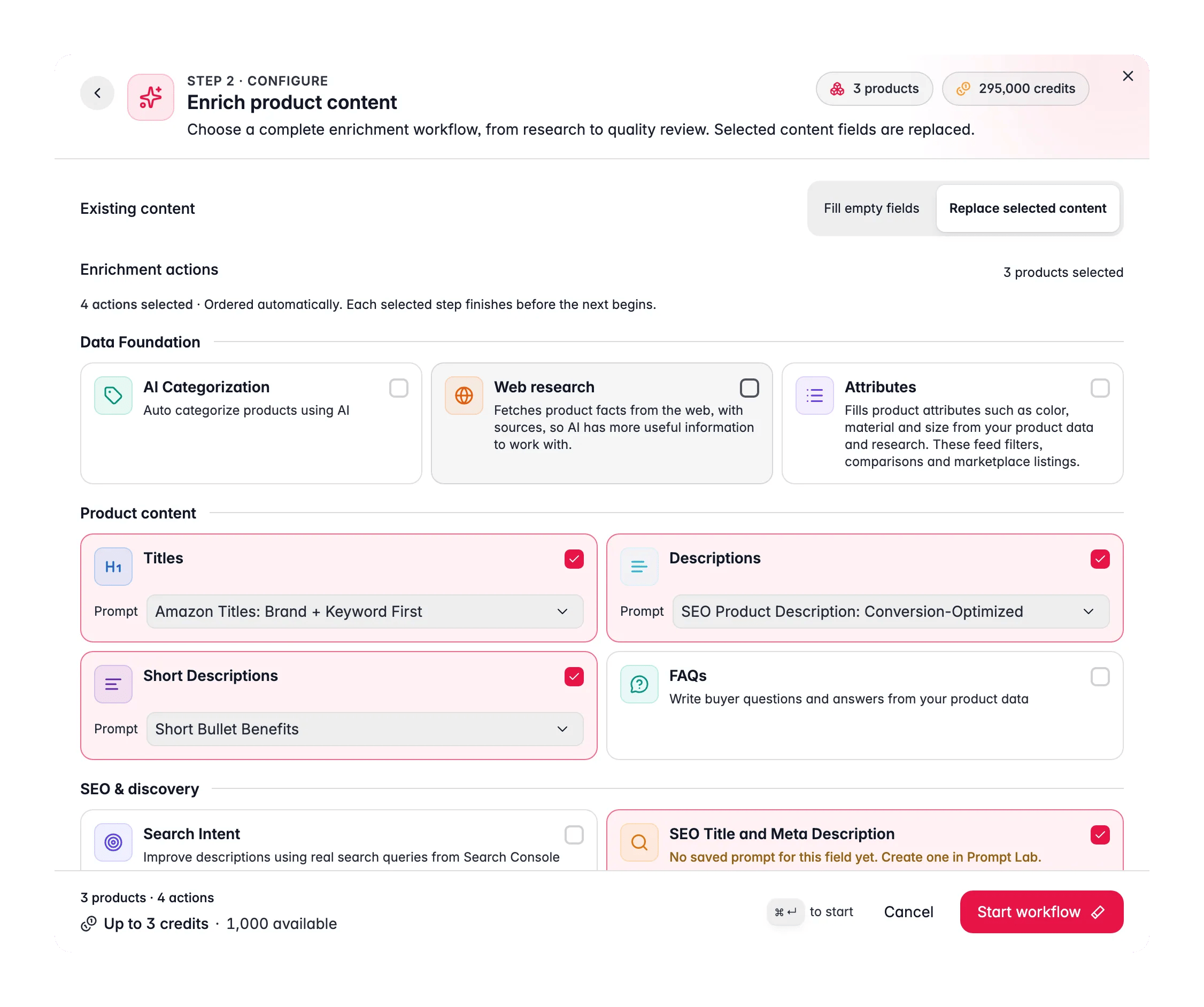
Bulk Enrich regenerates the fields you choose across every selected product, using those defaults. It is the right tool here precisely because you want the old, off-brand copy gone, which also means there is no undo. Run it last, and only once the checks below all pass.
Before you start the bulk run
How you confirm it
Brand identity is filled in, not stubbed
Story, voice, and values each hold real sentences you would defend in a meeting
The cards that carry your voice are done
Completion percentages on the Knowledge Library overview for brand voice, audience, value proposition, and content requirements. You do not need every field, just no empty card
Banned words are on the list
The Negative tab in Keywords holds your competitor names and off-brand wording
A Prompt Lab test on a thin product still reads on-brand
1
Start with one category, not the catalog
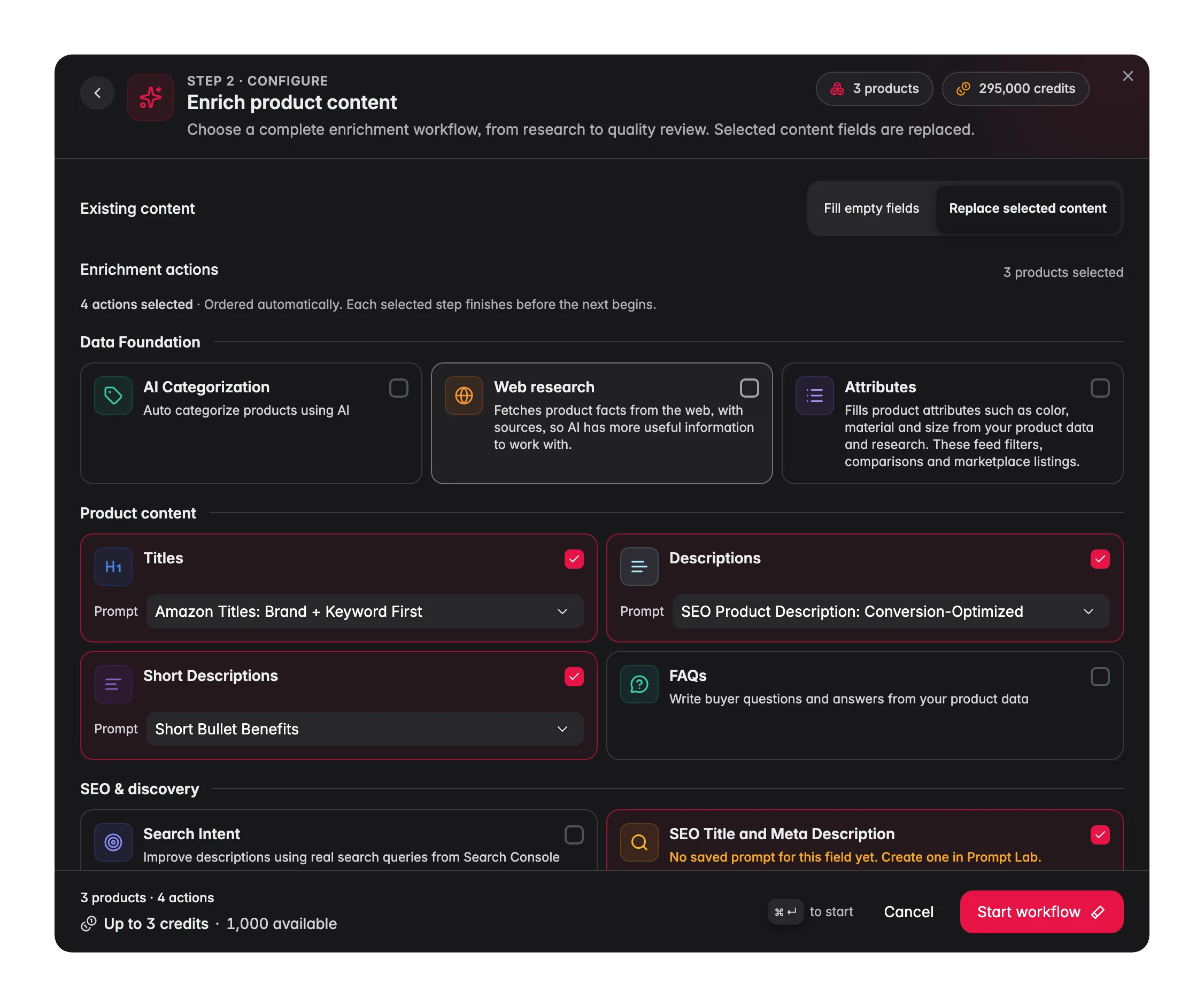
On the Products page, filter to a single category, click Enrich with AI in the toolbar, and open Bulk Enrich - the first card in the Start here shelf. A category is large enough to be representative and small enough to abandon.
2
Pick your fields and watch the credit estimate
Everything is pre-selected except attributes, which are opt-in because re-deriving them in bulk is rarely what you want. The Combine into fewer calls switch changes what you pay: combined, two or more fields cost less per product than running each field separately. Then Start Bulk Enrich.
3
Read ten of them out loud
Do they sound like your brand? Are the banned words gone? Do the must-use terms appear naturally rather than bolted on? If not, go back to the Knowledge Library card that covers the gap before you run anything else.
4
Roll out to the rest
Once a batch reads right, select the remaining products and run the same configuration. Track it in the Process Tracker; if a run stops early, Resume finishes the untouched products without charging for them again.
5
Optionally centralize shared boilerplate
Content that repeats across many products - warranty wording, shipping promises, brand taglines - is better held once as a Content Logic variable than retyped into every prompt. Change it in one place and every prompt that uses it follows.
Bulk Enrich always overwrites the fields you select. Check the product count in the modal header before starting, especially when you are running on all matching products rather than a ticked selection.
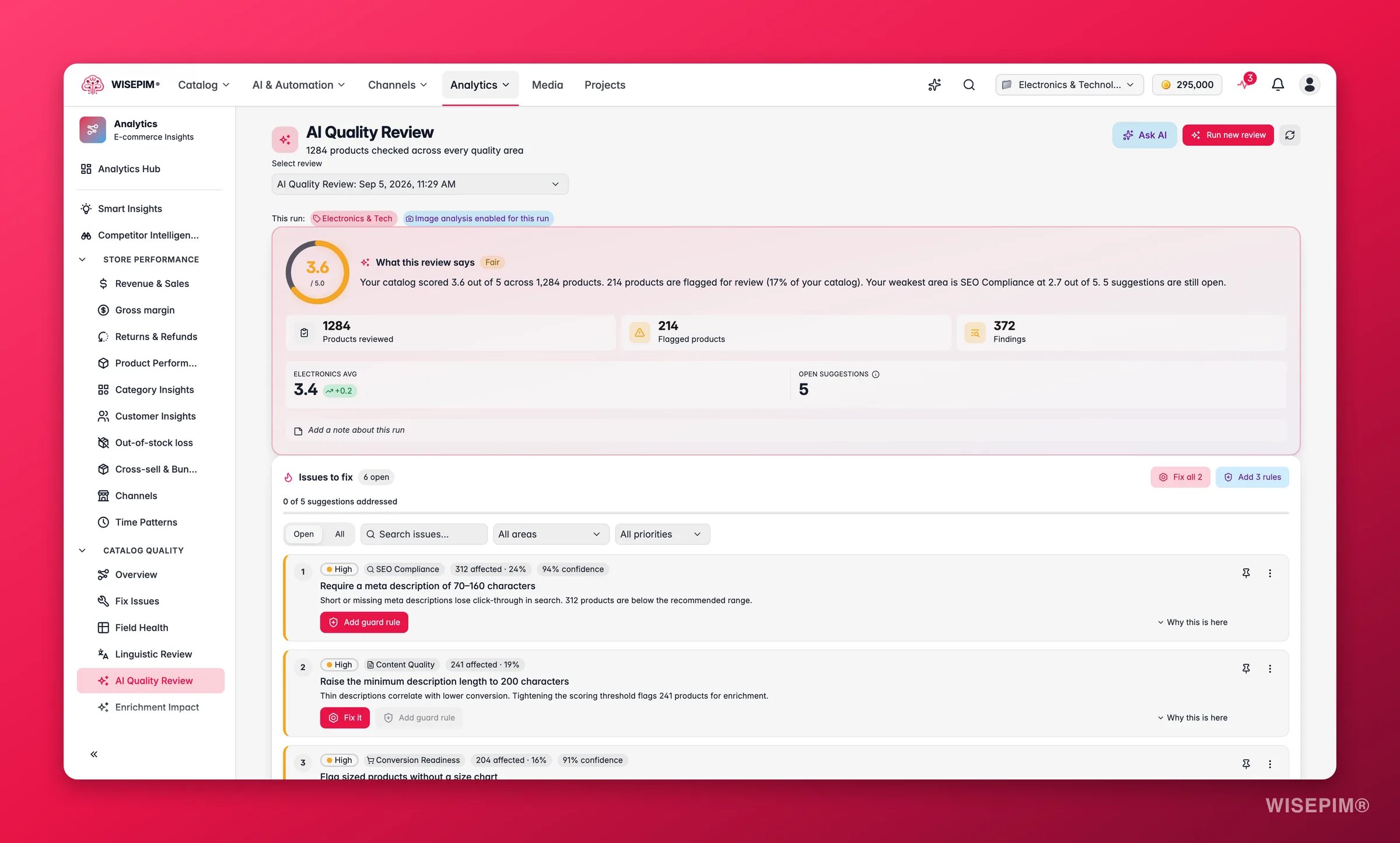
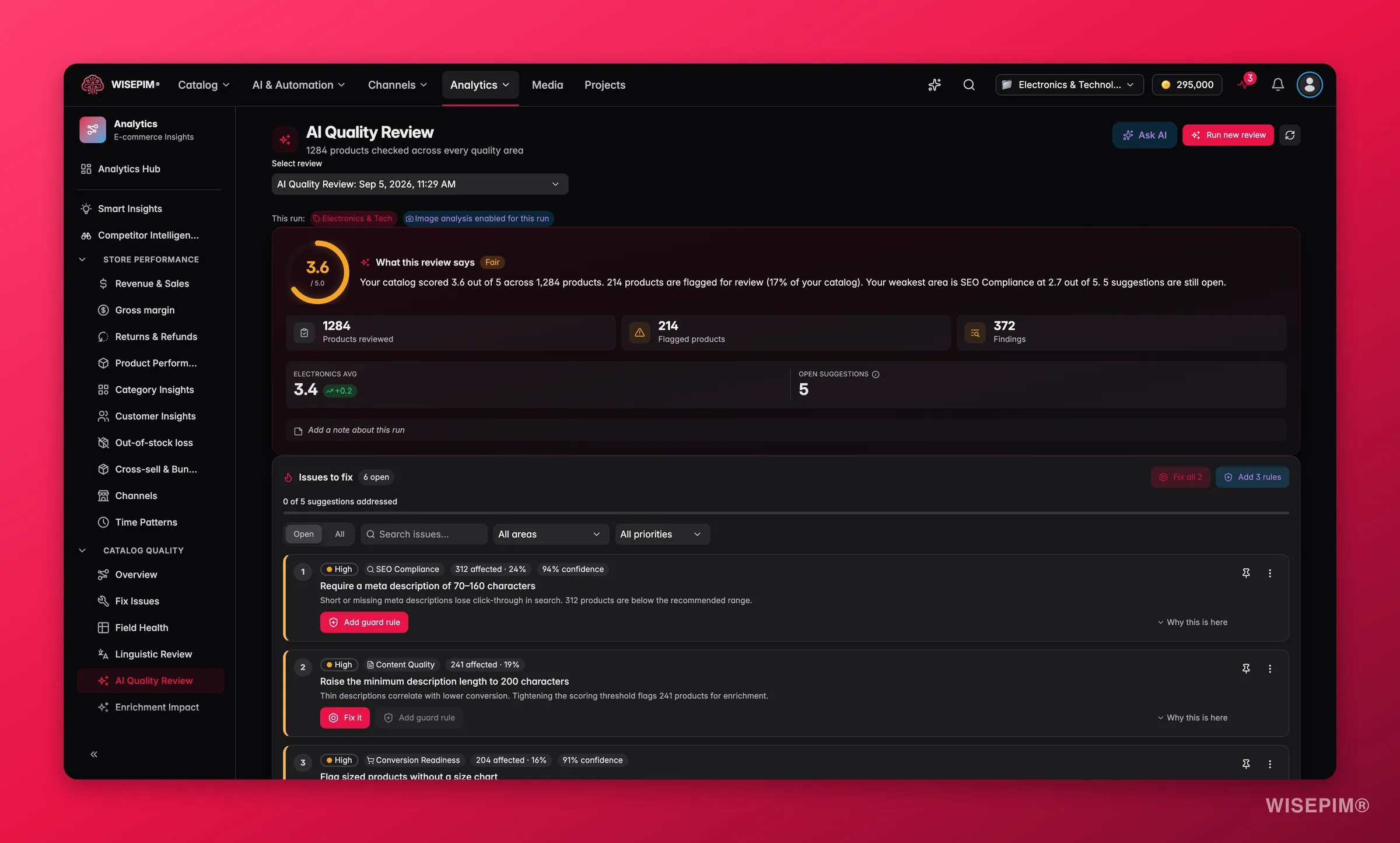
Reading a handful of products tells you whether the voice landed. AI Quality Review tells you whether it landed across the catalog, because it reads content the way a demanding customer would rather than just checking that fields are filled. Find it in the Analytics sidebar under the quality section, or start it straight from a product selection.
Same run. This is the one that catches “all sounds the same” the other way round
Overall score above 4.0
AI Quality Review dashboard
4.0–5.0 reads as good, below 3.0 as needs work. The dashboard also projects the score you would reach by applying the open suggestions
Banned words gone
Spot-check ten products in the products table
Immediately after the Bulk Enrich run
Knowledge Library completion
Per-card progress on the Knowledge Library overview
Live as you type, before you enrich anything
Run the review with the Prelaunch or Conversion intent preset for house-style work. Those presets select the text dimensions, so you are not paying vision credits for image checks that say nothing about tone.
Brand voice and brand identity are almost certainly thin - vague input gives vague output. Add concrete tone adjectives and example phrases your brand actually uses, then re-test the same product in Prompt Lab before re-running a batch. No prompt tuning compensates for an empty library.
The copy is on-brand but says nothing specific
Generic output is usually missing selling points, not missing tone. Fill in Value proposition and Content requirements in the Knowledge Library - your specific benefits, and the must-have details every description should carry - then re-run one category.
The prompt was great in the lab and disappointing in bulk
You tuned against one well-documented product. Re-test the prompt on products from each category, including ones with sparse data, and save the version that survives all of them. If the weak results all come from thin source records, fix the source data first - AI writes from what is in the product.
A field is dimmed with 'no prompt' in the enrich modal
That content type has no default prompt assigned, so it is excluded from the run. Assign one per type in Enrich Prompts settings and save, or pick a prompt for that field in the modal for this run only. The field becomes selectable either way.
The same issue keeps reappearing after every run
Turn the finding into a standing check instead of re-fixing it. AI Quality Review offers Add guard rule on an issue, which drafts a Quality Guard rule for you - it arrives inactive, so review it and switch it on.
Bulk Enrich rewrote copy I wanted to keep
Bulk Enrich overwrites by design. When you only want to fill gaps and leave hand-written copy alone, use Auto-Fill instead - same fields and same prompts, but it only touches empty fields unless you deliberately raise its overwrite threshold, and a low threshold upgrades your weakest content without touching the good stuff.
Every section the AI reads before it writes a single word.
Prompt Lab
Test a prompt on a real product before it touches your catalog.
Make brand names and terms consistent
Fix the terminology drift that survives a rewrite.
Turn impressions into clicks
Now make that on-brand copy earn the click in search results.
{"docsConfig":{"theme":"mint","$schema":"https://mintlify.com/docs.json","name":"WISEPIM Documentation","description":"Documentation for WISEPIM, the AI-powered product information management (PIM) platform: import, enrich, translate and publish product content, connect e-commerce platforms and marketplaces, automate catalog work, and build on the WISEPIM Public API.","colors":{"primary":"#E71447","light":"#E71447","dark":"#E71447"},"logo":{"light":"https://mintcdn.com/swiftsyncai/CpcHeNUil_YXkrs1/logo/wisepim-logo-horizontal-transparant-lightmode.png?fit=max\u0026auto=format\u0026n=CpcHeNUil_YXkrs1\u0026q=85\u0026s=fb18d37ec9d57e2050a1acb063cd8424","dark":"https://mintcdn.com/swiftsyncai/CpcHeNUil_YXkrs1/logo/wisepim-logo-horizontal-transparant-darkmode.png?fit=max\u0026auto=format\u0026n=CpcHeNUil_YXkrs1\u0026q=85\u0026s=f908843e7a886bf8143cb9bc525b7b86"},"favicon":"https://mintcdn.com/swiftsyncai/CpcHeNUil_YXkrs1/favicon.png?fit=max\u0026auto=format\u0026n=CpcHeNUil_YXkrs1\u0026q=85\u0026s=50f7573d74bc7da293b9931d815b2bb3","api":{"openapi":"openapi.json","playground":{"display":"interactive"},"examples":{"defaults":"required","languages":["curl","python","javascript"]}},"appearance":{"default":"system"},"background":{"decoration":"gradient"},"navbar":{"links":[{"href":"https://wisepim.com/contact","label":"Support"}],"primary":{"type":"button","label":"Go to WISEPIM","href":"https://wisepim.com/products"}},"footer":{"socials":{"youtube":"https://www.youtube.com/channel/UC5sQ48mV3sYEBme01xvVIXw","linkedin":"https://linkedin.com/company/wisepim"}},"search":{"prompt":"What are you looking for?"},"seo":{"metatags":{"og:site_name":"WISEPIM Documentation","og:type":"website","twitter:card":"summary_large_image"},"organization":{"name":"WISEPIM","legalName":"WISEPIM B.V.","url":"https://wisepim.com","logo":"https://docs.wisepim.com/logo/wisepim-logo-horizontal-transparant-lightmode.png","sameAs":["https://linkedin.com/company/wisepim","https://www.youtube.com/channel/UC5sQ48mV3sYEBme01xvVIXw"]},"indexing":"all"},"fonts":{"family":"Inter"},"icons":{"library":"lucide"},"styling":{"eyebrows":"breadcrumbs","latex":true},"integrations":{"ga4":{"measurementId":"G-6NXPFG6S4Z"}},"errors":{"404":{"redirect":false,"title":"This page moved or never existed","description":"No worries, use the search above (or press Cmd+K) to find what you were looking for, or head back to the [introduction](/en/introduction)."}},"contextual":{"options":[{"title":"Ask WISEPIM AI","description":"Open the WISEPIM AI chat with this page as the question","icon":"sparkles","href":{"base":"https://wisepim.com/chat","query":[{"key":"prompt","value":"I am reading the WISEPIM documentation page https://docs.wisepim.com$path and I have a question about it. Answer in the language of that page.\n\nMy question: "}]}},"copy","view","chatgpt","claude","perplexity","mcp"],"display":"header"},"thumbnails":{"appearance":"dark","background":"https://mintcdn.com/swiftsyncai/2_3RgILsRdlQxjn6/images/og-background.png?fit=max\u0026auto=format\u0026n=2_3RgILsRdlQxjn6\u0026q=85\u0026s=f55698f3b0dd04d58e5f67b096de1f26","fonts":{"family":"Inter"}},"navigation":{"global":{"anchors":[{"anchor":"Homepage","icon":"house","href":"https://wisepim.com"},{"anchor":"Latest changes","icon":"history","href":"https://wisepim.com/changelog"},{"anchor":"Blog","icon":"newspaper","href":"https://wisepim.com/blog"}]},"languages":[{"language":"en","href":"en/introduction"},{"language":"nl","href":"nl/introduction"},{"language":"de","href":"de/introduction"},{"language":"es","href":"es/introduction"}]}},"deployment":{"deploymentMetadataValue":{"subdomain":"swiftsyncai","hasAudioNarration":false,"actualSubdomain":"swiftsyncai","customDomains":["docs.wisepim.com"],"gitSource":{"type":"github","owner":"lldiegon","repo":"wisepim-docs","deployBranch":"main","contentDirectory":"","isPrivate":true,"mountPath":"","label":""},"chroma":{"liveDeploymentHistoryId":"6ae29ae907aeaf4d1afc5884","collectionId":"bbceb7eb-5a5b-4c95-b655-48d98646c6ca","schemaVersion":"v3","latestBuiltDeploymentHistoryId":"6ae29ae907aeaf4d1afc5884"},"entitlements":{},"buildId":"6ae29ae907aeaf4d1afc5884","clientVersion":"0.0.4043","searchFilterCounts":[{"language":"en","tag":"Documentation","count":283},{"language":"de","tag":"Dokumentation","count":183},{"language":"es","tag":"Documentación","count":183},{"language":"nl","tag":"Documentatie","count":183},{"language":"en","tag":"API Reference","count":100},{"language":"en","tag":"Products","count":67},{"language":"de","tag":"Produkte","count":61},{"language":"es","tag":"Productos","count":61},{"language":"nl","tag":"Producten","count":61},{"language":"de","tag":"Erstellen \u0026 Bearbeiten","count":41},{"language":"de","tag":"Einstellungen","count":41},{"language":"en","tag":"Creating \u0026 Editing","count":41},{"language":"en","tag":"Settings","count":41},{"language":"es","tag":"Crear y Editar","count":41},{"language":"es","tag":"Configuración","count":41},{"language":"nl","tag":"Aanmaken \u0026 Bewerken","count":41},{"language":"nl","tag":"Instellingen","count":41},{"language":"de","tag":"Analytics","count":38},{"language":"en","tag":"Analytics","count":38},{"language":"es","tag":"Analytics","count":38},{"language":"nl","tag":"Analytics","count":38},{"language":"de","tag":"Massenaktionen","count":34},{"language":"en","tag":"Bulk Actions","count":34},{"language":"es","tag":"Acciones Masivas","count":34},{"language":"nl","tag":"Bulkacties","count":34},{"language":"de","tag":"Integrationen","count":30},{"language":"en","tag":"Integrations","count":30},{"language":"es","tag":"Integraciones","count":30},{"language":"nl","tag":"Integraties","count":30},{"language":"de","tag":"Projekt","count":29},{"language":"en","tag":"Project","count":29},{"language":"es","tag":"Proyecto","count":29},{"language":"nl","tag":"Project","count":29},{"language":"de","tag":"Anleitungen","count":20},{"language":"en","tag":"Guides","count":20},{"language":"es","tag":"Guías","count":20},{"language":"nl","tag":"Handleidingen","count":20},{"language":"de","tag":"KI \u0026 Anreicherung","count":19},{"language":"es","tag":"IA y Enriquecimiento","count":19},{"language":"nl","tag":"AI \u0026 Verrijking","count":19}]},"assistantConfig":{},"basePath":"","hasChatPermissions":false,"hasWebMcpPermissions":false,"toggles":[{"name":"kill-isr","enabled":true,"variant":{"name":"disabled","enabled":false,"feature_enabled":true},"impressionData":false},{"name":"agent-mintlify-slack","enabled":true,"variant":{"name":"disabled","enabled":false,"feature_enabled":true},"impressionData":false},{"name":"agent-integrations-settings","enabled":true,"variant":{"name":"disabled","enabled":false,"feature_enabled":true},"impressionData":false},{"name":"automations-pr-grouping","enabled":true,"variant":{"name":"disabled","enabled":false,"feature_enabled":true},"impressionData":false},{"name":"custom-prefix","enabled":true,"variant":{"name":"disabled","enabled":false,"feature_enabled":true},"impressionData":false},{"name":"analytics-v7","enabled":true,"variant":{"name":"disabled","enabled":false,"feature_enabled":true},"impressionData":false},{"name":"user-flows-analytics","enabled":true,"variant":{"name":"disabled","enabled":false,"feature_enabled":true},"impressionData":false},{"name":"no-publish-flow","enabled":true,"variant":{"name":"disabled","enabled":false,"feature_enabled":true},"impressionData":false},{"name":"workos-onboarding","enabled":true,"variant":{"name":"disabled","enabled":false,"feature_enabled":true},"impressionData":false},{"name":"llms-txt-v2","enabled":true,"variant":{"name":"disabled","enabled":false,"feature_enabled":true},"impressionData":false},{"name":"snapshot-serving-live","enabled":true,"variant":{"name":"disabled","enabled":false,"feature_enabled":true},"impressionData":false},{"name":"stripTemperatureMiddleware","enabled":true,"variant":{"name":"disabled","enabled":false,"feature_enabled":true},"impressionData":false},{"name":"support-platform-pylon-zendesk","enabled":true,"variant":{"name":"disabled","enabled":false,"feature_enabled":true},"impressionData":false},{"name":"snapshot-serving","enabled":true,"variant":{"name":"disabled","enabled":false,"feature_enabled":true},"impressionData":false},{"name":"instant-rollback","enabled":true,"variant":{"name":"disabled","enabled":false,"feature_enabled":true},"impressionData":false},{"name":"granular-notifications-server","enabled":true,"variant":{"name":"disabled","enabled":false,"feature_enabled":true},"impressionData":false},{"name":"granular-notifications","enabled":true,"variant":{"name":"disabled","enabled":false,"feature_enabled":true},"impressionData":false},{"name":"automations-fable","enabled":true,"variant":{"name":"disabled","enabled":false,"feature_enabled":true},"impressionData":false},{"name":"fixed-ai-action-pricing","enabled":true,"variant":{"name":"disabled","enabled":false,"feature_enabled":true},"impressionData":false},{"name":"automation-resolve-merge-conflict","enabled":true,"variant":{"name":"disabled","enabled":false,"feature_enabled":true},"impressionData":false},{"name":"scoped-publishing","enabled":true,"variant":{"name":"disabled","enabled":false,"feature_enabled":true},"impressionData":false},{"name":"mintql","enabled":true,"variant":{"name":"disabled","enabled":false,"feature_enabled":true},"impressionData":false},{"name":"page-level-analytics","enabled":true,"variant":{"name":"disabled","enabled":false,"feature_enabled":true},"impressionData":false},{"name":"editor-version-history-v2","enabled":true,"variant":{"name":"disabled","enabled":false,"feature_enabled":true},"impressionData":false},{"name":"billing-page-v2","enabled":true,"variant":{"name":"disabled","enabled":false,"feature_enabled":true},"impressionData":false},{"name":"full-page-search","enabled":true,"variant":{"name":"disabled","enabled":false,"feature_enabled":true},"impressionData":false},{"name":"workspace-projects","enabled":true,"variant":{"name":"disabled","enabled":false,"feature_enabled":true},"impressionData":false},{"name":"assistant-v5","enabled":true,"variant":{"name":"disabled","enabled":false,"feature_enabled":true},"impressionData":false},{"name":"byok-sep-25","enabled":true,"variant":{"name":"disabled","enabled":false,"feature_enabled":true},"impressionData":false},{"name":"fork-pr-previews","enabled":true,"variant":{"name":"disabled","enabled":false,"feature_enabled":true},"impressionData":false},{"name":"revalidation-jwt","enabled":true,"variant":{"name":"disabled","enabled":false,"feature_enabled":true},"impressionData":false},{"name":"vite-origin","enabled":true,"variant":{"name":"disabled","enabled":false,"feature_enabled":true},"impressionData":false},{"name":"billing-updated-9-15","enabled":true,"variant":{"name":"disabled","enabled":false,"feature_enabled":true},"impressionData":false},{"name":"workos-sso-scim","enabled":true,"variant":{"name":"disabled","enabled":false,"feature_enabled":true},"impressionData":false},{"name":"hobby-abuse-scan","enabled":true,"variant":{"name":"disabled","enabled":false,"feature_enabled":true},"impressionData":false},{"name":"dashboard-inbox","enabled":true,"variant":{"name":"disabled","enabled":false,"feature_enabled":true},"impressionData":false},{"name":"workos-signup","enabled":true,"variant":{"name":"disabled","enabled":false,"feature_enabled":true},"impressionData":false},{"name":"turbopuffer-dual-write","enabled":true,"variant":{"name":"disabled","enabled":false,"feature_enabled":true},"impressionData":false},{"name":"workos-enabled","enabled":true,"variant":{"name":"disabled","enabled":false,"feature_enabled":true},"impressionData":false},{"name":"approve-review-flow","enabled":true,"variant":{"name":"disabled","enabled":false,"feature_enabled":true},"impressionData":false}],"googleFontsInlined":false},"customCss":[{"filePath":"style.css","content":"img.nav-logo{height:2rem}#theme-preference-menu-trigger{display:none!important}#wisepim-theme-toggle{position:relative;width:34px;height:34px;padding:0;display:flex;align-items:center;justify-content:center;border-radius:.5rem;cursor:pointer;background:0 0;border:0;color:rgb(107 114 128)}#wisepim-theme-toggle:hover{color:rgb(55 65 81);background:rgba(0,0,0,.05)}html.dark #wisepim-theme-toggle{color:rgb(156 163 175)}html.dark #wisepim-theme-toggle:hover{color:rgb(229 231 235);background:rgba(255,255,255,.08)}#wisepim-theme-toggle .wp-tt-icon{position:absolute;transition:transform .5s cubic-bezier(.4,0,.2,1),opacity .25s ease}html:not(.dark) #wisepim-theme-toggle .wp-tt-sun{opacity:1;transform:rotate(0deg) scale(1)}html:not(.dark) #wisepim-theme-toggle .wp-tt-moon{opacity:0;transform:rotate(90deg) scale(.4)}html.dark #wisepim-theme-toggle .wp-tt-sun{opacity:0;transform:rotate(-90deg) scale(.4)}html.dark #wisepim-theme-toggle .wp-tt-moon{opacity:1;transform:rotate(0deg) scale(1)}#wisepim-tooltip{position:fixed;z-index:60;max-width:20rem;padding:.4rem .6rem;border-radius:.5rem;font-size:.75rem;line-height:1.4;font-weight:500;text-align:center;color:rgb(243 244 246);background:rgb(24 24 27);box-shadow:0 6px 20px rgba(0,0,0,.18);pointer-events:none;opacity:0;transform:translateY(-3px) scale(.97);transition:opacity .14s ease,transform .18s cubic-bezier(.16,1,.3,1)}#wisepim-tooltip[data-visible=true]{opacity:1;transform:translateY(0) scale(1)}#wisepim-tooltip::before{content:'';position:absolute;top:-3px;left:var(--wp-tip-arrow, 50%);width:8px;height:8px;margin-left:-4px;border-radius:1px;background:inherit;transform:rotate(45deg)}html.dark #wisepim-tooltip{color:rgb(24 24 27);background:rgb(240 240 243);box-shadow:0 6px 20px rgba(0,0,0,.45)}@media (prefers-reduced-motion:reduce){#wisepim-tooltip{transition:opacity .01s linear;transform:none}#wisepim-tooltip[data-visible=true]{transform:none}}::view-transition-group(root),::view-transition-image-pair(root),::view-transition-new(root),::view-transition-old(root){animation:none;mix-blend-mode:normal}::view-transition-old(root){z-index:1}::view-transition-new(root){z-index:9999;will-change:clip-path}img[src^=\"/images/connectors/\"]{background:#fff;border-radius:4px;object-fit:contain}.connector-brand{display:inline-flex;align-items:center;justify-content:center;background:#fff;border:1px solid #e5e7eb;border-radius:16px;padding:16px;margin:0 0 16px}.connector-brand img{display:block;width:96px;height:64px;margin:0;object-fit:contain}"}],"page":{"pagePath":"en/guides/teach-wisepim-your-house-style","slug":"/en/guides/teach-wisepim-your-house-style","pageMetadata":{"title":"Teach WISEPIM your house style","sidebarTitle":"House style","description":"AI wrote thousands of descriptions and they all sound the same. Give it your brand context in the right order, then re-run the catalog and hear the difference.","icon":"palette","keywords":["ai content sounds generic","off-brand product descriptions","teach ai my brand voice","consistent tone of voice catalog","ai copy all sounds the same"],"tag":"New","href":"/en/guides/teach-wisepim-your-house-style"},"description":{"compiledSource":"\"use strict\";\nconst {jsx: _jsx} = arguments[0];\nconst {useMDXComponents: _provideComponents} = arguments[0];\nfunction _createMdxContent(props) {\n const _components = {\n p: \"p\",\n ..._provideComponents(),\n ...props.components\n };\n return _jsx(_components.p, {\n children: \"AI wrote thousands of descriptions and they all sound the same. Give it your brand context in the right order, then re-run the catalog and hear the difference.\"\n });\n}\nfunction MDXContent(props = {}) {\n const {wrapper: MDXLayout} = {\n ..._provideComponents(),\n ...props.components\n };\n return MDXLayout ? _jsx(MDXLayout, {\n ...props,\n children: _jsx(_createMdxContent, {\n ...props\n })\n }) : _createMdxContent(props);\n}\nreturn {\n default: MDXContent\n};\n","frontmatter":{},"scope":{}},"pageType":"default","mdx":{"mdxSource":{"compiledSource":"\"use strict\";const{Fragment:_Fragment,jsx:_jsx,jsxs:_jsxs}=arguments[0];const{useMDXComponents:_provideComponents}=arguments[0];function _createMdxContent(props){const _components={a:`a`,p:`p`,strong:`strong`,tbody:`tbody`,td:`td`,th:`th`,thead:`thead`,tr:`tr`,..._provideComponents(),...props.components},{Accordion,AccordionGroup,Card,CardGroup,Heading,Info,Note,OptimizedImage,Step,Steps,Table,Tip,Warning}=_components;if(!Accordion)_missingMdxReference(`Accordion`,true);if(!AccordionGroup)_missingMdxReference(`AccordionGroup`,true);if(!Card)_missingMdxReference(`Card`,true);if(!CardGroup)_missingMdxReference(`CardGroup`,true);if(!Heading)_missingMdxReference(`Heading`,true);if(!Info)_missingMdxReference(`Info`,true);if(!Note)_missingMdxReference(`Note`,true);if(!OptimizedImage)_missingMdxReference(`OptimizedImage`,true);if(!Step)_missingMdxReference(`Step`,true);if(!Steps)_missingMdxReference(`Steps`,true);if(!Table)_missingMdxReference(`Table`,true);if(!Tip)_missingMdxReference(`Tip`,true);if(!Warning)_missingMdxReference(`Warning`,true);return _jsxs(_Fragment,{children:[_jsx(_components.p,{children:`You enriched 5,000 products and the copy is technically fine and completely forgettable. Every description opens the same way, nothing sounds like your brand, and half of it uses words your style guide bans. The instinct is to blame the AI, but the usual cause is that nobody told it who you are, so it wrote the only thing it could: average.`}),`\n`,_jsx(_components.p,{children:`The fix is an order of operations, not a setting. Budget about two hours for the setup and a short review after each run.`}),`\n`,_jsx(Info,{children:_jsxs(_components.p,{children:[_jsx(_components.strong,{children:`Before you start:`}),` pick a project in the project switcher, because `,_jsx(_components.a,{href:`/en/other-features/knowledge-library`,children:`Knowledge Library`}),`, `,_jsx(_components.a,{href:`/en/settings/keywords`,children:`Keywords`}),`, and prompt defaults are all project-scoped. If this is a brand-new project, do `,_jsx(_components.a,{href:`/en/guides/first-catalog/set-up`,children:`1. Set up`}),` first - this guide is the deeper pass for a catalog that is already enriched and sounds generic.`]})}),`\n`,_jsx(Tip,{children:_jsxs(_components.p,{children:[_jsx(_components.strong,{children:`What you’ll get:`}),` brand context the AI reads on every run, one proven prompt per content type set as your project default, and a re-enriched catalog that sounds like your team wrote it.`]})}),`\n`,_jsx(Heading,{level:`2`,id:`give-the-ai-something-to-sound-like`,children:`Give the AI something to sound like`}),`\n`,_jsxs(_components.p,{children:[`Do this before you touch a prompt. Every AI feature in WISEPIM reads from the `,_jsx(_components.a,{href:`/en/other-features/knowledge-library`,children:`Knowledge Library`}),`, so filling it once improves everything downstream at the same time - and a prompt tuned against an empty library is tuned against the wrong baseline, which means tuning it twice.`]}),`\n`,_jsx(OptimizedImage,{className:`mint-block dark:mint-hidden`,src:`https://mintcdn.com/swiftsyncai/Q38ofF_xfo1Vb-fN/images/marketing-screenshots/knowledge/knowledge-library-brand-identity-light-branded.webp?fit=max\u0026auto=format\u0026n=Q38ofF_xfo1Vb-fN\u0026q=85\u0026s=d1030bb5d3b66efcb4749066f6423b98`,alt:`WISEPIM knowledge library brand-identity form capturing brand story, voice and values for grounded AI`,\"data-og-width\":`2400`,width:`2400`,\"data-og-height\":`1445`,height:`1445`,\"data-path\":`images/marketing-screenshots/knowledge/knowledge-library-brand-identity-light-branded.webp`,\"data-optimize\":`true`,\"data-opv\":`3`,srcset:`https://mintcdn.com/swiftsyncai/Q38ofF_xfo1Vb-fN/images/marketing-screenshots/knowledge/knowledge-library-brand-identity-light-branded.webp?w=280\u0026fit=max\u0026auto=format\u0026n=Q38ofF_xfo1Vb-fN\u0026q=85\u0026s=bb7b11ecf67e2dcb7c2e5bf2c8f128f3 280w, https://mintcdn.com/swiftsyncai/Q38ofF_xfo1Vb-fN/images/marketing-screenshots/knowledge/knowledge-library-brand-identity-light-branded.webp?w=560\u0026fit=max\u0026auto=format\u0026n=Q38ofF_xfo1Vb-fN\u0026q=85\u0026s=39b340d7c1e1bc5b6e501f01cc871244 560w, https://mintcdn.com/swiftsyncai/Q38ofF_xfo1Vb-fN/images/marketing-screenshots/knowledge/knowledge-library-brand-identity-light-branded.webp?w=840\u0026fit=max\u0026auto=format\u0026n=Q38ofF_xfo1Vb-fN\u0026q=85\u0026s=a65d1e88baf692b000664d301039d9d4 840w, https://mintcdn.com/swiftsyncai/Q38ofF_xfo1Vb-fN/images/marketing-screenshots/knowledge/knowledge-library-brand-identity-light-branded.webp?w=1100\u0026fit=max\u0026auto=format\u0026n=Q38ofF_xfo1Vb-fN\u0026q=85\u0026s=d0771b729754384eaadebe73da9a53f2 1100w, https://mintcdn.com/swiftsyncai/Q38ofF_xfo1Vb-fN/images/marketing-screenshots/knowledge/knowledge-library-brand-identity-light-branded.webp?w=1650\u0026fit=max\u0026auto=format\u0026n=Q38ofF_xfo1Vb-fN\u0026q=85\u0026s=8cdc33fff0f923710076b87d74af5afb 1650w, https://mintcdn.com/swiftsyncai/Q38ofF_xfo1Vb-fN/images/marketing-screenshots/knowledge/knowledge-library-brand-identity-light-branded.webp?w=2500\u0026fit=max\u0026auto=format\u0026n=Q38ofF_xfo1Vb-fN\u0026q=85\u0026s=c648160b217085d2212e968635b96aad 2500w`}),`\n`,_jsx(OptimizedImage,{className:`mint-hidden dark:mint-block`,src:`https://mintcdn.com/swiftsyncai/Q38ofF_xfo1Vb-fN/images/marketing-screenshots/knowledge/knowledge-library-brand-identity-dark-branded.webp?fit=max\u0026auto=format\u0026n=Q38ofF_xfo1Vb-fN\u0026q=85\u0026s=19aadf044b5e721289a67ae17f18ae06`,alt:`WISEPIM knowledge library brand-identity form capturing brand story, voice and values for grounded AI`,\"data-og-width\":`2400`,width:`2400`,\"data-og-height\":`1445`,height:`1445`,\"data-path\":`images/marketing-screenshots/knowledge/knowledge-library-brand-identity-dark-branded.webp`,\"data-optimize\":`true`,\"data-opv\":`3`,srcset:`https://mintcdn.com/swiftsyncai/Q38ofF_xfo1Vb-fN/images/marketing-screenshots/knowledge/knowledge-library-brand-identity-dark-branded.webp?w=280\u0026fit=max\u0026auto=format\u0026n=Q38ofF_xfo1Vb-fN\u0026q=85\u0026s=f1308d5edf9a19953813ce71537db6ec 280w, https://mintcdn.com/swiftsyncai/Q38ofF_xfo1Vb-fN/images/marketing-screenshots/knowledge/knowledge-library-brand-identity-dark-branded.webp?w=560\u0026fit=max\u0026auto=format\u0026n=Q38ofF_xfo1Vb-fN\u0026q=85\u0026s=e4dc0ad9a36156c55510d0fe26efd18e 560w, https://mintcdn.com/swiftsyncai/Q38ofF_xfo1Vb-fN/images/marketing-screenshots/knowledge/knowledge-library-brand-identity-dark-branded.webp?w=840\u0026fit=max\u0026auto=format\u0026n=Q38ofF_xfo1Vb-fN\u0026q=85\u0026s=fe2d582bf102527f12b36f4fbdc26671 840w, https://mintcdn.com/swiftsyncai/Q38ofF_xfo1Vb-fN/images/marketing-screenshots/knowledge/knowledge-library-brand-identity-dark-branded.webp?w=1100\u0026fit=max\u0026auto=format\u0026n=Q38ofF_xfo1Vb-fN\u0026q=85\u0026s=8610a99a1154b987c423de4b564c92b8 1100w, https://mintcdn.com/swiftsyncai/Q38ofF_xfo1Vb-fN/images/marketing-screenshots/knowledge/knowledge-library-brand-identity-dark-branded.webp?w=1650\u0026fit=max\u0026auto=format\u0026n=Q38ofF_xfo1Vb-fN\u0026q=85\u0026s=62481aab168b3b1e9902780286379bca 1650w, https://mintcdn.com/swiftsyncai/Q38ofF_xfo1Vb-fN/images/marketing-screenshots/knowledge/knowledge-library-brand-identity-dark-branded.webp?w=2500\u0026fit=max\u0026auto=format\u0026n=Q38ofF_xfo1Vb-fN\u0026q=85\u0026s=d526ea7019ffa2bde402f44b5d03a82c 2500w`}),`\n`,_jsxs(Steps,{children:[_jsx(Step,{title:`Open Brand identity and go deep, not wide`,children:_jsxs(_components.p,{children:[`Open the `,_jsx(_components.a,{href:`/en/other-features/knowledge-library`,children:`Knowledge Library`}),` from the main menu and start with the `,_jsx(_components.strong,{children:`Brand identity`}),` card: brand story, voice, and values. It is the foundation the other categories build on, and the first place to look whenever output feels off-brand later.`]})}),_jsx(Step,{title:`Paste from what you already have`,children:_jsx(_components.p,{children:`Copy from existing brand guidelines, a tone-of-voice doc, or customer research. Writing it from scratch in the form is the slow route and usually produces vaguer input. Progress saves as you type.`})}),_jsx(Step,{title:`Work one card at a time`,children:_jsxs(_components.p,{children:[`Move on to `,_jsx(_components.strong,{children:`Brand voice`}),`, `,_jsx(_components.strong,{children:`Target audience`}),`, `,_jsx(_components.strong,{children:`Value proposition`}),`, and `,_jsx(_components.strong,{children:`Content requirements`}),`. Finishing a card before starting the next keeps your context coherent rather than half-answered everywhere, and the overview’s completion percentages show you which one to open next.`]})}),_jsx(Step,{title:`Be concrete, and write in the voice you want copied`,children:_jsx(_components.p,{children:`Name tone adjectives, quote phrases your brand actually uses, and use the exact terms your industry uses. Vague input gives vague output, which is the whole problem you are here to solve.`})}),_jsx(Step,{title:`Ban and mandate specific words`,children:_jsxs(_components.p,{children:[`In `,_jsx(_components.a,{href:`/en/settings/keywords`,children:`Keywords`}),`, put off-brand wording and competitor names on the `,_jsx(_components.strong,{children:`Negative`}),` tab so AI keeps them out, and your must-use terms on the `,_jsx(_components.strong,{children:`Positive`}),` tab at `,_jsx(_components.strong,{children:`High`}),` priority so they carry more weight. Scope them by locale and target field so they only appear where they belong.`]})})]}),`\n`,_jsx(Heading,{level:`2`,id:`prove-one-prompt-before-you-trust-it`,children:`Prove one prompt before you trust it`}),`\n`,_jsxs(_components.p,{children:[`Now, and only now, work on prompts. `,_jsx(_components.a,{href:`/en/essentials/prompt-lab`,children:`Prompt Lab`}),` runs a prompt against a real product and shows the result beside the original, with nothing written to your catalog, so it is where you find out whether the brand context alone already fixed things.`]}),`\n`,_jsx(OptimizedImage,{className:`mint-block dark:mint-hidden`,src:`https://mintcdn.com/swiftsyncai/xqg9StQzBwK3YnvQ/images/marketing-screenshots/prompts/prompt-lab-loaded-light-branded.webp?fit=max\u0026auto=format\u0026n=xqg9StQzBwK3YnvQ\u0026q=85\u0026s=17c7aa99c5bfc18556b6fd1400e33b8b`,alt:`WISEPIM Prompt Lab testing a prompt on a real product with original and AI output side by side`,\"data-og-width\":`2400`,width:`2400`,\"data-og-height\":`1445`,height:`1445`,\"data-path\":`images/marketing-screenshots/prompts/prompt-lab-loaded-light-branded.webp`,\"data-optimize\":`true`,\"data-opv\":`3`,srcset:`https://mintcdn.com/swiftsyncai/xqg9StQzBwK3YnvQ/images/marketing-screenshots/prompts/prompt-lab-loaded-light-branded.webp?w=280\u0026fit=max\u0026auto=format\u0026n=xqg9StQzBwK3YnvQ\u0026q=85\u0026s=08599cb50c67622d4cbcb36697f58413 280w, https://mintcdn.com/swiftsyncai/xqg9StQzBwK3YnvQ/images/marketing-screenshots/prompts/prompt-lab-loaded-light-branded.webp?w=560\u0026fit=max\u0026auto=format\u0026n=xqg9StQzBwK3YnvQ\u0026q=85\u0026s=f5ba55c74a791b64950b100851bcd7c7 560w, https://mintcdn.com/swiftsyncai/xqg9StQzBwK3YnvQ/images/marketing-screenshots/prompts/prompt-lab-loaded-light-branded.webp?w=840\u0026fit=max\u0026auto=format\u0026n=xqg9StQzBwK3YnvQ\u0026q=85\u0026s=ab2bd8e67e78f143212ff3d49523ff25 840w, https://mintcdn.com/swiftsyncai/xqg9StQzBwK3YnvQ/images/marketing-screenshots/prompts/prompt-lab-loaded-light-branded.webp?w=1100\u0026fit=max\u0026auto=format\u0026n=xqg9StQzBwK3YnvQ\u0026q=85\u0026s=bcc0b6747bed8c993af4336427f0c7a8 1100w, https://mintcdn.com/swiftsyncai/xqg9StQzBwK3YnvQ/images/marketing-screenshots/prompts/prompt-lab-loaded-light-branded.webp?w=1650\u0026fit=max\u0026auto=format\u0026n=xqg9StQzBwK3YnvQ\u0026q=85\u0026s=1989e72f953d71b4dd9169350ed839b8 1650w, https://mintcdn.com/swiftsyncai/xqg9StQzBwK3YnvQ/images/marketing-screenshots/prompts/prompt-lab-loaded-light-branded.webp?w=2500\u0026fit=max\u0026auto=format\u0026n=xqg9StQzBwK3YnvQ\u0026q=85\u0026s=5cd67b04bc97b28def3a797ceae6acf8 2500w`}),`\n`,_jsx(OptimizedImage,{className:`mint-hidden dark:mint-block`,src:`https://mintcdn.com/swiftsyncai/xqg9StQzBwK3YnvQ/images/marketing-screenshots/prompts/prompt-lab-loaded-dark-branded.webp?fit=max\u0026auto=format\u0026n=xqg9StQzBwK3YnvQ\u0026q=85\u0026s=21d0d371e67e1aa6246fb1a600352385`,alt:`WISEPIM Prompt Lab testing a prompt on a real product with original and AI output side by side`,\"data-og-width\":`2400`,width:`2400`,\"data-og-height\":`1445`,height:`1445`,\"data-path\":`images/marketing-screenshots/prompts/prompt-lab-loaded-dark-branded.webp`,\"data-optimize\":`true`,\"data-opv\":`3`,srcset:`https://mintcdn.com/swiftsyncai/xqg9StQzBwK3YnvQ/images/marketing-screenshots/prompts/prompt-lab-loaded-dark-branded.webp?w=280\u0026fit=max\u0026auto=format\u0026n=xqg9StQzBwK3YnvQ\u0026q=85\u0026s=e24a8606037bf44cbbce6a014a82b9d1 280w, https://mintcdn.com/swiftsyncai/xqg9StQzBwK3YnvQ/images/marketing-screenshots/prompts/prompt-lab-loaded-dark-branded.webp?w=560\u0026fit=max\u0026auto=format\u0026n=xqg9StQzBwK3YnvQ\u0026q=85\u0026s=c1adf243b7fe1e389336c08f1abd9cbe 560w, https://mintcdn.com/swiftsyncai/xqg9StQzBwK3YnvQ/images/marketing-screenshots/prompts/prompt-lab-loaded-dark-branded.webp?w=840\u0026fit=max\u0026auto=format\u0026n=xqg9StQzBwK3YnvQ\u0026q=85\u0026s=3076332eb2e7910d1c6ed30934bdc639 840w, https://mintcdn.com/swiftsyncai/xqg9StQzBwK3YnvQ/images/marketing-screenshots/prompts/prompt-lab-loaded-dark-branded.webp?w=1100\u0026fit=max\u0026auto=format\u0026n=xqg9StQzBwK3YnvQ\u0026q=85\u0026s=1fe3129e5942cf95d63b9cc40f3a3461 1100w, https://mintcdn.com/swiftsyncai/xqg9StQzBwK3YnvQ/images/marketing-screenshots/prompts/prompt-lab-loaded-dark-branded.webp?w=1650\u0026fit=max\u0026auto=format\u0026n=xqg9StQzBwK3YnvQ\u0026q=85\u0026s=7cf7b009ac1945a5194b0d610cdcabec 1650w, https://mintcdn.com/swiftsyncai/xqg9StQzBwK3YnvQ/images/marketing-screenshots/prompts/prompt-lab-loaded-dark-branded.webp?w=2500\u0026fit=max\u0026auto=format\u0026n=xqg9StQzBwK3YnvQ\u0026q=85\u0026s=b869f9ea8f145acb9d8e5dee2d141a13 2500w`}),`\n`,_jsxs(Steps,{children:[_jsx(Step,{title:`Load a product that already has a description`,children:_jsxs(_components.p,{children:[`Click `,_jsx(_components.strong,{children:`Load Product`}),` and pull in a SKU from your current project. An existing description gives you a real before-and-after instead of a comparison against nothing.`]})}),_jsx(Step,{title:`Test once to get a baseline`,children:_jsxs(_components.p,{children:[`Hit `,_jsx(_components.strong,{children:`Test Prompt`}),` and read the output. This is what your brand context alone produces, and it is often already better than what you had. Each test takes roughly 30 to 60 seconds, which is why the next step matters.`]})}),_jsx(Step,{title:`Change one setting at a time`,children:_jsx(_components.p,{children:`In the prompt configuration panel, adjust industry, purpose, tone of voice, or point of view, then test again. Changing several at once tells you the result improved but not which change did it.`})}),_jsx(Step,{title:`Re-test on awkward products`,children:_jsx(_components.p,{children:`Run the winning prompt across a few products from each category, including ones with minimal data. A prompt that only works on your best-documented product will disappoint at catalog scale - and that is the failure you cannot undo once it has run on 5,000 products.`})}),_jsx(Step,{title:`Save it, then make it the default`,children:_jsxs(_components.p,{children:[`Save the winner into your `,_jsx(_components.a,{href:`/en/essentials/prompt-library`,children:`Prompt Library`}),`, then open `,_jsx(_components.a,{href:`/en/settings/enrich-defaults`,children:`Enrich Prompts settings`}),` and assign a default per content type. Nothing applies until you hit `,_jsx(_components.strong,{children:`Save changes`}),`. Defaults mean your whole team enriches with the same voice without remembering which prompt to pick.`]})})]}),`\n`,_jsx(Heading,{level:`2`,id:`re-run-the-catalog`,children:`Re-run the catalog`}),`\n`,_jsxs(_components.p,{children:[_jsx(_components.a,{href:`/en/ai/bulk-enrich`,children:`Bulk Enrich`}),` regenerates the fields you choose across every selected product, using those defaults. It is the right tool here precisely because you want the old, off-brand copy gone, which also means there is no undo. Run it last, and only once the checks below all pass.`]}),`\n`,_jsxs(Table,{children:[_jsx(_components.thead,{children:_jsxs(_components.tr,{children:[_jsx(_components.th,{children:`Before you start the bulk run`}),_jsx(_components.th,{children:`How you confirm it`})]})}),_jsxs(_components.tbody,{children:[_jsxs(_components.tr,{children:[_jsx(_components.td,{children:`Brand identity is filled in, not stubbed`}),_jsx(_components.td,{children:`Story, voice, and values each hold real sentences you would defend in a meeting`})]}),_jsxs(_components.tr,{children:[_jsx(_components.td,{children:`The cards that carry your voice are done`}),_jsxs(_components.td,{children:[`Completion percentages on the `,_jsx(_components.a,{href:`/en/other-features/knowledge-library`,children:`Knowledge Library`}),` overview for brand voice, audience, value proposition, and content requirements. You do not need every field, just no empty card`]})]}),_jsxs(_components.tr,{children:[_jsx(_components.td,{children:`Banned words are on the list`}),_jsxs(_components.td,{children:[`The `,_jsx(_components.strong,{children:`Negative`}),` tab in `,_jsx(_components.a,{href:`/en/settings/keywords`,children:`Keywords`}),` holds your competitor names and off-brand wording`]})]}),_jsxs(_components.tr,{children:[_jsx(_components.td,{children:`No content type is left on “No default”`}),_jsxs(_components.td,{children:[`Every dropdown in `,_jsx(_components.a,{href:`/en/settings/enrich-defaults`,children:`Enrich Prompts settings`}),` is assigned and saved`]})]}),_jsxs(_components.tr,{children:[_jsx(_components.td,{children:`The prompt survived a sparse product`}),_jsxs(_components.td,{children:[`A `,_jsx(_components.a,{href:`/en/essentials/prompt-lab`,children:`Prompt Lab`}),` test on a thin product still reads on-brand`]})]})]})]}),`\n`,_jsx(OptimizedImage,{className:`mint-block dark:mint-hidden`,src:`https://mintcdn.com/swiftsyncai/5mh37GxGC9-0oyQO/images/marketing-screenshots/products/products-enrich-bulk-enrich-light-transparent.webp?fit=max\u0026auto=format\u0026n=5mh37GxGC9-0oyQO\u0026q=85\u0026s=52b3f03bf8bf6e19b2b560761e0376ad`,alt:`Enriching products with AI - bulk enrich in WISEPIM`,\"data-og-width\":`2252`,width:`2252`,\"data-og-height\":`1884`,height:`1884`,\"data-path\":`images/marketing-screenshots/products/products-enrich-bulk-enrich-light-transparent.webp`,\"data-optimize\":`true`,\"data-opv\":`3`,srcset:`https://mintcdn.com/swiftsyncai/5mh37GxGC9-0oyQO/images/marketing-screenshots/products/products-enrich-bulk-enrich-light-transparent.webp?w=280\u0026fit=max\u0026auto=format\u0026n=5mh37GxGC9-0oyQO\u0026q=85\u0026s=046e086a3791423f11f34dc7d0579b52 280w, https://mintcdn.com/swiftsyncai/5mh37GxGC9-0oyQO/images/marketing-screenshots/products/products-enrich-bulk-enrich-light-transparent.webp?w=560\u0026fit=max\u0026auto=format\u0026n=5mh37GxGC9-0oyQO\u0026q=85\u0026s=ac31a897570b5d4921977372e348c1ac 560w, https://mintcdn.com/swiftsyncai/5mh37GxGC9-0oyQO/images/marketing-screenshots/products/products-enrich-bulk-enrich-light-transparent.webp?w=840\u0026fit=max\u0026auto=format\u0026n=5mh37GxGC9-0oyQO\u0026q=85\u0026s=0347fd4200374aeabd75f4666b5dd518 840w, https://mintcdn.com/swiftsyncai/5mh37GxGC9-0oyQO/images/marketing-screenshots/products/products-enrich-bulk-enrich-light-transparent.webp?w=1100\u0026fit=max\u0026auto=format\u0026n=5mh37GxGC9-0oyQO\u0026q=85\u0026s=8b316ee4f71a83ba695a003da493a6f3 1100w, https://mintcdn.com/swiftsyncai/5mh37GxGC9-0oyQO/images/marketing-screenshots/products/products-enrich-bulk-enrich-light-transparent.webp?w=1650\u0026fit=max\u0026auto=format\u0026n=5mh37GxGC9-0oyQO\u0026q=85\u0026s=3154aea8cb78bc4dc4247f4686b162d3 1650w, https://mintcdn.com/swiftsyncai/5mh37GxGC9-0oyQO/images/marketing-screenshots/products/products-enrich-bulk-enrich-light-transparent.webp?w=2500\u0026fit=max\u0026auto=format\u0026n=5mh37GxGC9-0oyQO\u0026q=85\u0026s=c01c7518d079ba45fbf047eb481125be 2500w`}),`\n`,_jsx(OptimizedImage,{className:`mint-hidden dark:mint-block`,src:`https://mintcdn.com/swiftsyncai/5mh37GxGC9-0oyQO/images/marketing-screenshots/products/products-enrich-bulk-enrich-dark-transparent.webp?fit=max\u0026auto=format\u0026n=5mh37GxGC9-0oyQO\u0026q=85\u0026s=b654b83ef15495e16b37752d10e36955`,alt:`Enriching products with AI - bulk enrich in WISEPIM`,\"data-og-width\":`2252`,width:`2252`,\"data-og-height\":`1884`,height:`1884`,\"data-path\":`images/marketing-screenshots/products/products-enrich-bulk-enrich-dark-transparent.webp`,\"data-optimize\":`true`,\"data-opv\":`3`,srcset:`https://mintcdn.com/swiftsyncai/5mh37GxGC9-0oyQO/images/marketing-screenshots/products/products-enrich-bulk-enrich-dark-transparent.webp?w=280\u0026fit=max\u0026auto=format\u0026n=5mh37GxGC9-0oyQO\u0026q=85\u0026s=61d398033a7552c0a8b48b06b62765f3 280w, https://mintcdn.com/swiftsyncai/5mh37GxGC9-0oyQO/images/marketing-screenshots/products/products-enrich-bulk-enrich-dark-transparent.webp?w=560\u0026fit=max\u0026auto=format\u0026n=5mh37GxGC9-0oyQO\u0026q=85\u0026s=d8ca9c845ec3e06f1ab9e08a590752ec 560w, https://mintcdn.com/swiftsyncai/5mh37GxGC9-0oyQO/images/marketing-screenshots/products/products-enrich-bulk-enrich-dark-transparent.webp?w=840\u0026fit=max\u0026auto=format\u0026n=5mh37GxGC9-0oyQO\u0026q=85\u0026s=c3ec67851045f5bba605ca680702cf5c 840w, https://mintcdn.com/swiftsyncai/5mh37GxGC9-0oyQO/images/marketing-screenshots/products/products-enrich-bulk-enrich-dark-transparent.webp?w=1100\u0026fit=max\u0026auto=format\u0026n=5mh37GxGC9-0oyQO\u0026q=85\u0026s=31e6183454944f4d9d67c9b2d0899713 1100w, https://mintcdn.com/swiftsyncai/5mh37GxGC9-0oyQO/images/marketing-screenshots/products/products-enrich-bulk-enrich-dark-transparent.webp?w=1650\u0026fit=max\u0026auto=format\u0026n=5mh37GxGC9-0oyQO\u0026q=85\u0026s=fb75007336186b739548fbe321e35ba2 1650w, https://mintcdn.com/swiftsyncai/5mh37GxGC9-0oyQO/images/marketing-screenshots/products/products-enrich-bulk-enrich-dark-transparent.webp?w=2500\u0026fit=max\u0026auto=format\u0026n=5mh37GxGC9-0oyQO\u0026q=85\u0026s=88b06d1f7495d20028e165c229751f32 2500w`}),`\n`,_jsxs(Steps,{children:[_jsx(Step,{title:`Start with one category, not the catalog`,children:_jsxs(_components.p,{children:[`On the Products page, filter to a single category, click `,_jsx(_components.strong,{children:`Enrich with AI`}),` in the toolbar, and open `,_jsx(_components.strong,{children:`Bulk Enrich`}),` - the first card in the `,_jsx(_components.strong,{children:`Start here`}),` shelf. A category is large enough to be representative and small enough to abandon.`]})}),_jsx(Step,{title:`Pick your fields and watch the credit estimate`,children:_jsxs(_components.p,{children:[`Everything is pre-selected except attributes, which are opt-in because re-deriving them in bulk is rarely what you want. The `,_jsx(_components.strong,{children:`Combine into fewer calls`}),` switch changes what you pay: combined, two or more fields cost less per product than running each field separately. Then `,_jsx(_components.strong,{children:`Start Bulk Enrich`}),`.`]})}),_jsx(Step,{title:`Read ten of them out loud`,children:_jsx(_components.p,{children:`Do they sound like your brand? Are the banned words gone? Do the must-use terms appear naturally rather than bolted on? If not, go back to the Knowledge Library card that covers the gap before you run anything else.`})}),_jsx(Step,{title:`Roll out to the rest`,children:_jsxs(_components.p,{children:[`Once a batch reads right, select the remaining products and run the same configuration. Track it in the `,_jsx(_components.a,{href:`/en/other-features/process-tracker`,children:`Process Tracker`}),`; if a run stops early, `,_jsx(_components.strong,{children:`Resume`}),` finishes the untouched products without charging for them again.`]})}),_jsx(Step,{title:`Optionally centralize shared boilerplate`,children:_jsxs(_components.p,{children:[`Content that repeats across many products - warranty wording, shipping promises, brand taglines - is better held once as a `,_jsx(_components.a,{href:`/en/workflows/content-logic`,children:`Content Logic`}),` variable than retyped into every prompt. Change it in one place and every prompt that uses it follows.`]})})]}),`\n`,_jsx(Warning,{children:_jsx(_components.p,{children:`Bulk Enrich always overwrites the fields you select. Check the product count in the modal header before starting, especially when you are running on all matching products rather than a ticked selection.`})}),`\n`,_jsx(Heading,{level:`2`,id:`how-to-tell-it-worked`,children:`How to tell it worked`}),`\n`,_jsxs(_components.p,{children:[`Reading a handful of products tells you whether the voice landed. `,_jsx(_components.a,{href:`/en/analytics/quality-review`,children:`AI Quality Review`}),` tells you whether it landed across the catalog, because it reads content the way a demanding customer would rather than just checking that fields are filled. Find it in the Analytics sidebar under the quality section, or start it straight from a product selection.`]}),`\n`,_jsx(OptimizedImage,{className:`mint-block dark:mint-hidden`,src:`https://mintcdn.com/swiftsyncai/6r4mF58W88nRQW1H/images/marketing-screenshots/analytics/analytics-quality-review-light-branded.webp?fit=max\u0026auto=format\u0026n=6r4mF58W88nRQW1H\u0026q=85\u0026s=590a65afb0274c7a82e747ad46c6cb56`,alt:`WISEPIM AI Quality Review scoring the catalog across data-quality dimensions with one-click fixes`,\"data-og-width\":`2400`,width:`2400`,\"data-og-height\":`1445`,height:`1445`,\"data-path\":`images/marketing-screenshots/analytics/analytics-quality-review-light-branded.webp`,\"data-optimize\":`true`,\"data-opv\":`3`,srcset:`https://mintcdn.com/swiftsyncai/6r4mF58W88nRQW1H/images/marketing-screenshots/analytics/analytics-quality-review-light-branded.webp?w=280\u0026fit=max\u0026auto=format\u0026n=6r4mF58W88nRQW1H\u0026q=85\u0026s=b7f6553ad691c2adf6348b9ef6dad00d 280w, https://mintcdn.com/swiftsyncai/6r4mF58W88nRQW1H/images/marketing-screenshots/analytics/analytics-quality-review-light-branded.webp?w=560\u0026fit=max\u0026auto=format\u0026n=6r4mF58W88nRQW1H\u0026q=85\u0026s=cb2a8bb6045b25f018952be8c5c92c4c 560w, https://mintcdn.com/swiftsyncai/6r4mF58W88nRQW1H/images/marketing-screenshots/analytics/analytics-quality-review-light-branded.webp?w=840\u0026fit=max\u0026auto=format\u0026n=6r4mF58W88nRQW1H\u0026q=85\u0026s=d01efebec4dae78696a64b4815820ca4 840w, https://mintcdn.com/swiftsyncai/6r4mF58W88nRQW1H/images/marketing-screenshots/analytics/analytics-quality-review-light-branded.webp?w=1100\u0026fit=max\u0026auto=format\u0026n=6r4mF58W88nRQW1H\u0026q=85\u0026s=036b15ad32d5aa9048cc41753d16ccf5 1100w, https://mintcdn.com/swiftsyncai/6r4mF58W88nRQW1H/images/marketing-screenshots/analytics/analytics-quality-review-light-branded.webp?w=1650\u0026fit=max\u0026auto=format\u0026n=6r4mF58W88nRQW1H\u0026q=85\u0026s=5eb4d6ea29f4312ccc5cf87f175752a0 1650w, https://mintcdn.com/swiftsyncai/6r4mF58W88nRQW1H/images/marketing-screenshots/analytics/analytics-quality-review-light-branded.webp?w=2500\u0026fit=max\u0026auto=format\u0026n=6r4mF58W88nRQW1H\u0026q=85\u0026s=29136b445e260a9526787ea7cd60a85d 2500w`}),`\n`,_jsx(OptimizedImage,{className:`mint-hidden dark:mint-block`,src:`https://mintcdn.com/swiftsyncai/6r4mF58W88nRQW1H/images/marketing-screenshots/analytics/analytics-quality-review-dark-branded.webp?fit=max\u0026auto=format\u0026n=6r4mF58W88nRQW1H\u0026q=85\u0026s=0fdb2b24987c8e194901b086fcc695b9`,alt:`WISEPIM AI Quality Review scoring the catalog across data-quality dimensions with one-click fixes`,\"data-og-width\":`2400`,width:`2400`,\"data-og-height\":`1445`,height:`1445`,\"data-path\":`images/marketing-screenshots/analytics/analytics-quality-review-dark-branded.webp`,\"data-optimize\":`true`,\"data-opv\":`3`,srcset:`https://mintcdn.com/swiftsyncai/6r4mF58W88nRQW1H/images/marketing-screenshots/analytics/analytics-quality-review-dark-branded.webp?w=280\u0026fit=max\u0026auto=format\u0026n=6r4mF58W88nRQW1H\u0026q=85\u0026s=f0bd8910ba9b653476e50852b95099eb 280w, https://mintcdn.com/swiftsyncai/6r4mF58W88nRQW1H/images/marketing-screenshots/analytics/analytics-quality-review-dark-branded.webp?w=560\u0026fit=max\u0026auto=format\u0026n=6r4mF58W88nRQW1H\u0026q=85\u0026s=fbfec377cdd018fa8550253544aaac23 560w, https://mintcdn.com/swiftsyncai/6r4mF58W88nRQW1H/images/marketing-screenshots/analytics/analytics-quality-review-dark-branded.webp?w=840\u0026fit=max\u0026auto=format\u0026n=6r4mF58W88nRQW1H\u0026q=85\u0026s=e7eb7e8b4a6648df46406f73df6782dc 840w, https://mintcdn.com/swiftsyncai/6r4mF58W88nRQW1H/images/marketing-screenshots/analytics/analytics-quality-review-dark-branded.webp?w=1100\u0026fit=max\u0026auto=format\u0026n=6r4mF58W88nRQW1H\u0026q=85\u0026s=2d2f361d4da62b1778e04f29c718470c 1100w, https://mintcdn.com/swiftsyncai/6r4mF58W88nRQW1H/images/marketing-screenshots/analytics/analytics-quality-review-dark-branded.webp?w=1650\u0026fit=max\u0026auto=format\u0026n=6r4mF58W88nRQW1H\u0026q=85\u0026s=3d0e2d03b96ca9123bd92899a9403c02 1650w, https://mintcdn.com/swiftsyncai/6r4mF58W88nRQW1H/images/marketing-screenshots/analytics/analytics-quality-review-dark-branded.webp?w=2500\u0026fit=max\u0026auto=format\u0026n=6r4mF58W88nRQW1H\u0026q=85\u0026s=dc30c3943702de1d8ca7d59c3ce25149 2500w`}),`\n`,_jsxs(Table,{children:[_jsx(_components.thead,{children:_jsxs(_components.tr,{children:[_jsx(_components.th,{children:`Signal`}),_jsx(_components.th,{children:`Where to look`}),_jsx(_components.th,{children:`When it moves`})]})}),_jsxs(_components.tbody,{children:[_jsxs(_components.tr,{children:[_jsx(_components.td,{children:`Content Quality dimension`}),_jsxs(_components.td,{children:[_jsx(_components.a,{href:`/en/analytics/quality-review`,children:`AI Quality Review`}),`, dimension radar`]}),_jsx(_components.td,{children:`A few minutes after the review run finishes`})]}),_jsxs(_components.tr,{children:[_jsx(_components.td,{children:`Consistency dimension (brand spelling, units, formatting)`}),_jsx(_components.td,{children:`Same review, same radar`}),_jsx(_components.td,{children:`Same run. This is the one that catches “all sounds the same” the other way round`})]}),_jsxs(_components.tr,{children:[_jsx(_components.td,{children:`Overall score above 4.0`}),_jsx(_components.td,{children:`AI Quality Review dashboard`}),_jsx(_components.td,{children:`4.0–5.0 reads as good, below 3.0 as needs work. The dashboard also projects the score you would reach by applying the open suggestions`})]}),_jsxs(_components.tr,{children:[_jsx(_components.td,{children:`Banned words gone`}),_jsx(_components.td,{children:`Spot-check ten products in the products table`}),_jsx(_components.td,{children:`Immediately after the Bulk Enrich run`})]}),_jsxs(_components.tr,{children:[_jsx(_components.td,{children:`Knowledge Library completion`}),_jsx(_components.td,{children:`Per-card progress on the Knowledge Library overview`}),_jsx(_components.td,{children:`Live as you type, before you enrich anything`})]})]})]}),`\n`,_jsx(Note,{children:_jsxs(_components.p,{children:[`Run the review with the `,_jsx(_components.strong,{children:`Prelaunch`}),` or `,_jsx(_components.strong,{children:`Conversion`}),` intent preset for house-style work. Those presets select the text dimensions, so you are not paying vision credits for image checks that say nothing about tone.`]})}),`\n`,_jsx(Heading,{level:`2`,id:`when-it-doesn’t-work`,children:`When it doesn’t work`}),`\n`,_jsxs(AccordionGroup,{children:[_jsx(Accordion,{icon:`circle-alert`,title:`It still doesn't sound like my brand`,id:`it-still-doesnt-sound-like-my-brand`,children:_jsxs(_components.p,{children:[`Brand voice and brand identity are almost certainly thin - vague input gives vague output. Add concrete tone adjectives and example phrases your brand actually uses, then re-test the same product in `,_jsx(_components.a,{href:`/en/essentials/prompt-lab`,children:`Prompt Lab`}),` before re-running a batch. No prompt tuning compensates for an empty library.`]})}),_jsx(Accordion,{icon:`circle-alert`,title:`The copy is on-brand but says nothing specific`,id:`the-copy-is-on-brand-but-says-nothing-specific`,children:_jsxs(_components.p,{children:[`Generic output is usually missing selling points, not missing tone. Fill in `,_jsx(_components.strong,{children:`Value proposition`}),` and `,_jsx(_components.strong,{children:`Content requirements`}),` in the `,_jsx(_components.a,{href:`/en/other-features/knowledge-library`,children:`Knowledge Library`}),` - your specific benefits, and the must-have details every description should carry - then re-run one category.`]})}),_jsx(Accordion,{icon:`circle-alert`,title:`The prompt was great in the lab and disappointing in bulk`,id:`the-prompt-was-great-in-the-lab-and-disappointing-in-bulk`,children:_jsx(_components.p,{children:`You tuned against one well-documented product. Re-test the prompt on products from each category, including ones with sparse data, and save the version that survives all of them. If the weak results all come from thin source records, fix the source data first - AI writes from what is in the product.`})}),_jsx(Accordion,{icon:`circle-alert`,title:`A field is dimmed with 'no prompt' in the enrich modal`,id:`a-field-is-dimmed-with-no-prompt-in-the-enrich-modal`,children:_jsxs(_components.p,{children:[`That content type has no default prompt assigned, so it is excluded from the run. Assign one per type in `,_jsx(_components.a,{href:`/en/settings/enrich-defaults`,children:`Enrich Prompts settings`}),` and save, or pick a prompt for that field in the modal for this run only. The field becomes selectable either way.`]})}),_jsx(Accordion,{icon:`circle-alert`,title:`The same issue keeps reappearing after every run`,id:`the-same-issue-keeps-reappearing-after-every-run`,children:_jsxs(_components.p,{children:[`Turn the finding into a standing check instead of re-fixing it. `,_jsx(_components.a,{href:`/en/analytics/quality-review`,children:`AI Quality Review`}),` offers `,_jsx(_components.strong,{children:`Add guard rule`}),` on an issue, which drafts a `,_jsx(_components.a,{href:`/en/quality-guard/rules`,children:`Quality Guard`}),` rule for you - it arrives inactive, so review it and switch it on.`]})}),_jsx(Accordion,{icon:`circle-alert`,title:`Bulk Enrich rewrote copy I wanted to keep`,id:`bulk-enrich-rewrote-copy-i-wanted-to-keep`,children:_jsxs(_components.p,{children:[`Bulk Enrich overwrites by design. When you only want to fill gaps and leave hand-written copy alone, use `,_jsx(_components.a,{href:`/en/ai/auto-fill`,children:`Auto-Fill`}),` instead - same fields and same prompts, but it only touches empty fields unless you deliberately raise its overwrite threshold, and a low threshold upgrades your weakest content without touching the good stuff.`]})})]}),`\n`,_jsx(Heading,{level:`2`,id:`related`,children:`Related`}),`\n`,_jsxs(CardGroup,{cols:2,children:[_jsx(Card,{title:`Knowledge Library`,icon:`book-open-text`,href:`/en/other-features/knowledge-library`,children:_jsx(_components.p,{children:`Every section the AI reads before it writes a single word.`})}),_jsx(Card,{title:`Prompt Lab`,icon:`flask-conical`,href:`/en/essentials/prompt-lab`,children:_jsx(_components.p,{children:`Test a prompt on a real product before it touches your catalog.`})}),_jsx(Card,{title:`Make brand names and terms consistent`,icon:`spell-check`,href:`/en/guides/make-terminology-consistent`,children:_jsx(_components.p,{children:`Fix the terminology drift that survives a rewrite.`})}),_jsx(Card,{title:`Turn impressions into clicks`,icon:`mouse-pointer-click`,href:`/en/guides/win-clicks-you-already-rank-for`,children:_jsx(_components.p,{children:`Now make that on-brand copy earn the click in search results.`})})]})]})}function MDXContent(props={}){const{wrapper:MDXLayout}={..._provideComponents(),...props.components};return MDXLayout?_jsx(MDXLayout,{...props,children:_jsx(_createMdxContent,{...props})}):_createMdxContent(props)}return{default:MDXContent};function _missingMdxReference(id,component){throw new Error(`Expected `+(component?`component`:`object`)+\" `\"+id+\"` to be defined: you likely forgot to import, pass, or provide it.\")}","frontmatter":{},"scope":{"config":{},"pageMetadata":{"title":"Teach WISEPIM your house style","sidebarTitle":"House style","description":"AI wrote thousands of descriptions and they all sound the same. Give it your brand context in the right order, then re-run the catalog and hear the difference.","icon":"palette","keywords":["ai content sounds generic","off-brand product descriptions","teach ai my brand voice","consistent tone of voice catalog","ai copy all sounds the same"],"tag":"New","href":"/en/guides/teach-wisepim-your-house-style"}}},"mdxSourceWithNoJs":null},"mdxExtracts":{"tableOfContents":[{"title":"Give the AI something to sound like","slug":"give-the-ai-something-to-sound-like","depth":2,"children":[]},{"title":"Prove one prompt before you trust it","slug":"prove-one-prompt-before-you-trust-it","depth":2,"children":[]},{"title":"Re-run the catalog","slug":"re-run-the-catalog","depth":2,"children":[]},{"title":"How to tell it worked","slug":"how-to-tell-it-worked","depth":2,"children":[]},{"title":"When it doesn’t work","slug":"when-it-doesn’t-work","depth":2,"children":[]},{"title":"Related","slug":"related","depth":2,"children":[]}],"codeExamples":{}},"jsLinks":["/_mintlify/custom/swiftsyncai/9986cf3b3b72f587/theme-toggle.js","/_mintlify/custom/swiftsyncai/1bff8e31282c4d8f/hreflang.js","/_mintlify/custom/swiftsyncai/aa53ad39d1d4d71d/ask-ai.js","/_mintlify/custom/swiftsyncai/97fb2aa691253ef4/app-link.js","/_mintlify/custom/swiftsyncai/504d556d6549322a/i18n.js","/_mintlify/custom/swiftsyncai/55d6dc74327601f8/tooltips.js","/_mintlify/custom/swiftsyncai/a12705721d8951a9/webmcp.js"],"dynamicCss":".mint-block {\n display: block\n}\n.mint-hidden {\n display: none\n}\n.dark\\:mint-block:is(.dark *) {\n display: block\n}\n.dark\\:mint-hidden:is(.dark *) {\n display: none\n}","subdomain":"swiftsyncai","siteName":"WISEPIM Documentation","title":"Teach WISEPIM your house style - WISEPIM Documentation","navMaps":{"firstHrefInVersion":{},"firstHrefInLanguage":{"en":{"href":"/en/guides/teach-wisepim-your-house-style","matchLevel":0},"nl":{"href":"/nl/guides/teach-wisepim-your-house-style","matchLevel":1},"de":{"href":"/de/guides/teach-wisepim-your-house-style","matchLevel":1},"es":{"href":"/es/guides/teach-wisepim-your-house-style","matchLevel":1}}},"lastModified":"2026-10-28T23:13:25.078Z","originalFileLocation":"en/guides/teach-wisepim-your-house-style.mdx","locale":"en"},"headHtml":"\u003cscript data-mint-head>(function(){var d=document.documentElement,p=null;if(!p){try{p=localStorage.getItem(\"isDarkMode\")}catch(e){}if(p==='true')p='dark';else if(p==='false')p='light';if(p!=='light'\u0026\u0026p!=='dark'\u0026\u0026p!=='system')p=\"system\"}var r=p==='system'?(matchMedia(\"(prefers-color-scheme: dark)\").matches?'dark':'light'):p;d.classList.remove(r==='dark'?'light':'dark');d.classList.add(r);d.setAttribute(\"data-theme-preference\",p)})();\u003c/script>\u003cmeta data-mint-head name=\"description\" content=\"AI wrote thousands of descriptions and they all sound the same. Give it your brand context in the right order, then re-run the catalog and hear the difference.\">\u003cmeta data-mint-head name=\"application-name\" content=\"WISEPIM Documentation\">\u003cmeta data-mint-head name=\"generator\" content=\"Mintlify\">\u003clink data-mint-head rel=\"icon\" type=\"image/png\" sizes=\"192x192\" href=\"/mintlify-assets/_mintlify/favicons/swiftsyncai/prPmMl6ADGPl2x5Q/_generated/favicon/android-chrome-192x192.png\" media=\"(prefers-color-scheme: light)\">\u003clink data-mint-head rel=\"apple-touch-icon\" type=\"image/png\" sizes=\"180x180\" href=\"/mintlify-assets/_mintlify/favicons/swiftsyncai/prPmMl6ADGPl2x5Q/_generated/favicon/apple-touch-icon.png\">\u003clink data-mint-head rel=\"icon\" type=\"image/png\" sizes=\"16x16\" href=\"/mintlify-assets/_mintlify/favicons/swiftsyncai/prPmMl6ADGPl2x5Q/_generated/favicon/favicon-16x16.png\" media=\"(prefers-color-scheme: light)\">\u003clink data-mint-head rel=\"icon\" type=\"image/png\" sizes=\"32x32\" href=\"/mintlify-assets/_mintlify/favicons/swiftsyncai/prPmMl6ADGPl2x5Q/_generated/favicon/favicon-32x32.png\" media=\"(prefers-color-scheme: light)\">\u003clink data-mint-head rel=\"shortcut icon\" type=\"image/x-icon\" href=\"/mintlify-assets/_mintlify/favicons/swiftsyncai/prPmMl6ADGPl2x5Q/_generated/favicon/favicon.ico\" media=\"(prefers-color-scheme: light)\">\u003clink data-mint-head rel=\"icon\" type=\"image/png\" sizes=\"192x192\" href=\"/mintlify-assets/_mintlify/favicons/swiftsyncai/prPmMl6ADGPl2x5Q/_generated/favicon-dark/android-chrome-192x192.png\" media=\"(prefers-color-scheme: dark)\">\u003clink data-mint-head rel=\"icon\" type=\"image/png\" sizes=\"16x16\" href=\"/mintlify-assets/_mintlify/favicons/swiftsyncai/prPmMl6ADGPl2x5Q/_generated/favicon-dark/favicon-16x16.png\" media=\"(prefers-color-scheme: dark)\">\u003clink data-mint-head rel=\"icon\" type=\"image/png\" sizes=\"32x32\" href=\"/mintlify-assets/_mintlify/favicons/swiftsyncai/prPmMl6ADGPl2x5Q/_generated/favicon-dark/favicon-32x32.png\" media=\"(prefers-color-scheme: dark)\">\u003clink data-mint-head rel=\"shortcut icon\" type=\"image/x-icon\" href=\"/mintlify-assets/_mintlify/favicons/swiftsyncai/prPmMl6ADGPl2x5Q/_generated/favicon-dark/favicon.ico\" media=\"(prefers-color-scheme: dark)\">\u003cmeta data-mint-head property=\"og:title\" content=\"Teach WISEPIM your house style - WISEPIM Documentation\">\u003cmeta data-mint-head property=\"og:description\" content=\"AI wrote thousands of descriptions and they all sound the same. Give it your brand context in the right order, then re-run the catalog and hear the difference.\">\u003cmeta data-mint-head property=\"og:site_name\" content=\"WISEPIM Documentation\">\u003cmeta data-mint-head property=\"og:url\" content=\"https://docs.wisepim.com/en/guides/teach-wisepim-your-house-style\">\u003cmeta data-mint-head property=\"og:type\" content=\"website\">\u003cmeta data-mint-head property=\"og:image\" content=\"https://swiftsyncai.mintlify.app/_mintlify/api/og/v2?division=Grow+sales\u0026amp;title=Teach+WISEPIM+your+house+style\u0026amp;description=AI+wrote+thousands+of+descriptions+and+they+all+sound+the+same.+Give+it+your+brand+context+in+the+right+order%2C+then+re-run+the+catalog+and+hear+the+difference.\u0026amp;theme=7db21e91a519f8adccd39f40\u0026amp;signature=3dffe939562d99048eefd4c69483adc7b43cfc828d7829b8d71d433c40f39c34\">\u003cmeta data-mint-head property=\"og:image:width\" content=\"1200\">\u003cmeta data-mint-head property=\"og:image:height\" content=\"630\">\u003cmeta data-mint-head name=\"twitter:card\" content=\"summary_large_image\">\u003cmeta data-mint-head name=\"twitter:title\" content=\"Teach WISEPIM your house style - WISEPIM Documentation\">\u003cmeta data-mint-head name=\"twitter:description\" content=\"AI wrote thousands of descriptions and they all sound the same. Give it your brand context in the right order, then re-run the catalog and hear the difference.\">\u003cmeta data-mint-head name=\"twitter:image\" content=\"https://swiftsyncai.mintlify.app/_mintlify/api/og/v2?division=Grow+sales\u0026amp;title=Teach+WISEPIM+your+house+style\u0026amp;description=AI+wrote+thousands+of+descriptions+and+they+all+sound+the+same.+Give+it+your+brand+context+in+the+right+order%2C+then+re-run+the+catalog+and+hear+the+difference.\u0026amp;theme=7db21e91a519f8adccd39f40\u0026amp;signature=3dffe939562d99048eefd4c69483adc7b43cfc828d7829b8d71d433c40f39c34\">\u003cmeta data-mint-head name=\"twitter:image:width\" content=\"1200\">\u003cmeta data-mint-head name=\"twitter:image:height\" content=\"630\">\u003cmeta data-mint-head name=\"msapplication-config\" content=\"/mintlify-assets/_mintlify/favicons/swiftsyncai/prPmMl6ADGPl2x5Q/_generated/favicon/browserconfig.xml\">\u003cmeta data-mint-head name=\"apple-mobile-web-app-title\" content=\"WISEPIM Documentation\">\u003cmeta data-mint-head name=\"msapplication-TileColor\" content=\"#E71447\">\u003clink data-mint-head rel=\"canonical\" href=\"https://docs.wisepim.com/en/guides/teach-wisepim-your-house-style\">\u003clink data-mint-head rel=\"alternate\" type=\"application/xml\" href=\"/sitemap.xml\">\u003clink data-mint-head rel=\"alternate\" type=\"text/markdown\" href=\"/en/guides/teach-wisepim-your-house-style.md\">\u003clink data-mint-head rel=\"alternate\" hreflang=\"en\" href=\"https://docs.wisepim.com/en/guides/teach-wisepim-your-house-style\">\u003clink data-mint-head rel=\"alternate\" hreflang=\"nl\" href=\"https://docs.wisepim.com/nl/guides/teach-wisepim-your-house-style\">\u003clink data-mint-head rel=\"alternate\" hreflang=\"de\" href=\"https://docs.wisepim.com/de/guides/teach-wisepim-your-house-style\">\u003clink data-mint-head rel=\"alternate\" hreflang=\"es\" href=\"https://docs.wisepim.com/es/guides/teach-wisepim-your-house-style\">\u003clink data-mint-head rel=\"alternate\" hreflang=\"x-default\" href=\"https://docs.wisepim.com/en/guides/teach-wisepim-your-house-style\">\u003cscript data-mint-head type=\"application/ld+json\">{\"@context\":\"https://schema.org\",\"@graph\":[{\"@type\":\"Organization\",\"@id\":\"https://wisepim.com/#organization\",\"name\":\"WISEPIM\",\"legalName\":\"WISEPIM B.V.\",\"url\":\"https://wisepim.com\",\"logo\":{\"@type\":\"ImageObject\",\"url\":\"https://docs.wisepim.com/logo/wisepim-logo-horizontal-transparant-lightmode.png\"},\"sameAs\":[\"https://linkedin.com/company/wisepim\",\"https://www.youtube.com/channel/UC5sQ48mV3sYEBme01xvVIXw\"]},{\"@type\":\"WebSite\",\"@id\":\"https://docs.wisepim.com#website\",\"name\":\"WISEPIM Documentation\",\"url\":\"https://docs.wisepim.com\",\"publisher\":{\"@id\":\"https://wisepim.com/#organization\"}},{\"@type\":\"WebPage\",\"@id\":\"https://docs.wisepim.com/en/guides/teach-wisepim-your-house-style#webpage\",\"url\":\"https://docs.wisepim.com/en/guides/teach-wisepim-your-house-style\",\"name\":\"Teach WISEPIM your house style\",\"description\":\"AI wrote thousands of descriptions and they all sound the same. Give it your brand context in the right order, then re-run the catalog and hear the difference.\",\"dateModified\":\"2026-10-28T23:13:25.078Z\",\"isPartOf\":{\"@id\":\"https://docs.wisepim.com#website\"},\"breadcrumb\":{\"@id\":\"https://docs.wisepim.com/en/guides/teach-wisepim-your-house-style#breadcrumb\"}},{\"@type\":\"BreadcrumbList\",\"@id\":\"https://docs.wisepim.com/en/guides/teach-wisepim-your-house-style#breadcrumb\",\"itemListElement\":[{\"@type\":\"ListItem\",\"position\":1,\"name\":\"Grow sales\",\"item\":\"https://docs.wisepim.com/en/guides/win-clicks-you-already-rank-for\"},{\"@type\":\"ListItem\",\"position\":2,\"name\":\"Teach WISEPIM your house style\",\"item\":\"https://docs.wisepim.com/en/guides/teach-wisepim-your-house-style\"}]},{\"@type\":[\"Article\",\"TechArticle\"],\"@id\":\"https://docs.wisepim.com/en/guides/teach-wisepim-your-house-style#article\",\"headline\":\"Teach WISEPIM your house style\",\"name\":\"Teach WISEPIM your house style\",\"description\":\"AI wrote thousands of descriptions and they all sound the same. Give it your brand context in the right order, then re-run the catalog and hear the difference.\",\"url\":\"https://docs.wisepim.com/en/guides/teach-wisepim-your-house-style\",\"mainEntityOfPage\":{\"@id\":\"https://docs.wisepim.com/en/guides/teach-wisepim-your-house-style#webpage\"},\"dateModified\":\"2026-10-28T23:13:25.078Z\",\"keywords\":\"ai content sounds generic, off-brand product descriptions, teach ai my brand voice, consistent tone of voice catalog, ai copy all sounds the same\",\"publisher\":{\"@id\":\"https://wisepim.com/#organization\"},\"isPartOf\":{\"@id\":\"https://docs.wisepim.com#website\"}}]}\u003c/script>\u003cscript data-mint-head type=\"application/ld+json\">{\"@context\":\"https://schema.org\",\"@type\":\"WebSite\",\"name\":\"WISEPIM Documentation\",\"creator\":{\"@type\":\"Organization\",\"name\":\"Mintlify\",\"url\":\"https://mintlify.com\"}}\u003c/script>","siteName":"WISEPIM Documentation","nav":{"global":{"anchors":[{"anchor":"Homepage","icon":"house","href":"https://wisepim.com"},{"anchor":"Latest changes","icon":"history","href":"https://wisepim.com/changelog"},{"anchor":"Blog","icon":"newspaper","href":"https://wisepim.com/blog"}]},"languages":[{"language":"en","tabs":[{"tab":"Documentation","pages":[{"title":"Documentation","href":"/en/introduction"}]},{"tab":"Guides","groups":[{"group":"Overview","pages":[{"title":"Guides","sidebarTitle":"Overview","icon":"map","tag":"New","href":"/en/guides/overview"}]},{"group":"Get started \u0026 migrate","pages":[{"group":"Your first catalog","icon":"rocket","pages":[{"title":"Set up WISEPIM before you import","sidebarTitle":"1. Set up","icon":"settings-2","tag":"New","href":"/en/guides/first-catalog/set-up"},{"title":"Import your catalog safely","sidebarTitle":"2. Import","icon":"download","tag":"New","href":"/en/guides/first-catalog/import"},{"title":"Clean and structure what you imported","sidebarTitle":"3. Clean","icon":"eraser","tag":"New","href":"/en/guides/first-catalog/clean"},{"title":"Enrich your catalog with AI","sidebarTitle":"4. Enrich","icon":"wand-sparkles","tag":"New","href":"/en/guides/first-catalog/enrich"},{"title":"Publish your first enriched catalog","sidebarTitle":"5. Publish","icon":"upload","tag":"New","href":"/en/guides/first-catalog/publish"}]},{"title":"Migrate platforms without losing data","sidebarTitle":"Migrate your catalog","icon":"arrow-right-left","tag":"New","href":"/en/guides/migrate-your-catalog"},{"title":"Use WISEPIM as a smart layer on your PIM","sidebarTitle":"Smart layer on your PIM","icon":"layers","tag":"New","href":"/en/guides/smart-layer-on-your-pim"},{"title":"Onboard a supplier catalog end to end","sidebarTitle":"Supplier onboarding","icon":"truck","tag":"New","href":"/en/guides/onboard-a-supplier-catalog"}]},{"group":"Clean up your data","pages":[{"title":"Clean up a catalog you inherited","sidebarTitle":"Inherited catalog","icon":"brush-cleaning","tag":"New","href":"/en/guides/clean-up-an-inherited-catalog"},{"title":"Make brand names and terms consistent","sidebarTitle":"Consistent terminology","icon":"spell-check","tag":"New","href":"/en/guides/make-terminology-consistent"}]},{"group":"Grow sales","pages":[{"title":"Turn impressions into clicks","sidebarTitle":"Win more clicks","description":"Your products rank on page one but nobody clicks them. Rewrite the snippets and copy that lose the click, then watch CTR move in the SEO report.","icon":"mouse-pointer-click","tag":"New","href":"/en/guides/win-clicks-you-already-rank-for"},{"title":"Teach WISEPIM your house style","sidebarTitle":"House style","icon":"palette","tag":"New","href":"/en/guides/teach-wisepim-your-house-style"},{"title":"Launch a new market language you trust","sidebarTitle":"New language","description":"Your catalog needs to be in German by next quarter. Go from one locale to a reviewed, published market language without shipping raw machine output.","icon":"languages","tag":"New","href":"/en/guides/launch-a-new-language"}]},{"group":"Reduce returns","pages":[{"title":"Cut your return rate with better data","sidebarTitle":"Cut returns","icon":"package-x","tag":"New","href":"/en/guides/cut-your-return-rate"}]},{"group":"Sell on more channels","pages":[{"title":"Launch on a channel without rejections","sidebarTitle":"New channel launch","icon":"store","tag":"New","href":"/en/guides/launch-on-a-new-channel"},{"title":"Send a different price per channel","sidebarTitle":"Per-channel pricing","icon":"coins","tag":"New","href":"/en/guides/price-per-channel"},{"title":"Sell to wholesalers with ETIM and BMEcat","sidebarTitle":"Wholesale \u0026 B2B","icon":"warehouse","tag":"New","href":"/en/guides/sell-to-wholesalers"}]},{"group":"Operate at scale","pages":[{"title":"Build a pipeline that runs itself","sidebarTitle":"Automate enrichment","icon":"workflow","tag":"New","href":"/en/guides/automate-your-enrichment-pipeline"},{"title":"Run a weekly catalog health routine","sidebarTitle":"Weekly routine","icon":"calendar-check","tag":"New","href":"/en/guides/weekly-maintenance-routine"}]}]},{"tab":"Integrations","pages":[{"title":"Integrations","href":"/en/integrations/supported-platforms"}]}]},{"language":"nl","pages":[{"title":"nl","href":"/nl/guides/teach-wisepim-your-house-style"}]},{"language":"de","pages":[{"title":"de","href":"/de/guides/teach-wisepim-your-house-style"}]},{"language":"es","pages":[{"title":"es","href":"/es/guides/teach-wisepim-your-house-style"}]}]},"basePath":"","title":"Teach WISEPIM your house style - WISEPIM Documentation","buildId":"dpl_G9nrg4qeJSZtah1Ziwbc2n6WkLch","deploymentId":"dpl_G9nrg4qeJSZtah1Ziwbc2n6WkLch","dynamics":["a74be98ba7"],"chunks":["zoom-image-lightbox-DL4wrF0w.js","lightbox-handle-r17bVUz3.js"]}