You signed up yesterday and a 5,000-row export is waiting. Spend one hour on setup first, and every AI run afterwards comes out on-brand instead of generic.
You signed up yesterday, there is a messy 5,000-product export sitting on your desktop, and the obvious move is to upload it right now. Hold off for an hour. The usual complaint about AI-written product copy, that it reads generic and off-brand, is far cheaper to prevent here than to fix across 5,000 products in part 4. This part puts four things in place: your locales, your brand context, a default prompt per content type, and the defaults new products inherit. Budget about an hour here, and roughly five hours of hands-on work across the full five-part series, plus background time for the import and AI runs.
Before you start: you need a WISEPIM account and the file or store you plan to import from. Have your brand guidelines or tone-of-voice document open, you will paste from them into the Knowledge Library.
What you’ll get: a project with its markets and languages fixed, a Knowledge Library the AI can write from, and a default prompt for every content type, so your first enrichment run in part 4 sounds like your brand.
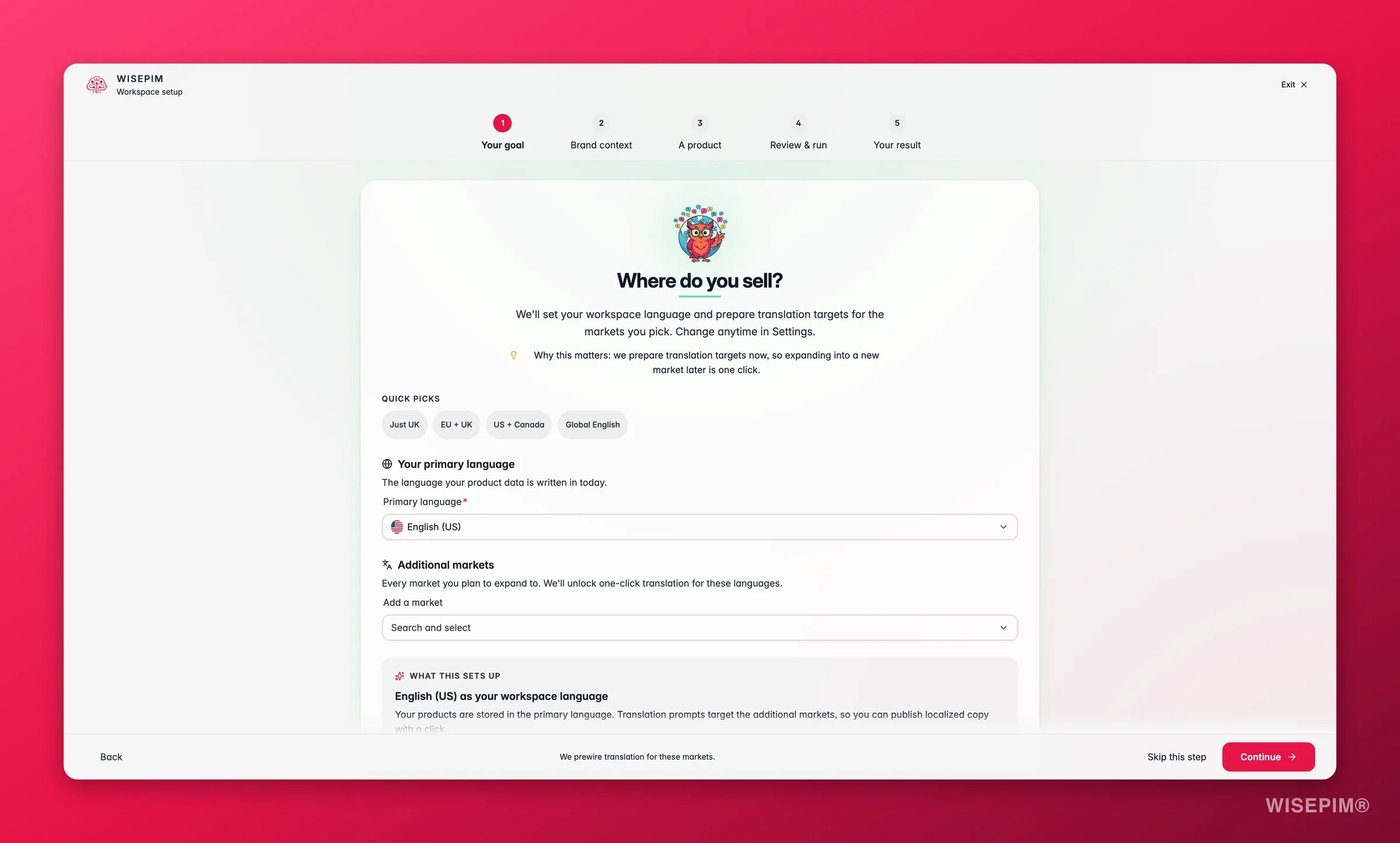
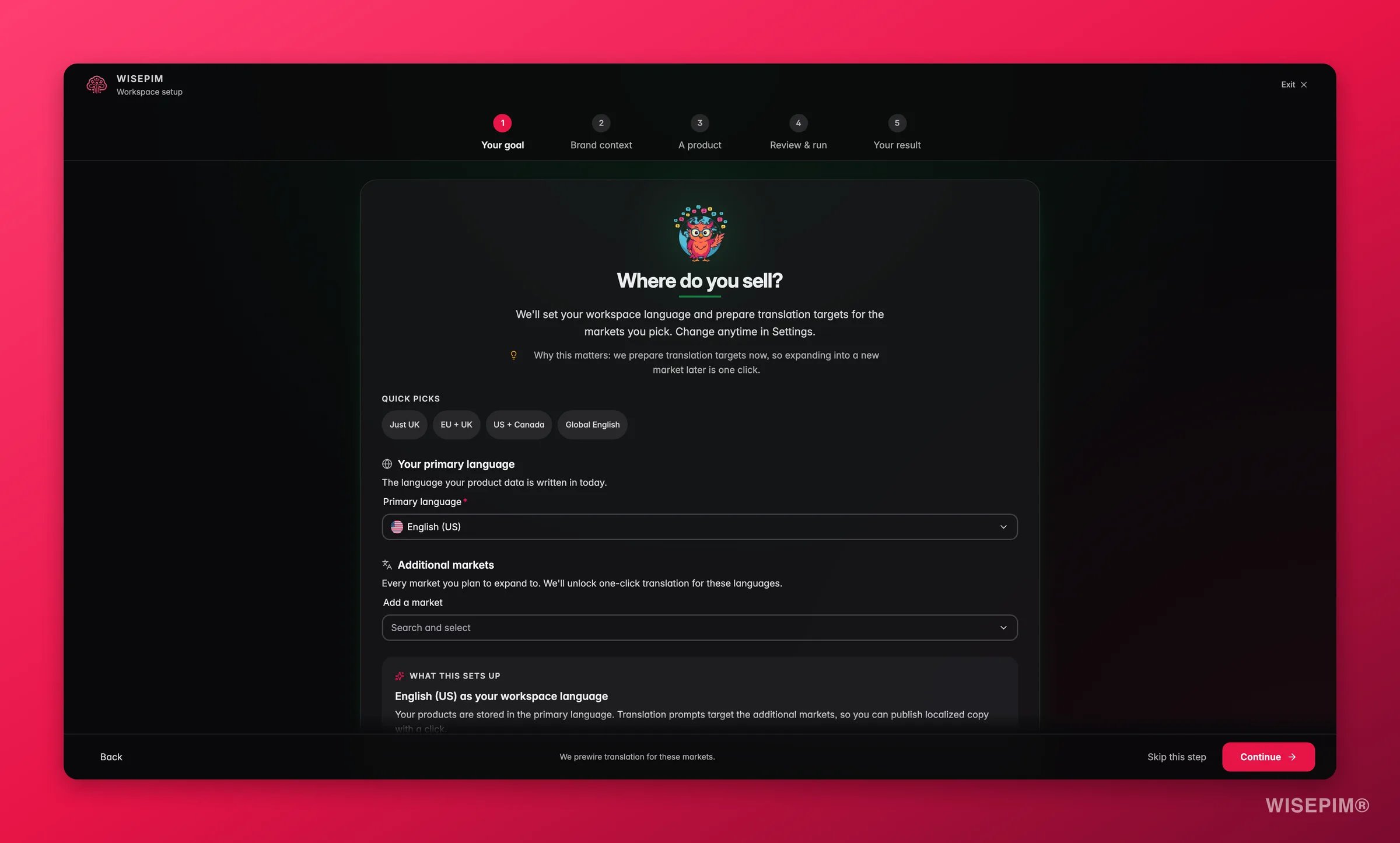
New accounts start with a setup wizard that runs once. Do it before anything else: the markets and languages you pick become your project’s locales, and the primary language is the source every translation starts from. Changing that on a catalog that already holds content is a much bigger decision than changing it on an empty one.
1
Work through the onboarding wizard
It asks about your company, your website, the markets you sell in, and the platforms you want to connect. The Quickstart walks through each screen.
2
Enter your real store URL
WISEPIM crawls it during setup and pre-fills your company details, industry, and brand context, so the AI has something to work from before you have written a word yourself.
3
Choose markets and languages deliberately
These become your project locales, and everything you import and translate later hangs off them. Decide now, while the catalog is empty.
4
Confirm the details in General settings
Open General settings and check the project name, industry, and target keywords. Industry shapes how the AI writes from here on; it does not rewrite anything that already exists.
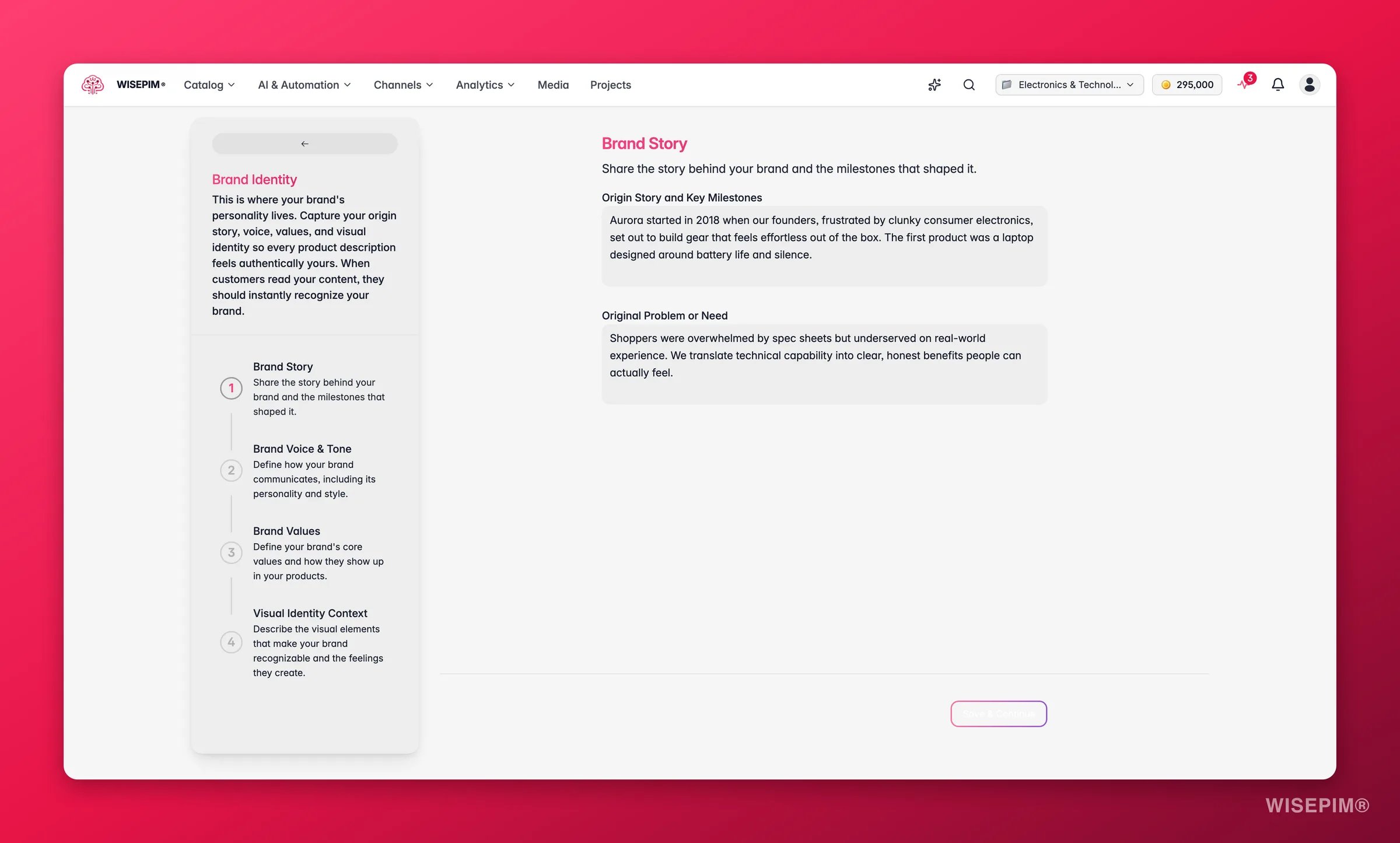
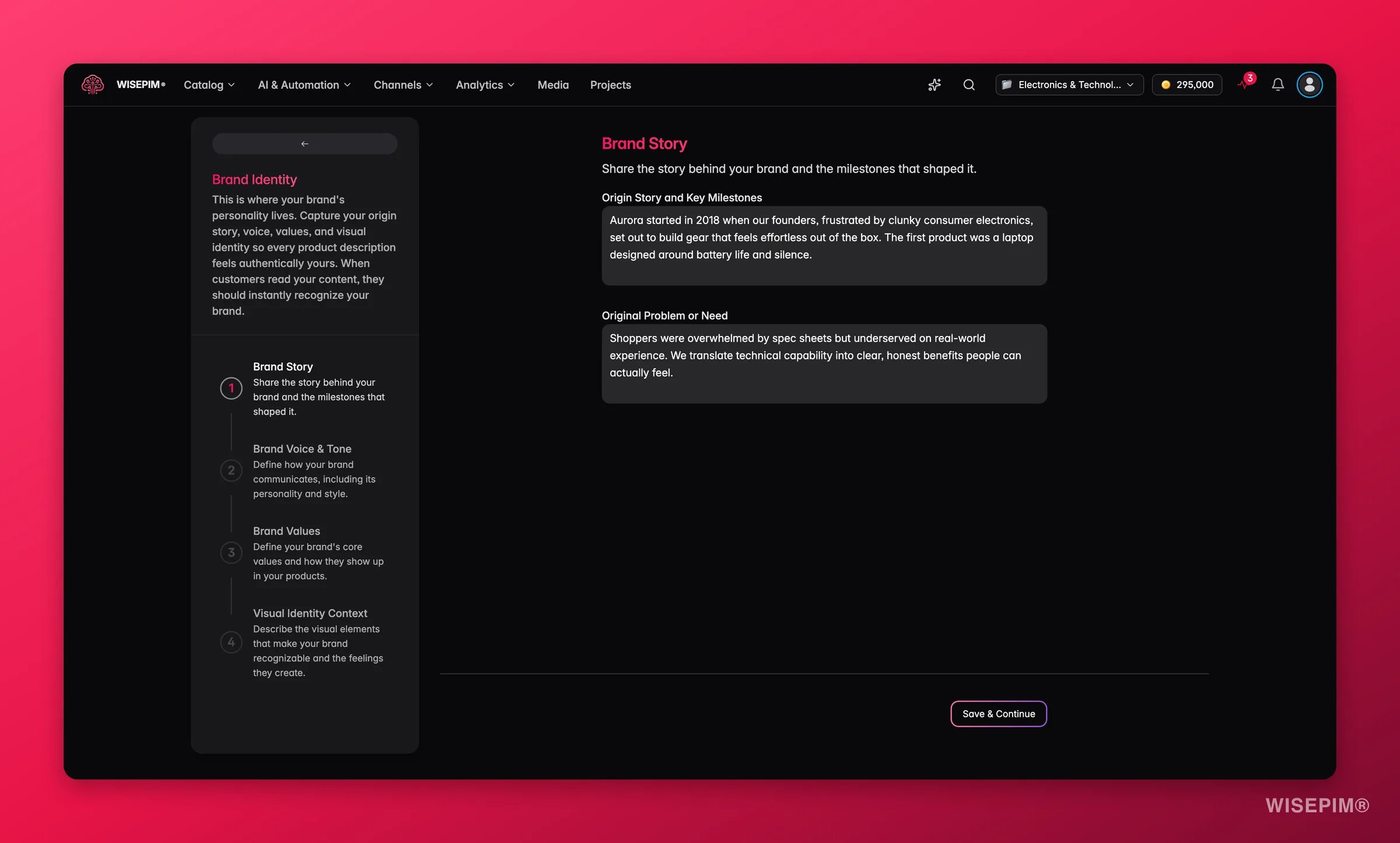
An empty Knowledge Library is the single biggest cause of bland AI output, and every AI feature reads from it at run time. An hour here improves every description, title, and translation you generate in part 4 and after. Start with brand identity: it is the foundation the other sections build on.
1
Open the Knowledge Library and start with brand identity
Reach the Knowledge Library from your main menu, open the brand identity card, and fill in your brand story, voice, and values. If output ever feels off-brand, this is the first place to look.
2
Add brand voice and target audience next
Concrete tone adjectives and the words you never use beat vague statements. Describe who you sell to, what they worry about, and the questions they ask before buying.
3
Cover value proposition and content requirements
Why customers pick you, and any rules your content must follow, such as required details or compliance wording. These two sections are what stop descriptions reading like every competitor’s.
4
Paste from documents you already have
Existing brand guidelines, a tone-of-voice deck, or customer research are the fastest source. Progress saves as you type, and each category shows its own completion percentage.
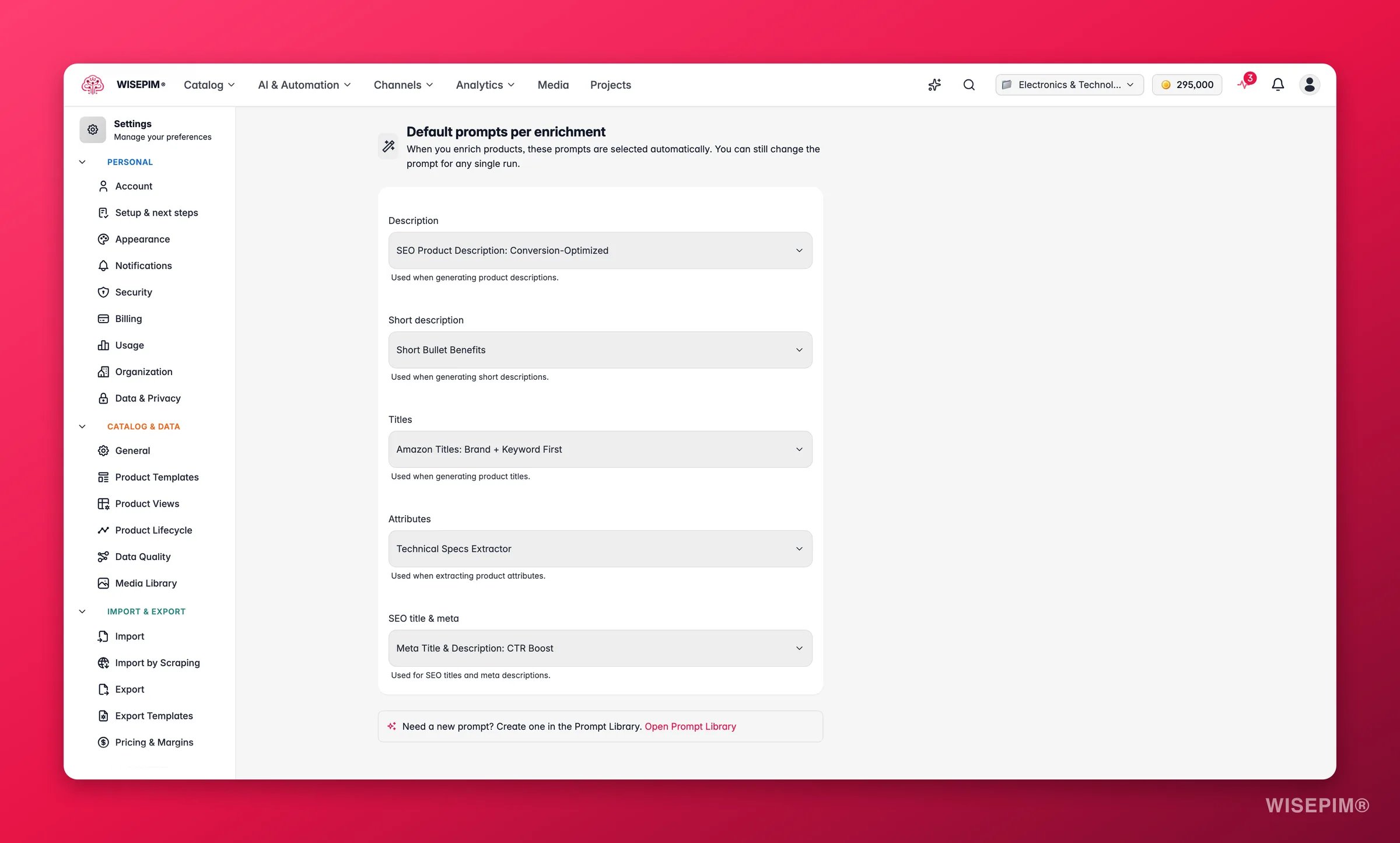
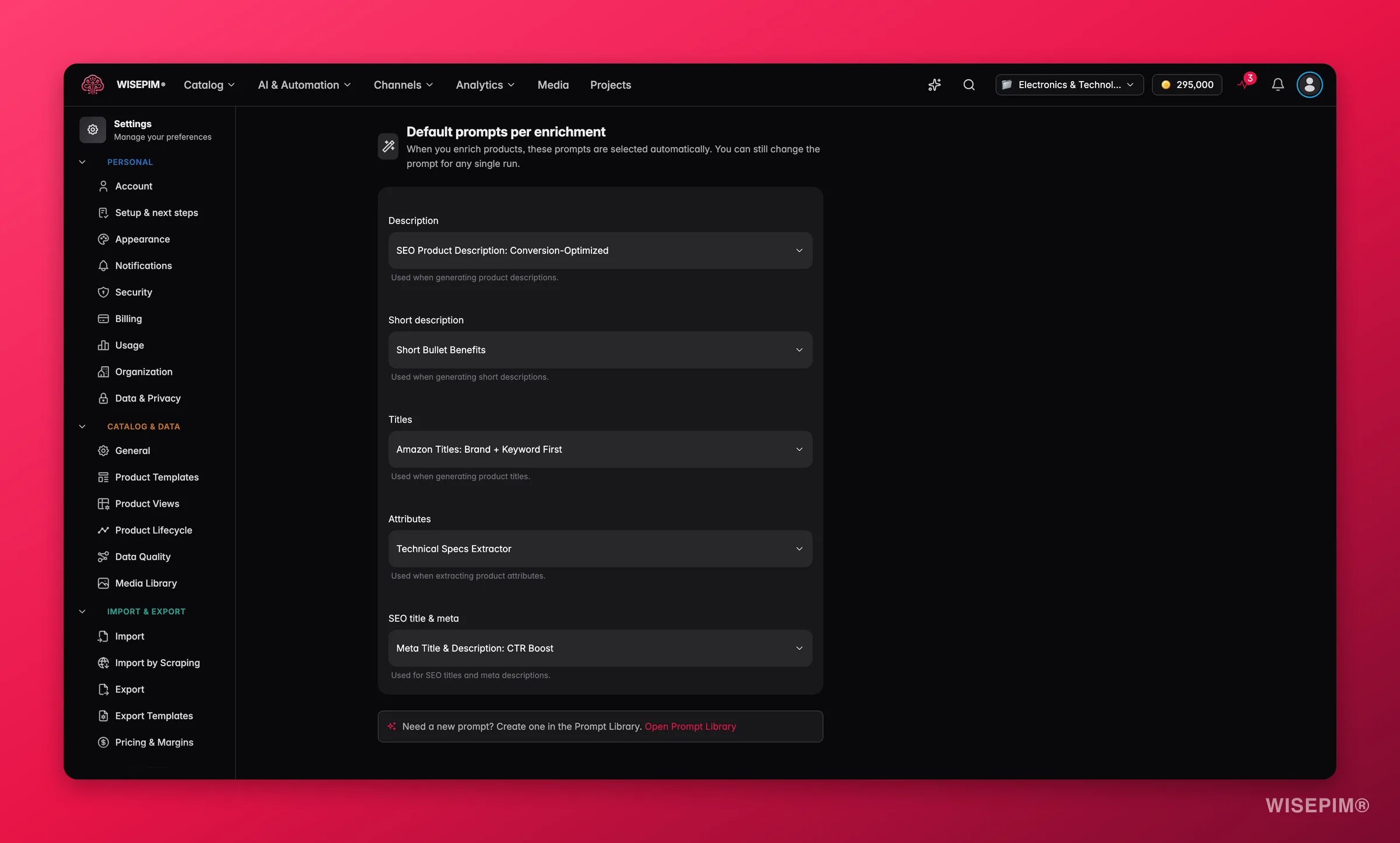
Pick one prompt per content type and set it as the default
Enrichment runs from prompts. Until a default exists for a content type, Auto-Fill skips that type, and you only find out as a greyed-out option inside the enrich modal in part 4. Ten minutes here removes that dead end before you have 5,000 products riding on it.
1
Start from the curated prompts
Open the Curated Prompts tab in the Prompt Library. It is ranked for your industry and tone, so the best fit is usually near the top. Save one per content type into your own collection rather than writing from scratch.
2
Try it on a real product
In the Prompt Lab, search a SKU, click Load Product, and test. You get the original and the generated version side by side and nothing is written to your catalog. Adjust one setting at a time and test again.
3
Set your defaults
In Enrich Prompts settings, choose a prompt for each enrichment type and save. Description and short description deliberately share one default.
4
Leave no dropdown on 'No default'
Every type without a default is a type Auto-Fill will not touch in part 4. An empty dropdown means you have no prompt of that type yet, so create one in the Prompt Library first.
Optional: defaults and keywords that fill the gaps
Your import file will not carry every field. These two settings decide what happens to the rest. Both only apply to products created after you save them, which is exactly why they belong before part 2 rather than after it.
1
Set your product defaults
In Product Templates, set the status, visibility, brand, and supplier new products should start with. Template defaults apply when a product is created, never when one is updated.
2
Add a SKU pattern if your file lacks SKUs
The same page builds SKUs from a pattern, with a live preview under the field. Leave it blank if your file already carries good identifiers.
3
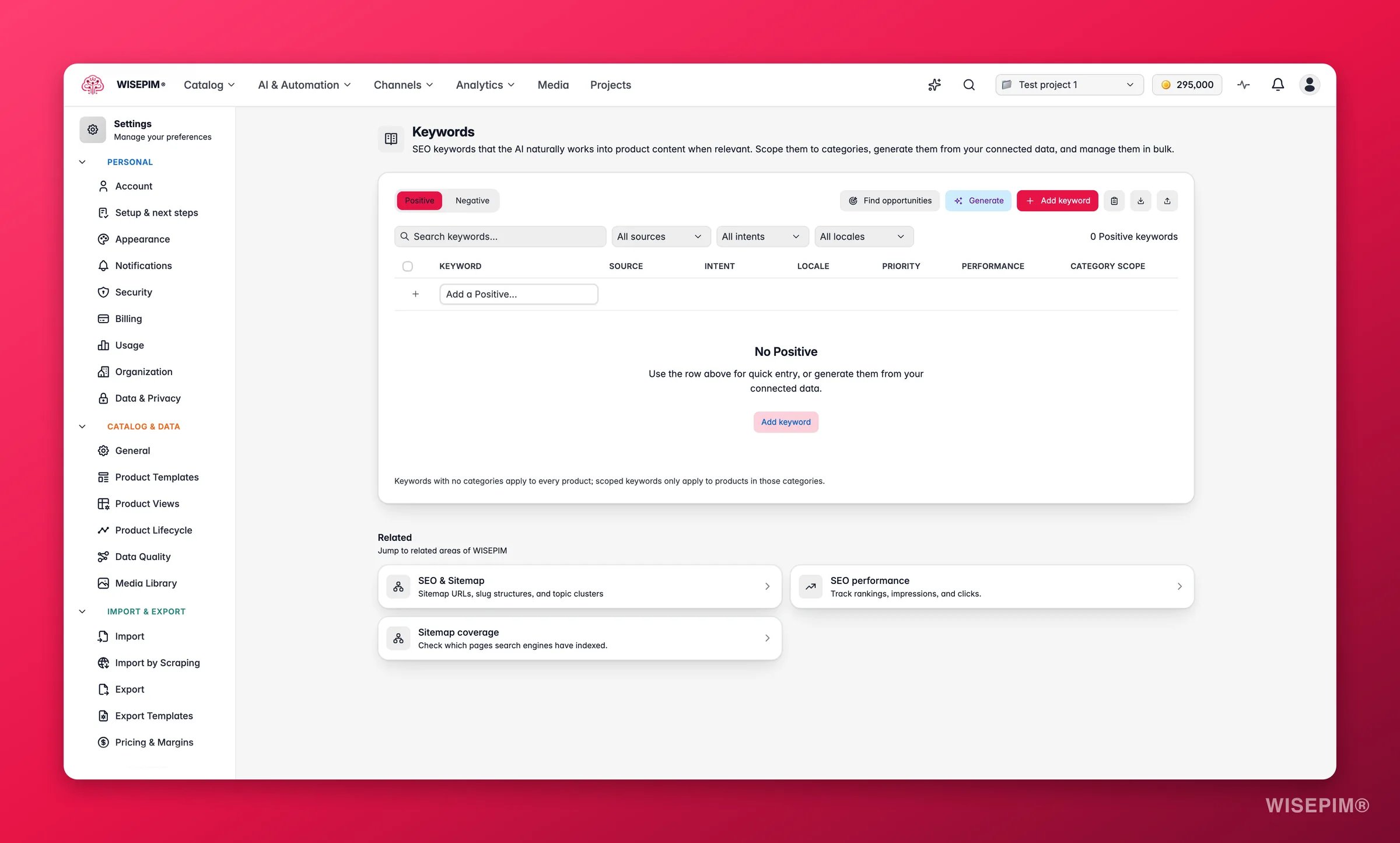
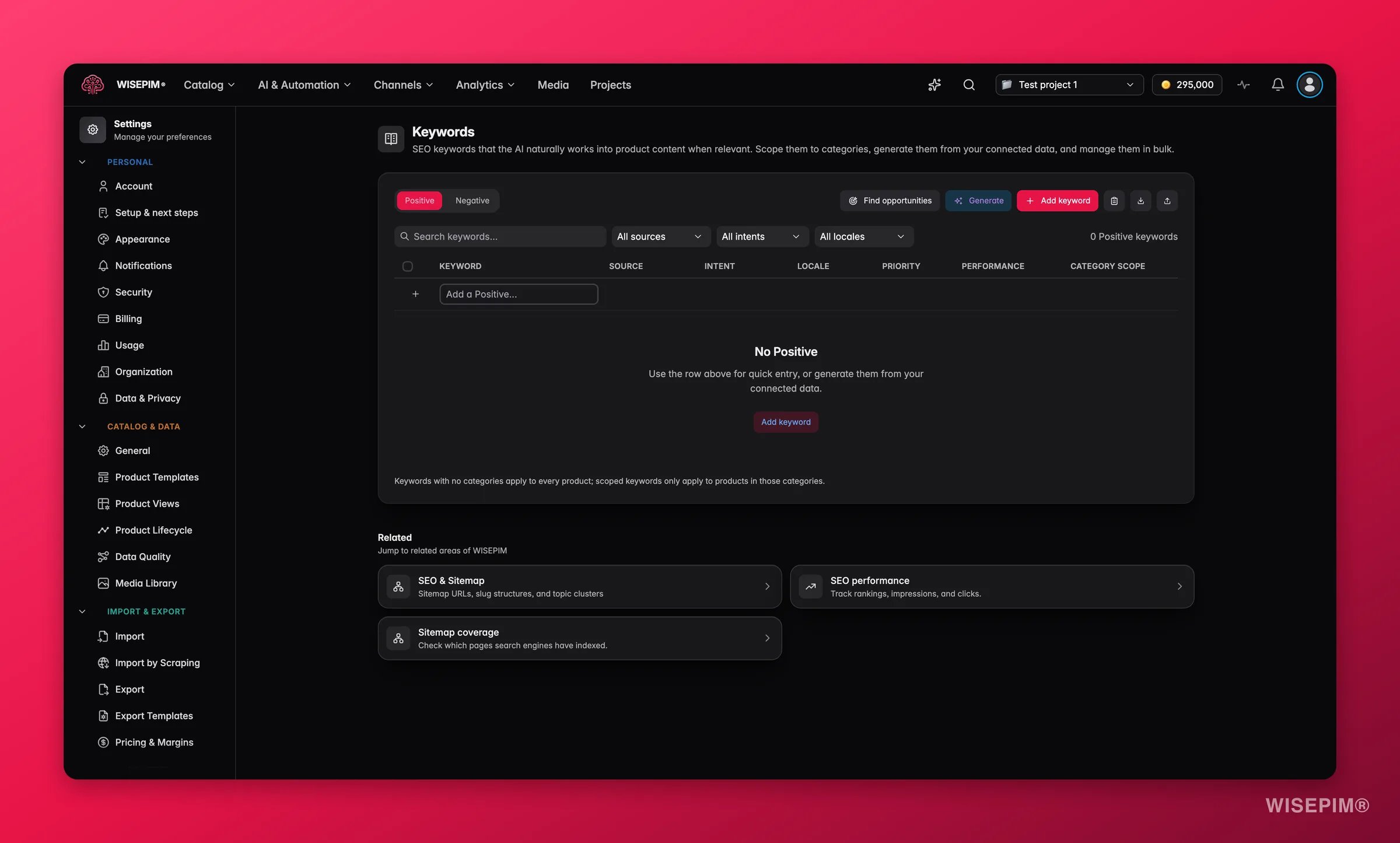
Build a focused positive keyword list
In Keywords, add the SEO terms you want to rank for. The AI weaves them in only where they fit, so a tight list beats a long one. Generate proposes terms from your own data.
4
Add negative keywords too
Competitor names and off-brand wording go in the Negative tab, and the AI keeps them out of generated content. Changes on this page save immediately, no save bar.
A greyed-out gap type has no default prompt and no override chosen for that run. Set a default in Enrich Prompts, or pick a prompt from the override dropdown in the panel itself.
A prompt dropdown is empty, so I can't set a default
Each dropdown only lists prompts matching that enrichment type, so an empty one means you have no prompt of that type yet. Create or save one in the Prompt Library first, then come back.
The AI output still reads generic
Thin brand voice and brand identity are the usual cause. Add concrete tone adjectives, example phrases, and your specific benefits to the Knowledge Library, then re-test the same product in the Prompt Lab.
A settings page asks me to pick a project first
Enrich Prompts, Export Templates, Keywords, and General settings are project-level. Choose a project in the project switcher, then reopen the page.
I already imported before reading this
Nothing is wasted. Fill the Knowledge Library and set your defaults now, then go to part 3: enrichment reads both at run time, not at import time.
Setup done. Part 2 takes the file itself, which is where the real damage usually happens.
Next in the series: test-import, map once, and keep a rollback option open.
Teach WISEPIM your house style
Go deeper on brand voice so thousands of descriptions still sound like you.
Knowledge Library
Every field the AI reads before it writes a single word.
Enrich Prompts
The default prompt per enrichment type, and where it shows up.
{"docsConfig":{"theme":"mint","$schema":"https://mintlify.com/docs.json","name":"WISEPIM Documentation","description":"Documentation for WISEPIM, the AI-powered product information management (PIM) platform: import, enrich, translate and publish product content, connect e-commerce platforms and marketplaces, automate catalog work, and build on the WISEPIM Public API.","colors":{"primary":"#E71447","light":"#E71447","dark":"#E71447"},"logo":{"light":"https://mintcdn.com/swiftsyncai/CpcHeNUil_YXkrs1/logo/wisepim-logo-horizontal-transparant-lightmode.png?fit=max\u0026auto=format\u0026n=CpcHeNUil_YXkrs1\u0026q=85\u0026s=fb18d37ec9d57e2050a1acb063cd8424","dark":"https://mintcdn.com/swiftsyncai/CpcHeNUil_YXkrs1/logo/wisepim-logo-horizontal-transparant-darkmode.png?fit=max\u0026auto=format\u0026n=CpcHeNUil_YXkrs1\u0026q=85\u0026s=f908843e7a886bf8143cb9bc525b7b86"},"favicon":"https://mintcdn.com/swiftsyncai/CpcHeNUil_YXkrs1/favicon.png?fit=max\u0026auto=format\u0026n=CpcHeNUil_YXkrs1\u0026q=85\u0026s=50f7573d74bc7da293b9931d815b2bb3","api":{"openapi":"openapi.json","playground":{"display":"interactive"},"examples":{"defaults":"required","languages":["curl","python","javascript"]}},"appearance":{"default":"system"},"background":{"decoration":"gradient"},"navbar":{"links":[{"href":"https://wisepim.com/contact","label":"Support"}],"primary":{"type":"button","label":"Go to WISEPIM","href":"https://wisepim.com/products"}},"footer":{"socials":{"youtube":"https://www.youtube.com/channel/UC5sQ48mV3sYEBme01xvVIXw","linkedin":"https://linkedin.com/company/wisepim"}},"search":{"prompt":"What are you looking for?"},"seo":{"metatags":{"og:site_name":"WISEPIM Documentation","og:type":"website","twitter:card":"summary_large_image"},"organization":{"name":"WISEPIM","legalName":"WISEPIM B.V.","url":"https://wisepim.com","logo":"https://docs.wisepim.com/logo/wisepim-logo-horizontal-transparant-lightmode.png","sameAs":["https://linkedin.com/company/wisepim","https://www.youtube.com/channel/UC5sQ48mV3sYEBme01xvVIXw"]},"indexing":"all"},"fonts":{"family":"Inter"},"icons":{"library":"lucide"},"styling":{"eyebrows":"breadcrumbs","latex":true},"integrations":{"ga4":{"measurementId":"G-6NXPFG6S4Z"}},"errors":{"404":{"redirect":false,"title":"This page moved or never existed","description":"No worries, use the search above (or press Cmd+K) to find what you were looking for, or head back to the [introduction](/en/introduction)."}},"contextual":{"options":[{"title":"Ask WISEPIM AI","description":"Open the WISEPIM AI chat with this page as the question","icon":"sparkles","href":{"base":"https://wisepim.com/chat","query":[{"key":"prompt","value":"I am reading the WISEPIM documentation page https://docs.wisepim.com$path and I have a question about it. Answer in the language of that page.\n\nMy question: "}]}},"copy","view","chatgpt","claude","perplexity","mcp"],"display":"header"},"thumbnails":{"appearance":"dark","background":"https://mintcdn.com/swiftsyncai/2_3RgILsRdlQxjn6/images/og-background.png?fit=max\u0026auto=format\u0026n=2_3RgILsRdlQxjn6\u0026q=85\u0026s=f55698f3b0dd04d58e5f67b096de1f26","fonts":{"family":"Inter"}},"navigation":{"global":{"anchors":[{"anchor":"Homepage","icon":"house","href":"https://wisepim.com"},{"anchor":"Latest changes","icon":"history","href":"https://wisepim.com/changelog"},{"anchor":"Blog","icon":"newspaper","href":"https://wisepim.com/blog"}]},"languages":[{"language":"en","href":"en/introduction"},{"language":"nl","href":"nl/introduction"},{"language":"de","href":"de/introduction"},{"language":"es","href":"es/introduction"}]}},"deployment":{"deploymentMetadataValue":{"subdomain":"swiftsyncai","hasAudioNarration":false,"actualSubdomain":"swiftsyncai","customDomains":["docs.wisepim.com"],"gitSource":{"type":"github","owner":"lldiegon","repo":"wisepim-docs","deployBranch":"main","contentDirectory":"","isPrivate":true,"mountPath":"","label":""},"chroma":{"liveDeploymentHistoryId":"6ae29ae907aeaf4d1afc5884","collectionId":"bbceb7eb-5a5b-4c95-b655-48d98646c6ca","schemaVersion":"v3","latestBuiltDeploymentHistoryId":"6ae29ae907aeaf4d1afc5884"},"entitlements":{},"buildId":"6ae29ae907aeaf4d1afc5884","clientVersion":"0.0.4043","searchFilterCounts":[{"language":"en","tag":"Documentation","count":283},{"language":"de","tag":"Dokumentation","count":183},{"language":"es","tag":"Documentación","count":183},{"language":"nl","tag":"Documentatie","count":183},{"language":"en","tag":"API Reference","count":100},{"language":"en","tag":"Products","count":67},{"language":"de","tag":"Produkte","count":61},{"language":"es","tag":"Productos","count":61},{"language":"nl","tag":"Producten","count":61},{"language":"de","tag":"Erstellen \u0026 Bearbeiten","count":41},{"language":"de","tag":"Einstellungen","count":41},{"language":"en","tag":"Creating \u0026 Editing","count":41},{"language":"en","tag":"Settings","count":41},{"language":"es","tag":"Crear y Editar","count":41},{"language":"es","tag":"Configuración","count":41},{"language":"nl","tag":"Aanmaken \u0026 Bewerken","count":41},{"language":"nl","tag":"Instellingen","count":41},{"language":"de","tag":"Analytics","count":38},{"language":"en","tag":"Analytics","count":38},{"language":"es","tag":"Analytics","count":38},{"language":"nl","tag":"Analytics","count":38},{"language":"de","tag":"Massenaktionen","count":34},{"language":"en","tag":"Bulk Actions","count":34},{"language":"es","tag":"Acciones Masivas","count":34},{"language":"nl","tag":"Bulkacties","count":34},{"language":"de","tag":"Integrationen","count":30},{"language":"en","tag":"Integrations","count":30},{"language":"es","tag":"Integraciones","count":30},{"language":"nl","tag":"Integraties","count":30},{"language":"de","tag":"Projekt","count":29},{"language":"en","tag":"Project","count":29},{"language":"es","tag":"Proyecto","count":29},{"language":"nl","tag":"Project","count":29},{"language":"de","tag":"Anleitungen","count":20},{"language":"en","tag":"Guides","count":20},{"language":"es","tag":"Guías","count":20},{"language":"nl","tag":"Handleidingen","count":20},{"language":"de","tag":"KI \u0026 Anreicherung","count":19},{"language":"es","tag":"IA y Enriquecimiento","count":19},{"language":"nl","tag":"AI \u0026 Verrijking","count":19}]},"assistantConfig":{},"basePath":"","hasChatPermissions":false,"hasWebMcpPermissions":false,"toggles":[{"name":"kill-isr","enabled":true,"variant":{"name":"disabled","enabled":false,"feature_enabled":true},"impressionData":false},{"name":"agent-mintlify-slack","enabled":true,"variant":{"name":"disabled","enabled":false,"feature_enabled":true},"impressionData":false},{"name":"agent-integrations-settings","enabled":true,"variant":{"name":"disabled","enabled":false,"feature_enabled":true},"impressionData":false},{"name":"automations-pr-grouping","enabled":true,"variant":{"name":"disabled","enabled":false,"feature_enabled":true},"impressionData":false},{"name":"custom-prefix","enabled":true,"variant":{"name":"disabled","enabled":false,"feature_enabled":true},"impressionData":false},{"name":"analytics-v7","enabled":true,"variant":{"name":"disabled","enabled":false,"feature_enabled":true},"impressionData":false},{"name":"user-flows-analytics","enabled":true,"variant":{"name":"disabled","enabled":false,"feature_enabled":true},"impressionData":false},{"name":"no-publish-flow","enabled":true,"variant":{"name":"disabled","enabled":false,"feature_enabled":true},"impressionData":false},{"name":"workos-onboarding","enabled":true,"variant":{"name":"disabled","enabled":false,"feature_enabled":true},"impressionData":false},{"name":"llms-txt-v2","enabled":true,"variant":{"name":"disabled","enabled":false,"feature_enabled":true},"impressionData":false},{"name":"snapshot-serving-live","enabled":true,"variant":{"name":"disabled","enabled":false,"feature_enabled":true},"impressionData":false},{"name":"stripTemperatureMiddleware","enabled":true,"variant":{"name":"disabled","enabled":false,"feature_enabled":true},"impressionData":false},{"name":"support-platform-pylon-zendesk","enabled":true,"variant":{"name":"disabled","enabled":false,"feature_enabled":true},"impressionData":false},{"name":"snapshot-serving","enabled":true,"variant":{"name":"disabled","enabled":false,"feature_enabled":true},"impressionData":false},{"name":"instant-rollback","enabled":true,"variant":{"name":"disabled","enabled":false,"feature_enabled":true},"impressionData":false},{"name":"granular-notifications-server","enabled":true,"variant":{"name":"disabled","enabled":false,"feature_enabled":true},"impressionData":false},{"name":"granular-notifications","enabled":true,"variant":{"name":"disabled","enabled":false,"feature_enabled":true},"impressionData":false},{"name":"automations-fable","enabled":true,"variant":{"name":"disabled","enabled":false,"feature_enabled":true},"impressionData":false},{"name":"fixed-ai-action-pricing","enabled":true,"variant":{"name":"disabled","enabled":false,"feature_enabled":true},"impressionData":false},{"name":"automation-resolve-merge-conflict","enabled":true,"variant":{"name":"disabled","enabled":false,"feature_enabled":true},"impressionData":false},{"name":"scoped-publishing","enabled":true,"variant":{"name":"disabled","enabled":false,"feature_enabled":true},"impressionData":false},{"name":"mintql","enabled":true,"variant":{"name":"disabled","enabled":false,"feature_enabled":true},"impressionData":false},{"name":"page-level-analytics","enabled":true,"variant":{"name":"disabled","enabled":false,"feature_enabled":true},"impressionData":false},{"name":"editor-version-history-v2","enabled":true,"variant":{"name":"disabled","enabled":false,"feature_enabled":true},"impressionData":false},{"name":"billing-page-v2","enabled":true,"variant":{"name":"disabled","enabled":false,"feature_enabled":true},"impressionData":false},{"name":"full-page-search","enabled":true,"variant":{"name":"disabled","enabled":false,"feature_enabled":true},"impressionData":false},{"name":"workspace-projects","enabled":true,"variant":{"name":"disabled","enabled":false,"feature_enabled":true},"impressionData":false},{"name":"assistant-v5","enabled":true,"variant":{"name":"disabled","enabled":false,"feature_enabled":true},"impressionData":false},{"name":"byok-sep-25","enabled":true,"variant":{"name":"disabled","enabled":false,"feature_enabled":true},"impressionData":false},{"name":"fork-pr-previews","enabled":true,"variant":{"name":"disabled","enabled":false,"feature_enabled":true},"impressionData":false},{"name":"revalidation-jwt","enabled":true,"variant":{"name":"disabled","enabled":false,"feature_enabled":true},"impressionData":false},{"name":"vite-origin","enabled":true,"variant":{"name":"disabled","enabled":false,"feature_enabled":true},"impressionData":false},{"name":"billing-updated-9-15","enabled":true,"variant":{"name":"disabled","enabled":false,"feature_enabled":true},"impressionData":false},{"name":"workos-sso-scim","enabled":true,"variant":{"name":"disabled","enabled":false,"feature_enabled":true},"impressionData":false},{"name":"hobby-abuse-scan","enabled":true,"variant":{"name":"disabled","enabled":false,"feature_enabled":true},"impressionData":false},{"name":"dashboard-inbox","enabled":true,"variant":{"name":"disabled","enabled":false,"feature_enabled":true},"impressionData":false},{"name":"workos-signup","enabled":true,"variant":{"name":"disabled","enabled":false,"feature_enabled":true},"impressionData":false},{"name":"turbopuffer-dual-write","enabled":true,"variant":{"name":"disabled","enabled":false,"feature_enabled":true},"impressionData":false},{"name":"workos-enabled","enabled":true,"variant":{"name":"disabled","enabled":false,"feature_enabled":true},"impressionData":false},{"name":"approve-review-flow","enabled":true,"variant":{"name":"disabled","enabled":false,"feature_enabled":true},"impressionData":false}],"googleFontsInlined":false},"customCss":[{"filePath":"style.css","content":"img.nav-logo{height:2rem}#theme-preference-menu-trigger{display:none!important}#wisepim-theme-toggle{position:relative;width:34px;height:34px;padding:0;display:flex;align-items:center;justify-content:center;border-radius:.5rem;cursor:pointer;background:0 0;border:0;color:rgb(107 114 128)}#wisepim-theme-toggle:hover{color:rgb(55 65 81);background:rgba(0,0,0,.05)}html.dark #wisepim-theme-toggle{color:rgb(156 163 175)}html.dark #wisepim-theme-toggle:hover{color:rgb(229 231 235);background:rgba(255,255,255,.08)}#wisepim-theme-toggle .wp-tt-icon{position:absolute;transition:transform .5s cubic-bezier(.4,0,.2,1),opacity .25s ease}html:not(.dark) #wisepim-theme-toggle .wp-tt-sun{opacity:1;transform:rotate(0deg) scale(1)}html:not(.dark) #wisepim-theme-toggle .wp-tt-moon{opacity:0;transform:rotate(90deg) scale(.4)}html.dark #wisepim-theme-toggle .wp-tt-sun{opacity:0;transform:rotate(-90deg) scale(.4)}html.dark #wisepim-theme-toggle .wp-tt-moon{opacity:1;transform:rotate(0deg) scale(1)}#wisepim-tooltip{position:fixed;z-index:60;max-width:20rem;padding:.4rem .6rem;border-radius:.5rem;font-size:.75rem;line-height:1.4;font-weight:500;text-align:center;color:rgb(243 244 246);background:rgb(24 24 27);box-shadow:0 6px 20px rgba(0,0,0,.18);pointer-events:none;opacity:0;transform:translateY(-3px) scale(.97);transition:opacity .14s ease,transform .18s cubic-bezier(.16,1,.3,1)}#wisepim-tooltip[data-visible=true]{opacity:1;transform:translateY(0) scale(1)}#wisepim-tooltip::before{content:'';position:absolute;top:-3px;left:var(--wp-tip-arrow, 50%);width:8px;height:8px;margin-left:-4px;border-radius:1px;background:inherit;transform:rotate(45deg)}html.dark #wisepim-tooltip{color:rgb(24 24 27);background:rgb(240 240 243);box-shadow:0 6px 20px rgba(0,0,0,.45)}@media (prefers-reduced-motion:reduce){#wisepim-tooltip{transition:opacity .01s linear;transform:none}#wisepim-tooltip[data-visible=true]{transform:none}}::view-transition-group(root),::view-transition-image-pair(root),::view-transition-new(root),::view-transition-old(root){animation:none;mix-blend-mode:normal}::view-transition-old(root){z-index:1}::view-transition-new(root){z-index:9999;will-change:clip-path}img[src^=\"/images/connectors/\"]{background:#fff;border-radius:4px;object-fit:contain}.connector-brand{display:inline-flex;align-items:center;justify-content:center;background:#fff;border:1px solid #e5e7eb;border-radius:16px;padding:16px;margin:0 0 16px}.connector-brand img{display:block;width:96px;height:64px;margin:0;object-fit:contain}"}],"page":{"pagePath":"en/guides/first-catalog/set-up","slug":"/en/guides/first-catalog/set-up","pageMetadata":{"title":"Set up WISEPIM before you import","sidebarTitle":"1. Set up","description":"You signed up yesterday and a 5,000-row export is waiting. Spend one hour on setup first, and every AI run afterwards comes out on-brand instead of generic.","icon":"settings-2","keywords":["new pim setup checklist","before importing product data","why is ai copy generic","brand voice for product descriptions","default ai prompts"],"tag":"New","href":"/en/guides/first-catalog/set-up"},"description":{"compiledSource":"\"use strict\";\nconst {jsx: _jsx} = arguments[0];\nconst {useMDXComponents: _provideComponents} = arguments[0];\nfunction _createMdxContent(props) {\n const _components = {\n p: \"p\",\n ..._provideComponents(),\n ...props.components\n };\n return _jsx(_components.p, {\n children: \"You signed up yesterday and a 5,000-row export is waiting. Spend one hour on setup first, and every AI run afterwards comes out on-brand instead of generic.\"\n });\n}\nfunction MDXContent(props = {}) {\n const {wrapper: MDXLayout} = {\n ..._provideComponents(),\n ...props.components\n };\n return MDXLayout ? _jsx(MDXLayout, {\n ...props,\n children: _jsx(_createMdxContent, {\n ...props\n })\n }) : _createMdxContent(props);\n}\nreturn {\n default: MDXContent\n};\n","frontmatter":{},"scope":{}},"pageType":"default","mdx":{"mdxSource":{"compiledSource":"\"use strict\";const{Fragment:_Fragment,jsx:_jsx,jsxs:_jsxs}=arguments[0];const{useMDXComponents:_provideComponents}=arguments[0];function _createMdxContent(props){const _components={a:`a`,em:`em`,p:`p`,strong:`strong`,tbody:`tbody`,td:`td`,th:`th`,thead:`thead`,tr:`tr`,..._provideComponents(),...props.components},{Accordion,AccordionGroup,Card,CardGroup,Heading,Info,Mermaid,OptimizedImage,Step,Steps,Table,Tip}=_components;if(!Accordion)_missingMdxReference(`Accordion`,true);if(!AccordionGroup)_missingMdxReference(`AccordionGroup`,true);if(!Card)_missingMdxReference(`Card`,true);if(!CardGroup)_missingMdxReference(`CardGroup`,true);if(!Heading)_missingMdxReference(`Heading`,true);if(!Info)_missingMdxReference(`Info`,true);if(!Mermaid)_missingMdxReference(`Mermaid`,true);if(!OptimizedImage)_missingMdxReference(`OptimizedImage`,true);if(!Step)_missingMdxReference(`Step`,true);if(!Steps)_missingMdxReference(`Steps`,true);if(!Table)_missingMdxReference(`Table`,true);if(!Tip)_missingMdxReference(`Tip`,true);return _jsxs(_Fragment,{children:[_jsx(_components.p,{children:`You signed up yesterday, there is a messy 5,000-product export sitting on your desktop, and the obvious move is to upload it right now. Hold off for an hour. The usual complaint about AI-written product copy, that it reads generic and off-brand, is far cheaper to prevent here than to fix across 5,000 products in part 4. This part puts four things in place: your locales, your brand context, a default prompt per content type, and the defaults new products inherit. Budget about an hour here, and roughly five hours of hands-on work across the full five-part series, plus background time for the import and AI runs.`}),`\n`,_jsx(Mermaid,{chart:`flowchart LR\n A[\"1. Set up\"] --> B[\"2. Import\"] --> C[\"3. Clean\"] --> D[\"4. Enrich\"] --> E[\"5. Publish\"]`}),`\n`,_jsx(Info,{children:_jsxs(_components.p,{children:[_jsx(_components.strong,{children:`Before you start:`}),` you need a WISEPIM account and the file or store you plan to import from. Have your brand guidelines or tone-of-voice document open, you will paste from them into the `,_jsx(_components.a,{href:`/en/other-features/knowledge-library`,children:`Knowledge Library`}),`.`]})}),`\n`,_jsx(Tip,{children:_jsxs(_components.p,{children:[_jsx(_components.strong,{children:`What you’ll get:`}),` a project with its markets and languages fixed, a Knowledge Library the AI can write from, and a default prompt for every content type, so your first enrichment run in part 4 sounds like your brand.`]})}),`\n`,_jsx(Heading,{level:`2`,id:`finish-the-wizard-and-fix-your-markets`,children:`Finish the wizard and fix your markets`}),`\n`,_jsx(_components.p,{children:`New accounts start with a setup wizard that runs once. Do it before anything else: the markets and languages you pick become your project’s locales, and the primary language is the source every translation starts from. Changing that on a catalog that already holds content is a much bigger decision than changing it on an empty one.`}),`\n`,_jsx(OptimizedImage,{className:`mint-block dark:mint-hidden`,src:`https://mintcdn.com/swiftsyncai/bHDulNVOx41Wn3na/images/marketing-screenshots/onboarding/onboarding-markets-light-branded.webp?fit=max\u0026auto=format\u0026n=bHDulNVOx41Wn3na\u0026q=85\u0026s=92e3152c5952b7185ae83b1483ce9f67`,alt:`WISEPIM onboarding markets step selecting primary and additional locales`,\"data-og-width\":`2400`,width:`2400`,\"data-og-height\":`1445`,height:`1445`,\"data-path\":`images/marketing-screenshots/onboarding/onboarding-markets-light-branded.webp`,\"data-optimize\":`true`,\"data-opv\":`3`,srcset:`https://mintcdn.com/swiftsyncai/bHDulNVOx41Wn3na/images/marketing-screenshots/onboarding/onboarding-markets-light-branded.webp?w=280\u0026fit=max\u0026auto=format\u0026n=bHDulNVOx41Wn3na\u0026q=85\u0026s=0bc04f42a4ffdb5846e7dd8200ccd2bc 280w, https://mintcdn.com/swiftsyncai/bHDulNVOx41Wn3na/images/marketing-screenshots/onboarding/onboarding-markets-light-branded.webp?w=560\u0026fit=max\u0026auto=format\u0026n=bHDulNVOx41Wn3na\u0026q=85\u0026s=eb4fab051c48a71f5ba7c3d3b6a625fe 560w, https://mintcdn.com/swiftsyncai/bHDulNVOx41Wn3na/images/marketing-screenshots/onboarding/onboarding-markets-light-branded.webp?w=840\u0026fit=max\u0026auto=format\u0026n=bHDulNVOx41Wn3na\u0026q=85\u0026s=3eadb7c6bcb9706d12c851c0d74c3c54 840w, https://mintcdn.com/swiftsyncai/bHDulNVOx41Wn3na/images/marketing-screenshots/onboarding/onboarding-markets-light-branded.webp?w=1100\u0026fit=max\u0026auto=format\u0026n=bHDulNVOx41Wn3na\u0026q=85\u0026s=632f860a9ebd03dc5006080e9c7f41b0 1100w, https://mintcdn.com/swiftsyncai/bHDulNVOx41Wn3na/images/marketing-screenshots/onboarding/onboarding-markets-light-branded.webp?w=1650\u0026fit=max\u0026auto=format\u0026n=bHDulNVOx41Wn3na\u0026q=85\u0026s=2f395fab6c0584c043a7b803224991dc 1650w, https://mintcdn.com/swiftsyncai/bHDulNVOx41Wn3na/images/marketing-screenshots/onboarding/onboarding-markets-light-branded.webp?w=2500\u0026fit=max\u0026auto=format\u0026n=bHDulNVOx41Wn3na\u0026q=85\u0026s=3dc4e9b3b4a6dd7b1b7b7be86ac840b3 2500w`}),`\n`,_jsx(OptimizedImage,{className:`mint-hidden dark:mint-block`,src:`https://mintcdn.com/swiftsyncai/bHDulNVOx41Wn3na/images/marketing-screenshots/onboarding/onboarding-markets-dark-branded.webp?fit=max\u0026auto=format\u0026n=bHDulNVOx41Wn3na\u0026q=85\u0026s=57406f5c43f6592b7e205e49b1729b6d`,alt:`WISEPIM onboarding markets step selecting primary and additional locales`,\"data-og-width\":`2400`,width:`2400`,\"data-og-height\":`1445`,height:`1445`,\"data-path\":`images/marketing-screenshots/onboarding/onboarding-markets-dark-branded.webp`,\"data-optimize\":`true`,\"data-opv\":`3`,srcset:`https://mintcdn.com/swiftsyncai/bHDulNVOx41Wn3na/images/marketing-screenshots/onboarding/onboarding-markets-dark-branded.webp?w=280\u0026fit=max\u0026auto=format\u0026n=bHDulNVOx41Wn3na\u0026q=85\u0026s=0da1722fda936f9e0fbe9b3bebdd7cc2 280w, https://mintcdn.com/swiftsyncai/bHDulNVOx41Wn3na/images/marketing-screenshots/onboarding/onboarding-markets-dark-branded.webp?w=560\u0026fit=max\u0026auto=format\u0026n=bHDulNVOx41Wn3na\u0026q=85\u0026s=ac4268a62473b1132b7d88cc74883246 560w, https://mintcdn.com/swiftsyncai/bHDulNVOx41Wn3na/images/marketing-screenshots/onboarding/onboarding-markets-dark-branded.webp?w=840\u0026fit=max\u0026auto=format\u0026n=bHDulNVOx41Wn3na\u0026q=85\u0026s=d282bb3c561b7a112942bd2061a6d513 840w, https://mintcdn.com/swiftsyncai/bHDulNVOx41Wn3na/images/marketing-screenshots/onboarding/onboarding-markets-dark-branded.webp?w=1100\u0026fit=max\u0026auto=format\u0026n=bHDulNVOx41Wn3na\u0026q=85\u0026s=fb5f184460ba6897ed095ae1ad8538df 1100w, https://mintcdn.com/swiftsyncai/bHDulNVOx41Wn3na/images/marketing-screenshots/onboarding/onboarding-markets-dark-branded.webp?w=1650\u0026fit=max\u0026auto=format\u0026n=bHDulNVOx41Wn3na\u0026q=85\u0026s=0f05c92b967e6c2951b7cd6bd1947e87 1650w, https://mintcdn.com/swiftsyncai/bHDulNVOx41Wn3na/images/marketing-screenshots/onboarding/onboarding-markets-dark-branded.webp?w=2500\u0026fit=max\u0026auto=format\u0026n=bHDulNVOx41Wn3na\u0026q=85\u0026s=a9a13310ea334a8169f431e3c28d8c0b 2500w`}),`\n`,_jsxs(Steps,{children:[_jsx(Step,{title:`Work through the onboarding wizard`,children:_jsxs(_components.p,{children:[`It asks about your company, your website, the markets you sell in, and the platforms you want to connect. The `,_jsx(_components.a,{href:`/en/quickstart`,children:`Quickstart`}),` walks through each screen.`]})}),_jsx(Step,{title:`Enter your real store URL`,children:_jsx(_components.p,{children:`WISEPIM crawls it during setup and pre-fills your company details, industry, and brand context, so the AI has something to work from before you have written a word yourself.`})}),_jsx(Step,{title:`Choose markets and languages deliberately`,children:_jsx(_components.p,{children:`These become your project locales, and everything you import and translate later hangs off them. Decide now, while the catalog is empty.`})}),_jsx(Step,{title:`Confirm the details in General settings`,children:_jsxs(_components.p,{children:[`Open `,_jsx(_components.a,{href:`/en/settings/general`,children:`General settings`}),` and check the project name, industry, and target keywords. Industry shapes how the AI writes from here on; it does not rewrite anything that already exists.`]})})]}),`\n`,_jsx(Heading,{level:`2`,id:`fill-the-knowledge-library-brand-identity-first`,children:`Fill the Knowledge Library, brand identity first`}),`\n`,_jsxs(_components.p,{children:[`An empty Knowledge Library is the single biggest cause of bland AI output, and every AI feature reads from it at run time. An hour here improves every description, title, and translation you generate in part 4 and after. Start with `,_jsx(_components.strong,{children:`brand identity`}),`: it is the foundation the other sections build on.`]}),`\n`,_jsx(OptimizedImage,{className:`mint-block dark:mint-hidden`,src:`https://mintcdn.com/swiftsyncai/Q38ofF_xfo1Vb-fN/images/marketing-screenshots/knowledge/knowledge-library-brand-identity-light-branded.webp?fit=max\u0026auto=format\u0026n=Q38ofF_xfo1Vb-fN\u0026q=85\u0026s=d1030bb5d3b66efcb4749066f6423b98`,alt:`WISEPIM knowledge library brand-identity form capturing brand story, voice and values for grounded AI`,\"data-og-width\":`2400`,width:`2400`,\"data-og-height\":`1445`,height:`1445`,\"data-path\":`images/marketing-screenshots/knowledge/knowledge-library-brand-identity-light-branded.webp`,\"data-optimize\":`true`,\"data-opv\":`3`,srcset:`https://mintcdn.com/swiftsyncai/Q38ofF_xfo1Vb-fN/images/marketing-screenshots/knowledge/knowledge-library-brand-identity-light-branded.webp?w=280\u0026fit=max\u0026auto=format\u0026n=Q38ofF_xfo1Vb-fN\u0026q=85\u0026s=bb7b11ecf67e2dcb7c2e5bf2c8f128f3 280w, https://mintcdn.com/swiftsyncai/Q38ofF_xfo1Vb-fN/images/marketing-screenshots/knowledge/knowledge-library-brand-identity-light-branded.webp?w=560\u0026fit=max\u0026auto=format\u0026n=Q38ofF_xfo1Vb-fN\u0026q=85\u0026s=39b340d7c1e1bc5b6e501f01cc871244 560w, https://mintcdn.com/swiftsyncai/Q38ofF_xfo1Vb-fN/images/marketing-screenshots/knowledge/knowledge-library-brand-identity-light-branded.webp?w=840\u0026fit=max\u0026auto=format\u0026n=Q38ofF_xfo1Vb-fN\u0026q=85\u0026s=a65d1e88baf692b000664d301039d9d4 840w, https://mintcdn.com/swiftsyncai/Q38ofF_xfo1Vb-fN/images/marketing-screenshots/knowledge/knowledge-library-brand-identity-light-branded.webp?w=1100\u0026fit=max\u0026auto=format\u0026n=Q38ofF_xfo1Vb-fN\u0026q=85\u0026s=d0771b729754384eaadebe73da9a53f2 1100w, https://mintcdn.com/swiftsyncai/Q38ofF_xfo1Vb-fN/images/marketing-screenshots/knowledge/knowledge-library-brand-identity-light-branded.webp?w=1650\u0026fit=max\u0026auto=format\u0026n=Q38ofF_xfo1Vb-fN\u0026q=85\u0026s=8cdc33fff0f923710076b87d74af5afb 1650w, https://mintcdn.com/swiftsyncai/Q38ofF_xfo1Vb-fN/images/marketing-screenshots/knowledge/knowledge-library-brand-identity-light-branded.webp?w=2500\u0026fit=max\u0026auto=format\u0026n=Q38ofF_xfo1Vb-fN\u0026q=85\u0026s=c648160b217085d2212e968635b96aad 2500w`}),`\n`,_jsx(OptimizedImage,{className:`mint-hidden dark:mint-block`,src:`https://mintcdn.com/swiftsyncai/Q38ofF_xfo1Vb-fN/images/marketing-screenshots/knowledge/knowledge-library-brand-identity-dark-branded.webp?fit=max\u0026auto=format\u0026n=Q38ofF_xfo1Vb-fN\u0026q=85\u0026s=19aadf044b5e721289a67ae17f18ae06`,alt:`WISEPIM knowledge library brand-identity form capturing brand story, voice and values for grounded AI`,\"data-og-width\":`2400`,width:`2400`,\"data-og-height\":`1445`,height:`1445`,\"data-path\":`images/marketing-screenshots/knowledge/knowledge-library-brand-identity-dark-branded.webp`,\"data-optimize\":`true`,\"data-opv\":`3`,srcset:`https://mintcdn.com/swiftsyncai/Q38ofF_xfo1Vb-fN/images/marketing-screenshots/knowledge/knowledge-library-brand-identity-dark-branded.webp?w=280\u0026fit=max\u0026auto=format\u0026n=Q38ofF_xfo1Vb-fN\u0026q=85\u0026s=f1308d5edf9a19953813ce71537db6ec 280w, https://mintcdn.com/swiftsyncai/Q38ofF_xfo1Vb-fN/images/marketing-screenshots/knowledge/knowledge-library-brand-identity-dark-branded.webp?w=560\u0026fit=max\u0026auto=format\u0026n=Q38ofF_xfo1Vb-fN\u0026q=85\u0026s=e4dc0ad9a36156c55510d0fe26efd18e 560w, https://mintcdn.com/swiftsyncai/Q38ofF_xfo1Vb-fN/images/marketing-screenshots/knowledge/knowledge-library-brand-identity-dark-branded.webp?w=840\u0026fit=max\u0026auto=format\u0026n=Q38ofF_xfo1Vb-fN\u0026q=85\u0026s=fe2d582bf102527f12b36f4fbdc26671 840w, https://mintcdn.com/swiftsyncai/Q38ofF_xfo1Vb-fN/images/marketing-screenshots/knowledge/knowledge-library-brand-identity-dark-branded.webp?w=1100\u0026fit=max\u0026auto=format\u0026n=Q38ofF_xfo1Vb-fN\u0026q=85\u0026s=8610a99a1154b987c423de4b564c92b8 1100w, https://mintcdn.com/swiftsyncai/Q38ofF_xfo1Vb-fN/images/marketing-screenshots/knowledge/knowledge-library-brand-identity-dark-branded.webp?w=1650\u0026fit=max\u0026auto=format\u0026n=Q38ofF_xfo1Vb-fN\u0026q=85\u0026s=62481aab168b3b1e9902780286379bca 1650w, https://mintcdn.com/swiftsyncai/Q38ofF_xfo1Vb-fN/images/marketing-screenshots/knowledge/knowledge-library-brand-identity-dark-branded.webp?w=2500\u0026fit=max\u0026auto=format\u0026n=Q38ofF_xfo1Vb-fN\u0026q=85\u0026s=d526ea7019ffa2bde402f44b5d03a82c 2500w`}),`\n`,_jsxs(Steps,{children:[_jsx(Step,{title:`Open the Knowledge Library and start with brand identity`,children:_jsxs(_components.p,{children:[`Reach the `,_jsx(_components.a,{href:`/en/other-features/knowledge-library`,children:`Knowledge Library`}),` from your main menu, open the brand identity card, and fill in your brand story, voice, and values. If output ever feels off-brand, this is the first place to look.`]})}),_jsx(Step,{title:`Add brand voice and target audience next`,children:_jsx(_components.p,{children:`Concrete tone adjectives and the words you never use beat vague statements. Describe who you sell to, what they worry about, and the questions they ask before buying.`})}),_jsx(Step,{title:`Cover value proposition and content requirements`,children:_jsx(_components.p,{children:`Why customers pick you, and any rules your content must follow, such as required details or compliance wording. These two sections are what stop descriptions reading like every competitor’s.`})}),_jsx(Step,{title:`Paste from documents you already have`,children:_jsx(_components.p,{children:`Existing brand guidelines, a tone-of-voice deck, or customer research are the fastest source. Progress saves as you type, and each category shows its own completion percentage.`})})]}),`\n`,_jsx(Heading,{level:`2`,id:`pick-one-prompt-per-content-type-and-set-it-as-the-default`,children:`Pick one prompt per content type and set it as the default`}),`\n`,_jsxs(_components.p,{children:[`Enrichment runs from prompts. Until a default exists for a content type, `,_jsx(_components.a,{href:`/en/ai/auto-fill`,children:`Auto-Fill`}),` skips that type, and you only find out as a greyed-out option inside the enrich modal in part 4. Ten minutes here removes that dead end before you have 5,000 products riding on it.`]}),`\n`,_jsx(OptimizedImage,{className:`mint-block dark:mint-hidden`,src:`https://mintcdn.com/swiftsyncai/DPc0xvwLR8mma6T1/images/marketing-screenshots/settings/settings-enrich-defaults-light-branded.webp?fit=max\u0026auto=format\u0026n=DPc0xvwLR8mma6T1\u0026q=85\u0026s=6335a3e7482514bf5a9931be90df285c`,alt:`WISEPIM default enrich prompts per enrichment type, preselected in the enrich modal and used by Auto-Fill`,\"data-og-width\":`2400`,width:`2400`,\"data-og-height\":`1445`,height:`1445`,\"data-path\":`images/marketing-screenshots/settings/settings-enrich-defaults-light-branded.webp`,\"data-optimize\":`true`,\"data-opv\":`3`,srcset:`https://mintcdn.com/swiftsyncai/DPc0xvwLR8mma6T1/images/marketing-screenshots/settings/settings-enrich-defaults-light-branded.webp?w=280\u0026fit=max\u0026auto=format\u0026n=DPc0xvwLR8mma6T1\u0026q=85\u0026s=e3c6621e0d2e8a3c4349e1755c0c25a3 280w, https://mintcdn.com/swiftsyncai/DPc0xvwLR8mma6T1/images/marketing-screenshots/settings/settings-enrich-defaults-light-branded.webp?w=560\u0026fit=max\u0026auto=format\u0026n=DPc0xvwLR8mma6T1\u0026q=85\u0026s=9c9b759d86dc3e2c015ca729ff81791a 560w, https://mintcdn.com/swiftsyncai/DPc0xvwLR8mma6T1/images/marketing-screenshots/settings/settings-enrich-defaults-light-branded.webp?w=840\u0026fit=max\u0026auto=format\u0026n=DPc0xvwLR8mma6T1\u0026q=85\u0026s=5e4bd7b3c45cdc9f655cc40659b089d1 840w, https://mintcdn.com/swiftsyncai/DPc0xvwLR8mma6T1/images/marketing-screenshots/settings/settings-enrich-defaults-light-branded.webp?w=1100\u0026fit=max\u0026auto=format\u0026n=DPc0xvwLR8mma6T1\u0026q=85\u0026s=7df90f6a6ca9c5fe7d01df78c92c7a6d 1100w, https://mintcdn.com/swiftsyncai/DPc0xvwLR8mma6T1/images/marketing-screenshots/settings/settings-enrich-defaults-light-branded.webp?w=1650\u0026fit=max\u0026auto=format\u0026n=DPc0xvwLR8mma6T1\u0026q=85\u0026s=c5d95db71703d7a7013159e1a261d721 1650w, https://mintcdn.com/swiftsyncai/DPc0xvwLR8mma6T1/images/marketing-screenshots/settings/settings-enrich-defaults-light-branded.webp?w=2500\u0026fit=max\u0026auto=format\u0026n=DPc0xvwLR8mma6T1\u0026q=85\u0026s=15946904be5afa77f4b432f5a54e039f 2500w`}),`\n`,_jsx(OptimizedImage,{className:`mint-hidden dark:mint-block`,src:`https://mintcdn.com/swiftsyncai/DPc0xvwLR8mma6T1/images/marketing-screenshots/settings/settings-enrich-defaults-dark-branded.webp?fit=max\u0026auto=format\u0026n=DPc0xvwLR8mma6T1\u0026q=85\u0026s=cba4f22f98c1b951ce46f8b24b7105af`,alt:`WISEPIM default enrich prompts per enrichment type, preselected in the enrich modal and used by Auto-Fill`,\"data-og-width\":`2400`,width:`2400`,\"data-og-height\":`1445`,height:`1445`,\"data-path\":`images/marketing-screenshots/settings/settings-enrich-defaults-dark-branded.webp`,\"data-optimize\":`true`,\"data-opv\":`3`,srcset:`https://mintcdn.com/swiftsyncai/DPc0xvwLR8mma6T1/images/marketing-screenshots/settings/settings-enrich-defaults-dark-branded.webp?w=280\u0026fit=max\u0026auto=format\u0026n=DPc0xvwLR8mma6T1\u0026q=85\u0026s=7ae5a8c136362972ce4b14f7d728bd34 280w, https://mintcdn.com/swiftsyncai/DPc0xvwLR8mma6T1/images/marketing-screenshots/settings/settings-enrich-defaults-dark-branded.webp?w=560\u0026fit=max\u0026auto=format\u0026n=DPc0xvwLR8mma6T1\u0026q=85\u0026s=e0a974e0dd9079e69451f953884bd668 560w, https://mintcdn.com/swiftsyncai/DPc0xvwLR8mma6T1/images/marketing-screenshots/settings/settings-enrich-defaults-dark-branded.webp?w=840\u0026fit=max\u0026auto=format\u0026n=DPc0xvwLR8mma6T1\u0026q=85\u0026s=93e72c0869ee10379c9e7810d79e35d8 840w, https://mintcdn.com/swiftsyncai/DPc0xvwLR8mma6T1/images/marketing-screenshots/settings/settings-enrich-defaults-dark-branded.webp?w=1100\u0026fit=max\u0026auto=format\u0026n=DPc0xvwLR8mma6T1\u0026q=85\u0026s=56f6c54086b25ef565480dd82812bd84 1100w, https://mintcdn.com/swiftsyncai/DPc0xvwLR8mma6T1/images/marketing-screenshots/settings/settings-enrich-defaults-dark-branded.webp?w=1650\u0026fit=max\u0026auto=format\u0026n=DPc0xvwLR8mma6T1\u0026q=85\u0026s=e1be5c2b09974e2d03d017d4fb5ef608 1650w, https://mintcdn.com/swiftsyncai/DPc0xvwLR8mma6T1/images/marketing-screenshots/settings/settings-enrich-defaults-dark-branded.webp?w=2500\u0026fit=max\u0026auto=format\u0026n=DPc0xvwLR8mma6T1\u0026q=85\u0026s=304a75eaeeffe684c1aa02363d23473c 2500w`}),`\n`,_jsxs(Steps,{children:[_jsx(Step,{title:`Start from the curated prompts`,children:_jsxs(_components.p,{children:[`Open the `,_jsx(_components.strong,{children:`Curated Prompts`}),` tab in the `,_jsx(_components.a,{href:`/en/essentials/prompt-library`,children:`Prompt Library`}),`. It is ranked for your industry and tone, so the best fit is usually near the top. Save one per content type into your own collection rather than writing from scratch.`]})}),_jsx(Step,{title:`Try it on a real product`,children:_jsxs(_components.p,{children:[`In the `,_jsx(_components.a,{href:`/en/essentials/prompt-lab`,children:`Prompt Lab`}),`, search a SKU, click `,_jsx(_components.strong,{children:`Load Product`}),`, and test. You get the original and the generated version side by side and nothing is written to your catalog. Adjust one setting at a time and test again.`]})}),_jsx(Step,{title:`Set your defaults`,children:_jsxs(_components.p,{children:[`In `,_jsx(_components.a,{href:`/en/settings/enrich-defaults`,children:`Enrich Prompts settings`}),`, choose a prompt for each enrichment type and save. Description and short description deliberately share one default.`]})}),_jsx(Step,{title:`Leave no dropdown on 'No default'`,children:_jsx(_components.p,{children:`Every type without a default is a type Auto-Fill will not touch in part 4. An empty dropdown means you have no prompt of that type yet, so create one in the Prompt Library first.`})})]}),`\n`,_jsx(Heading,{level:`2`,id:`optional-defaults-and-keywords-that-fill-the-gaps`,children:`Optional: defaults and keywords that fill the gaps`}),`\n`,_jsxs(_components.p,{children:[`Your import file will not carry every field. These two settings decide what happens to the rest. Both only apply to products created `,_jsx(_components.em,{children:`after`}),` you save them, which is exactly why they belong before part 2 rather than after it.`]}),`\n`,_jsx(OptimizedImage,{className:`mint-block dark:mint-hidden`,src:`https://mintcdn.com/swiftsyncai/H-xzj1kVtoINfzkA/images/marketing-screenshots/settings/settings-keywords-light-branded.webp?fit=max\u0026auto=format\u0026n=H-xzj1kVtoINfzkA\u0026q=85\u0026s=f21ea3c1c7ea4764202b9e4c9fe5baa2`,alt:`WISEPIM keyword settings - category-scoped SEO keywords the AI works into generated content, with bulk tools and generation`,\"data-og-width\":`2400`,width:`2400`,\"data-og-height\":`1445`,height:`1445`,\"data-path\":`images/marketing-screenshots/settings/settings-keywords-light-branded.webp`,\"data-optimize\":`true`,\"data-opv\":`3`,srcset:`https://mintcdn.com/swiftsyncai/H-xzj1kVtoINfzkA/images/marketing-screenshots/settings/settings-keywords-light-branded.webp?w=280\u0026fit=max\u0026auto=format\u0026n=H-xzj1kVtoINfzkA\u0026q=85\u0026s=e3378717e8cdb65268e10db4edceef63 280w, https://mintcdn.com/swiftsyncai/H-xzj1kVtoINfzkA/images/marketing-screenshots/settings/settings-keywords-light-branded.webp?w=560\u0026fit=max\u0026auto=format\u0026n=H-xzj1kVtoINfzkA\u0026q=85\u0026s=d4f03b461a01fb3a0788764e88af37b2 560w, https://mintcdn.com/swiftsyncai/H-xzj1kVtoINfzkA/images/marketing-screenshots/settings/settings-keywords-light-branded.webp?w=840\u0026fit=max\u0026auto=format\u0026n=H-xzj1kVtoINfzkA\u0026q=85\u0026s=664711b66c5625ccba39d87c02ab49bb 840w, https://mintcdn.com/swiftsyncai/H-xzj1kVtoINfzkA/images/marketing-screenshots/settings/settings-keywords-light-branded.webp?w=1100\u0026fit=max\u0026auto=format\u0026n=H-xzj1kVtoINfzkA\u0026q=85\u0026s=fb6c9f2d9f18761dec8d5a73e8de6577 1100w, https://mintcdn.com/swiftsyncai/H-xzj1kVtoINfzkA/images/marketing-screenshots/settings/settings-keywords-light-branded.webp?w=1650\u0026fit=max\u0026auto=format\u0026n=H-xzj1kVtoINfzkA\u0026q=85\u0026s=34cc65831a34853ca47257ee7d9b4b6b 1650w, https://mintcdn.com/swiftsyncai/H-xzj1kVtoINfzkA/images/marketing-screenshots/settings/settings-keywords-light-branded.webp?w=2500\u0026fit=max\u0026auto=format\u0026n=H-xzj1kVtoINfzkA\u0026q=85\u0026s=340a44b6a5fbefda3c2c3f0ca343b323 2500w`}),`\n`,_jsx(OptimizedImage,{className:`mint-hidden dark:mint-block`,src:`https://mintcdn.com/swiftsyncai/H-xzj1kVtoINfzkA/images/marketing-screenshots/settings/settings-keywords-dark-branded.webp?fit=max\u0026auto=format\u0026n=H-xzj1kVtoINfzkA\u0026q=85\u0026s=5d44102d412f815c9eb8768d824dfefe`,alt:`WISEPIM keyword settings - category-scoped SEO keywords the AI works into generated content, with bulk tools and generation`,\"data-og-width\":`2400`,width:`2400`,\"data-og-height\":`1445`,height:`1445`,\"data-path\":`images/marketing-screenshots/settings/settings-keywords-dark-branded.webp`,\"data-optimize\":`true`,\"data-opv\":`3`,srcset:`https://mintcdn.com/swiftsyncai/H-xzj1kVtoINfzkA/images/marketing-screenshots/settings/settings-keywords-dark-branded.webp?w=280\u0026fit=max\u0026auto=format\u0026n=H-xzj1kVtoINfzkA\u0026q=85\u0026s=6d586f820d03b05b6d4915632635a4cb 280w, https://mintcdn.com/swiftsyncai/H-xzj1kVtoINfzkA/images/marketing-screenshots/settings/settings-keywords-dark-branded.webp?w=560\u0026fit=max\u0026auto=format\u0026n=H-xzj1kVtoINfzkA\u0026q=85\u0026s=1a67dc7e438a983511c8b219df5dd663 560w, https://mintcdn.com/swiftsyncai/H-xzj1kVtoINfzkA/images/marketing-screenshots/settings/settings-keywords-dark-branded.webp?w=840\u0026fit=max\u0026auto=format\u0026n=H-xzj1kVtoINfzkA\u0026q=85\u0026s=c46bc7cb73db3481ab4c3064b151d6b3 840w, https://mintcdn.com/swiftsyncai/H-xzj1kVtoINfzkA/images/marketing-screenshots/settings/settings-keywords-dark-branded.webp?w=1100\u0026fit=max\u0026auto=format\u0026n=H-xzj1kVtoINfzkA\u0026q=85\u0026s=b111a66af16c31c52bed41a066e0b1ed 1100w, https://mintcdn.com/swiftsyncai/H-xzj1kVtoINfzkA/images/marketing-screenshots/settings/settings-keywords-dark-branded.webp?w=1650\u0026fit=max\u0026auto=format\u0026n=H-xzj1kVtoINfzkA\u0026q=85\u0026s=37450b516fc77d53407eeccb12d6210b 1650w, https://mintcdn.com/swiftsyncai/H-xzj1kVtoINfzkA/images/marketing-screenshots/settings/settings-keywords-dark-branded.webp?w=2500\u0026fit=max\u0026auto=format\u0026n=H-xzj1kVtoINfzkA\u0026q=85\u0026s=79bd0e61f16e1ef76b76614440037166 2500w`}),`\n`,_jsxs(Steps,{children:[_jsx(Step,{title:`Set your product defaults`,children:_jsxs(_components.p,{children:[`In `,_jsx(_components.a,{href:`/en/settings/templates`,children:`Product Templates`}),`, set the status, visibility, brand, and supplier new products should start with. Template defaults apply when a product is created, never when one is updated.`]})}),_jsx(Step,{title:`Add a SKU pattern if your file lacks SKUs`,children:_jsx(_components.p,{children:`The same page builds SKUs from a pattern, with a live preview under the field. Leave it blank if your file already carries good identifiers.`})}),_jsx(Step,{title:`Build a focused positive keyword list`,children:_jsxs(_components.p,{children:[`In `,_jsx(_components.a,{href:`/en/settings/keywords`,children:`Keywords`}),`, add the SEO terms you want to rank for. The AI weaves them in only where they fit, so a tight list beats a long one. `,_jsx(_components.strong,{children:`Generate`}),` proposes terms from your own data.`]})}),_jsx(Step,{title:`Add negative keywords too`,children:_jsxs(_components.p,{children:[`Competitor names and off-brand wording go in the `,_jsx(_components.strong,{children:`Negative`}),` tab, and the AI keeps them out of generated content. Changes on this page save immediately, no save bar.`]})})]}),`\n`,_jsx(Heading,{level:`2`,id:`how-to-tell-it-worked`,children:`How to tell it worked`}),`\n`,_jsxs(Table,{children:[_jsx(_components.thead,{children:_jsxs(_components.tr,{children:[_jsx(_components.th,{children:`Signal`}),_jsx(_components.th,{children:`Where to look`}),_jsx(_components.th,{children:`When it moves`})]})}),_jsxs(_components.tbody,{children:[_jsxs(_components.tr,{children:[_jsx(_components.td,{children:`Per-category and overall completion percentage`}),_jsx(_components.td,{children:`Knowledge Library overview`}),_jsx(_components.td,{children:`While you type, progress saves automatically`})]}),_jsxs(_components.tr,{children:[_jsxs(_components.td,{children:[`No enrichment type left on `,_jsx(_components.strong,{children:`No default`})]}),_jsx(_components.td,{children:_jsx(_components.a,{href:`/en/settings/enrich-defaults`,children:`Enrich Prompts settings`})}),_jsx(_components.td,{children:`On save, a toast confirms`})]}),_jsxs(_components.tr,{children:[_jsx(_components.td,{children:`No greyed-out gap types`}),_jsx(_components.td,{children:`Auto-Fill in the enrich modal`}),_jsx(_components.td,{children:`Immediately after your defaults are saved`})]}),_jsxs(_components.tr,{children:[_jsx(_components.td,{children:`Output that sounds like you`}),_jsxs(_components.td,{children:[`A test run in the `,_jsx(_components.a,{href:`/en/essentials/prompt-lab`,children:`Prompt Lab`})]}),_jsx(_components.td,{children:`The result appears in 30 to 60 seconds`})]})]})]}),`\n`,_jsx(Heading,{level:`2`,id:`when-it-doesn’t-work`,children:`When it doesn’t work`}),`\n`,_jsxs(AccordionGroup,{children:[_jsx(Accordion,{icon:`circle-alert`,title:`Options in the Auto-Fill panel are greyed out`,id:`options-in-the-auto-fill-panel-are-greyed-out`,children:_jsxs(_components.p,{children:[`A greyed-out gap type has no default prompt and no override chosen for that run. Set a default in `,_jsx(_components.a,{href:`/en/settings/enrich-defaults`,children:`Enrich Prompts`}),`, or pick a prompt from the override dropdown in the panel itself.`]})}),_jsx(Accordion,{icon:`circle-alert`,title:`A prompt dropdown is empty, so I can't set a default`,id:`a-prompt-dropdown-is-empty-so-i-cant-set-a-default`,children:_jsxs(_components.p,{children:[`Each dropdown only lists prompts matching that enrichment type, so an empty one means you have no prompt of that type yet. Create or save one in the `,_jsx(_components.a,{href:`/en/essentials/prompt-library`,children:`Prompt Library`}),` first, then come back.`]})}),_jsx(Accordion,{icon:`circle-alert`,title:`The AI output still reads generic`,id:`the-ai-output-still-reads-generic`,children:_jsxs(_components.p,{children:[`Thin brand voice and brand identity are the usual cause. Add concrete tone adjectives, example phrases, and your specific benefits to the `,_jsx(_components.a,{href:`/en/other-features/knowledge-library`,children:`Knowledge Library`}),`, then re-test the same product in the Prompt Lab.`]})}),_jsx(Accordion,{icon:`circle-alert`,title:`A settings page asks me to pick a project first`,id:`a-settings-page-asks-me-to-pick-a-project-first`,children:_jsx(_components.p,{children:`Enrich Prompts, Export Templates, Keywords, and General settings are project-level. Choose a project in the project switcher, then reopen the page.`})}),_jsx(Accordion,{icon:`circle-alert`,title:`I already imported before reading this`,id:`i-already-imported-before-reading-this`,children:_jsxs(_components.p,{children:[`Nothing is wasted. Fill the Knowledge Library and set your defaults now, then go to `,_jsx(_components.a,{href:`/en/guides/first-catalog/clean`,children:`part 3`}),`: enrichment reads both at run time, not at import time.`]})})]}),`\n`,_jsxs(_components.p,{children:[`Setup done. `,_jsx(_components.a,{href:`/en/guides/first-catalog/import`,children:`Part 2`}),` takes the file itself, which is where the real damage usually happens.`]}),`\n`,_jsx(Heading,{level:`2`,id:`related`,children:`Related`}),`\n`,_jsxs(CardGroup,{cols:2,children:[_jsx(Card,{title:`2. Import your catalog safely`,icon:`download`,href:`/en/guides/first-catalog/import`,children:_jsx(_components.p,{children:`Next in the series: test-import, map once, and keep a rollback option open.`})}),_jsx(Card,{title:`Teach WISEPIM your house style`,icon:`palette`,href:`/en/guides/teach-wisepim-your-house-style`,children:_jsx(_components.p,{children:`Go deeper on brand voice so thousands of descriptions still sound like you.`})}),_jsx(Card,{title:`Knowledge Library`,icon:`book-open-text`,href:`/en/other-features/knowledge-library`,children:_jsx(_components.p,{children:`Every field the AI reads before it writes a single word.`})}),_jsx(Card,{title:`Enrich Prompts`,icon:`wand-sparkles`,href:`/en/settings/enrich-defaults`,children:_jsx(_components.p,{children:`The default prompt per enrichment type, and where it shows up.`})})]})]})}function MDXContent(props={}){const{wrapper:MDXLayout}={..._provideComponents(),...props.components};return MDXLayout?_jsx(MDXLayout,{...props,children:_jsx(_createMdxContent,{...props})}):_createMdxContent(props)}return{default:MDXContent};function _missingMdxReference(id,component){throw new Error(`Expected `+(component?`component`:`object`)+\" `\"+id+\"` to be defined: you likely forgot to import, pass, or provide it.\")}","frontmatter":{},"scope":{"config":{},"pageMetadata":{"title":"Set up WISEPIM before you import","sidebarTitle":"1. Set up","description":"You signed up yesterday and a 5,000-row export is waiting. Spend one hour on setup first, and every AI run afterwards comes out on-brand instead of generic.","icon":"settings-2","keywords":["new pim setup checklist","before importing product data","why is ai copy generic","brand voice for product descriptions","default ai prompts"],"tag":"New","href":"/en/guides/first-catalog/set-up"}}},"mdxSourceWithNoJs":null},"mdxExtracts":{"tableOfContents":[{"title":"Finish the wizard and fix your markets","slug":"finish-the-wizard-and-fix-your-markets","depth":2,"children":[]},{"title":"Fill the Knowledge Library, brand identity first","slug":"fill-the-knowledge-library-brand-identity-first","depth":2,"children":[]},{"title":"Pick one prompt per content type and set it as the default","slug":"pick-one-prompt-per-content-type-and-set-it-as-the-default","depth":2,"children":[]},{"title":"Optional: defaults and keywords that fill the gaps","slug":"optional-defaults-and-keywords-that-fill-the-gaps","depth":2,"children":[]},{"title":"How to tell it worked","slug":"how-to-tell-it-worked","depth":2,"children":[]},{"title":"When it doesn’t work","slug":"when-it-doesn’t-work","depth":2,"children":[]},{"title":"Related","slug":"related","depth":2,"children":[]}],"codeExamples":{}},"jsLinks":["/_mintlify/custom/swiftsyncai/9986cf3b3b72f587/theme-toggle.js","/_mintlify/custom/swiftsyncai/1bff8e31282c4d8f/hreflang.js","/_mintlify/custom/swiftsyncai/aa53ad39d1d4d71d/ask-ai.js","/_mintlify/custom/swiftsyncai/97fb2aa691253ef4/app-link.js","/_mintlify/custom/swiftsyncai/504d556d6549322a/i18n.js","/_mintlify/custom/swiftsyncai/55d6dc74327601f8/tooltips.js","/_mintlify/custom/swiftsyncai/a12705721d8951a9/webmcp.js"],"dynamicCss":".mint-block {\n display: block\n}\n.mint-hidden {\n display: none\n}\n.dark\\:mint-block:is(.dark *) {\n display: block\n}\n.dark\\:mint-hidden:is(.dark *) {\n display: none\n}","subdomain":"swiftsyncai","siteName":"WISEPIM Documentation","title":"Set up WISEPIM before you import - WISEPIM Documentation","navMaps":{"firstHrefInVersion":{},"firstHrefInLanguage":{"en":{"href":"/en/guides/first-catalog/set-up","matchLevel":0},"nl":{"href":"/nl/guides/first-catalog/set-up","matchLevel":1},"de":{"href":"/de/guides/first-catalog/set-up","matchLevel":1},"es":{"href":"/es/guides/first-catalog/set-up","matchLevel":1}}},"lastModified":"2026-09-09T21:15:49.488Z","originalFileLocation":"en/guides/first-catalog/set-up.mdx","locale":"en"},"headHtml":"\u003cscript data-mint-head>(function(){var d=document.documentElement,p=null;if(!p){try{p=localStorage.getItem(\"isDarkMode\")}catch(e){}if(p==='true')p='dark';else if(p==='false')p='light';if(p!=='light'\u0026\u0026p!=='dark'\u0026\u0026p!=='system')p=\"system\"}var r=p==='system'?(matchMedia(\"(prefers-color-scheme: dark)\").matches?'dark':'light'):p;d.classList.remove(r==='dark'?'light':'dark');d.classList.add(r);d.setAttribute(\"data-theme-preference\",p)})();\u003c/script>\u003cmeta data-mint-head name=\"description\" content=\"You signed up yesterday and a 5,000-row export is waiting. Spend one hour on setup first, and every AI run afterwards comes out on-brand instead of generic.\">\u003cmeta data-mint-head name=\"application-name\" content=\"WISEPIM Documentation\">\u003cmeta data-mint-head name=\"generator\" content=\"Mintlify\">\u003clink data-mint-head rel=\"icon\" type=\"image/png\" sizes=\"192x192\" href=\"/mintlify-assets/_mintlify/favicons/swiftsyncai/prPmMl6ADGPl2x5Q/_generated/favicon/android-chrome-192x192.png\" media=\"(prefers-color-scheme: light)\">\u003clink data-mint-head rel=\"apple-touch-icon\" type=\"image/png\" sizes=\"180x180\" href=\"/mintlify-assets/_mintlify/favicons/swiftsyncai/prPmMl6ADGPl2x5Q/_generated/favicon/apple-touch-icon.png\">\u003clink data-mint-head rel=\"icon\" type=\"image/png\" sizes=\"16x16\" href=\"/mintlify-assets/_mintlify/favicons/swiftsyncai/prPmMl6ADGPl2x5Q/_generated/favicon/favicon-16x16.png\" media=\"(prefers-color-scheme: light)\">\u003clink data-mint-head rel=\"icon\" type=\"image/png\" sizes=\"32x32\" href=\"/mintlify-assets/_mintlify/favicons/swiftsyncai/prPmMl6ADGPl2x5Q/_generated/favicon/favicon-32x32.png\" media=\"(prefers-color-scheme: light)\">\u003clink data-mint-head rel=\"shortcut icon\" type=\"image/x-icon\" href=\"/mintlify-assets/_mintlify/favicons/swiftsyncai/prPmMl6ADGPl2x5Q/_generated/favicon/favicon.ico\" media=\"(prefers-color-scheme: light)\">\u003clink data-mint-head rel=\"icon\" type=\"image/png\" sizes=\"192x192\" href=\"/mintlify-assets/_mintlify/favicons/swiftsyncai/prPmMl6ADGPl2x5Q/_generated/favicon-dark/android-chrome-192x192.png\" media=\"(prefers-color-scheme: dark)\">\u003clink data-mint-head rel=\"icon\" type=\"image/png\" sizes=\"16x16\" href=\"/mintlify-assets/_mintlify/favicons/swiftsyncai/prPmMl6ADGPl2x5Q/_generated/favicon-dark/favicon-16x16.png\" media=\"(prefers-color-scheme: dark)\">\u003clink data-mint-head rel=\"icon\" type=\"image/png\" sizes=\"32x32\" href=\"/mintlify-assets/_mintlify/favicons/swiftsyncai/prPmMl6ADGPl2x5Q/_generated/favicon-dark/favicon-32x32.png\" media=\"(prefers-color-scheme: dark)\">\u003clink data-mint-head rel=\"shortcut icon\" type=\"image/x-icon\" href=\"/mintlify-assets/_mintlify/favicons/swiftsyncai/prPmMl6ADGPl2x5Q/_generated/favicon-dark/favicon.ico\" media=\"(prefers-color-scheme: dark)\">\u003cmeta data-mint-head property=\"og:title\" content=\"Set up WISEPIM before you import - WISEPIM Documentation\">\u003cmeta data-mint-head property=\"og:description\" content=\"You signed up yesterday and a 5,000-row export is waiting. Spend one hour on setup first, and every AI run afterwards comes out on-brand instead of generic.\">\u003cmeta data-mint-head property=\"og:site_name\" content=\"WISEPIM Documentation\">\u003cmeta data-mint-head property=\"og:url\" content=\"https://docs.wisepim.com/en/guides/first-catalog/set-up\">\u003cmeta data-mint-head property=\"og:type\" content=\"website\">\u003cmeta data-mint-head property=\"og:image\" content=\"https://swiftsyncai.mintlify.app/_mintlify/api/og/v2?division=Your+first+catalog\u0026amp;title=Set+up+WISEPIM+before+you+import\u0026amp;description=You+signed+up+yesterday+and+a+5%2C000-row+export+is+waiting.+Spend+one+hour+on+setup+first%2C+and+every+AI+run+afterwards+comes+out+on-brand+instead+of+generic.\u0026amp;theme=7db21e91a519f8adccd39f40\u0026amp;signature=157de58e8e683b294aa8be6c868086cd6a0f47047d090b93b6aaaae37e16761d\">\u003cmeta data-mint-head property=\"og:image:width\" content=\"1200\">\u003cmeta data-mint-head property=\"og:image:height\" content=\"630\">\u003cmeta data-mint-head name=\"twitter:card\" content=\"summary_large_image\">\u003cmeta data-mint-head name=\"twitter:title\" content=\"Set up WISEPIM before you import - WISEPIM Documentation\">\u003cmeta data-mint-head name=\"twitter:description\" content=\"You signed up yesterday and a 5,000-row export is waiting. Spend one hour on setup first, and every AI run afterwards comes out on-brand instead of generic.\">\u003cmeta data-mint-head name=\"twitter:image\" content=\"https://swiftsyncai.mintlify.app/_mintlify/api/og/v2?division=Your+first+catalog\u0026amp;title=Set+up+WISEPIM+before+you+import\u0026amp;description=You+signed+up+yesterday+and+a+5%2C000-row+export+is+waiting.+Spend+one+hour+on+setup+first%2C+and+every+AI+run+afterwards+comes+out+on-brand+instead+of+generic.\u0026amp;theme=7db21e91a519f8adccd39f40\u0026amp;signature=157de58e8e683b294aa8be6c868086cd6a0f47047d090b93b6aaaae37e16761d\">\u003cmeta data-mint-head name=\"twitter:image:width\" content=\"1200\">\u003cmeta data-mint-head name=\"twitter:image:height\" content=\"630\">\u003cmeta data-mint-head name=\"msapplication-config\" content=\"/mintlify-assets/_mintlify/favicons/swiftsyncai/prPmMl6ADGPl2x5Q/_generated/favicon/browserconfig.xml\">\u003cmeta data-mint-head name=\"apple-mobile-web-app-title\" content=\"WISEPIM Documentation\">\u003cmeta data-mint-head name=\"msapplication-TileColor\" content=\"#E71447\">\u003clink data-mint-head rel=\"canonical\" href=\"https://docs.wisepim.com/en/guides/first-catalog/set-up\">\u003clink data-mint-head rel=\"alternate\" type=\"application/xml\" href=\"/sitemap.xml\">\u003clink data-mint-head rel=\"alternate\" type=\"text/markdown\" href=\"/en/guides/first-catalog/set-up.md\">\u003clink data-mint-head rel=\"alternate\" hreflang=\"en\" href=\"https://docs.wisepim.com/en/guides/first-catalog/set-up\">\u003clink data-mint-head rel=\"alternate\" hreflang=\"nl\" href=\"https://docs.wisepim.com/nl/guides/first-catalog/set-up\">\u003clink data-mint-head rel=\"alternate\" hreflang=\"de\" href=\"https://docs.wisepim.com/de/guides/first-catalog/set-up\">\u003clink data-mint-head rel=\"alternate\" hreflang=\"es\" href=\"https://docs.wisepim.com/es/guides/first-catalog/set-up\">\u003clink data-mint-head rel=\"alternate\" hreflang=\"x-default\" href=\"https://docs.wisepim.com/en/guides/first-catalog/set-up\">\u003cscript data-mint-head type=\"application/ld+json\">{\"@context\":\"https://schema.org\",\"@graph\":[{\"@type\":\"Organization\",\"@id\":\"https://wisepim.com/#organization\",\"name\":\"WISEPIM\",\"legalName\":\"WISEPIM B.V.\",\"url\":\"https://wisepim.com\",\"logo\":{\"@type\":\"ImageObject\",\"url\":\"https://docs.wisepim.com/logo/wisepim-logo-horizontal-transparant-lightmode.png\"},\"sameAs\":[\"https://linkedin.com/company/wisepim\",\"https://www.youtube.com/channel/UC5sQ48mV3sYEBme01xvVIXw\"]},{\"@type\":\"WebSite\",\"@id\":\"https://docs.wisepim.com#website\",\"name\":\"WISEPIM Documentation\",\"url\":\"https://docs.wisepim.com\",\"publisher\":{\"@id\":\"https://wisepim.com/#organization\"}},{\"@type\":\"WebPage\",\"@id\":\"https://docs.wisepim.com/en/guides/first-catalog/set-up#webpage\",\"url\":\"https://docs.wisepim.com/en/guides/first-catalog/set-up\",\"name\":\"Set up WISEPIM before you import\",\"description\":\"You signed up yesterday and a 5,000-row export is waiting. Spend one hour on setup first, and every AI run afterwards comes out on-brand instead of generic.\",\"dateModified\":\"2026-09-09T21:15:49.488Z\",\"isPartOf\":{\"@id\":\"https://docs.wisepim.com#website\"},\"breadcrumb\":{\"@id\":\"https://docs.wisepim.com/en/guides/first-catalog/set-up#breadcrumb\"}},{\"@type\":\"BreadcrumbList\",\"@id\":\"https://docs.wisepim.com/en/guides/first-catalog/set-up#breadcrumb\",\"itemListElement\":[{\"@type\":\"ListItem\",\"position\":1,\"name\":\"WISEPIM Documentation\",\"item\":\"https://docs.wisepim.com\"},{\"@type\":\"ListItem\",\"position\":2,\"name\":\"Set up WISEPIM before you import\",\"item\":\"https://docs.wisepim.com/en/guides/first-catalog/set-up\"}]},{\"@type\":[\"Article\",\"TechArticle\"],\"@id\":\"https://docs.wisepim.com/en/guides/first-catalog/set-up#article\",\"headline\":\"Set up WISEPIM before you import\",\"name\":\"Set up WISEPIM before you import\",\"description\":\"You signed up yesterday and a 5,000-row export is waiting. Spend one hour on setup first, and every AI run afterwards comes out on-brand instead of generic.\",\"url\":\"https://docs.wisepim.com/en/guides/first-catalog/set-up\",\"mainEntityOfPage\":{\"@id\":\"https://docs.wisepim.com/en/guides/first-catalog/set-up#webpage\"},\"dateModified\":\"2026-09-09T21:15:49.488Z\",\"keywords\":\"new pim setup checklist, before importing product data, why is ai copy generic, brand voice for product descriptions, default ai prompts\",\"publisher\":{\"@id\":\"https://wisepim.com/#organization\"},\"isPartOf\":{\"@id\":\"https://docs.wisepim.com#website\"}}]}\u003c/script>\u003cscript data-mint-head type=\"application/ld+json\">{\"@context\":\"https://schema.org\",\"@type\":\"WebSite\",\"name\":\"WISEPIM Documentation\",\"creator\":{\"@type\":\"Organization\",\"name\":\"Mintlify\",\"url\":\"https://mintlify.com\"}}\u003c/script>","siteName":"WISEPIM Documentation","nav":{"global":{"anchors":[{"anchor":"Homepage","icon":"house","href":"https://wisepim.com"},{"anchor":"Latest changes","icon":"history","href":"https://wisepim.com/changelog"},{"anchor":"Blog","icon":"newspaper","href":"https://wisepim.com/blog"}]},"languages":[{"language":"en","tabs":[{"tab":"Documentation","pages":[{"title":"Documentation","href":"/en/introduction"}]},{"tab":"Guides","groups":[{"group":"Overview","pages":[{"title":"Guides","sidebarTitle":"Overview","description":"Real-life guides that walk you from problem to working result. Pick an outcome, not a feature - each one gives you the order, the time, and how to verify it.","icon":"map","tag":"New","href":"/en/guides/overview"}]},{"group":"Get started \u0026 migrate","pages":[{"group":"Your first catalog","icon":"rocket","pages":[{"title":"Set up WISEPIM before you import","sidebarTitle":"1. Set up","icon":"settings-2","tag":"New","href":"/en/guides/first-catalog/set-up"},{"title":"Import your catalog safely","sidebarTitle":"2. Import","description":"A 5,000-row export can land as 5,000 broken products. Test on 50 rows, save your choices, then run the real import with a rollback still available.","icon":"download","tag":"New","href":"/en/guides/first-catalog/import"},{"title":"Clean and structure what you imported","sidebarTitle":"3. Clean","icon":"eraser","tag":"New","href":"/en/guides/first-catalog/clean"},{"title":"Enrich your catalog with AI","sidebarTitle":"4. Enrich","icon":"wand-sparkles","tag":"New","href":"/en/guides/first-catalog/enrich"},{"title":"Publish your first enriched catalog","sidebarTitle":"5. Publish","icon":"upload","tag":"New","href":"/en/guides/first-catalog/publish"}]},{"title":"Migrate platforms without losing data","sidebarTitle":"Migrate your catalog","icon":"arrow-right-left","tag":"New","href":"/en/guides/migrate-your-catalog"},{"title":"Use WISEPIM as a smart layer on your PIM","sidebarTitle":"Smart layer on your PIM","icon":"layers","tag":"New","href":"/en/guides/smart-layer-on-your-pim"},{"title":"Onboard a supplier catalog end to end","sidebarTitle":"Supplier onboarding","icon":"truck","tag":"New","href":"/en/guides/onboard-a-supplier-catalog"}]},{"group":"Clean up your data","pages":[{"title":"Clean up a catalog you inherited","sidebarTitle":"Inherited catalog","icon":"brush-cleaning","tag":"New","href":"/en/guides/clean-up-an-inherited-catalog"},{"title":"Make brand names and terms consistent","sidebarTitle":"Consistent terminology","icon":"spell-check","tag":"New","href":"/en/guides/make-terminology-consistent"}]},{"group":"Grow sales","pages":[{"title":"Turn impressions into clicks","sidebarTitle":"Win more clicks","icon":"mouse-pointer-click","tag":"New","href":"/en/guides/win-clicks-you-already-rank-for"},{"title":"Teach WISEPIM your house style","sidebarTitle":"House style","icon":"palette","tag":"New","href":"/en/guides/teach-wisepim-your-house-style"},{"title":"Launch a new market language you trust","sidebarTitle":"New language","icon":"languages","tag":"New","href":"/en/guides/launch-a-new-language"}]},{"group":"Reduce returns","pages":[{"title":"Cut your return rate with better data","sidebarTitle":"Cut returns","icon":"package-x","tag":"New","href":"/en/guides/cut-your-return-rate"}]},{"group":"Sell on more channels","pages":[{"title":"Launch on a channel without rejections","sidebarTitle":"New channel launch","icon":"store","tag":"New","href":"/en/guides/launch-on-a-new-channel"},{"title":"Send a different price per channel","sidebarTitle":"Per-channel pricing","icon":"coins","tag":"New","href":"/en/guides/price-per-channel"},{"title":"Sell to wholesalers with ETIM and BMEcat","sidebarTitle":"Wholesale \u0026 B2B","icon":"warehouse","tag":"New","href":"/en/guides/sell-to-wholesalers"}]},{"group":"Operate at scale","pages":[{"title":"Build a pipeline that runs itself","sidebarTitle":"Automate enrichment","icon":"workflow","tag":"New","href":"/en/guides/automate-your-enrichment-pipeline"},{"title":"Run a weekly catalog health routine","sidebarTitle":"Weekly routine","icon":"calendar-check","tag":"New","href":"/en/guides/weekly-maintenance-routine"}]}]},{"tab":"Integrations","pages":[{"title":"Integrations","href":"/en/integrations/supported-platforms"}]}]},{"language":"nl","pages":[{"title":"nl","href":"/nl/guides/first-catalog/set-up"}]},{"language":"de","pages":[{"title":"de","href":"/de/guides/first-catalog/set-up"}]},{"language":"es","pages":[{"title":"es","href":"/es/guides/first-catalog/set-up"}]}]},"basePath":"","title":"Set up WISEPIM before you import - WISEPIM Documentation","buildId":"dpl_G9nrg4qeJSZtah1Ziwbc2n6WkLch","deploymentId":"dpl_G9nrg4qeJSZtah1Ziwbc2n6WkLch","dynamics":["a74be98ba7"],"chunks":["zoom-image-lightbox-DL4wrF0w.js","lightbox-handle-r17bVUz3.js"]}