

WIRELESS HEADPHONES next to wireless headphones, prices with six decimals, and no category on anything. Each is a one-click fix. The order is what matters, because a cleanup run in the wrong sequence quietly undoes the one before it. Budget about 90 minutes for 5,000 products.
Before you start: you need products in the project, so run part 2 first. Everything here happens on the Products page with filtering and bulk editing. Data already tidy? Skip to part 4.
Find the duplicates before you change anything
Every step below acts on a selection, so start by making the selection honest. Fixing text first and duplicates second means paying for the same fix twice, once on each copy of the product.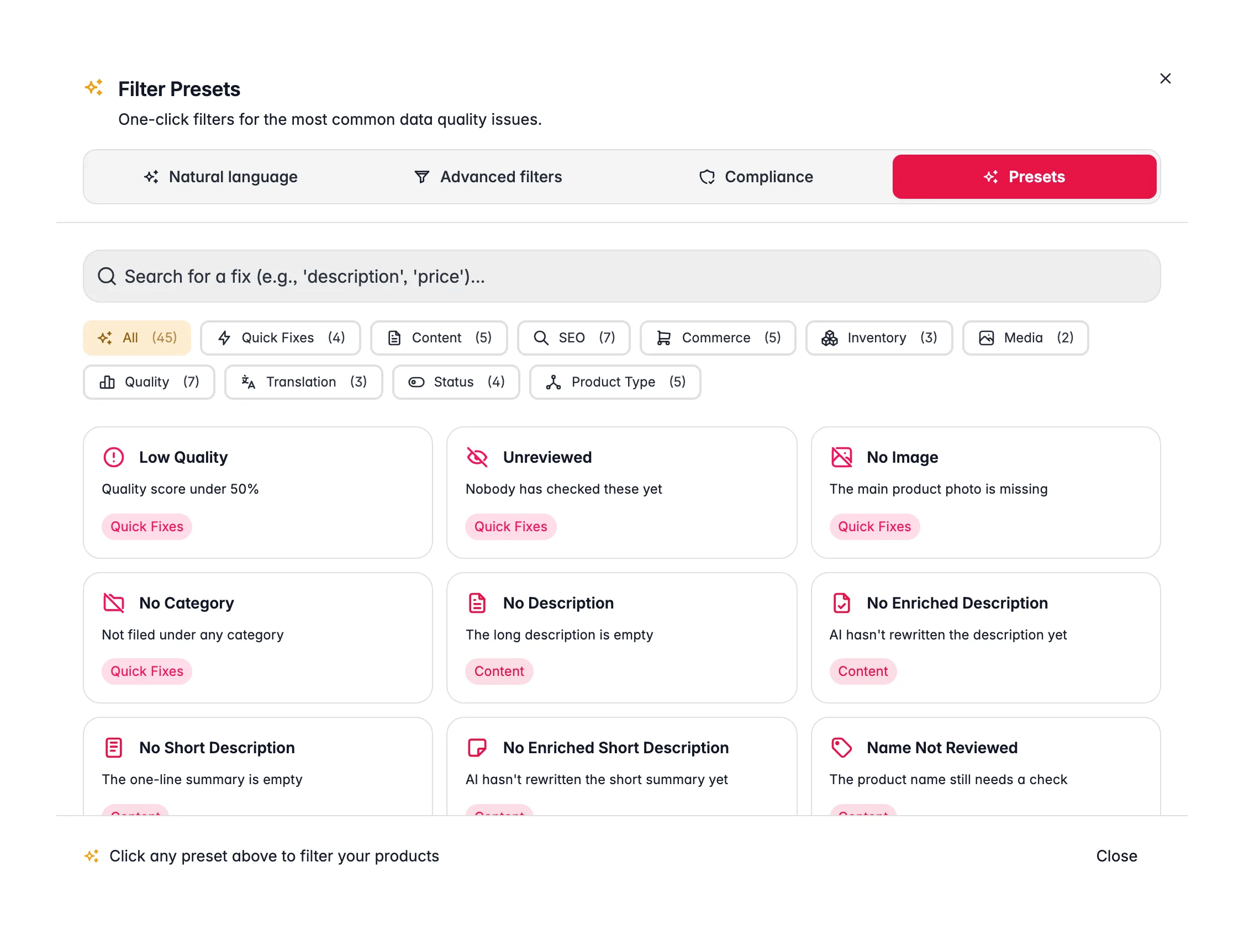
1
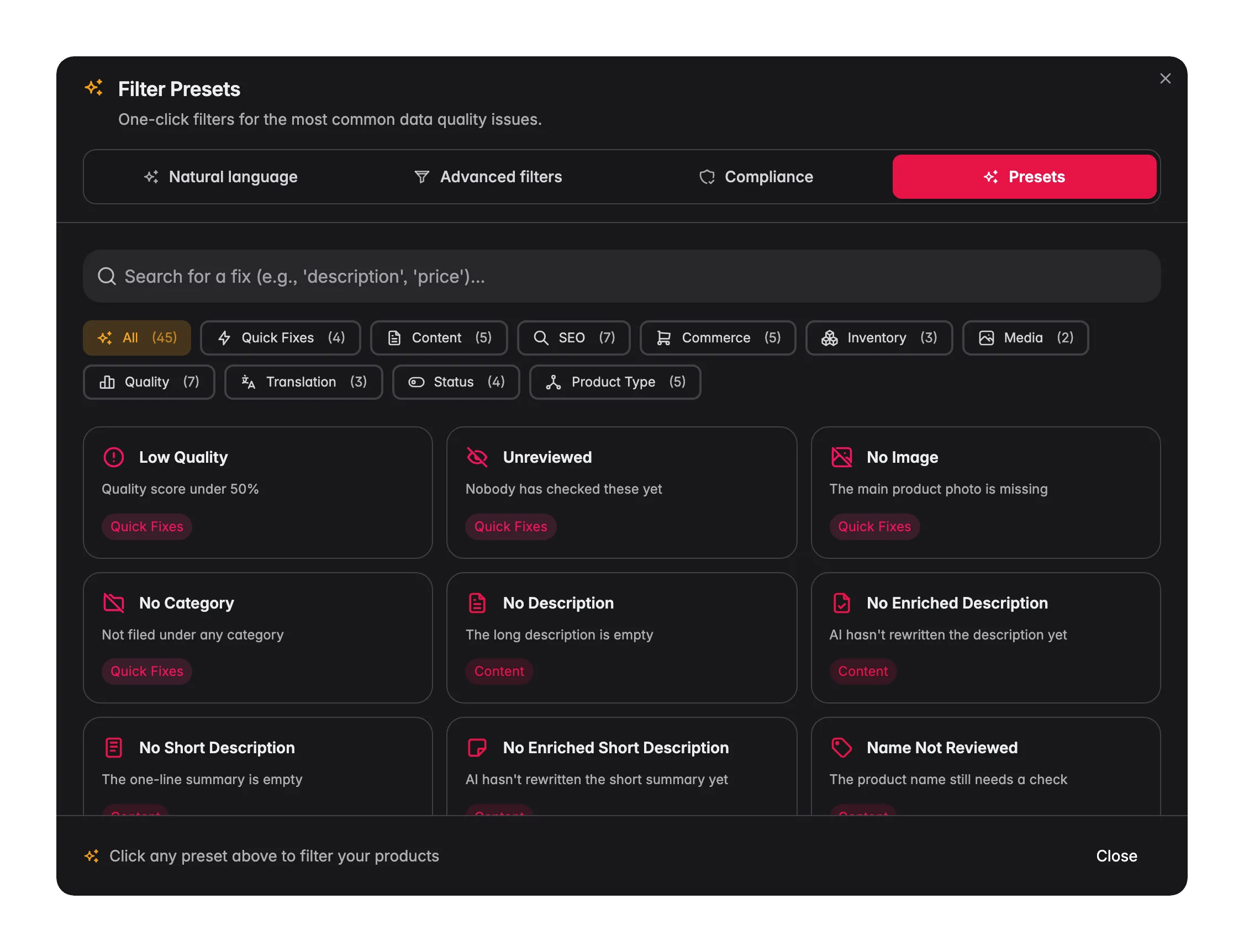
Open the Presets tab for a damage report
On the Products page, click Filters next to the search bar and open the Presets tab. Each preset card shows how many products have that issue right now. Read the counts before touching anything, they are your to-do list for the rest of this guide.
2
Run the is-duplicate operator on SKU
Switch to Advanced filters, pick the SKU field with the is duplicate operator. This is the fastest way to surface repeated identifiers before they reach a channel.
3
Repeat it on EAN
The same operator works on EAN, which catches the duplicates that slipped through under different SKUs.
4
Review, then merge or delete
Look at the matches before acting; a repeated SKU is sometimes two genuinely different products from two suppliers. Save the filter as a set so you can re-run this check after every future import.
Normalize the text, in this order
Run these three in sequence. Whitespace first because trimming spaces never changes meaning, and case before replacements because a Title Case pass run afterwards would re-capitalize the exact brand strings you just corrected. All four live in the bulk editing modal: click Bulk Edit with products selected, then search the action by name.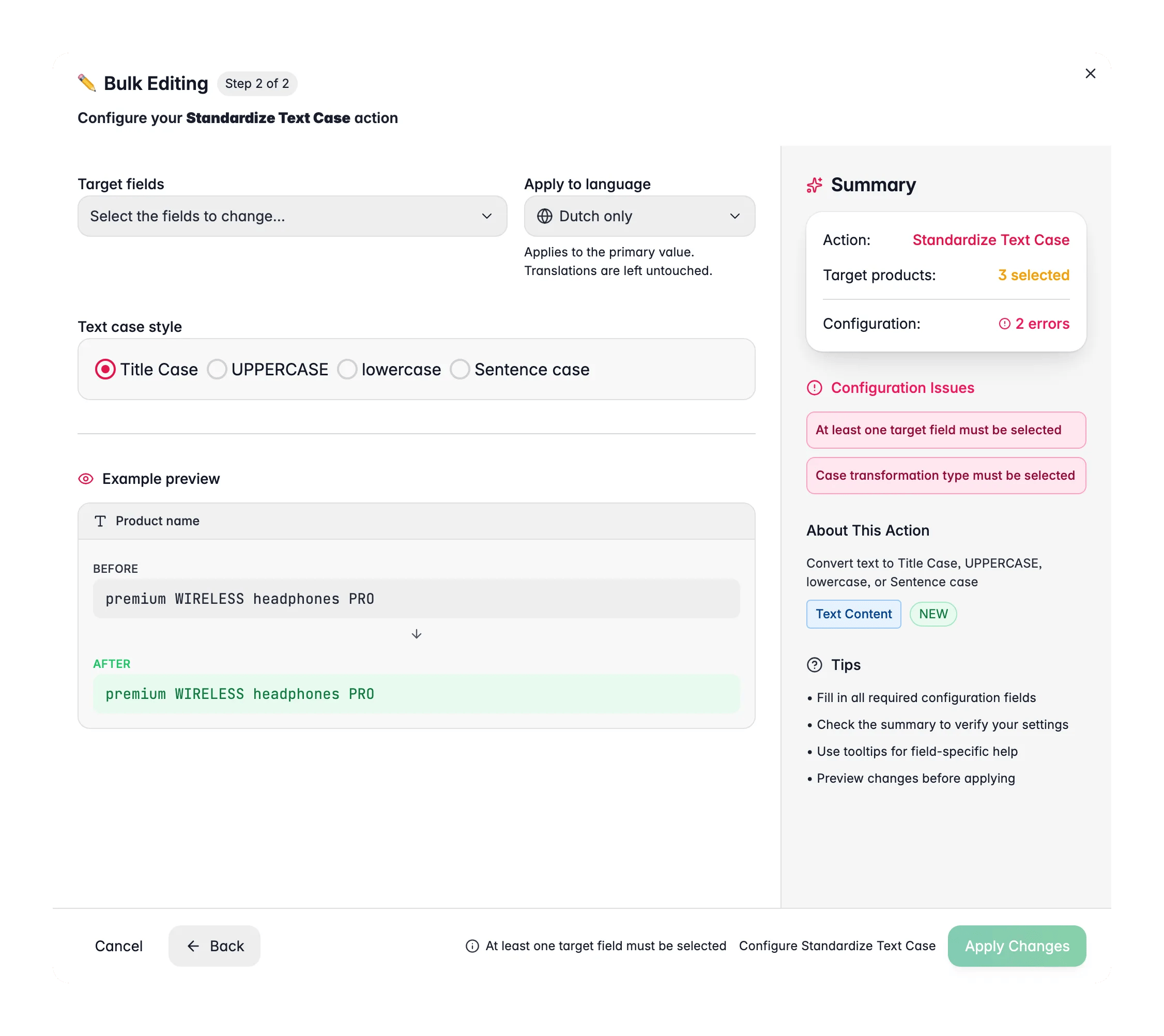
1
Trim whitespace
Trim Whitespace, under Text & Content, strips the leading, trailing, and duplicated spaces that break sorting, search, and feeds while staying invisible on screen. It is the safe first move.
2
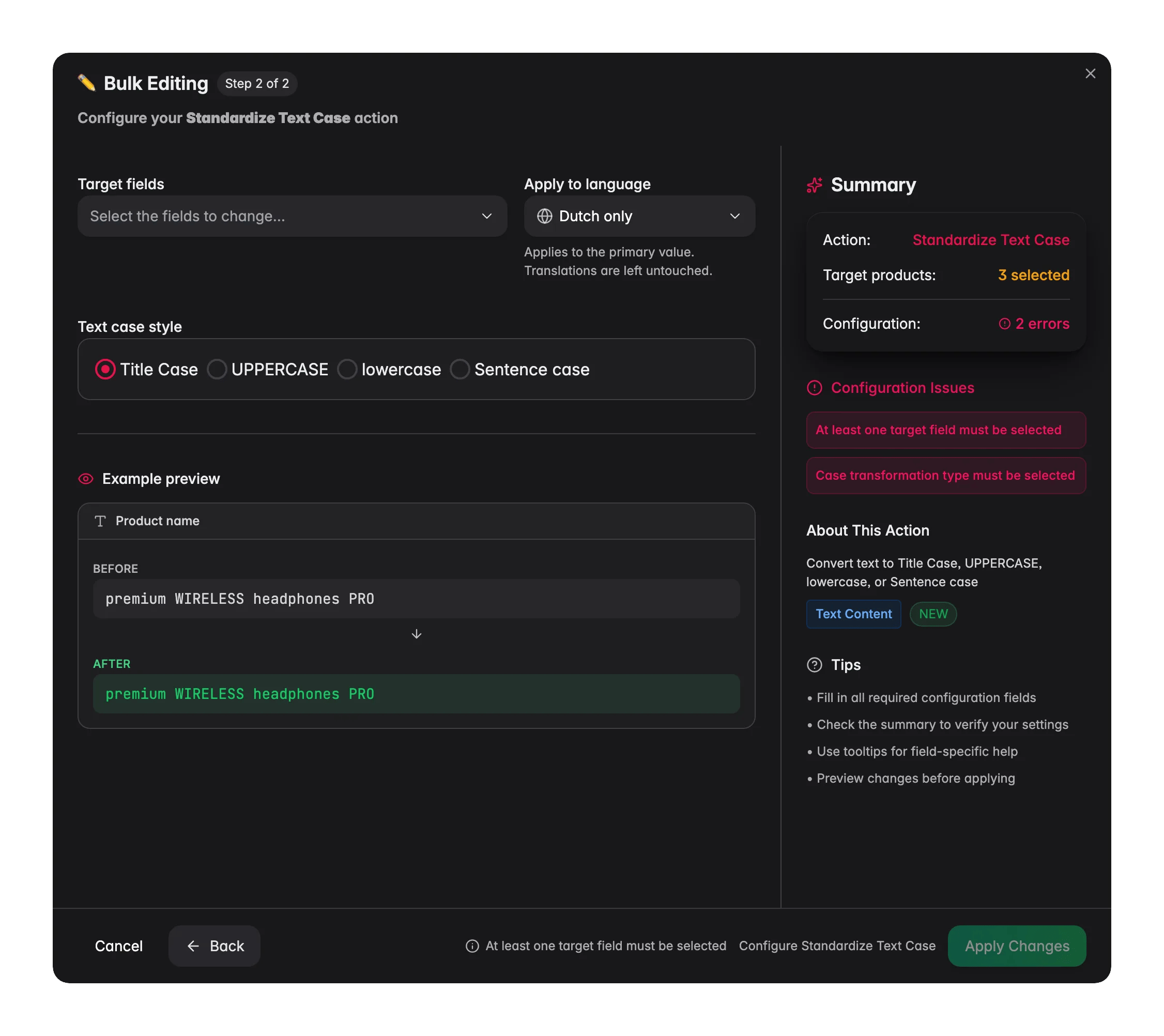
Standardize case
Standardize Text Case, also under Text & Content, puts names and other text fields into one consistent style. Check the live before-and-after preview before applying.
3
Fix terms with find and replace
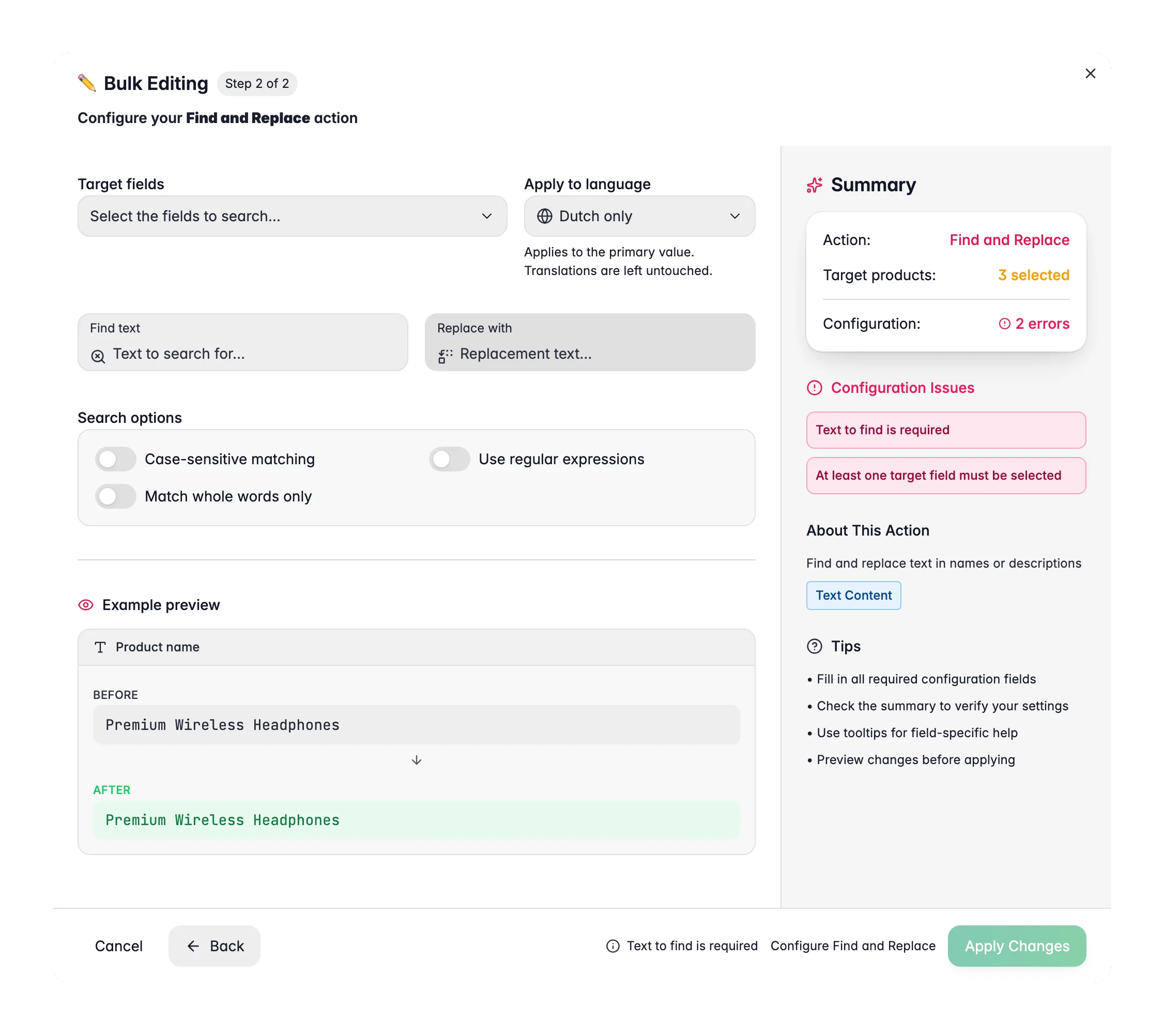
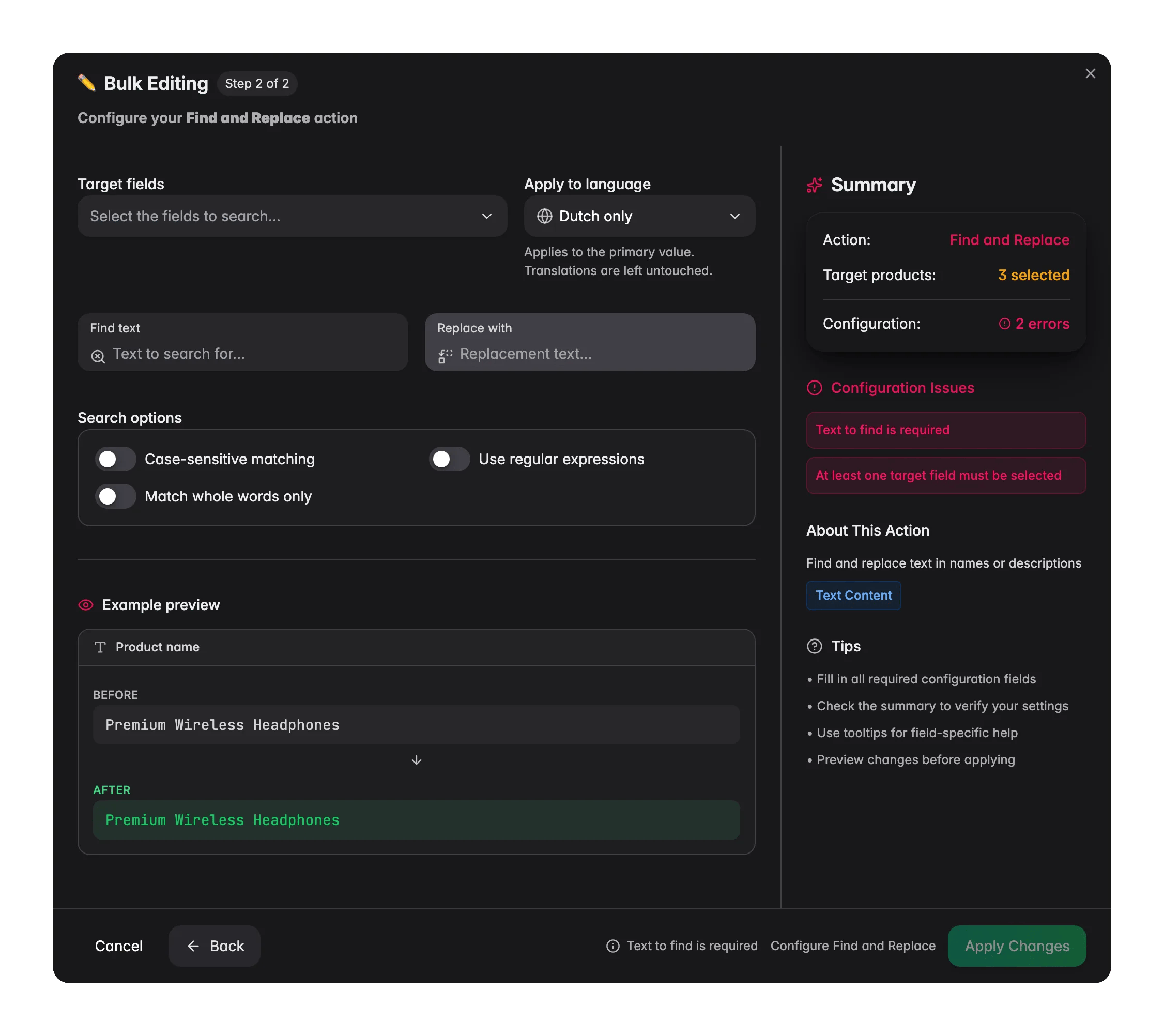
Find and Replace handles the leftovers: misspelled brand names, an old supplier’s wording, stray HTML. Use whole-word matching so you do not hit substrings inside other words.
4
Clean the numbers
Convert Numbers, under Attributes & Custom Fields, rounds long decimals and rescales values, for example dividing weights by 1000 to go from grams to kilograms. A live preview shows the result on a sample value first.
5
Filter narrowly before each run
Every one of these acts on your current selection. Filter first, read the match count in the filter summary, then select, so a stray condition cannot take your whole catalog with it.
Give the catalog a structure
Structure comes last because it feeds on the work above: AI Categorization reads each product’s content, so the tidier that content is, the better it places the product. Running it before the text cleanup means categorizing on the mess.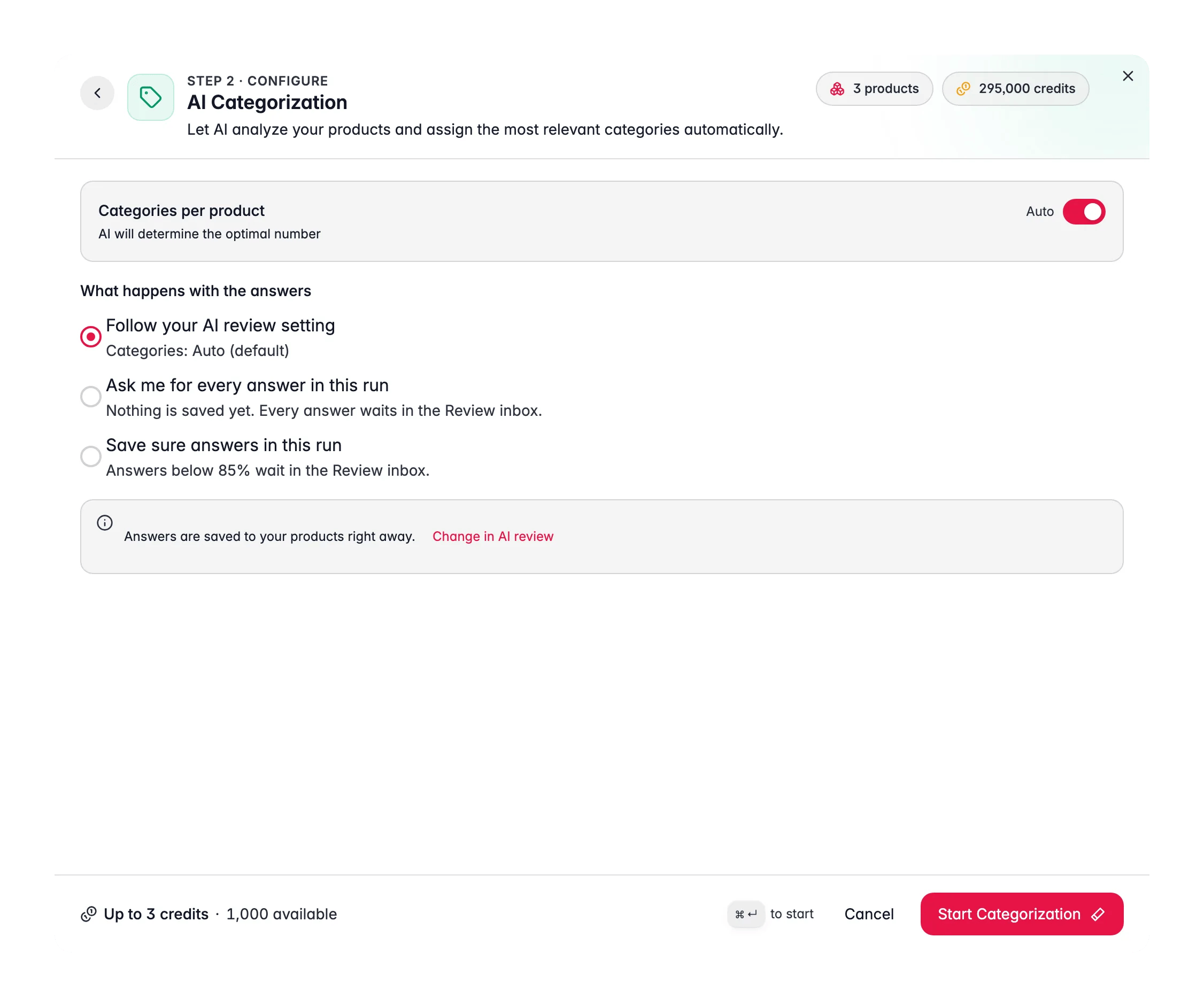
1
Run categorization at the default confidence
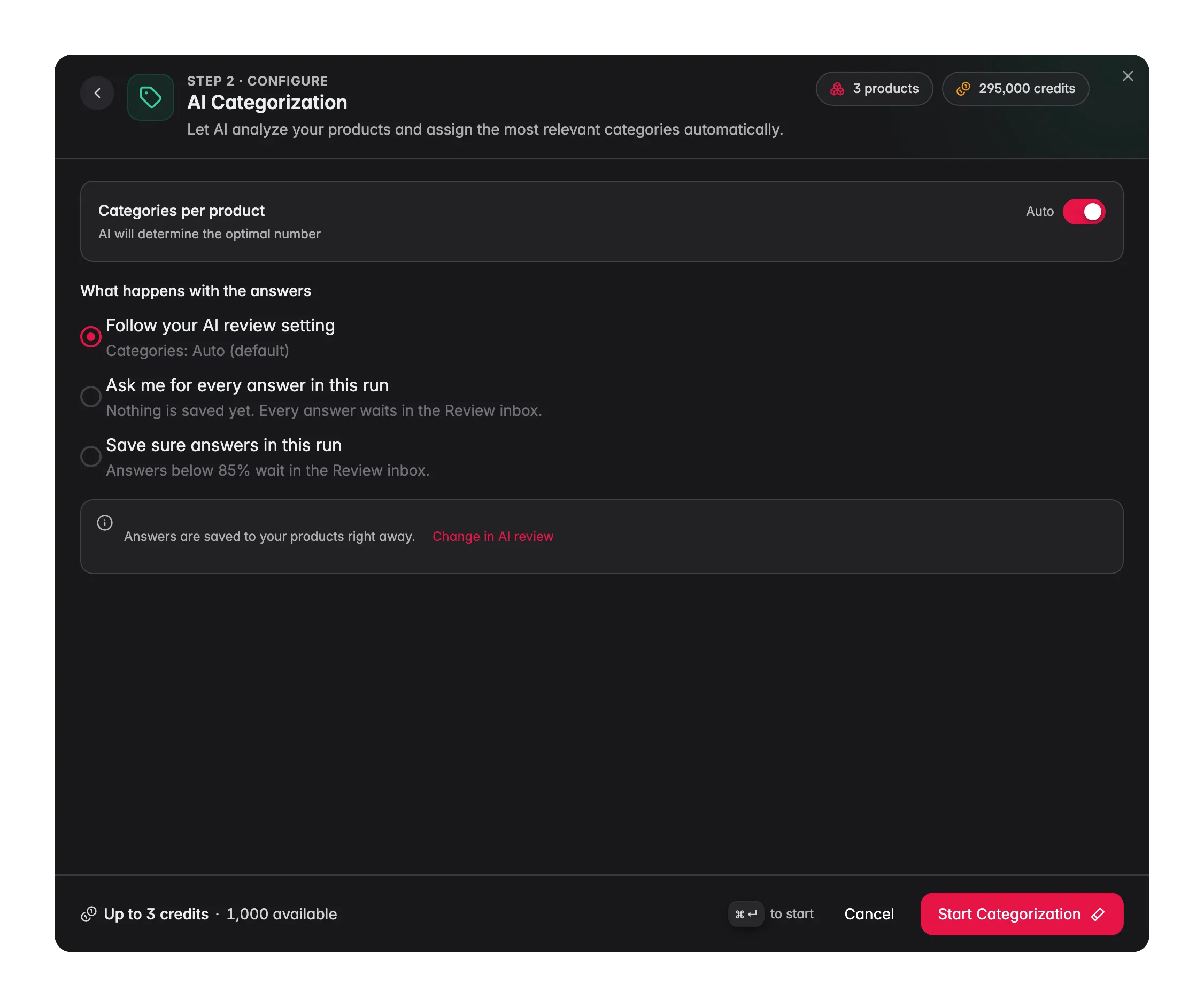
Select your products, click Enrich with AI in the toolbar, pick AI Categorization, and click Start Enrichment. It assigns products to your existing category tree and never invents categories, and the default 75% threshold gives you the confident assignments first.
2
Lower the threshold for a second pass
Filter to whatever is still uncategorized and run again at 60 to 65%. You keep the safe assignments from pass one and only review the genuinely ambiguous products.
3
Cap the category count if your merchandising needs it
Auto-assign lets the AI decide how many categories fit each product. Turn it off and set a maximum when your rules limit where a product may appear.
4
Collapse flat variant rows
If sizes and colours came in as separate products, select the ones that belong together and pick the Group as Variants card under Categories & Organization in the bulk editing modal. It works on a page selection only, up to 500 products per run, and a toast reports how many were grouped and how many were skipped.
5
Assign product families
Product families are templates per product type: assign one and the product inherits the attributes that type should have. Do it now, because that is what turns the missing-field reporting in part 4 into something meaningful rather than a list of fields nobody expected anyway.


How to tell it worked
When it doesn’t work
Thousands of products stayed uncategorized
Thousands of products stayed uncategorized
The threshold is too high for this catalog, or your category names are ambiguous. Lower it to 60 to 65% and re-run on the remainder, and consider clarifying vague category names.
Products landed in the wrong category
Products landed in the wrong category
A misplacement usually traces back to thin product content, so the AI had little to work with. Enrich titles, descriptions, and attributes in part 4, then categorize again.
A find and replace hit more than I expected
A find and replace hit more than I expected
Turn on Match whole words only, and narrow the target fields rather than replacing across everything. Filtering to a small selection and checking the result before scaling up is the cheap version of an undo.
A filter suddenly matched my whole catalog
A filter suddenly matched my whole catalog
Check the match count in the filter summary before applying a bulk action. A broken filter now shows an error rather than quietly matching everything, but the count is still your safety check.
Related
4. Enrich your catalog with AI
Next in the series: fill the gaps without overwriting the data you just cleaned.
Clean up a catalog you inherited
The same cleanup with a measured baseline in front and a Quality Guard floor behind it.
Filtering & searching products
Presets, the is-duplicate operator, and saved filter sets.
Bulk editing
Every bulk action available, and what each one changes.