Your catalog needs to be in German by next quarter. Go from one locale to a reviewed, published market language without shipping raw machine output.
Someone has decided you are selling in Germany next quarter. You have a few thousand products in one language, no German speaker on the team, and a launch date. The fear is not that machine translation is bad - it is that you will not know whether it is bad until a German customer tells you.This guide is the order of operations that makes that risk manageable: fix the source first, prove the quality on a sample, review the whole locale like an editor would, and only then wire up the market. Budget half a day of hands-on work; the AI runs happen in the background.
Before you start: pick a project in the project switcher, because languages, translation rules, and keywords are all project-scoped. Your primary-language content should already be enriched - translation reads it as its source.
What you’ll get: a target locale scored and fixed in Linguistic Review, with its own keywords, its own product feed, and hreflang tags pointing search engines at the right version.
Every step below assumes the one before it, which is why the sample sits between the settings and the catalog:
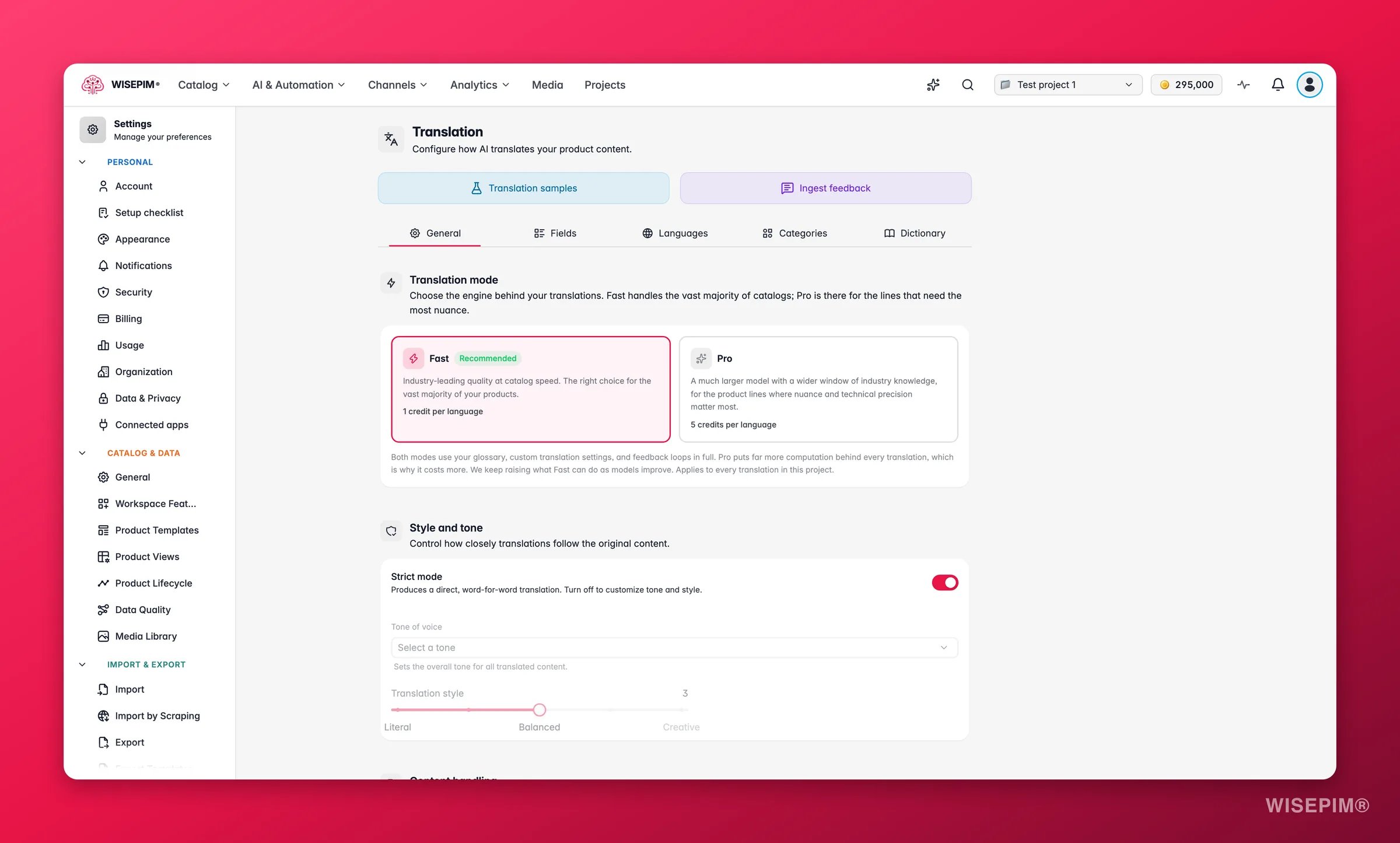
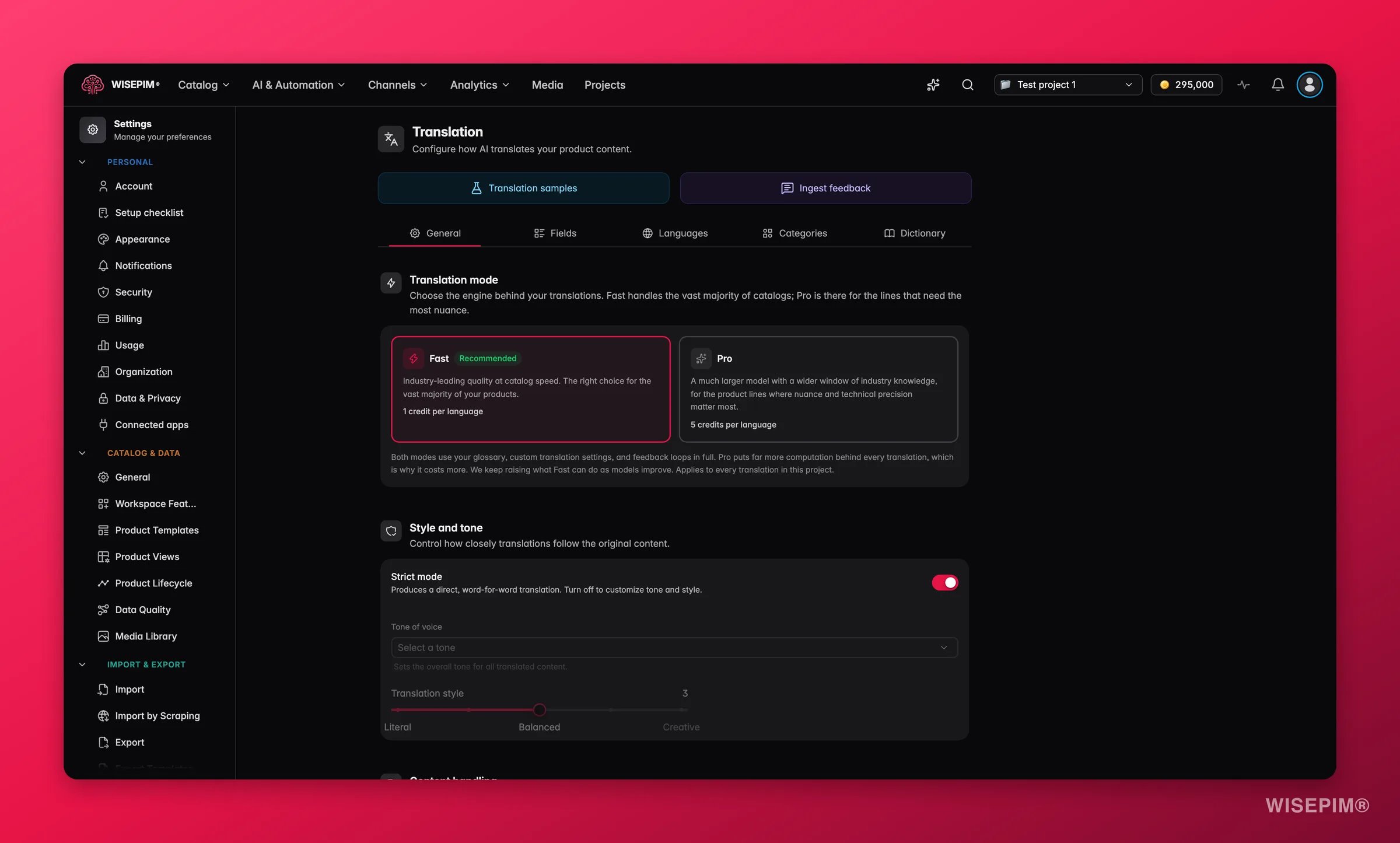
This is the part everyone skips and everyone regrets. Translation quality is capped by source quality, and settings only affect future runs - so both are far cheaper to fix now than across 3,000 translated products later.
1
Add the locale to your project
In General settings, add German under Additional languages and save. Nothing else in this guide is available until the locale exists - the Translation action does not even appear in the enrich modal without a second language.
2
Enrich the source language first
Run enrichment on your primary language before you translate a single product. When a field has enriched or reviewed content, translation uses that as its source automatically - so a thin English description becomes a thin German description, and you pay credits for the privilege.
3
Lock your terminology in the dictionary
On the Dictionary tab of Translation settings, add the terms you cannot afford to get wrong. Brand names, model codes, and product lines go in as Keep as-is so they are never translated by accident. Doing this before the first run is the difference between one entry and 3,000 corrections.
4
Pick strict mode, or pick a tone
On the General tab, strict mode translates word for word with no style changes, and it is on by default. That is the right call for technical, regulated, or spec-heavy catalogs. Turn it off only if your copy sells on voice - that unlocks tone of voice and the Translation style slider from literal to creative.
5
Set formality for the language
German, like many languages, forces a choice between formal and informal address. Add a language override on the Languages tab and set Formality explicitly rather than letting each run guess.
6
Decide how units should behave
Unit handling on the General tab decides whether measurements stay as written, convert to the target locale’s standard, or show both. Get this wrong and your German pages quote inches.
AI translates six fields: product name, description, short description, meta title, meta description, and meta keywords. Custom attributes are not translated, so spec values and codes stay exactly as they are - plan that as a separate data job.
Do not run 3,000 products on your first attempt. The sample exists to catch a settings mistake while it is still worth ten credits instead of three thousand, and to answer the only real cost question in this guide.
Mode
Cost
Choose it when
Fast
1 credit per product, per language
The recommended default. Handles normal product copy well, and it is what your whole catalog should run on unless the sample proves otherwise.
Pro
5 credits per product, per language
A much larger model that reasons before it writes. Worth it where wording carries real nuance: flagship products, luxury copy, regulated wording - not the whole catalog.
1
Translate 5 to 10 products on Fast
On the Products page, tick a handful of products that represent your range, click Enrich with AI in the toolbar, choose Translation, leave the mode on Fast, and click Start Enrichment.
2
Read the result in the target language
Switch the language selector on the Products page to German and read the output properly. You are looking for tone, terminology, and whether brand names survived - not for typos.
3
Only now decide about Pro
Reach for Pro only on the products where the sample showed Fast genuinely falling short. On a catalog of any size, that choice is the difference between hundreds and thousands of credits, so make it product by product rather than catalog-wide.
4
Run the catalog by category
Filter by category and translate in batches rather than firing the whole catalog at once. Each batch stays internally consistent, and review is far easier when you are reading one product type at a time.
5
Let a stopped run resume
If a run stops early, open it from the indicator in the header in the Process Tracker and choose Resume - it finishes only the untouched products at no extra credit cost, where Restart re-runs everything and is charged as a fresh run. Failed translations are refunded automatically.
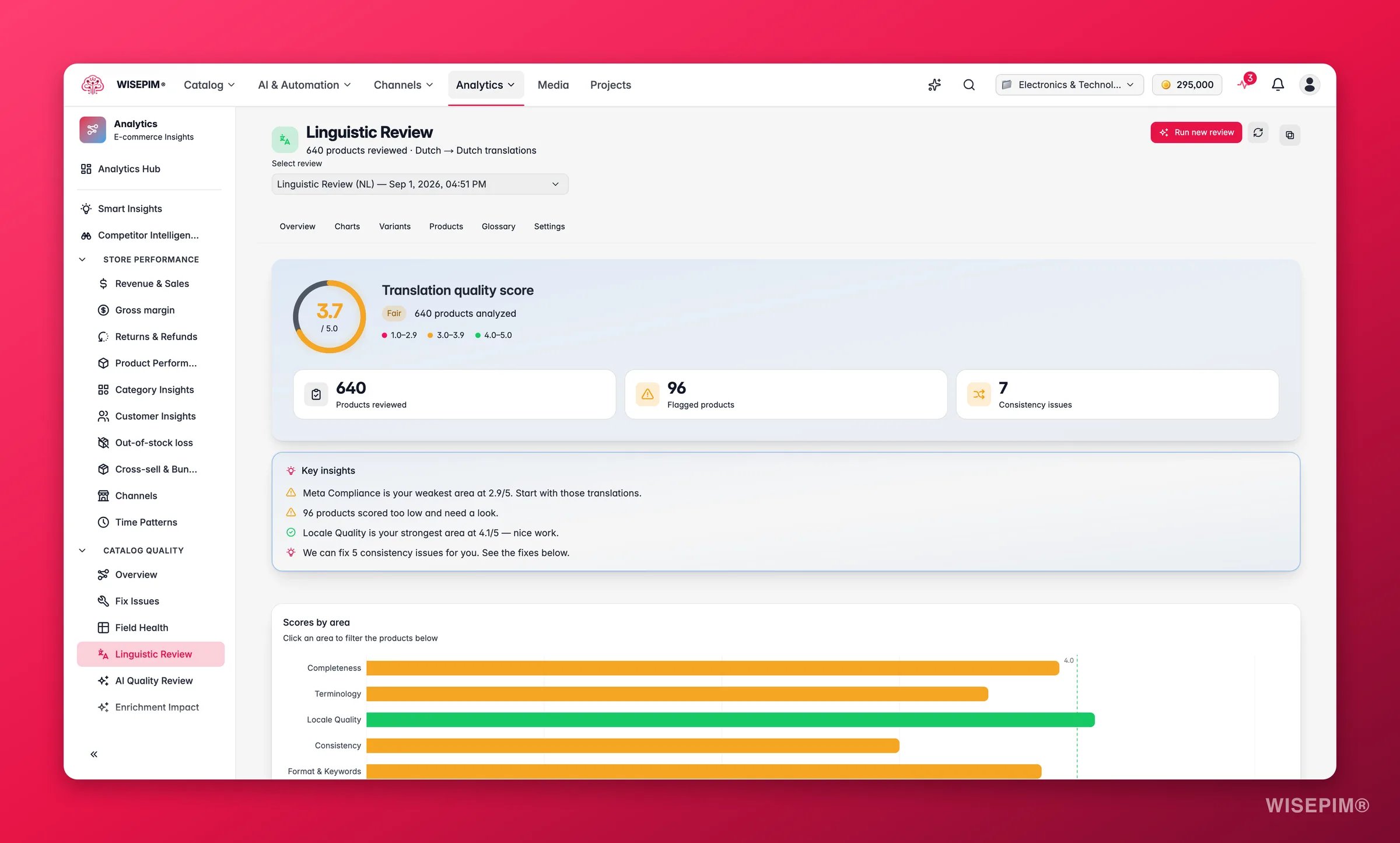
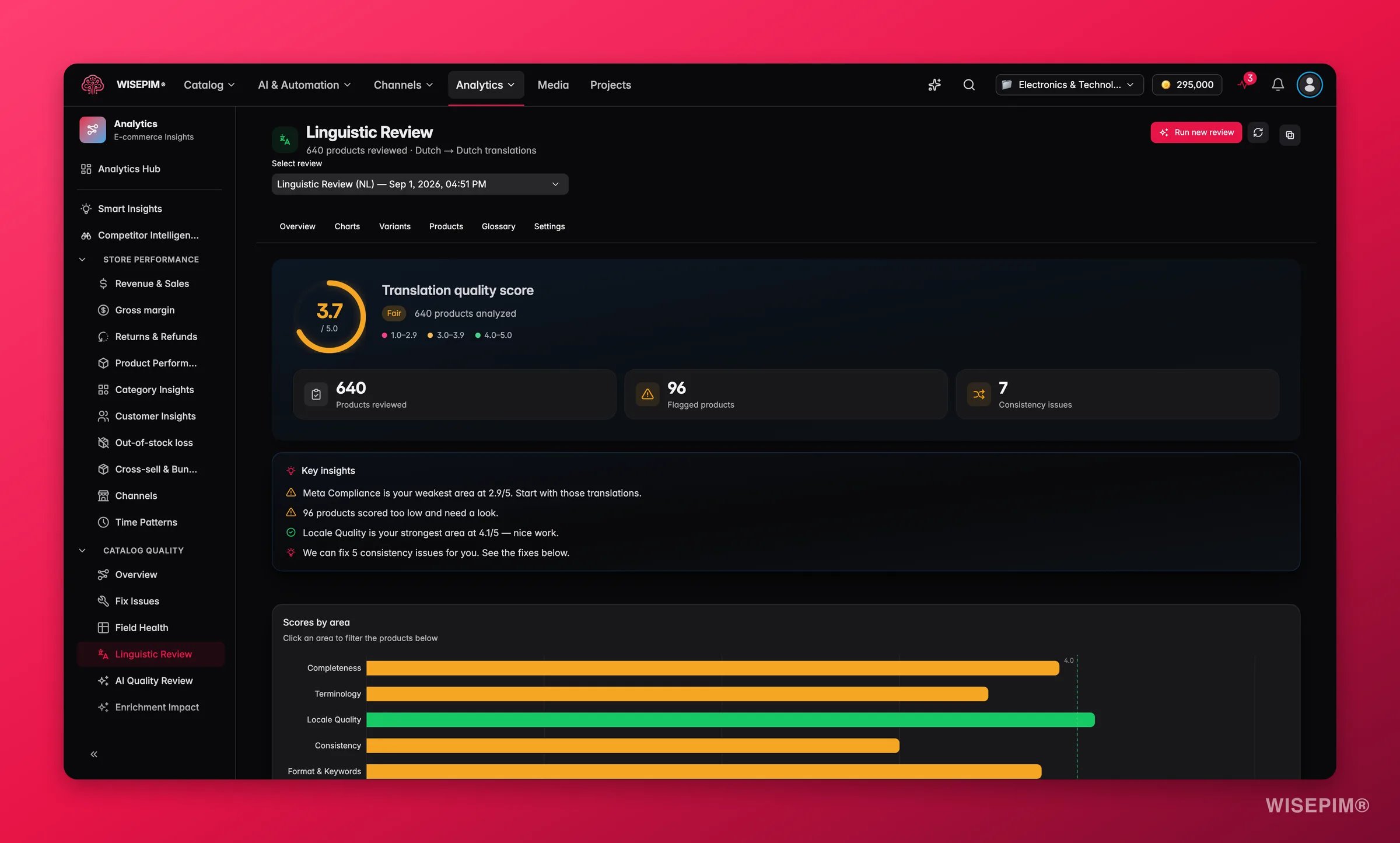
Machine translation drifts. The same term comes out three ways, meta descriptions blow past their limits, and the tone reads slightly foreign. Linguistic Review is the gate that catches it before a customer does - run it after the catalog batches, not between them, because it scores one target locale at a time across everything you have translated.
1
Run a review on the full catalog for the locale
Open Linguistic Review from the Analytics sidebar and click Run review. The button stays disabled until at least one target locale exists. Results are ready in a few minutes.
2
Read the six criteria, not just the headline score
Completeness, Terminology, Locale Quality, Consistency, Format & Keywords, and Meta Compliance each describe a different failure. The overall score is their average, so a healthy-looking 4.1 can still hide one criterion sitting below 3.
3
Apply the one-click consistency fixes
Open Term Variants, pick the recommended translation for each inconsistent term, and toggle Add to dictionary as you apply it. That fixes the products you have and stops the drift returning on the next run. Fix All applies every auto-fixable issue at once.
4
Confirm the score before you publish
Fix the flagged products and the consistency issues, then confirm the overall score is comfortably above 4 - the band that reads as ready to publish. Below 3 means fix it before the locale goes live. Treat that as your launch gate.
A translated catalog is not a market. These are the wiring jobs that turn German copy into German traffic, and they come last because each one assumes reviewed content already exists.
1
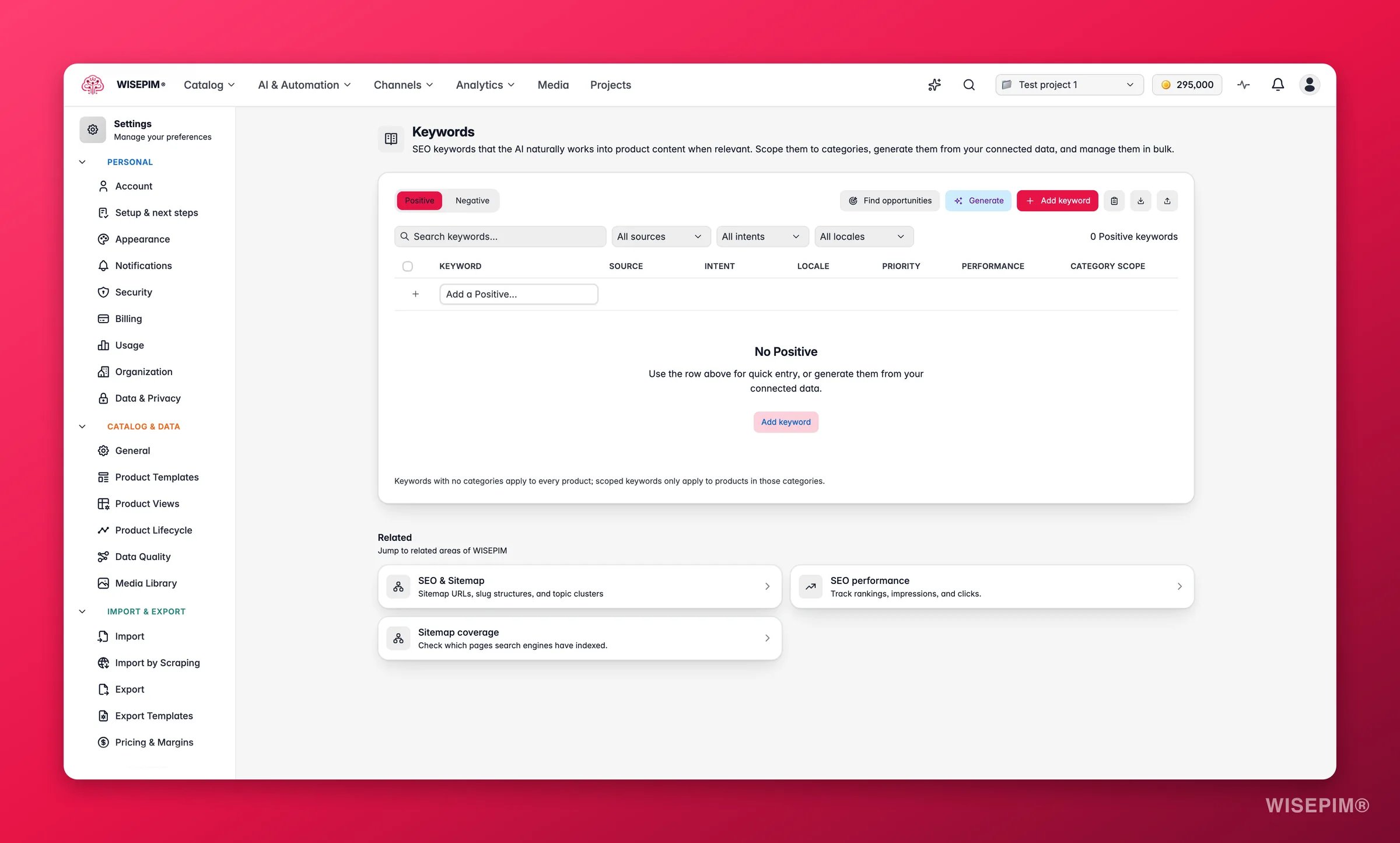
Scope keywords to the locale
German shoppers do not search in translated English. Add the terms that market actually uses in Keywords and set each one’s locale scope so it only applies to German content.
2
Create one feed per language
In Feed Hub, click Create Feed and build a separate feed for the new market. One feed per language is the documented pattern for multilingual catalogs, and most channels expect a separate URL per market anyway.
3
Confirm hreflang is on
In SEO & Sitemap settings, check that Generate hreflang tags is enabled - it is by default - and that Default locale, which only appears once a project has more than one locale, points at the right language. This is what stops your two languages competing as duplicate content.
4
Handle Outdated fields as source content changes
When you edit or re-enrich source text, the matching translated field is flagged Outdated and re-translated on the next run. Filter for it periodically instead of assuming a translated catalog stays translated.
5
Turn on the auto-learn glossary once reviews look sensible
Back in Translation settings, Auto-learn glossary from reviews turns confident review findings into dictionary entries by itself. It is off by default on purpose - switch it on after your first reviews look right, not before.
The launch gate is simple: every product Fully translated, consistency issues resolved, and a Linguistic Review score comfortably above 4 for the locale.
You have no target language yet. Add one besides your primary language under Additional languages in General settings and the action appears.
I re-ran the translation and nothing changed
A language is skipped when it was already translated with the same settings from the same source text - that is what keeps re-runs from burning credits. Change the setting you meant to change, or edit the source field (which flags the translation Outdated), then run again.
The German reads like a translation, not like German
That is Locale Quality in the review, and it usually traces back to source text or settings rather than the model. Improve the primary-language content first, then check formality and tone for the language on the Languages tab of Translation settings, and re-translate the affected products.
The same product term is translated three different ways
Open Term Variants in Linguistic Review, apply the recommended variant, and toggle Add to dictionary in the same click so the next run cannot drift again.
Brand names and model codes got translated
Add them to the Dictionary tab in Translation settings as Keep as-is, and confirm Preserve brand names is still on under the General tab. Then re-translate the affected products.
Attribute values are still in the source language
That is expected. Translation covers the six content fields only; custom attributes are not translated. Handle spec values as a separate data job rather than waiting for a translation run to fix them.
The full reference: modes, fields, statuses, and what keeps runs consistent.
Linguistic Review
The six criteria, the scores, and the one-click fixes behind your launch gate.
Teach WISEPIM your house style
Get the source copy sounding like you before you multiply it across languages.
Launch on a new channel
Take the new locale to a marketplace without collecting rejections.
{"docsConfig":{"theme":"mint","$schema":"https://mintlify.com/docs.json","name":"WISEPIM Documentation","description":"Documentation for WISEPIM, the AI-powered product information management (PIM) platform: import, enrich, translate and publish product content, connect e-commerce platforms and marketplaces, automate catalog work, and build on the WISEPIM Public API.","colors":{"primary":"#E71447","light":"#E71447","dark":"#E71447"},"logo":{"light":"https://mintcdn.com/swiftsyncai/CpcHeNUil_YXkrs1/logo/wisepim-logo-horizontal-transparant-lightmode.png?fit=max\u0026auto=format\u0026n=CpcHeNUil_YXkrs1\u0026q=85\u0026s=fb18d37ec9d57e2050a1acb063cd8424","dark":"https://mintcdn.com/swiftsyncai/CpcHeNUil_YXkrs1/logo/wisepim-logo-horizontal-transparant-darkmode.png?fit=max\u0026auto=format\u0026n=CpcHeNUil_YXkrs1\u0026q=85\u0026s=f908843e7a886bf8143cb9bc525b7b86"},"favicon":"https://mintcdn.com/swiftsyncai/CpcHeNUil_YXkrs1/favicon.png?fit=max\u0026auto=format\u0026n=CpcHeNUil_YXkrs1\u0026q=85\u0026s=50f7573d74bc7da293b9931d815b2bb3","api":{"openapi":"openapi.json","playground":{"display":"interactive"},"examples":{"defaults":"required","languages":["curl","python","javascript"]}},"appearance":{"default":"system"},"background":{"decoration":"gradient"},"navbar":{"links":[{"href":"https://wisepim.com/contact","label":"Support"}],"primary":{"type":"button","label":"Go to WISEPIM","href":"https://wisepim.com/products"}},"footer":{"socials":{"youtube":"https://www.youtube.com/channel/UC5sQ48mV3sYEBme01xvVIXw","linkedin":"https://linkedin.com/company/wisepim"}},"search":{"prompt":"What are you looking for?"},"seo":{"metatags":{"og:site_name":"WISEPIM Documentation","og:type":"website","twitter:card":"summary_large_image"},"organization":{"name":"WISEPIM","legalName":"WISEPIM B.V.","url":"https://wisepim.com","logo":"https://docs.wisepim.com/logo/wisepim-logo-horizontal-transparant-lightmode.png","sameAs":["https://linkedin.com/company/wisepim","https://www.youtube.com/channel/UC5sQ48mV3sYEBme01xvVIXw"]},"indexing":"all"},"fonts":{"family":"Inter"},"icons":{"library":"lucide"},"styling":{"eyebrows":"breadcrumbs","latex":true},"integrations":{"ga4":{"measurementId":"G-6NXPFG6S4Z"}},"errors":{"404":{"redirect":false,"title":"This page moved or never existed","description":"No worries, use the search above (or press Cmd+K) to find what you were looking for, or head back to the [introduction](/en/introduction)."}},"contextual":{"options":[{"title":"Ask WISEPIM AI","description":"Open the WISEPIM AI chat with this page as the question","icon":"sparkles","href":{"base":"https://wisepim.com/chat","query":[{"key":"prompt","value":"I am reading the WISEPIM documentation page https://docs.wisepim.com$path and I have a question about it. Answer in the language of that page.\n\nMy question: "}]}},"copy","view","chatgpt","claude","perplexity","mcp"],"display":"header"},"thumbnails":{"appearance":"dark","background":"https://mintcdn.com/swiftsyncai/2_3RgILsRdlQxjn6/images/og-background.png?fit=max\u0026auto=format\u0026n=2_3RgILsRdlQxjn6\u0026q=85\u0026s=f55698f3b0dd04d58e5f67b096de1f26","fonts":{"family":"Inter"}},"navigation":{"global":{"anchors":[{"anchor":"Homepage","icon":"house","href":"https://wisepim.com"},{"anchor":"Latest changes","icon":"history","href":"https://wisepim.com/changelog"},{"anchor":"Blog","icon":"newspaper","href":"https://wisepim.com/blog"}]},"languages":[{"language":"en","href":"en/introduction"},{"language":"nl","href":"nl/introduction"},{"language":"de","href":"de/introduction"},{"language":"es","href":"es/introduction"}]}},"deployment":{"deploymentMetadataValue":{"subdomain":"swiftsyncai","hasAudioNarration":false,"actualSubdomain":"swiftsyncai","customDomains":["docs.wisepim.com"],"gitSource":{"type":"github","owner":"lldiegon","repo":"wisepim-docs","deployBranch":"main","contentDirectory":"","isPrivate":true,"mountPath":"","label":""},"chroma":{"liveDeploymentHistoryId":"6ae29ae907aeaf4d1afc5884","collectionId":"bbceb7eb-5a5b-4c95-b655-48d98646c6ca","schemaVersion":"v3","latestBuiltDeploymentHistoryId":"6ae29ae907aeaf4d1afc5884"},"entitlements":{},"buildId":"6ae29ae907aeaf4d1afc5884","clientVersion":"0.0.4043","searchFilterCounts":[{"language":"en","tag":"Documentation","count":283},{"language":"de","tag":"Dokumentation","count":183},{"language":"es","tag":"Documentación","count":183},{"language":"nl","tag":"Documentatie","count":183},{"language":"en","tag":"API Reference","count":100},{"language":"en","tag":"Products","count":67},{"language":"de","tag":"Produkte","count":61},{"language":"es","tag":"Productos","count":61},{"language":"nl","tag":"Producten","count":61},{"language":"de","tag":"Erstellen \u0026 Bearbeiten","count":41},{"language":"de","tag":"Einstellungen","count":41},{"language":"en","tag":"Creating \u0026 Editing","count":41},{"language":"en","tag":"Settings","count":41},{"language":"es","tag":"Crear y Editar","count":41},{"language":"es","tag":"Configuración","count":41},{"language":"nl","tag":"Aanmaken \u0026 Bewerken","count":41},{"language":"nl","tag":"Instellingen","count":41},{"language":"de","tag":"Analytics","count":38},{"language":"en","tag":"Analytics","count":38},{"language":"es","tag":"Analytics","count":38},{"language":"nl","tag":"Analytics","count":38},{"language":"de","tag":"Massenaktionen","count":34},{"language":"en","tag":"Bulk Actions","count":34},{"language":"es","tag":"Acciones Masivas","count":34},{"language":"nl","tag":"Bulkacties","count":34},{"language":"de","tag":"Integrationen","count":30},{"language":"en","tag":"Integrations","count":30},{"language":"es","tag":"Integraciones","count":30},{"language":"nl","tag":"Integraties","count":30},{"language":"de","tag":"Projekt","count":29},{"language":"en","tag":"Project","count":29},{"language":"es","tag":"Proyecto","count":29},{"language":"nl","tag":"Project","count":29},{"language":"de","tag":"Anleitungen","count":20},{"language":"en","tag":"Guides","count":20},{"language":"es","tag":"Guías","count":20},{"language":"nl","tag":"Handleidingen","count":20},{"language":"de","tag":"KI \u0026 Anreicherung","count":19},{"language":"es","tag":"IA y Enriquecimiento","count":19},{"language":"nl","tag":"AI \u0026 Verrijking","count":19}]},"assistantConfig":{},"basePath":"","hasChatPermissions":false,"hasWebMcpPermissions":false,"toggles":[],"googleFontsInlined":false},"customCss":[{"filePath":"style.css","content":"img.nav-logo{height:2rem}#theme-preference-menu-trigger{display:none!important}#wisepim-theme-toggle{position:relative;width:34px;height:34px;padding:0;display:flex;align-items:center;justify-content:center;border-radius:.5rem;cursor:pointer;background:0 0;border:0;color:rgb(107 114 128)}#wisepim-theme-toggle:hover{color:rgb(55 65 81);background:rgba(0,0,0,.05)}html.dark #wisepim-theme-toggle{color:rgb(156 163 175)}html.dark #wisepim-theme-toggle:hover{color:rgb(229 231 235);background:rgba(255,255,255,.08)}#wisepim-theme-toggle .wp-tt-icon{position:absolute;transition:transform .5s cubic-bezier(.4,0,.2,1),opacity .25s ease}html:not(.dark) #wisepim-theme-toggle .wp-tt-sun{opacity:1;transform:rotate(0deg) scale(1)}html:not(.dark) #wisepim-theme-toggle .wp-tt-moon{opacity:0;transform:rotate(90deg) scale(.4)}html.dark #wisepim-theme-toggle .wp-tt-sun{opacity:0;transform:rotate(-90deg) scale(.4)}html.dark #wisepim-theme-toggle .wp-tt-moon{opacity:1;transform:rotate(0deg) scale(1)}#wisepim-tooltip{position:fixed;z-index:60;max-width:20rem;padding:.4rem .6rem;border-radius:.5rem;font-size:.75rem;line-height:1.4;font-weight:500;text-align:center;color:rgb(243 244 246);background:rgb(24 24 27);box-shadow:0 6px 20px rgba(0,0,0,.18);pointer-events:none;opacity:0;transform:translateY(-3px) scale(.97);transition:opacity .14s ease,transform .18s cubic-bezier(.16,1,.3,1)}#wisepim-tooltip[data-visible=true]{opacity:1;transform:translateY(0) scale(1)}#wisepim-tooltip::before{content:'';position:absolute;top:-3px;left:var(--wp-tip-arrow, 50%);width:8px;height:8px;margin-left:-4px;border-radius:1px;background:inherit;transform:rotate(45deg)}html.dark #wisepim-tooltip{color:rgb(24 24 27);background:rgb(240 240 243);box-shadow:0 6px 20px rgba(0,0,0,.45)}@media (prefers-reduced-motion:reduce){#wisepim-tooltip{transition:opacity .01s linear;transform:none}#wisepim-tooltip[data-visible=true]{transform:none}}::view-transition-group(root),::view-transition-image-pair(root),::view-transition-new(root),::view-transition-old(root){animation:none;mix-blend-mode:normal}::view-transition-old(root){z-index:1}::view-transition-new(root){z-index:9999;will-change:clip-path}img[src^=\"/images/connectors/\"]{background:#fff;border-radius:4px;object-fit:contain}.connector-brand{display:inline-flex;align-items:center;justify-content:center;background:#fff;border:1px solid #e5e7eb;border-radius:16px;padding:16px;margin:0 0 16px}.connector-brand img{display:block;width:96px;height:64px;margin:0;object-fit:contain}"}],"page":{"pagePath":"en/guides/launch-a-new-language","slug":"/en/guides/launch-a-new-language","pageMetadata":{"title":"Launch a new market language you trust","sidebarTitle":"New language","description":"Your catalog needs to be in German by next quarter. Go from one locale to a reviewed, published market language without shipping raw machine output.","icon":"languages","keywords":["launch a new language","translate product catalog","expand to a new market","multilingual ecommerce","translation quality review","german catalog launch"],"tag":"New","href":"/en/guides/launch-a-new-language"},"description":{"compiledSource":"\"use strict\";\nconst {jsx: _jsx} = arguments[0];\nconst {useMDXComponents: _provideComponents} = arguments[0];\nfunction _createMdxContent(props) {\n const _components = {\n p: \"p\",\n ..._provideComponents(),\n ...props.components\n };\n return _jsx(_components.p, {\n children: \"Your catalog needs to be in German by next quarter. Go from one locale to a reviewed, published market language without shipping raw machine output.\"\n });\n}\nfunction MDXContent(props = {}) {\n const {wrapper: MDXLayout} = {\n ..._provideComponents(),\n ...props.components\n };\n return MDXLayout ? _jsx(MDXLayout, {\n ...props,\n children: _jsx(_createMdxContent, {\n ...props\n })\n }) : _createMdxContent(props);\n}\nreturn {\n default: MDXContent\n};\n","frontmatter":{},"scope":{}},"pageType":"default","mdx":{"mdxSource":{"compiledSource":"\"use strict\";const{Fragment:_Fragment,jsx:_jsx,jsxs:_jsxs}=arguments[0];const{useMDXComponents:_provideComponents}=arguments[0];function _createMdxContent(props){const _components={a:`a`,em:`em`,p:`p`,strong:`strong`,tbody:`tbody`,td:`td`,th:`th`,thead:`thead`,tr:`tr`,..._provideComponents(),...props.components},{Accordion,AccordionGroup,Card,CardGroup,Check,Heading,Info,Mermaid,Note,OptimizedImage,Step,Steps,Table,Tip}=_components;if(!Accordion)_missingMdxReference(`Accordion`,true);if(!AccordionGroup)_missingMdxReference(`AccordionGroup`,true);if(!Card)_missingMdxReference(`Card`,true);if(!CardGroup)_missingMdxReference(`CardGroup`,true);if(!Check)_missingMdxReference(`Check`,true);if(!Heading)_missingMdxReference(`Heading`,true);if(!Info)_missingMdxReference(`Info`,true);if(!Mermaid)_missingMdxReference(`Mermaid`,true);if(!Note)_missingMdxReference(`Note`,true);if(!OptimizedImage)_missingMdxReference(`OptimizedImage`,true);if(!Step)_missingMdxReference(`Step`,true);if(!Steps)_missingMdxReference(`Steps`,true);if(!Table)_missingMdxReference(`Table`,true);if(!Tip)_missingMdxReference(`Tip`,true);return _jsxs(_Fragment,{children:[_jsx(_components.p,{children:`Someone has decided you are selling in Germany next quarter. You have a few thousand products in one language, no German speaker on the team, and a launch date. The fear is not that machine translation is bad - it is that you will not know whether it is bad until a German customer tells you.`}),`\n`,_jsx(_components.p,{children:`This guide is the order of operations that makes that risk manageable: fix the source first, prove the quality on a sample, review the whole locale like an editor would, and only then wire up the market. Budget half a day of hands-on work; the AI runs happen in the background.`}),`\n`,_jsx(Info,{children:_jsxs(_components.p,{children:[_jsx(_components.strong,{children:`Before you start:`}),` pick a project in the project switcher, because languages, translation rules, and keywords are all project-scoped. Your primary-language content should already be enriched - `,_jsx(_components.a,{href:`/en/products/translating-products`,children:`translation reads it as its source`}),`.`]})}),`\n`,_jsx(Tip,{children:_jsxs(_components.p,{children:[_jsx(_components.strong,{children:`What you’ll get:`}),` a target locale scored and fixed in `,_jsx(_components.a,{href:`/en/analytics/linguistic-review`,children:`Linguistic Review`}),`, with its own keywords, its own product feed, and hreflang tags pointing search engines at the right version.`]})}),`\n`,_jsx(_components.p,{children:`Every step below assumes the one before it, which is why the sample sits between the settings and the catalog:`}),`\n`,_jsx(Mermaid,{chart:`flowchart LR\n A[\"Enrich source\"] --> B[\"Translation settings\"] --> C[\"Sample batch\"] --> D[\"Catalog by category\"] --> E[\"Linguistic Review\"] --> F[\"Keywords and feed\"]`}),`\n`,_jsx(Heading,{level:`2`,id:`get-the-source-and-the-settings-right-first`,children:`Get the source and the settings right first`}),`\n`,_jsxs(_components.p,{children:[`This is the part everyone skips and everyone regrets. Translation quality is capped by source quality, and settings only affect `,_jsx(_components.em,{children:`future`}),` runs - so both are far cheaper to fix now than across 3,000 translated products later.`]}),`\n`,_jsx(OptimizedImage,{className:`mint-block dark:mint-hidden`,src:`https://mintcdn.com/swiftsyncai/r6VDtpfGWKxkvc1j/images/marketing-screenshots/settings/settings-translation-light-branded.webp?fit=max\u0026auto=format\u0026n=r6VDtpfGWKxkvc1j\u0026q=85\u0026s=bba4fce7234980cfa75ed81bcc9049d8`,alt:`WISEPIM translation settings with tone, fields and language controls`,\"data-og-width\":`2400`,width:`2400`,\"data-og-height\":`1445`,height:`1445`,\"data-path\":`images/marketing-screenshots/settings/settings-translation-light-branded.webp`,\"data-optimize\":`true`,\"data-opv\":`3`,srcset:`https://mintcdn.com/swiftsyncai/r6VDtpfGWKxkvc1j/images/marketing-screenshots/settings/settings-translation-light-branded.webp?w=280\u0026fit=max\u0026auto=format\u0026n=r6VDtpfGWKxkvc1j\u0026q=85\u0026s=a211cb64f52ef9f63e6e5138fdf177e3 280w, https://mintcdn.com/swiftsyncai/r6VDtpfGWKxkvc1j/images/marketing-screenshots/settings/settings-translation-light-branded.webp?w=560\u0026fit=max\u0026auto=format\u0026n=r6VDtpfGWKxkvc1j\u0026q=85\u0026s=411d47a48112a0a3b9466ffa222b23e8 560w, https://mintcdn.com/swiftsyncai/r6VDtpfGWKxkvc1j/images/marketing-screenshots/settings/settings-translation-light-branded.webp?w=840\u0026fit=max\u0026auto=format\u0026n=r6VDtpfGWKxkvc1j\u0026q=85\u0026s=20ddb29b724abbe5542dfcd512c79e0d 840w, https://mintcdn.com/swiftsyncai/r6VDtpfGWKxkvc1j/images/marketing-screenshots/settings/settings-translation-light-branded.webp?w=1100\u0026fit=max\u0026auto=format\u0026n=r6VDtpfGWKxkvc1j\u0026q=85\u0026s=a55459b6f98ceafc0ddf31d70bfd9335 1100w, https://mintcdn.com/swiftsyncai/r6VDtpfGWKxkvc1j/images/marketing-screenshots/settings/settings-translation-light-branded.webp?w=1650\u0026fit=max\u0026auto=format\u0026n=r6VDtpfGWKxkvc1j\u0026q=85\u0026s=1a8e9fb7651b3d4f06f1ced6b52b7cec 1650w, https://mintcdn.com/swiftsyncai/r6VDtpfGWKxkvc1j/images/marketing-screenshots/settings/settings-translation-light-branded.webp?w=2500\u0026fit=max\u0026auto=format\u0026n=r6VDtpfGWKxkvc1j\u0026q=85\u0026s=3461112c9f93b4cdd806c71945261ed2 2500w`}),`\n`,_jsx(OptimizedImage,{className:`mint-hidden dark:mint-block`,src:`https://mintcdn.com/swiftsyncai/r6VDtpfGWKxkvc1j/images/marketing-screenshots/settings/settings-translation-dark-branded.webp?fit=max\u0026auto=format\u0026n=r6VDtpfGWKxkvc1j\u0026q=85\u0026s=58e7d06a8f8a7f9c98ff93778e9b8775`,alt:`WISEPIM translation settings with tone, fields and language controls`,\"data-og-width\":`2400`,width:`2400`,\"data-og-height\":`1445`,height:`1445`,\"data-path\":`images/marketing-screenshots/settings/settings-translation-dark-branded.webp`,\"data-optimize\":`true`,\"data-opv\":`3`,srcset:`https://mintcdn.com/swiftsyncai/r6VDtpfGWKxkvc1j/images/marketing-screenshots/settings/settings-translation-dark-branded.webp?w=280\u0026fit=max\u0026auto=format\u0026n=r6VDtpfGWKxkvc1j\u0026q=85\u0026s=1606d0254a8b7cc8a89a4fcd3432da7d 280w, https://mintcdn.com/swiftsyncai/r6VDtpfGWKxkvc1j/images/marketing-screenshots/settings/settings-translation-dark-branded.webp?w=560\u0026fit=max\u0026auto=format\u0026n=r6VDtpfGWKxkvc1j\u0026q=85\u0026s=b6a9173dcf64b324fbe55e9be47b630d 560w, https://mintcdn.com/swiftsyncai/r6VDtpfGWKxkvc1j/images/marketing-screenshots/settings/settings-translation-dark-branded.webp?w=840\u0026fit=max\u0026auto=format\u0026n=r6VDtpfGWKxkvc1j\u0026q=85\u0026s=de28dda189a4a7ae529c549cb03feee7 840w, https://mintcdn.com/swiftsyncai/r6VDtpfGWKxkvc1j/images/marketing-screenshots/settings/settings-translation-dark-branded.webp?w=1100\u0026fit=max\u0026auto=format\u0026n=r6VDtpfGWKxkvc1j\u0026q=85\u0026s=f4c81efd6e96268c882f5267c3bbf5bd 1100w, https://mintcdn.com/swiftsyncai/r6VDtpfGWKxkvc1j/images/marketing-screenshots/settings/settings-translation-dark-branded.webp?w=1650\u0026fit=max\u0026auto=format\u0026n=r6VDtpfGWKxkvc1j\u0026q=85\u0026s=b3de8e8f77fb1a406fa00f5035aa8801 1650w, https://mintcdn.com/swiftsyncai/r6VDtpfGWKxkvc1j/images/marketing-screenshots/settings/settings-translation-dark-branded.webp?w=2500\u0026fit=max\u0026auto=format\u0026n=r6VDtpfGWKxkvc1j\u0026q=85\u0026s=47bff1c339870628395bddde816bc31f 2500w`}),`\n`,_jsxs(Steps,{children:[_jsx(Step,{title:`Add the locale to your project`,children:_jsxs(_components.p,{children:[`In `,_jsx(_components.a,{href:`/en/settings/general`,children:`General settings`}),`, add German under `,_jsx(_components.strong,{children:`Additional languages`}),` and save. Nothing else in this guide is available until the locale exists - the Translation action does not even appear in the enrich modal without a second language.`]})}),_jsx(Step,{title:`Enrich the source language first`,children:_jsxs(_components.p,{children:[`Run `,_jsx(_components.a,{href:`/en/essentials/enriching-products`,children:`enrichment`}),` on your primary language before you translate a single product. When a field has enriched or reviewed content, translation uses that as its source automatically - so a thin English description becomes a thin German description, and you pay credits for the privilege.`]})}),_jsx(Step,{title:`Lock your terminology in the dictionary`,children:_jsxs(_components.p,{children:[`On the `,_jsx(_components.strong,{children:`Dictionary`}),` tab of `,_jsx(_components.a,{href:`/en/settings/translation`,children:`Translation settings`}),`, add the terms you cannot afford to get wrong. Brand names, model codes, and product lines go in as `,_jsx(_components.strong,{children:`Keep as-is`}),` so they are never translated by accident. Doing this before the first run is the difference between one entry and 3,000 corrections.`]})}),_jsx(Step,{title:`Pick strict mode, or pick a tone`,children:_jsxs(_components.p,{children:[`On the `,_jsx(_components.strong,{children:`General`}),` tab, strict mode translates word for word with no style changes, and it is on by default. That is the right call for technical, regulated, or spec-heavy catalogs. Turn it off only if your copy sells on voice - that unlocks tone of voice and the `,_jsx(_components.strong,{children:`Translation style`}),` slider from literal to creative.`]})}),_jsx(Step,{title:`Set formality for the language`,children:_jsxs(_components.p,{children:[`German, like many languages, forces a choice between formal and informal address. Add a language override on the `,_jsx(_components.strong,{children:`Languages`}),` tab and set `,_jsx(_components.strong,{children:`Formality`}),` explicitly rather than letting each run guess.`]})}),_jsx(Step,{title:`Decide how units should behave`,children:_jsxs(_components.p,{children:[_jsx(_components.strong,{children:`Unit handling`}),` on the General tab decides whether measurements stay as written, convert to the target locale’s standard, or show both. Get this wrong and your German pages quote inches.`]})})]}),`\n`,_jsx(Note,{children:_jsx(_components.p,{children:`AI translates six fields: product name, description, short description, meta title, meta description, and meta keywords. Custom attributes are not translated, so spec values and codes stay exactly as they are - plan that as a separate data job.`})}),`\n`,_jsx(Heading,{level:`2`,id:`translate-a-sample-then-the-catalog`,children:`Translate a sample, then the catalog`}),`\n`,_jsx(_components.p,{children:`Do not run 3,000 products on your first attempt. The sample exists to catch a settings mistake while it is still worth ten credits instead of three thousand, and to answer the only real cost question in this guide.`}),`\n`,_jsxs(Table,{children:[_jsx(_components.thead,{children:_jsxs(_components.tr,{children:[_jsx(_components.th,{children:`Mode`}),_jsx(_components.th,{children:`Cost`}),_jsx(_components.th,{children:`Choose it when`})]})}),_jsxs(_components.tbody,{children:[_jsxs(_components.tr,{children:[_jsx(_components.td,{children:_jsx(_components.strong,{children:`Fast`})}),_jsx(_components.td,{children:`1 credit per product, per language`}),_jsx(_components.td,{children:`The recommended default. Handles normal product copy well, and it is what your whole catalog should run on unless the sample proves otherwise.`})]}),_jsxs(_components.tr,{children:[_jsx(_components.td,{children:_jsx(_components.strong,{children:`Pro`})}),_jsx(_components.td,{children:`5 credits per product, per language`}),_jsx(_components.td,{children:`A much larger model that reasons before it writes. Worth it where wording carries real nuance: flagship products, luxury copy, regulated wording - not the whole catalog.`})]})]})]}),`\n`,_jsx(OptimizedImage,{className:`mint-block dark:mint-hidden`,src:`https://mintcdn.com/swiftsyncai/eQkaGoRDrDcZIsGf/images/marketing-screenshots/products/products-enrich-translation-light-transparent.webp?fit=max\u0026auto=format\u0026n=eQkaGoRDrDcZIsGf\u0026q=85\u0026s=722b9d0d6f75260d3cef655eca099e31`,alt:`Enriching products with AI, translation in WISEPIM`,\"data-og-width\":`2252`,width:`2252`,\"data-og-height\":`1884`,height:`1884`,\"data-path\":`images/marketing-screenshots/products/products-enrich-translation-light-transparent.webp`,\"data-optimize\":`true`,\"data-opv\":`3`,srcset:`https://mintcdn.com/swiftsyncai/eQkaGoRDrDcZIsGf/images/marketing-screenshots/products/products-enrich-translation-light-transparent.webp?w=280\u0026fit=max\u0026auto=format\u0026n=eQkaGoRDrDcZIsGf\u0026q=85\u0026s=8cad584efe1f3e67ec70fab3f8d7f796 280w, https://mintcdn.com/swiftsyncai/eQkaGoRDrDcZIsGf/images/marketing-screenshots/products/products-enrich-translation-light-transparent.webp?w=560\u0026fit=max\u0026auto=format\u0026n=eQkaGoRDrDcZIsGf\u0026q=85\u0026s=fbc6540f8eb7076e9d202154c9245b83 560w, https://mintcdn.com/swiftsyncai/eQkaGoRDrDcZIsGf/images/marketing-screenshots/products/products-enrich-translation-light-transparent.webp?w=840\u0026fit=max\u0026auto=format\u0026n=eQkaGoRDrDcZIsGf\u0026q=85\u0026s=937eeb2f590217977a620a78c41443ad 840w, https://mintcdn.com/swiftsyncai/eQkaGoRDrDcZIsGf/images/marketing-screenshots/products/products-enrich-translation-light-transparent.webp?w=1100\u0026fit=max\u0026auto=format\u0026n=eQkaGoRDrDcZIsGf\u0026q=85\u0026s=c722676f5e427ece5fe7234591d375ce 1100w, https://mintcdn.com/swiftsyncai/eQkaGoRDrDcZIsGf/images/marketing-screenshots/products/products-enrich-translation-light-transparent.webp?w=1650\u0026fit=max\u0026auto=format\u0026n=eQkaGoRDrDcZIsGf\u0026q=85\u0026s=e4992928cd3bdb70c572083ff37fecfe 1650w, https://mintcdn.com/swiftsyncai/eQkaGoRDrDcZIsGf/images/marketing-screenshots/products/products-enrich-translation-light-transparent.webp?w=2500\u0026fit=max\u0026auto=format\u0026n=eQkaGoRDrDcZIsGf\u0026q=85\u0026s=a6be371c718654e6bcda353b05068b6a 2500w`}),`\n`,_jsx(OptimizedImage,{className:`mint-hidden dark:mint-block`,src:`https://mintcdn.com/swiftsyncai/eQkaGoRDrDcZIsGf/images/marketing-screenshots/products/products-enrich-translation-dark-transparent.webp?fit=max\u0026auto=format\u0026n=eQkaGoRDrDcZIsGf\u0026q=85\u0026s=70d61032e38e59cb4611db30c07c4fb5`,alt:`Enriching products with AI, translation in WISEPIM`,\"data-og-width\":`2252`,width:`2252`,\"data-og-height\":`1884`,height:`1884`,\"data-path\":`images/marketing-screenshots/products/products-enrich-translation-dark-transparent.webp`,\"data-optimize\":`true`,\"data-opv\":`3`,srcset:`https://mintcdn.com/swiftsyncai/eQkaGoRDrDcZIsGf/images/marketing-screenshots/products/products-enrich-translation-dark-transparent.webp?w=280\u0026fit=max\u0026auto=format\u0026n=eQkaGoRDrDcZIsGf\u0026q=85\u0026s=7a0d6a129ba6a2bdcf455091e62563fa 280w, https://mintcdn.com/swiftsyncai/eQkaGoRDrDcZIsGf/images/marketing-screenshots/products/products-enrich-translation-dark-transparent.webp?w=560\u0026fit=max\u0026auto=format\u0026n=eQkaGoRDrDcZIsGf\u0026q=85\u0026s=96a91112b3c144847971c2ffa861321f 560w, https://mintcdn.com/swiftsyncai/eQkaGoRDrDcZIsGf/images/marketing-screenshots/products/products-enrich-translation-dark-transparent.webp?w=840\u0026fit=max\u0026auto=format\u0026n=eQkaGoRDrDcZIsGf\u0026q=85\u0026s=25c592b99334c6c452b8eea54789b7b0 840w, https://mintcdn.com/swiftsyncai/eQkaGoRDrDcZIsGf/images/marketing-screenshots/products/products-enrich-translation-dark-transparent.webp?w=1100\u0026fit=max\u0026auto=format\u0026n=eQkaGoRDrDcZIsGf\u0026q=85\u0026s=ed59dd945fe02f51bdf107aa9e578658 1100w, https://mintcdn.com/swiftsyncai/eQkaGoRDrDcZIsGf/images/marketing-screenshots/products/products-enrich-translation-dark-transparent.webp?w=1650\u0026fit=max\u0026auto=format\u0026n=eQkaGoRDrDcZIsGf\u0026q=85\u0026s=fbba6eaff208e96b491ed9ba1f7f35d1 1650w, https://mintcdn.com/swiftsyncai/eQkaGoRDrDcZIsGf/images/marketing-screenshots/products/products-enrich-translation-dark-transparent.webp?w=2500\u0026fit=max\u0026auto=format\u0026n=eQkaGoRDrDcZIsGf\u0026q=85\u0026s=31df202ce6592beca9c3d298f3a8c8bc 2500w`}),`\n`,_jsxs(Steps,{children:[_jsx(Step,{title:`Translate 5 to 10 products on Fast`,children:_jsxs(_components.p,{children:[`On the Products page, tick a handful of products that represent your range, click `,_jsx(_components.strong,{children:`Enrich with AI`}),` in the toolbar, choose `,_jsx(_components.strong,{children:`Translation`}),`, leave the mode on `,_jsx(_components.strong,{children:`Fast`}),`, and click `,_jsx(_components.strong,{children:`Start Enrichment`}),`.`]})}),_jsx(Step,{title:`Read the result in the target language`,children:_jsx(_components.p,{children:`Switch the language selector on the Products page to German and read the output properly. You are looking for tone, terminology, and whether brand names survived - not for typos.`})}),_jsx(Step,{title:`Only now decide about Pro`,children:_jsx(_components.p,{children:`Reach for Pro only on the products where the sample showed Fast genuinely falling short. On a catalog of any size, that choice is the difference between hundreds and thousands of credits, so make it product by product rather than catalog-wide.`})}),_jsx(Step,{title:`Run the catalog by category`,children:_jsx(_components.p,{children:`Filter by category and translate in batches rather than firing the whole catalog at once. Each batch stays internally consistent, and review is far easier when you are reading one product type at a time.`})}),_jsx(Step,{title:`Let a stopped run resume`,children:_jsxs(_components.p,{children:[`If a run stops early, open it from the indicator in the header in the `,_jsx(_components.a,{href:`/en/other-features/process-tracker`,children:`Process Tracker`}),` and choose `,_jsx(_components.strong,{children:`Resume`}),` - it finishes only the untouched products at no extra credit cost, where `,_jsx(_components.strong,{children:`Restart`}),` re-runs everything and is charged as a fresh run. Failed translations are refunded automatically.`]})})]}),`\n`,_jsx(Heading,{level:`2`,id:`review-the-locale-like-an-editor-would`,children:`Review the locale like an editor would`}),`\n`,_jsxs(_components.p,{children:[`Machine translation drifts. The same term comes out three ways, meta descriptions blow past their limits, and the tone reads slightly foreign. `,_jsx(_components.a,{href:`/en/analytics/linguistic-review`,children:`Linguistic Review`}),` is the gate that catches it before a customer does - run it after the catalog batches, not between them, because it scores one target locale at a time across everything you have translated.`]}),`\n`,_jsx(OptimizedImage,{className:`mint-block dark:mint-hidden`,src:`https://mintcdn.com/swiftsyncai/w-iRd3kgM4B-Gv03/images/marketing-screenshots/analytics/analytics-linguistic-review-light-branded.webp?fit=max\u0026auto=format\u0026n=w-iRd3kgM4B-Gv03\u0026q=85\u0026s=d92158c5564c3a567fab45d5eb738522`,alt:`WISEPIM Linguistic Review scoring translation quality across six linguistic criteria`,\"data-og-width\":`2400`,width:`2400`,\"data-og-height\":`1445`,height:`1445`,\"data-path\":`images/marketing-screenshots/analytics/analytics-linguistic-review-light-branded.webp`,\"data-optimize\":`true`,\"data-opv\":`3`,srcset:`https://mintcdn.com/swiftsyncai/w-iRd3kgM4B-Gv03/images/marketing-screenshots/analytics/analytics-linguistic-review-light-branded.webp?w=280\u0026fit=max\u0026auto=format\u0026n=w-iRd3kgM4B-Gv03\u0026q=85\u0026s=3c0096efd89a876bcd942d44c040ecf5 280w, https://mintcdn.com/swiftsyncai/w-iRd3kgM4B-Gv03/images/marketing-screenshots/analytics/analytics-linguistic-review-light-branded.webp?w=560\u0026fit=max\u0026auto=format\u0026n=w-iRd3kgM4B-Gv03\u0026q=85\u0026s=1e934229865b627fc206f22f5e03987a 560w, https://mintcdn.com/swiftsyncai/w-iRd3kgM4B-Gv03/images/marketing-screenshots/analytics/analytics-linguistic-review-light-branded.webp?w=840\u0026fit=max\u0026auto=format\u0026n=w-iRd3kgM4B-Gv03\u0026q=85\u0026s=2e1a56178b994a20946cdaf3b0b9134d 840w, https://mintcdn.com/swiftsyncai/w-iRd3kgM4B-Gv03/images/marketing-screenshots/analytics/analytics-linguistic-review-light-branded.webp?w=1100\u0026fit=max\u0026auto=format\u0026n=w-iRd3kgM4B-Gv03\u0026q=85\u0026s=43499d39218c977239b90c6ea5866d57 1100w, https://mintcdn.com/swiftsyncai/w-iRd3kgM4B-Gv03/images/marketing-screenshots/analytics/analytics-linguistic-review-light-branded.webp?w=1650\u0026fit=max\u0026auto=format\u0026n=w-iRd3kgM4B-Gv03\u0026q=85\u0026s=ee09d606f363ecd40cf743f237316134 1650w, https://mintcdn.com/swiftsyncai/w-iRd3kgM4B-Gv03/images/marketing-screenshots/analytics/analytics-linguistic-review-light-branded.webp?w=2500\u0026fit=max\u0026auto=format\u0026n=w-iRd3kgM4B-Gv03\u0026q=85\u0026s=4351c89152682707bdf9aeaac7f2b7c0 2500w`}),`\n`,_jsx(OptimizedImage,{className:`mint-hidden dark:mint-block`,src:`https://mintcdn.com/swiftsyncai/w-iRd3kgM4B-Gv03/images/marketing-screenshots/analytics/analytics-linguistic-review-dark-branded.webp?fit=max\u0026auto=format\u0026n=w-iRd3kgM4B-Gv03\u0026q=85\u0026s=86f3aaa25eb2d3c8300fbf57dede8063`,alt:`WISEPIM Linguistic Review scoring translation quality across six linguistic criteria`,\"data-og-width\":`2400`,width:`2400`,\"data-og-height\":`1445`,height:`1445`,\"data-path\":`images/marketing-screenshots/analytics/analytics-linguistic-review-dark-branded.webp`,\"data-optimize\":`true`,\"data-opv\":`3`,srcset:`https://mintcdn.com/swiftsyncai/w-iRd3kgM4B-Gv03/images/marketing-screenshots/analytics/analytics-linguistic-review-dark-branded.webp?w=280\u0026fit=max\u0026auto=format\u0026n=w-iRd3kgM4B-Gv03\u0026q=85\u0026s=915d00c5ad996ec6fe3d5e7b61702ce8 280w, https://mintcdn.com/swiftsyncai/w-iRd3kgM4B-Gv03/images/marketing-screenshots/analytics/analytics-linguistic-review-dark-branded.webp?w=560\u0026fit=max\u0026auto=format\u0026n=w-iRd3kgM4B-Gv03\u0026q=85\u0026s=ec2666fec7769bdee63a2d966cf89653 560w, https://mintcdn.com/swiftsyncai/w-iRd3kgM4B-Gv03/images/marketing-screenshots/analytics/analytics-linguistic-review-dark-branded.webp?w=840\u0026fit=max\u0026auto=format\u0026n=w-iRd3kgM4B-Gv03\u0026q=85\u0026s=91044b0d9a7075ea592db2a1983566a1 840w, https://mintcdn.com/swiftsyncai/w-iRd3kgM4B-Gv03/images/marketing-screenshots/analytics/analytics-linguistic-review-dark-branded.webp?w=1100\u0026fit=max\u0026auto=format\u0026n=w-iRd3kgM4B-Gv03\u0026q=85\u0026s=10d7e0f4e64c81c32e43b9ce4f24cb4a 1100w, https://mintcdn.com/swiftsyncai/w-iRd3kgM4B-Gv03/images/marketing-screenshots/analytics/analytics-linguistic-review-dark-branded.webp?w=1650\u0026fit=max\u0026auto=format\u0026n=w-iRd3kgM4B-Gv03\u0026q=85\u0026s=b7a2b2d744dabcaadffbdbdfaa494cdc 1650w, https://mintcdn.com/swiftsyncai/w-iRd3kgM4B-Gv03/images/marketing-screenshots/analytics/analytics-linguistic-review-dark-branded.webp?w=2500\u0026fit=max\u0026auto=format\u0026n=w-iRd3kgM4B-Gv03\u0026q=85\u0026s=2fcc50ee66588eb931f961f858d38786 2500w`}),`\n`,_jsxs(Steps,{children:[_jsx(Step,{title:`Run a review on the full catalog for the locale`,children:_jsxs(_components.p,{children:[`Open `,_jsx(_components.a,{href:`/en/analytics/linguistic-review`,children:`Linguistic Review`}),` from the Analytics sidebar and click `,_jsx(_components.strong,{children:`Run review`}),`. The button stays disabled until at least one target locale exists. Results are ready in a few minutes.`]})}),_jsx(Step,{title:`Read the six criteria, not just the headline score`,children:_jsx(_components.p,{children:`Completeness, Terminology, Locale Quality, Consistency, Format \u0026 Keywords, and Meta Compliance each describe a different failure. The overall score is their average, so a healthy-looking 4.1 can still hide one criterion sitting below 3.`})}),_jsx(Step,{title:`Apply the one-click consistency fixes`,children:_jsxs(_components.p,{children:[`Open `,_jsx(_components.strong,{children:`Term Variants`}),`, pick the recommended translation for each inconsistent term, and toggle `,_jsx(_components.strong,{children:`Add to dictionary`}),` as you apply it. That fixes the products you have and stops the drift returning on the next run. `,_jsx(_components.strong,{children:`Fix All`}),` applies every auto-fixable issue at once.`]})}),_jsx(Step,{title:`Confirm the score before you publish`,children:_jsx(_components.p,{children:`Fix the flagged products and the consistency issues, then confirm the overall score is comfortably above 4 - the band that reads as ready to publish. Below 3 means fix it before the locale goes live. Treat that as your launch gate.`})})]}),`\n`,_jsx(Heading,{level:`2`,id:`make-the-market-real`,children:`Make the market real`}),`\n`,_jsx(_components.p,{children:`A translated catalog is not a market. These are the wiring jobs that turn German copy into German traffic, and they come last because each one assumes reviewed content already exists.`}),`\n`,_jsx(OptimizedImage,{className:`mint-block dark:mint-hidden`,src:`https://mintcdn.com/swiftsyncai/H-xzj1kVtoINfzkA/images/marketing-screenshots/settings/settings-keywords-light-branded.webp?fit=max\u0026auto=format\u0026n=H-xzj1kVtoINfzkA\u0026q=85\u0026s=f21ea3c1c7ea4764202b9e4c9fe5baa2`,alt:`WISEPIM keyword settings with category-scoped SEO keywords the AI works into generated content`,\"data-og-width\":`2400`,width:`2400`,\"data-og-height\":`1445`,height:`1445`,\"data-path\":`images/marketing-screenshots/settings/settings-keywords-light-branded.webp`,\"data-optimize\":`true`,\"data-opv\":`3`,srcset:`https://mintcdn.com/swiftsyncai/H-xzj1kVtoINfzkA/images/marketing-screenshots/settings/settings-keywords-light-branded.webp?w=280\u0026fit=max\u0026auto=format\u0026n=H-xzj1kVtoINfzkA\u0026q=85\u0026s=e3378717e8cdb65268e10db4edceef63 280w, https://mintcdn.com/swiftsyncai/H-xzj1kVtoINfzkA/images/marketing-screenshots/settings/settings-keywords-light-branded.webp?w=560\u0026fit=max\u0026auto=format\u0026n=H-xzj1kVtoINfzkA\u0026q=85\u0026s=d4f03b461a01fb3a0788764e88af37b2 560w, https://mintcdn.com/swiftsyncai/H-xzj1kVtoINfzkA/images/marketing-screenshots/settings/settings-keywords-light-branded.webp?w=840\u0026fit=max\u0026auto=format\u0026n=H-xzj1kVtoINfzkA\u0026q=85\u0026s=664711b66c5625ccba39d87c02ab49bb 840w, https://mintcdn.com/swiftsyncai/H-xzj1kVtoINfzkA/images/marketing-screenshots/settings/settings-keywords-light-branded.webp?w=1100\u0026fit=max\u0026auto=format\u0026n=H-xzj1kVtoINfzkA\u0026q=85\u0026s=fb6c9f2d9f18761dec8d5a73e8de6577 1100w, https://mintcdn.com/swiftsyncai/H-xzj1kVtoINfzkA/images/marketing-screenshots/settings/settings-keywords-light-branded.webp?w=1650\u0026fit=max\u0026auto=format\u0026n=H-xzj1kVtoINfzkA\u0026q=85\u0026s=34cc65831a34853ca47257ee7d9b4b6b 1650w, https://mintcdn.com/swiftsyncai/H-xzj1kVtoINfzkA/images/marketing-screenshots/settings/settings-keywords-light-branded.webp?w=2500\u0026fit=max\u0026auto=format\u0026n=H-xzj1kVtoINfzkA\u0026q=85\u0026s=340a44b6a5fbefda3c2c3f0ca343b323 2500w`}),`\n`,_jsx(OptimizedImage,{className:`mint-hidden dark:mint-block`,src:`https://mintcdn.com/swiftsyncai/H-xzj1kVtoINfzkA/images/marketing-screenshots/settings/settings-keywords-dark-branded.webp?fit=max\u0026auto=format\u0026n=H-xzj1kVtoINfzkA\u0026q=85\u0026s=5d44102d412f815c9eb8768d824dfefe`,alt:`WISEPIM keyword settings with category-scoped SEO keywords the AI works into generated content`,\"data-og-width\":`2400`,width:`2400`,\"data-og-height\":`1445`,height:`1445`,\"data-path\":`images/marketing-screenshots/settings/settings-keywords-dark-branded.webp`,\"data-optimize\":`true`,\"data-opv\":`3`,srcset:`https://mintcdn.com/swiftsyncai/H-xzj1kVtoINfzkA/images/marketing-screenshots/settings/settings-keywords-dark-branded.webp?w=280\u0026fit=max\u0026auto=format\u0026n=H-xzj1kVtoINfzkA\u0026q=85\u0026s=6d586f820d03b05b6d4915632635a4cb 280w, https://mintcdn.com/swiftsyncai/H-xzj1kVtoINfzkA/images/marketing-screenshots/settings/settings-keywords-dark-branded.webp?w=560\u0026fit=max\u0026auto=format\u0026n=H-xzj1kVtoINfzkA\u0026q=85\u0026s=1a67dc7e438a983511c8b219df5dd663 560w, https://mintcdn.com/swiftsyncai/H-xzj1kVtoINfzkA/images/marketing-screenshots/settings/settings-keywords-dark-branded.webp?w=840\u0026fit=max\u0026auto=format\u0026n=H-xzj1kVtoINfzkA\u0026q=85\u0026s=c46bc7cb73db3481ab4c3064b151d6b3 840w, https://mintcdn.com/swiftsyncai/H-xzj1kVtoINfzkA/images/marketing-screenshots/settings/settings-keywords-dark-branded.webp?w=1100\u0026fit=max\u0026auto=format\u0026n=H-xzj1kVtoINfzkA\u0026q=85\u0026s=b111a66af16c31c52bed41a066e0b1ed 1100w, https://mintcdn.com/swiftsyncai/H-xzj1kVtoINfzkA/images/marketing-screenshots/settings/settings-keywords-dark-branded.webp?w=1650\u0026fit=max\u0026auto=format\u0026n=H-xzj1kVtoINfzkA\u0026q=85\u0026s=37450b516fc77d53407eeccb12d6210b 1650w, https://mintcdn.com/swiftsyncai/H-xzj1kVtoINfzkA/images/marketing-screenshots/settings/settings-keywords-dark-branded.webp?w=2500\u0026fit=max\u0026auto=format\u0026n=H-xzj1kVtoINfzkA\u0026q=85\u0026s=79bd0e61f16e1ef76b76614440037166 2500w`}),`\n`,_jsxs(Steps,{children:[_jsx(Step,{title:`Scope keywords to the locale`,children:_jsxs(_components.p,{children:[`German shoppers do not search in translated English. Add the terms that market actually uses in `,_jsx(_components.a,{href:`/en/settings/keywords`,children:`Keywords`}),` and set each one’s locale scope so it only applies to German content.`]})}),_jsx(Step,{title:`Create one feed per language`,children:_jsxs(_components.p,{children:[`In `,_jsx(_components.a,{href:`/en/essentials/feed-hub`,children:`Feed Hub`}),`, click `,_jsx(_components.strong,{children:`Create Feed`}),` and build a separate feed for the new market. One feed per language is the documented pattern for multilingual catalogs, and most channels expect a separate URL per market anyway.`]})}),_jsx(Step,{title:`Confirm hreflang is on`,children:_jsxs(_components.p,{children:[`In `,_jsx(_components.a,{href:`/en/settings/seo`,children:`SEO \u0026 Sitemap settings`}),`, check that `,_jsx(_components.strong,{children:`Generate hreflang tags`}),` is enabled - it is by default - and that `,_jsx(_components.strong,{children:`Default locale`}),`, which only appears once a project has more than one locale, points at the right language. This is what stops your two languages competing as duplicate content.`]})}),_jsx(Step,{title:`Handle Outdated fields as source content changes`,children:_jsxs(_components.p,{children:[`When you edit or re-enrich source text, the matching translated field is flagged `,_jsx(_components.strong,{children:`Outdated`}),` and re-translated on the next run. Filter for it periodically instead of assuming a translated catalog stays translated.`]})}),_jsx(Step,{title:`Turn on the auto-learn glossary once reviews look sensible`,children:_jsxs(_components.p,{children:[`Back in `,_jsx(_components.a,{href:`/en/settings/translation`,children:`Translation settings`}),`, `,_jsx(_components.strong,{children:`Auto-learn glossary from reviews`}),` turns confident review findings into dictionary entries by itself. It is off by default on purpose - switch it on after your first reviews look right, not before.`]})})]}),`\n`,_jsx(Heading,{level:`2`,id:`how-to-tell-it-worked`,children:`How to tell it worked`}),`\n`,_jsxs(Table,{children:[_jsx(_components.thead,{children:_jsxs(_components.tr,{children:[_jsx(_components.th,{children:`Signal`}),_jsx(_components.th,{children:`Where to look`}),_jsx(_components.th,{children:`When it moves`})]})}),_jsxs(_components.tbody,{children:[_jsxs(_components.tr,{children:[_jsxs(_components.td,{children:[`Products flip to `,_jsx(_components.strong,{children:`Fully translated`})]}),_jsx(_components.td,{children:`Translation status filter on the Products page`}),_jsx(_components.td,{children:`As soon as each run finishes`})]}),_jsxs(_components.tr,{children:[_jsx(_components.td,{children:`Linguistic Review overall score above 4`}),_jsx(_components.td,{children:_jsx(_components.a,{href:`/en/analytics/linguistic-review`,children:`Linguistic Review`})}),_jsx(_components.td,{children:`A few minutes after each review run`})]}),_jsxs(_components.tr,{children:[_jsx(_components.td,{children:`Consistency issue count falling toward zero`}),_jsxs(_components.td,{children:[_jsx(_components.strong,{children:`Term Variants`}),`, after applying fixes`]}),_jsx(_components.td,{children:`On the next review run`})]}),_jsxs(_components.tr,{children:[_jsxs(_components.td,{children:[`Fields no longer flagged `,_jsx(_components.strong,{children:`Outdated`})]}),_jsx(_components.td,{children:`Products page, per field`}),_jsx(_components.td,{children:`After you re-translate changed source text`})]}),_jsxs(_components.tr,{children:[_jsx(_components.td,{children:`A German feed generating with the right product count`}),_jsxs(_components.td,{children:[_jsx(_components.a,{href:`/en/essentials/feed-hub`,children:`Feed Hub`}),` generation history`]}),_jsx(_components.td,{children:`On the feed’s next refresh`})]})]})]}),`\n`,_jsx(Check,{children:_jsxs(_components.p,{children:[`The launch gate is simple: every product `,_jsx(_components.strong,{children:`Fully translated`}),`, consistency issues resolved, and a Linguistic Review score comfortably above 4 for the locale.`]})}),`\n`,_jsx(Heading,{level:`2`,id:`when-it-doesn’t-work`,children:`When it doesn’t work`}),`\n`,_jsxs(AccordionGroup,{children:[_jsx(Accordion,{icon:`circle-alert`,title:`Translation isn't even in the enrich modal`,id:`translation-isnt-even-in-the-enrich-modal`,children:_jsxs(_components.p,{children:[`You have no target language yet. Add one besides your primary language under `,_jsx(_components.strong,{children:`Additional languages`}),` in `,_jsx(_components.a,{href:`/en/settings/general`,children:`General settings`}),` and the action appears.`]})}),_jsx(Accordion,{icon:`circle-alert`,title:`I re-ran the translation and nothing changed`,id:`i-re-ran-the-translation-and-nothing-changed`,children:_jsxs(_components.p,{children:[`A language is skipped when it was already translated with the same settings from the same source text - that is what keeps re-runs from burning credits. Change the setting you meant to change, or edit the source field (which flags the translation `,_jsx(_components.strong,{children:`Outdated`}),`), then run again.`]})}),_jsx(Accordion,{icon:`circle-alert`,title:`The German reads like a translation, not like German`,id:`the-german-reads-like-a-translation-not-like-german`,children:_jsxs(_components.p,{children:[`That is Locale Quality in the review, and it usually traces back to source text or settings rather than the model. Improve the primary-language content first, then check formality and tone for the language on the `,_jsx(_components.strong,{children:`Languages`}),` tab of `,_jsx(_components.a,{href:`/en/settings/translation`,children:`Translation settings`}),`, and re-translate the affected products.`]})}),_jsx(Accordion,{icon:`circle-alert`,title:`The same product term is translated three different ways`,id:`the-same-product-term-is-translated-three-different-ways`,children:_jsxs(_components.p,{children:[`Open `,_jsx(_components.strong,{children:`Term Variants`}),` in `,_jsx(_components.a,{href:`/en/analytics/linguistic-review`,children:`Linguistic Review`}),`, apply the recommended variant, and toggle `,_jsx(_components.strong,{children:`Add to dictionary`}),` in the same click so the next run cannot drift again.`]})}),_jsx(Accordion,{icon:`circle-alert`,title:`Brand names and model codes got translated`,id:`brand-names-and-model-codes-got-translated`,children:_jsxs(_components.p,{children:[`Add them to the `,_jsx(_components.strong,{children:`Dictionary`}),` tab in `,_jsx(_components.a,{href:`/en/settings/translation`,children:`Translation settings`}),` as `,_jsx(_components.strong,{children:`Keep as-is`}),`, and confirm `,_jsx(_components.strong,{children:`Preserve brand names`}),` is still on under the General tab. Then re-translate the affected products.`]})}),_jsx(Accordion,{icon:`circle-alert`,title:`Attribute values are still in the source language`,id:`attribute-values-are-still-in-the-source-language`,children:_jsx(_components.p,{children:`That is expected. Translation covers the six content fields only; custom attributes are not translated. Handle spec values as a separate data job rather than waiting for a translation run to fix them.`})})]}),`\n`,_jsx(Heading,{level:`2`,id:`related`,children:`Related`}),`\n`,_jsxs(CardGroup,{cols:2,children:[_jsx(Card,{title:`Translating Products`,icon:`languages`,href:`/en/products/translating-products`,children:_jsx(_components.p,{children:`The full reference: modes, fields, statuses, and what keeps runs consistent.`})}),_jsx(Card,{title:`Linguistic Review`,icon:`spell-check`,href:`/en/analytics/linguistic-review`,children:_jsx(_components.p,{children:`The six criteria, the scores, and the one-click fixes behind your launch gate.`})}),_jsx(Card,{title:`Teach WISEPIM your house style`,icon:`palette`,href:`/en/guides/teach-wisepim-your-house-style`,children:_jsx(_components.p,{children:`Get the source copy sounding like you before you multiply it across languages.`})}),_jsx(Card,{title:`Launch on a new channel`,icon:`store`,href:`/en/guides/launch-on-a-new-channel`,children:_jsx(_components.p,{children:`Take the new locale to a marketplace without collecting rejections.`})})]})]})}function MDXContent(props={}){const{wrapper:MDXLayout}={..._provideComponents(),...props.components};return MDXLayout?_jsx(MDXLayout,{...props,children:_jsx(_createMdxContent,{...props})}):_createMdxContent(props)}return{default:MDXContent};function _missingMdxReference(id,component){throw new Error(`Expected `+(component?`component`:`object`)+\" `\"+id+\"` to be defined: you likely forgot to import, pass, or provide it.\")}","frontmatter":{},"scope":{"config":{},"pageMetadata":{"title":"Launch a new market language you trust","sidebarTitle":"New language","description":"Your catalog needs to be in German by next quarter. Go from one locale to a reviewed, published market language without shipping raw machine output.","icon":"languages","keywords":["launch a new language","translate product catalog","expand to a new market","multilingual ecommerce","translation quality review","german catalog launch"],"tag":"New","href":"/en/guides/launch-a-new-language"}}},"mdxSourceWithNoJs":null},"mdxExtracts":{"tableOfContents":[{"title":"Get the source and the settings right first","slug":"get-the-source-and-the-settings-right-first","depth":2,"children":[]},{"title":"Translate a sample, then the catalog","slug":"translate-a-sample-then-the-catalog","depth":2,"children":[]},{"title":"Review the locale like an editor would","slug":"review-the-locale-like-an-editor-would","depth":2,"children":[]},{"title":"Make the market real","slug":"make-the-market-real","depth":2,"children":[]},{"title":"How to tell it worked","slug":"how-to-tell-it-worked","depth":2,"children":[]},{"title":"When it doesn’t work","slug":"when-it-doesn’t-work","depth":2,"children":[]},{"title":"Related","slug":"related","depth":2,"children":[]}],"codeExamples":{}},"jsLinks":["/_mintlify/custom/swiftsyncai/9986cf3b3b72f587/theme-toggle.js","/_mintlify/custom/swiftsyncai/1bff8e31282c4d8f/hreflang.js","/_mintlify/custom/swiftsyncai/aa53ad39d1d4d71d/ask-ai.js","/_mintlify/custom/swiftsyncai/97fb2aa691253ef4/app-link.js","/_mintlify/custom/swiftsyncai/504d556d6549322a/i18n.js","/_mintlify/custom/swiftsyncai/55d6dc74327601f8/tooltips.js","/_mintlify/custom/swiftsyncai/a12705721d8951a9/webmcp.js"],"dynamicCss":".mint-block {\n display: block\n}\n.mint-hidden {\n display: none\n}\n.dark\\:mint-block:is(.dark *) {\n display: block\n}\n.dark\\:mint-hidden:is(.dark *) {\n display: none\n}","subdomain":"swiftsyncai","siteName":"WISEPIM Documentation","title":"Launch a new market language you trust - WISEPIM Documentation","navMaps":{"firstHrefInVersion":{},"firstHrefInLanguage":{"en":{"href":"/en/guides/launch-a-new-language","matchLevel":0},"nl":{"href":"/nl/guides/launch-a-new-language","matchLevel":1},"de":{"href":"/de/guides/launch-a-new-language","matchLevel":1},"es":{"href":"/es/guides/launch-a-new-language","matchLevel":1}}},"lastModified":"2026-10-28T23:13:25.091Z","originalFileLocation":"en/guides/launch-a-new-language.mdx","locale":"en"},"headHtml":"\u003cscript data-mint-head>(function(){var d=document.documentElement,p=null;if(!p){try{p=localStorage.getItem(\"isDarkMode\")}catch(e){}if(p==='true')p='dark';else if(p==='false')p='light';if(p!=='light'\u0026\u0026p!=='dark'\u0026\u0026p!=='system')p=\"system\"}var r=p==='system'?(matchMedia(\"(prefers-color-scheme: dark)\").matches?'dark':'light'):p;d.classList.remove(r==='dark'?'light':'dark');d.classList.add(r);d.setAttribute(\"data-theme-preference\",p)})();\u003c/script>\u003cmeta data-mint-head name=\"description\" content=\"Your catalog needs to be in German by next quarter. Go from one locale to a reviewed, published market language without shipping raw machine output.\">\u003cmeta data-mint-head name=\"application-name\" content=\"WISEPIM Documentation\">\u003cmeta data-mint-head name=\"generator\" content=\"Mintlify\">\u003clink data-mint-head rel=\"icon\" type=\"image/png\" sizes=\"192x192\" href=\"/mintlify-assets/_mintlify/favicons/swiftsyncai/prPmMl6ADGPl2x5Q/_generated/favicon/android-chrome-192x192.png\" media=\"(prefers-color-scheme: light)\">\u003clink data-mint-head rel=\"apple-touch-icon\" type=\"image/png\" sizes=\"180x180\" href=\"/mintlify-assets/_mintlify/favicons/swiftsyncai/prPmMl6ADGPl2x5Q/_generated/favicon/apple-touch-icon.png\">\u003clink data-mint-head rel=\"icon\" type=\"image/png\" sizes=\"16x16\" href=\"/mintlify-assets/_mintlify/favicons/swiftsyncai/prPmMl6ADGPl2x5Q/_generated/favicon/favicon-16x16.png\" media=\"(prefers-color-scheme: light)\">\u003clink data-mint-head rel=\"icon\" type=\"image/png\" sizes=\"32x32\" href=\"/mintlify-assets/_mintlify/favicons/swiftsyncai/prPmMl6ADGPl2x5Q/_generated/favicon/favicon-32x32.png\" media=\"(prefers-color-scheme: light)\">\u003clink data-mint-head rel=\"shortcut icon\" type=\"image/x-icon\" href=\"/mintlify-assets/_mintlify/favicons/swiftsyncai/prPmMl6ADGPl2x5Q/_generated/favicon/favicon.ico\" media=\"(prefers-color-scheme: light)\">\u003clink data-mint-head rel=\"icon\" type=\"image/png\" sizes=\"192x192\" href=\"/mintlify-assets/_mintlify/favicons/swiftsyncai/prPmMl6ADGPl2x5Q/_generated/favicon-dark/android-chrome-192x192.png\" media=\"(prefers-color-scheme: dark)\">\u003clink data-mint-head rel=\"icon\" type=\"image/png\" sizes=\"16x16\" href=\"/mintlify-assets/_mintlify/favicons/swiftsyncai/prPmMl6ADGPl2x5Q/_generated/favicon-dark/favicon-16x16.png\" media=\"(prefers-color-scheme: dark)\">\u003clink data-mint-head rel=\"icon\" type=\"image/png\" sizes=\"32x32\" href=\"/mintlify-assets/_mintlify/favicons/swiftsyncai/prPmMl6ADGPl2x5Q/_generated/favicon-dark/favicon-32x32.png\" media=\"(prefers-color-scheme: dark)\">\u003clink data-mint-head rel=\"shortcut icon\" type=\"image/x-icon\" href=\"/mintlify-assets/_mintlify/favicons/swiftsyncai/prPmMl6ADGPl2x5Q/_generated/favicon-dark/favicon.ico\" media=\"(prefers-color-scheme: dark)\">\u003cmeta data-mint-head property=\"og:title\" content=\"Launch a new market language you trust - WISEPIM Documentation\">\u003cmeta data-mint-head property=\"og:description\" content=\"Your catalog needs to be in German by next quarter. Go from one locale to a reviewed, published market language without shipping raw machine output.\">\u003cmeta data-mint-head property=\"og:site_name\" content=\"WISEPIM Documentation\">\u003cmeta data-mint-head property=\"og:url\" content=\"https://docs.wisepim.com/en/guides/launch-a-new-language\">\u003cmeta data-mint-head property=\"og:type\" content=\"website\">\u003cmeta data-mint-head property=\"og:image\" content=\"https://swiftsyncai.mintlify.app/_mintlify/api/og/v2?division=Grow+sales\u0026amp;title=Launch+a+new+market+language+you+trust\u0026amp;description=Your+catalog+needs+to+be+in+German+by+next+quarter.+Go+from+one+locale+to+a+reviewed%2C+published+market+language+without+shipping+raw+machine+output.\u0026amp;theme=7db21e91a519f8adccd39f40\u0026amp;signature=2f09053446aa69a4fd902068318acda8d485d9c4c6014e6df69cafc5cda1907b\">\u003cmeta data-mint-head property=\"og:image:width\" content=\"1200\">\u003cmeta data-mint-head property=\"og:image:height\" content=\"630\">\u003cmeta data-mint-head name=\"twitter:card\" content=\"summary_large_image\">\u003cmeta data-mint-head name=\"twitter:title\" content=\"Launch a new market language you trust - WISEPIM Documentation\">\u003cmeta data-mint-head name=\"twitter:description\" content=\"Your catalog needs to be in German by next quarter. Go from one locale to a reviewed, published market language without shipping raw machine output.\">\u003cmeta data-mint-head name=\"twitter:image\" content=\"https://swiftsyncai.mintlify.app/_mintlify/api/og/v2?division=Grow+sales\u0026amp;title=Launch+a+new+market+language+you+trust\u0026amp;description=Your+catalog+needs+to+be+in+German+by+next+quarter.+Go+from+one+locale+to+a+reviewed%2C+published+market+language+without+shipping+raw+machine+output.\u0026amp;theme=7db21e91a519f8adccd39f40\u0026amp;signature=2f09053446aa69a4fd902068318acda8d485d9c4c6014e6df69cafc5cda1907b\">\u003cmeta data-mint-head name=\"twitter:image:width\" content=\"1200\">\u003cmeta data-mint-head name=\"twitter:image:height\" content=\"630\">\u003cmeta data-mint-head name=\"msapplication-config\" content=\"/mintlify-assets/_mintlify/favicons/swiftsyncai/prPmMl6ADGPl2x5Q/_generated/favicon/browserconfig.xml\">\u003cmeta data-mint-head name=\"apple-mobile-web-app-title\" content=\"WISEPIM Documentation\">\u003cmeta data-mint-head name=\"msapplication-TileColor\" content=\"#E71447\">\u003clink data-mint-head rel=\"canonical\" href=\"https://docs.wisepim.com/en/guides/launch-a-new-language\">\u003clink data-mint-head rel=\"alternate\" type=\"application/xml\" href=\"/sitemap.xml\">\u003clink data-mint-head rel=\"alternate\" type=\"text/markdown\" href=\"/en/guides/launch-a-new-language.md\">\u003clink data-mint-head rel=\"alternate\" hreflang=\"en\" href=\"https://docs.wisepim.com/en/guides/launch-a-new-language\">\u003clink data-mint-head rel=\"alternate\" hreflang=\"nl\" href=\"https://docs.wisepim.com/nl/guides/launch-a-new-language\">\u003clink data-mint-head rel=\"alternate\" hreflang=\"de\" href=\"https://docs.wisepim.com/de/guides/launch-a-new-language\">\u003clink data-mint-head rel=\"alternate\" hreflang=\"es\" href=\"https://docs.wisepim.com/es/guides/launch-a-new-language\">\u003clink data-mint-head rel=\"alternate\" hreflang=\"x-default\" href=\"https://docs.wisepim.com/en/guides/launch-a-new-language\">\u003cscript data-mint-head type=\"application/ld+json\">{\"@context\":\"https://schema.org\",\"@graph\":[{\"@type\":\"Organization\",\"@id\":\"https://wisepim.com/#organization\",\"name\":\"WISEPIM\",\"legalName\":\"WISEPIM B.V.\",\"url\":\"https://wisepim.com\",\"logo\":{\"@type\":\"ImageObject\",\"url\":\"https://docs.wisepim.com/logo/wisepim-logo-horizontal-transparant-lightmode.png\"},\"sameAs\":[\"https://linkedin.com/company/wisepim\",\"https://www.youtube.com/channel/UC5sQ48mV3sYEBme01xvVIXw\"]},{\"@type\":\"WebSite\",\"@id\":\"https://docs.wisepim.com#website\",\"name\":\"WISEPIM Documentation\",\"url\":\"https://docs.wisepim.com\",\"publisher\":{\"@id\":\"https://wisepim.com/#organization\"}},{\"@type\":\"WebPage\",\"@id\":\"https://docs.wisepim.com/en/guides/launch-a-new-language#webpage\",\"url\":\"https://docs.wisepim.com/en/guides/launch-a-new-language\",\"name\":\"Launch a new market language you trust\",\"description\":\"Your catalog needs to be in German by next quarter. Go from one locale to a reviewed, published market language without shipping raw machine output.\",\"dateModified\":\"2026-10-28T23:13:25.091Z\",\"isPartOf\":{\"@id\":\"https://docs.wisepim.com#website\"},\"breadcrumb\":{\"@id\":\"https://docs.wisepim.com/en/guides/launch-a-new-language#breadcrumb\"}},{\"@type\":\"BreadcrumbList\",\"@id\":\"https://docs.wisepim.com/en/guides/launch-a-new-language#breadcrumb\",\"itemListElement\":[{\"@type\":\"ListItem\",\"position\":1,\"name\":\"Grow sales\",\"item\":\"https://docs.wisepim.com/en/guides/win-clicks-you-already-rank-for\"},{\"@type\":\"ListItem\",\"position\":2,\"name\":\"Launch a new market language you trust\",\"item\":\"https://docs.wisepim.com/en/guides/launch-a-new-language\"}]},{\"@type\":[\"Article\",\"TechArticle\"],\"@id\":\"https://docs.wisepim.com/en/guides/launch-a-new-language#article\",\"headline\":\"Launch a new market language you trust\",\"name\":\"Launch a new market language you trust\",\"description\":\"Your catalog needs to be in German by next quarter. Go from one locale to a reviewed, published market language without shipping raw machine output.\",\"url\":\"https://docs.wisepim.com/en/guides/launch-a-new-language\",\"mainEntityOfPage\":{\"@id\":\"https://docs.wisepim.com/en/guides/launch-a-new-language#webpage\"},\"dateModified\":\"2026-10-28T23:13:25.091Z\",\"keywords\":\"launch a new language, translate product catalog, expand to a new market, multilingual ecommerce, translation quality review, german catalog launch\",\"publisher\":{\"@id\":\"https://wisepim.com/#organization\"},\"isPartOf\":{\"@id\":\"https://docs.wisepim.com#website\"}}]}\u003c/script>\u003cscript data-mint-head type=\"application/ld+json\">{\"@context\":\"https://schema.org\",\"@type\":\"WebSite\",\"name\":\"WISEPIM Documentation\",\"creator\":{\"@type\":\"Organization\",\"name\":\"Mintlify\",\"url\":\"https://mintlify.com\"}}\u003c/script>","siteName":"WISEPIM Documentation","nav":{"global":{"anchors":[{"anchor":"Homepage","icon":"house","href":"https://wisepim.com"},{"anchor":"Latest changes","icon":"history","href":"https://wisepim.com/changelog"},{"anchor":"Blog","icon":"newspaper","href":"https://wisepim.com/blog"}]},"languages":[{"language":"en","tabs":[{"tab":"Documentation","pages":[{"title":"Documentation","href":"/en/introduction"}]},{"tab":"Guides","groups":[{"group":"Overview","pages":[{"title":"Guides","sidebarTitle":"Overview","icon":"map","tag":"New","href":"/en/guides/overview"}]},{"group":"Get started \u0026 migrate","pages":[{"group":"Your first catalog","icon":"rocket","pages":[{"title":"Set up WISEPIM before you import","sidebarTitle":"1. Set up","icon":"settings-2","tag":"New","href":"/en/guides/first-catalog/set-up"},{"title":"Import your catalog safely","sidebarTitle":"2. Import","icon":"download","tag":"New","href":"/en/guides/first-catalog/import"},{"title":"Clean and structure what you imported","sidebarTitle":"3. Clean","icon":"eraser","tag":"New","href":"/en/guides/first-catalog/clean"},{"title":"Enrich your catalog with AI","sidebarTitle":"4. Enrich","icon":"wand-sparkles","tag":"New","href":"/en/guides/first-catalog/enrich"},{"title":"Publish your first enriched catalog","sidebarTitle":"5. Publish","icon":"upload","tag":"New","href":"/en/guides/first-catalog/publish"}]},{"title":"Migrate platforms without losing data","sidebarTitle":"Migrate your catalog","icon":"arrow-right-left","tag":"New","href":"/en/guides/migrate-your-catalog"},{"title":"Use WISEPIM as a smart layer on your PIM","sidebarTitle":"Smart layer on your PIM","icon":"layers","tag":"New","href":"/en/guides/smart-layer-on-your-pim"},{"title":"Onboard a supplier catalog end to end","sidebarTitle":"Supplier onboarding","icon":"truck","tag":"New","href":"/en/guides/onboard-a-supplier-catalog"}]},{"group":"Clean up your data","pages":[{"title":"Clean up a catalog you inherited","sidebarTitle":"Inherited catalog","icon":"brush-cleaning","tag":"New","href":"/en/guides/clean-up-an-inherited-catalog"},{"title":"Make brand names and terms consistent","sidebarTitle":"Consistent terminology","icon":"spell-check","tag":"New","href":"/en/guides/make-terminology-consistent"}]},{"group":"Grow sales","pages":[{"title":"Turn impressions into clicks","sidebarTitle":"Win more clicks","icon":"mouse-pointer-click","tag":"New","href":"/en/guides/win-clicks-you-already-rank-for"},{"title":"Teach WISEPIM your house style","sidebarTitle":"House style","description":"AI wrote thousands of descriptions and they all sound the same. Give it your brand context in the right order, then re-run the catalog and hear the difference.","icon":"palette","tag":"New","href":"/en/guides/teach-wisepim-your-house-style"},{"title":"Launch a new market language you trust","sidebarTitle":"New language","icon":"languages","tag":"New","href":"/en/guides/launch-a-new-language"}]},{"group":"Reduce returns","pages":[{"title":"Cut your return rate with better data","sidebarTitle":"Cut returns","description":"Returns are eating your margin. Treat them as a data problem: find the content causing them, fix the worst offenders, and prove the rate moved.","icon":"package-x","tag":"New","href":"/en/guides/cut-your-return-rate"}]},{"group":"Sell on more channels","pages":[{"title":"Launch on a channel without rejections","sidebarTitle":"New channel launch","icon":"store","tag":"New","href":"/en/guides/launch-on-a-new-channel"},{"title":"Send a different price per channel","sidebarTitle":"Per-channel pricing","icon":"coins","tag":"New","href":"/en/guides/price-per-channel"},{"title":"Sell to wholesalers with ETIM and BMEcat","sidebarTitle":"Wholesale \u0026 B2B","icon":"warehouse","tag":"New","href":"/en/guides/sell-to-wholesalers"}]},{"group":"Operate at scale","pages":[{"title":"Build a pipeline that runs itself","sidebarTitle":"Automate enrichment","icon":"workflow","tag":"New","href":"/en/guides/automate-your-enrichment-pipeline"},{"title":"Run a weekly catalog health routine","sidebarTitle":"Weekly routine","icon":"calendar-check","tag":"New","href":"/en/guides/weekly-maintenance-routine"}]}]},{"tab":"Integrations","pages":[{"title":"Integrations","href":"/en/integrations/supported-platforms"}]}]},{"language":"nl","pages":[{"title":"nl","href":"/nl/guides/launch-a-new-language"}]},{"language":"de","pages":[{"title":"de","href":"/de/guides/launch-a-new-language"}]},{"language":"es","pages":[{"title":"es","href":"/es/guides/launch-a-new-language"}]}]},"basePath":"","title":"Launch a new market language you trust - WISEPIM Documentation","buildId":"dpl_G9nrg4qeJSZtah1Ziwbc2n6WkLch","deploymentId":"dpl_G9nrg4qeJSZtah1Ziwbc2n6WkLch","dynamics":["a74be98ba7"],"chunks":["zoom-image-lightbox-DL4wrF0w.js","lightbox-handle-r17bVUz3.js"]}