

Before you start: Google Search Console must be connected and synced, or none of this data exists. Connect it from the app marketplace under Integrations.
Find the clicks you are leaving behind
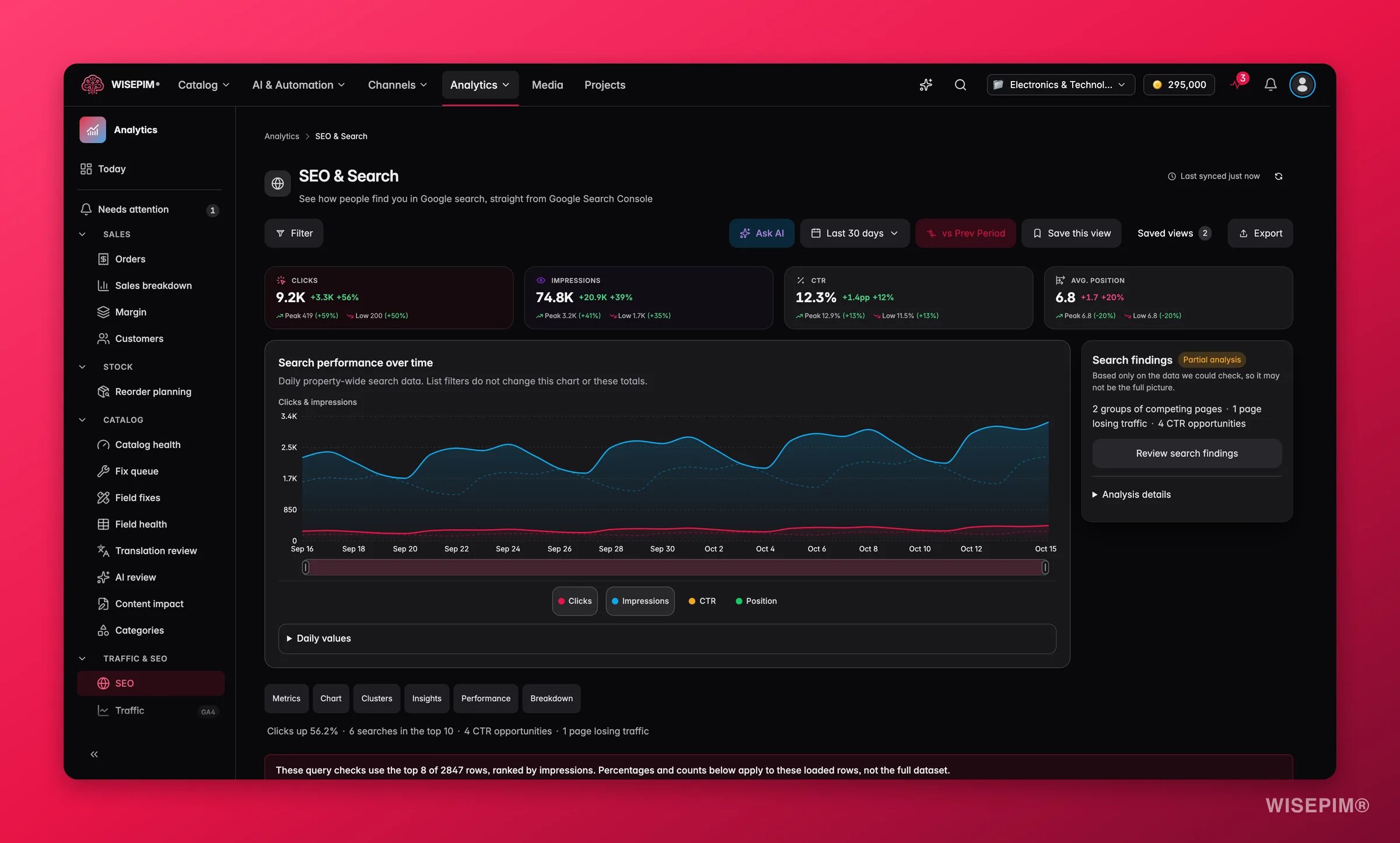
Start with the diagnosis, not the fix. The SEO & Search report already knows which of your pages rank without earning the click, so let it build your working list before you spend a single credit.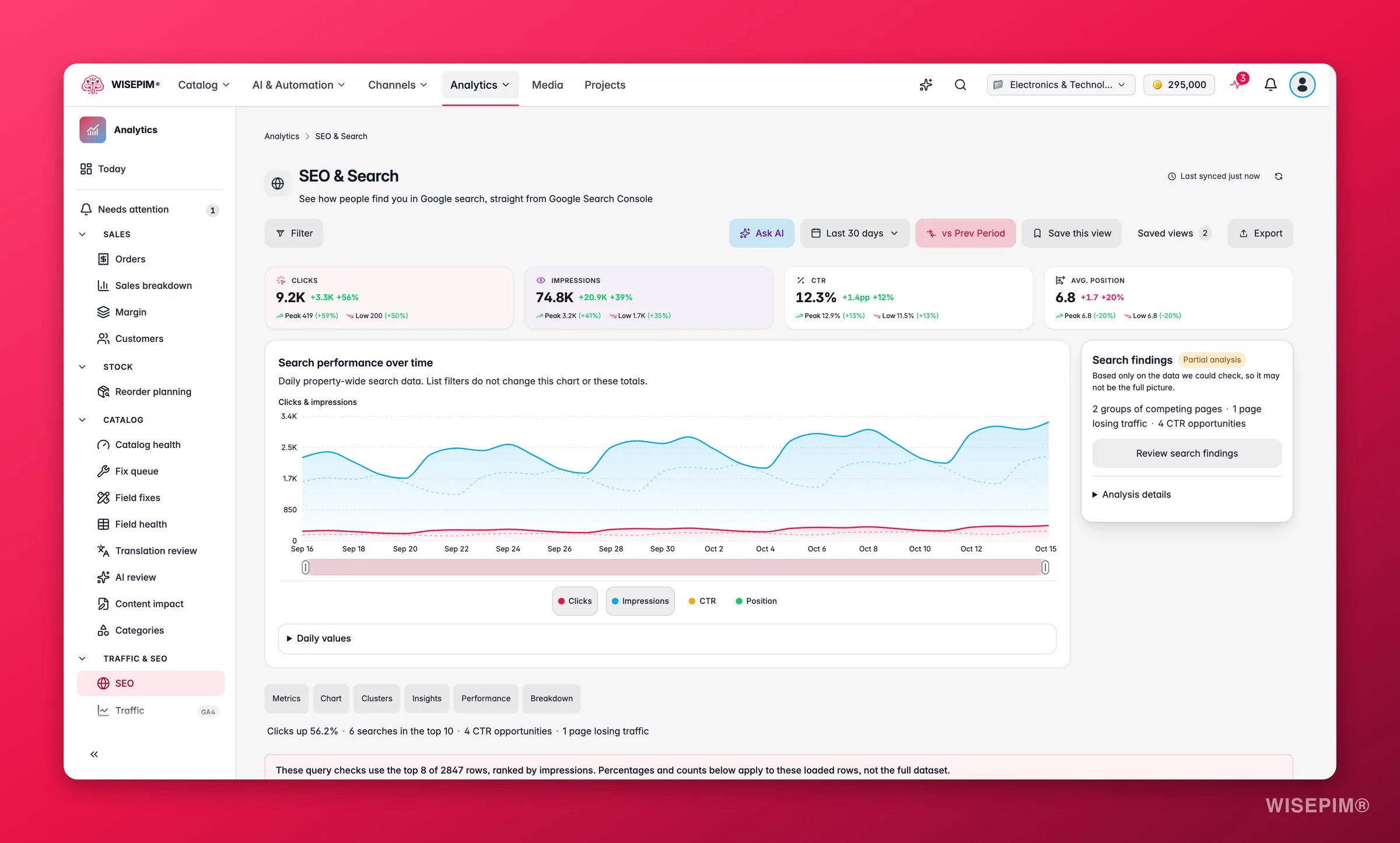
1
Open the performance view
In the Analytics sidebar, open SEO & Search and stay on the performance view. It shows impressions, clicks, CTR, and average position together, which is the only place the gap between “seen” and “clicked” is visible.
2
Pick a comparison mode
Choose previous period, or year-over-year if you sell seasonal products. Without a comparison you cannot tell a genuine CTR problem from normal seasonal movement.
3
Work the Quick wins panel
The Quick wins panel on the performance view lists high-impression, low-CTR queries, exactly the traffic you already rank for. This is your backlog, in priority order, for free.
4
Confirm the pattern before acting
A position between 4 and 10 with a CTR well below 3% is the classic quick-win shape. Check it against the benchmark table at the top of the report, which tells you what counts as good, average, and poor for e-commerce.
5
Build the product list
Filter for high impressions, sort by CTR ascending, and note the products behind those pages. Those products, not the queries, are what you select in the next section - every fix in this guide is applied per product.
Rewrite what shoppers actually see
Two different things lose the click, and they need fixing in this order. The snippet in the search result decides whether anyone clicks at all; the description on the page decides whether that click was worth anything. Fix the snippet first, because it is the number you are trying to move. Which enrichment you reach for depends on whether the product has real query history behind it: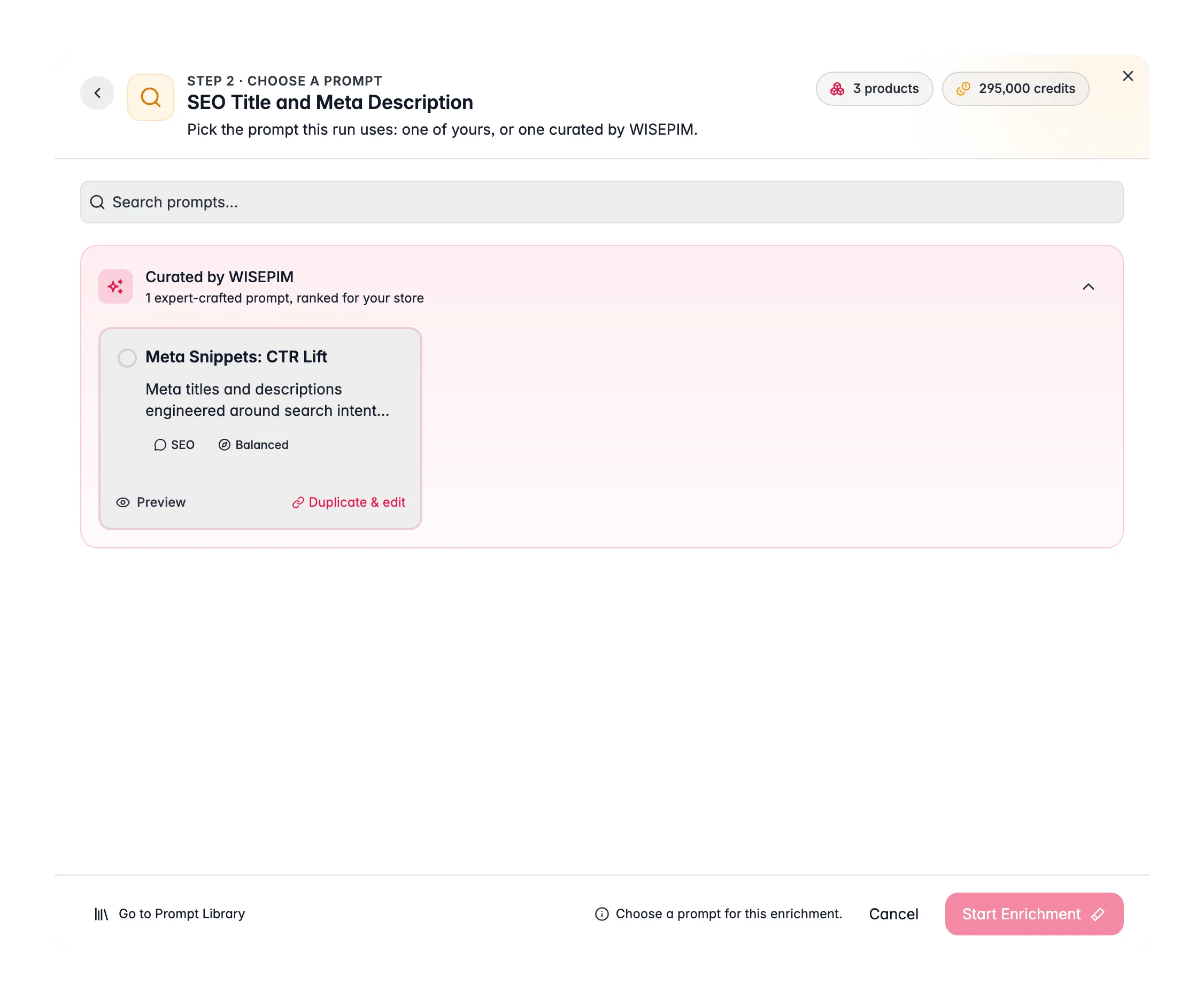
1
Select the products from your list
On the Products page, tick the products you identified, or apply a filter and select all matching results so you catch the ones on later pages too.
2
Regenerate SEO titles and meta descriptions
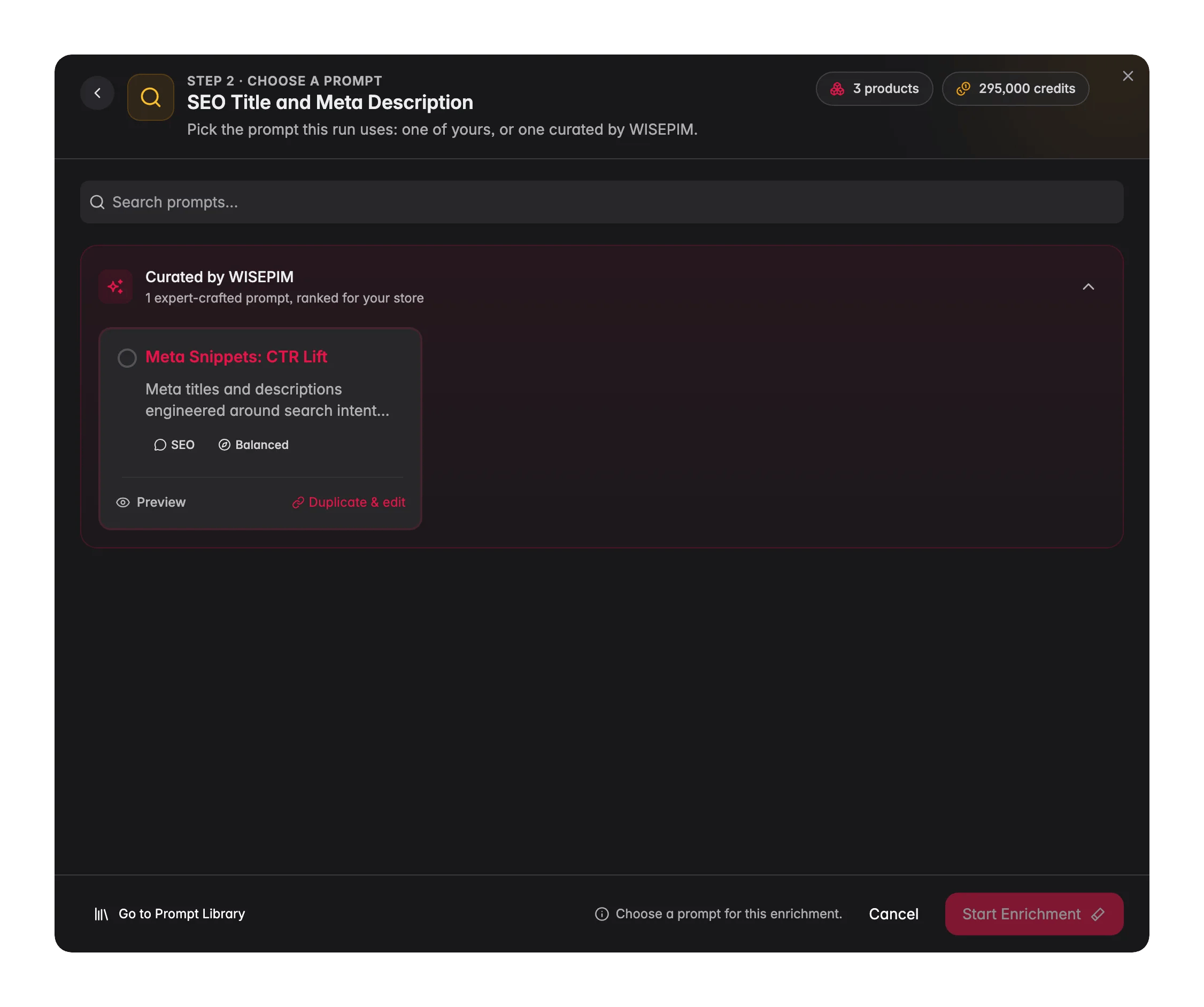
Click Enrich with AI in the toolbar, pick SEO Title and Meta Description from the enrichment type grid, and start the run. It writes to the meta fields only, which is why it is safe to run first and measure in isolation.
3
Check the length rules you score against
The SEO tab of Data Quality settings holds the meta title and meta description character limits your products are scored against. Confirm they match what you want, otherwise good snippets will still score badly.
4
Run Search Intent on the highest-impression products
Same modal, Search Intent instead - no prompt configuration needed. Save it for products with the most impressions, because they are the ones with the query data that makes it work.
5
Spot-check before you scale
Review five to ten rewritten products against their original queries. If the copy reads like it was written for those searches, run the rest.
Make the gain hold
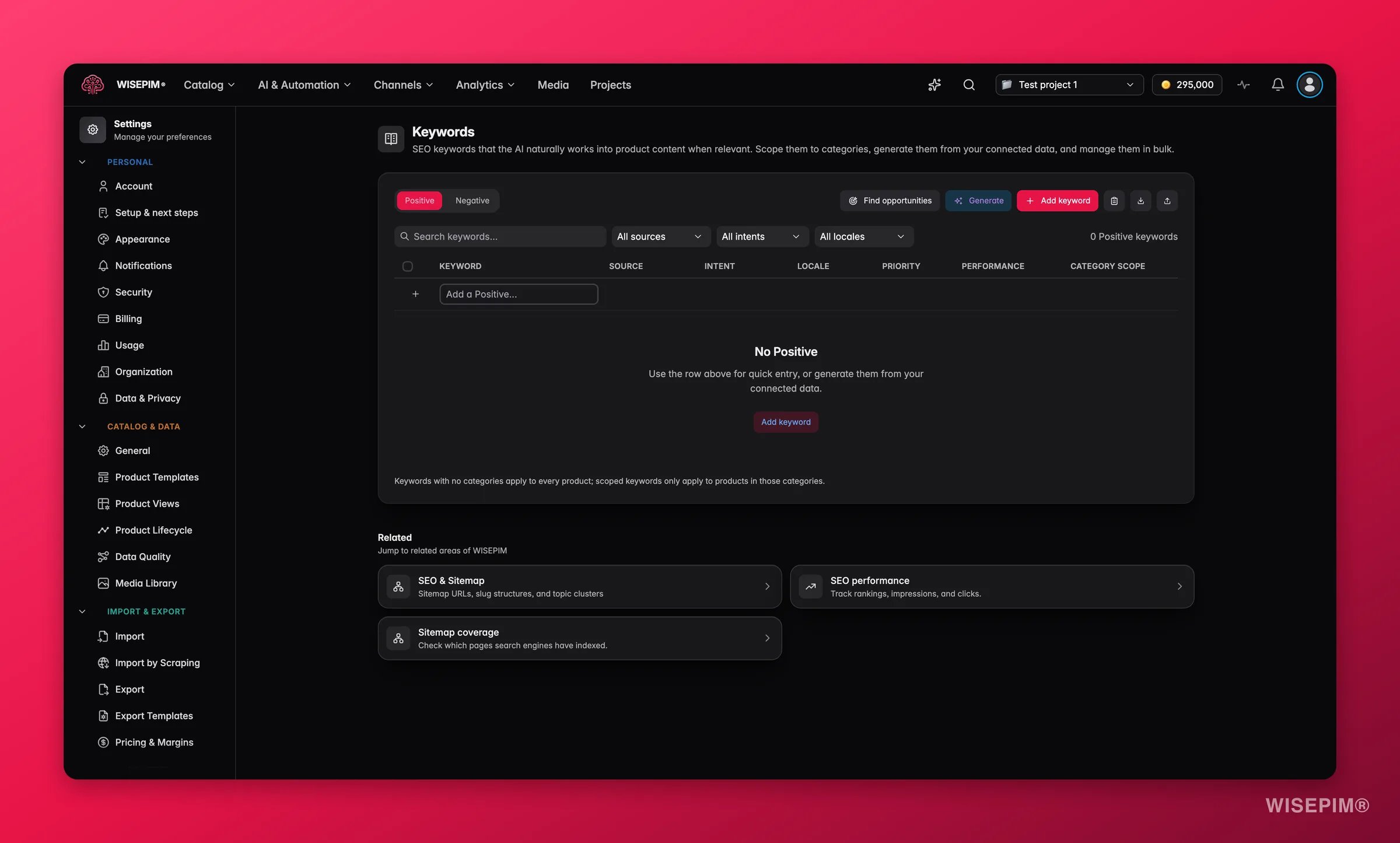
A one-off rewrite decays. These steps stop you redoing the exercise every quarter: keywords make every future enrichment target the right terms automatically, and internal links get your ignored products crawled in the first place. Do keywords first, so anything you re-run afterwards already knows them.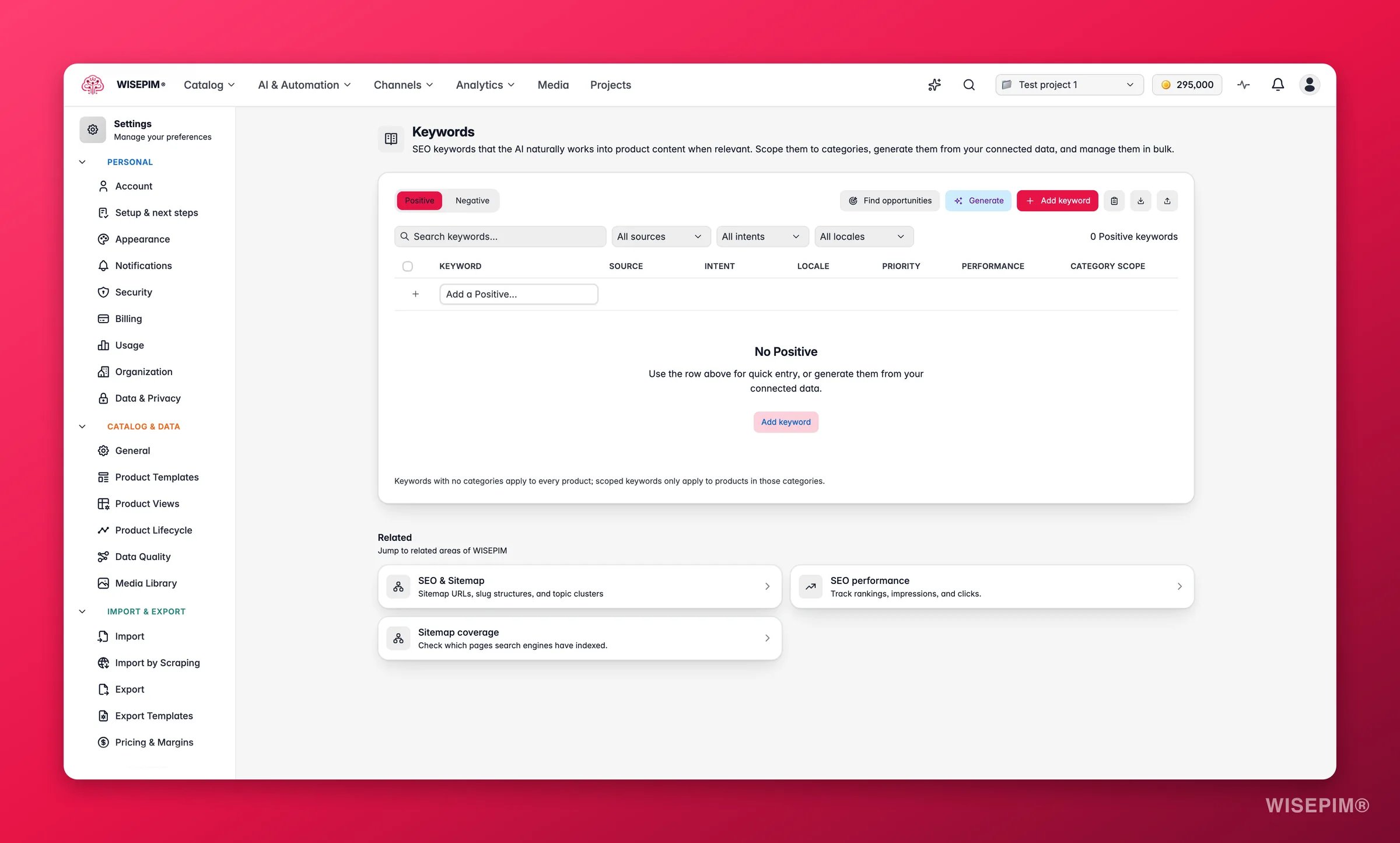
1
Harvest the queries you already rank for
Pick your project in the project switcher, open Keywords, stay on the Positive tab, and click Find opportunities. It lists Search Console queries your project ranks for but does not yet target, with their clicks, impressions, and average position - proven demand, not guesses.
2
Set priority, locale, and target fields
Open a keyword’s row editor and give your best terms High priority so AI weights them more. Scope each one to a locale and, if it only belongs in snippets, to the SEO meta target field. A keyword applied everywhere pollutes markets and fields it was never meant for. The page autosaves, there is no Save button to hunt for.
3
Add competitor names to the Negative tab
Same page, other tab: terms you never want written back in. Tone and banned wording belong there too - Teach WISEPIM your house style covers that side of the list in depth.
4
Link the orphans
The link equity view in the SEO report flags products with no inbound links. Run Internal Linking on them from the same Enrich with AI modal - it needs an existing description to work, so products without one are skipped. Its link-target pool is a snapshot taken at run time, so re-run it after you launch a new category.
5
Set the defaults so new products inherit this
Your winning SEO prompt belongs in Enrich Prompts settings as the project default, so every product added from now on gets the same treatment without anyone remembering to do it.
How to tell it worked
CTR moves before revenue does, and neither moves this week. Check the SEO report first, and only then look for money.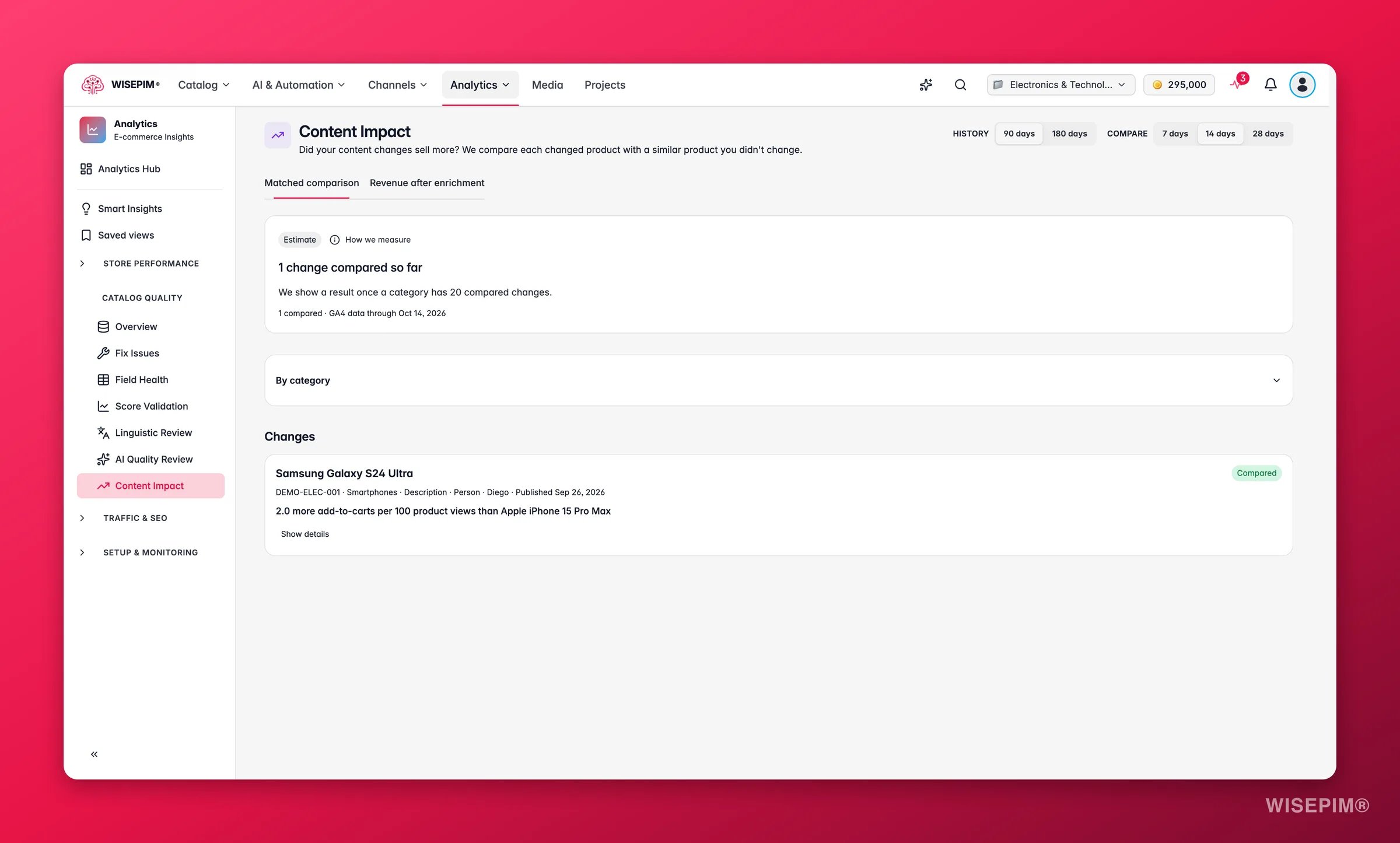
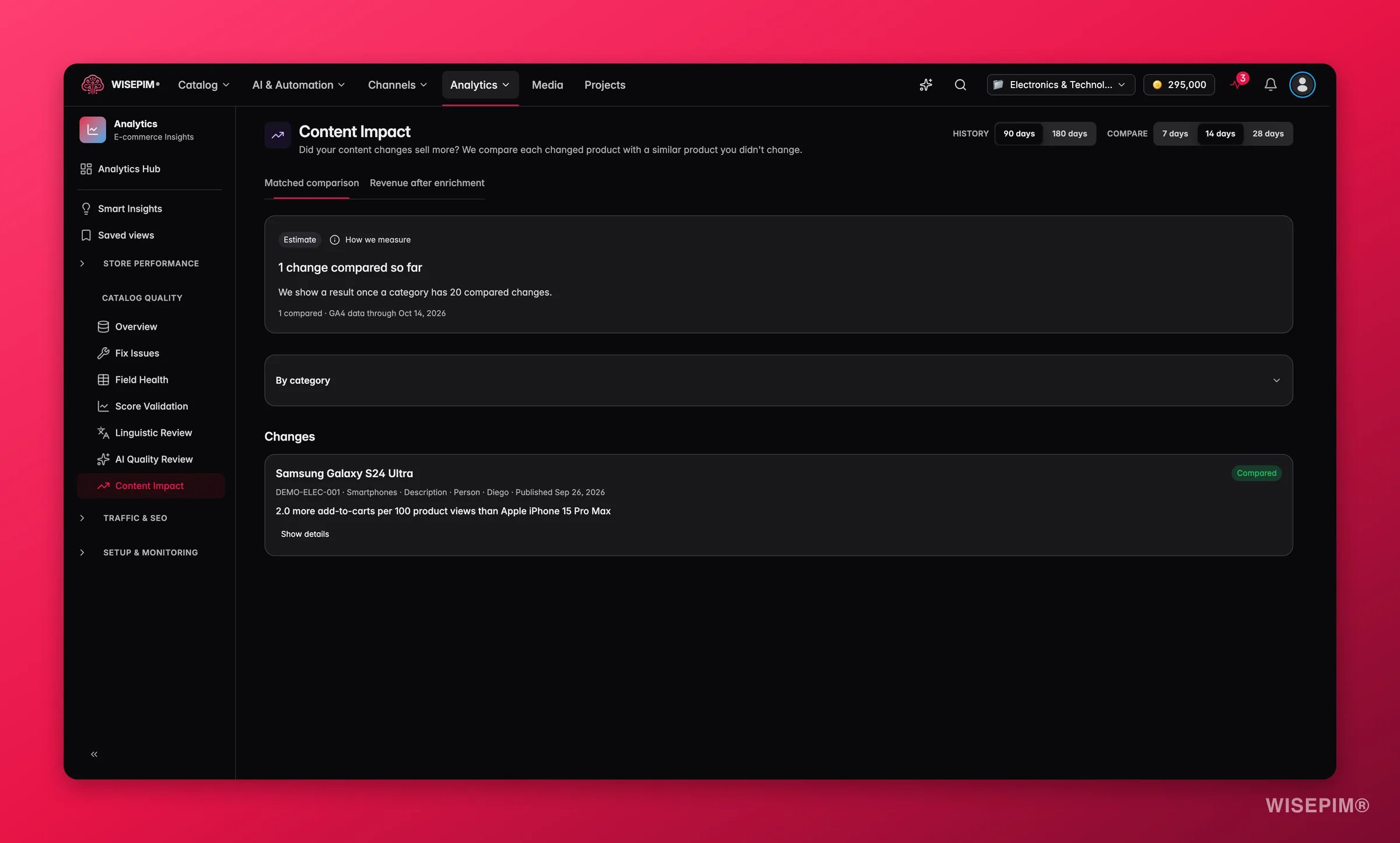
Enrichment Impact compares 30 days before against 30 days after each enrichment event, so a check the week after a run tells you nothing. Rows marked low confidence need another 2–4 weeks of sales before they mean anything.
When it doesn’t work
The SEO report is empty
The SEO report is empty
Every number on this page comes from Google Search Console. If the report has no data, the integration is not connected or has not synced yet. Reconnect it under Integrations and give it a sync before you conclude you have no impressions.
Search Intent won't run on some products
Search Intent won't run on some products
Products that are very new, very niche, or never ranked have no queries in Search Console, so there is no intent signal to act on and they are skipped. Point Search Intent at products with existing organic presence, and use SEO Title & Meta Description for the rest - it has no such requirement.
Impressions keep rising but clicks stay flat
Impressions keep rising but clicks stay flat
That is the exact symptom this guide addresses: Google is showing your pages more and shoppers are choosing someone else. Rising impressions with flat clicks is a title and meta problem, not a ranking problem, so re-run the snippet rewrite rather than chasing new content. Falling impressions are the other story - that is a ranking drop.
CTR improved but rankings dropped
CTR improved but rankings dropped
A transactional rewrite on a product whose traffic is informational can move the copy away from what ranked it. Restore the original copy and re-run, or write a description prompt in Prompt Lab that finds the middle ground and apply it through the Descriptions enrichment instead of Search Intent.
Internal Linking added barely any links
Internal Linking added barely any links
It aims for a handful of contextual links per product and needs anchor points to place them, so a one- or two-sentence description gives it nowhere to go. Enrich those descriptions first, then re-run Internal Linking. If the links it did add point at unrelated pages, check the product’s category assignment - category context drives the matching.
Snippets are still truncated in Google
Snippets are still truncated in Google
Older, longer meta copy stays in place until you regenerate it. Re-run SEO Title & Meta Description on the affected products, and check the limits on the SEO tab of Data Quality settings match what you want scored.
Related
SEO & Search
The report behind every number in this guide: performance, coverage, cannibalization, and links.
Search Intent
Rewrite descriptions from the real queries that found each product.
Teach WISEPIM your house style
Make sure the rewritten copy sounds like your brand, not a template.
Run a weekly catalog health routine
Keep the quick-wins list short instead of letting it rebuild.