

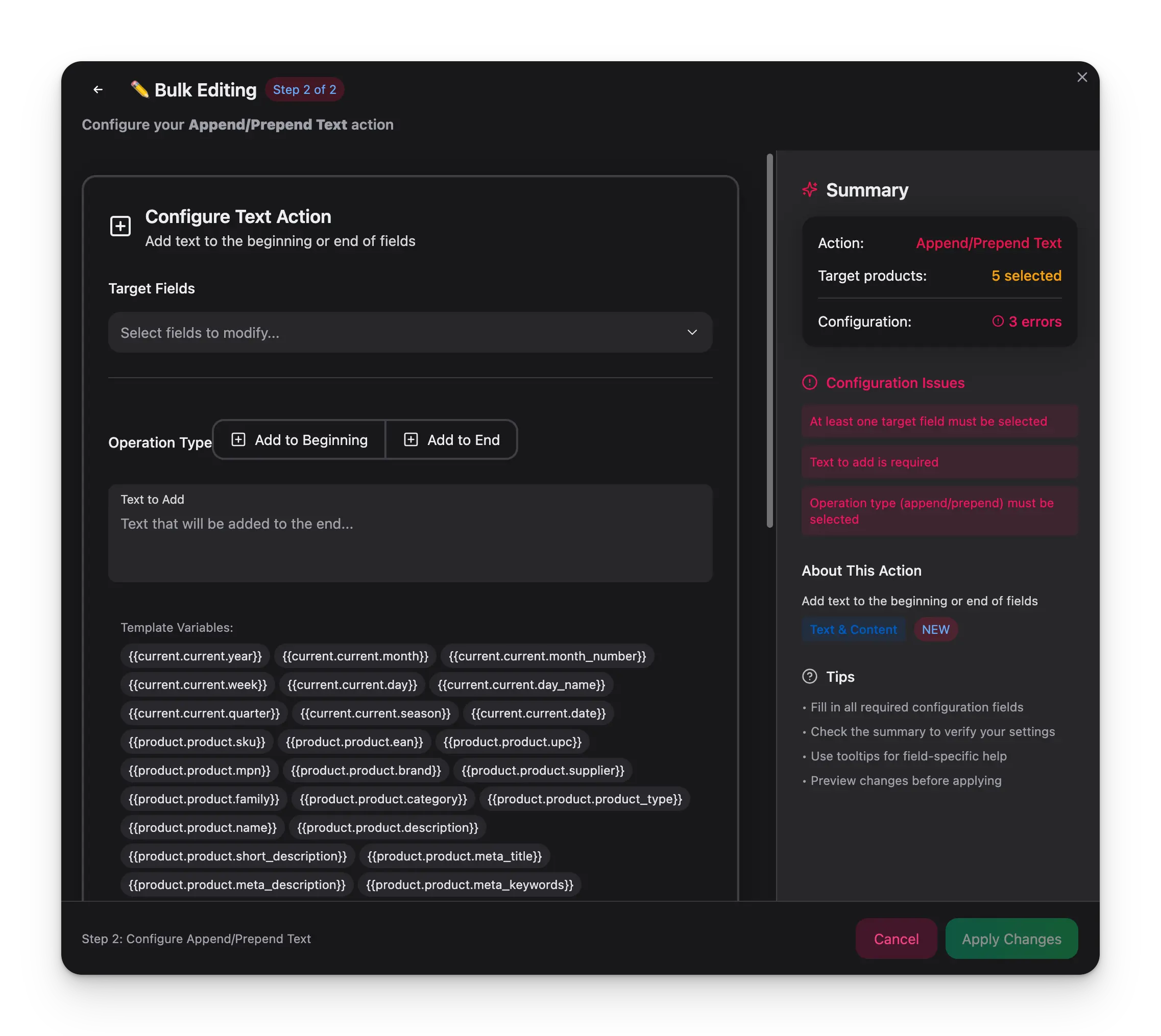
How to use it
Select products
Check the products you want to update, or use filters and select all matching results.
Open Bulk Edit and choose Append/Prepend Text
Click Bulk Edit, then search for “Append/Prepend” or find it under Text & Content.
Choose the operation
Select whether to add text to the beginning (prepend) or end (append) of the field.
Enter your text
Type the text to add. Use template variable chips to insert dynamic values per product.
Configuration options
| Option | Description |
|---|---|
| Operation | Add to beginning (prepend) or Add to end (append) |
| Text | The text to insert — supports template variables |
| Target fields | Which product fields to modify |
Using Content Logic variables
The text input supports Content Logic variables, so each product gets personalized text based on its own data. Type{{ to open the autocomplete dropdown, or click the quick-insert chips below the input.
Quick-insert chips:
| Chip | Inserts |
|---|---|
{sku} | Product SKU |
{brand} | Brand name |
{price} | Product price |
{stock} | Stock quantity |
{category} | Primary category name |
{{scope.key}} syntax:
| Scope | Example variable | Resolves to |
|---|---|---|
product | {{product.name}}, {{product.sku}}, {{product.price}} | Product-level data |
global | {{global.company_name}}, {{global.warranty_text}} | Shared values across all products |
brand | {{brand.tagline}}, {{brand.origin_story}} | Brand-specific content |
category | {{category.care_instructions}} | Category-specific content |
Examples
Prepend a brand prefix to product names:“Nike - ” + “Air Max 90” → “Nike - Air Max 90”Append a promotional suffix to descriptions:
Adds a call-to-action with your store URL and shipping message to every product description.Prepend an SKU identifier to SEO titles:
“[NK-AM90] ” + “Air Max 90 Running Shoes” → “[NK-AM90] Air Max 90 Running Shoes”Append category-specific care instructions to short descriptions:
Each product gets the care instructions matching its category — “Machine wash cold” for apparel, “Wipe with dry cloth” for electronics.
B2B examples
Append a standardized specs block to descriptions:Adds a consistent specifications footer to every product description — purchasing teams get the technical data they need in the same place, every time.Append compliance and certification info per brand:
Each product gets the compliance statement matching its manufacturer — “ISO 9001:2015 certified. REACH compliant.” for one brand, “CE marked. RoHS compliant. UL listed.” for another. Define these once in Content Logic brand variables.Prepend MPN to product names for standardization:
“6205-2RS-SKF — ” + “Industrial Ball Bearing” → “6205-2RS-SKF — Industrial Ball Bearing” — makes every product searchable by MPN in your catalog and downstream channels.Append ordering info to short descriptions:
“MOQ: 100 units | Lead time: 3-5 business days | SKU: SS-HB-M1050” — gives buyers the key ordering details at a glance without editing each product individually.
Tips
- Variables resolve per product, so each product gets its own values —
{brand}becomes “Nike” for one product and “Adidas” for another. - Use Content Logic to define your own global, brand, and category variables, then reference them here.
- Combine static text with variables — e.g., append
\n\nPart of the {{brand.tagline}} collectionto descriptions.