

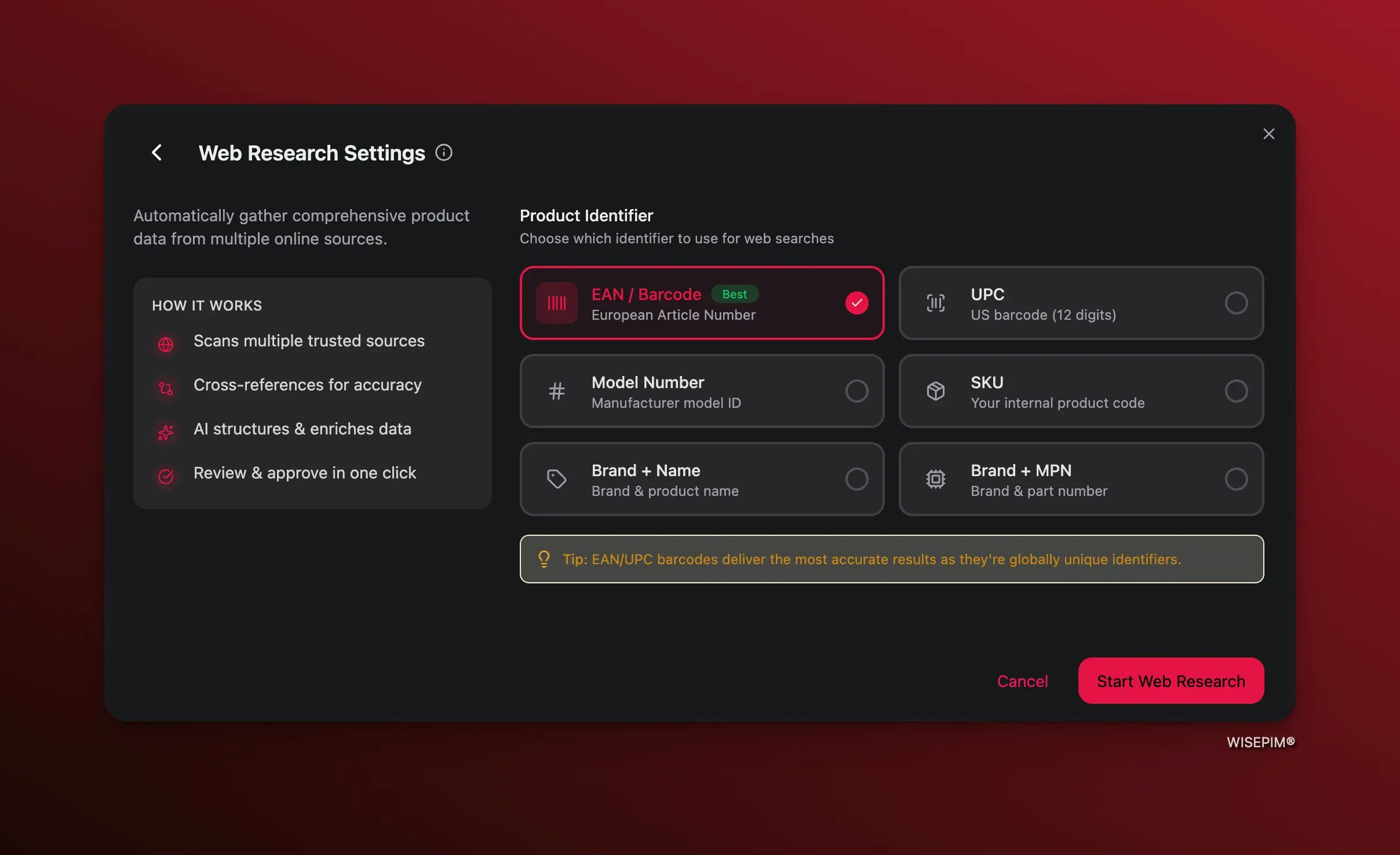
Web Research results appear in the Data Quality tab of your products. You can review, approve, or discard the findings before they are applied to your catalog.
How Web Research Works
WISEPIM’s Web Research follows a four-step process to ensure accurate, high-quality product data:Scans multiple trusted sources
The AI searches across trusted online databases, manufacturer sites, and product directories using the identifier you provide.
Cross-references for accuracy
Data found across multiple sources is compared and validated to reduce errors and eliminate conflicting information.
AI structures and enriches data
The verified information is organized and formatted to match your product data model, filling in missing attributes and specifications.
Starting Web Research
Selecting Products
You can run Web Research on individual products, a selection of products, or your entire filtered catalog.Select your products
Check the boxes next to the products you want to research. Alternatively, use filters to narrow down your catalog and select all matching products.
Choosing a Product Identifier
After selecting Web Research, you need to choose which product identifier the AI should use to search the web. The identifier determines how accurately the AI can locate your products online.EAN / Barcode
European Article Number. Globally unique, delivers the most accurate results. Recommended for most use cases.
UPC
Universal Product Code (12 digits). The standard barcode format used primarily in the United States.
Model Number
The manufacturer’s model identifier. Useful for electronics, appliances, and industrial products.
SKU
Your internal product code. Works best when your SKU matches the manufacturer’s or is widely recognized.
Brand + Name
A combination of the brand name and product name. Good fallback when barcodes are not available.
Brand + MPN
Brand name combined with the Manufacturer Part Number. Effective for technical and industrial products.
Running the Research
Once you have selected your identifier type, click Start Web Research. A confirmation toast will appear, and the research process begins in the background.You can continue working in WISEPIM while Web Research runs. The process does not block any other actions, and you will be notified when results are ready.
Applying Web Research to Your Catalog
Apply to Selected Products
Select specific products using checkboxes, then start Web Research. This is ideal when you want to enrich a targeted batch of products — for example, new arrivals or products with missing specifications.Apply to All Filtered Products
If you want to research a larger set, apply filters first (by category, brand, status, or any other criteria) and then choose to apply Web Research to all matching products. You do not need to manually select each product.Reviewing Results
Web Research results appear in the Data Quality tab on your product pages. From there you can:- Review gathered data — see the specifications, descriptions, and attributes the AI found online
- Compare with existing data — check how the researched data differs from what you already have
- Approve or discard — accept the findings to update your product, or dismiss them if they are not relevant
Quality Control Best Practices
- Spot-check a sample first — before approving results in bulk, review a handful of products manually to ensure accuracy
- Verify technical specifications — cross-reference critical specs like dimensions, weights, and material composition
- Check brand consistency — ensure imported descriptions align with your brand voice and tone
- Review product images — if the research surfaces image URLs, verify they match your actual products
Best Practices
Choosing the Right Identifier
| Scenario | Recommended Identifier |
|---|---|
| Products with barcodes | EAN or UPC |
| Electronics and appliances | Model Number or Brand + MPN |
| Products without barcodes | Brand + Name |
| Internally coded products | SKU (if widely recognized) |
Maximizing Research Quality
- Ensure identifiers are accurate — incorrect EANs or model numbers will return irrelevant results
- Clean up product data first — fill in brand names and basic identifiers before running research so the AI has more to work with
- Use the most specific identifier available — a barcode will always outperform a generic brand + name search
- Start small and scale — test with 5-10 products to validate result quality before researching your full catalog
When to Use Web Research
New product onboarding
You have just imported a batch of products with only SKUs and names. Web Research can fill in descriptions, specifications, and attributes automatically.
Catalog gap analysis
You want to identify and fill missing attributes across your existing catalog without manually researching each product.
Troubleshooting
No Results Found
If Web Research returns no data for a product, it usually means:- The identifier is incorrect or not recognized online
- The product is too new or niche to have public data available
- The identifier type does not match what is used for that product
Inaccurate Results
If the AI returns data that does not match your product:- Double-check that the identifier (EAN, SKU, etc.) is correct in your catalog
- Verify that the product has not been confused with a similarly named item
- Discard the incorrect results and try with a more specific identifier
Slow Processing
Web Research speed depends on the number of products and the complexity of each search. If processing seems slow:- Check the Process Tracker for current task status
- Avoid running multiple large research batches simultaneously
- Consider breaking very large batches into smaller groups