

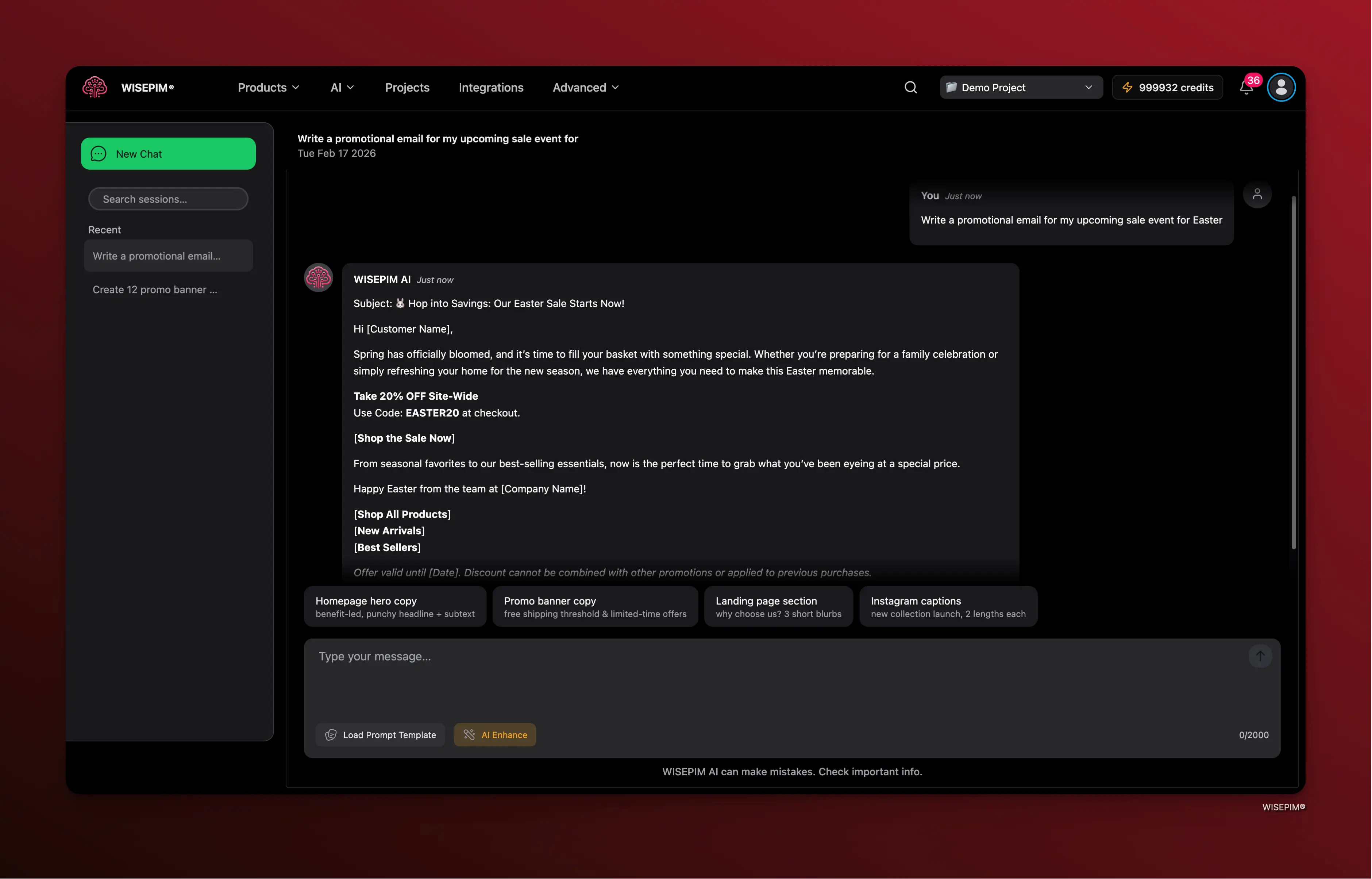
AI Chat integrates with your product catalog and Knowledge Library, so the AI understands your products, brand voice, and business context when generating content.
Getting Started
Opening AI Chat
Navigate to AI Chat from the main sidebar. When you open AI Chat for the first time, you will see an empty conversation with suggested prompts to help you get started quickly.Starting a New Conversation
Type your message
Enter your question or request in the message input at the bottom of the screen. You can also click one of the quick-start suggestion cards to pre-fill a prompt.
Send your message
Press Enter or click the send button. The AI will begin generating a response, indicated by a “Thinking…” animation.
What You Can Do with AI Chat
Write Product Descriptions
Generate compelling, SEO-friendly product descriptions tailored to your brand voice and target audience.
Create Social Media Content
Draft Instagram captions, promotional posts, and social media copy for product launches and campaigns.
Generate SEO Metadata
Create optimized meta titles and descriptions for your product pages and homepage.
Write Marketing Emails
Compose promotional emails, sale announcements, and product launch communications.
Quick-Start Suggestions
When you start a new conversation, WISEPIM offers four pre-built suggestion cards you can click to get started immediately:- Write a product description — generates a description for your best-selling item
- Create social media caption — drafts an Instagram caption for a product launch
- Generate SEO metadata — produces a meta title and description for your homepage
- Write promotional email — composes a promotional email for an upcoming sale
Managing Chat Sessions
AI Chat organizes your conversations into sessions. Each session maintains its own message history, so you can revisit previous conversations at any time.Chat History Sidebar
The sidebar on the left displays all your chat sessions. From here you can:- Create a new chat — start a fresh conversation
- Switch between sessions — click any session to load its messages
- Rename a session — give conversations meaningful names for easy reference
- Delete a session — remove conversations you no longer need
Session Auto-Naming
When you send your first message in a new session, the AI derives a descriptive title from the content of the exchange. This makes it easy to find past conversations without manual organization.Working with Messages
Copying Responses
Hover over any message to reveal action buttons. Click the Copy button to copy the message content to your clipboard. A checkmark confirms the copy was successful. You can also use the keyboard shortcut Cmd/Ctrl + Shift + C to copy the most recent AI response without hovering.Regenerating Responses
If you are not satisfied with an AI response, click the Regenerate button (circular arrow icon) on the last assistant message. The AI will generate a new response to your most recent question.Providing Feedback
Each AI response includes thumbs up and thumbs down buttons. Use these to indicate whether the response met your expectations. This feedback helps improve future responses.Stopping Generation
If the AI is taking too long or you want to cancel a response mid-generation, click the Stop generating button that appears below the chat, or press the Escape key.Prompt Templates
Prompt templates let you save and reuse your best prompts across sessions.Loading a Saved Prompt
Click the Load Prompt Template button in the input toolbar to browse your saved prompts from the Prompt Library. Select a prompt to load it into the input field, then send it or modify it before sending.The Load Prompt Template button is only available when you have saved prompts in your Prompt Library. Visit the Prompt Library to create and manage your templates.
Saving a Message as a Prompt
You can save any user message as a reusable prompt template:- Hover over the message you want to save
- Click the Save icon (bookmark icon)
- Give your prompt a title and confirm
AI Prompt Enhancer
The AI Enhance feature helps you write better prompts. If you have a rough idea of what you want but are not sure how to phrase it effectively, the AI Enhance tool can refine your prompt for better results.Review the enhanced prompt
The AI will generate an improved version of your prompt with better structure and specificity.
Pre-Built Prompt Ideas
The input area includes a horizontal row of pre-built prompt idea buttons covering common e-commerce content needs:- Homepage hero copy — benefit-led headlines and subtext with CTAs
- Promo banner copy — free shipping and limited-time offer variations in desktop and mobile formats
- Landing page section — “Why choose us” blurbs with trust signals
- Instagram captions — new collection launch captions in short and standard lengths
Tips for Better Results
Writing Effective Prompts
- Be specific — instead of “write a description,” say “write a 150-word product description for a premium leather wallet targeting men aged 25-40”
- Mention your brand voice — include tone guidelines like “professional but approachable” or “playful and casual”
- Set constraints — specify word counts, character limits, or formatting requirements
- Provide context — reference the product category, target audience, or sales channel
Getting the Most from Conversations
- Use follow-up messages — refine the AI output by asking for adjustments in follow-up messages rather than starting over
- Iterate on responses — ask the AI to make the text shorter, more persuasive, or more SEO-focused
- Save successful prompts — when a prompt produces great results, save it as a template in the Prompt Lab for reuse
- Organize sessions by topic — keep separate sessions for different projects or product categories