

Use the Prompt Lab to get a prompt right once. Then save it to your library and reuse it across hundreds of products with consistent results.
The layout
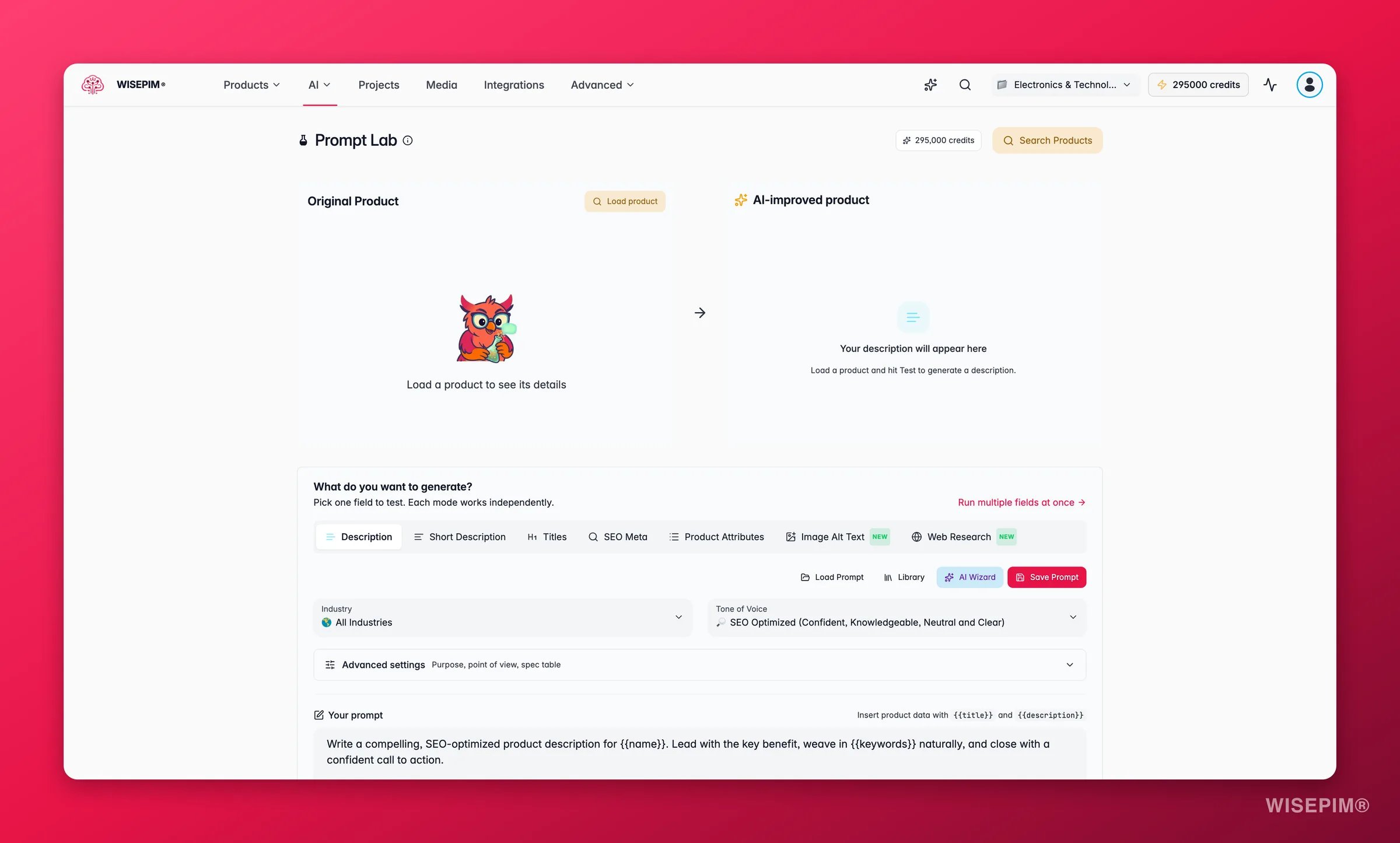
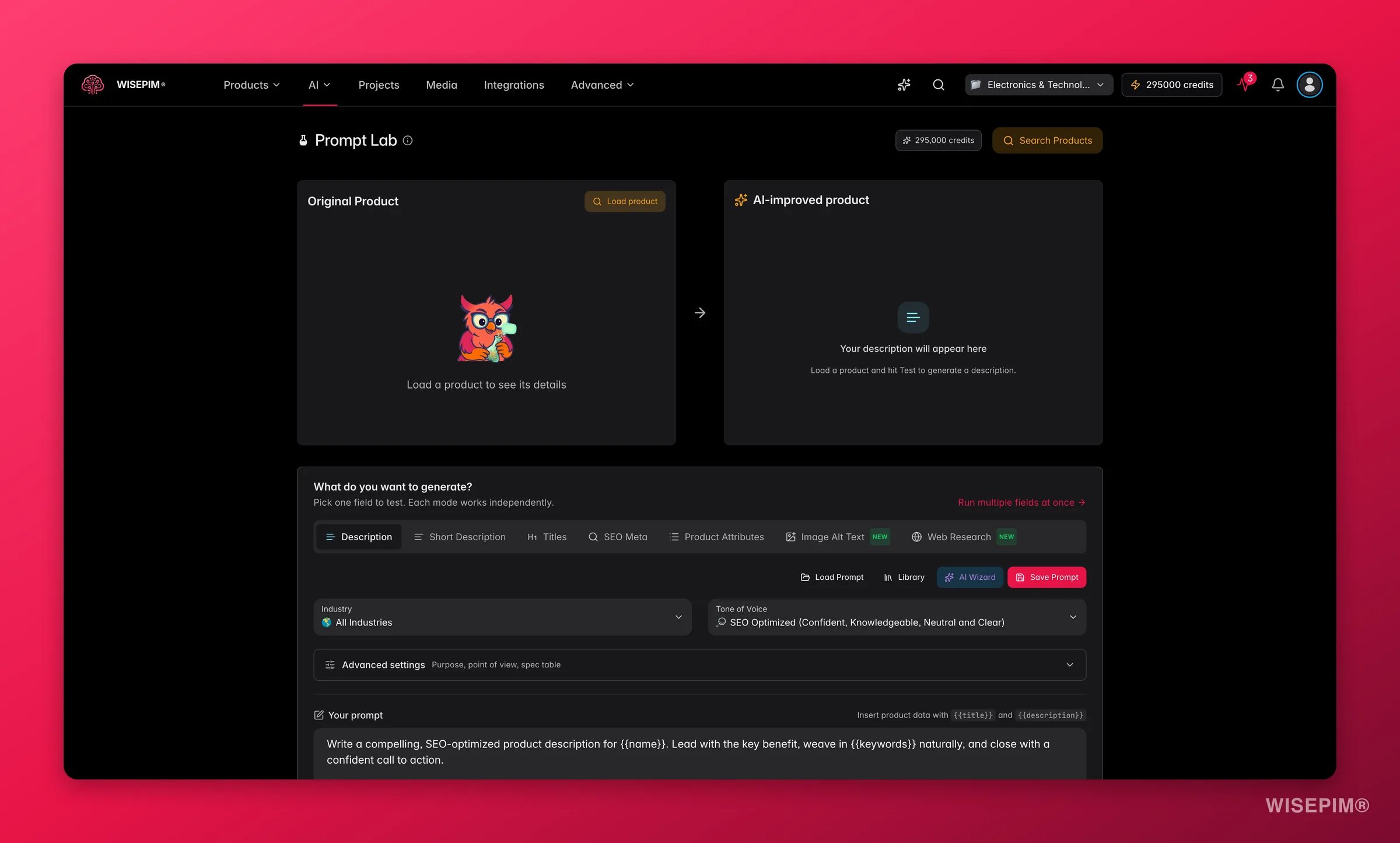
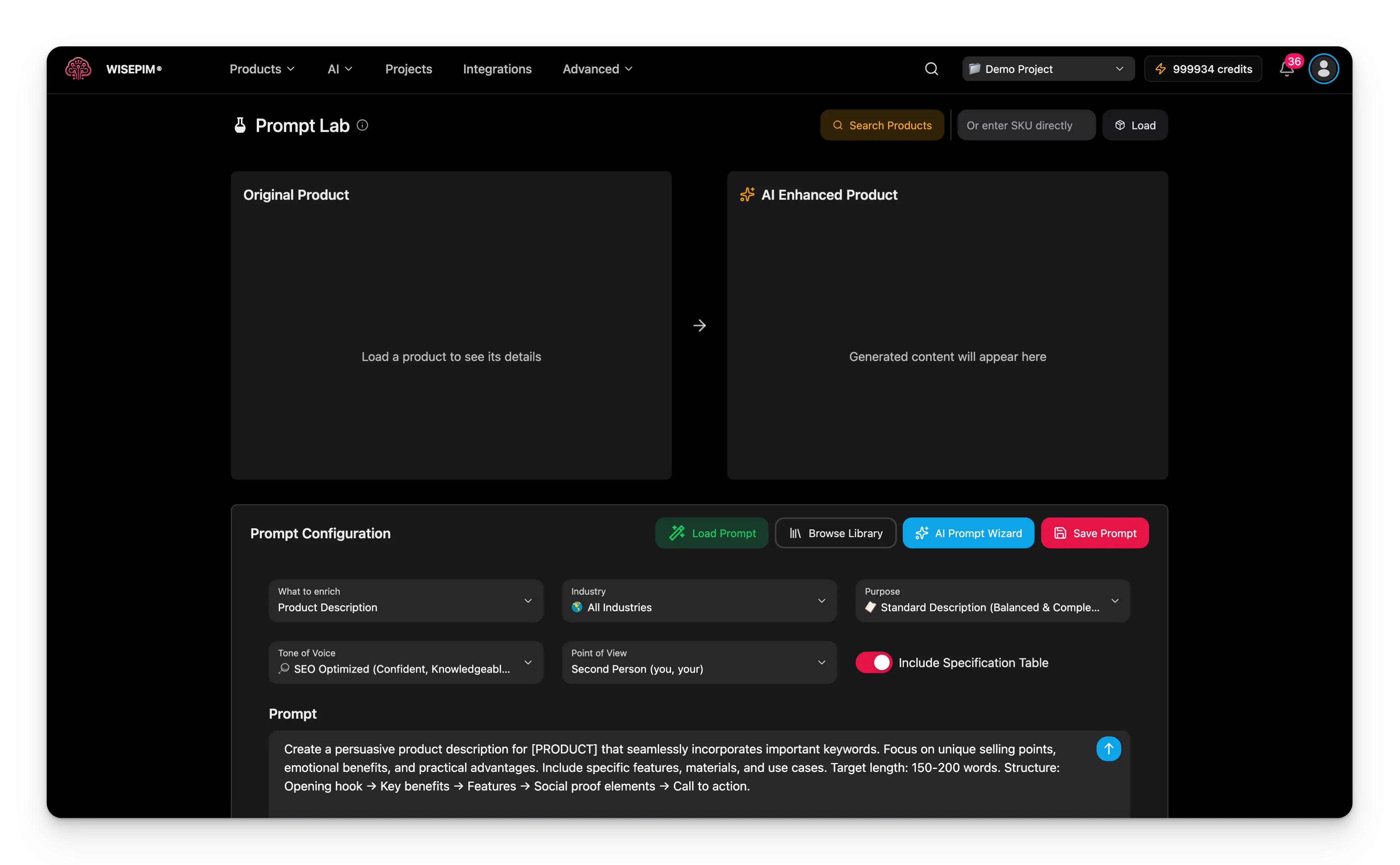
The Prompt Lab has three panels:| Panel | What it shows |
|---|---|
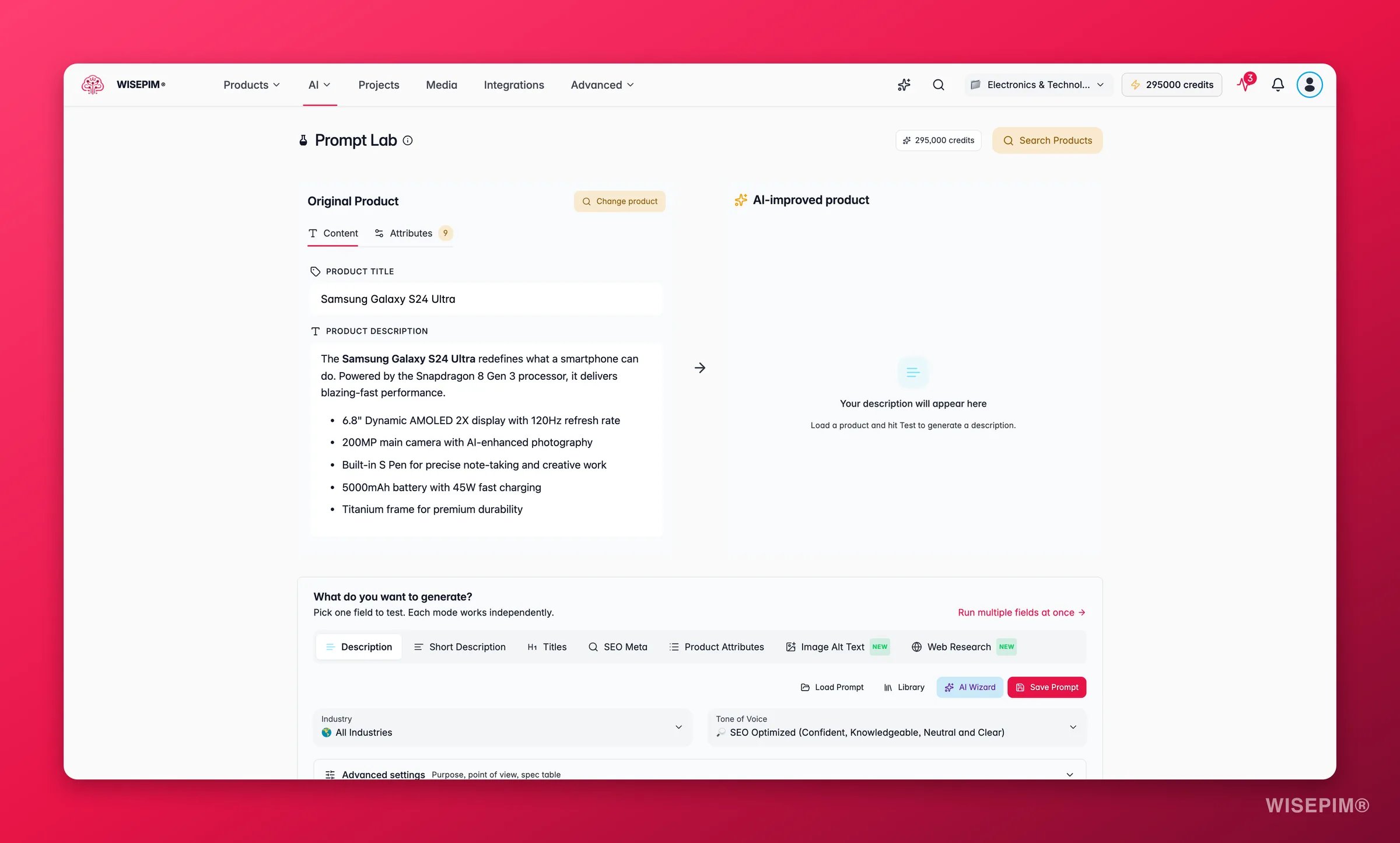
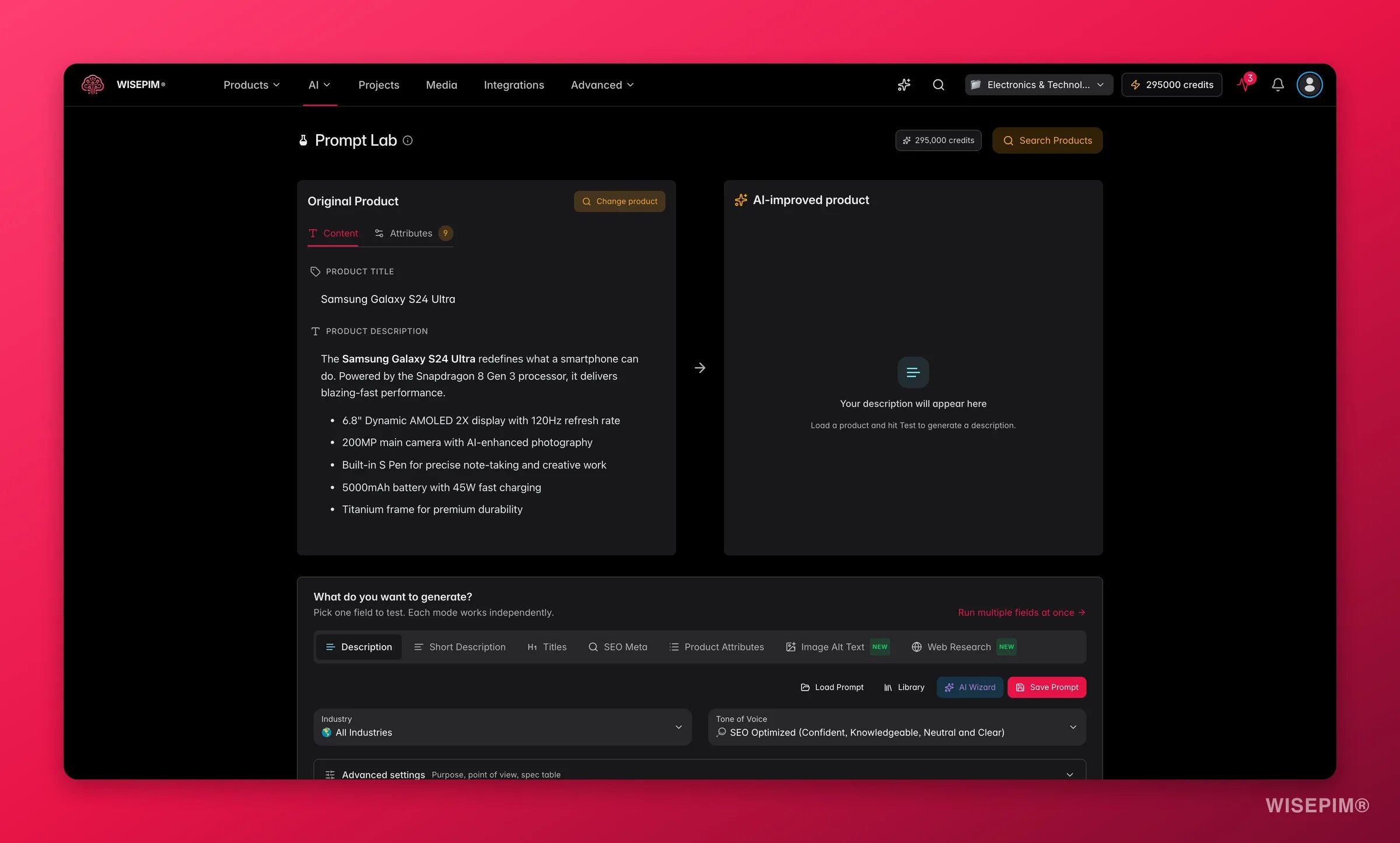
| Original product (left) | The current product name and content. Your baseline for comparison. |
| AI enhanced product (right) | The AI-generated content. Updates each time you test. |
| Prompt configuration (bottom) | Where you write your prompt and choose the settings. |
Test your first prompt
Load a product
Type a product SKU in the search field at the top right, then click Load Product. The product appears in the left panel.
Adjust the settings
Choose what to enrich, then set the industry, purpose, tone, and point of view. See Configuration options below.
Write or review the prompt
Start from the default prompt template, or write your own. Use variables like
{{title}} to pull in real product data.Test the prompt
Click Test Prompt. The generated content appears in the right panel in 30 to 60 seconds.
Configuration options
The bottom panel controls how the AI writes. Set these before you test.What to enrich
| Field | Use it when |
|---|---|
| Description | You want compelling marketing copy or better existing descriptions. |
| Title | Product titles are generic and need SEO and appeal. |
| Attributes | You need consistent, standardized product specifications. |
Industry
The industry tells the AI your market context, so it uses the right terminology and focuses on relevant features. Options include All Industries, Fashion and Apparel, Electronics, Home and Garden, Health and Beauty, Sports and Outdoors, Automotive, and more.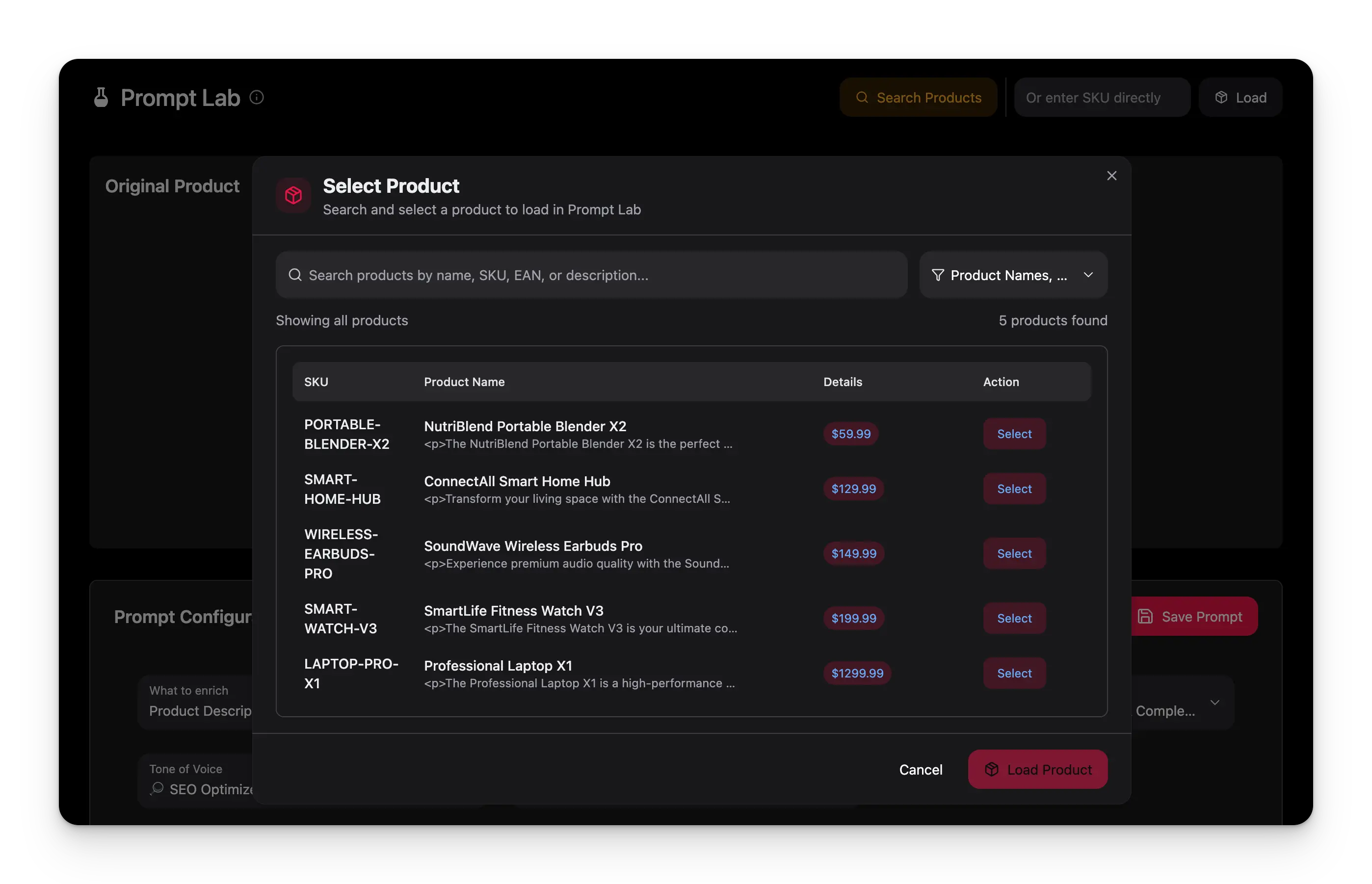
Purpose
| Purpose | Best for | Produces |
|---|---|---|
| Standard | Most product types | Well-rounded, informative content |
| SEO Optimized | Online catalogs and listings | Keyword-rich, search-friendly content |
| Marketing Copy | Product pages and promotions | Persuasive, conversion-focused content |
| Technical Specifications | B2B and complex products | Detailed, feature-focused content |
Tone of voice
| Tone | Best for |
|---|---|
| Professional | B2B products and professional services |
| Friendly | Consumer products and lifestyle brands |
| Enthusiastic | Sports, entertainment, youth products |
| Luxury | High-end products and premium brands |
| Technical | Technical products and professional tools |
Point of view
| Setting | Example | Best for |
|---|---|---|
| Second person | ”You’ll love how versatile this is” | A personal, engaging tone |
| Third person | ”This product offers exceptional versatility” | A neutral, professional tone |
Advanced options
Turn on Include Specification Table to add a structured table of technical details. This works well for electronics, appliances, and other spec-heavy products.Write effective prompts
A good prompt is specific. Tell the AI exactly what to create, how long it should be, and in what style. Add context about your brand and an example of the output you want.Using variables
Variables pull real product data into your prompt at test time. Wrap each one in double braces:| Variable | Inserts |
|---|---|
{{title}} | Product name or title |
{{description}} | Current product description |
{{sku}} | Product SKU |
{{category}} | Product category |
{{attributes}} | Product attributes |
Prompt tips
- Be specific. Define the length, format, and style you want.
- Add structure. Use numbered steps or bullet points for multiple requirements.
- Give context. Mention your brand voice and target audience.
- Start simple. Begin with a basic prompt, then add detail as you test.
Save and reuse prompts
Once a prompt works well, save it so you never rewrite it.Save a prompt
Add details
Give it a clear name, a description, and tags. Set the industry and purpose so you can find it later.
Save
Your prompt is stored in the Prompt Library for reuse.
Load an existing prompt
Click Load from Library, browse your saved prompts, and select one. All settings and prompt text load automatically, ready to test or modify.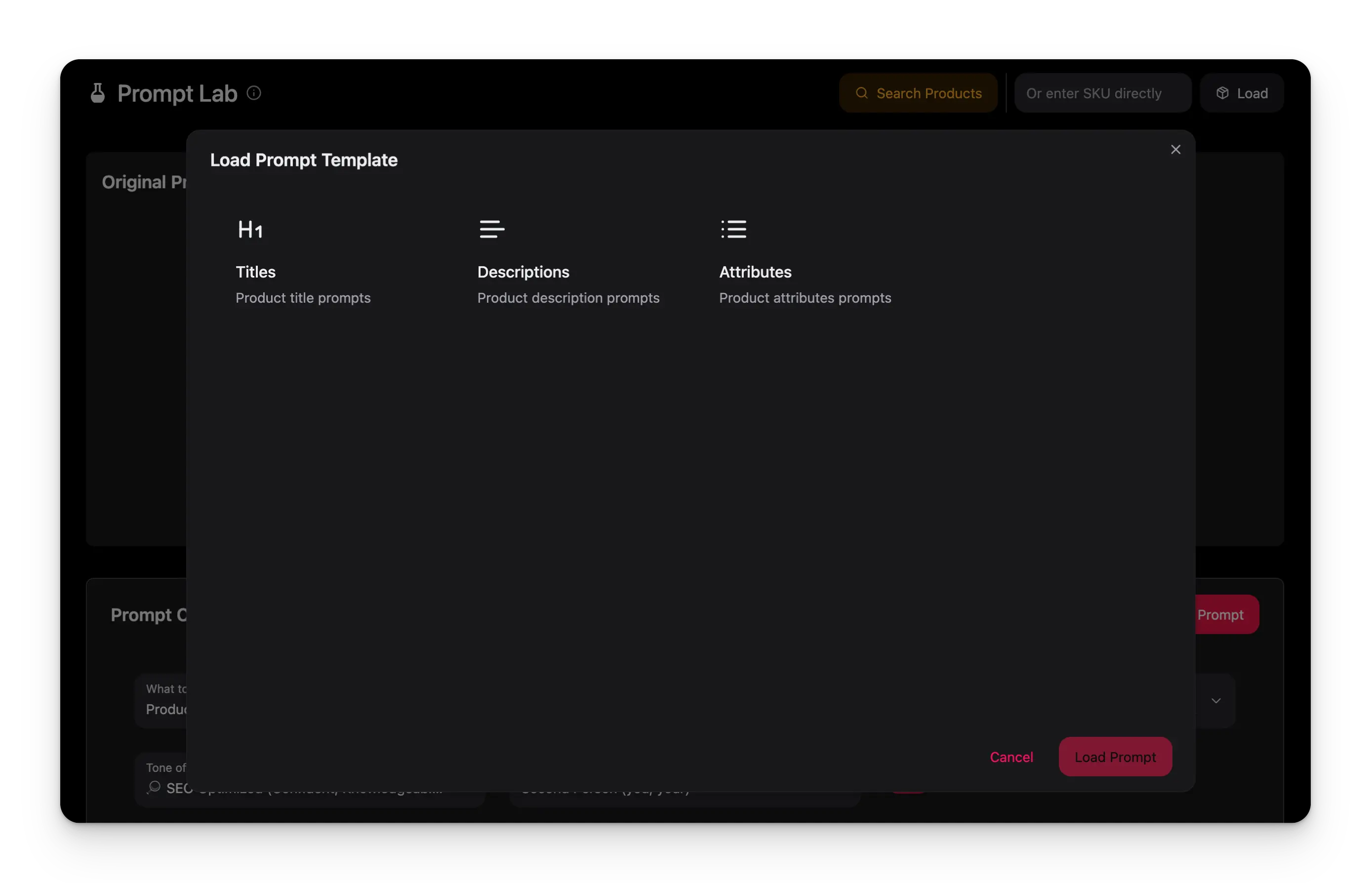
From lab to bulk
Once a prompt is proven, use it to enrich your whole catalog.Test across product types
Run the prompt on a few representative products from each category, including ones with minimal data.
Troubleshooting
No product found with that SKU
No product found with that SKU
Check the SKU for typos or extra spaces, and confirm the product exists in your current project. Try a different SKU to test the search.
The content is too generic
The content is too generic
Add more specific instructions to your prompt, name the unique selling points to highlight, and adjust the industry and purpose settings.
The content doesn't match my brand voice
The content doesn't match my brand voice
Complete your Knowledge Library for better brand context. Add tone examples and brand-specific terms to your prompt, and adjust the tone setting.
The content is too long or too short
The content is too long or too short
State the length you want in the prompt, using a word count or a number of paragraphs.
The test is taking a long time
The test is taking a long time
AI generation usually takes 30 to 60 seconds, and complex prompts take longer. If there’s no response after 2 to 3 minutes or the test keeps timing out, contact support.
Related
Prompt Library
Organize, reuse, and share your saved prompts.
Enriching products
Apply your tested prompts to products in bulk.
Knowledge Library
Give the AI your brand voice for on-brand results.
AI Chat
Generate and refine content in a conversation.