

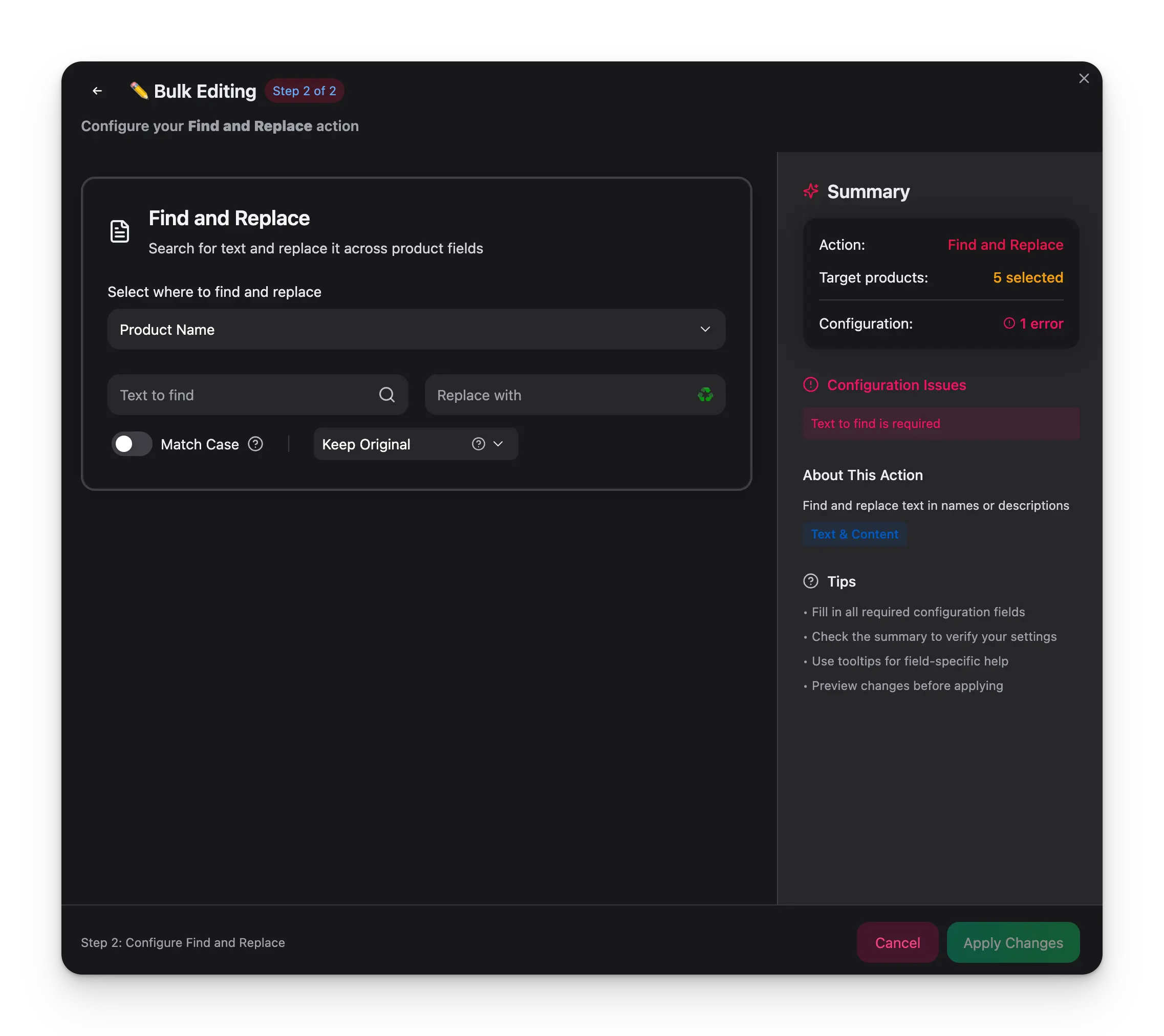
How to use it
Select products
Check the products you want to update, or use filters and select all matching results.
Open Bulk Edit and choose Find and Replace
Click Bulk Edit, then search for “Find and Replace” or find it under Text & Content.
Enter your search and replacement text
Type the text you want to find, and what to replace it with. Leave the replacement empty to simply remove the found text.
Choose your target fields
Select which fields to search — product name, description, enriched description, SEO fields, SKU, EAN, UPC, MPN, brand, supplier, or custom text attributes.
Configuration options
| Option | Description | Default |
|---|---|---|
| Find text | The text to search for (required) | — |
| Replace with | The replacement text. Leave empty to delete the matched text | Empty |
| Case sensitive | Match exact uppercase/lowercase | Off |
| Use regular expressions | Enable regex pattern matching in the search field | Off |
| Match whole words only | Only match when the search text appears as a complete word, not part of another word | Off |
| Target fields | Which product fields to search and replace in | — |
Using Content Logic variables in replacements
The Replace with field supports Content Logic variables. Type{{ to open the autocomplete dropdown and insert dynamic values. This means your replacement text can be different for every product.
| Scope | Example variable | Resolves to |
|---|---|---|
product | {{product.name}}, {{product.brand}}, {{product.price}} | Product-level data |
global | {{global.company_name}}, {{global.warranty_text}} | Shared values across all products |
brand | {{brand.tagline}} | Brand-specific content |
category | {{category.material_description}} | Category-specific content |
Examples
Replace a placeholder with the actual brand name:- Find:
[BRAND] - Replace with:
{{product.brand}}
Every product’s [BRAND] placeholder becomes its actual brand — “Nike”, “Adidas”, etc.
Swap a generic call-to-action with a dynamic one:
- Find:
Buy now - Replace with:
Buy {{product.name}} now at {{global.website_url}}
“Buy now” → “Buy Air Max 90 now at shop.example.com”Replace an outdated warranty line with a variable:
- Find:
1-year warranty included - Replace with:
{{global.warranty_text}}
Every occurrence gets replaced with whatever you’ve defined in your Content Logic globals — update the variable once, and it applies everywhere.
B2B examples
Standardize inconsistent unit formats:- Find:
kilogram(also run forKilogram,KG,kgs,Kgs) - Replace with:
kg
Normalizes weight units across your catalog so specs read consistently — “0.85 kg” instead of a mix of “0.85 kilogram”, “0.85 KG”, “0.85 Kgs”.Replace a static lead time with a dynamic variable:
- Find:
Delivery: 5-7 days - Replace with:
Delivery: {{global.lead_time_text}}
Swaps hardcoded lead times for a Content Logic variable — when your lead times change, update the variable once and every product description stays current.Swap generic compliance text for brand-specific certifications:
- Find:
Meets industry standards - Replace with:
{{brand.compliance_text}}
Each product gets the actual certifications for its manufacturer — “ISO 9001:2015 certified. REACH compliant.” for one brand, “CE marked. RoHS compliant.” for another.Replace informal product descriptions with structured specs (regex):
- Find:
weighs about \d+(with Use regular expressions enabled) - Replace with:
Weight: {{product.weight}} {{product.weight_unit}}
“weighs about 500” → “Weight: 0.5 kg” — replaces vague copy with the actual product weight from your data.
Tips
- Leave Replace with empty to bulk-delete a word or phrase from all selected products.
- Enable Regular expressions for pattern-based replacements — for example, replace
\d{4}to remove all 4-digit numbers. - Test on a small selection first when using regex to make sure the pattern matches what you expect.
- Combine regex with Content Logic variables — find a pattern and replace it with dynamic, per-product content.