

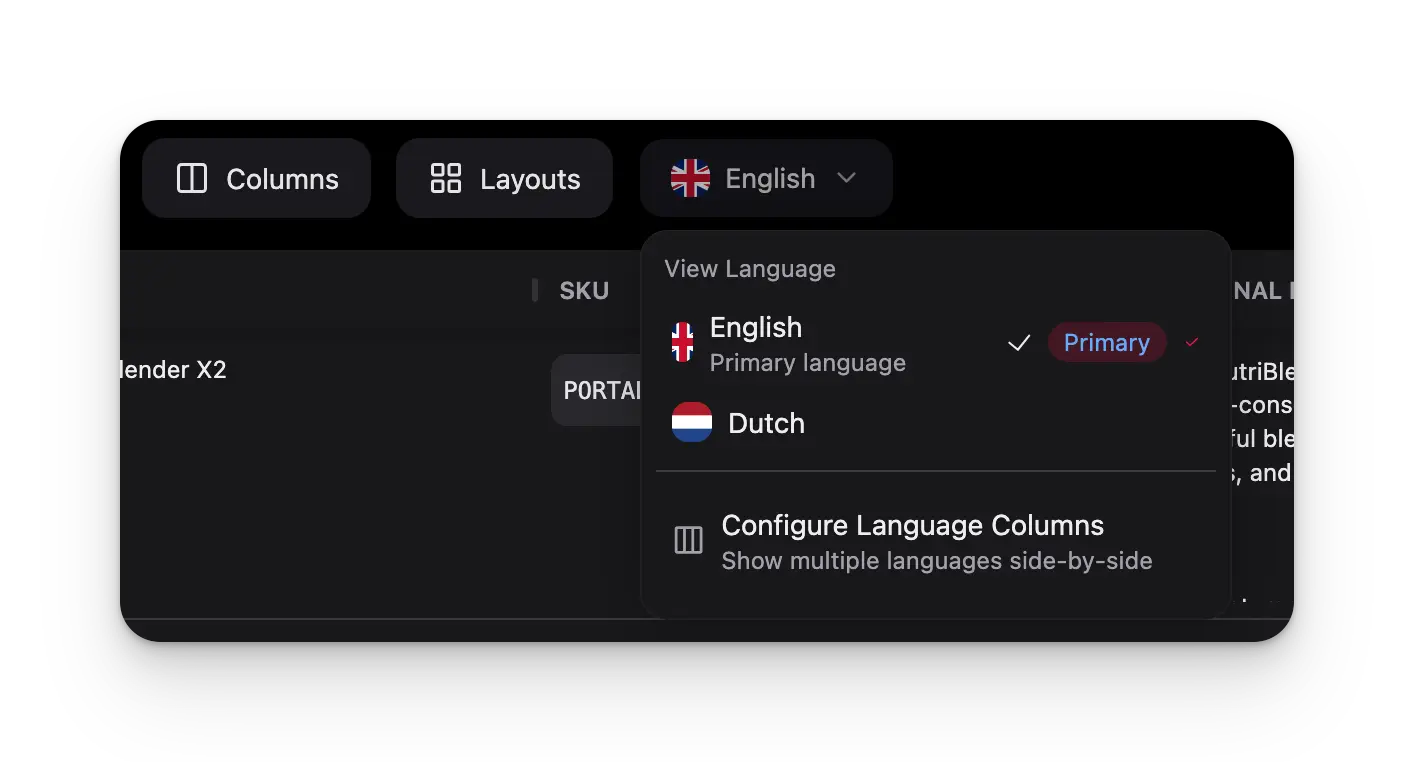
Translation uses your project’s configured locales. Make sure you have set up your target languages in Settings > General before starting a translation.
How It Works
Select products, pick target languages, and start. The AI translates all text-based fields for each product into every language you chose. Results are written directly into the localized fields, ready for review.Selecting Products
Select products
Check individual products on the Products page, or use filters and choose Apply to all to translate your entire filtered catalog.
Open the translation action
Click Translate in the toolbar. This appears once you have one or more products selected.
Supported Languages
WISEPIM supports 93 languages including English, Dutch, German, French, Spanish, Italian, Portuguese, Polish, Scandinavian languages, Asian languages, and more. The available languages depend on the locales you have configured in Settings > General.Running the Translation
Click Translate to start. The translation runs as a background task — monitor progress in the Process Tracker. You receive a notification when it completes.A batch of 50 products into 3 languages typically completes within a few minutes.
Reviewing Translations
After translation completes, review the output for quality and accuracy.- Open a translated product and switch to a target language tab
- Review the translated title, description, short description, and meta fields
- Use the Language Comparison modal to view source and translation side-by-side
Translation Status
Each product tracks its translation status — filter the products table by status to find what needs attention:| Status | Meaning |
|---|---|
| Fully Translated | All key fields translated into all target languages. |
| Partially Translated | Some fields or languages are still missing. |
| Not Translated | No translations exist yet. |
Best Practices
Start with a small batch
Translate 5-10 products first to verify quality before running a full catalog translation.
Use high-quality source content
AI translations are only as good as the source material. Make sure your primary-language content is accurate and complete.
Review industry-specific terms
Technical terms, brand names, and product-specific jargon may need manual adjustment after translation.
Translate by category
Filter by product category and translate in batches. This makes review easier and ensures consistency within each category.
Troubleshooting
| Problem | Solution |
|---|---|
| Translation did not start | Make sure you selected at least one product and one target language. Check that locales are configured in Settings > General and you have sufficient AI credits. |
| Translation quality is poor | Improve your source content first — short, vague descriptions lead to lower-quality translations. Consider enriching with AI before translating. |
| Some fields were not translated | Only text-based fields are translated. Numeric values, images, and codes are not affected. If a source field is empty, there is nothing to translate. |