

Quick search
The search bar in the top left of the toolbar searches across multiple fields at once — product name, SKU, EAN, and description text.- Click the search bar (or start typing)
- Enter your search term
- Press Enter to search
Advanced filters
For more precise queries, click the Filters button next to the search bar. This opens the advanced filter modal where you can build complex, multi-condition filters.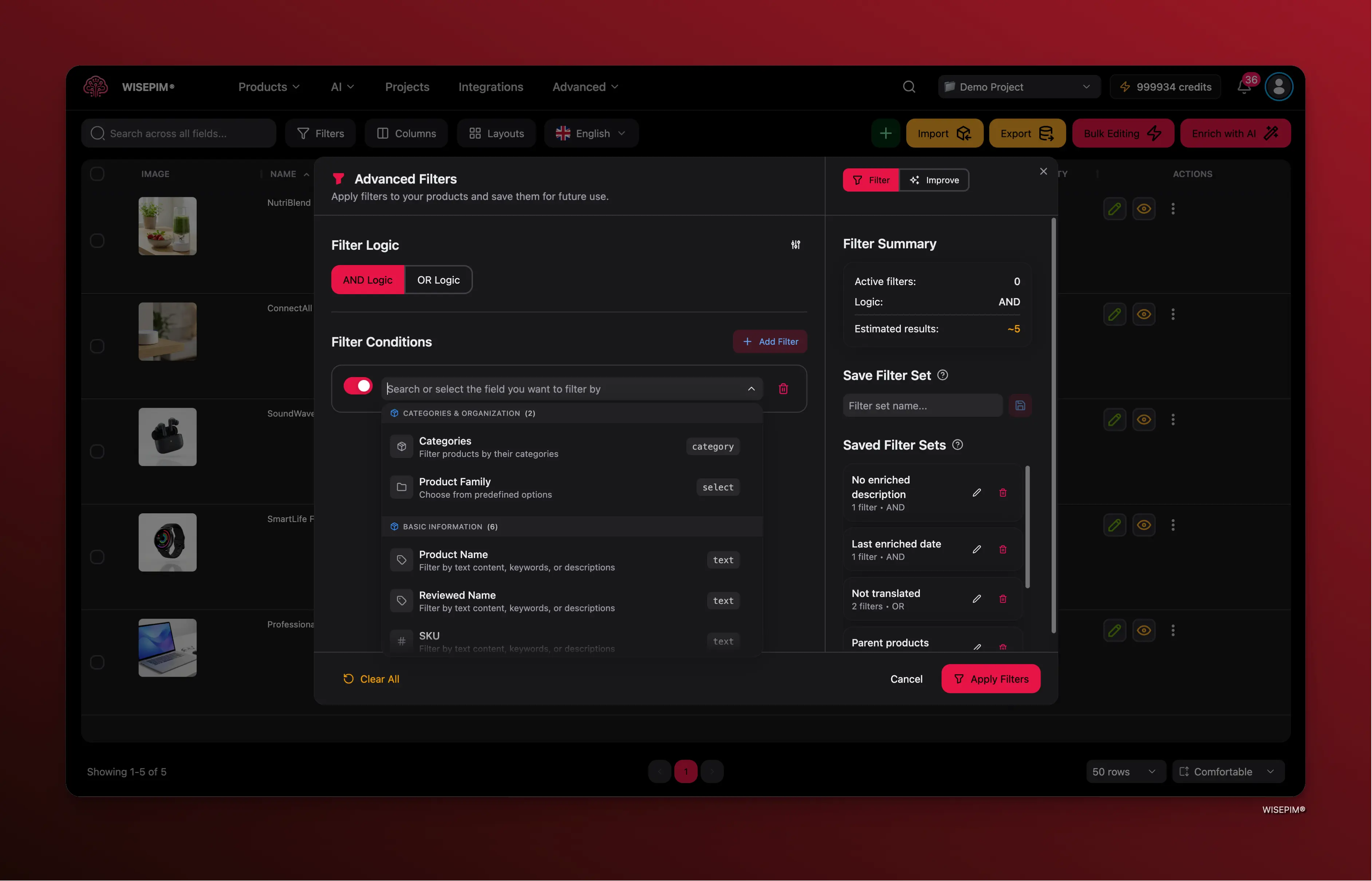
Building a filter
Click the Filters button
The filter icon in the toolbar opens the advanced filter modal. A red badge appears when filters are active.
Add more conditions (optional)
Add as many conditions as you need. Toggle individual conditions on/off without losing their configuration.
Choose your logic
Select AND (all conditions must match) or OR (any condition can match). With OR logic, you can set how many conditions must match.
Available filter fields
You can filter on 40+ fields, organized by category:| Category | Fields |
|---|---|
| Organization | Categories, Product Family |
| Basic info | Product Name, SKU, EAN, Brand, Supplier |
| Descriptions | Description, Short Description, Enriched versions |
| SEO | Meta Title, Meta Description, Meta Keywords |
| Pricing | Price, Special Price, Cost, Profit Margin, Active Sale |
| Inventory | Stock Quantity, Stock Status, Low Stock Threshold |
| Physical | Weight, Dimensions (Length, Width, Height) |
| Media | Image count, Has Main Image |
| Dates | Created, Updated, Launch Date, Review Date |
| Translation | Translated in language, Not translated, Partially translated |
Available operators
Operators vary by field type:- Text — contains, equals, starts with, ends with, regex match, word count, length, is empty
- Numeric — equals, greater than, less than, between
- Date — equals, before, after, between
- Category — in, not in, has any, has all
- Boolean — is true, is false
Improve Data Quality presets
The filter modal has a second tab — Improve — that gives you one-click access to 33 preset filters designed to find and fix common data quality issues across your catalog.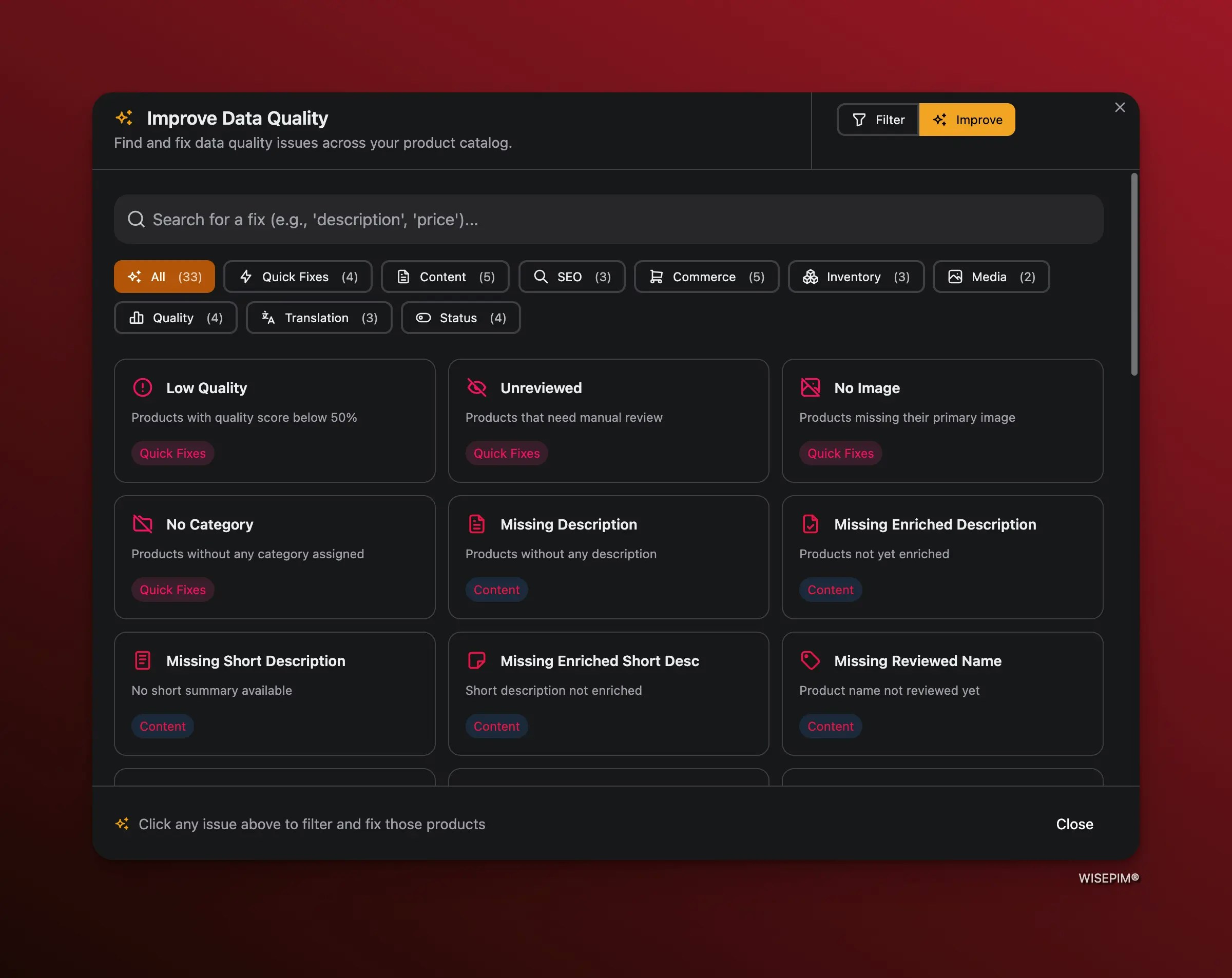
Available categories
| Category | Presets | Examples |
|---|---|---|
| Quick Fixes | 4 | Low Quality, Unreviewed, No Image, No Category |
| Content | 5 | Missing Description, Missing Enriched Description, Missing Short Description |
| SEO | 3 | Missing Meta Title, Missing Meta Description, Missing Keywords |
| Commerce | 5 | Missing Price, Missing EAN, Missing Brand |
| Inventory | 3 | Out of Stock, Low Stock, Missing Weight |
| Media | 2 | No Image, Missing Alt Text |
| Quality | 4 | Low Quality Score, Incomplete Products |
| Translation | 3 | Not Translated, Partially Translated |
| Status | 4 | Draft, Inactive, Unreviewed |
Saving filter presets
If you use the same filter combinations regularly, save them as presets.
You can rename or delete presets at any time from the filter modal.
Filter presets are saved in your browser. They persist across sessions but are specific to the browser you’re using.
Tips
- Combine search and filters — The search bar and advanced filters work together. Use search for quick lookups and filters for structured queries.
- Toggle conditions on/off — Disable individual filter conditions without deleting them, making it easy to experiment with different combinations.
- Save your most-used filters — If you filter for “unreviewed products” every morning, save it as a preset so it’s one click away.
- Use filters before bulk actions — Filter your products first, then select all matching results to apply bulk actions only to the products that need them.