

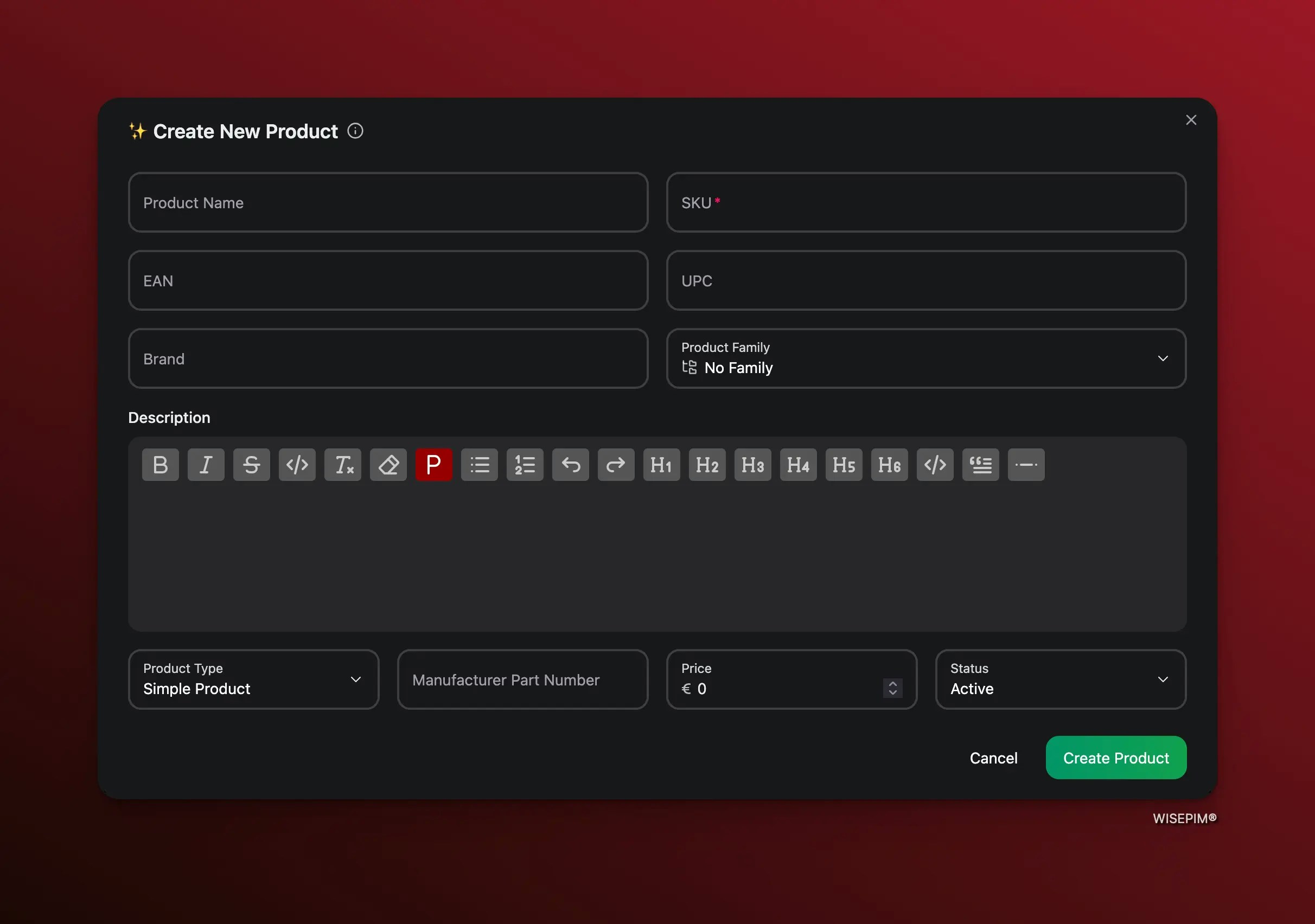
If you have product templates configured in Settings > Templates, new products are pre-filled with your default values for brand, price, status, product type, and more.
How it works
Fill in the product details
Enter the product name, SKU, and any other fields you want to set. See the full list of available fields below.
Available fields
Required
- SKU — The unique identifier for this product. You can type one manually or click the generate button to auto-create one from your SKU template pattern.
Optional
| Field | Description |
|---|---|
| Product Name | The display name of the product |
| EAN | European Article Number (barcode) |
| UPC | Universal Product Code |
| Brand | Product brand name |
| MPN | Manufacturer Part Number |
| Description | Full product description (rich text editor) |
| Product Type | Simple, Configurable (Parent), Bundle, or Virtual |
| Price | Regular selling price |
| Status | Active, Inactive, or Draft |
| Product Family | Assigns a set of attributes to the product |
Template defaults
When you have product templates configured, new products are automatically pre-filled with default values. This saves time and ensures consistency across your catalog. Template defaults can include:- Brand, supplier, and status
- Price and cost
- Product type and visibility
- Product family and category
- SEO fields (meta title and description patterns)
- Stock management settings
- Weight and dimension units
- Shipping requirements
Tips
- Set up templates first — Configure your product templates in Settings > Templates before creating products manually. This saves you from filling in the same defaults every time.
- Use product families — Assigning a product family automatically adds the right attributes to your product, so you don’t have to set them up individually.
- Import for bulk creation — If you need to add many products at once, importing from a spreadsheet or connected platform is faster than creating them one by one.