

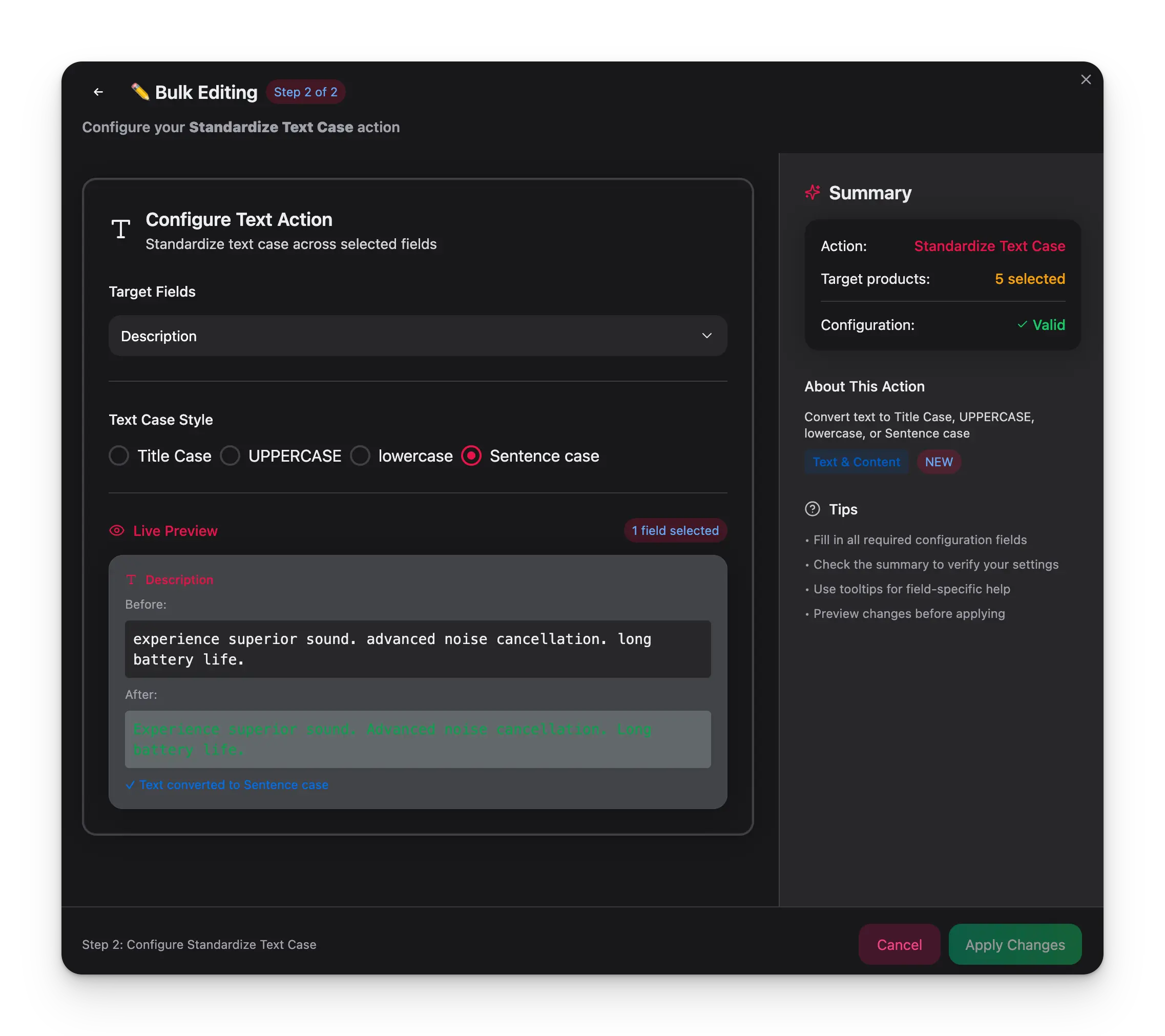
How to use it
Select products
Check the products you want to update, or use filters and select all matching results.
Open Bulk Edit and choose Standardize Text Case
Click Bulk Edit, then search for “Standardize Text Case” or find it under Text & Content.
Choose target fields
Select which fields to convert — product name, description, SEO fields, identifiers, brand, supplier, or custom text attributes.
Configuration options
| Case style | Example |
|---|---|
| Title Case | wireless bluetooth headphones → Wireless Bluetooth Headphones |
| UPPERCASE | wireless bluetooth headphones → WIRELESS BLUETOOTH HEADPHONES |
| lowercase | Wireless Bluetooth Headphones → wireless bluetooth headphones |
| Sentence case | wireless bluetooth headphones → Wireless bluetooth headphones |
Tips
- Title Case is the most common choice for product names — it gives a professional, consistent look.
- Use the live preview to verify the result before applying, especially with product names that contain abbreviations or brand-specific casing.
- You can apply this to multiple fields at once — for example, standardize both name and SEO title in a single action.