

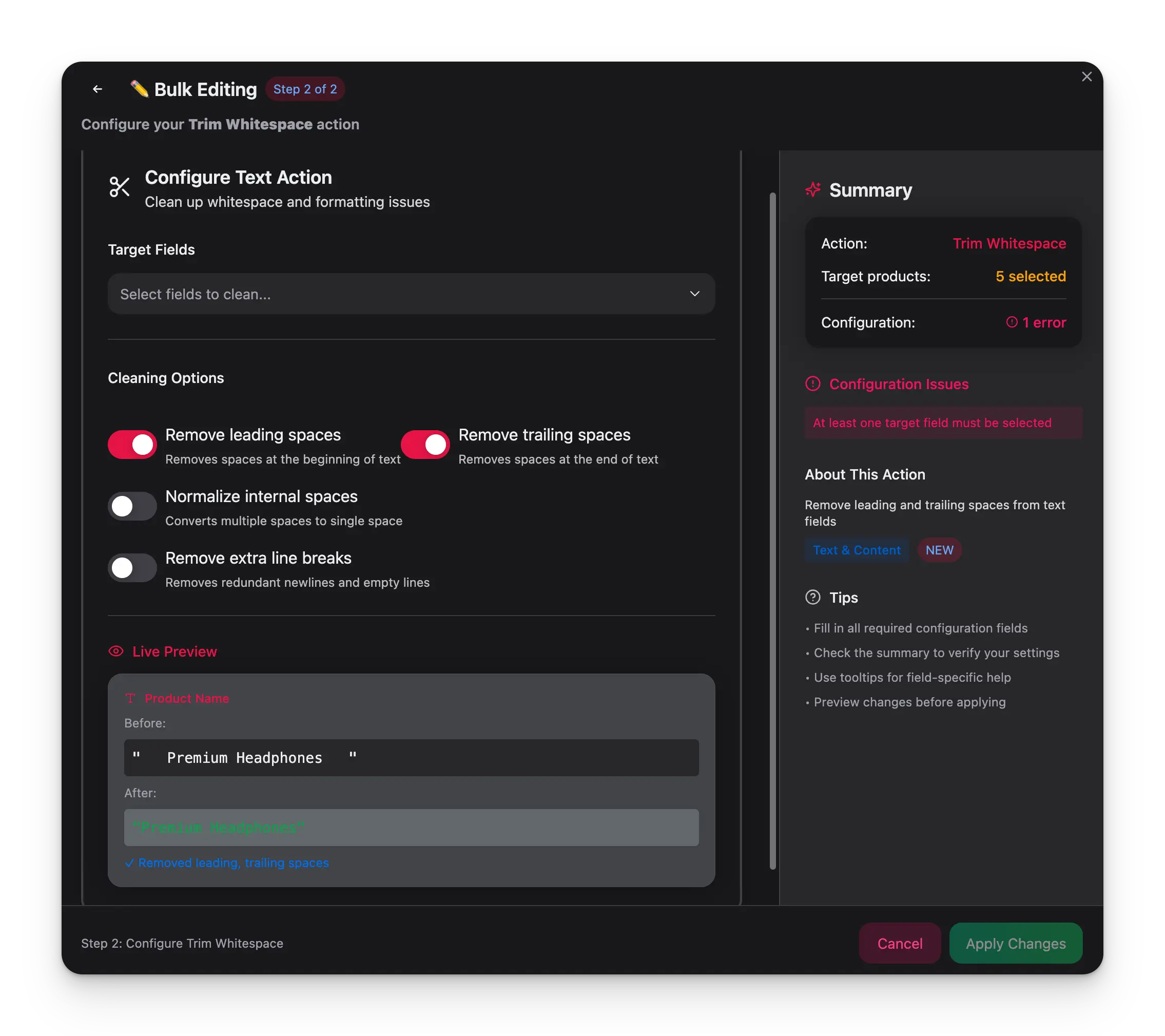
How to use it
Select products
Check the products you want to clean up, or use filters and select all matching results.
Open Bulk Edit and choose Trim Whitespace
Click Bulk Edit, then search for “Trim Whitespace” or find it under Text & Content.
Select cleanup options
Choose which types of whitespace to remove — leading, trailing, internal duplicates, or extra line breaks.
Configuration options
| Option | Description | Default |
|---|---|---|
| Remove leading spaces | Strip spaces from the beginning of text | On |
| Remove trailing spaces | Strip spaces from the end of text | On |
| Normalize internal spaces | Convert multiple consecutive spaces to a single space | Off |
| Remove extra line breaks | Remove redundant blank lines in multi-line text fields | Off |
Tips
- Run this as a routine cleanup after importing product data — CSV and Excel imports often introduce hidden whitespace.
- Enable Normalize internal spaces when you see double-spaced text scattered across product names or descriptions.
- This is a safe action — trimming whitespace won’t change the meaning of your content, so it’s a good first step before other text operations.