

How to use it
Select products
Check the products you want to categorize, or use filters and select all matching results.
Open Bulk Edit and choose Assign to Categories
Click Bulk Edit, then search for “Assign to Categories” or find it under Categories & Organization.
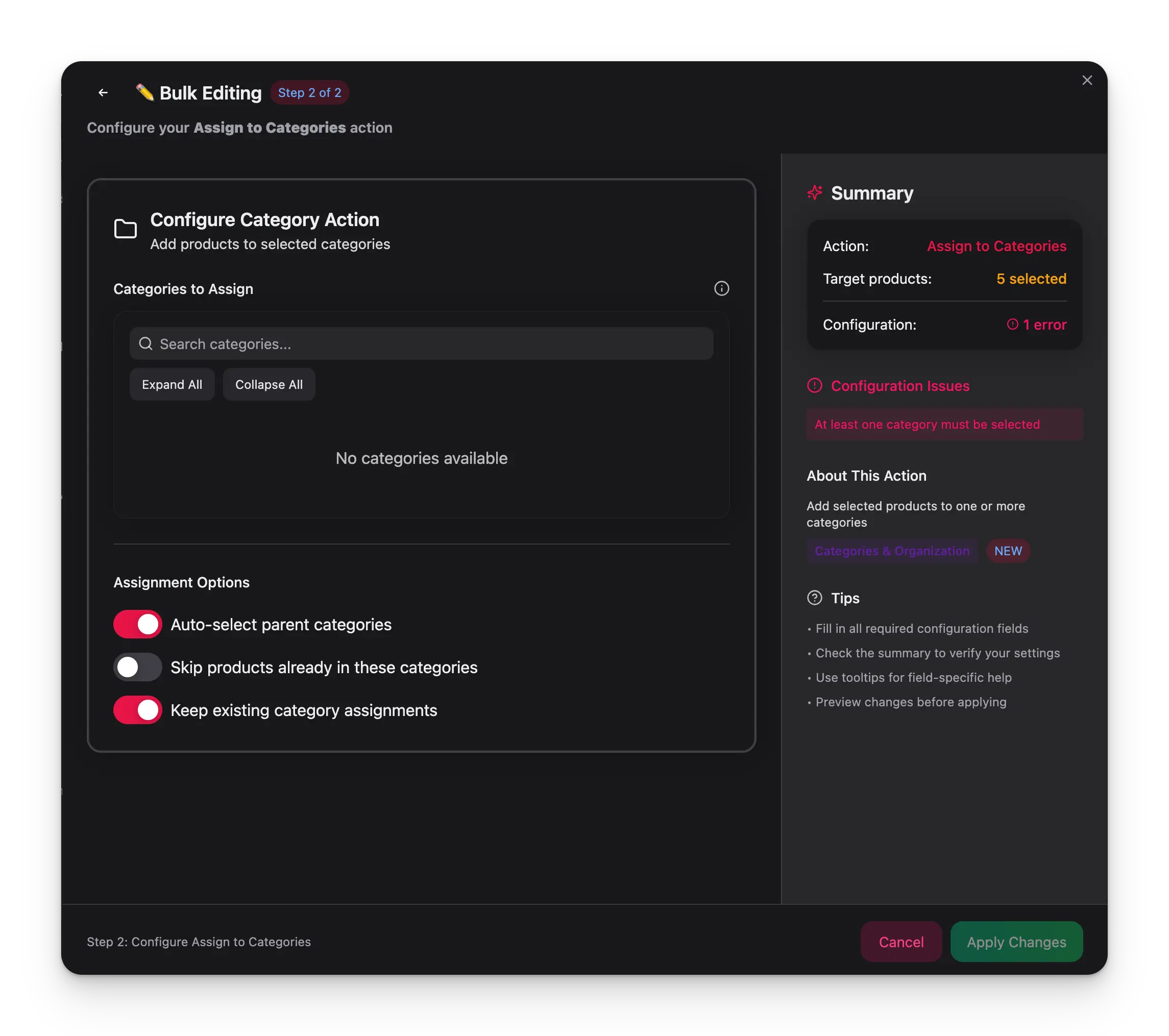
Select categories
Use the category tree to pick one or more categories. Parent categories are auto-selected by default.
Configuration options
| Option | Description | Default |
|---|---|---|
| Categories | One or more categories to assign (category tree selector) | — |
| Auto-select parent categories | Automatically include all parent categories when you select a child category | On |
| Skip products already in these categories | Skip assignment for products that are already in the selected categories | Off |
| Keep existing category assignments | Preserve current category assignments (adds to them rather than replacing) | On |
Tips
- Leave Auto-select parent categories on to ensure products are properly nested in the category tree — most e-commerce platforms require this.
- WisePIM detects and warns about parent-child conflicts, so you’ll know if your selection creates unexpected nesting.
- Use filters to narrow your product list first — for example, filter by brand, then bulk-assign all matching products to a brand-specific category.