

How to use it
Select products
Check the products you want to reprice, or use filters and select all matching results.
Open Bulk Edit and choose Change Price
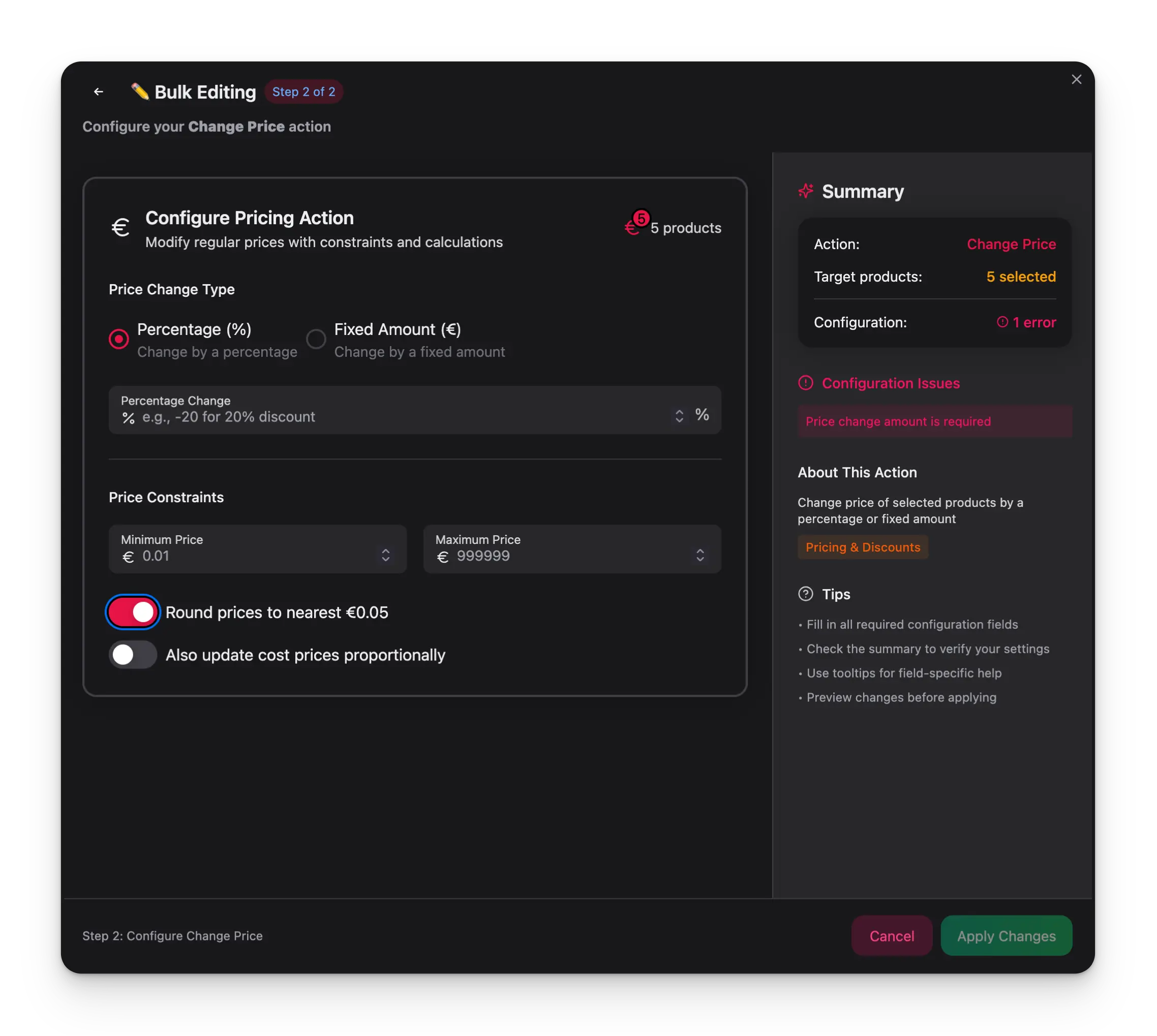
Click Bulk Edit, then search for “Change Price” or find it under Pricing & Discounts.
Choose the change type
Select Percentage to change by a % (e.g., +10% or -15%), or Fixed Amount to add/subtract a specific euro amount.
Set constraints and options
Optionally set minimum/maximum price bounds, enable rounding, and choose whether to update cost prices proportionally.
Configuration options
| Option | Description | Default |
|---|---|---|
| Change type | Percentage (%) or Fixed Amount (€) | — |
| Value | The percentage or amount to apply (positive to increase, negative to decrease) | — |
| Minimum price | Prices won’t go below this value | None |
| Maximum price | Prices won’t go above this value | None |
| Round prices | Round to the nearest €0.05 for cleaner pricing | Off |
| Also update cost prices proportionally | Apply the same change to cost prices so margins stay consistent | Off |
Tips
- Use the impact calculator to verify the change before applying — it shows the result on a €100 example product.
- Set a minimum price when applying discounts to prevent prices from going below your cost.
- Enable Also update cost prices proportionally when doing a catalog-wide price adjustment to keep your margin calculations accurate.