> ## Documentation Index
> Fetch the complete documentation index at: https://docs.wisepim.com/llms.txt
> Use this file to discover all available pages before exploring further.
# Voorraadstatus instellen
> Markeer producten in bulk als op voorraad, niet op voorraad of op nabestelling. Werk voorraadbeheer- en nabestelregels in één actie bij voor je hele catalogus.
Stel de beschikbaarheid van veel producten tegelijk in. Markeer een batch als niet op voorraad bij een leveranciersvertraging, zet artikelen weer open zodra de voorraad terug is, of zet producten op bestelling op nabestelling. Deze actie wijzigt alleen de statusvlag, niet het werkelijke aantal.
## Stel de status in
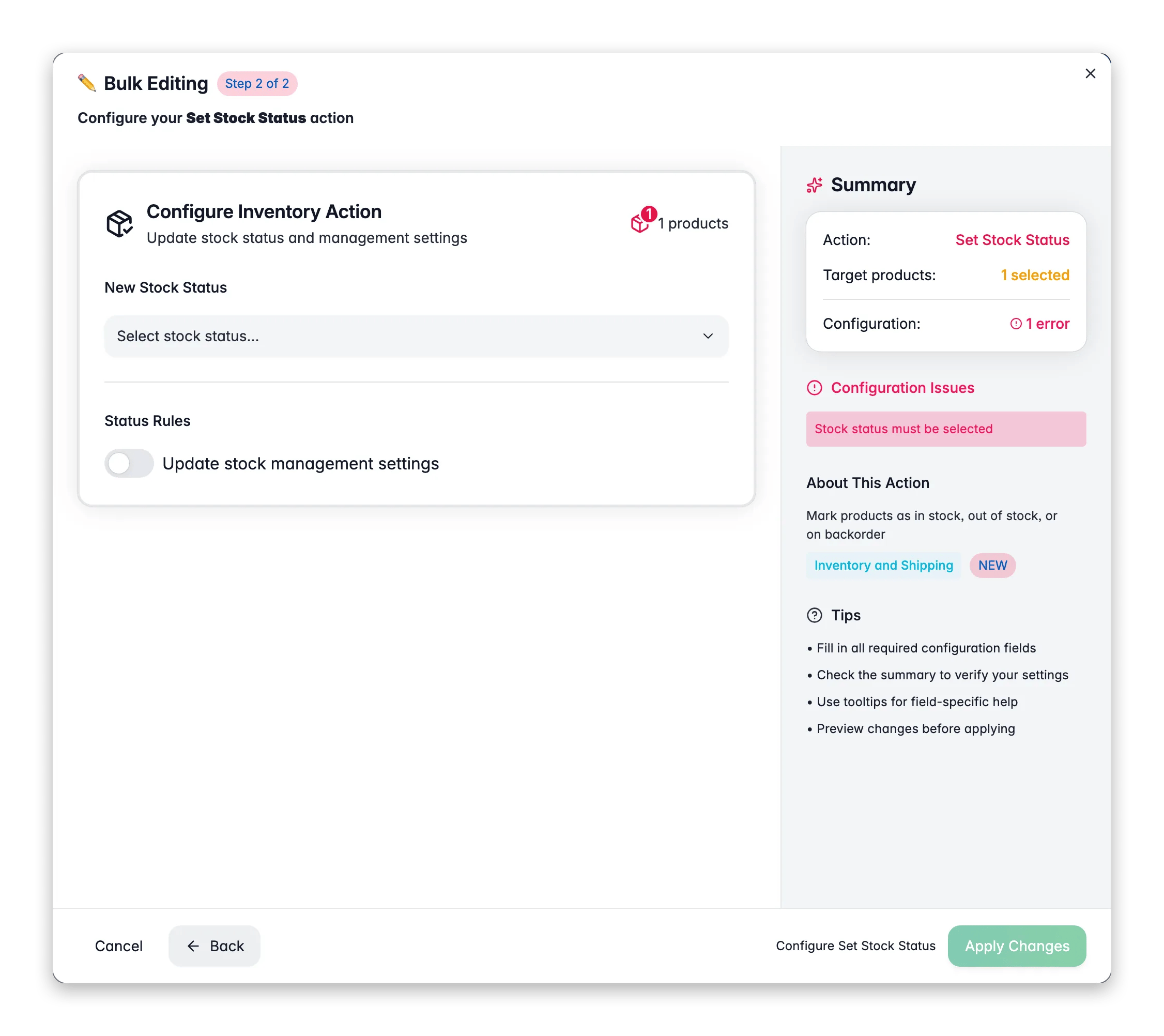
 Vink de producten aan die je wilt bijwerken. Of gebruik filters en selecteer alle overeenkomende resultaten.
Klik op **Bulkbewerking**, zoek vervolgens naar "Voorraadstatus" of vind het onder **Voorraad & Verzending**.
Kies **Op voorraad**, **Niet op voorraad** of **Op nabestelling**.
Werk optioneel het voorraadbeheer en de nabestelinstellingen bij en klik op **Toepassen**.
## Opties
| Optie | Beschrijving | Standaard |
| ------------------------------ | -------------------------------------------------------------------------------- | -------------- |
| **Voorraadstatus** | Op voorraad, Niet op voorraad of Op nabestelling | Geen standaard |
| **Voorraadbeheer inschakelen** | Hoeveelheidsgebaseerd voorraadbeheer inschakelen voor de geselecteerde producten | Aan |
| **Nabestellingen toestaan** | Klanten laten bestellen, ook wanneer de voorraad nul is | Uit |
Schakel **Nabestellingen toestaan** in voor producten die je nog kunt leveren bij een voorraad van nul, zoals artikelen op bestelling of print-on-demand.
Deze actie stelt alleen de statusvlag in. Het werkelijke voorraadaantal verandert niet. Gebruik [Voorraad bijwerken](/nl/essentials/bulk-editing/update-stock) om aantallen aan te passen.
## Gerelateerd
Stel het werkelijke voorraadaantal in of pas het aan voor je selectie.
Stel productgewichten in voor nauwkeurige verzendberekeningen.
Stel de beoordelingsstatus van producten in op Klaar, In behandeling of Controleren.
Blader door elke bulkbewerkingsactie per categorie.
Vink de producten aan die je wilt bijwerken. Of gebruik filters en selecteer alle overeenkomende resultaten.
Klik op **Bulkbewerking**, zoek vervolgens naar "Voorraadstatus" of vind het onder **Voorraad & Verzending**.
Kies **Op voorraad**, **Niet op voorraad** of **Op nabestelling**.
Werk optioneel het voorraadbeheer en de nabestelinstellingen bij en klik op **Toepassen**.
## Opties
| Optie | Beschrijving | Standaard |
| ------------------------------ | -------------------------------------------------------------------------------- | -------------- |
| **Voorraadstatus** | Op voorraad, Niet op voorraad of Op nabestelling | Geen standaard |
| **Voorraadbeheer inschakelen** | Hoeveelheidsgebaseerd voorraadbeheer inschakelen voor de geselecteerde producten | Aan |
| **Nabestellingen toestaan** | Klanten laten bestellen, ook wanneer de voorraad nul is | Uit |
Schakel **Nabestellingen toestaan** in voor producten die je nog kunt leveren bij een voorraad van nul, zoals artikelen op bestelling of print-on-demand.
Deze actie stelt alleen de statusvlag in. Het werkelijke voorraadaantal verandert niet. Gebruik [Voorraad bijwerken](/nl/essentials/bulk-editing/update-stock) om aantallen aan te passen.
## Gerelateerd
Stel het werkelijke voorraadaantal in of pas het aan voor je selectie.
Stel productgewichten in voor nauwkeurige verzendberekeningen.
Stel de beoordelingsstatus van producten in op Klaar, In behandeling of Controleren.
Blader door elke bulkbewerkingsactie per categorie.