> ## Documentation Index
> Fetch the complete documentation index at: https://docs.wisepim.com/llms.txt
> Use this file to discover all available pages before exploring further.
# Content Logic
> Build reusable variables, formulas, and conditional blocks that auto-generate product copy. Write a rule once, then apply it across your whole catalog.
Content Logic lets you define reusable variables, formulas, and conditional blocks. They generate and format your product content automatically. Write a rule once, then apply it across your entire catalog instead of repeating the same patterns by hand.
Content Logic is in **Beta**. Select a project, then open it from **Settings > Content Logic**.
## Why use Content Logic?
 Define a content pattern once. Apply it to hundreds or thousands of products automatically.
Use formulas and conditions so content adapts to each product's attributes, brand, or category.
Reshape content per channel: truncate for marketplaces, format for your webshop, strip HTML for feeds.
Stop copying and pasting. Let variables and conditions generate the content for you.
Content Logic needs your project to have **[product families](/en/products/product-families)**, **[categories](/en/other-features/managing-categories)**, and **[product attributes](/en/other-features/managing-attributes)** set up. Brand variables map to your product families. Category variables map to your categories.
## How variables work
Every variable uses the `{{scope.key}}` syntax. Type `{{` in any formula-enabled field to open the autocomplete dropdown and browse what is available.
```
{{product.name}} → the product's name
{{global.company_name}} → your company name
{{brand.tagline}} → the brand's tagline
{{category.material}} → the category's material
{{current.year}} → the current year
{{channel.description_short}} → the transformed description
```
WISEPIM resolves variables automatically whenever it processes content: on export, in AI prompts, in bulk actions, and anywhere else it generates content.
### The seven scopes
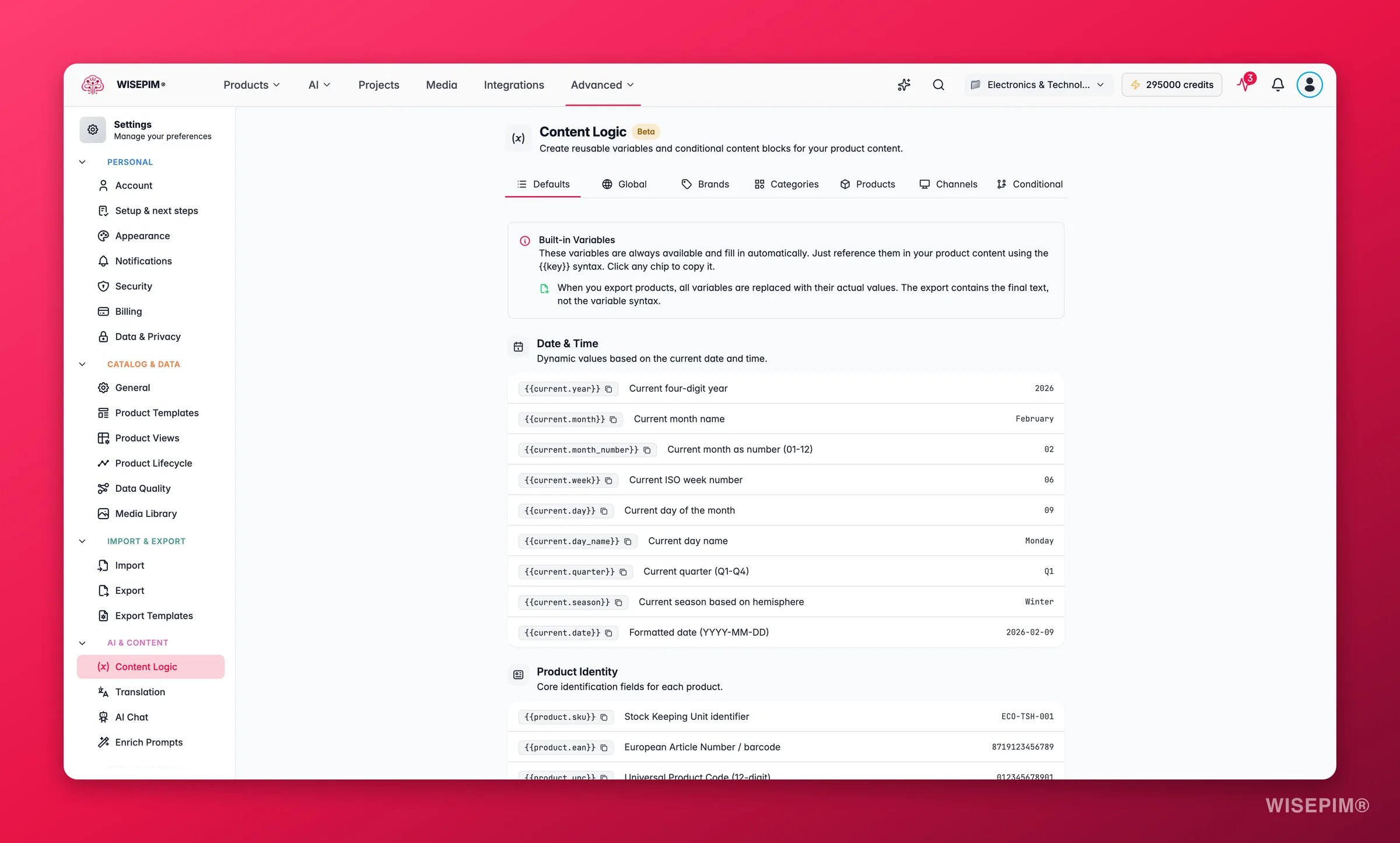
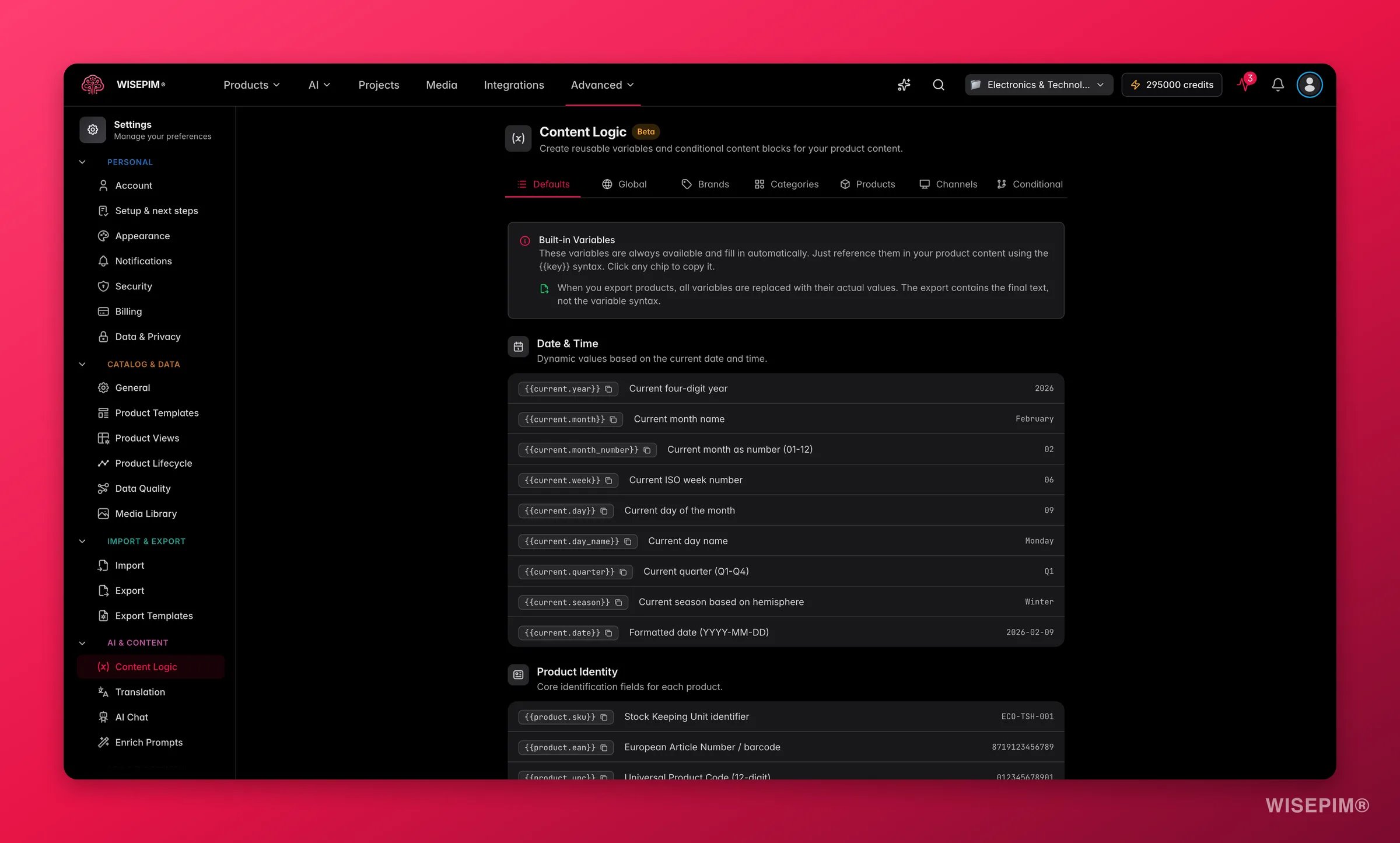
Content Logic groups variables into seven tabs. Each tab shows a count badge when it holds variables, so you can see at a glance which scopes you use.
| Tab | Syntax | What it is for |
| --------------- | -------------------------------- | ------------------------------------------------- |
| **Defaults** | `{{product.*}}`, `{{current.*}}` | Built-in variables that resolve from product data |
| **Global** | `{{global.*}}` | Shared values that stay the same on every product |
| **Brands** | `{{brand.*}}` | Values that differ per brand or product family |
| **Categories** | `{{category.*}}` | Values that differ per category |
| **Products** | `{{product.*}}` (custom) | Computed values from formulas on product fields |
| **Channels** | `{{channel.*}}` | Content reshaped for a specific sales channel |
| **Conditional** | `{{if key}}` | Content that changes based on product data |
## Default variables
[View examples and use cases →](/en/workflows/content-logic/default-variables)
The Defaults tab is a read-only list of every built-in variable. They resolve automatically, so you never create them. Your custom product attributes appear here too, referenced as `{{attribute.your_attribute_code}}`.
Browse the Defaults tab before you build custom variables. You might already have what you need.
| Variable | Example value |
| -------------------------- | ------------- |
| `{{current.year}}` | 2026 |
| `{{current.month}}` | February |
| `{{current.month_number}}` | 02 |
| `{{current.week}}` | 8 |
| `{{current.day}}` | 17 |
| `{{current.day_name}}` | Tuesday |
| `{{current.quarter}}` | Q1 |
| `{{current.season}}` | Winter |
| `{{current.date}}` | 2026-02-17 |
| Variable | Description |
| -------------------------- | ---------------------------------------------- |
| `{{product.sku}}` | Stock Keeping Unit |
| `{{product.ean}}` | European Article Number (barcode) |
| `{{product.upc}}` | Universal Product Code (12-digit) |
| `{{product.mpn}}` | Manufacturer Part Number |
| `{{product.brand}}` | Brand name |
| `{{product.supplier}}` | Supplier name |
| `{{product.family}}` | Product family |
| `{{product.category}}` | Primary category |
| `{{product.product_type}}` | Simple, Configurable, Virtual, Bundle, Grouped |
| Variable | Description |
| ------------------------------- | ----------------- |
| `{{product.name}}` | Product name |
| `{{product.description}}` | Full description |
| `{{product.short_description}}` | Short description |
| `{{product.meta_title}}` | SEO title |
| `{{product.meta_description}}` | SEO description |
| `{{product.meta_keywords}}` | SEO keywords |
| `{{product.main_image}}` | Main image URL |
| Variable | Description |
| ----------------------------- | ----------------------------- |
| `{{product.price}}` | Current selling price |
| `{{product.special_price}}` | Promotional price |
| `{{product.cost}}` | Purchase or cost price |
| `{{product.savings}}` | Price minus special price |
| `{{product.savings_percent}}` | Discount percentage |
| `{{product.margin}}` | Price minus cost |
| `{{product.margin_percent}}` | Margin as percentage of price |
| Variable | Description |
| --------------------------------------------------------------- | -------------------- |
| `{{product.weight}}` | Weight value |
| `{{product.weight_unit}}` | g, kg, oz, or lb |
| `{{product.length}}`, `{{product.width}}`, `{{product.height}}` | Dimension values |
| `{{product.dimension_unit}}` | mm, cm, m, in, or ft |
| Variable | Description |
| --------------------------------- | ------------------------------------------- |
| `{{product.stock_quantity}}` | Current stock level |
| `{{product.stock_status}}` | in\_stock, out\_of\_stock, or on\_backorder |
| `{{product.low_stock_threshold}}` | Low-stock alert threshold |
| Variable | Description |
| ------------------------------- | ---------------------- |
| `{{product.hs_code}}` | Harmonized System code |
| `{{product.country_of_origin}}` | ISO country code |
| Variable | Description |
| ------------------------------ | -------------------------------------- |
| `{{product.status}}` | active, inactive, pending, or archived |
| `{{product.completion_score}}` | Data completeness percentage |
| `{{product.quality_score}}` | Overall quality score |
| Variable | Description |
| -------------------------- | --------------------- |
| `{{global.name}}` | Store or company name |
| `{{global.url}}` | Website URL |
| `{{global.currency}}` | Currency symbol |
| `{{global.currency_code}}` | ISO currency code |
| `{{global.locale}}` | Locale setting |
## Global variables
[View examples and use cases →](/en/workflows/content-logic/global-variables)
Global variables are key-value pairs that stay the same on every product. Use them for company-wide values you reference often.
Go to **Settings > Content Logic** and click **Global**.
Click **Add Variable**. Enter a key (letters, numbers, and underscores only) and a value. The value field supports autocomplete. Type `{{` to reference other variables.
Reference it as `{{global.your_key}}` anywhere variables are supported.
### Common global variables
| Key | Example value | Use case |
| -------------------- | ------------------------------------------------- | -------------------------------- |
| `company_name` | ACME Industrial BV | Product descriptions, legal text |
| `website_url` | shop.example.com | CTAs and links |
| `support_email` | [support@example.com](mailto:support@example.com) | Contact information |
| `return_policy` | 30-day return policy, no questions asked. | Product pages, descriptions |
| `shipping_promise` | Free shipping on orders over €50. | Promotional content |
| `warranty_text` | 2-year manufacturer warranty included. | Product specs |
| `lead_time_text` | Ships within 3–5 business days. | B2B ordering info |
| `moq_default` | 1 | Default minimum order quantity |
| `compliance_general` | All products comply with EU regulations. | Legal and compliance footers |
A global variable can reference others in its value. For example, `return_policy` can include `{{global.company_name}}` to insert the company name automatically.
## Brand variables
[View examples and use cases →](/en/workflows/content-logic/brand-variables)
Brand variables let you define a set of fields and fill in different values per brand. They map to your **product families**: each product family is a brand. This is ideal when brands need different messaging, compliance statements, or specifications.
On the **Brands** tab, create the fields you want per brand. Each field has a **key**, a **label**, and a **type** (text, long text, or URL).
Select a brand from the dropdown and fill in the fields. A progress indicator shows how many are done, for example "3/5 filled".
Use `{{brand.your_key}}` in product content. WISEPIM resolves it from each product's brand.
### Field types
| Type | Input | Use case |
| ------------- | ------------------------- | --------------------------------------------- |
| **Text** | Single line | Taglines, short values |
| **Long text** | Multi-line textarea | Origin stories, compliance text, descriptions |
| **URL** | URL input with validation | Brand websites, logo URLs |
### Example fields
| Key | Label | Type | Brand A value | Brand B value |
| ----------------- | -------------- | --------- | ------------------------------------------ | ------------------------------------------ |
| `tagline` | Tagline | Text | Innovation for Life | Built to Last |
| `origin_story` | Origin Story | Long text | Founded in 1985 in Munich... | Family-owned since 1962... |
| `compliance_text` | Compliance | Long text | ISO 9001:2015 certified. REACH compliant. | CE marked. RoHS compliant. UL listed. |
| `website` | Website | URL | [https://brand-a.com](https://brand-a.com) | [https://brand-b.com](https://brand-b.com) |
| `moq` | Min. Order Qty | Text | 50 | 100 |
A product from Brand A gets "Innovation for Life" for `{{brand.tagline}}`. A product from Brand B gets "Built to Last".
## Category variables
[View examples and use cases →](/en/workflows/content-logic/category-variables)
Category variables work like brand variables, but they are scoped to product categories. Define a set of fields, then fill in values per category.
### Example fields
| Key | Label | Category: Fasteners | Category: Electrical |
| ------------------- | ----------- | ------------------------------------------------- | -------------------------------------------- |
| `material` | Material | Stainless Steel AISI 304 | Copper / PVC |
| `care_instructions` | Care | Store in dry conditions | Keep away from moisture |
| `short_intro` | Short Intro | High-grade fasteners for structural applications. | Electrical components for industrial wiring. |
| `size_guide_url` | Size Guide | /guides/fastener-sizes | /guides/wire-gauges |
Reference them as `{{category.material}}`, `{{category.care_instructions}}`, and so on. Each product gets the values for its primary category.
## Product variables (computed)
[View examples and use cases →](/en/workflows/content-logic/product-variables)
Product variables use formulas to compute new values from existing product data. They recalculate per product.
Go to **Settings > Content Logic** and click **Products**.
Click **Add Variable**. Enter a label, key, and formula. Use **Insert Field** and **Insert Operator** to build it, or type `{{` for autocomplete.
The live preview resolves your formula with sample data, so you can verify the output before saving.
### Formula operators
| Operator | Description | Example |
| -------- | ----------- | ------------------------------------------------------------------ |
| `+` | Add | `{{product.price}} + 10` |
| `-` | Subtract | `{{product.price}} - {{product.cost}}` |
| `*` | Multiply | `{{product.price}} * 1.21` |
| `/` | Divide | `{{product.price}} / {{product.stock_quantity}}` |
| `%` | Modulo | `{{product.stock_quantity}} % 12` |
| `( )` | Grouping | `({{product.price}} - {{product.cost}}) / {{product.price}} * 100` |
| Function | Description | Example |
| --------- | ------------------------ | ---------------------------------------------------- |
| `round()` | Round to nearest integer | `round({{product.price}} * 1.21)` |
| `floor()` | Round down | `floor({{product.margin_percent}})` |
| `ceil()` | Round up | `ceil({{product.weight}} / 0.5) * 0.5` |
| `min(,)` | Smaller of two values | `min({{product.price}}, 99.99)` |
| `max(,)` | Larger of two values | `max({{product.cost}} * 1.5, 9.99)` |
| `abs()` | Absolute value | `abs({{product.price}} - {{product.special_price}})` |
| Function | Description | Example |
| ------------- | -------------------- | ---------------------------------------------------- |
| `concat(,)` | Join two values | `concat({{product.brand}}, " - ", {{product.name}})` |
| `uppercase()` | Convert to UPPERCASE | `uppercase({{product.sku}})` |
| `lowercase()` | Convert to lowercase | `lowercase({{product.brand}})` |
### Use an operator as text
To show an operator character as literal text, put a backslash in front of it:
```
S\/M\/L → renders as "S/M/L" (no division)
10\% off → renders as "10% off" (no modulo)
```
### Example formulas
**Price including VAT:**
* Key: `price_incl_vat`
* Formula: `round({{product.price}} * 1.21 * 100) / 100`
* Result: 120.99 → `€146.40`
**Margin percentage (formatted):**
* Key: `margin_display`
* Formula: `round(({{product.price}} - {{product.cost}}) / {{product.price}} * 100)`
* Result: `42%`
**Display name with SKU:**
* Key: `display_name`
* Formula: `{{product.name}} ({{product.sku}})`
* Result: `Stainless Steel Hex Bolt M10x50 (SS-HB-M1050)`
**Price per kilogram:**
* Key: `price_per_kg`
* Formula: `round({{product.price}} / {{product.weight}} * 100) / 100`
* Result: `€15.29/kg`
Check that the fields you reference have values. An empty field resolves to an empty string, and math on empty values will not compute.
## Channel variables
[View examples and use cases →](/en/workflows/content-logic/channel-variables)
Channel variables reshape existing product content for a specific sales channel. Each one takes a source field and applies one or more rules in order.
Go to **Settings > Content Logic** and click **Channels**.
Click **Add Variable**. Enter a label and key, then pick the **source field** to transform.
Add one or more rules. They run in order: the output of one becomes the input for the next.
### Source fields
Description, Short Description, Product Name, Meta Title, Meta Description, Features.
### Transformation rules
| Rule | Parameters | What it does |
| ----------------- | ------------------------- | ------------------------------------------ |
| **Truncate** | Max length (default: 150) | Cuts text to a maximum character count |
| **Strip HTML** | None | Removes all HTML tags, leaving plain text |
| **Template** | Template string | Wraps or reformats content with a template |
| **Bullet Points** | Max bullets (default: 5) | Turns text into a bullet list |
Order your rules carefully. Strip HTML first, then truncate. Otherwise you might cut in the middle of an HTML tag.
### Example channel variables
**Amazon short description:**
* Source: Description
* Rules: Strip HTML → Bullet Points (max: 5) → Truncate (500)
* Result: Your full HTML description becomes a clean 5-bullet summary, capped at 500 characters.
**Google Shopping title:**
* Source: Product Name
* Rules: Template (`{{value}} - {{product.brand}} - Buy at {{global.company_name}}`) → Truncate (150)
* Result: "Stainless Steel Hex Bolt M10x50 - Fischer - Buy at Industrial Supplies BV"
**Marketplace plain-text description:**
* Source: Description
* Rules: Strip HTML → Truncate (2000)
* Result: Full description with formatting removed, capped at 2000 characters.
## Conditional blocks
[View examples and use cases →](/en/workflows/content-logic/conditional-blocks)
Conditional blocks show different content based on product data. They work like if/else statements for your content.
On the **Conditional** tab, click **Add Block**. Give it a name and key.
Pick a product field, choose an operator, and enter a value. Add more conditions and combine them with **AND** or **OR**.
Enter the content for when the conditions are met (**then**). Add optional **else if** branches for other cases, and an optional **else** for the fallback.
### Condition operators
Conditions can reference any product field, custom attribute, or date/time variable. The field selector groups them by category (Product Identity, Content, Pricing, Physical Properties, Inventory, Shipping, Status, Date & Time) and includes your custom attributes.
| Operator | Description | Needs value? |
| ----------------------- | --------------------------------- | ------------ |
| `equals` | Exact match | Yes |
| `not_equals` | Does not equal | Yes |
| `contains` | Contains substring | Yes |
| `not_contains` | Does not contain | Yes |
| `starts_with` | String starts with | Yes |
| `ends_with` | String ends with | Yes |
| `greater_than` | Numeric greater than | Yes |
| `less_than` | Numeric less than | Yes |
| `greater_than_or_equal` | Greater than or equal | Yes |
| `less_than_or_equal` | Less than or equal | Yes |
| `in_list` | Value is one of (comma-separated) | Yes |
| `is_empty` | Field has no value | No |
| `is_not_empty` | Field has a value | No |
| `is_true` | Boolean is true | No |
| `is_false` | Boolean is false | No |
### Example conditional blocks
**Free shipping banner:**
* Key: `free_shipping`
* IF `product.price` greater than `50` → `Free shipping included.`
* ELSE → `Shipping calculated at checkout.`
**Stock urgency message:**
* Key: `stock_message`
* IF `product.stock_quantity` less than `5` AND `product.stock_status` equals `in_stock` → `Only {{product.stock_quantity}} left, order soon.`
* ELSE IF `product.stock_status` equals `out_of_stock` → `Currently out of stock. {{global.restock_text}}`
* ELSE → `In stock and ready to ship.`
**Seasonal promotion:**
* Key: `seasonal_promo`
* IF `current.season` equals `Winter` → `Winter Sale: save {{product.savings_percent}}% today.`
* ELSE IF `current.season` equals `Summer` → `Summer clearance: {{product.savings_percent}}% off.`
* ELSE → *(empty, no promo outside sale seasons)*
**B2B lead time by category:**
* Key: `lead_time`
* IF `product.category` in\_list `Custom Orders, Made to Order` → `Lead time: 4–6 weeks. Contact us for expedited options.`
* ELSE IF `product.stock_quantity` greater than `0` → `In stock. {{global.lead_time_text}}`
* ELSE → `Available on backorder. {{global.backorder_lead_time}}`
**Hazardous material warning:**
* Key: `hazmat_notice`
* IF `product.is_dangerous_good` is\_true → `⚠ Hazardous material. Special shipping restrictions apply. {{brand.hazmat_handling}}`
* ELSE → *(empty)*
## Where you can use variables
Once defined, you can reference Content Logic variables in:
* **[Bulk editing](/en/essentials/bulk-editing)**: use variables in [Find and Replace](/en/essentials/bulk-editing/find-replace), [Append/Prepend](/en/essentials/bulk-editing/append-prepend), and [Set Field Value](/en/essentials/bulk-editing/set-field) to generate content at scale
* **[AI enrichment](/en/essentials/enriching-products) prompts**: add product context, brand guidelines, and category instructions to your prompts
* **[Export templates](/en/settings/templates)**: format output for different channels and platforms
* **[Automations](/en/automations/overview)**: reference variables in actions that generate or change content
## Save your changes
Content Logic detects when you make a change. A **save bar** appears at the bottom of the page:
* Click **Save** to keep your changes.
* Click **Undo** to revert to the last saved state.
Settings are saved at the project level. Every team member with project access shares the same variable definitions.
## Best practices
Begin with global variables for shared values like company name, shipping policy, and contact info. They are quick to set up and useful right away.
Name variables clearly: `warranty_text`, not `var1`. You reference these keys everywhere, so keep them readable.
After you create a block or formula, check it against different products. Use the live preview to catch issues early.
Combine scopes in one formula: globals for shared text, brand variables for manufacturer details, category variables for product-type details.
## Related
Apply variables across many products at once with bulk actions.
Inject variables into AI prompts for richer, on-brand content.
Format channel-ready output using your Content Logic variables.
Reference variables in automated actions that generate content.
Define a content pattern once. Apply it to hundreds or thousands of products automatically.
Use formulas and conditions so content adapts to each product's attributes, brand, or category.
Reshape content per channel: truncate for marketplaces, format for your webshop, strip HTML for feeds.
Stop copying and pasting. Let variables and conditions generate the content for you.
Content Logic needs your project to have **[product families](/en/products/product-families)**, **[categories](/en/other-features/managing-categories)**, and **[product attributes](/en/other-features/managing-attributes)** set up. Brand variables map to your product families. Category variables map to your categories.
## How variables work
Every variable uses the `{{scope.key}}` syntax. Type `{{` in any formula-enabled field to open the autocomplete dropdown and browse what is available.
```
{{product.name}} → the product's name
{{global.company_name}} → your company name
{{brand.tagline}} → the brand's tagline
{{category.material}} → the category's material
{{current.year}} → the current year
{{channel.description_short}} → the transformed description
```
WISEPIM resolves variables automatically whenever it processes content: on export, in AI prompts, in bulk actions, and anywhere else it generates content.
### The seven scopes
Content Logic groups variables into seven tabs. Each tab shows a count badge when it holds variables, so you can see at a glance which scopes you use.
| Tab | Syntax | What it is for |
| --------------- | -------------------------------- | ------------------------------------------------- |
| **Defaults** | `{{product.*}}`, `{{current.*}}` | Built-in variables that resolve from product data |
| **Global** | `{{global.*}}` | Shared values that stay the same on every product |
| **Brands** | `{{brand.*}}` | Values that differ per brand or product family |
| **Categories** | `{{category.*}}` | Values that differ per category |
| **Products** | `{{product.*}}` (custom) | Computed values from formulas on product fields |
| **Channels** | `{{channel.*}}` | Content reshaped for a specific sales channel |
| **Conditional** | `{{if key}}` | Content that changes based on product data |
## Default variables
[View examples and use cases →](/en/workflows/content-logic/default-variables)
The Defaults tab is a read-only list of every built-in variable. They resolve automatically, so you never create them. Your custom product attributes appear here too, referenced as `{{attribute.your_attribute_code}}`.
Browse the Defaults tab before you build custom variables. You might already have what you need.
| Variable | Example value |
| -------------------------- | ------------- |
| `{{current.year}}` | 2026 |
| `{{current.month}}` | February |
| `{{current.month_number}}` | 02 |
| `{{current.week}}` | 8 |
| `{{current.day}}` | 17 |
| `{{current.day_name}}` | Tuesday |
| `{{current.quarter}}` | Q1 |
| `{{current.season}}` | Winter |
| `{{current.date}}` | 2026-02-17 |
| Variable | Description |
| -------------------------- | ---------------------------------------------- |
| `{{product.sku}}` | Stock Keeping Unit |
| `{{product.ean}}` | European Article Number (barcode) |
| `{{product.upc}}` | Universal Product Code (12-digit) |
| `{{product.mpn}}` | Manufacturer Part Number |
| `{{product.brand}}` | Brand name |
| `{{product.supplier}}` | Supplier name |
| `{{product.family}}` | Product family |
| `{{product.category}}` | Primary category |
| `{{product.product_type}}` | Simple, Configurable, Virtual, Bundle, Grouped |
| Variable | Description |
| ------------------------------- | ----------------- |
| `{{product.name}}` | Product name |
| `{{product.description}}` | Full description |
| `{{product.short_description}}` | Short description |
| `{{product.meta_title}}` | SEO title |
| `{{product.meta_description}}` | SEO description |
| `{{product.meta_keywords}}` | SEO keywords |
| `{{product.main_image}}` | Main image URL |
| Variable | Description |
| ----------------------------- | ----------------------------- |
| `{{product.price}}` | Current selling price |
| `{{product.special_price}}` | Promotional price |
| `{{product.cost}}` | Purchase or cost price |
| `{{product.savings}}` | Price minus special price |
| `{{product.savings_percent}}` | Discount percentage |
| `{{product.margin}}` | Price minus cost |
| `{{product.margin_percent}}` | Margin as percentage of price |
| Variable | Description |
| --------------------------------------------------------------- | -------------------- |
| `{{product.weight}}` | Weight value |
| `{{product.weight_unit}}` | g, kg, oz, or lb |
| `{{product.length}}`, `{{product.width}}`, `{{product.height}}` | Dimension values |
| `{{product.dimension_unit}}` | mm, cm, m, in, or ft |
| Variable | Description |
| --------------------------------- | ------------------------------------------- |
| `{{product.stock_quantity}}` | Current stock level |
| `{{product.stock_status}}` | in\_stock, out\_of\_stock, or on\_backorder |
| `{{product.low_stock_threshold}}` | Low-stock alert threshold |
| Variable | Description |
| ------------------------------- | ---------------------- |
| `{{product.hs_code}}` | Harmonized System code |
| `{{product.country_of_origin}}` | ISO country code |
| Variable | Description |
| ------------------------------ | -------------------------------------- |
| `{{product.status}}` | active, inactive, pending, or archived |
| `{{product.completion_score}}` | Data completeness percentage |
| `{{product.quality_score}}` | Overall quality score |
| Variable | Description |
| -------------------------- | --------------------- |
| `{{global.name}}` | Store or company name |
| `{{global.url}}` | Website URL |
| `{{global.currency}}` | Currency symbol |
| `{{global.currency_code}}` | ISO currency code |
| `{{global.locale}}` | Locale setting |
## Global variables
[View examples and use cases →](/en/workflows/content-logic/global-variables)
Global variables are key-value pairs that stay the same on every product. Use them for company-wide values you reference often.
Go to **Settings > Content Logic** and click **Global**.
Click **Add Variable**. Enter a key (letters, numbers, and underscores only) and a value. The value field supports autocomplete. Type `{{` to reference other variables.
Reference it as `{{global.your_key}}` anywhere variables are supported.
### Common global variables
| Key | Example value | Use case |
| -------------------- | ------------------------------------------------- | -------------------------------- |
| `company_name` | ACME Industrial BV | Product descriptions, legal text |
| `website_url` | shop.example.com | CTAs and links |
| `support_email` | [support@example.com](mailto:support@example.com) | Contact information |
| `return_policy` | 30-day return policy, no questions asked. | Product pages, descriptions |
| `shipping_promise` | Free shipping on orders over €50. | Promotional content |
| `warranty_text` | 2-year manufacturer warranty included. | Product specs |
| `lead_time_text` | Ships within 3–5 business days. | B2B ordering info |
| `moq_default` | 1 | Default minimum order quantity |
| `compliance_general` | All products comply with EU regulations. | Legal and compliance footers |
A global variable can reference others in its value. For example, `return_policy` can include `{{global.company_name}}` to insert the company name automatically.
## Brand variables
[View examples and use cases →](/en/workflows/content-logic/brand-variables)
Brand variables let you define a set of fields and fill in different values per brand. They map to your **product families**: each product family is a brand. This is ideal when brands need different messaging, compliance statements, or specifications.
On the **Brands** tab, create the fields you want per brand. Each field has a **key**, a **label**, and a **type** (text, long text, or URL).
Select a brand from the dropdown and fill in the fields. A progress indicator shows how many are done, for example "3/5 filled".
Use `{{brand.your_key}}` in product content. WISEPIM resolves it from each product's brand.
### Field types
| Type | Input | Use case |
| ------------- | ------------------------- | --------------------------------------------- |
| **Text** | Single line | Taglines, short values |
| **Long text** | Multi-line textarea | Origin stories, compliance text, descriptions |
| **URL** | URL input with validation | Brand websites, logo URLs |
### Example fields
| Key | Label | Type | Brand A value | Brand B value |
| ----------------- | -------------- | --------- | ------------------------------------------ | ------------------------------------------ |
| `tagline` | Tagline | Text | Innovation for Life | Built to Last |
| `origin_story` | Origin Story | Long text | Founded in 1985 in Munich... | Family-owned since 1962... |
| `compliance_text` | Compliance | Long text | ISO 9001:2015 certified. REACH compliant. | CE marked. RoHS compliant. UL listed. |
| `website` | Website | URL | [https://brand-a.com](https://brand-a.com) | [https://brand-b.com](https://brand-b.com) |
| `moq` | Min. Order Qty | Text | 50 | 100 |
A product from Brand A gets "Innovation for Life" for `{{brand.tagline}}`. A product from Brand B gets "Built to Last".
## Category variables
[View examples and use cases →](/en/workflows/content-logic/category-variables)
Category variables work like brand variables, but they are scoped to product categories. Define a set of fields, then fill in values per category.
### Example fields
| Key | Label | Category: Fasteners | Category: Electrical |
| ------------------- | ----------- | ------------------------------------------------- | -------------------------------------------- |
| `material` | Material | Stainless Steel AISI 304 | Copper / PVC |
| `care_instructions` | Care | Store in dry conditions | Keep away from moisture |
| `short_intro` | Short Intro | High-grade fasteners for structural applications. | Electrical components for industrial wiring. |
| `size_guide_url` | Size Guide | /guides/fastener-sizes | /guides/wire-gauges |
Reference them as `{{category.material}}`, `{{category.care_instructions}}`, and so on. Each product gets the values for its primary category.
## Product variables (computed)
[View examples and use cases →](/en/workflows/content-logic/product-variables)
Product variables use formulas to compute new values from existing product data. They recalculate per product.
Go to **Settings > Content Logic** and click **Products**.
Click **Add Variable**. Enter a label, key, and formula. Use **Insert Field** and **Insert Operator** to build it, or type `{{` for autocomplete.
The live preview resolves your formula with sample data, so you can verify the output before saving.
### Formula operators
| Operator | Description | Example |
| -------- | ----------- | ------------------------------------------------------------------ |
| `+` | Add | `{{product.price}} + 10` |
| `-` | Subtract | `{{product.price}} - {{product.cost}}` |
| `*` | Multiply | `{{product.price}} * 1.21` |
| `/` | Divide | `{{product.price}} / {{product.stock_quantity}}` |
| `%` | Modulo | `{{product.stock_quantity}} % 12` |
| `( )` | Grouping | `({{product.price}} - {{product.cost}}) / {{product.price}} * 100` |
| Function | Description | Example |
| --------- | ------------------------ | ---------------------------------------------------- |
| `round()` | Round to nearest integer | `round({{product.price}} * 1.21)` |
| `floor()` | Round down | `floor({{product.margin_percent}})` |
| `ceil()` | Round up | `ceil({{product.weight}} / 0.5) * 0.5` |
| `min(,)` | Smaller of two values | `min({{product.price}}, 99.99)` |
| `max(,)` | Larger of two values | `max({{product.cost}} * 1.5, 9.99)` |
| `abs()` | Absolute value | `abs({{product.price}} - {{product.special_price}})` |
| Function | Description | Example |
| ------------- | -------------------- | ---------------------------------------------------- |
| `concat(,)` | Join two values | `concat({{product.brand}}, " - ", {{product.name}})` |
| `uppercase()` | Convert to UPPERCASE | `uppercase({{product.sku}})` |
| `lowercase()` | Convert to lowercase | `lowercase({{product.brand}})` |
### Use an operator as text
To show an operator character as literal text, put a backslash in front of it:
```
S\/M\/L → renders as "S/M/L" (no division)
10\% off → renders as "10% off" (no modulo)
```
### Example formulas
**Price including VAT:**
* Key: `price_incl_vat`
* Formula: `round({{product.price}} * 1.21 * 100) / 100`
* Result: 120.99 → `€146.40`
**Margin percentage (formatted):**
* Key: `margin_display`
* Formula: `round(({{product.price}} - {{product.cost}}) / {{product.price}} * 100)`
* Result: `42%`
**Display name with SKU:**
* Key: `display_name`
* Formula: `{{product.name}} ({{product.sku}})`
* Result: `Stainless Steel Hex Bolt M10x50 (SS-HB-M1050)`
**Price per kilogram:**
* Key: `price_per_kg`
* Formula: `round({{product.price}} / {{product.weight}} * 100) / 100`
* Result: `€15.29/kg`
Check that the fields you reference have values. An empty field resolves to an empty string, and math on empty values will not compute.
## Channel variables
[View examples and use cases →](/en/workflows/content-logic/channel-variables)
Channel variables reshape existing product content for a specific sales channel. Each one takes a source field and applies one or more rules in order.
Go to **Settings > Content Logic** and click **Channels**.
Click **Add Variable**. Enter a label and key, then pick the **source field** to transform.
Add one or more rules. They run in order: the output of one becomes the input for the next.
### Source fields
Description, Short Description, Product Name, Meta Title, Meta Description, Features.
### Transformation rules
| Rule | Parameters | What it does |
| ----------------- | ------------------------- | ------------------------------------------ |
| **Truncate** | Max length (default: 150) | Cuts text to a maximum character count |
| **Strip HTML** | None | Removes all HTML tags, leaving plain text |
| **Template** | Template string | Wraps or reformats content with a template |
| **Bullet Points** | Max bullets (default: 5) | Turns text into a bullet list |
Order your rules carefully. Strip HTML first, then truncate. Otherwise you might cut in the middle of an HTML tag.
### Example channel variables
**Amazon short description:**
* Source: Description
* Rules: Strip HTML → Bullet Points (max: 5) → Truncate (500)
* Result: Your full HTML description becomes a clean 5-bullet summary, capped at 500 characters.
**Google Shopping title:**
* Source: Product Name
* Rules: Template (`{{value}} - {{product.brand}} - Buy at {{global.company_name}}`) → Truncate (150)
* Result: "Stainless Steel Hex Bolt M10x50 - Fischer - Buy at Industrial Supplies BV"
**Marketplace plain-text description:**
* Source: Description
* Rules: Strip HTML → Truncate (2000)
* Result: Full description with formatting removed, capped at 2000 characters.
## Conditional blocks
[View examples and use cases →](/en/workflows/content-logic/conditional-blocks)
Conditional blocks show different content based on product data. They work like if/else statements for your content.
On the **Conditional** tab, click **Add Block**. Give it a name and key.
Pick a product field, choose an operator, and enter a value. Add more conditions and combine them with **AND** or **OR**.
Enter the content for when the conditions are met (**then**). Add optional **else if** branches for other cases, and an optional **else** for the fallback.
### Condition operators
Conditions can reference any product field, custom attribute, or date/time variable. The field selector groups them by category (Product Identity, Content, Pricing, Physical Properties, Inventory, Shipping, Status, Date & Time) and includes your custom attributes.
| Operator | Description | Needs value? |
| ----------------------- | --------------------------------- | ------------ |
| `equals` | Exact match | Yes |
| `not_equals` | Does not equal | Yes |
| `contains` | Contains substring | Yes |
| `not_contains` | Does not contain | Yes |
| `starts_with` | String starts with | Yes |
| `ends_with` | String ends with | Yes |
| `greater_than` | Numeric greater than | Yes |
| `less_than` | Numeric less than | Yes |
| `greater_than_or_equal` | Greater than or equal | Yes |
| `less_than_or_equal` | Less than or equal | Yes |
| `in_list` | Value is one of (comma-separated) | Yes |
| `is_empty` | Field has no value | No |
| `is_not_empty` | Field has a value | No |
| `is_true` | Boolean is true | No |
| `is_false` | Boolean is false | No |
### Example conditional blocks
**Free shipping banner:**
* Key: `free_shipping`
* IF `product.price` greater than `50` → `Free shipping included.`
* ELSE → `Shipping calculated at checkout.`
**Stock urgency message:**
* Key: `stock_message`
* IF `product.stock_quantity` less than `5` AND `product.stock_status` equals `in_stock` → `Only {{product.stock_quantity}} left, order soon.`
* ELSE IF `product.stock_status` equals `out_of_stock` → `Currently out of stock. {{global.restock_text}}`
* ELSE → `In stock and ready to ship.`
**Seasonal promotion:**
* Key: `seasonal_promo`
* IF `current.season` equals `Winter` → `Winter Sale: save {{product.savings_percent}}% today.`
* ELSE IF `current.season` equals `Summer` → `Summer clearance: {{product.savings_percent}}% off.`
* ELSE → *(empty, no promo outside sale seasons)*
**B2B lead time by category:**
* Key: `lead_time`
* IF `product.category` in\_list `Custom Orders, Made to Order` → `Lead time: 4–6 weeks. Contact us for expedited options.`
* ELSE IF `product.stock_quantity` greater than `0` → `In stock. {{global.lead_time_text}}`
* ELSE → `Available on backorder. {{global.backorder_lead_time}}`
**Hazardous material warning:**
* Key: `hazmat_notice`
* IF `product.is_dangerous_good` is\_true → `⚠ Hazardous material. Special shipping restrictions apply. {{brand.hazmat_handling}}`
* ELSE → *(empty)*
## Where you can use variables
Once defined, you can reference Content Logic variables in:
* **[Bulk editing](/en/essentials/bulk-editing)**: use variables in [Find and Replace](/en/essentials/bulk-editing/find-replace), [Append/Prepend](/en/essentials/bulk-editing/append-prepend), and [Set Field Value](/en/essentials/bulk-editing/set-field) to generate content at scale
* **[AI enrichment](/en/essentials/enriching-products) prompts**: add product context, brand guidelines, and category instructions to your prompts
* **[Export templates](/en/settings/templates)**: format output for different channels and platforms
* **[Automations](/en/automations/overview)**: reference variables in actions that generate or change content
## Save your changes
Content Logic detects when you make a change. A **save bar** appears at the bottom of the page:
* Click **Save** to keep your changes.
* Click **Undo** to revert to the last saved state.
Settings are saved at the project level. Every team member with project access shares the same variable definitions.
## Best practices
Begin with global variables for shared values like company name, shipping policy, and contact info. They are quick to set up and useful right away.
Name variables clearly: `warranty_text`, not `var1`. You reference these keys everywhere, so keep them readable.
After you create a block or formula, check it against different products. Use the live preview to catch issues early.
Combine scopes in one formula: globals for shared text, brand variables for manufacturer details, category variables for product-type details.
## Related
Apply variables across many products at once with bulk actions.
Inject variables into AI prompts for richer, on-brand content.
Format channel-ready output using your Content Logic variables.
Reference variables in automated actions that generate content.