> ## Documentation Index
> Fetch the complete documentation index at: https://docs.wisepim.com/llms.txt
> Use this file to discover all available pages before exploring further.
# Translation
> Control how AI translates your product content: set the tone, add per-field rules, override languages and categories, and lock in terms with a dictionary.
## What you can do here
Translation settings decide how the AI translates your products. Set them once, and every AI translation in your project follows the same rules. You stay in control of tone, terminology, and which fields get translated.
These settings apply to all AI translations, including bulk translations from [Translating Products](/en/products/translating-products). Changes affect future translations only. Content you already translated stays as it is.
The page has five tabs. Start with **General** for project-wide rules, then add more specific rules only where you need them.
Set the default mode, tone, and content handling for the whole project.
Add rules for a single field, like a character limit on the product name.
Override the tone or formality for one language.
Use different terminology for a group of products.
Lock in how specific terms translate across every language.
## General
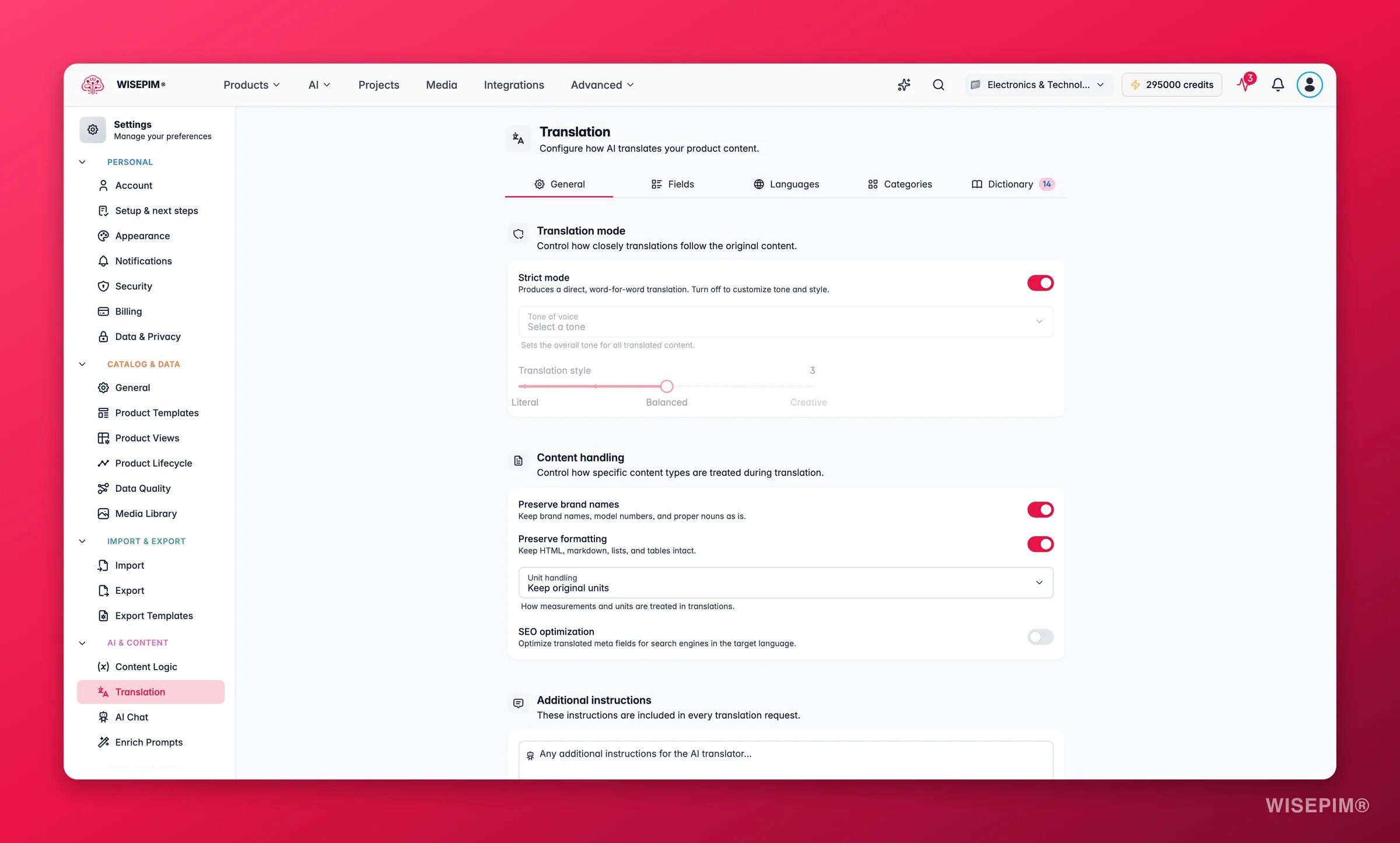
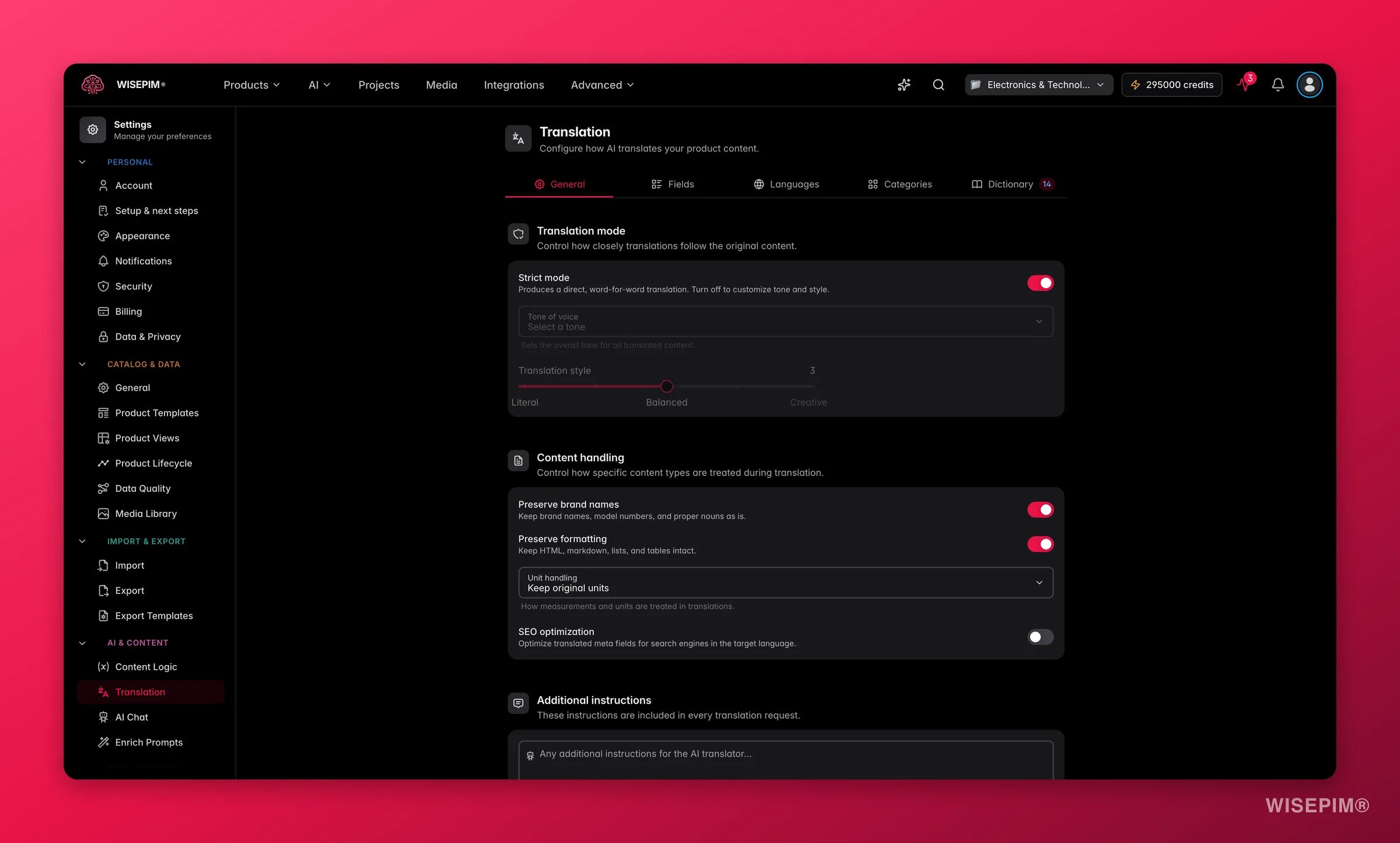 The General tab sets the default behavior for all fields and languages.
### Translation mode
| Setting | What it does |
| --------------------- | ------------------------------------------------------------------------------------------------------------------------------------------------------------------- |
| **Strict mode** | On by default. Translates word for word with no style changes. The safest choice for technical or regulated content. Turn it off to control tone and style. |
| **Tone of voice** | Pick a preset like professional, casual, or persuasive. Or choose **Custom** to describe your own tone. Available only when strict mode is off. |
| **Translation style** | A slider from **Literal** (1) to **Balanced** (3) to **Creative** (5). Higher values let the AI adapt phrasing more freely. Available only when strict mode is off. |
### Content handling
Decide how the AI treats specific content during translation.
* **Preserve brand names**: keeps brand names, model numbers, and proper nouns untranslated. On by default.
* **Preserve formatting**: keeps HTML, markdown, lists, and tables intact. On by default.
* **SEO optimization**: optimizes translated meta fields for search in the target language. Off by default.
* **Unit handling**: choose how measurements convert.
| Option | What happens |
| ----------------------- | ------------------------------------------------------------------------- |
| **Keep original units** | Units stay as they are (inches remain inches). |
| **Convert units** | Units switch to the target locale's standard (inches become centimeters). |
| **Show both** | The original and converted units both appear. |
### Additional instructions
A free-text field for custom rules that apply to every translation. Use it for project-wide notes like "Always use formal language" or "Never abbreviate product names."
## Fields
The General tab sets the default behavior for all fields and languages.
### Translation mode
| Setting | What it does |
| --------------------- | ------------------------------------------------------------------------------------------------------------------------------------------------------------------- |
| **Strict mode** | On by default. Translates word for word with no style changes. The safest choice for technical or regulated content. Turn it off to control tone and style. |
| **Tone of voice** | Pick a preset like professional, casual, or persuasive. Or choose **Custom** to describe your own tone. Available only when strict mode is off. |
| **Translation style** | A slider from **Literal** (1) to **Balanced** (3) to **Creative** (5). Higher values let the AI adapt phrasing more freely. Available only when strict mode is off. |
### Content handling
Decide how the AI treats specific content during translation.
* **Preserve brand names**: keeps brand names, model numbers, and proper nouns untranslated. On by default.
* **Preserve formatting**: keeps HTML, markdown, lists, and tables intact. On by default.
* **SEO optimization**: optimizes translated meta fields for search in the target language. Off by default.
* **Unit handling**: choose how measurements convert.
| Option | What happens |
| ----------------------- | ------------------------------------------------------------------------- |
| **Keep original units** | Units stay as they are (inches remain inches). |
| **Convert units** | Units switch to the target locale's standard (inches become centimeters). |
| **Show both** | The original and converted units both appear. |
### Additional instructions
A free-text field for custom rules that apply to every translation. Use it for project-wide notes like "Always use formal language" or "Never abbreviate product names."
## Fields
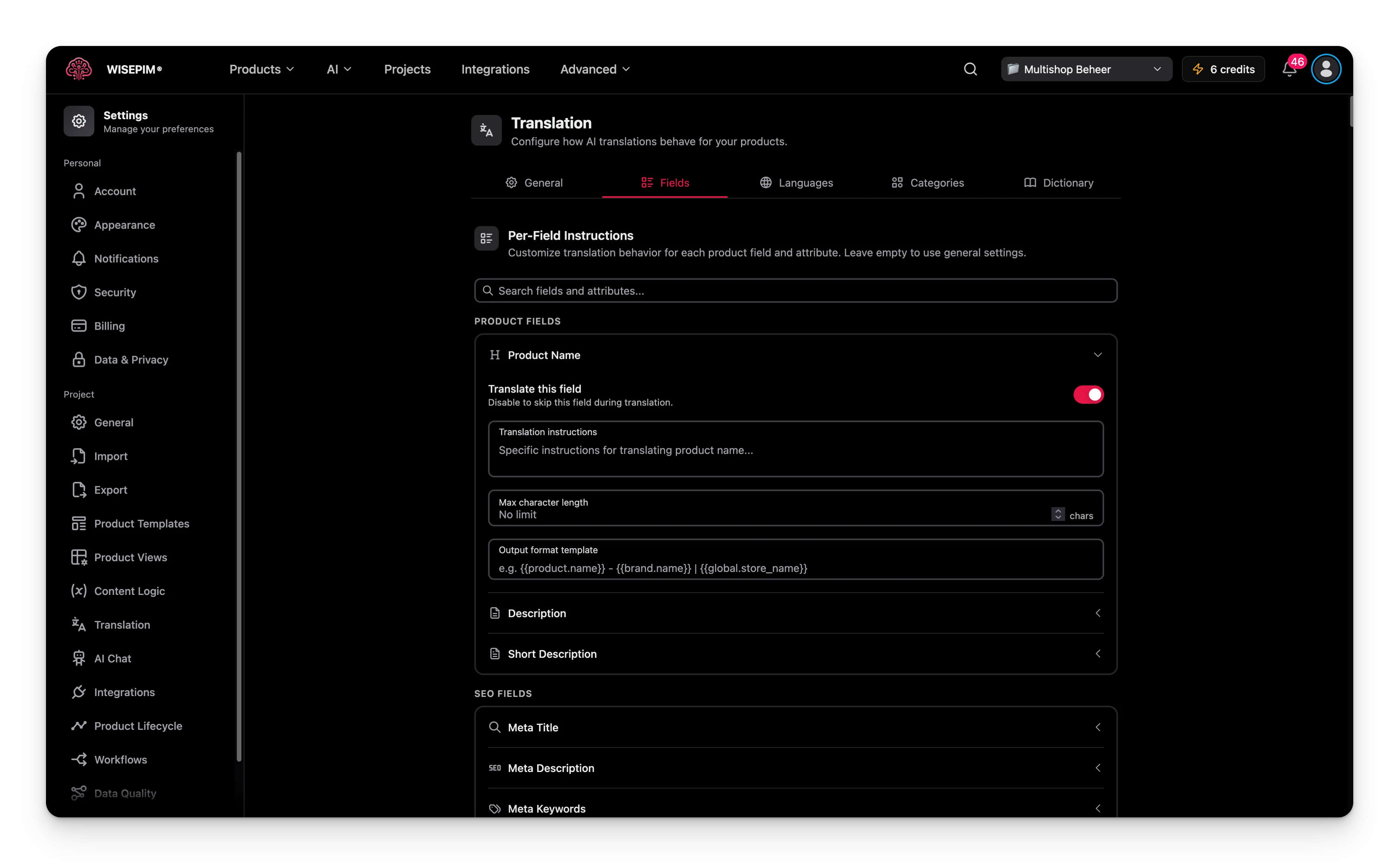 Use the Fields tab to set rules for a single product field. Leave a field empty to use the General settings.
These built-in fields are always available:
* **Product Name**
* **Description**
* **Short Description**
* **Meta Title** (SEO)
* **Meta Description** (SEO)
* **Meta Keywords** (SEO)
Custom attributes from your catalog appear here too, grouped by attribute group. You configure them the same way.
Use the search bar at the top of the Fields tab to find a field or attribute by name.
### Set rules for one field
Expand any field to configure these options:
* **Translate this field**: turn translation on or off for this field. Useful for fields you want to skip, like SKU-based names.
* **Translation instructions**: rules that apply to this field only, such as "Keep the product name under 60 characters."
* **Max character length**: limit the length of the translated output. Leave empty for no limit.
* **Output format template**: build the output from variables.
| Variable | What it inserts |
| ------------------------- | ------------------------------------------------------------------ |
| `{{product.name}}` | The product's name. |
| `{{product.description}}` | The product's description. |
| `{{brand.name}}` | The product's brand name. |
| `{{global.store_name}}` | Your store name. |
| `{{attribute.code}}` | A custom attribute value (replace `code` with the attribute code). |
For example, a template of `{{product.name}} | {{brand.name}}` produces "Wireless Headphones | SoundMax" in the output.
## Languages
Use the Fields tab to set rules for a single product field. Leave a field empty to use the General settings.
These built-in fields are always available:
* **Product Name**
* **Description**
* **Short Description**
* **Meta Title** (SEO)
* **Meta Description** (SEO)
* **Meta Keywords** (SEO)
Custom attributes from your catalog appear here too, grouped by attribute group. You configure them the same way.
Use the search bar at the top of the Fields tab to find a field or attribute by name.
### Set rules for one field
Expand any field to configure these options:
* **Translate this field**: turn translation on or off for this field. Useful for fields you want to skip, like SKU-based names.
* **Translation instructions**: rules that apply to this field only, such as "Keep the product name under 60 characters."
* **Max character length**: limit the length of the translated output. Leave empty for no limit.
* **Output format template**: build the output from variables.
| Variable | What it inserts |
| ------------------------- | ------------------------------------------------------------------ |
| `{{product.name}}` | The product's name. |
| `{{product.description}}` | The product's description. |
| `{{brand.name}}` | The product's brand name. |
| `{{global.store_name}}` | Your store name. |
| `{{attribute.code}}` | A custom attribute value (replace `code` with the attribute code). |
For example, a template of `{{product.name}} | {{brand.name}}` produces "Wireless Headphones | SoundMax" in the output.
## Languages
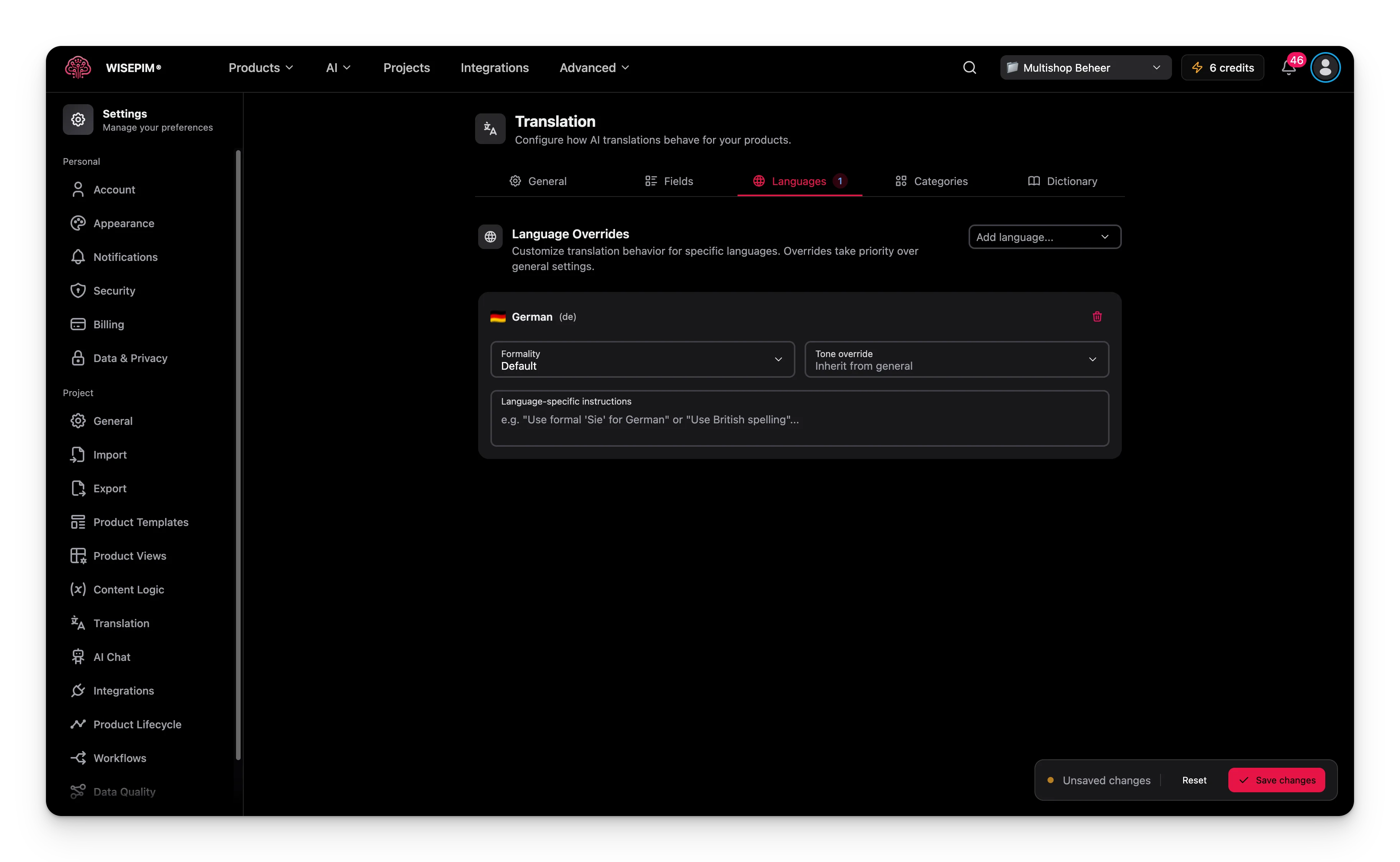 Use the Languages tab to change how the AI translates into one language. These overrides win over the General settings.
Click **Add language** and pick a locale from your project. Each language override includes:
* **Formality**: choose **Default**, **Formal**, **Informal**, or **Neutral**. This helps with languages that have a formal and informal form, like "Sie" and "du" in German.
* **Tone override**: set a different tone for this language. Choose "Inherit from general" to keep the project tone.
* **Language-specific instructions**: rules for this language only, such as "Use British spelling for English."
You can add one override per locale in your project.
## Categories
Use the Categories tab when a group of products needs its own terminology or style. For example, electronics may need technical terms while children's products need a playful tone.
Click **Add category** and pick categories from your catalog tree. For each one you can set:
* **Translation instructions**: rules for this category, such as "Use technical terminology for electronics."
* **Terminology notes**: preferred terms, glossary notes, and naming conventions for this category.
## Dictionary
Use the Languages tab to change how the AI translates into one language. These overrides win over the General settings.
Click **Add language** and pick a locale from your project. Each language override includes:
* **Formality**: choose **Default**, **Formal**, **Informal**, or **Neutral**. This helps with languages that have a formal and informal form, like "Sie" and "du" in German.
* **Tone override**: set a different tone for this language. Choose "Inherit from general" to keep the project tone.
* **Language-specific instructions**: rules for this language only, such as "Use British spelling for English."
You can add one override per locale in your project.
## Categories
Use the Categories tab when a group of products needs its own terminology or style. For example, electronics may need technical terms while children's products need a playful tone.
Click **Add category** and pick categories from your catalog tree. For each one you can set:
* **Translation instructions**: rules for this category, such as "Use technical terminology for electronics."
* **Terminology notes**: preferred terms, glossary notes, and naming conventions for this category.
## Dictionary
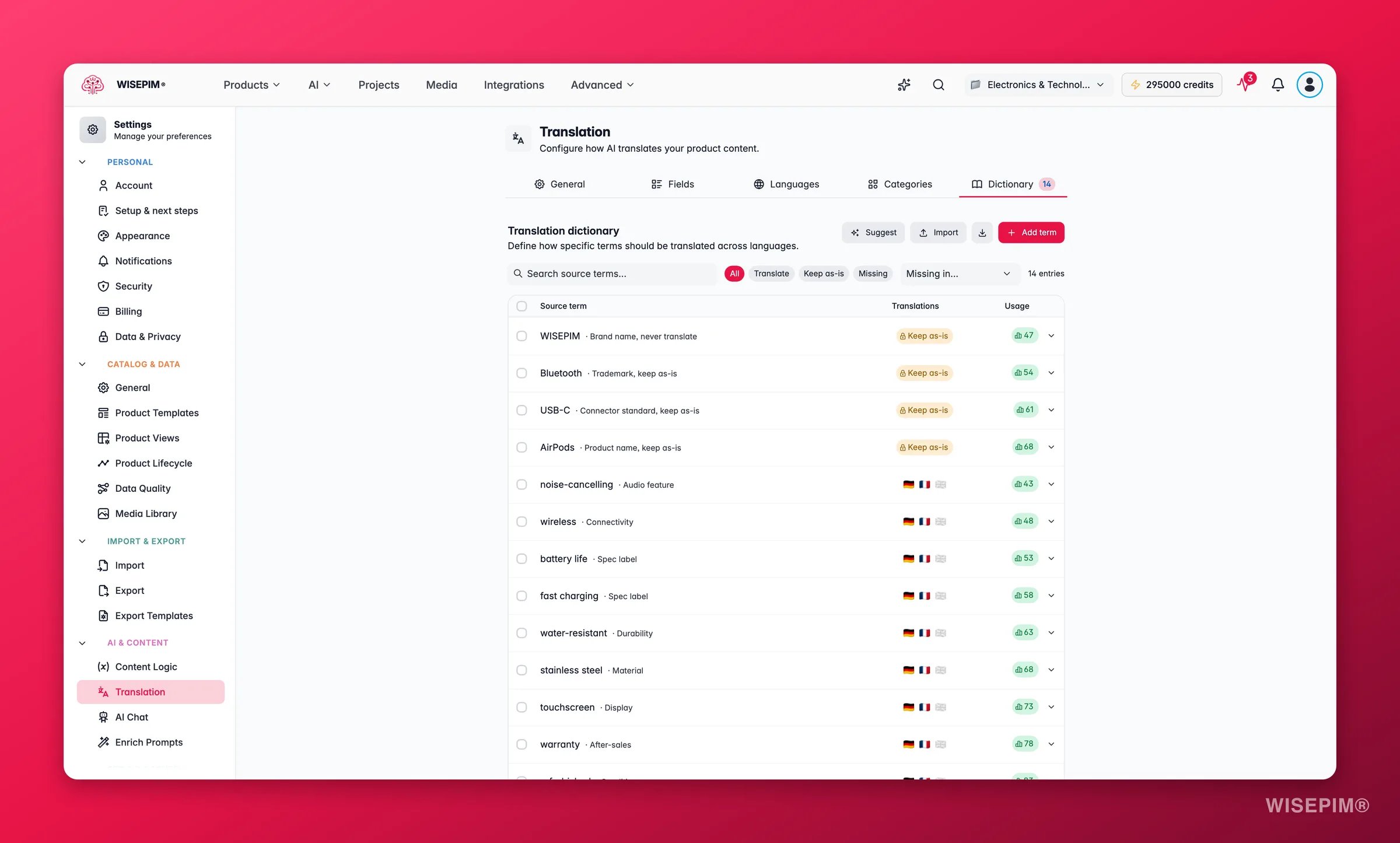
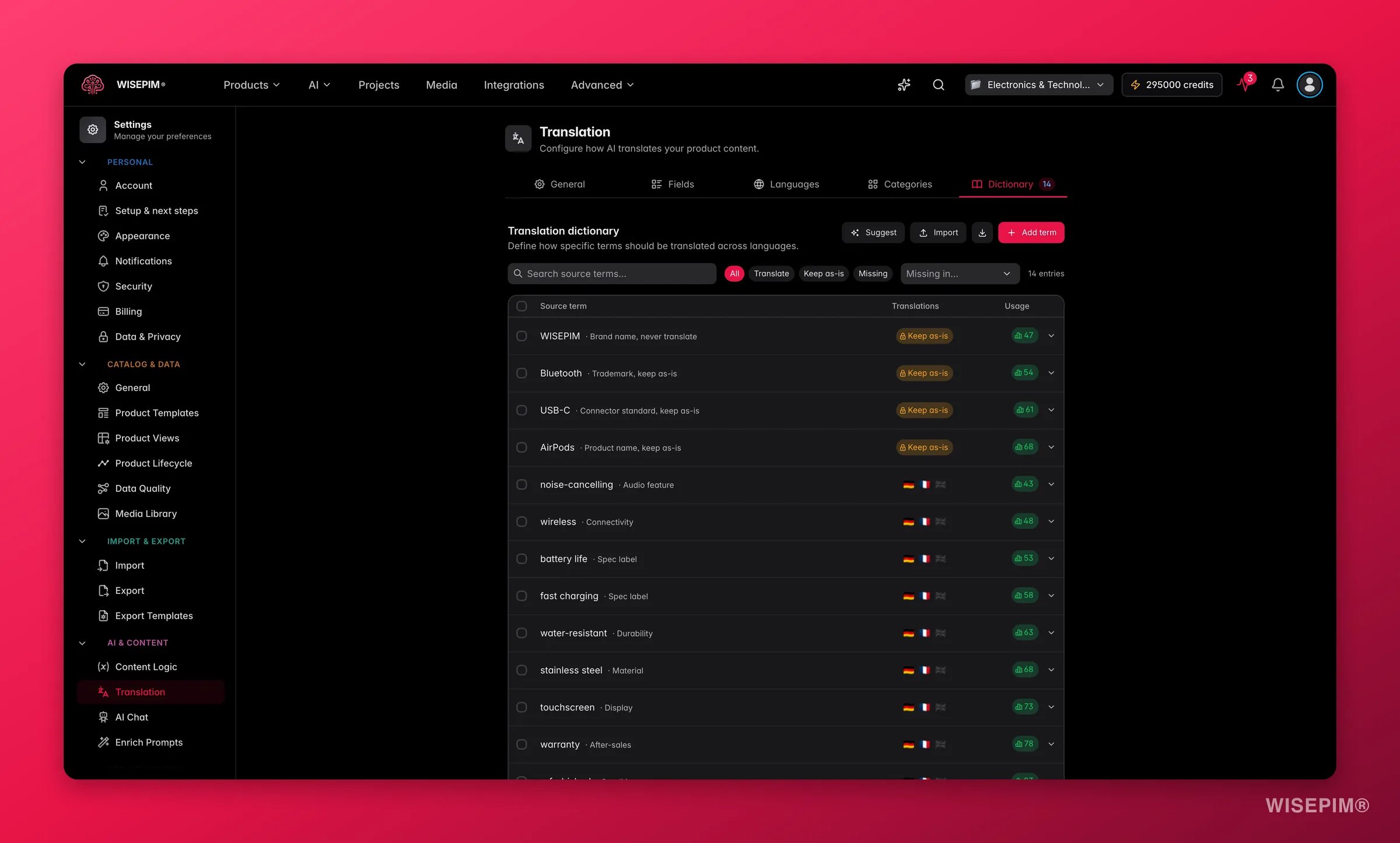 Use the Dictionary to fix how key terms translate across every language. This keeps your terminology consistent throughout the catalog.
### Add a term
A new entry appears.
Type the original term in your primary language.
Fill in one field for each target language to set the exact translation.
Use the context field to clarify meaning, such as "audio product category" versus "computer mouse."
To keep a term untranslated in every language, turn on **Keep as-is**. This is useful for brand names, product codes, and technical terms.
### Edit many terms at once
Click **Bulk edit** to switch to a text editor for adding or changing several terms together. The format is:
```
wireless headphones
context: audio product category
de: kabellose Kopfhorer
fr: casques sans fil
WISEPIM | keep-as-is
```
Start each entry with the source term on its own line. Indent the lines below it to set the context and the translation per language. Add `| keep-as-is` after a term to keep it untranslated.
## Save your changes
When you change any setting, a save bar appears at the bottom:
* **Save changes**: saves your translation settings to the project.
* **Reset**: discards all changes since your last save.
## Related
Translate your catalog in bulk using these settings.
Add or manage the locales in your project.
Reuse saved instructions across AI tasks.
Use the Dictionary to fix how key terms translate across every language. This keeps your terminology consistent throughout the catalog.
### Add a term
A new entry appears.
Type the original term in your primary language.
Fill in one field for each target language to set the exact translation.
Use the context field to clarify meaning, such as "audio product category" versus "computer mouse."
To keep a term untranslated in every language, turn on **Keep as-is**. This is useful for brand names, product codes, and technical terms.
### Edit many terms at once
Click **Bulk edit** to switch to a text editor for adding or changing several terms together. The format is:
```
wireless headphones
context: audio product category
de: kabellose Kopfhorer
fr: casques sans fil
WISEPIM | keep-as-is
```
Start each entry with the source term on its own line. Indent the lines below it to set the context and the translation per language. Add `| keep-as-is` after a term to keep it untranslated.
## Save your changes
When you change any setting, a save bar appears at the bottom:
* **Save changes**: saves your translation settings to the project.
* **Reset**: discards all changes since your last save.
## Related
Translate your catalog in bulk using these settings.
Add or manage the locales in your project.
Reuse saved instructions across AI tasks.