> ## Documentation Index
> Fetch the complete documentation index at: https://docs.wisepim.com/llms.txt
> Use this file to discover all available pages before exploring further.
# Security Settings
> Keep your WISEPIM account safe. Change your password, review where you are signed in, and follow simple habits to stay protected.
Security settings is where you protect your WISEPIM account. Change your password, check which devices are signed in, and spot anything unfamiliar before it becomes a problem.
## Change your password
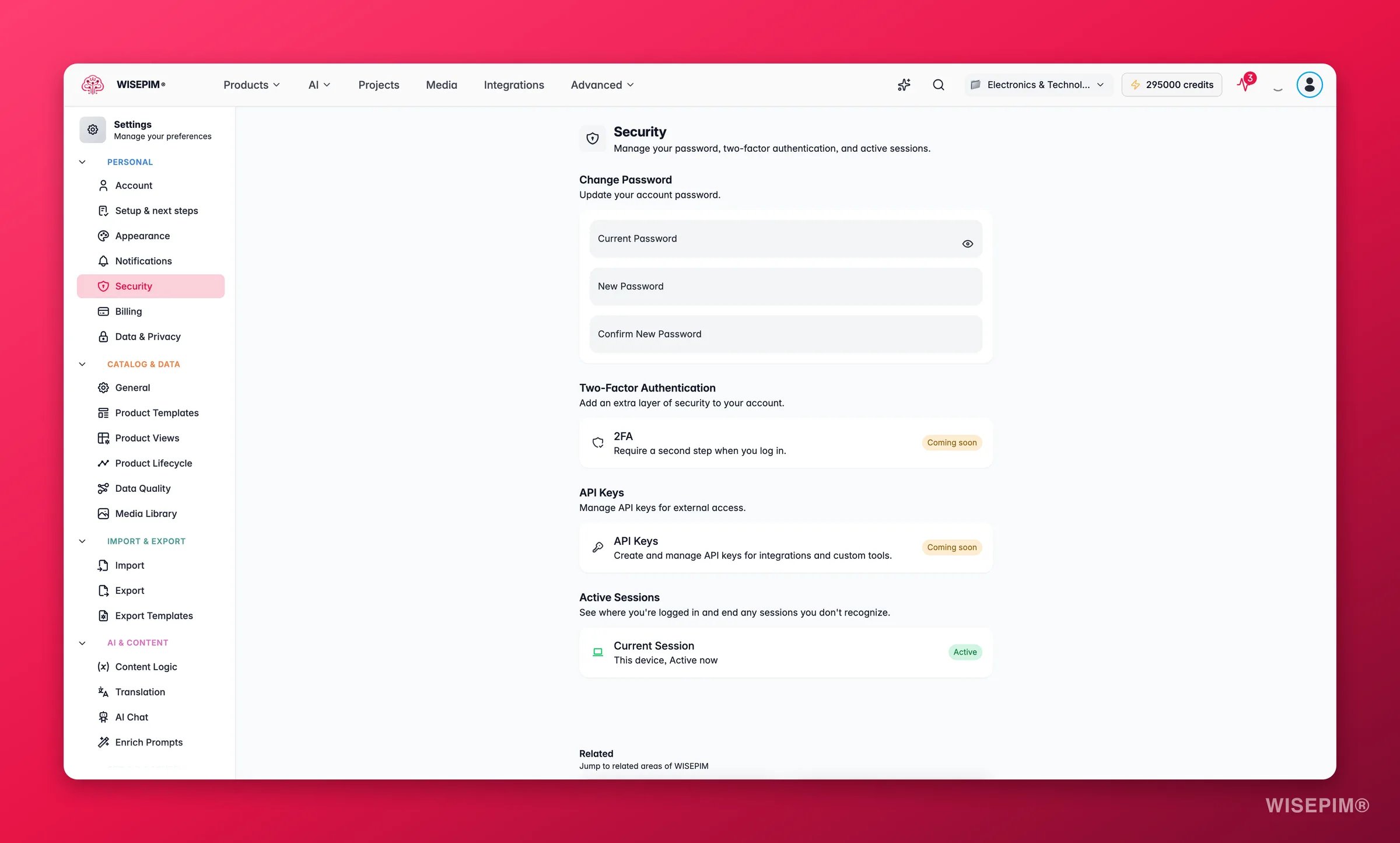
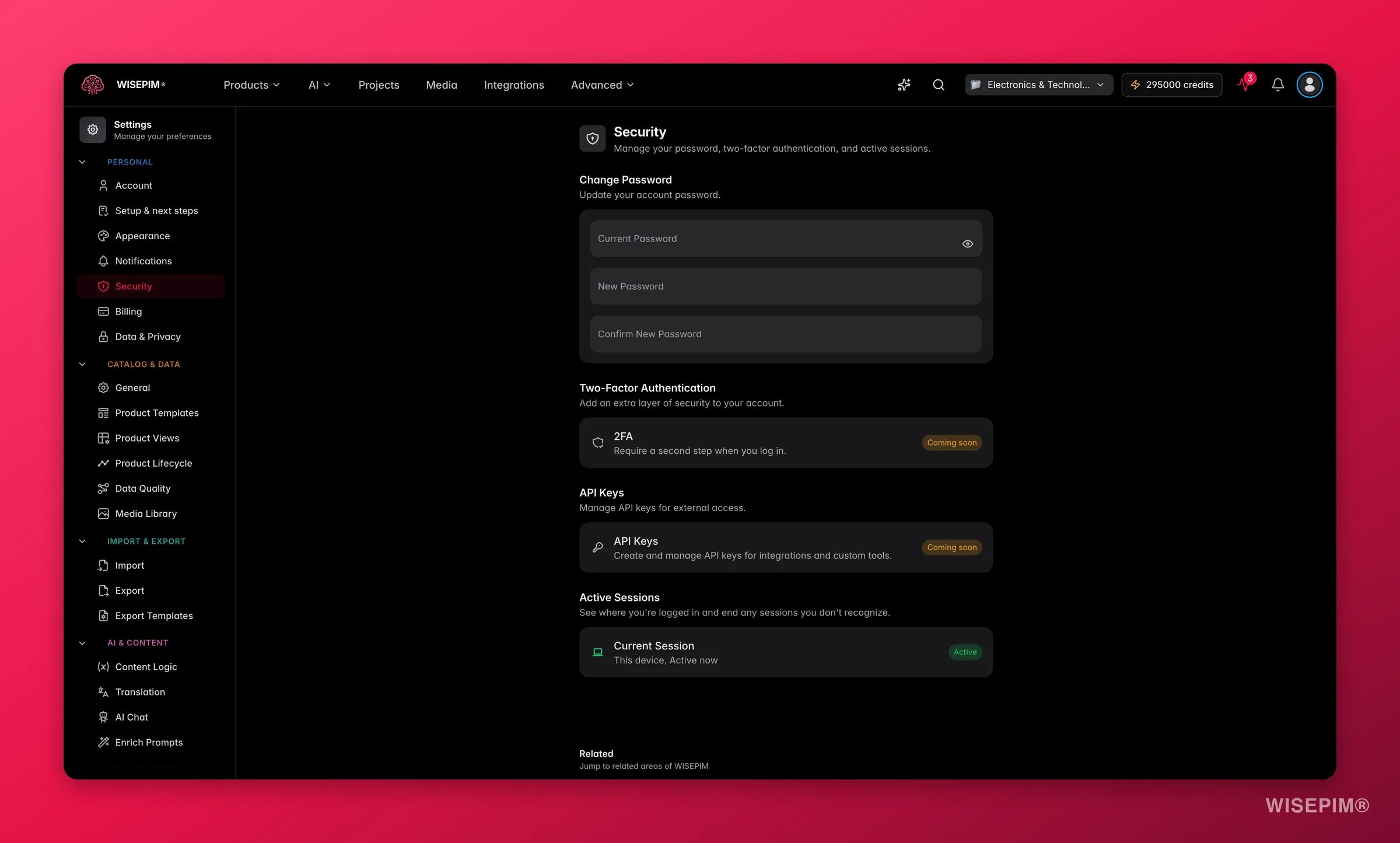 Update your password in four steps. Use a new password you do not use anywhere else.
Type your existing password in the **Current Password** field. Click the eye icon to show or hide what you type.
Type your new password in the **New Password** field. It must be at least 8 characters long.
Type the new password again in the **Confirm New Password** field. Both entries must match.
Click **Save** in the bar at the bottom of the page. Your new password takes effect right away.
A password manager creates and stores strong, unique passwords for you. Aim for a mix of uppercase and lowercase letters, numbers, and symbols.
Forgot your current password? Use the "Forgot password" link on the login page to reset it.
## Review active sessions
The **Active Sessions** section lists where your account is signed in right now. Check it to make sure no one else has access.
For each session you see:
| Detail | What it tells you |
| --------------- | ----------------------------------------- |
| **Device type** | The device the session is signed in from. |
| **Status** | Whether the session is currently active. |
If you spot a device you do not recognize, change your password right away.
## Stay protected
A few simple habits keep your account safe:
* Use a unique password that you do not reuse on other sites.
* Never share your login details with anyone.
* Sign out on shared or public computers when you finish.
* Check your active sessions now and then for unfamiliar devices.
* Change your password if you think it may have leaked.
## Coming soon
We are building more ways to lock down your account.
Two-factor authentication adds a second step when you sign in, so a password alone is not enough to get in. Soon you will be able to turn it on with an authenticator app.
API keys let you connect external tools and services to WISEPIM in code. Soon you will be able to create, manage, and revoke keys from this page.
## Related
Update your name, email, and profile details.
See how your data is handled and manage privacy options.
Invite people and control who can access your projects.
Update your password in four steps. Use a new password you do not use anywhere else.
Type your existing password in the **Current Password** field. Click the eye icon to show or hide what you type.
Type your new password in the **New Password** field. It must be at least 8 characters long.
Type the new password again in the **Confirm New Password** field. Both entries must match.
Click **Save** in the bar at the bottom of the page. Your new password takes effect right away.
A password manager creates and stores strong, unique passwords for you. Aim for a mix of uppercase and lowercase letters, numbers, and symbols.
Forgot your current password? Use the "Forgot password" link on the login page to reset it.
## Review active sessions
The **Active Sessions** section lists where your account is signed in right now. Check it to make sure no one else has access.
For each session you see:
| Detail | What it tells you |
| --------------- | ----------------------------------------- |
| **Device type** | The device the session is signed in from. |
| **Status** | Whether the session is currently active. |
If you spot a device you do not recognize, change your password right away.
## Stay protected
A few simple habits keep your account safe:
* Use a unique password that you do not reuse on other sites.
* Never share your login details with anyone.
* Sign out on shared or public computers when you finish.
* Check your active sessions now and then for unfamiliar devices.
* Change your password if you think it may have leaked.
## Coming soon
We are building more ways to lock down your account.
Two-factor authentication adds a second step when you sign in, so a password alone is not enough to get in. Soon you will be able to turn it on with an authenticator app.
API keys let you connect external tools and services to WISEPIM in code. Soon you will be able to create, manage, and revoke keys from this page.
## Related
Update your name, email, and profile details.
See how your data is handled and manage privacy options.
Invite people and control who can access your projects.