> ## Documentation Index
> Fetch the complete documentation index at: https://docs.wisepim.com/llms.txt
> Use this file to discover all available pages before exploring further.
# Pricing & Margins
> Add margins, markups and marketplace fees when products are exported, per channel, with safeguards that protect your floor. Your prices in WISEPIM stay untouched.
 Different channels need different prices. A marketplace takes a 15% fee, a reseller gets 20% off, one brand carries a thinner margin than the rest. Pricing rules handle all of that at the moment products leave WISEPIM.
The important part: **rules transform prices on export only. The price stored on your product never changes.** Turn the rules off and every export goes back to your stored prices immediately, with nothing to undo.
Pricing rules need the **Scale** plan or higher. You can open this page, read it, and look at the templates on any plan, but the master switch, **New rule**, and saving are locked with a note pointing at the upgrade.
Pricing rules use **no AI credits**.
This is not the same as [Discounts & Pricing](/en/products/discounts). Discounts change the prices stored on your products and sync those prices to your stores. Pricing rules leave your stored prices alone and adjust the number at export time. If you want the price in WISEPIM to actually change, use discounts.
It is also not the same as the **Pricing strategy** in Web Research settings, which reads competitor prices and *recommends* a price for a product. That is research about what to charge. This page is about what to send.
## How the page is laid out
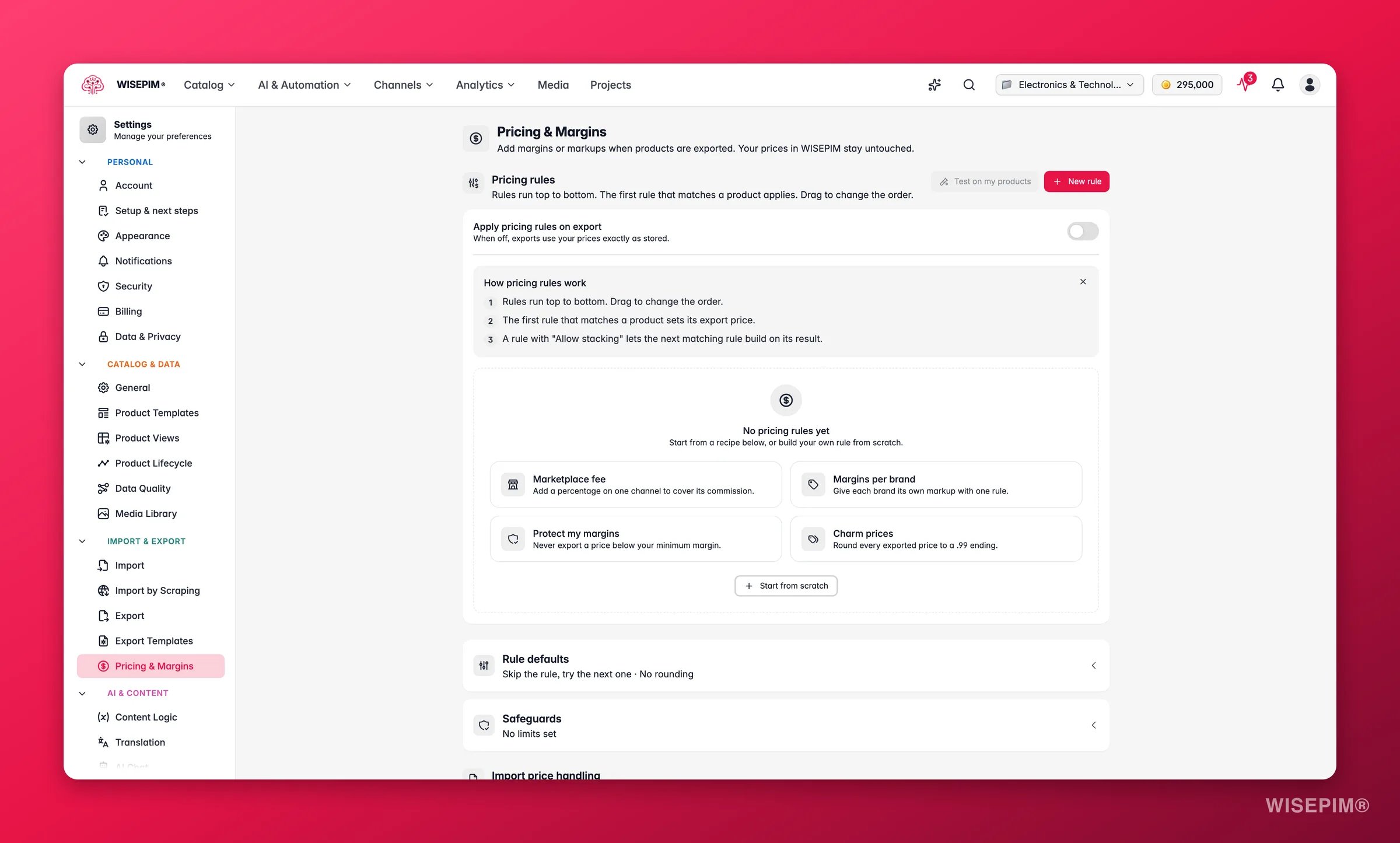
Open **Pricing & Margins** in Settings, under Import & Export.
* **Apply pricing rules on export** is the master switch at the top. When it is off, exports use your prices exactly as stored, and every rule below is ignored. This is your one-click escape hatch.
* **Pricing rules** lists your rules in priority order, with **Test on my products** and **New rule** beside it.
* **Rule defaults** and **Safeguards** are accordions holding the settings that apply across all rules.
* **Import price handling** decides what happens to prices coming *in*.
* A sticky save bar appears once you change something.
## Rule order matters
Rules run **top to bottom, and the first rule that matches a product applies**. Everything below it is skipped for that product. Drag a rule card to change its place in the order.
That means specific rules belong above general ones. A rule for one brand on one marketplace should sit above a catch-all rule for that marketplace, or the catch-all will swallow it.
If you do want more than one rule to apply to the same product, turn on **Allow stacking** on the rule. Stacked rules apply on top of what ran before them instead of stopping the chain.
Read your list from the top and ask "which rule catches this product first?". If the answer is a rule you did not intend, drag the specific one higher. This one habit prevents most pricing surprises.
## Create a rule
Click **New rule**. You can start from a recipe (**Marketplace fee**, **Margins per brand**, **Protect my margins**, **Charm prices**) or pick **Start from scratch**. Recipes just pre-fill the form, everything stays editable.
As you build, an **In plain words** recap updates live and describes the rule in a sentence. If that sentence does not say what you meant, the rule is wrong.
Name it after what it does, for example "Kaufland +15%". Add a description if others on your team will read it. **Active** controls whether the rule runs at all, and **Allow stacking** lets it combine with other matching rules instead of stopping the chain.
**Channels** decides where this rule applies. Leave it on **All channels**, or choose from connected platforms, file exports (CSV, Excel), product feeds (all feeds or a specific one), and brand portals (all portals or a specific one). A rule with no channel restriction applies everywhere prices go out.
Use **Quick add** for the common cases: brand, supplier, category, or family. For anything more precise, build condition cards with **Match all** or **Match any**, using the same filter conditions you know from the products page, including custom attributes. A live "≈ N products" chip tells you how many products the rule currently catches.
Pick a calculation type and enter its value. The types are explained in the table below.
Choose **Project default**, **No rounding**, **2 decimals**, **Whole numbers**, **Charm .99**, or **Charm .95**. Switch on **Also adjust sale price** if the rule should apply to the sale price too, not just the regular price.
Optional limits that stop a rule from doing damage. Covered below.
Use **Live example** and **Try it on a real product** before you save. Both are covered below.
### Calculation types
| Type | What it does | Use it when |
| --------------------- | ----------------------------------------------------------------------------------- | ----------------------------------------------------------------- |
| **Percentage markup** | Raises or lowers your current price by a percentage. | Covering a marketplace fee, or giving a partner a fixed discount. |
| **Fixed amount** | Adds or subtracts a set amount. | Flat handling or shipping surcharges per item. |
| **Cost plus markup** | Starts from cost price and adds a percentage of that cost. | You think in "cost times 1.4". |
| **Cost plus margin** | Starts from cost price and works back to the price that yields the margin you name. | You think in "I need 35% margin on this". |
| **Fixed price** | Sets one exact price. | Contract pricing for a specific set of products. |
**Cost plus markup** and **cost plus margin** are not the same number. A 40% markup on cost gives you roughly a 29% margin. Name the one you actually mean, and use the previews to check.
### Vary the value by brand, supplier, family, or category
A single rule can carry different values for different groups. Set **Vary the value by** to **Brand**, **Supplier**, **Family**, or **Category**, and you get a table where each entry has its own value. **Add all** pulls in every option, **Set all to** fills them in one go, and anything you leave blank falls back to the rule's base value.
This is what keeps your list short. One "Margins per brand" rule with a value table beats forty near-identical rules.
## Safeguards
Safeguards are limits that override the calculation when it goes somewhere you do not want. All of them are optional, and an empty field means "no limit".
| Safeguard | What it prevents |
| ---------------------- | --------------------------------------------------------------------------------- |
| **Minimum margin (%)** | Selling below the margin you need after the rule runs. |
| **Minimum price** | A price dropping under a floor you set. |
| **Maximum price** | A price rising above a ceiling. |
| **Maximum change (%)** | A rule moving a price by more than you expected, usually a sign of bad cost data. |
When a safeguard changes the outcome, the result is labelled so you can see it happened rather than wondering why the number looks odd. You will see chips like **Margin floor applied**, **Raised to minimum price**, **Capped at maximum price**, **Change limited**, **Kept base price**, **No cost price**, and **Below cost**.
Set **Maximum change (%)** on any rule that uses cost price. It is the cheapest protection against one supplier file with a decimal in the wrong place.
## Rule defaults
Two settings that apply across every rule:
* **When a product has no cost price**: cost-based calculations cannot run without a cost. Choose **Skip the rule, try the next one** (the default), **Keep the current price**, or **Keep the current price and flag it** so you can find those products later.
* **Default rounding**: what **Project default** means on individual rules. Set it once here rather than on every rule.
## Import price handling
Rules change prices on the way out, which raises a question about the way back in: if a channel sends you the price you exported, should WISEPIM store it?
| Option | What happens |
| ------------------------------ | --------------------------------------------------------------------------------------------------------------------------------------- |
| **Smart** *(recommended)* | WISEPIM works out whether an incoming price is really new or just your own exported price coming home, and only stores genuine changes. |
| **Never import prices** | Incoming prices are ignored. Your stored price is the only truth. |
| **Always import prices** | Incoming prices are stored as they arrive. |
| **Reverse the markup** | Runs the incoming price backwards through the rule before storing it. |
| **Keep mine and flag changes** | Your price stays, and the difference is flagged for you to review. |
**Price match tolerance** sets how close two prices must be before they count as the same, so rounding differences do not create noise.
Leave this on **Smart** unless you have a specific reason. It exists precisely to stop the marked-up price you exported from being re-imported as your new cost base.
## Check your work before it ships
Three previews, from smallest to broadest.
### Live example
Inside the rule editor, enter a current price and a cost price and see the resulting **Export price**, plus a **How it's calculated** trail showing each step. This is a sandbox, useful for understanding the maths without touching real data.
### Try it on a real product
Also inside the rule editor, but this one runs your actual product through the actual engine. You get the old price struck through, the new price beside it, and the margin and safeguard chips that applied. Use this one before you save.
### Test on my products
From the main page, **Test on my products** runs a sample of your catalog through your whole rule set at once. Pick a channel, or leave it on **All rules, any channel**.
You get chips summarizing how many products were evaluated, how many were adjusted, and how many hit a safeguard, then a table with SKU, product, cost, before, after, margin, and which safeguards fired. It tests a sample of 25 products, and **Run again** draws a fresh one.
Test on my products is the last checkpoint before real prices go to real channels. Read the safeguard column, not just the after column. A large number of safeguard hits usually means a rule is aimed at products it was never meant to touch.
## Managing your rules
Each rule shows as a card in the list:
* **Drag** the card to change its priority.
* The **on/off switch** disables one rule without deleting it.
* A **calculation summary chip** shows what it does at a glance, and a **shield** marks rules carrying safeguards.
* The menu holds **Edit**, **Duplicate**, and **Delete**. Duplicates are created inactive, so you can adjust a copy before it affects anything.
## Where rules apply
Any channel a price leaves through can be scoped in a rule:
* Connected platforms and marketplaces.
* CSV and Excel [exports](/en/essentials/exporting-products).
* [Feed Hub](/en/essentials/feed-hub) feeds, all of them or one specific feed.
* [Brand Portals](/en/other-features/brand-portals), all of them or one specific portal.
Once rules are active, the price shown in your product list can differ from the price a channel receives. That is the point of the feature, but it is worth telling your team, so nobody spends an afternoon hunting a price mismatch that is working exactly as designed.
## Act on what you find
Start from the **Marketplace fee** recipe, scope it to that platform's channel, and use **Percentage markup** to cover the cut. **Outcome:** your net per sale on the marketplace matches what you earn on your own shop, without a second price list.
Use one rule with **Vary the value by** set to **Brand**, then fill the value table. **Add all** and **Set all to** get you a baseline in seconds, and you only edit the exceptions. **Outcome:** one rule to maintain instead of one per brand.
Start from **Protect my margins** and set **Minimum margin**. Run **Test on my products** afterwards and look at the **Margin floor applied** count. **Outcome:** you find out how many products were quietly being sold too cheap.
Add a rule from the **Charm prices** recipe, or set **Rounding** to **Charm .99** on the rules you already have. **Outcome:** consistent price endings across every channel without editing a single product.
Create a rule scoped to that portal, then turn on **Apply pricing rules** in the [portal's](/en/other-features/brand-portals) Export & import settings. **Outcome:** one catalog serves several partner price levels. **Check first:** hide cost price and margin columns in the portal.
Turn off **Apply pricing rules on export**. Every export reverts to your stored prices on the spot, and nothing needs undoing because nothing was ever written to your products. **Outcome:** you stop the bleeding first and debug afterwards.
## Related
Show partner prices in a shareable catalog without changing stored prices.
Where CSV and Excel exports pick up your rules.
Scope rules to a single feed or to every feed you publish.
The other tool: change the prices actually stored on your products.
Different channels need different prices. A marketplace takes a 15% fee, a reseller gets 20% off, one brand carries a thinner margin than the rest. Pricing rules handle all of that at the moment products leave WISEPIM.
The important part: **rules transform prices on export only. The price stored on your product never changes.** Turn the rules off and every export goes back to your stored prices immediately, with nothing to undo.
Pricing rules need the **Scale** plan or higher. You can open this page, read it, and look at the templates on any plan, but the master switch, **New rule**, and saving are locked with a note pointing at the upgrade.
Pricing rules use **no AI credits**.
This is not the same as [Discounts & Pricing](/en/products/discounts). Discounts change the prices stored on your products and sync those prices to your stores. Pricing rules leave your stored prices alone and adjust the number at export time. If you want the price in WISEPIM to actually change, use discounts.
It is also not the same as the **Pricing strategy** in Web Research settings, which reads competitor prices and *recommends* a price for a product. That is research about what to charge. This page is about what to send.
## How the page is laid out
Open **Pricing & Margins** in Settings, under Import & Export.
* **Apply pricing rules on export** is the master switch at the top. When it is off, exports use your prices exactly as stored, and every rule below is ignored. This is your one-click escape hatch.
* **Pricing rules** lists your rules in priority order, with **Test on my products** and **New rule** beside it.
* **Rule defaults** and **Safeguards** are accordions holding the settings that apply across all rules.
* **Import price handling** decides what happens to prices coming *in*.
* A sticky save bar appears once you change something.
## Rule order matters
Rules run **top to bottom, and the first rule that matches a product applies**. Everything below it is skipped for that product. Drag a rule card to change its place in the order.
That means specific rules belong above general ones. A rule for one brand on one marketplace should sit above a catch-all rule for that marketplace, or the catch-all will swallow it.
If you do want more than one rule to apply to the same product, turn on **Allow stacking** on the rule. Stacked rules apply on top of what ran before them instead of stopping the chain.
Read your list from the top and ask "which rule catches this product first?". If the answer is a rule you did not intend, drag the specific one higher. This one habit prevents most pricing surprises.
## Create a rule
Click **New rule**. You can start from a recipe (**Marketplace fee**, **Margins per brand**, **Protect my margins**, **Charm prices**) or pick **Start from scratch**. Recipes just pre-fill the form, everything stays editable.
As you build, an **In plain words** recap updates live and describes the rule in a sentence. If that sentence does not say what you meant, the rule is wrong.
Name it after what it does, for example "Kaufland +15%". Add a description if others on your team will read it. **Active** controls whether the rule runs at all, and **Allow stacking** lets it combine with other matching rules instead of stopping the chain.
**Channels** decides where this rule applies. Leave it on **All channels**, or choose from connected platforms, file exports (CSV, Excel), product feeds (all feeds or a specific one), and brand portals (all portals or a specific one). A rule with no channel restriction applies everywhere prices go out.
Use **Quick add** for the common cases: brand, supplier, category, or family. For anything more precise, build condition cards with **Match all** or **Match any**, using the same filter conditions you know from the products page, including custom attributes. A live "≈ N products" chip tells you how many products the rule currently catches.
Pick a calculation type and enter its value. The types are explained in the table below.
Choose **Project default**, **No rounding**, **2 decimals**, **Whole numbers**, **Charm .99**, or **Charm .95**. Switch on **Also adjust sale price** if the rule should apply to the sale price too, not just the regular price.
Optional limits that stop a rule from doing damage. Covered below.
Use **Live example** and **Try it on a real product** before you save. Both are covered below.
### Calculation types
| Type | What it does | Use it when |
| --------------------- | ----------------------------------------------------------------------------------- | ----------------------------------------------------------------- |
| **Percentage markup** | Raises or lowers your current price by a percentage. | Covering a marketplace fee, or giving a partner a fixed discount. |
| **Fixed amount** | Adds or subtracts a set amount. | Flat handling or shipping surcharges per item. |
| **Cost plus markup** | Starts from cost price and adds a percentage of that cost. | You think in "cost times 1.4". |
| **Cost plus margin** | Starts from cost price and works back to the price that yields the margin you name. | You think in "I need 35% margin on this". |
| **Fixed price** | Sets one exact price. | Contract pricing for a specific set of products. |
**Cost plus markup** and **cost plus margin** are not the same number. A 40% markup on cost gives you roughly a 29% margin. Name the one you actually mean, and use the previews to check.
### Vary the value by brand, supplier, family, or category
A single rule can carry different values for different groups. Set **Vary the value by** to **Brand**, **Supplier**, **Family**, or **Category**, and you get a table where each entry has its own value. **Add all** pulls in every option, **Set all to** fills them in one go, and anything you leave blank falls back to the rule's base value.
This is what keeps your list short. One "Margins per brand" rule with a value table beats forty near-identical rules.
## Safeguards
Safeguards are limits that override the calculation when it goes somewhere you do not want. All of them are optional, and an empty field means "no limit".
| Safeguard | What it prevents |
| ---------------------- | --------------------------------------------------------------------------------- |
| **Minimum margin (%)** | Selling below the margin you need after the rule runs. |
| **Minimum price** | A price dropping under a floor you set. |
| **Maximum price** | A price rising above a ceiling. |
| **Maximum change (%)** | A rule moving a price by more than you expected, usually a sign of bad cost data. |
When a safeguard changes the outcome, the result is labelled so you can see it happened rather than wondering why the number looks odd. You will see chips like **Margin floor applied**, **Raised to minimum price**, **Capped at maximum price**, **Change limited**, **Kept base price**, **No cost price**, and **Below cost**.
Set **Maximum change (%)** on any rule that uses cost price. It is the cheapest protection against one supplier file with a decimal in the wrong place.
## Rule defaults
Two settings that apply across every rule:
* **When a product has no cost price**: cost-based calculations cannot run without a cost. Choose **Skip the rule, try the next one** (the default), **Keep the current price**, or **Keep the current price and flag it** so you can find those products later.
* **Default rounding**: what **Project default** means on individual rules. Set it once here rather than on every rule.
## Import price handling
Rules change prices on the way out, which raises a question about the way back in: if a channel sends you the price you exported, should WISEPIM store it?
| Option | What happens |
| ------------------------------ | --------------------------------------------------------------------------------------------------------------------------------------- |
| **Smart** *(recommended)* | WISEPIM works out whether an incoming price is really new or just your own exported price coming home, and only stores genuine changes. |
| **Never import prices** | Incoming prices are ignored. Your stored price is the only truth. |
| **Always import prices** | Incoming prices are stored as they arrive. |
| **Reverse the markup** | Runs the incoming price backwards through the rule before storing it. |
| **Keep mine and flag changes** | Your price stays, and the difference is flagged for you to review. |
**Price match tolerance** sets how close two prices must be before they count as the same, so rounding differences do not create noise.
Leave this on **Smart** unless you have a specific reason. It exists precisely to stop the marked-up price you exported from being re-imported as your new cost base.
## Check your work before it ships
Three previews, from smallest to broadest.
### Live example
Inside the rule editor, enter a current price and a cost price and see the resulting **Export price**, plus a **How it's calculated** trail showing each step. This is a sandbox, useful for understanding the maths without touching real data.
### Try it on a real product
Also inside the rule editor, but this one runs your actual product through the actual engine. You get the old price struck through, the new price beside it, and the margin and safeguard chips that applied. Use this one before you save.
### Test on my products
From the main page, **Test on my products** runs a sample of your catalog through your whole rule set at once. Pick a channel, or leave it on **All rules, any channel**.
You get chips summarizing how many products were evaluated, how many were adjusted, and how many hit a safeguard, then a table with SKU, product, cost, before, after, margin, and which safeguards fired. It tests a sample of 25 products, and **Run again** draws a fresh one.
Test on my products is the last checkpoint before real prices go to real channels. Read the safeguard column, not just the after column. A large number of safeguard hits usually means a rule is aimed at products it was never meant to touch.
## Managing your rules
Each rule shows as a card in the list:
* **Drag** the card to change its priority.
* The **on/off switch** disables one rule without deleting it.
* A **calculation summary chip** shows what it does at a glance, and a **shield** marks rules carrying safeguards.
* The menu holds **Edit**, **Duplicate**, and **Delete**. Duplicates are created inactive, so you can adjust a copy before it affects anything.
## Where rules apply
Any channel a price leaves through can be scoped in a rule:
* Connected platforms and marketplaces.
* CSV and Excel [exports](/en/essentials/exporting-products).
* [Feed Hub](/en/essentials/feed-hub) feeds, all of them or one specific feed.
* [Brand Portals](/en/other-features/brand-portals), all of them or one specific portal.
Once rules are active, the price shown in your product list can differ from the price a channel receives. That is the point of the feature, but it is worth telling your team, so nobody spends an afternoon hunting a price mismatch that is working exactly as designed.
## Act on what you find
Start from the **Marketplace fee** recipe, scope it to that platform's channel, and use **Percentage markup** to cover the cut. **Outcome:** your net per sale on the marketplace matches what you earn on your own shop, without a second price list.
Use one rule with **Vary the value by** set to **Brand**, then fill the value table. **Add all** and **Set all to** get you a baseline in seconds, and you only edit the exceptions. **Outcome:** one rule to maintain instead of one per brand.
Start from **Protect my margins** and set **Minimum margin**. Run **Test on my products** afterwards and look at the **Margin floor applied** count. **Outcome:** you find out how many products were quietly being sold too cheap.
Add a rule from the **Charm prices** recipe, or set **Rounding** to **Charm .99** on the rules you already have. **Outcome:** consistent price endings across every channel without editing a single product.
Create a rule scoped to that portal, then turn on **Apply pricing rules** in the [portal's](/en/other-features/brand-portals) Export & import settings. **Outcome:** one catalog serves several partner price levels. **Check first:** hide cost price and margin columns in the portal.
Turn off **Apply pricing rules on export**. Every export reverts to your stored prices on the spot, and nothing needs undoing because nothing was ever written to your products. **Outcome:** you stop the bleeding first and debug afterwards.
## Related
Show partner prices in a shareable catalog without changing stored prices.
Where CSV and Excel exports pick up your rules.
Scope rules to a single feed or to every feed you publish.
The other tool: change the prices actually stored on your products.