> ## Documentation Index
> Fetch the complete documentation index at: https://docs.wisepim.com/llms.txt
> Use this file to discover all available pages before exploring further.
# Setup Checklist
> Six steps that make WISEPIM work for your catalog, checked against your actual project. Pick up where you left off, skip what you do not need.
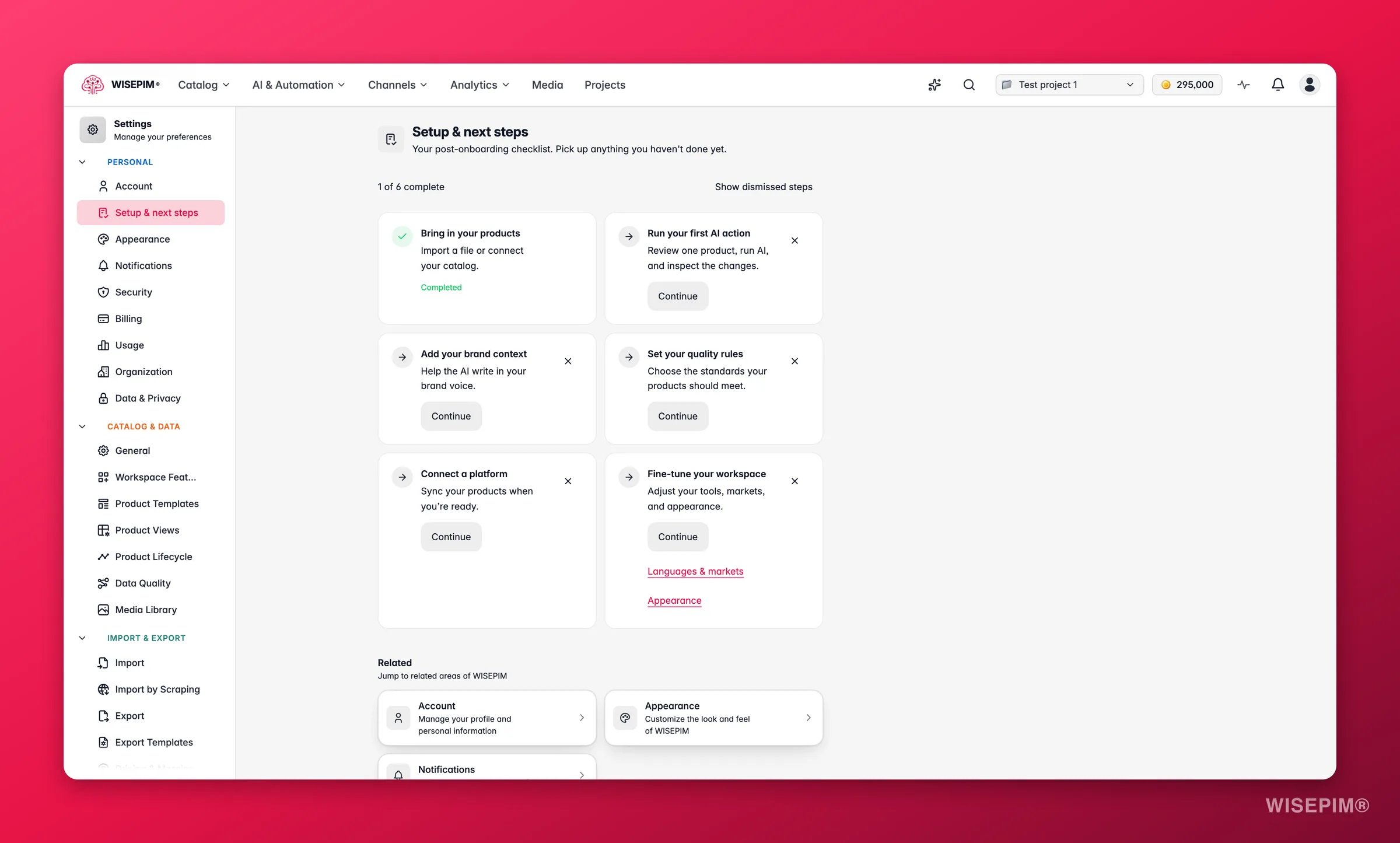
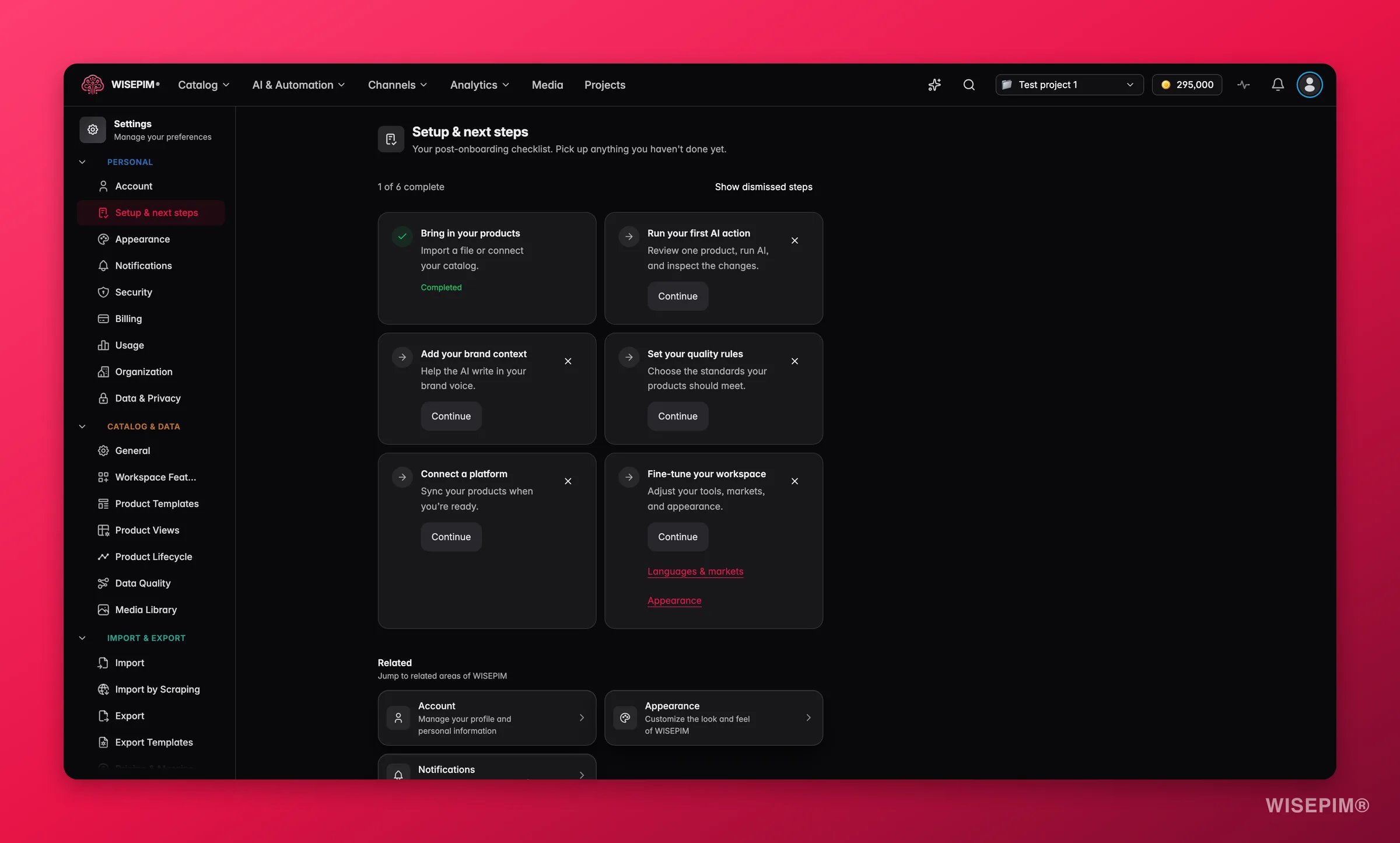 The [signup wizard](/en/quickstart#your-first-sign-in) runs once. The setup checklist is what is left afterwards: "Everything that makes WISEPIM work for your catalog, ticked off as you go."
It does not sit on a saved answer from your first day. WISEPIM re-checks your project each time you open the page, so a step you finished by hand months later shows as done anyway.
**Where to find it:** go to **Settings > Setup checklist** in the Personal group.
## The six steps
| # | Step | Where it takes you |
| - | ---------------------------- | --------------------------------------------------------------------------------- |
| 1 | **Bring in your products** | Import a file or connect your store. Every other step builds on your catalog. |
| 2 | **Run your first AI action** | Pick one product, let AI fill the gaps, and review every change before it lands. |
| 3 | **Teach the AI your brand** | Add tone of voice, audience, and product rules to the Knowledge Library. |
| 4 | **Set your quality bar** | Tell Quality Guard what a complete product looks like. |
| 5 | **Connect a sales channel** | Link Shopify, Magento, or another platform and push finished products. |
| 6 | **Shape your workspace** | Switch on the modules you use, hide the rest, and set your languages and markets. |
The order is deliberate: each step is more useful once the one before it is done. You are free to jump around, but a quality bar with no products behind it does not tell you much.
Each row has a **Continue** button that drops you on the right page, and a counter at the top of the list shows how far along you are.
## How a step gets ticked
WISEPIM verifies steps against your project rather than trusting a flag from the wizard. Two of them matter especially:
* **Teach the AI your brand** is read from your Knowledge Library's actual contents.
* **Set your quality bar** is read from the Quality Guard rules that exist.
That means work you did on your own counts. It also means a step you did through the wizard can go back to open if you later empty out what it created.
A step can also show **Not checked**, in a yellow chip. That is not the same as "not done": the check itself could not complete this time. The list says so plainly ("We couldn't check every step just now. Nothing was changed.") and offers **Check again**.
## Skip what you do not need
Not every catalog needs every step. Click the **×** on a step to skip it and it drops out of the list, marked **Skipped**.
Skipping is always reversible. Nothing is deleted, and **Bring back skipped steps** returns them. If everything open has been skipped, the list tells you that instead of pretending you are finished.
Skipping is the right move for a step that genuinely does not apply, like connecting a sales channel when you feed a marketplace by file. Finishing steps you do not need just to clear the list wastes your time.
## The reminder on the products page
The same checklist has a one-line version that sits under your product table: your next open step, how far along you are, and a **Continue** button. **All steps** opens the full page.
Click the **×** on it and it stops appearing there. The full checklist keeps track of that too, so you can always tell the reminder is hidden rather than gone.
Once every step is done, dismissed, or hidden, the reminder disappears on its own.
## Replay the wizard, or start over
Two controls sit at the bottom of the page:
* **Reset checklist** clears your skips and progress marks so you can go through the list again.
* **Replay onboarding** runs the signup wizard from the start. Useful after a big change of direction, when the goal you picked on day one no longer matches what you are doing.
If you joined by invitation rather than signing up, you get a list of recommended next steps instead of the verified checklist, with **Mark done** on each card. Never ran the wizard at all? The page says "No recommendations yet" and offers **Start onboarding**.
## Related
The four steps from empty account to enriched catalog.
Step two of the checklist, in full.
Teach WISEPIM your brand so every generated text sounds like you.
Define what a complete product looks like, and catch what falls short.
The [signup wizard](/en/quickstart#your-first-sign-in) runs once. The setup checklist is what is left afterwards: "Everything that makes WISEPIM work for your catalog, ticked off as you go."
It does not sit on a saved answer from your first day. WISEPIM re-checks your project each time you open the page, so a step you finished by hand months later shows as done anyway.
**Where to find it:** go to **Settings > Setup checklist** in the Personal group.
## The six steps
| # | Step | Where it takes you |
| - | ---------------------------- | --------------------------------------------------------------------------------- |
| 1 | **Bring in your products** | Import a file or connect your store. Every other step builds on your catalog. |
| 2 | **Run your first AI action** | Pick one product, let AI fill the gaps, and review every change before it lands. |
| 3 | **Teach the AI your brand** | Add tone of voice, audience, and product rules to the Knowledge Library. |
| 4 | **Set your quality bar** | Tell Quality Guard what a complete product looks like. |
| 5 | **Connect a sales channel** | Link Shopify, Magento, or another platform and push finished products. |
| 6 | **Shape your workspace** | Switch on the modules you use, hide the rest, and set your languages and markets. |
The order is deliberate: each step is more useful once the one before it is done. You are free to jump around, but a quality bar with no products behind it does not tell you much.
Each row has a **Continue** button that drops you on the right page, and a counter at the top of the list shows how far along you are.
## How a step gets ticked
WISEPIM verifies steps against your project rather than trusting a flag from the wizard. Two of them matter especially:
* **Teach the AI your brand** is read from your Knowledge Library's actual contents.
* **Set your quality bar** is read from the Quality Guard rules that exist.
That means work you did on your own counts. It also means a step you did through the wizard can go back to open if you later empty out what it created.
A step can also show **Not checked**, in a yellow chip. That is not the same as "not done": the check itself could not complete this time. The list says so plainly ("We couldn't check every step just now. Nothing was changed.") and offers **Check again**.
## Skip what you do not need
Not every catalog needs every step. Click the **×** on a step to skip it and it drops out of the list, marked **Skipped**.
Skipping is always reversible. Nothing is deleted, and **Bring back skipped steps** returns them. If everything open has been skipped, the list tells you that instead of pretending you are finished.
Skipping is the right move for a step that genuinely does not apply, like connecting a sales channel when you feed a marketplace by file. Finishing steps you do not need just to clear the list wastes your time.
## The reminder on the products page
The same checklist has a one-line version that sits under your product table: your next open step, how far along you are, and a **Continue** button. **All steps** opens the full page.
Click the **×** on it and it stops appearing there. The full checklist keeps track of that too, so you can always tell the reminder is hidden rather than gone.
Once every step is done, dismissed, or hidden, the reminder disappears on its own.
## Replay the wizard, or start over
Two controls sit at the bottom of the page:
* **Reset checklist** clears your skips and progress marks so you can go through the list again.
* **Replay onboarding** runs the signup wizard from the start. Useful after a big change of direction, when the goal you picked on day one no longer matches what you are doing.
If you joined by invitation rather than signing up, you get a list of recommended next steps instead of the verified checklist, with **Mark done** on each card. Never ran the wizard at all? The page says "No recommendations yet" and offers **Start onboarding**.
## Related
The four steps from empty account to enriched catalog.
Step two of the checklist, in full.
Teach WISEPIM your brand so every generated text sounds like you.
Define what a complete product looks like, and catch what falls short.