> ## Documentation Index
> Fetch the complete documentation index at: https://docs.wisepim.com/llms.txt
> Use this file to discover all available pages before exploring further.
# Integration Settings
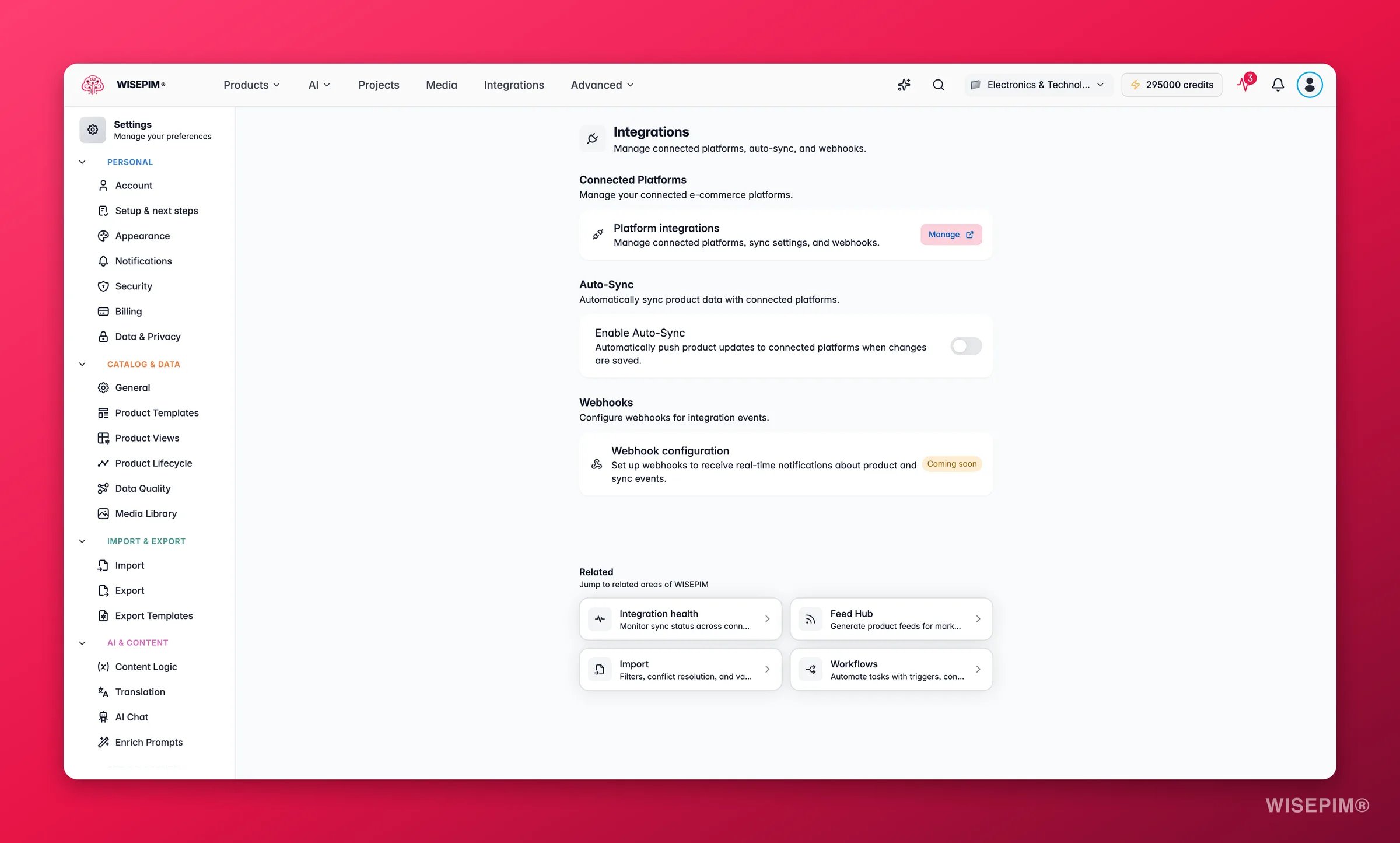
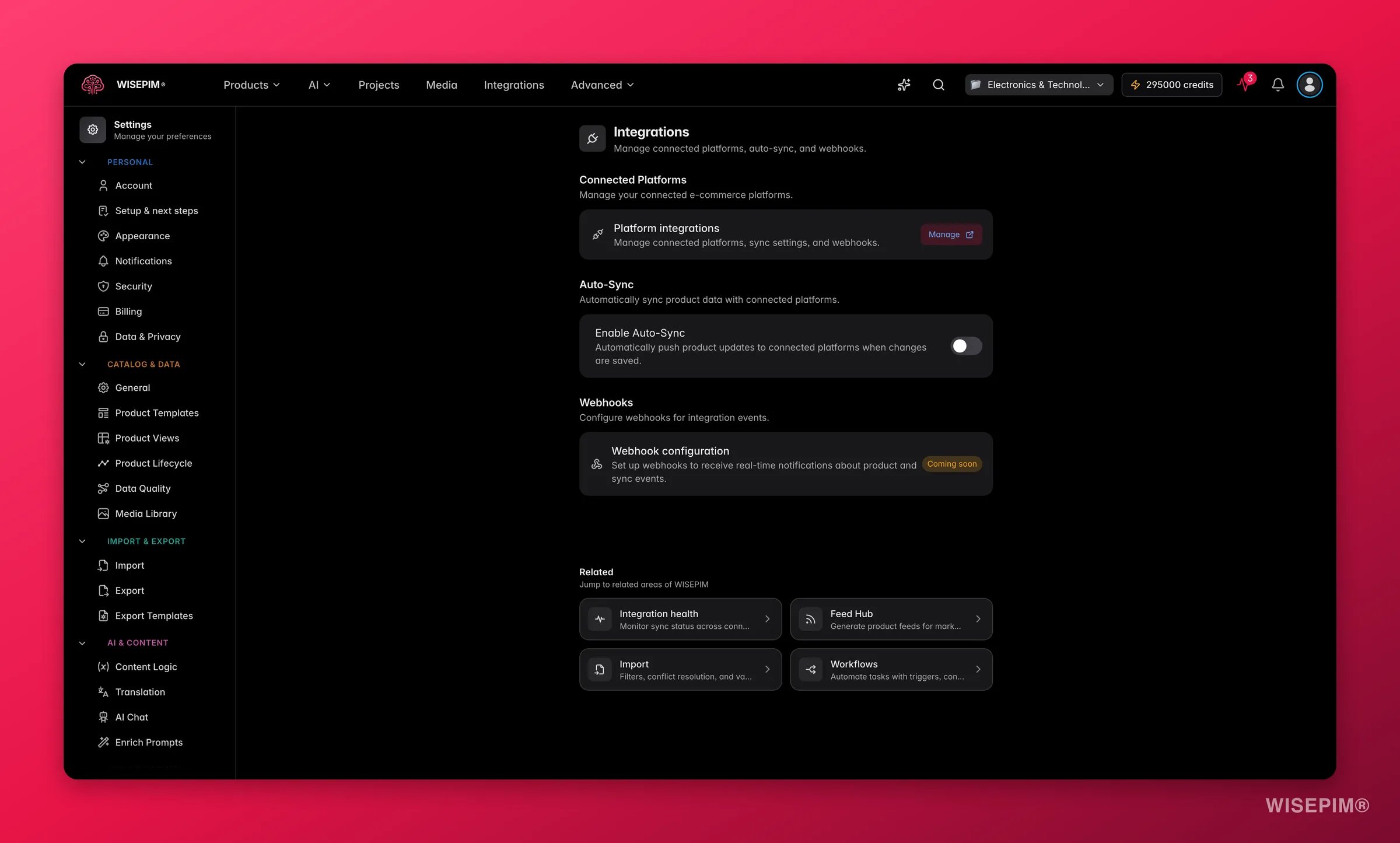
> Manage your connected e-commerce platforms, control how product updates reach them, and prepare for webhooks. One place for every platform connection in your project.
Integration settings is your control center for getting product data out of WISEPIM and into your sales channels. From here you can see which platforms are connected, decide when updates are pushed, and manage real-time event notifications.
 Pick a project from the project switcher first. Integration settings apply to one project at a time.
## Manage connected platforms
This section shows the status of every platform linked to your project. To make changes, open the full Integrations page.
Click **Manage** next to "Platform Integrations".
Pick a platform (Shopify, Magento 2, WooCommerce, and more), enter your API credentials, and follow the setup wizard.
Match your WISEPIM product fields to the matching fields on the platform. This controls what data each channel receives.
From the Integrations page you can also check connection status, fix sync issues, and disconnect platforms you no longer use.
## Push updates automatically
Auto-sync decides when your changes reach your sales channels.
* **Auto-sync on:** every time you save a product, WISEPIM pushes the update to all connected platforms right away.
* **Auto-sync off:** your changes stay in WISEPIM until you run a manual export.
Use the **Enable Auto-Sync** toggle to switch between the two.
Turn auto-sync on when you want your channels to always show the latest data. Keep it off when you want to review changes before they go live.
With auto-sync on, every product change goes out instantly, including edits made by your teammates. Let your team know, so no one pushes an unfinished product by accident.
## Get real-time event notifications
Webhooks let other systems react the moment something happens in WISEPIM, such as:
* A product is created, updated, or deleted.
* A sync finishes or fails.
* A bulk import completes.
Webhook setup is **coming soon**. The feature is in active development.
Once it ships, you will be able to:
* Add your own webhook endpoints (URLs).
* Choose which events trigger a notification.
* View delivery logs and retry failed deliveries.
* Test a webhook before going live.
## Related
See how integrations work end to end and connect your first platform.
Browse every e-commerce platform you can connect to WISEPIM.
Push product data manually when auto-sync is off.
Get alerted when a sync or export finishes or fails.
Pick a project from the project switcher first. Integration settings apply to one project at a time.
## Manage connected platforms
This section shows the status of every platform linked to your project. To make changes, open the full Integrations page.
Click **Manage** next to "Platform Integrations".
Pick a platform (Shopify, Magento 2, WooCommerce, and more), enter your API credentials, and follow the setup wizard.
Match your WISEPIM product fields to the matching fields on the platform. This controls what data each channel receives.
From the Integrations page you can also check connection status, fix sync issues, and disconnect platforms you no longer use.
## Push updates automatically
Auto-sync decides when your changes reach your sales channels.
* **Auto-sync on:** every time you save a product, WISEPIM pushes the update to all connected platforms right away.
* **Auto-sync off:** your changes stay in WISEPIM until you run a manual export.
Use the **Enable Auto-Sync** toggle to switch between the two.
Turn auto-sync on when you want your channels to always show the latest data. Keep it off when you want to review changes before they go live.
With auto-sync on, every product change goes out instantly, including edits made by your teammates. Let your team know, so no one pushes an unfinished product by accident.
## Get real-time event notifications
Webhooks let other systems react the moment something happens in WISEPIM, such as:
* A product is created, updated, or deleted.
* A sync finishes or fails.
* A bulk import completes.
Webhook setup is **coming soon**. The feature is in active development.
Once it ships, you will be able to:
* Add your own webhook endpoints (URLs).
* Choose which events trigger a notification.
* View delivery logs and retry failed deliveries.
* Test a webhook before going live.
## Related
See how integrations work end to end and connect your first platform.
Browse every e-commerce platform you can connect to WISEPIM.
Push product data manually when auto-sync is off.
Get alerted when a sync or export finishes or fails.