> ## Documentation Index
> Fetch the complete documentation index at: https://docs.wisepim.com/llms.txt
> Use this file to discover all available pages before exploring further.
# Import Settings
> Set default rules for every import: which products to include, how to handle conflicts and empty fields, and how strictly to validate data.
Import settings decide how WISEPIM handles incoming product data. Set them once and every import behaves the same way, whether you run it or a teammate does. That means fewer surprises and cleaner data.
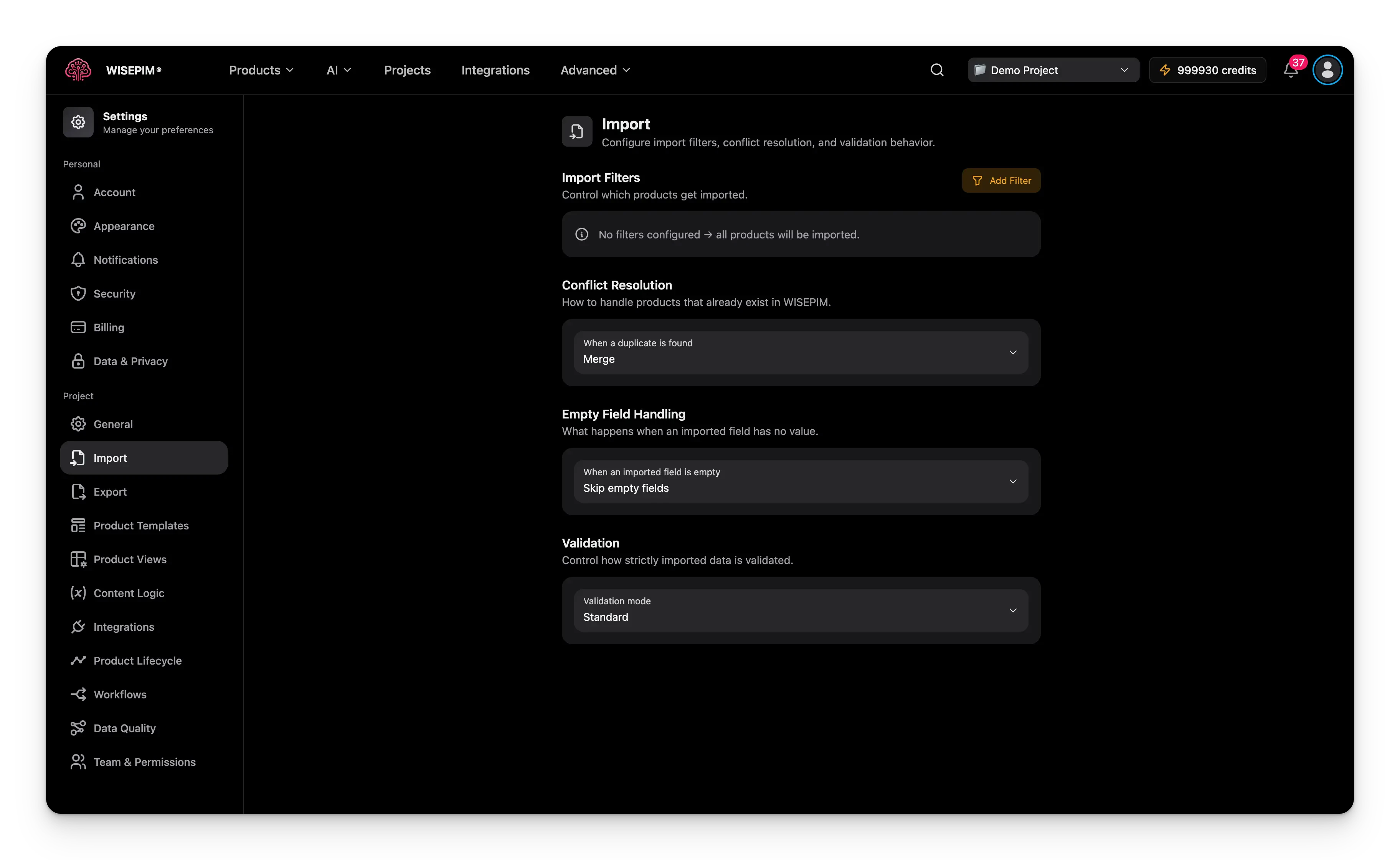 These settings are project-wide defaults. You can still override any option when you run a specific import.
## Filter which products import
By default, WISEPIM imports every row in your file. Add import filters to bring in only the products you want.
Click **Add Filter** to open the advanced filter modal.
Each condition has three parts:
* **Field**: the product field to check (Product Name, SKU, Price, Stock Quantity, and more).
* **Operator**: the comparison logic (equals, contains, is empty, greater than, and more).
* **Value**: what to compare against. Operators like "is empty" or "has value" need no value.
Use **AND** to require every condition. Use **OR** to require just one.
Use filters to skip test products, products below a price you set, or products missing key fields like SKU or EAN.
## Handle duplicate products
When an imported product already exists in WISEPIM (matched by SKU or another identifier), conflict resolution decides what happens.
| Option | What it does |
| ------------- | ------------------------------------------------------------------------------------ |
| **Merge** | Combines existing and imported data, keeping the most complete value for each field. |
| **Overwrite** | Replaces all existing data with the imported data for matched products. |
| **Skip** | Leaves existing data untouched and ignores the imported duplicate. |
**Overwrite** replaces every field on the existing product. Make sure your file holds complete data before you use it, or you may lose information.
## Handle empty fields
This setting decides what happens when a field in your file is blank.
| Option | What it does |
| --------------------- | -------------------------------------------------------- |
| **Skip empty fields** | Keeps the existing value in WISEPIM unchanged. |
| **Clear field** | Removes the existing value and leaves the field empty. |
| **Use default value** | Fills the field with the attribute's configured default. |
**Skip empty fields** is the safest choice. It prevents data loss when your file holds only part of a product's information.
## Choose how strictly to validate
Validation decides how carefully WISEPIM checks your data before it imports.
| Mode | What it does |
| ------------ | ---------------------------------------------------------------------------------------- |
| **Strict** | Rejects any row with missing required fields or invalid formats. No partial imports. |
| **Standard** | Imports valid rows and skips rows with errors. You get a report of what was skipped. |
| **Lenient** | Imports everything it can and auto-fixes minor issues, like extra spaces or odd formats. |
**Standard** is the recommended default. It protects your data, stays flexible, and tells you clearly which rows did not import.
## Save your changes
Edit any setting and a save bar appears at the bottom of the page:
* **Save**: applies your import settings to the project.
* **Undo**: reverts every change to the last saved state.
## Related
Run an import step by step and map your file to WISEPIM fields.
Set the project name, industry, and languages that shape your data.
Control the defaults for exporting your products out of WISEPIM.
Pull products in automatically from your connected platforms.
These settings are project-wide defaults. You can still override any option when you run a specific import.
## Filter which products import
By default, WISEPIM imports every row in your file. Add import filters to bring in only the products you want.
Click **Add Filter** to open the advanced filter modal.
Each condition has three parts:
* **Field**: the product field to check (Product Name, SKU, Price, Stock Quantity, and more).
* **Operator**: the comparison logic (equals, contains, is empty, greater than, and more).
* **Value**: what to compare against. Operators like "is empty" or "has value" need no value.
Use **AND** to require every condition. Use **OR** to require just one.
Use filters to skip test products, products below a price you set, or products missing key fields like SKU or EAN.
## Handle duplicate products
When an imported product already exists in WISEPIM (matched by SKU or another identifier), conflict resolution decides what happens.
| Option | What it does |
| ------------- | ------------------------------------------------------------------------------------ |
| **Merge** | Combines existing and imported data, keeping the most complete value for each field. |
| **Overwrite** | Replaces all existing data with the imported data for matched products. |
| **Skip** | Leaves existing data untouched and ignores the imported duplicate. |
**Overwrite** replaces every field on the existing product. Make sure your file holds complete data before you use it, or you may lose information.
## Handle empty fields
This setting decides what happens when a field in your file is blank.
| Option | What it does |
| --------------------- | -------------------------------------------------------- |
| **Skip empty fields** | Keeps the existing value in WISEPIM unchanged. |
| **Clear field** | Removes the existing value and leaves the field empty. |
| **Use default value** | Fills the field with the attribute's configured default. |
**Skip empty fields** is the safest choice. It prevents data loss when your file holds only part of a product's information.
## Choose how strictly to validate
Validation decides how carefully WISEPIM checks your data before it imports.
| Mode | What it does |
| ------------ | ---------------------------------------------------------------------------------------- |
| **Strict** | Rejects any row with missing required fields or invalid formats. No partial imports. |
| **Standard** | Imports valid rows and skips rows with errors. You get a report of what was skipped. |
| **Lenient** | Imports everything it can and auto-fixes minor issues, like extra spaces or odd formats. |
**Standard** is the recommended default. It protects your data, stays flexible, and tells you clearly which rows did not import.
## Save your changes
Edit any setting and a save bar appears at the bottom of the page:
* **Save**: applies your import settings to the project.
* **Undo**: reverts every change to the last saved state.
## Related
Run an import step by step and map your file to WISEPIM fields.
Set the project name, industry, and languages that shape your data.
Control the defaults for exporting your products out of WISEPIM.
Pull products in automatically from your connected platforms.