> ## Documentation Index
> Fetch the complete documentation index at: https://docs.wisepim.com/llms.txt
> Use this file to discover all available pages before exploring further.
# Import by Scraping Settings
> Decide what happens to products from the scraper and browser extension: classify them, research them on the web, then write the fields you choose.
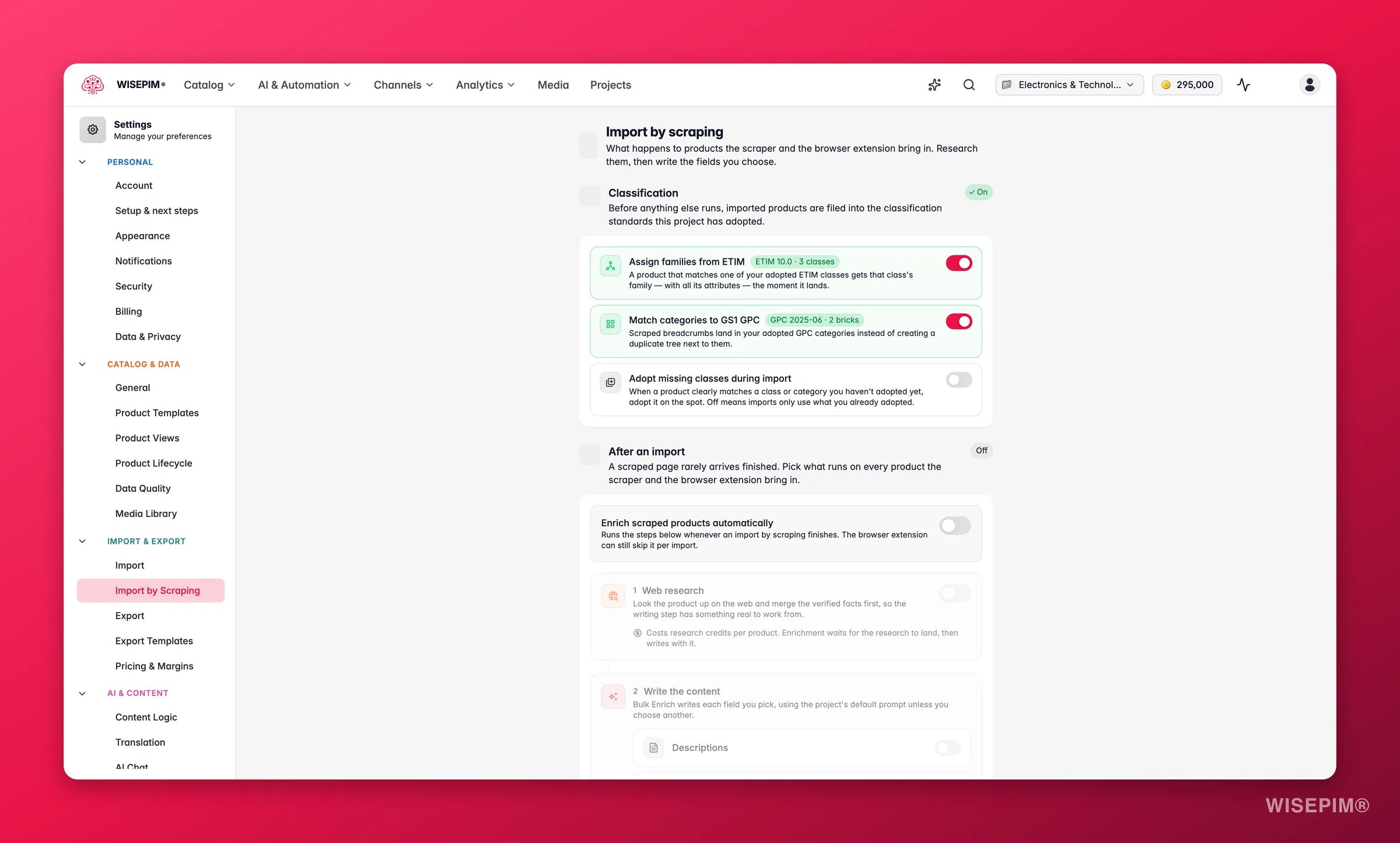
 A scraped page rarely arrives finished. This page decides what runs automatically on every product that [Web Scraping Import](/en/essentials/web-scraping-import) or the browser extension brings in - so imports come out classified, researched, and written instead of raw.
There are two independent sections: **Classification** files products into your adopted standards, and **After an import** chains enrichment onto them. Classification runs first, and deliberately outside the enrichment chain's master switch - the family it assigns decides which attributes enrichment can fill.
**Where to find it:** open your avatar menu → **My Settings**, then **Import & Export → Import by Scraping** in the settings sidebar.
These settings are project-wide. The browser extension can skip the enrichment chain for a single import (useful when you grab one product just to look at it), but classification always runs - it is free and structural.
## Classification
If your project has adopted [classification standards](/en/products/classification), imported products are filed into them before anything else runs:
| Toggle | Default | What it does |
| --------------------------------------- | ------- | ------------------------------------------------------------------------------------------------------------------------------------------------------ |
| **Assign families from ETIM** | On | A product that matches one of your adopted ETIM classes gets that class's family - with all its attributes - the moment it lands. |
| **Match categories to GS1 GPC** | On | Scraped breadcrumbs land in your adopted GPC categories instead of creating a duplicate tree next to them. |
| **Adopt missing classes during import** | Off | When a product clearly matches a class or category you haven't adopted yet, adopt it on the spot. Off means imports only use what you already adopted. |
The section shows which release you're on and how many classes or bricks you've adopted (for example "ETIM 10.0 · 24 classes"). Until you've adopted at least one standard, the toggles stay inert and the section links you to **Browse ETIM classes** and **Browse GPC categories** to set that up first.
Adopt your ETIM classes before you scrape a supplier. The family assigned here decides which attribute slots exist, so web research and enrichment below have somewhere to put the specs they find.
## After an import: the enrichment chain
Turn on **Enrich scraped products automatically** and the steps below run, in order, whenever an import by scraping finishes.
### Step 1 - Web research
Looks each product up on the web and merges the verified facts first, so the writing step has something real to work from. This costs research credits per product, and enrichment waits for the research to land before writing.
This step needs the **Pro** plan or higher. Without it you can still run [web research](/en/ai/web-research) by hand from the products table. How research behaves - focus, allowed sources, which fields it may update - comes from [Web Research settings](/en/settings/web-research).
### Step 2 - Write the content
[Bulk Enrich](/en/ai/bulk-enrich) writes each field you pick, using the project's default prompt unless you choose another per field:
* **Descriptions**
* **Short descriptions**
* **Titles**
* **SEO title and meta**
* **Attributes**
The first time you switch the chain on, **Descriptions, Titles, and SEO title and meta** are pre-selected - the three things a scraped page is reliably worst at. Attributes and short descriptions stay off because scrapes often carry usable specs, and every extra field costs credits per product.
A summary strip shows the chain at a glance: **Web research → Bulk Enrich, N fields**. If nothing is selected, imports stay as they arrive.
The chain runs on *every* product an import brings in. Before scraping a 2,000-product catalog with the chain on, run a small capped import first and check the results - credits spent on a misconfigured chain are hard to get back.
## Related
The import flow these settings apply to.
Adopt the ETIM classes and GPC categories imports file into.
Control what research focuses on and which fields it updates.
The writing step of the chain, also available on its own.
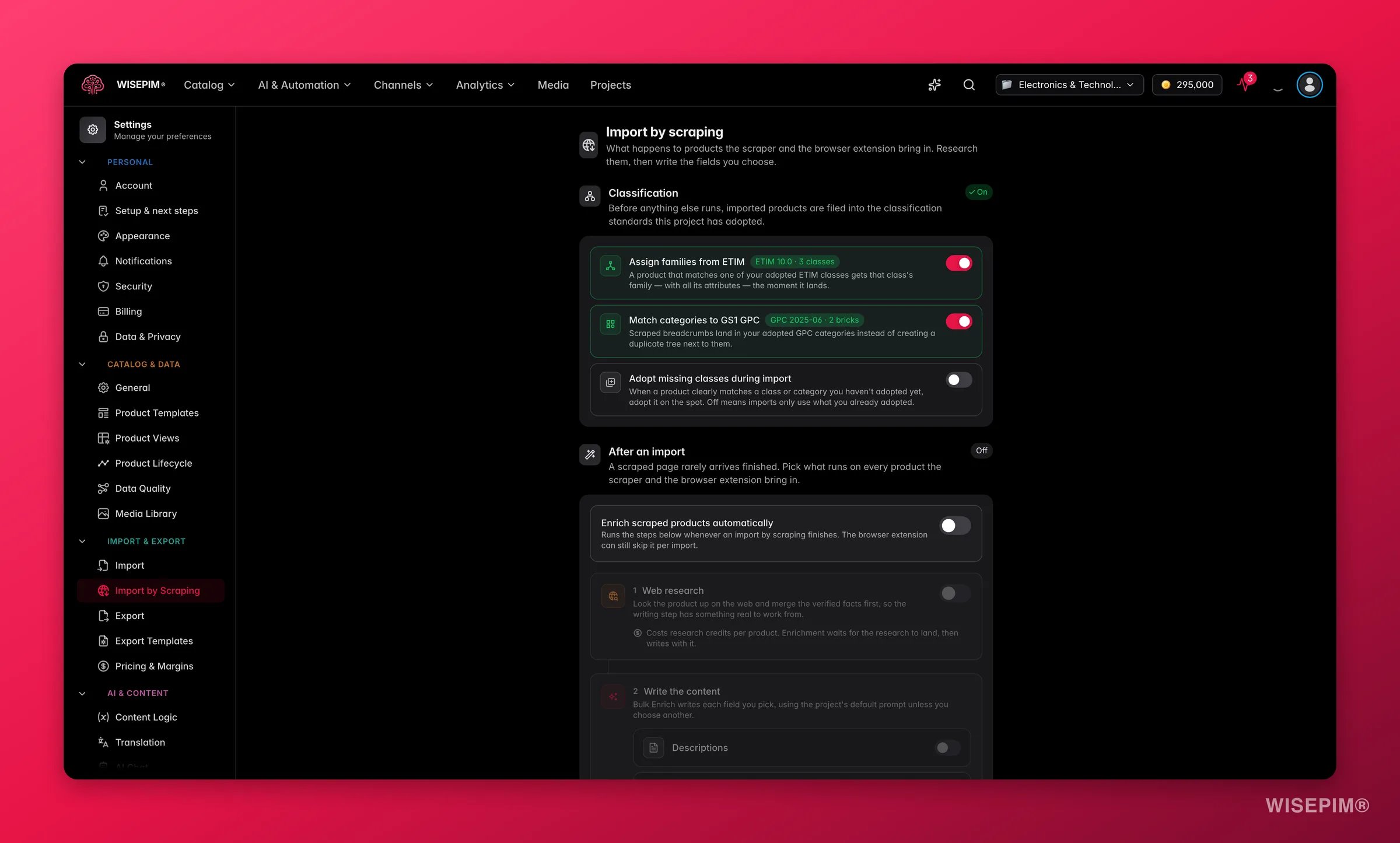
A scraped page rarely arrives finished. This page decides what runs automatically on every product that [Web Scraping Import](/en/essentials/web-scraping-import) or the browser extension brings in - so imports come out classified, researched, and written instead of raw.
There are two independent sections: **Classification** files products into your adopted standards, and **After an import** chains enrichment onto them. Classification runs first, and deliberately outside the enrichment chain's master switch - the family it assigns decides which attributes enrichment can fill.
**Where to find it:** open your avatar menu → **My Settings**, then **Import & Export → Import by Scraping** in the settings sidebar.
These settings are project-wide. The browser extension can skip the enrichment chain for a single import (useful when you grab one product just to look at it), but classification always runs - it is free and structural.
## Classification
If your project has adopted [classification standards](/en/products/classification), imported products are filed into them before anything else runs:
| Toggle | Default | What it does |
| --------------------------------------- | ------- | ------------------------------------------------------------------------------------------------------------------------------------------------------ |
| **Assign families from ETIM** | On | A product that matches one of your adopted ETIM classes gets that class's family - with all its attributes - the moment it lands. |
| **Match categories to GS1 GPC** | On | Scraped breadcrumbs land in your adopted GPC categories instead of creating a duplicate tree next to them. |
| **Adopt missing classes during import** | Off | When a product clearly matches a class or category you haven't adopted yet, adopt it on the spot. Off means imports only use what you already adopted. |
The section shows which release you're on and how many classes or bricks you've adopted (for example "ETIM 10.0 · 24 classes"). Until you've adopted at least one standard, the toggles stay inert and the section links you to **Browse ETIM classes** and **Browse GPC categories** to set that up first.
Adopt your ETIM classes before you scrape a supplier. The family assigned here decides which attribute slots exist, so web research and enrichment below have somewhere to put the specs they find.
## After an import: the enrichment chain
Turn on **Enrich scraped products automatically** and the steps below run, in order, whenever an import by scraping finishes.
### Step 1 - Web research
Looks each product up on the web and merges the verified facts first, so the writing step has something real to work from. This costs research credits per product, and enrichment waits for the research to land before writing.
This step needs the **Pro** plan or higher. Without it you can still run [web research](/en/ai/web-research) by hand from the products table. How research behaves - focus, allowed sources, which fields it may update - comes from [Web Research settings](/en/settings/web-research).
### Step 2 - Write the content
[Bulk Enrich](/en/ai/bulk-enrich) writes each field you pick, using the project's default prompt unless you choose another per field:
* **Descriptions**
* **Short descriptions**
* **Titles**
* **SEO title and meta**
* **Attributes**
The first time you switch the chain on, **Descriptions, Titles, and SEO title and meta** are pre-selected - the three things a scraped page is reliably worst at. Attributes and short descriptions stay off because scrapes often carry usable specs, and every extra field costs credits per product.
A summary strip shows the chain at a glance: **Web research → Bulk Enrich, N fields**. If nothing is selected, imports stay as they arrive.
The chain runs on *every* product an import brings in. Before scraping a 2,000-product catalog with the chain on, run a small capped import first and check the results - credits spent on a misconfigured chain are hard to get back.
## Related
The import flow these settings apply to.
Adopt the ETIM classes and GPC categories imports file into.
Control what research focuses on and which fields it updates.
The writing step of the chain, also available on its own.