> ## Documentation Index
> Fetch the complete documentation index at: https://docs.wisepim.com/llms.txt
> Use this file to discover all available pages before exploring further.
# General Settings
> Set your project name, industry, and languages. These details shape how AI writes and translates your product content.
General settings hold the core facts about your project: its name, industry, target keywords, and languages. AI uses these details to write and translate your product content. Keep them accurate and your results get better.
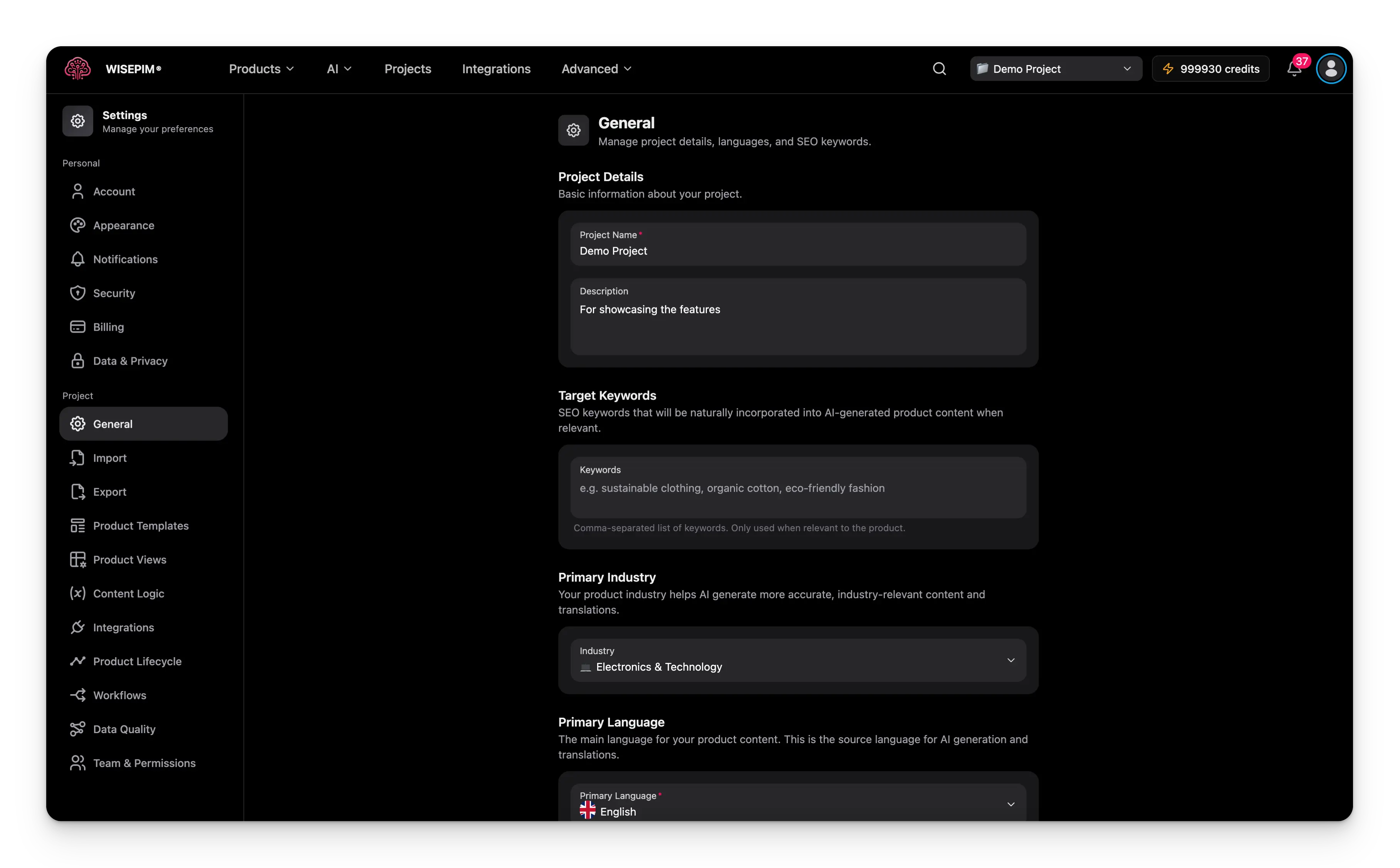 Pick a project in the project switcher before you open General settings. Settings apply to the selected project only.
## Name your project
Give your project a clear identity so your team knows what it holds.
Enter a descriptive name. It shows in the project switcher and across the interface.
Add a short summary of the project and the products it contains. This helps your team understand its scope at a glance.
## Add target keywords
Target keywords are the SEO terms you want to rank for. AI weaves them into your product content when they fit, so descriptions read naturally and still help you rank.
Enter a comma-separated list, for example:
```
sustainable clothing, organic cotton, eco-friendly fashion
```
Keep the list focused. Add only terms that truly match your products. AI uses a keyword only when it fits naturally, so a tight list works best.
## Set your industry
Your industry tells AI what kind of products you sell. With this context, it writes more accurate, on-topic content and translations.
Pick the industry that best matches your catalog from the dropdown. Options cover categories like fashion, electronics, food and beverage, health and beauty, and more.
Changing your industry does not rewrite existing content. It only shapes content AI generates from now on.
## Choose your languages
Your languages decide which versions of your product content WISEPIM can create.
### Primary language
The primary language is your source language. All AI generation and translation start from it.
Search the autocomplete dropdown and pick your main language. Each one shows its country flag, so it is easy to spot.
If your new primary language was in the additional list, WISEPIM removes it from there automatically.
Changing the primary language on an existing project can affect how translations are generated. Make sure your content in the new primary language is complete before you switch.
### Additional languages
Add as many extra languages as you need. WISEPIM translates your content from the primary language into each one.
* **Add a language**: search and select it in the autocomplete field.
* **Remove a language**: click the close icon on the language chip.
WISEPIM stores all your languages together (primary plus additional) and makes them available for translation across the project.
## Save your changes
Edit any field and a save bar appears at the bottom of the page. You have two choices:
* **Save**: applies your changes right away.
* **Undo**: reverts every field to the last saved state.
## Related
Control conflict resolution, empty fields, and validation for every import.
Fine-tune how AI translates content into your additional languages.
Set the language of the WISEPIM interface for your account.
Create, switch, and organize the projects in your workspace.
Pick a project in the project switcher before you open General settings. Settings apply to the selected project only.
## Name your project
Give your project a clear identity so your team knows what it holds.
Enter a descriptive name. It shows in the project switcher and across the interface.
Add a short summary of the project and the products it contains. This helps your team understand its scope at a glance.
## Add target keywords
Target keywords are the SEO terms you want to rank for. AI weaves them into your product content when they fit, so descriptions read naturally and still help you rank.
Enter a comma-separated list, for example:
```
sustainable clothing, organic cotton, eco-friendly fashion
```
Keep the list focused. Add only terms that truly match your products. AI uses a keyword only when it fits naturally, so a tight list works best.
## Set your industry
Your industry tells AI what kind of products you sell. With this context, it writes more accurate, on-topic content and translations.
Pick the industry that best matches your catalog from the dropdown. Options cover categories like fashion, electronics, food and beverage, health and beauty, and more.
Changing your industry does not rewrite existing content. It only shapes content AI generates from now on.
## Choose your languages
Your languages decide which versions of your product content WISEPIM can create.
### Primary language
The primary language is your source language. All AI generation and translation start from it.
Search the autocomplete dropdown and pick your main language. Each one shows its country flag, so it is easy to spot.
If your new primary language was in the additional list, WISEPIM removes it from there automatically.
Changing the primary language on an existing project can affect how translations are generated. Make sure your content in the new primary language is complete before you switch.
### Additional languages
Add as many extra languages as you need. WISEPIM translates your content from the primary language into each one.
* **Add a language**: search and select it in the autocomplete field.
* **Remove a language**: click the close icon on the language chip.
WISEPIM stores all your languages together (primary plus additional) and makes them available for translation across the project.
## Save your changes
Edit any field and a save bar appears at the bottom of the page. You have two choices:
* **Save**: applies your changes right away.
* **Undo**: reverts every field to the last saved state.
## Related
Control conflict resolution, empty fields, and validation for every import.
Fine-tune how AI translates content into your additional languages.
Set the language of the WISEPIM interface for your account.
Create, switch, and organize the projects in your workspace.