> ## Documentation Index
> Fetch the complete documentation index at: https://docs.wisepim.com/llms.txt
> Use this file to discover all available pages before exploring further.
# Enrich Prompts
> Pick the default prompt for each enrichment type so the right instructions are preselected in the Enrich modal and used by Auto-Fill.
Enrich Prompts let you choose a default prompt for each enrichment type. That default is preselected the moment you open the Enrich modal and is the prompt Auto-Fill runs, so your team enriches products with the same on-brand instructions every time.
These are **project-level** defaults. Select a project from the switcher first. If no project is active, the page asks you to pick one before you can set defaults.
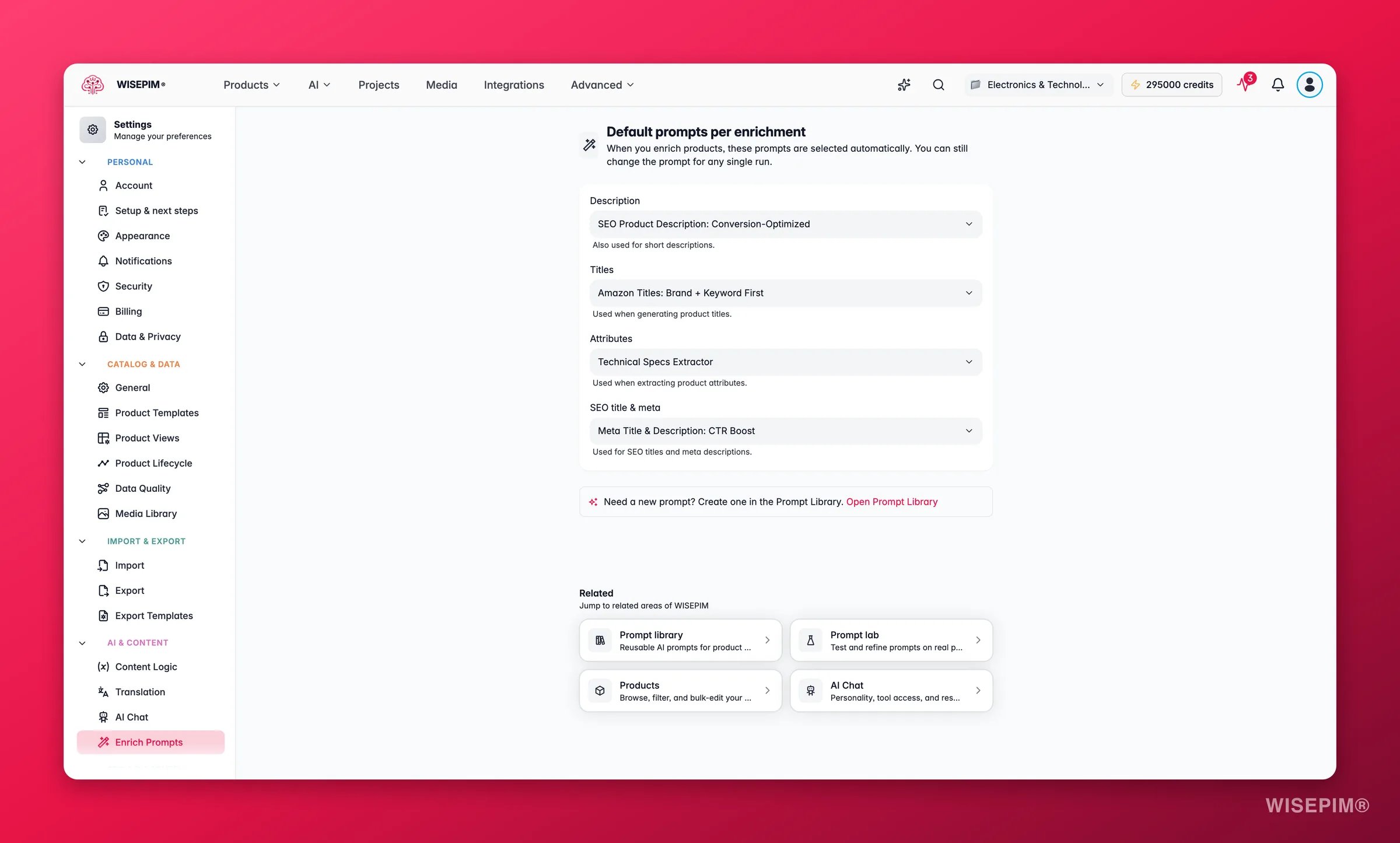
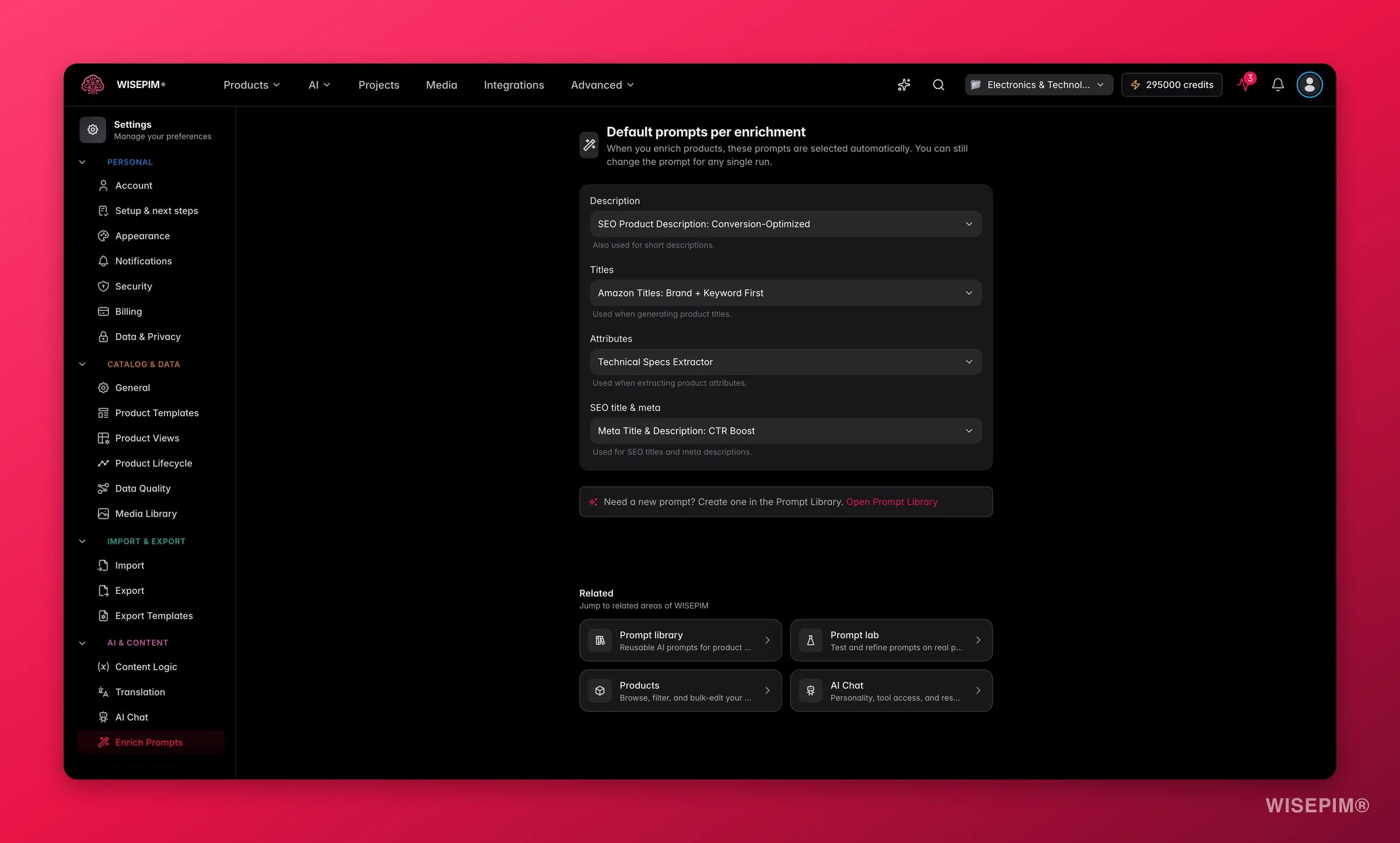 ## Default prompts per enrichment
Each enrichment type has its own dropdown. Pick a prompt and it becomes the default for that type across your project. Leave a dropdown on **No default** and WISEPIM falls back to its built-in instructions for that type.
| Enrichment type | What the default drives | What it covers |
| -------------------- | ----------------------------------------------------- | ------------------------------------------------------------------------- |
| **Description** | The prompt used when writing product copy | Both full descriptions **and** short descriptions share this one default. |
| **Titles** | The prompt used when generating product titles | Title variants for your products. |
| **Attributes** | The prompt used when extracting structured attributes | Inferred attribute values like material, color, weight, and dimensions. |
| **SEO title & meta** | The prompt used for search metadata | Meta titles and meta descriptions. |
Each dropdown lists only the prompts that match that enrichment type, so you can never assign a description prompt to the SEO slot by mistake. If a dropdown is empty, you have no prompt of that type yet. Create one first (see [Save your changes](#save-your-changes) below for where prompts come from).
**Description** and short description deliberately share a single default. A description-shaped prompt works for both, so setting one default covers both fields.
To set a default for an enrichment type:
Pick the row for the type you want to set, for example **Titles** or **SEO title & meta**.
It lists every prompt in your project that matches that enrichment type.
Select the prompt your team should use by default. To clear a default, set the dropdown back to **No default**.
Set defaults once and your whole team enriches with the same voice. A catalog manager no longer has to remember which prompt to pick for descriptions versus SEO metadata. The correct one is already selected.
## Where your defaults show up
A default you set here does two things across the app:
* **Preselected in the Enrich modal.** When anyone opens the Enrich modal for a product or a selection, the prompt for that enrichment type is already chosen. They can still switch to a different prompt for that single run. Your default is a starting point, not a lock.
* **Used by Auto-Fill.** Auto-Fill fills gaps in a product using your defaults, so it writes the missing description, titles, attributes, or SEO metadata with the exact prompts you picked here. No prompt selection step required.
Because the Enrich modal only **preselects** your default, power users keep full freedom. The default removes the routine choice without taking away control.
## Save your changes
Change any dropdown on this page and a save bar appears at the bottom right:
* **Save changes**: stores your default prompts on the project.
* **Reset**: reverts every dropdown to the last saved state.
Until you save, nothing is applied. A short toast confirms once your defaults are stored.
The prompts you choose from here come from your **Prompt Library**. If you need a new prompt for a type, build it there first. The page includes an **Open Prompt Library** shortcut so you can jump straight over, create the prompt, and come back to set it as the default.
## Related
See how the Enrich modal and Auto-Fill use the defaults you set here.
Create and manage the prompts that appear in each enrichment dropdown.
Draft and test prompts before adding them to your library.
Browse every personal and project setting in one place.
## Default prompts per enrichment
Each enrichment type has its own dropdown. Pick a prompt and it becomes the default for that type across your project. Leave a dropdown on **No default** and WISEPIM falls back to its built-in instructions for that type.
| Enrichment type | What the default drives | What it covers |
| -------------------- | ----------------------------------------------------- | ------------------------------------------------------------------------- |
| **Description** | The prompt used when writing product copy | Both full descriptions **and** short descriptions share this one default. |
| **Titles** | The prompt used when generating product titles | Title variants for your products. |
| **Attributes** | The prompt used when extracting structured attributes | Inferred attribute values like material, color, weight, and dimensions. |
| **SEO title & meta** | The prompt used for search metadata | Meta titles and meta descriptions. |
Each dropdown lists only the prompts that match that enrichment type, so you can never assign a description prompt to the SEO slot by mistake. If a dropdown is empty, you have no prompt of that type yet. Create one first (see [Save your changes](#save-your-changes) below for where prompts come from).
**Description** and short description deliberately share a single default. A description-shaped prompt works for both, so setting one default covers both fields.
To set a default for an enrichment type:
Pick the row for the type you want to set, for example **Titles** or **SEO title & meta**.
It lists every prompt in your project that matches that enrichment type.
Select the prompt your team should use by default. To clear a default, set the dropdown back to **No default**.
Set defaults once and your whole team enriches with the same voice. A catalog manager no longer has to remember which prompt to pick for descriptions versus SEO metadata. The correct one is already selected.
## Where your defaults show up
A default you set here does two things across the app:
* **Preselected in the Enrich modal.** When anyone opens the Enrich modal for a product or a selection, the prompt for that enrichment type is already chosen. They can still switch to a different prompt for that single run. Your default is a starting point, not a lock.
* **Used by Auto-Fill.** Auto-Fill fills gaps in a product using your defaults, so it writes the missing description, titles, attributes, or SEO metadata with the exact prompts you picked here. No prompt selection step required.
Because the Enrich modal only **preselects** your default, power users keep full freedom. The default removes the routine choice without taking away control.
## Save your changes
Change any dropdown on this page and a save bar appears at the bottom right:
* **Save changes**: stores your default prompts on the project.
* **Reset**: reverts every dropdown to the last saved state.
Until you save, nothing is applied. A short toast confirms once your defaults are stored.
The prompts you choose from here come from your **Prompt Library**. If you need a new prompt for a type, build it there first. The page includes an **Open Prompt Library** shortcut so you can jump straight over, create the prompt, and come back to set it as the default.
## Related
See how the Enrich modal and Auto-Fill use the defaults you set here.
Create and manage the prompts that appear in each enrichment dropdown.
Draft and test prompts before adding them to your library.
Browse every personal and project setting in one place.