> ## Documentation Index
> Fetch the complete documentation index at: https://docs.wisepim.com/llms.txt
> Use this file to discover all available pages before exploring further.
# Data Quality Settings
> Decide what good product data means for your business. Set how WISEPIM scores completeness, channel readiness, SEO, and conversion.
Every product in WISEPIM gets a quality score. These settings let you decide how that score is calculated, so it reflects what matters to your business.
The score combines four domains. You set the weight of each one, then fine-tune the details. The result is a single grade you can sort, filter, and act on across your catalog.
Select a project from the project switcher first. Data Quality settings are saved per project.
## How scoring works
The settings open in five tabs. Start with **General** to set the big picture, then open the other tabs to fine-tune each domain.
Set domain weights and the score needed for each grade.
Score how fully your product fields are filled in.
Score whether products are ready to list on each platform.
Set the character limits that drive search visibility.
Score how well content turns visitors into buyers.
## General
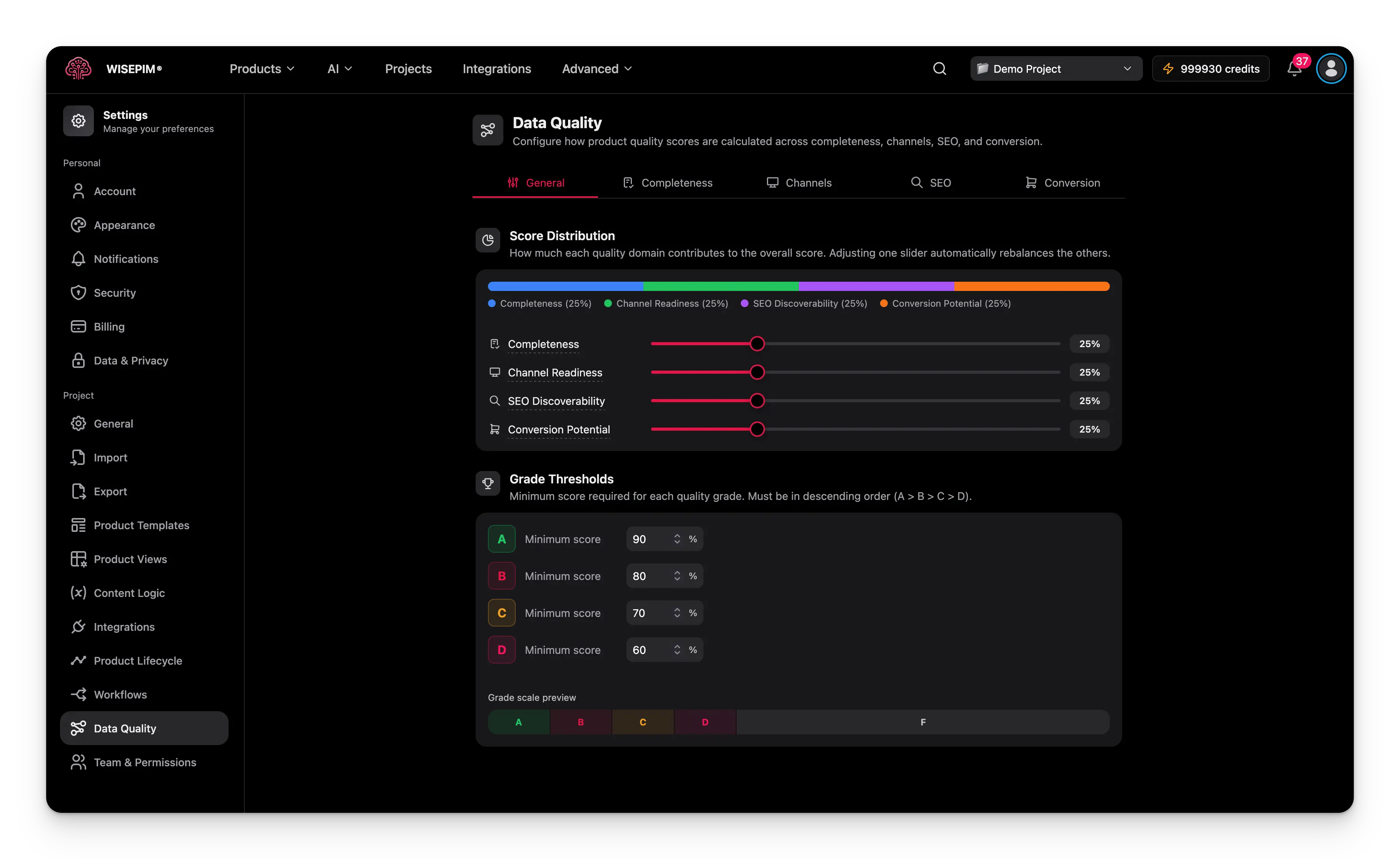
The General tab sets the top-level scoring model: how much each domain counts, and which score earns which grade.
 ### Domain weights
Your overall score is built from four domains. Adjust each weight to match its importance to your business.
| Domain | What it measures | Default weight |
| ------------------------ | ------------------------------------------- | -------------- |
| **Completeness** | How fully product fields are filled in. | 25% |
| **Channel Readiness** | Whether products meet channel requirements. | 25% |
| **SEO Discoverability** | How well content is optimized for search. | 25% |
| **Conversion Potential** | How purchase-ready the content is. | 25% |
Sell mostly on marketplaces? Raise the Channel Readiness weight. Rely on organic traffic? Raise SEO Discoverability.
### Grade thresholds
Scores map to letter grades. Set the minimum score each grade needs.
| Grade | Default minimum score |
| ----- | --------------------- |
| **A** | 90 |
| **B** | 80 |
| **C** | 70 |
| **D** | 60 |
Products that score below the D threshold get an F.
## Completeness
The Completeness tab controls how WISEPIM checks whether product data is fully filled in.
### Domain weights
Your overall score is built from four domains. Adjust each weight to match its importance to your business.
| Domain | What it measures | Default weight |
| ------------------------ | ------------------------------------------- | -------------- |
| **Completeness** | How fully product fields are filled in. | 25% |
| **Channel Readiness** | Whether products meet channel requirements. | 25% |
| **SEO Discoverability** | How well content is optimized for search. | 25% |
| **Conversion Potential** | How purchase-ready the content is. | 25% |
Sell mostly on marketplaces? Raise the Channel Readiness weight. Rely on organic traffic? Raise SEO Discoverability.
### Grade thresholds
Scores map to letter grades. Set the minimum score each grade needs.
| Grade | Default minimum score |
| ----- | --------------------- |
| **A** | 90 |
| **B** | 80 |
| **C** | 70 |
| **D** | 60 |
Products that score below the D threshold get an F.
## Completeness
The Completeness tab controls how WISEPIM checks whether product data is fully filled in.
 ### Component weights
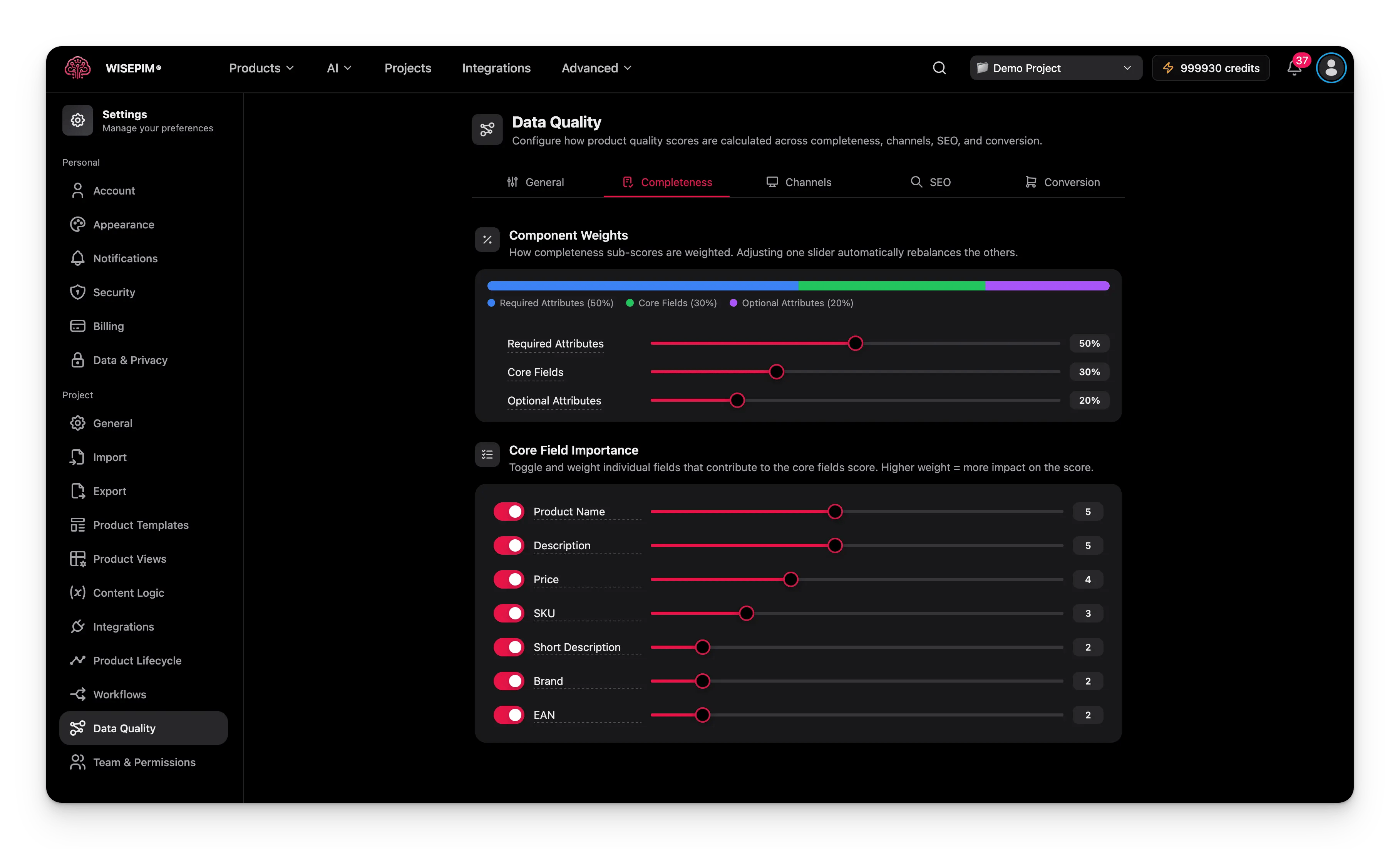
Completeness has three components. Set how much each one counts.
| Component | What it covers | Default weight |
| ----------------------- | --------------------------------------------- | -------------- |
| **Required Attributes** | Attributes marked required in your schema. | 50% |
| **Core Fields** | Standard fields like name, price, and SKU. | 30% |
| **Optional Attributes** | Non-required attributes that still add value. | 20% |
### Core field weights
Turn individual core fields on or off, and set how much each one matters.
| Field | Default weight |
| --------------------- | -------------- |
| **Product Name** | 5 |
| **Description** | 5 |
| **Price** | 4 |
| **SKU** | 3 |
| **Short Description** | 2 |
| **Brand** | 2 |
| **EAN** | 2 |
A higher weight means the field counts more. Missing a high-weight field hurts the score more than missing a low-weight one.
## Channels
The Channels tab scores whether products are ready to list on the platforms you sell on.
### Component weights
Completeness has three components. Set how much each one counts.
| Component | What it covers | Default weight |
| ----------------------- | --------------------------------------------- | -------------- |
| **Required Attributes** | Attributes marked required in your schema. | 50% |
| **Core Fields** | Standard fields like name, price, and SKU. | 30% |
| **Optional Attributes** | Non-required attributes that still add value. | 20% |
### Core field weights
Turn individual core fields on or off, and set how much each one matters.
| Field | Default weight |
| --------------------- | -------------- |
| **Product Name** | 5 |
| **Description** | 5 |
| **Price** | 4 |
| **SKU** | 3 |
| **Short Description** | 2 |
| **Brand** | 2 |
| **EAN** | 2 |
A higher weight means the field counts more. Missing a high-weight field hurts the score more than missing a low-weight one.
## Channels
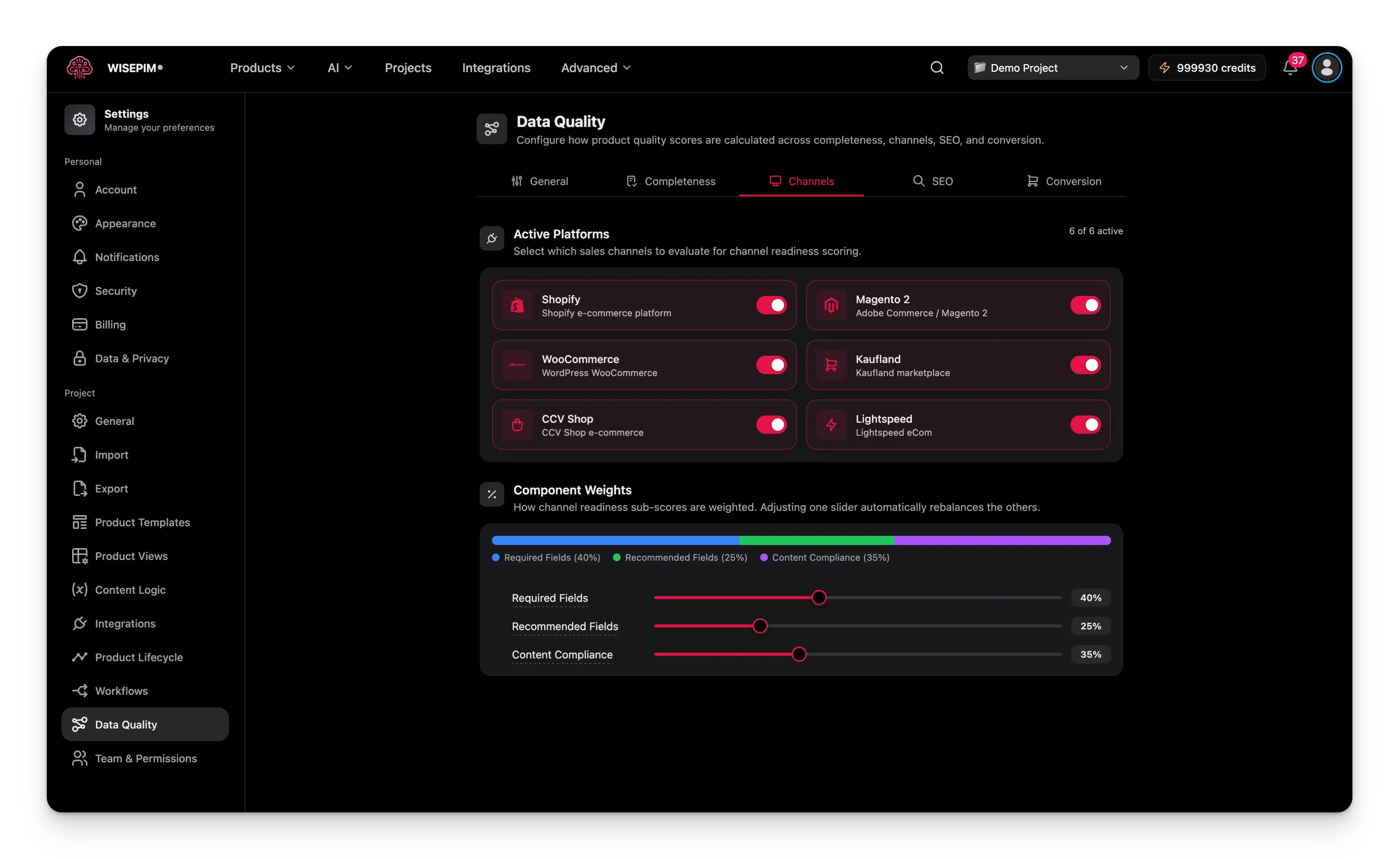
The Channels tab scores whether products are ready to list on the platforms you sell on.
 ### Component weights
| Component | What it covers | Default weight |
| ---------------------- | -------------------------------------------- | -------------- |
| **Required Fields** | Fields the platform needs to list a product. | 40% |
| **Recommended Fields** | Fields that improve a listing. | 25% |
| **Content Compliance** | Whether content meets platform guidelines. | 35% |
### Enabled platforms
Choose which platforms to check readiness for. Supported platforms:
* Shopify
* Magento 2
* WooCommerce
* Kaufland
* CCV Shop
* Lightspeed
Enable only the platforms you sell on. Turning off unused platforms keeps them from dragging down your score.
## SEO
The SEO tab sets character limits for meta fields and content length. These limits decide how well products score for search visibility.
### Character limits
| Field | Default min | Default max |
| ------------------------- | ----------- | ----------- |
| **Meta Title** | 50 | 60 |
| **Meta Description** | 140 | 160 |
| **Content (description)** | 300 | 1,500 |
Search engines usually cut off meta titles past 60 characters and meta descriptions past 160. Staying within these limits keeps your content fully visible in search results.
## Conversion
The Conversion tab scores how well your content turns visitors into buyers.
### Component weights
| Component | What it covers | Default weight |
| ---------------------- | -------------------------------------------- | -------------- |
| **Required Fields** | Fields the platform needs to list a product. | 40% |
| **Recommended Fields** | Fields that improve a listing. | 25% |
| **Content Compliance** | Whether content meets platform guidelines. | 35% |
### Enabled platforms
Choose which platforms to check readiness for. Supported platforms:
* Shopify
* Magento 2
* WooCommerce
* Kaufland
* CCV Shop
* Lightspeed
Enable only the platforms you sell on. Turning off unused platforms keeps them from dragging down your score.
## SEO
The SEO tab sets character limits for meta fields and content length. These limits decide how well products score for search visibility.
### Character limits
| Field | Default min | Default max |
| ------------------------- | ----------- | ----------- |
| **Meta Title** | 50 | 60 |
| **Meta Description** | 140 | 160 |
| **Content (description)** | 300 | 1,500 |
Search engines usually cut off meta titles past 60 characters and meta descriptions past 160. Staying within these limits keeps your content fully visible in search results.
## Conversion
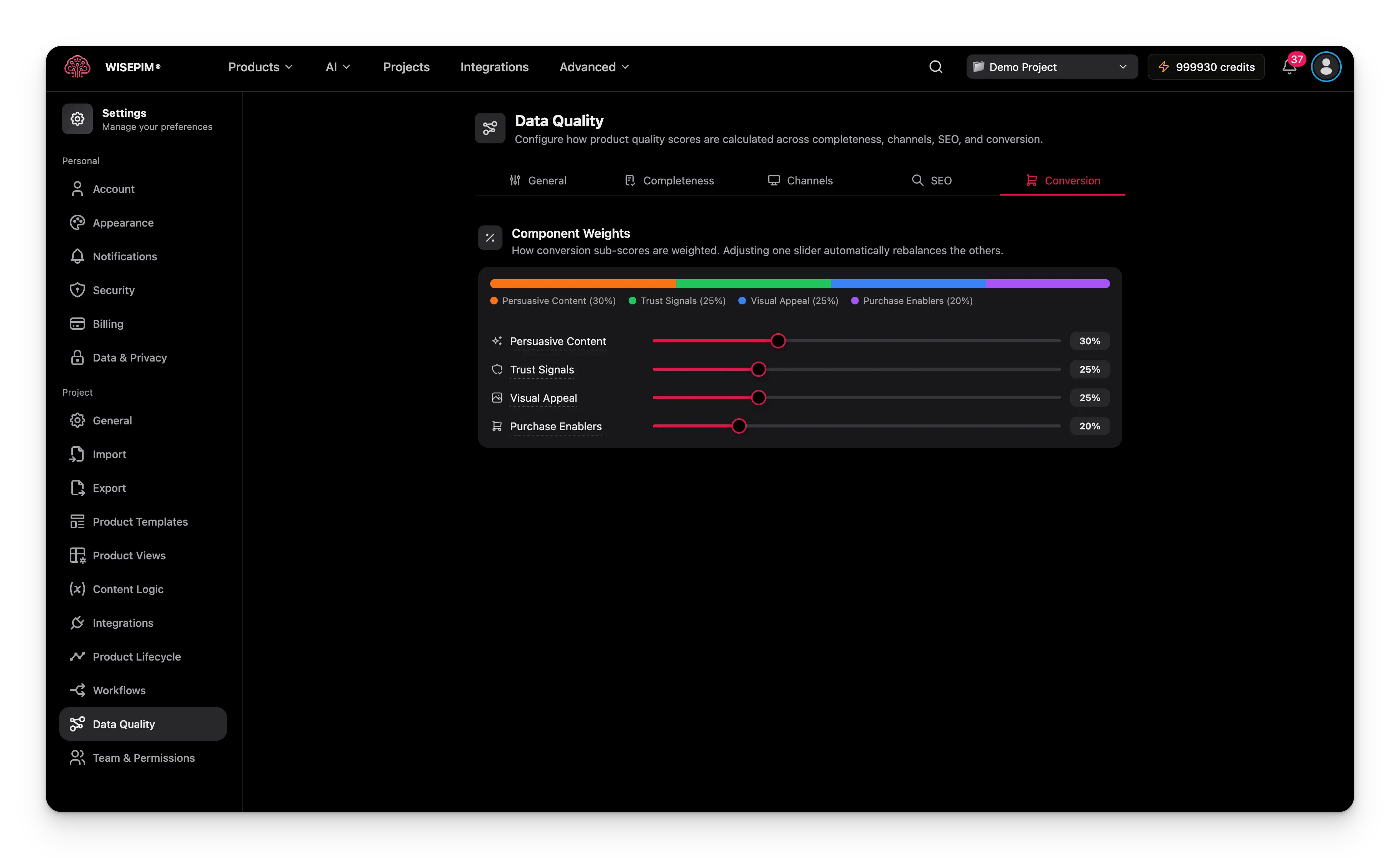
The Conversion tab scores how well your content turns visitors into buyers.
 ### Component weights
| Component | What it covers | Default weight |
| ---------------------- | ----------------------------------------- | -------------- |
| **Persuasive Content** | Compelling, benefit-focused descriptions. | 30% |
| **Trust Signals** | Brand info, reviews, certifications. | 25% |
| **Visual Appeal** | Image quality and quantity. | 25% |
| **Purchase Enablers** | Price, availability, shipping info. | 20% |
## Save your changes
Change any setting on any tab and a save bar appears at the bottom of the page.
* **Save**: stores your settings for the project. The button is active only when your changes are valid.
* **Undo**: reverts everything to the last saved state.
New settings apply the next time products are evaluated. Existing scores are not recalculated right away. To refresh them now, use [Recalculate Data Quality](/en/essentials/bulk-editing/recalculate-quality) in bulk editing.
## Related
Block low-quality products from reaching your channels.
Refresh scores in bulk after you change these settings.
Set defaults for how WISEPIM exports your product data.
Browse every personal and project setting in one place.
### Component weights
| Component | What it covers | Default weight |
| ---------------------- | ----------------------------------------- | -------------- |
| **Persuasive Content** | Compelling, benefit-focused descriptions. | 30% |
| **Trust Signals** | Brand info, reviews, certifications. | 25% |
| **Visual Appeal** | Image quality and quantity. | 25% |
| **Purchase Enablers** | Price, availability, shipping info. | 20% |
## Save your changes
Change any setting on any tab and a save bar appears at the bottom of the page.
* **Save**: stores your settings for the project. The button is active only when your changes are valid.
* **Undo**: reverts everything to the last saved state.
New settings apply the next time products are evaluated. Existing scores are not recalculated right away. To refresh them now, use [Recalculate Data Quality](/en/essentials/bulk-editing/recalculate-quality) in bulk editing.
## Related
Block low-quality products from reaching your channels.
Refresh scores in bulk after you change these settings.
Set defaults for how WISEPIM exports your product data.
Browse every personal and project setting in one place.