> ## Documentation Index
> Fetch the complete documentation index at: https://docs.wisepim.com/llms.txt
> Use this file to discover all available pages before exploring further.
# Connected Apps
> Let an AI assistant work with your catalog through a scoped connection, review every change it proposes, and revoke its access whenever you want.
 Connected apps are AI assistants that talk to WISEPIM on your behalf. Connect ChatGPT or Codex once, and you can ask it about your catalog, have it draft enrichment, and approve the results without leaving the assistant.
Nothing happens quietly. A connection covers exactly one project, carries exactly the permissions you approved, and every catalog change comes back to you as a proposal you have to read and approve.
**Where to find it:** the page lives at **Settings > Connected apps**. Every connection and review screen links to it as **Manage connected apps**.
This is the reverse of [Feed Hub's ChatGPT Shopping channel](/en/essentials/feed-hub). Feed Hub pushes your products *out* so shoppers can find them. Connected apps let an assistant reach *in* to the catalog you work on.
## Connect an assistant
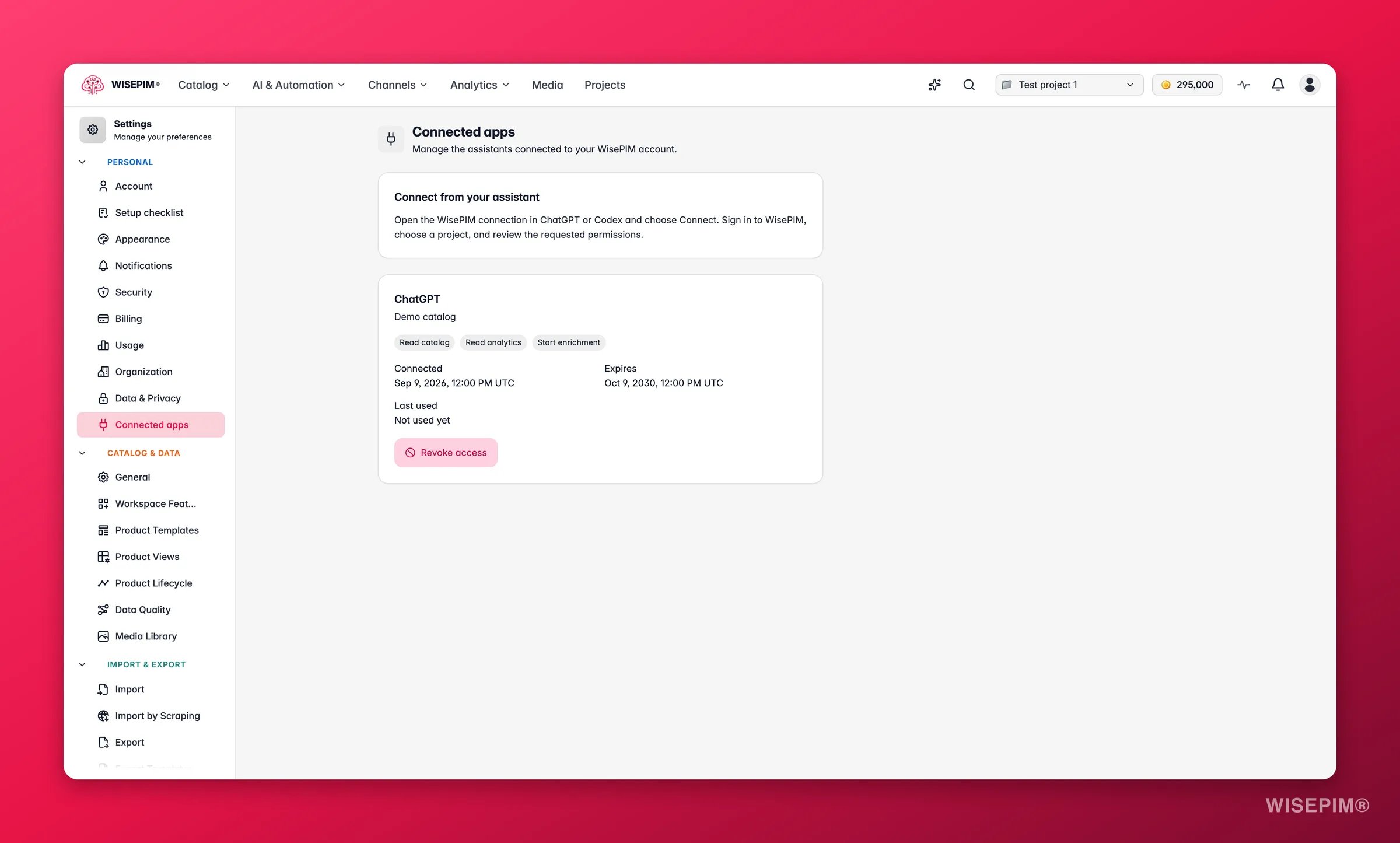
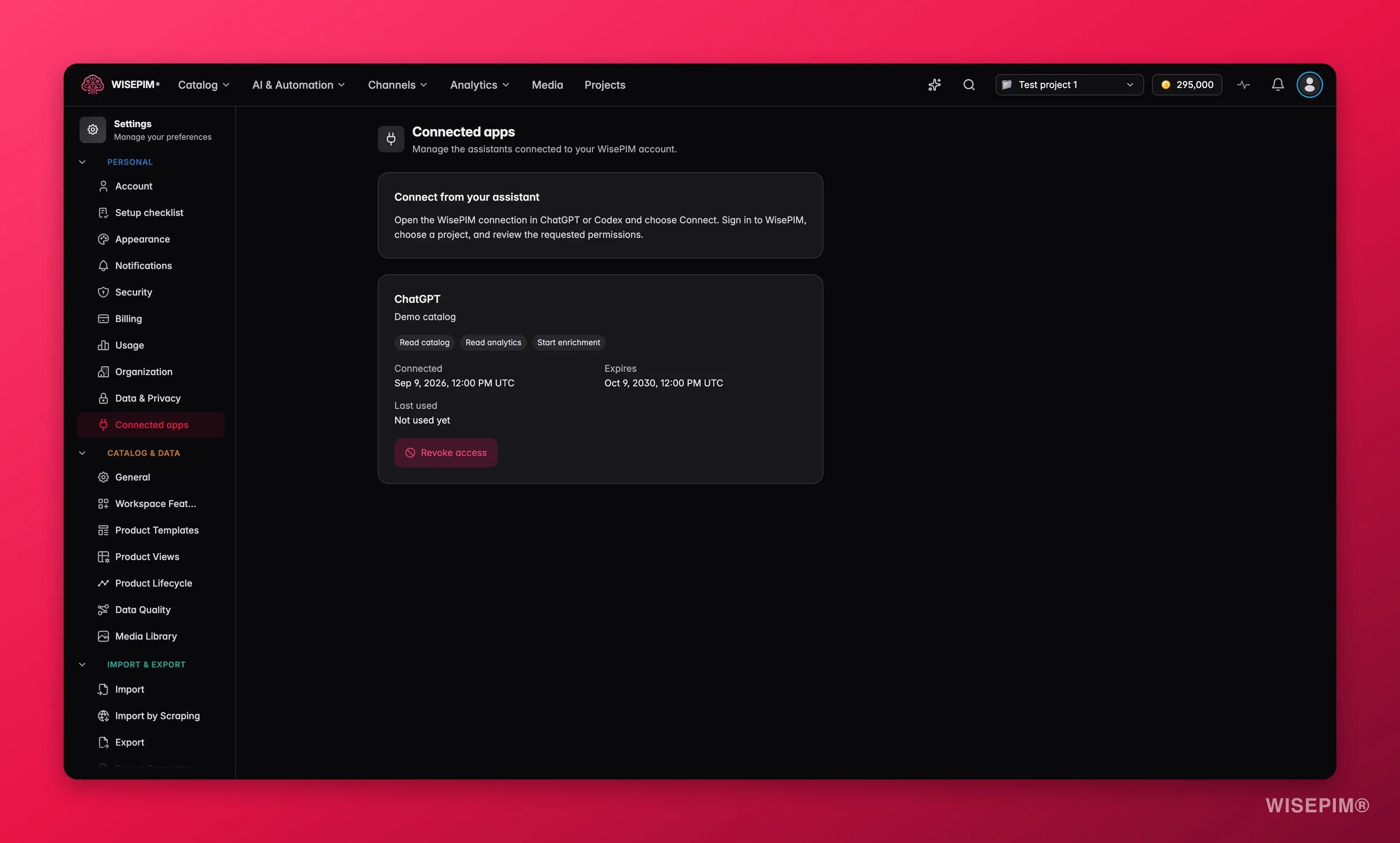
You start from the assistant, not from WISEPIM: "Open the WisePIM connection in ChatGPT or Codex and choose Connect. Sign in to WisePIM, choose a project, and review the requested permissions."
Connected apps are AI assistants that talk to WISEPIM on your behalf. Connect ChatGPT or Codex once, and you can ask it about your catalog, have it draft enrichment, and approve the results without leaving the assistant.
Nothing happens quietly. A connection covers exactly one project, carries exactly the permissions you approved, and every catalog change comes back to you as a proposal you have to read and approve.
**Where to find it:** the page lives at **Settings > Connected apps**. Every connection and review screen links to it as **Manage connected apps**.
This is the reverse of [Feed Hub's ChatGPT Shopping channel](/en/essentials/feed-hub). Feed Hub pushes your products *out* so shoppers can find them. Connected apps let an assistant reach *in* to the catalog you work on.
## Connect an assistant
You start from the assistant, not from WISEPIM: "Open the WisePIM connection in ChatGPT or Codex and choose Connect. Sign in to WisePIM, choose a project, and review the requested permissions."
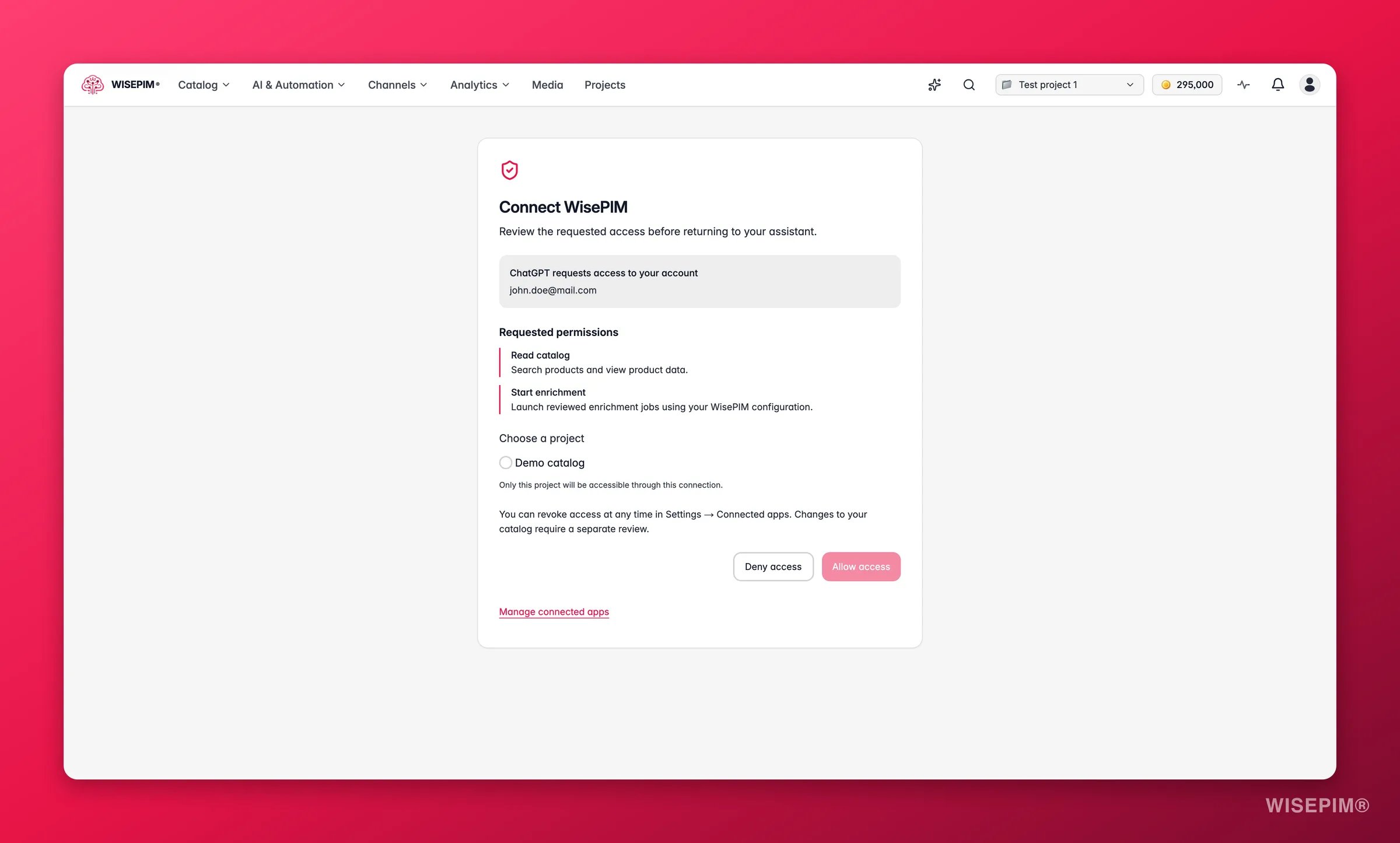
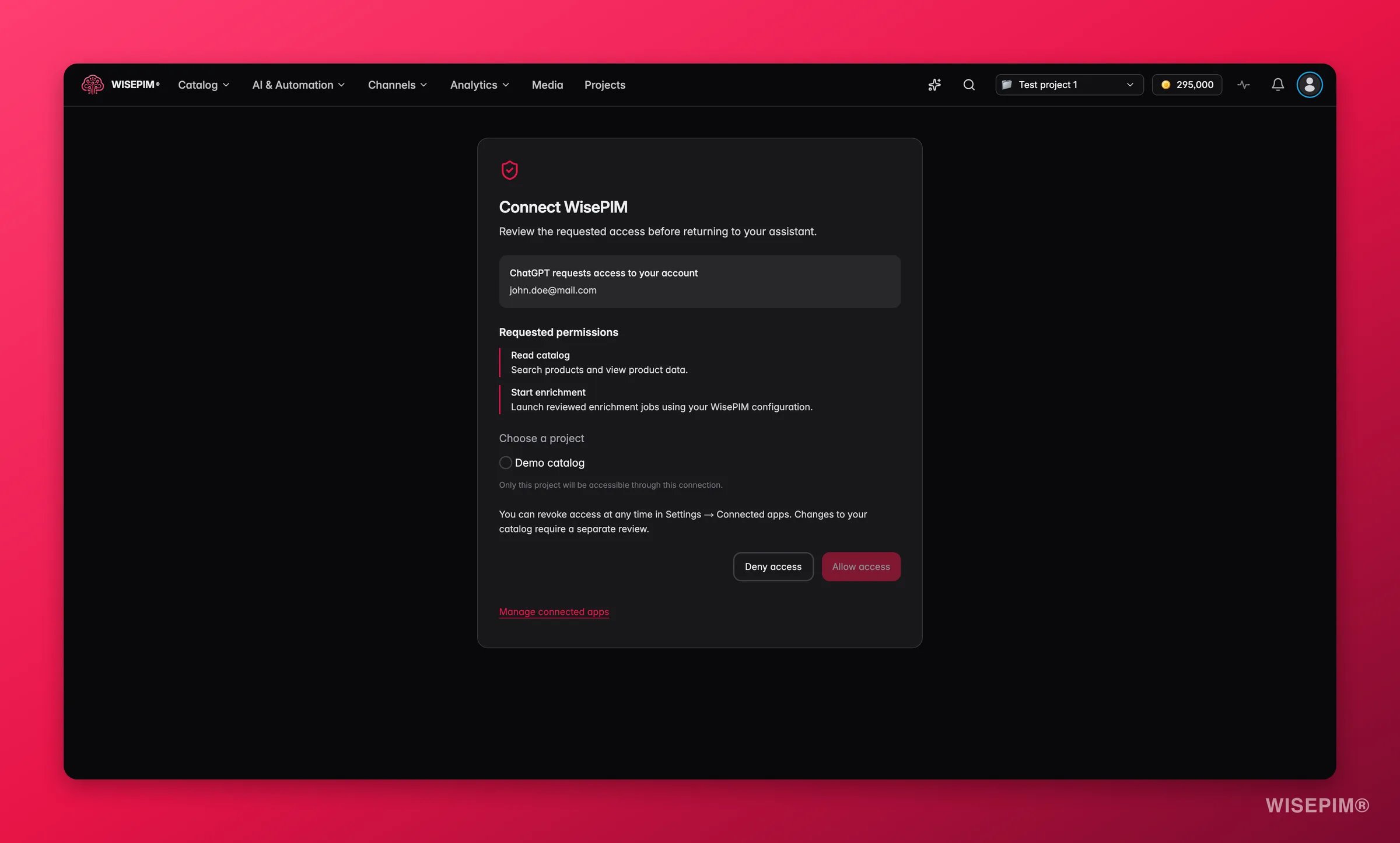 The consent screen is where you decide what the assistant gets:
The top of the card names the assistant and the account it would connect to, so you can spot a request meant for a different login.
Each permission is listed with a plain-language description of what it allows. Nothing outside this list is granted.
Pick exactly one: "Only this project will be accessible through this connection." Your other projects stay invisible to the assistant.
**Allow access** returns you to the assistant, connected. **Deny access** ends it there.
When a request includes a permission that writes, only projects you can edit are offered. If none qualify: "No projects are available with the requested permissions. You can deny this request and ask your administrator for access."
### The permissions an assistant can ask for
| Permission | What it allows |
| ---------------------------- | --------------------------------------------------------------------- |
| **Read catalog** | Search products and view product data. |
| **Change catalog** | Prepare catalog changes for your review and apply approved proposals. |
| **Read quality information** | View quality scores and missing product information. |
| **Read task status** | Check progress and results of project tasks. |
| **Read project settings** | View configuration for the selected project. |
| **Change project settings** | Propose and apply reviewed project configuration changes. |
| **Read prompts** | View reusable prompts available to the project. |
| **Change prompts** | Propose and apply reviewed prompt changes. |
| **Read analytics** | View project analytics and suggestions. |
| **Start enrichment** | Launch reviewed enrichment jobs using your WISEPIM configuration. |
| **Identify account** | Link this connection to your WISEPIM account. |
| **Read email address** | Read your account email address. |
Note what "Change catalog" actually means: *prepare* changes and apply ones you have already approved. Approving is a separate step, and it happens in WISEPIM.
## Review what an assistant wants to change
The consent screen is where you decide what the assistant gets:
The top of the card names the assistant and the account it would connect to, so you can spot a request meant for a different login.
Each permission is listed with a plain-language description of what it allows. Nothing outside this list is granted.
Pick exactly one: "Only this project will be accessible through this connection." Your other projects stay invisible to the assistant.
**Allow access** returns you to the assistant, connected. **Deny access** ends it there.
When a request includes a permission that writes, only projects you can edit are offered. If none qualify: "No projects are available with the requested permissions. You can deny this request and ask your administrator for access."
### The permissions an assistant can ask for
| Permission | What it allows |
| ---------------------------- | --------------------------------------------------------------------- |
| **Read catalog** | Search products and view product data. |
| **Change catalog** | Prepare catalog changes for your review and apply approved proposals. |
| **Read quality information** | View quality scores and missing product information. |
| **Read task status** | Check progress and results of project tasks. |
| **Read project settings** | View configuration for the selected project. |
| **Change project settings** | Propose and apply reviewed project configuration changes. |
| **Read prompts** | View reusable prompts available to the project. |
| **Change prompts** | Propose and apply reviewed prompt changes. |
| **Read analytics** | View project analytics and suggestions. |
| **Start enrichment** | Launch reviewed enrichment jobs using your WISEPIM configuration. |
| **Identify account** | Link this connection to your WISEPIM account. |
| **Read email address** | Read your account email address. |
Note what "Change catalog" actually means: *prepare* changes and apply ones you have already approved. Approving is a separate step, and it happens in WISEPIM.
## Review what an assistant wants to change
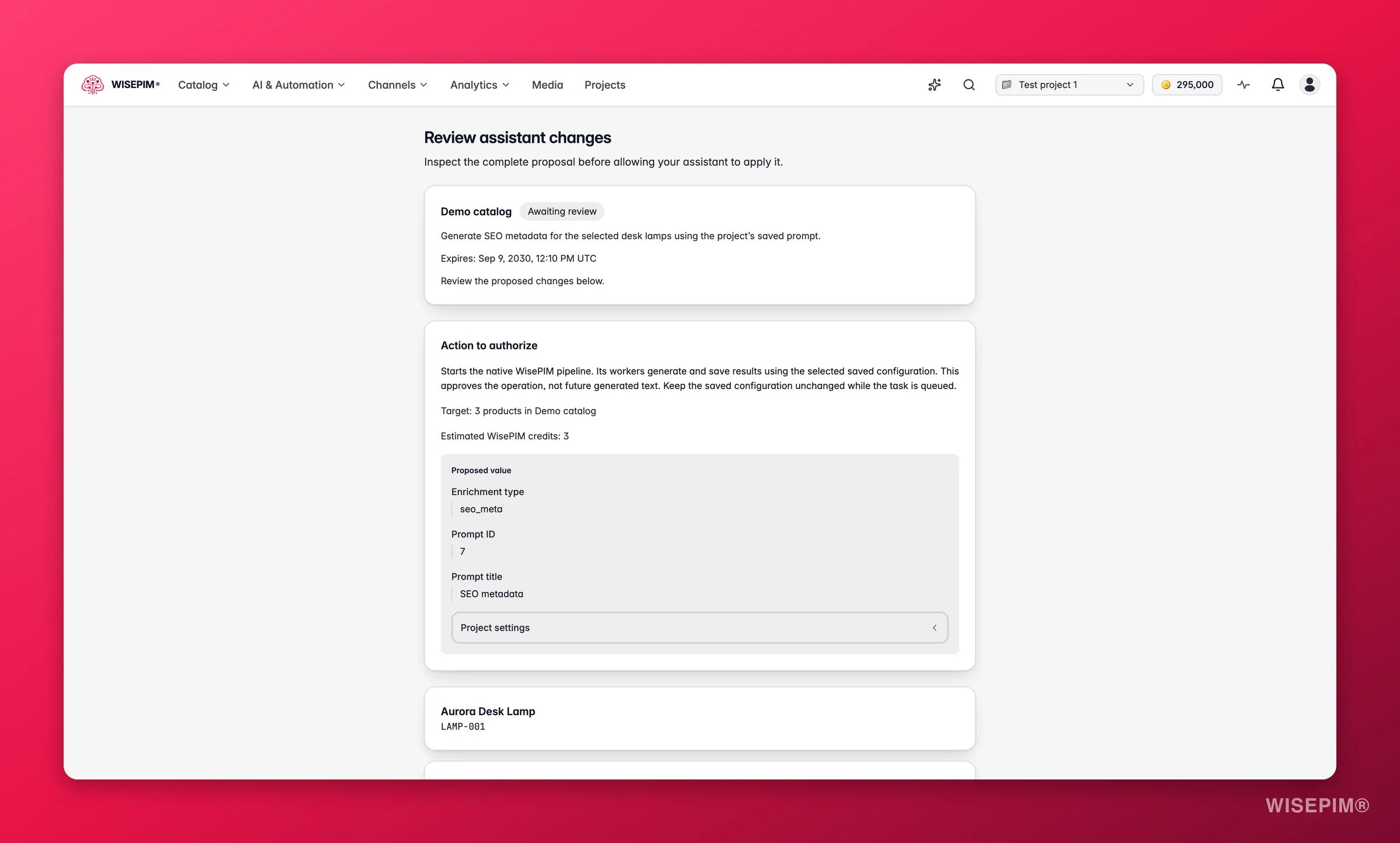
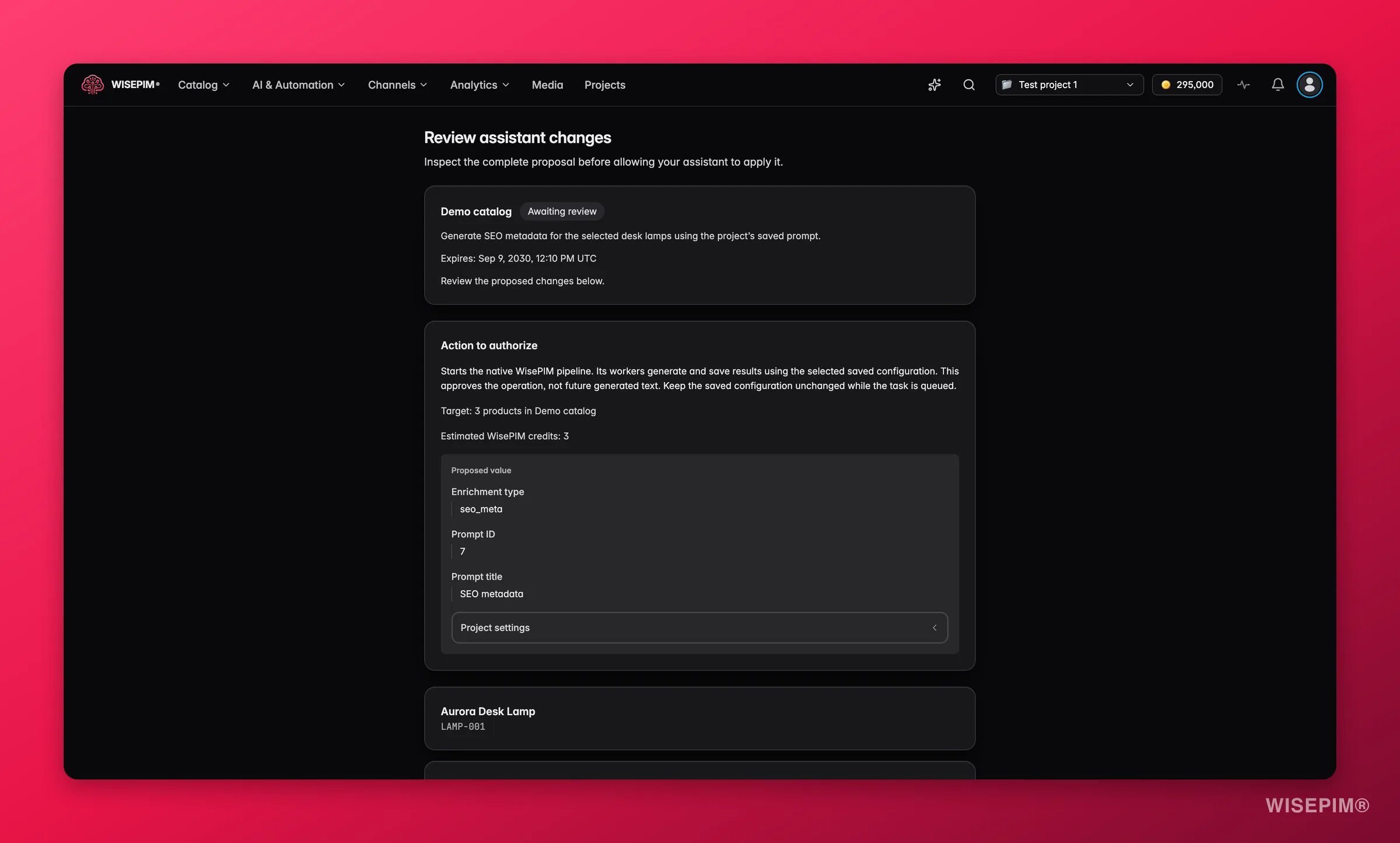 When an assistant wants to change your catalog or start a job, it sends you a proposal instead of doing it: "Inspect the complete proposal before allowing your assistant to apply it."
The review page shows the whole thing, never a summary:
* **The project and a status chip**, plus a line telling you what to do next.
* **The action to authorize**, its target, and an estimated credit cost ("Estimated WisePIM credits: 120"). If the estimate cannot be worked out, it says so rather than guessing.
* **Every affected product**, and per field a side-by-side **Current value** and **Proposed value**, with the language shown for translated fields.
* **An expiry date.** Proposals do not sit around indefinitely.
**Approve this proposal** or **Reject proposal** finishes your part.
Approval is not application: "Approval covers exactly this proposal. Your assistant must then apply it before it expires. Approval alone does not change your catalog." Go back to the assistant and let it finish the job.
### What each status means
| Status | What it means |
| ----------------------- | ---------------------------------------------------------------------------------------- |
| **Awaiting review** | Read the proposed changes and decide. |
| **Approved** | Return to your assistant and ask it to apply it. |
| **Applied** | The changes have landed. For a job, it has started; check its progress in the assistant. |
| **Rejected** | Turned down, and it cannot be applied. |
| **Expired** | Ask the assistant for a new preview. |
| **Needs a new preview** | The source data changed underneath the proposal, so ask for a fresh one. |
That last status is the important one: a proposal is tied to the exact data you looked at. If a product moves while you are reading, WISEPIM refuses to apply stale content and makes the assistant produce a new preview.
## Manage and revoke connections
Every connection on the page shows the assistant, the project it reaches, its permission chips, and three dates: **Connected**, **Expires**, and **Last used** (or "Not used yet"). Connections expire on their own; you do not have to clean them up by hand.
To end one early, click **Revoke access** and then **Confirm revocation**. WISEPIM spells out the consequences first: "This stops new requests and invalidates pending approvals for this connection. Existing catalog data stays in WisePIM."
**Last used** is the field to scan. An assistant you experimented with months ago and never touched again is worth revoking, even though it would expire eventually.
Revoking is per connection, not per assistant. If you connected the same assistant to two projects, revoke each one separately.
## Related
Connect your own code to the catalog through the REST API.
Password, two-factor authentication, and active sessions.
What WISEPIM stores, exports, and deletes for your account.
The assistant built into WISEPIM, for when you would rather stay in the app.
When an assistant wants to change your catalog or start a job, it sends you a proposal instead of doing it: "Inspect the complete proposal before allowing your assistant to apply it."
The review page shows the whole thing, never a summary:
* **The project and a status chip**, plus a line telling you what to do next.
* **The action to authorize**, its target, and an estimated credit cost ("Estimated WisePIM credits: 120"). If the estimate cannot be worked out, it says so rather than guessing.
* **Every affected product**, and per field a side-by-side **Current value** and **Proposed value**, with the language shown for translated fields.
* **An expiry date.** Proposals do not sit around indefinitely.
**Approve this proposal** or **Reject proposal** finishes your part.
Approval is not application: "Approval covers exactly this proposal. Your assistant must then apply it before it expires. Approval alone does not change your catalog." Go back to the assistant and let it finish the job.
### What each status means
| Status | What it means |
| ----------------------- | ---------------------------------------------------------------------------------------- |
| **Awaiting review** | Read the proposed changes and decide. |
| **Approved** | Return to your assistant and ask it to apply it. |
| **Applied** | The changes have landed. For a job, it has started; check its progress in the assistant. |
| **Rejected** | Turned down, and it cannot be applied. |
| **Expired** | Ask the assistant for a new preview. |
| **Needs a new preview** | The source data changed underneath the proposal, so ask for a fresh one. |
That last status is the important one: a proposal is tied to the exact data you looked at. If a product moves while you are reading, WISEPIM refuses to apply stale content and makes the assistant produce a new preview.
## Manage and revoke connections
Every connection on the page shows the assistant, the project it reaches, its permission chips, and three dates: **Connected**, **Expires**, and **Last used** (or "Not used yet"). Connections expire on their own; you do not have to clean them up by hand.
To end one early, click **Revoke access** and then **Confirm revocation**. WISEPIM spells out the consequences first: "This stops new requests and invalidates pending approvals for this connection. Existing catalog data stays in WisePIM."
**Last used** is the field to scan. An assistant you experimented with months ago and never touched again is worth revoking, even though it would expire eventually.
Revoking is per connection, not per assistant. If you connected the same assistant to two projects, revoke each one separately.
## Related
Connect your own code to the catalog through the REST API.
Password, two-factor authentication, and active sessions.
What WISEPIM stores, exports, and deletes for your account.
The assistant built into WISEPIM, for when you would rather stay in the app.