> ## Documentation Index
> Fetch the complete documentation index at: https://docs.wisepim.com/llms.txt
> Use this file to discover all available pages before exploring further.
# Appearance Settings
> Make WISEPIM comfortable for daily work. Pick a dark or light theme, set the font size, and turn UI effects on or off.
Set how WISEPIM looks and feels so it is easy on your eyes during long product sessions. Pick a theme, choose a font size, and toggle a few interface effects. Every change applies right away.
## Pick a theme
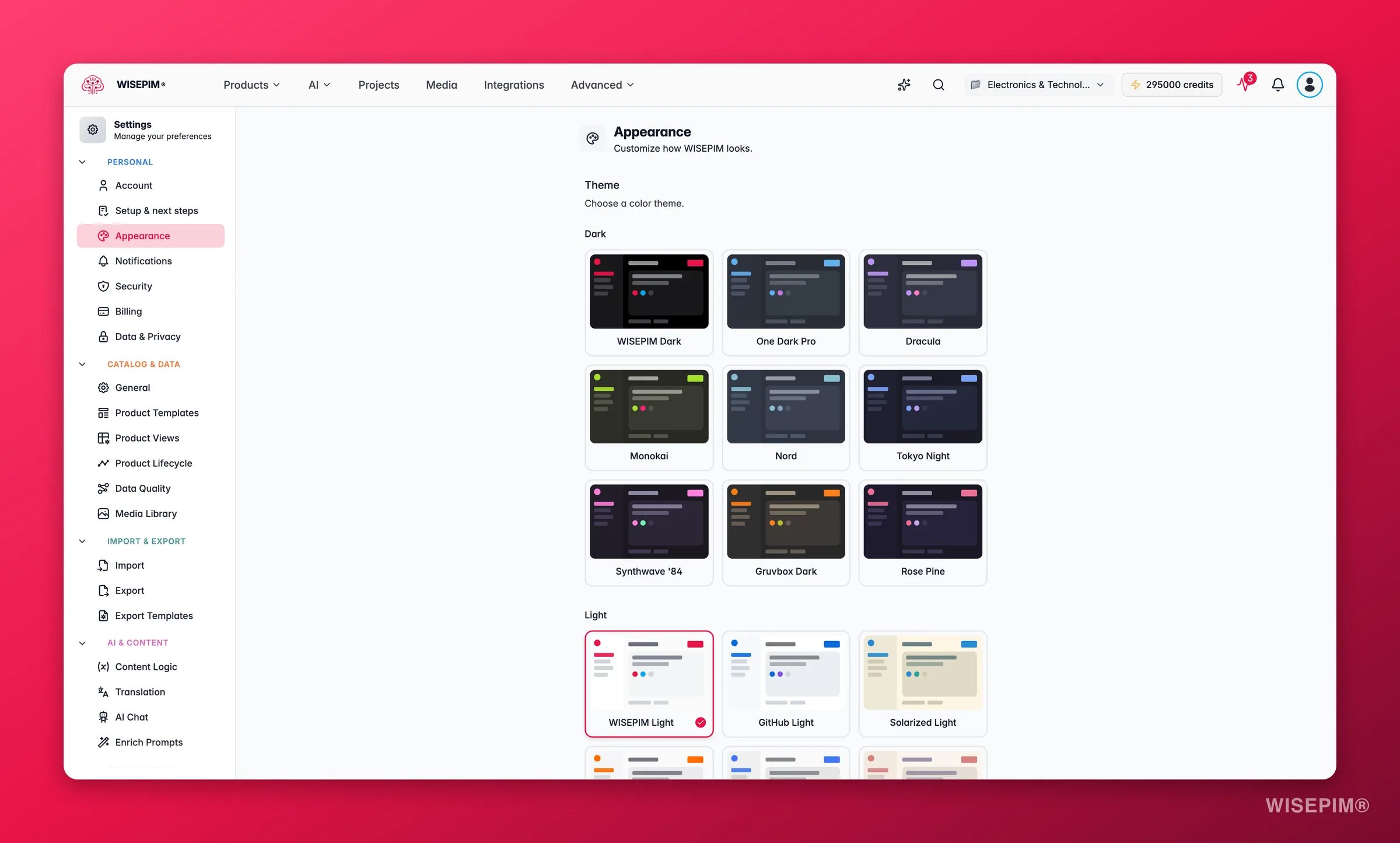
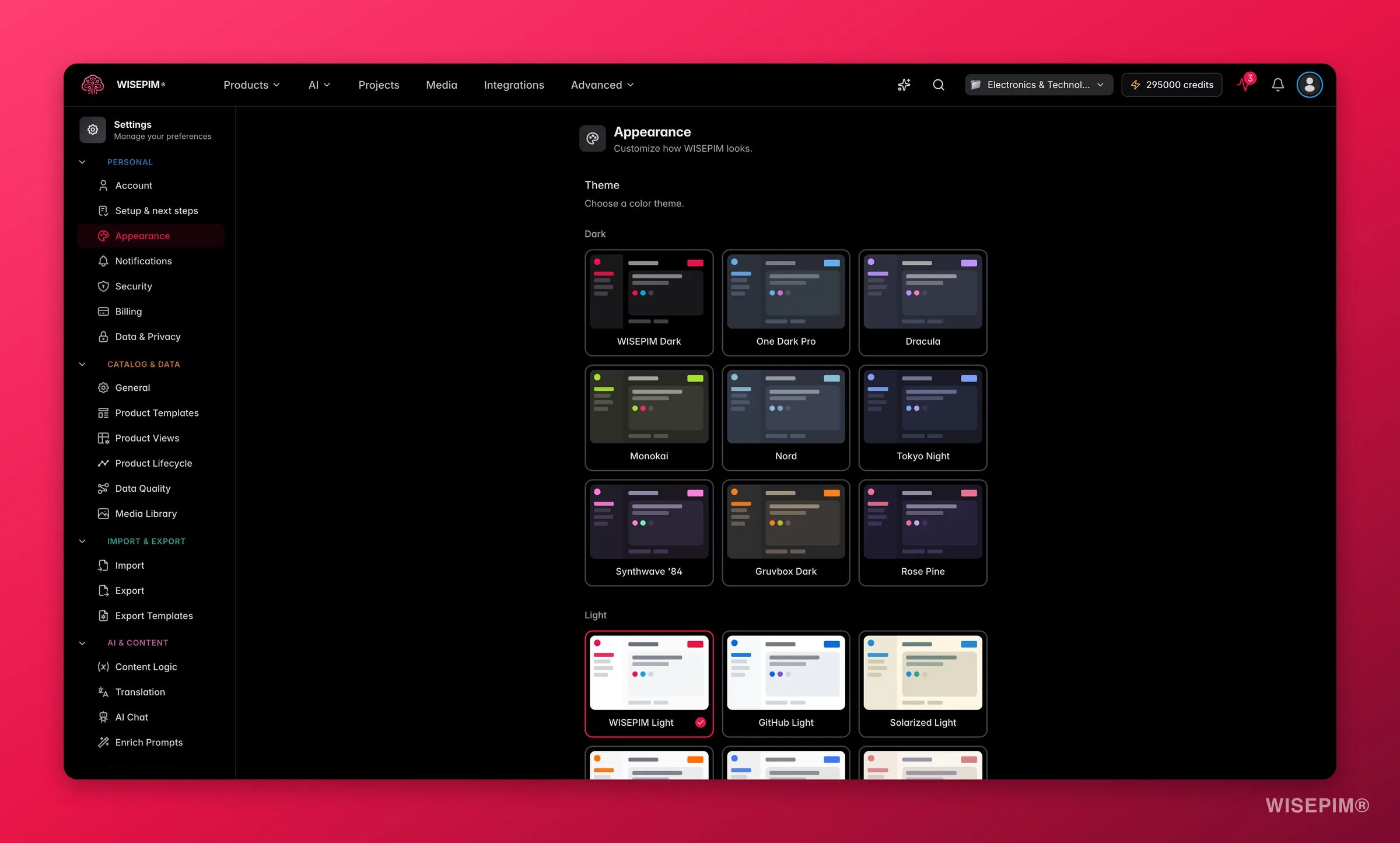 WISEPIM ships with several dark and light themes. Click a theme card to apply it instantly. There is nothing to save.
Each theme card previews its colors: background, sidebar, content area, and accent. Compare them at a glance before you pick one.
### Dark themes
| Theme | Description |
| ----------------- | ------------------------------------------------ |
| **WISEPIM Dark** | The default dark theme with WISEPIM brand colors |
| **One Dark Pro** | Inspired by the popular Atom editor theme |
| **Dracula** | Purple-accented dark theme |
| **Monokai** | Classic code editor color scheme |
| **Nord** | Cool, arctic-blue palette |
| **Tokyo Night** | Calm, blue-tinted dark theme |
| **Synthwave '84** | Vibrant retro neon colors |
| **Gruvbox Dark** | Warm, earthy dark tones |
| **Rose Pine** | Soft, muted dark theme with rose accents |
### Light themes
| Theme | Description |
| ------------------- | ------------------------------------------------- |
| **WISEPIM Light** | The default light theme with WISEPIM brand colors |
| **GitHub Light** | Clean, GitHub-inspired light theme |
| **Solarized Light** | The classic Solarized palette in light mode |
| **Dutch Orange** | Light theme with warm orange and blue accents |
| **Atom One Light** | Light counterpart to the One Dark Pro theme |
| **Rose Pine Dawn** | Soft, warm light theme with rose accents |
## Set the font size
Use the dropdown next to the **Font size** label to switch sizes:
| Size | Pixels |
| --------------- | ------ |
| Small | 14px |
| Medium | 16px |
| Large (default) | 18px |
## Tune interface effects
| Setting | What it does |
| ------------------ | ---------------------------------------------------------------------------------- |
| **Translucent UI** | Adds a frosted-glass look to elements like the sidebar and dialogs |
| **Pointer Cursor** | Shows a pointer cursor over clickable elements. Turn it off for the default cursor |
Appearance preferences save locally and apply right away. They stay set across sessions in the same browser.
## Related
Update the name and email tied to your WISEPIM login.
Set the interface language for your account.
Jump to any page or action with one keyboard shortcut.
Browse every personal and project setting in one place.
WISEPIM ships with several dark and light themes. Click a theme card to apply it instantly. There is nothing to save.
Each theme card previews its colors: background, sidebar, content area, and accent. Compare them at a glance before you pick one.
### Dark themes
| Theme | Description |
| ----------------- | ------------------------------------------------ |
| **WISEPIM Dark** | The default dark theme with WISEPIM brand colors |
| **One Dark Pro** | Inspired by the popular Atom editor theme |
| **Dracula** | Purple-accented dark theme |
| **Monokai** | Classic code editor color scheme |
| **Nord** | Cool, arctic-blue palette |
| **Tokyo Night** | Calm, blue-tinted dark theme |
| **Synthwave '84** | Vibrant retro neon colors |
| **Gruvbox Dark** | Warm, earthy dark tones |
| **Rose Pine** | Soft, muted dark theme with rose accents |
### Light themes
| Theme | Description |
| ------------------- | ------------------------------------------------- |
| **WISEPIM Light** | The default light theme with WISEPIM brand colors |
| **GitHub Light** | Clean, GitHub-inspired light theme |
| **Solarized Light** | The classic Solarized palette in light mode |
| **Dutch Orange** | Light theme with warm orange and blue accents |
| **Atom One Light** | Light counterpart to the One Dark Pro theme |
| **Rose Pine Dawn** | Soft, warm light theme with rose accents |
## Set the font size
Use the dropdown next to the **Font size** label to switch sizes:
| Size | Pixels |
| --------------- | ------ |
| Small | 14px |
| Medium | 16px |
| Large (default) | 18px |
## Tune interface effects
| Setting | What it does |
| ------------------ | ---------------------------------------------------------------------------------- |
| **Translucent UI** | Adds a frosted-glass look to elements like the sidebar and dialogs |
| **Pointer Cursor** | Shows a pointer cursor over clickable elements. Turn it off for the default cursor |
Appearance preferences save locally and apply right away. They stay set across sessions in the same browser.
## Related
Update the name and email tied to your WISEPIM login.
Set the interface language for your account.
Jump to any page or action with one keyboard shortcut.
Browse every personal and project setting in one place.