> ## Documentation Index
> Fetch the complete documentation index at: https://docs.wisepim.com/llms.txt
> Use this file to discover all available pages before exploring further.
# Quick Start Guide
> Go from zero to optimized product content in four steps: connect your store, import products, enrich with AI, and export back.
WISEPIM improves your product content in four steps. Connect your store, import your products, enrich them with AI, and export the results back. You can be up and running in minutes.
## Four steps to better content
[Set up your integration](/en/integrations/supported-platforms) with your e-commerce platform. We support Shopify, Magento, WooCommerce, Lightspeed, CCV Shop, and more.
[Pull your products](/en/essentials/importing-products) into WISEPIM. The importer maps your fields for you. Review the mapping, confirm, and your catalog is ready.
[Select products and click Enrich](/en/essentials/enriching-products). WISEPIM writes optimized titles, descriptions, and attributes from your prompts and Knowledge Library.
[Push your enriched products](/en/essentials/exporting-products) back to your platform. One click, and your store has better content.
## Before you begin
You don't need to set up everything first. When you import, WISEPIM creates attributes and maps fields for you. Still, a few things are worth setting up early for the best results.
Have admin access to your e-commerce platform and your API credentials on hand. See our [integration guides](/en/integrations/supported-platforms) for platform-specific setup.
Open the [Prompt Library](/en/essentials/prompt-library) and create a reusable prompt template. It tells the AI how to write content for your brand.
The [Knowledge Library](/en/other-features/knowledge-library) teaches WISEPIM about your brand. Add your brand voice, audience, and product context. The more you share, the better the AI writes.
[Projects](/en/essentials/managing-projects), [attributes](/en/other-features/managing-attributes), and [categories](/en/other-features/managing-categories) can wait. Set them up later, or let import create them for you.
## Navigate with the Command Menu
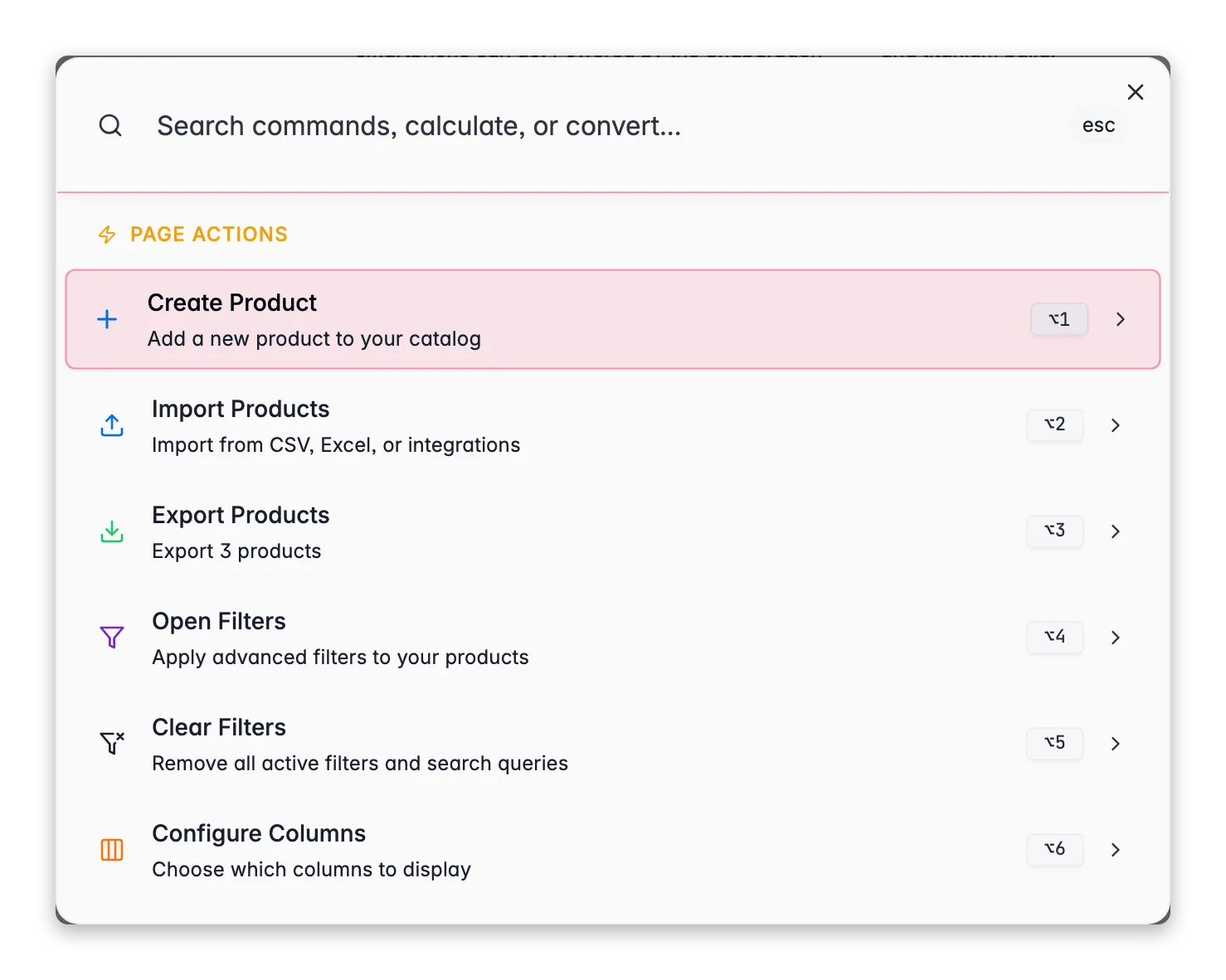
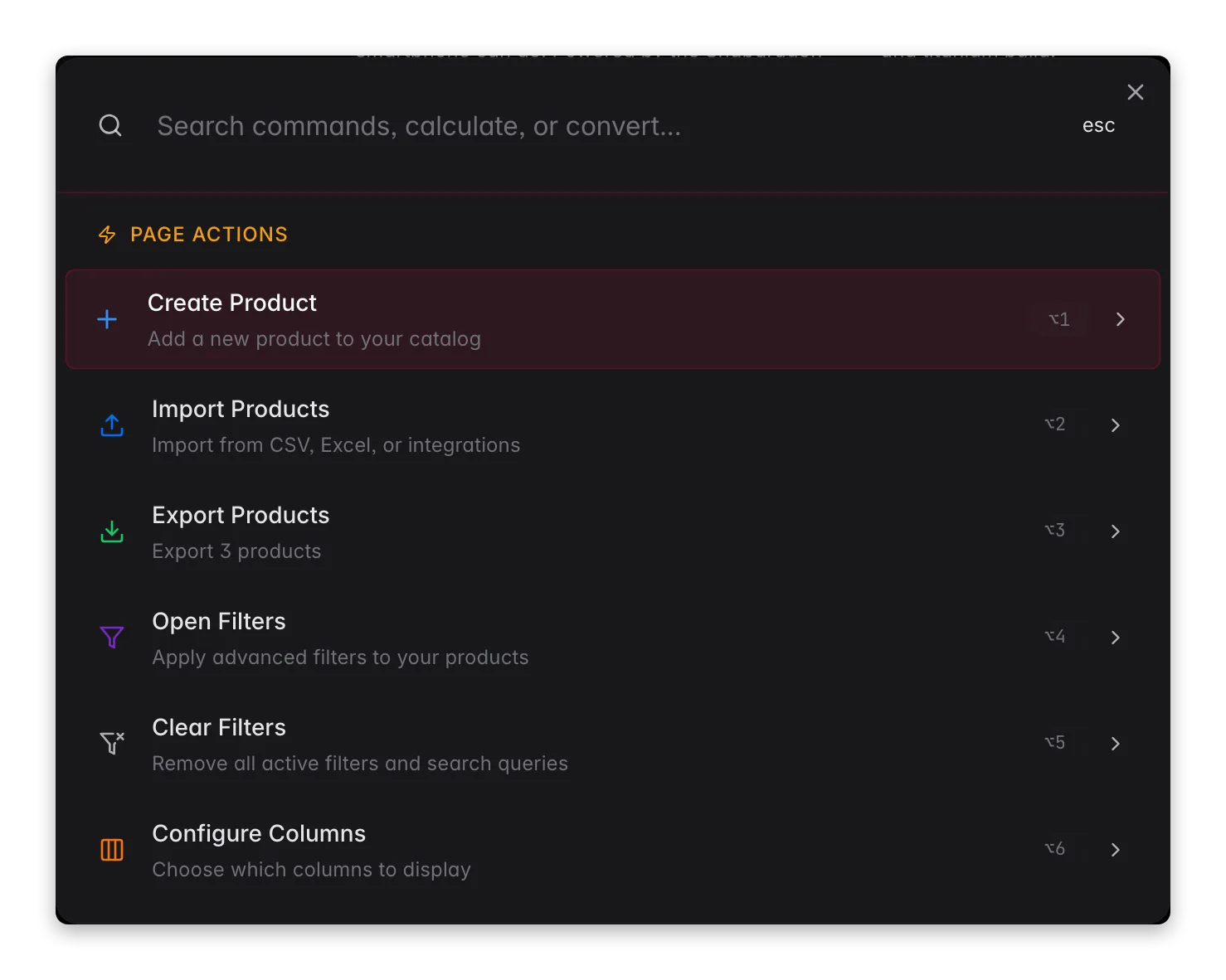 The Command Menu is the fastest way around WISEPIM. Open it with `⌘K` on Mac or `Ctrl+K` on Windows, or click the **search icon** in the top-right corner. Then type to jump to a page, find a product, run a calculation, or trigger a page action.
| Action | How |
| ------------------------- | -------------------------------------------------- |
| **Open the Command Menu** | `⌘K` / `Ctrl+K`, or click the search icon |
| **Jump to any page** | Type the page name, like "products" or "analytics" |
| **Search products** | Type a product name, SKU, or keyword |
| **Run a calculation** | Type a math expression, like `24 * 1.21` |
The Command Menu does much more: favorites, unit and currency conversions, page actions, and contextual docs links. See the full [Command Menu guide](/en/essentials/command-menu).
## Get help on the page you're on
Stuck on a screen and want to know more? You don't have to leave WISEPIM or search the docs. Click your **avatar** in the top-right corner and choose **Documentation** under *Support*.
The Command Menu is the fastest way around WISEPIM. Open it with `⌘K` on Mac or `Ctrl+K` on Windows, or click the **search icon** in the top-right corner. Then type to jump to a page, find a product, run a calculation, or trigger a page action.
| Action | How |
| ------------------------- | -------------------------------------------------- |
| **Open the Command Menu** | `⌘K` / `Ctrl+K`, or click the search icon |
| **Jump to any page** | Type the page name, like "products" or "analytics" |
| **Search products** | Type a product name, SKU, or keyword |
| **Run a calculation** | Type a math expression, like `24 * 1.21` |
The Command Menu does much more: favorites, unit and currency conversions, page actions, and contextual docs links. See the full [Command Menu guide](/en/essentials/command-menu).
## Get help on the page you're on
Stuck on a screen and want to know more? You don't have to leave WISEPIM or search the docs. Click your **avatar** in the top-right corner and choose **Documentation** under *Support*.
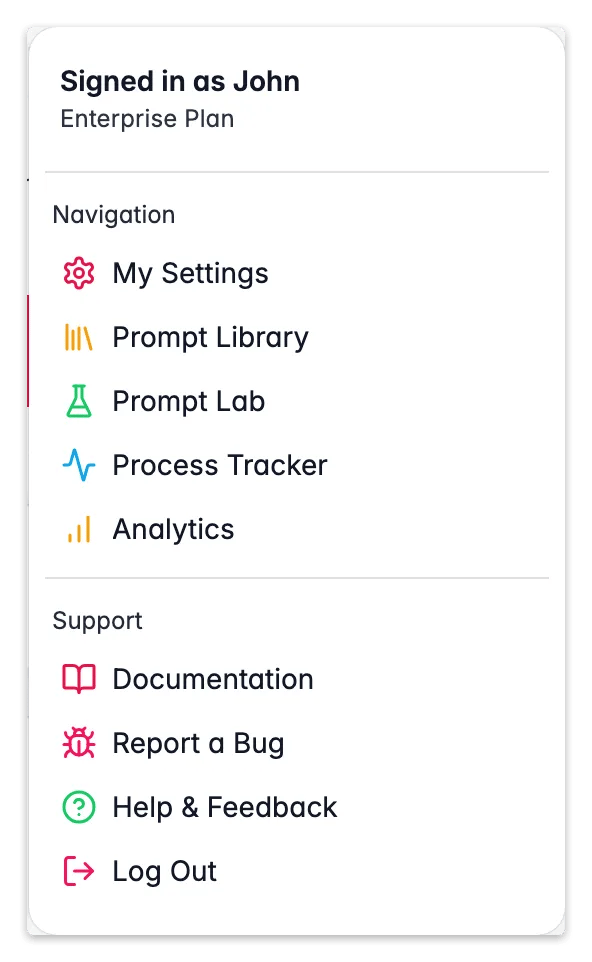
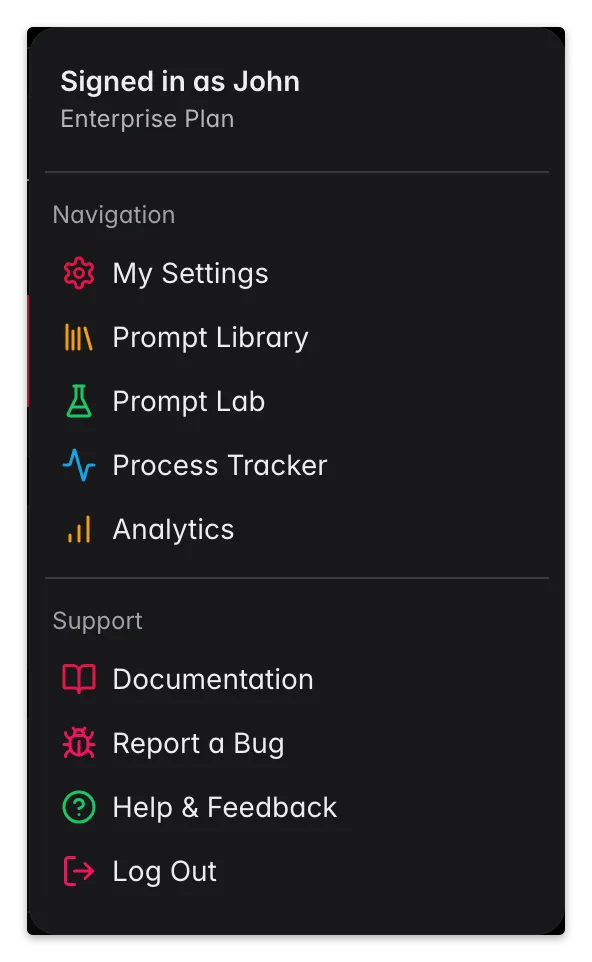 It opens the documentation for **exactly the page you're on**, in **your interface language**: so the instructions you read match what's in front of you. Open it from the products page and you land on product management; from analytics, the analytics guide; from an import screen, the import guide.
Prefer the keyboard? The same **Documentation** shortcut is in the Command Menu (`⌘K` / `Ctrl+K`). Both open help for the page you're currently viewing, see [Opening documentation](/en/essentials/command-menu#opening-documentation).
## What to try first
Once your products are in, these are the fastest ways to see results:
Pick a few products and generate AI descriptions. Compare the before and after.
Pick a few products and translate them into a new language. Native-quality results in seconds.
See how your catalog scores on completeness, channel readiness, SEO, and conversion potential.
Try different prompt setups and see the results live before you apply them to your catalog.
## Need help?
Step-by-step setup for every supported platform.
Our team is here to help with any question or setup.
It opens the documentation for **exactly the page you're on**, in **your interface language**: so the instructions you read match what's in front of you. Open it from the products page and you land on product management; from analytics, the analytics guide; from an import screen, the import guide.
Prefer the keyboard? The same **Documentation** shortcut is in the Command Menu (`⌘K` / `Ctrl+K`). Both open help for the page you're currently viewing, see [Opening documentation](/en/essentials/command-menu#opening-documentation).
## What to try first
Once your products are in, these are the fastest ways to see results:
Pick a few products and generate AI descriptions. Compare the before and after.
Pick a few products and translate them into a new language. Native-quality results in seconds.
See how your catalog scores on completeness, channel readiness, SEO, and conversion potential.
Try different prompt setups and see the results live before you apply them to your catalog.
## Need help?
Step-by-step setup for every supported platform.
Our team is here to help with any question or setup.