> ## Documentation Index
> Fetch the complete documentation index at: https://docs.wisepim.com/llms.txt
> Use this file to discover all available pages before exploring further.
# Quality Rules
> Create quality rules that set the data standards every product must meet before export. Use the AI generator, Rule Packs, templates, or build custom checks from scratch.
Quality rules are the conditions your product data must satisfy to pass Quality Guard checks. Each rule defines what you are checking, which products it applies to, and what happens when a product fails.
Rules are evaluated automatically during exports, syncs, and publishes. Products that fail a rule are handled according to its severity level: blocked, skipped, or warned.
## Managing Your Rules
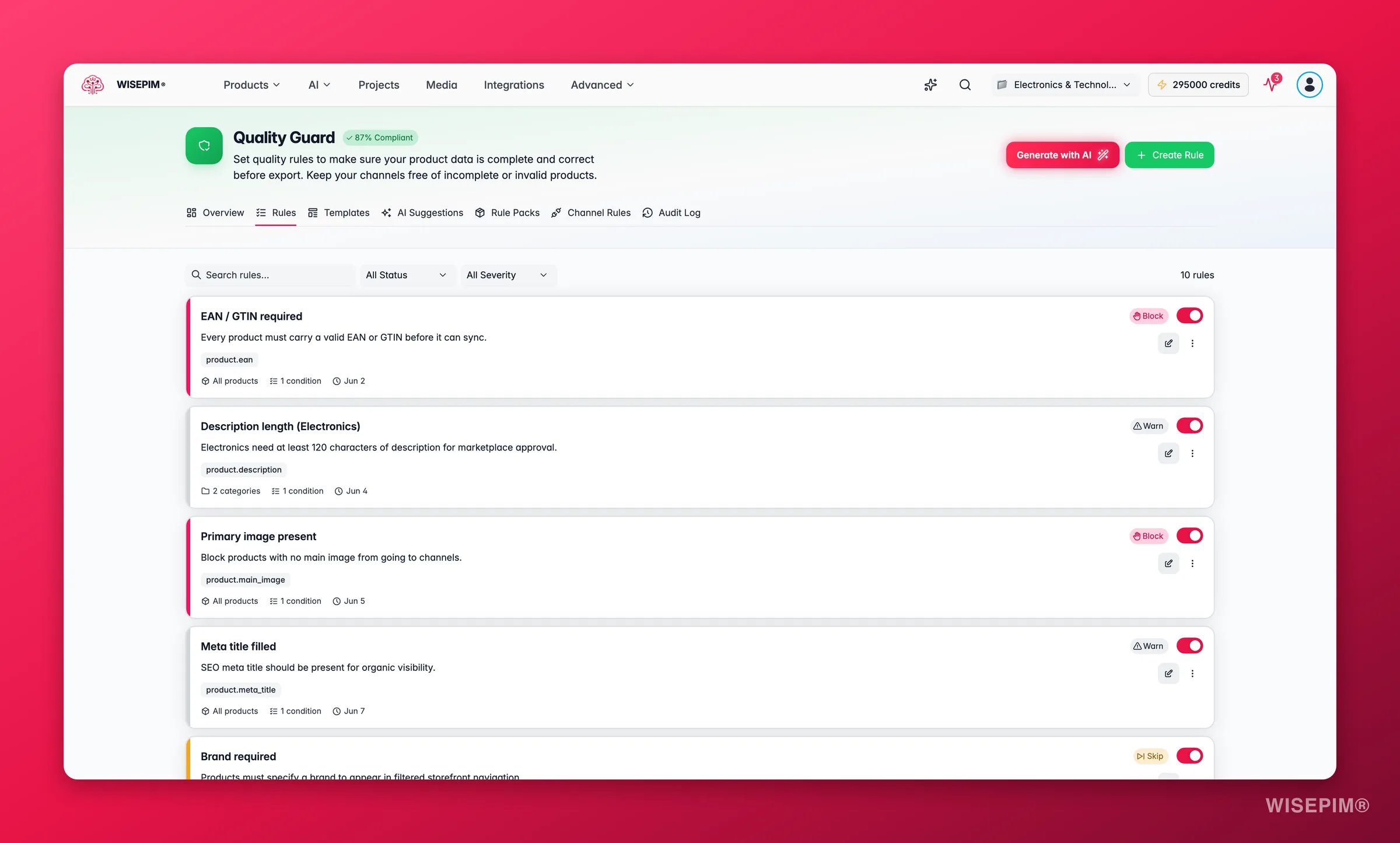
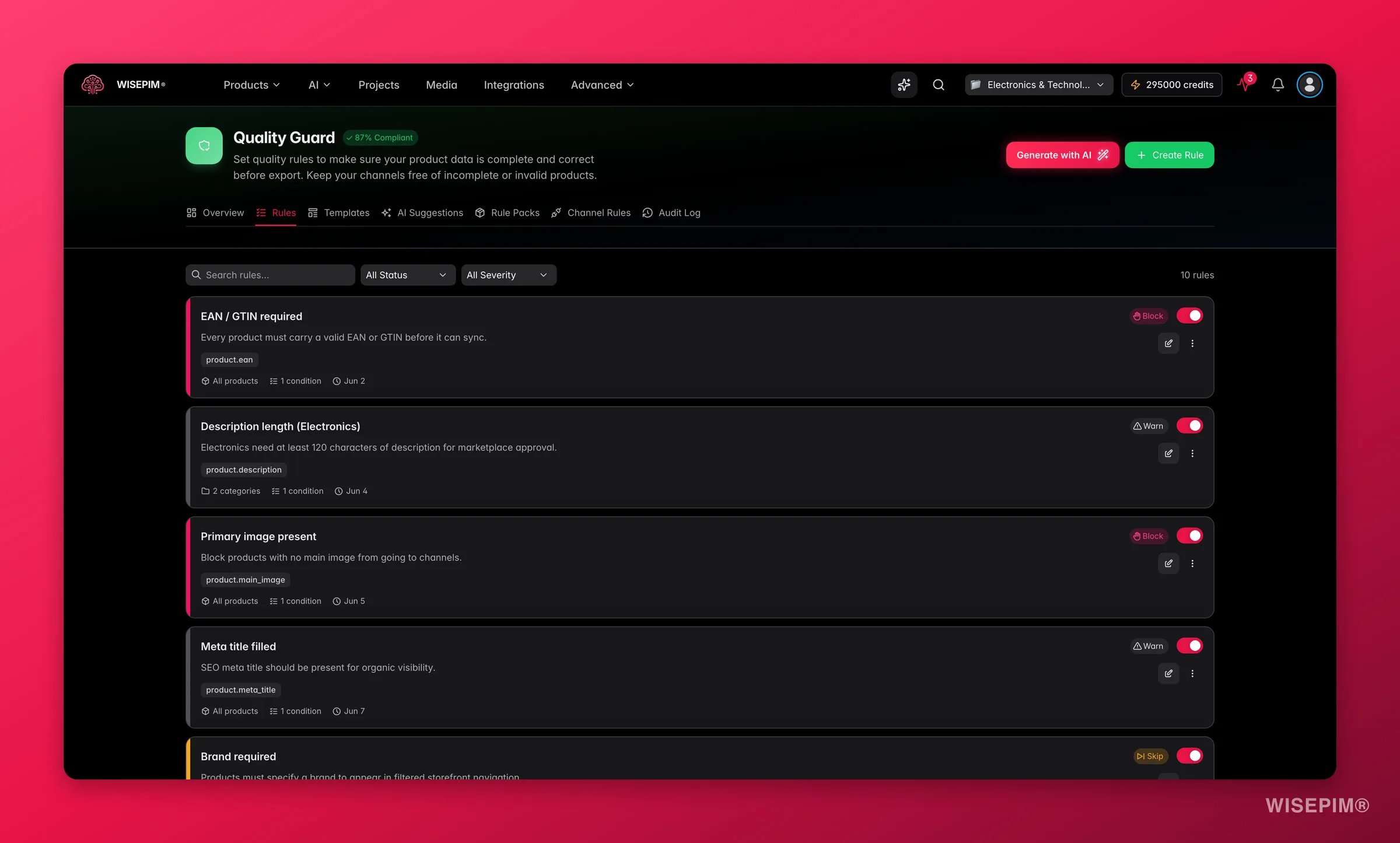 The Rules page shows all your quality rules in a single list. For each rule, you can see:
* **Name and description:** what the rule checks
* **Status:** whether the rule is active or in draft mode
* **Severity:** Block, Skip, or Warn
* **Conditions count:** how many conditions make up the rule
* **Created/updated dates:** when the rule was last modified
### Available Actions
From the rules list, you can:
* **Toggle active/inactive:** enable or disable a rule without deleting it. Inactive rules are not evaluated during quality checks.
* **Duplicate:** create a copy of an existing rule as a starting point for a new one.
* **Test Rule:** run the rule against a sample of your catalog to see how many products pass or fail.
* **Delete:** permanently remove a rule you no longer need.
* **Edit:** open the rule builder to modify any aspect of the rule.
Use the draft (inactive) status when building complex rules. This lets you configure everything without affecting your current quality checks until you are ready.
## AI Rule Generator
The fastest way to build rules is to let AI do the heavy lifting. Click **Generate with AI** from the Rules tab to open the AI rule generator. Choose one of two modes:
AI looks at your catalog metadata (attributes, product families, categories, and industry) and proposes rules that match what high-performing stores in your space enforce.
* Optionally narrow the focus to specific categories.
* Add a free-text prompt to guide the suggestions (for example: "focus on rules that protect Google Shopping submissions").
* AI generates a set of draft rules you can review, tweak, and apply in one step.
Paste links to competitor or gold-standard supplier product pages (up to 10 URLs). AI extracts the patterns they use (title length, image count, attribute coverage, description depth) and turns them into rules for your catalog.
* Useful for quickly catching up to category leaders.
* Optionally name the competitor to help AI frame its rationale.
Generated rules are created as **drafts**. Review them, uncheck any you do not want, then apply. They appear in your Rules list with status Draft. Toggle them active when you are ready.
## AI Suggestions
Quality Guard also runs an automated catalog scanner that surfaces rule suggestions proactively. Open the **AI Suggestions** tab to see:
* Suggestions from the nightly catalog scan (auto-detected patterns).
* Suggestions from previous AI generator runs.
* Industry best-practice hints based on your catalog metadata.
Each suggestion shows the proposed conditions and an estimated impact. Click **Adopt** to create a draft rule, or dismiss suggestions you do not need.
## Rule Packs
Rule Packs are pre-built bundles of channel-scoped rules tailored to a specific marketplace's published requirements. Find them in the **Rule Packs** tab.
* Each pack covers one channel (Google Shopping, Amazon, Kaufland, Meta, and more).
* Installing a pack creates all its rules as drafts in seconds.
* If a pack is updated to reflect spec changes, you can update your installed version without rebuilding rules manually.
Rule Packs are the quickest way to get channel-compliant from zero. Install the pack for your primary channel, review the generated rules, then toggle them active.
## Creating a Rule
The Rules page shows all your quality rules in a single list. For each rule, you can see:
* **Name and description:** what the rule checks
* **Status:** whether the rule is active or in draft mode
* **Severity:** Block, Skip, or Warn
* **Conditions count:** how many conditions make up the rule
* **Created/updated dates:** when the rule was last modified
### Available Actions
From the rules list, you can:
* **Toggle active/inactive:** enable or disable a rule without deleting it. Inactive rules are not evaluated during quality checks.
* **Duplicate:** create a copy of an existing rule as a starting point for a new one.
* **Test Rule:** run the rule against a sample of your catalog to see how many products pass or fail.
* **Delete:** permanently remove a rule you no longer need.
* **Edit:** open the rule builder to modify any aspect of the rule.
Use the draft (inactive) status when building complex rules. This lets you configure everything without affecting your current quality checks until you are ready.
## AI Rule Generator
The fastest way to build rules is to let AI do the heavy lifting. Click **Generate with AI** from the Rules tab to open the AI rule generator. Choose one of two modes:
AI looks at your catalog metadata (attributes, product families, categories, and industry) and proposes rules that match what high-performing stores in your space enforce.
* Optionally narrow the focus to specific categories.
* Add a free-text prompt to guide the suggestions (for example: "focus on rules that protect Google Shopping submissions").
* AI generates a set of draft rules you can review, tweak, and apply in one step.
Paste links to competitor or gold-standard supplier product pages (up to 10 URLs). AI extracts the patterns they use (title length, image count, attribute coverage, description depth) and turns them into rules for your catalog.
* Useful for quickly catching up to category leaders.
* Optionally name the competitor to help AI frame its rationale.
Generated rules are created as **drafts**. Review them, uncheck any you do not want, then apply. They appear in your Rules list with status Draft. Toggle them active when you are ready.
## AI Suggestions
Quality Guard also runs an automated catalog scanner that surfaces rule suggestions proactively. Open the **AI Suggestions** tab to see:
* Suggestions from the nightly catalog scan (auto-detected patterns).
* Suggestions from previous AI generator runs.
* Industry best-practice hints based on your catalog metadata.
Each suggestion shows the proposed conditions and an estimated impact. Click **Adopt** to create a draft rule, or dismiss suggestions you do not need.
## Rule Packs
Rule Packs are pre-built bundles of channel-scoped rules tailored to a specific marketplace's published requirements. Find them in the **Rule Packs** tab.
* Each pack covers one channel (Google Shopping, Amazon, Kaufland, Meta, and more).
* Installing a pack creates all its rules as drafts in seconds.
* If a pack is updated to reflect spec changes, you can update your installed version without rebuilding rules manually.
Rule Packs are the quickest way to get channel-compliant from zero. Install the pack for your primary channel, review the generated rules, then toggle them active.
## Creating a Rule
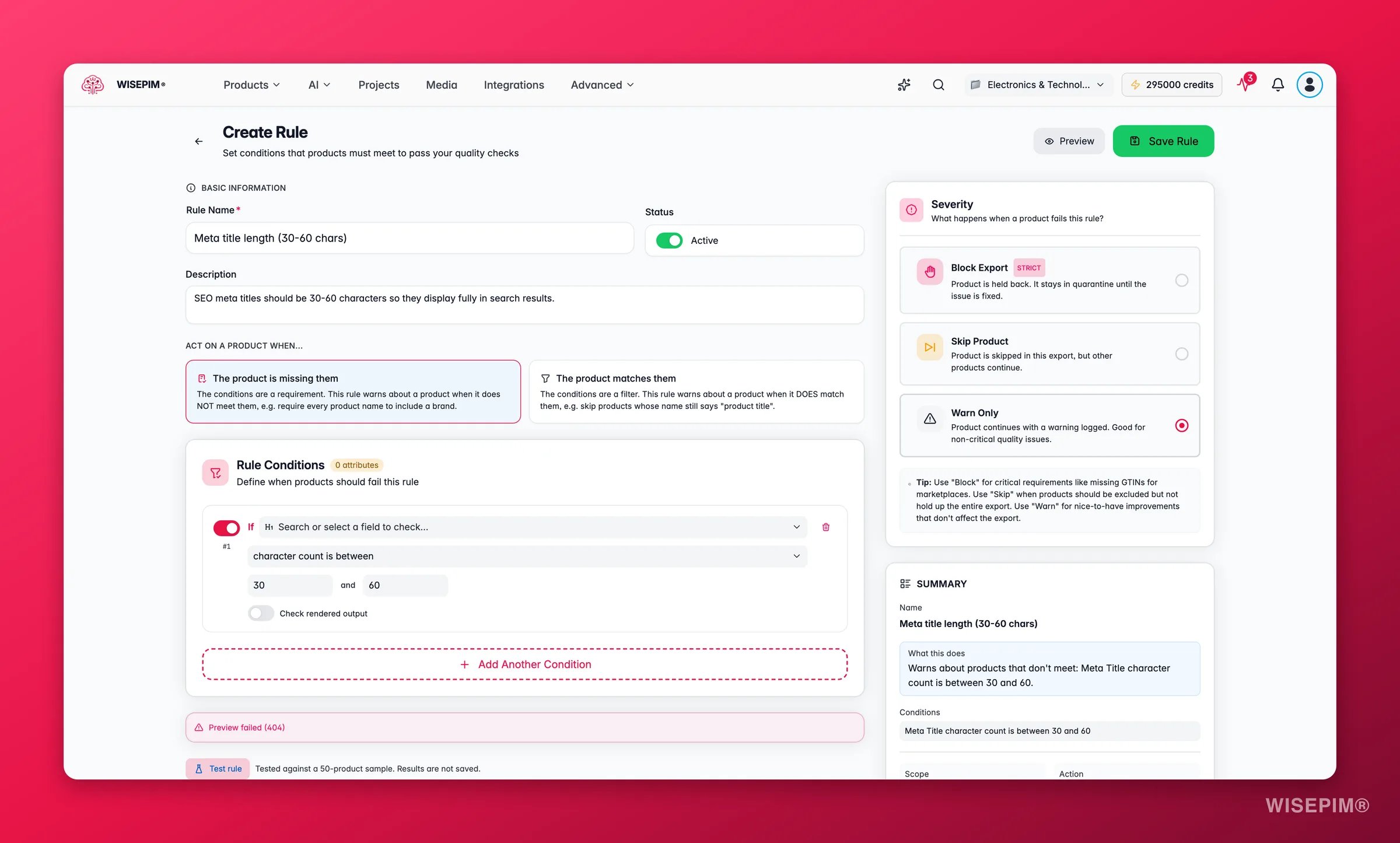
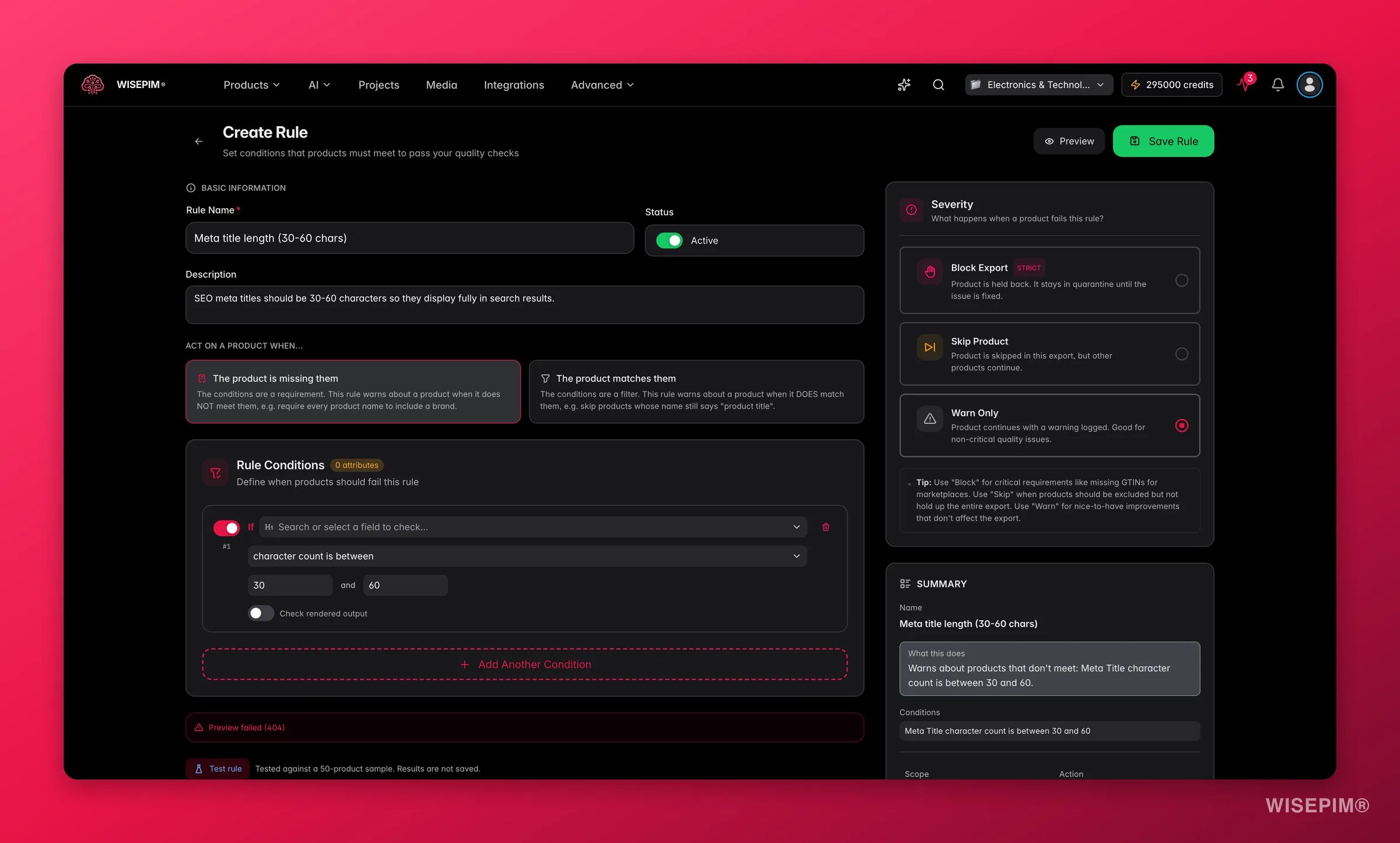 To create a rule from scratch, click **Create Rule**. The rule builder walks you through four sections:
Give your rule a name and optional description. Choose whether the rule should be active immediately or saved as a draft.
Add one or more conditions that define what the rule checks. You can combine conditions with **AND** (all must match) or **OR** (any must match) logic.
Choose which products the rule applies to: all products, specific categories, certain channels, or a price range.
Set what happens when a product fails: Block, Skip, or Warn.
## Condition Builder
Conditions are the core of every rule. For each condition you pick a **field**, an **operator**, and (where relevant) a **value**.
### Field Groups
Product Name, SKU, EAN/GTIN, Brand, Supplier. Check for missing identifiers, required fields, and format validation.
Description, Short Description. Validate length requirements, required keywords, or forbidden content.
Enriched Name, Enriched Description, Has Any Enrichment. Ensure products have been processed by AI before export.
Meta Title, Meta Description, Meta Keywords. Enforce SEO best practices like character length limits.
Price, Sale Price, Stock Quantity, Weight. Validate pricing ranges, stock availability, and shipping data.
Images (count), Main Image. Require a minimum number of images or ensure a primary image exists. Vision checks (white background, watermark detection, variant consistency) are also available here.
Categories, Product Family. Ensure products are properly categorized before export.
Has Translation, Translation Complete, Missing Translation. Verify localization readiness for international channels.
Created date, Last updated, Last enriched, Last reviewed, Last exported. Flag stale products or those that have never been enriched or exported.
Custom Formula, Sum of fields, Ratio between fields, Field equals field. Cross-field validation for cases like nutrient macros adding up to calories, or sale price within a discount range of price.
### Operators
Each field supports a set of operators. Common operators include:
| Operator | Description | Example |
| --------------------- | -------------------------------- | ---------------------------------- |
| is empty | Field has no value | Product Name is empty |
| is filled in | Field has a value | EAN/GTIN is filled in |
| length is at least | Text has minimum character count | Description length is at least 100 |
| length is at most | Text has maximum character count | Meta Title length is at most 60 |
| includes | Text contains a substring | Description includes "warranty" |
| does not include | Text excludes a substring | Name does not include "test" |
| matches pattern | Text matches a regex | EAN matches `^\d{13}$` |
| is more than | Number exceeds threshold | Price is more than 0 |
| is between | Number falls within range | Price is between 5 and 500 |
| has at least (images) | Minimum image count | Images has at least 3 |
### Trigger Mode
Each condition has a **trigger mode** that controls the direction of the check:
* **The product is missing them:** the conditions are a requirement. The rule fires when a product does NOT meet them (e.g., require every product name to include a brand).
* **The product matches them:** the conditions are a filter. The rule fires when a product DOES match them (e.g., flag products whose name still says "product title").
### Advanced Inputs
Some field types unlock additional inputs in the condition builder:
* **Formula:** write a mathematical expression over multiple fields (for example: `protein * 4 + carbs * 4 + fat * 9`) and compare it to a target field within a tolerance. Useful for nutrition labels and multi-component products.
* **Ratio:** check that two fields fall within a defined ratio range (for example: sale price divided by price between 0.5 and 0.95).
* **Content Logic variables:** value inputs accept `{{variable}}` references that resolve before the check runs, so length rules measure the rendered output rather than the raw template.
* **Vision fields:** image checks powered by AI: dominant color, detected objects, image vs. description agreement, and variant image consistency.
### Distribution Hint
When you set a numeric threshold, the condition builder shows a distribution hint: the p10, median, and p90 values across your catalog. This helps you pick a threshold that makes sense for your actual data rather than guessing.
### Live Impact Preview
As you build a rule, a live impact preview updates in real time against a sample of your catalog. You can see how many products would pass or fail if you saved the rule as-is, before committing any changes.
### Scope Options
Scoping lets you target rules to specific subsets of your catalog:
* **All products:** the rule applies to every product in your project.
* **Categories:** the rule only applies to products in selected categories.
* **Channels:** the rule only applies when exporting to specific channels (e.g., Shopify, Amazon).
* **Price range:** the rule only applies to products within a given price range.
Channel-scoped rules are especially useful for marketplace-specific requirements. For example, Google Shopping requires a GTIN for most products, but your own webshop might not.
### Severity Levels
Severity determines the consequence when a product fails the rule:
| Severity | Behavior | Best For |
| --------- | ------------------------------------------------------------------------------------------------------- | ------------------------------------------------------------------ |
| **Block** | Product cannot be exported. It is [quarantined](/en/quality-guard/quarantine) until the issue is fixed. | Critical requirements like missing GTINs or empty names. |
| **Skip** | Product is silently excluded from the export. Other products proceed normally. | Non-critical exclusions where you do not want the export to stall. |
| **Warn** | Product is exported, but a warning is logged in the [audit log](/en/quality-guard/audit-log). | Nice-to-have improvements that should not block the export. |
Block-severity rules will quarantine products and prevent them from being exported. Before activating a blocking rule, preview its impact to understand how many products it will affect.
## Rule Preview
Before saving, click **Preview** to see a summary of your rule configuration (conditions, scope, severity, and status) all in one place. This helps you verify everything is correct before the rule goes live.
## Condition Logic
When a rule has multiple conditions, you choose how they are combined:
* **AND:** the product must satisfy **all** conditions to pass the rule. Use this for strict requirements.
* **OR:** the product must satisfy **at least one** condition to pass. Use this for flexible requirements.
For complex validation, create separate rules rather than cramming many unrelated conditions into a single rule. This makes it easier to understand which specific check a product is failing.
## Best Practices
* **Start with a Rule Pack or template:** pre-built packs and templates for popular channels give you a solid foundation quickly.
* **Use the AI generator for custom needs:** describe your requirements in plain language and let AI draft the rules.
* **Use descriptive names:** name rules clearly (e.g., "Google Shopping - GTIN Required") so your team understands them at a glance.
* **Begin with Warn severity:** start new rules as warnings to see their impact before upgrading to Block.
* **Review top failing rules:** check the dashboard regularly to see which rules cause the most failures, then fix the underlying data.
* **Keep rules focused:** each rule should check one logical requirement. This makes troubleshooting easier.
## Related
Understand the dashboard, compliance score, and how Quality Guard fits your workflow.
Review and resolve products held back by Block-severity rules.
Manage quality rules organized by export channel.
Track every rule change and quality action across your project.
To create a rule from scratch, click **Create Rule**. The rule builder walks you through four sections:
Give your rule a name and optional description. Choose whether the rule should be active immediately or saved as a draft.
Add one or more conditions that define what the rule checks. You can combine conditions with **AND** (all must match) or **OR** (any must match) logic.
Choose which products the rule applies to: all products, specific categories, certain channels, or a price range.
Set what happens when a product fails: Block, Skip, or Warn.
## Condition Builder
Conditions are the core of every rule. For each condition you pick a **field**, an **operator**, and (where relevant) a **value**.
### Field Groups
Product Name, SKU, EAN/GTIN, Brand, Supplier. Check for missing identifiers, required fields, and format validation.
Description, Short Description. Validate length requirements, required keywords, or forbidden content.
Enriched Name, Enriched Description, Has Any Enrichment. Ensure products have been processed by AI before export.
Meta Title, Meta Description, Meta Keywords. Enforce SEO best practices like character length limits.
Price, Sale Price, Stock Quantity, Weight. Validate pricing ranges, stock availability, and shipping data.
Images (count), Main Image. Require a minimum number of images or ensure a primary image exists. Vision checks (white background, watermark detection, variant consistency) are also available here.
Categories, Product Family. Ensure products are properly categorized before export.
Has Translation, Translation Complete, Missing Translation. Verify localization readiness for international channels.
Created date, Last updated, Last enriched, Last reviewed, Last exported. Flag stale products or those that have never been enriched or exported.
Custom Formula, Sum of fields, Ratio between fields, Field equals field. Cross-field validation for cases like nutrient macros adding up to calories, or sale price within a discount range of price.
### Operators
Each field supports a set of operators. Common operators include:
| Operator | Description | Example |
| --------------------- | -------------------------------- | ---------------------------------- |
| is empty | Field has no value | Product Name is empty |
| is filled in | Field has a value | EAN/GTIN is filled in |
| length is at least | Text has minimum character count | Description length is at least 100 |
| length is at most | Text has maximum character count | Meta Title length is at most 60 |
| includes | Text contains a substring | Description includes "warranty" |
| does not include | Text excludes a substring | Name does not include "test" |
| matches pattern | Text matches a regex | EAN matches `^\d{13}$` |
| is more than | Number exceeds threshold | Price is more than 0 |
| is between | Number falls within range | Price is between 5 and 500 |
| has at least (images) | Minimum image count | Images has at least 3 |
### Trigger Mode
Each condition has a **trigger mode** that controls the direction of the check:
* **The product is missing them:** the conditions are a requirement. The rule fires when a product does NOT meet them (e.g., require every product name to include a brand).
* **The product matches them:** the conditions are a filter. The rule fires when a product DOES match them (e.g., flag products whose name still says "product title").
### Advanced Inputs
Some field types unlock additional inputs in the condition builder:
* **Formula:** write a mathematical expression over multiple fields (for example: `protein * 4 + carbs * 4 + fat * 9`) and compare it to a target field within a tolerance. Useful for nutrition labels and multi-component products.
* **Ratio:** check that two fields fall within a defined ratio range (for example: sale price divided by price between 0.5 and 0.95).
* **Content Logic variables:** value inputs accept `{{variable}}` references that resolve before the check runs, so length rules measure the rendered output rather than the raw template.
* **Vision fields:** image checks powered by AI: dominant color, detected objects, image vs. description agreement, and variant image consistency.
### Distribution Hint
When you set a numeric threshold, the condition builder shows a distribution hint: the p10, median, and p90 values across your catalog. This helps you pick a threshold that makes sense for your actual data rather than guessing.
### Live Impact Preview
As you build a rule, a live impact preview updates in real time against a sample of your catalog. You can see how many products would pass or fail if you saved the rule as-is, before committing any changes.
### Scope Options
Scoping lets you target rules to specific subsets of your catalog:
* **All products:** the rule applies to every product in your project.
* **Categories:** the rule only applies to products in selected categories.
* **Channels:** the rule only applies when exporting to specific channels (e.g., Shopify, Amazon).
* **Price range:** the rule only applies to products within a given price range.
Channel-scoped rules are especially useful for marketplace-specific requirements. For example, Google Shopping requires a GTIN for most products, but your own webshop might not.
### Severity Levels
Severity determines the consequence when a product fails the rule:
| Severity | Behavior | Best For |
| --------- | ------------------------------------------------------------------------------------------------------- | ------------------------------------------------------------------ |
| **Block** | Product cannot be exported. It is [quarantined](/en/quality-guard/quarantine) until the issue is fixed. | Critical requirements like missing GTINs or empty names. |
| **Skip** | Product is silently excluded from the export. Other products proceed normally. | Non-critical exclusions where you do not want the export to stall. |
| **Warn** | Product is exported, but a warning is logged in the [audit log](/en/quality-guard/audit-log). | Nice-to-have improvements that should not block the export. |
Block-severity rules will quarantine products and prevent them from being exported. Before activating a blocking rule, preview its impact to understand how many products it will affect.
## Rule Preview
Before saving, click **Preview** to see a summary of your rule configuration (conditions, scope, severity, and status) all in one place. This helps you verify everything is correct before the rule goes live.
## Condition Logic
When a rule has multiple conditions, you choose how they are combined:
* **AND:** the product must satisfy **all** conditions to pass the rule. Use this for strict requirements.
* **OR:** the product must satisfy **at least one** condition to pass. Use this for flexible requirements.
For complex validation, create separate rules rather than cramming many unrelated conditions into a single rule. This makes it easier to understand which specific check a product is failing.
## Best Practices
* **Start with a Rule Pack or template:** pre-built packs and templates for popular channels give you a solid foundation quickly.
* **Use the AI generator for custom needs:** describe your requirements in plain language and let AI draft the rules.
* **Use descriptive names:** name rules clearly (e.g., "Google Shopping - GTIN Required") so your team understands them at a glance.
* **Begin with Warn severity:** start new rules as warnings to see their impact before upgrading to Block.
* **Review top failing rules:** check the dashboard regularly to see which rules cause the most failures, then fix the underlying data.
* **Keep rules focused:** each rule should check one logical requirement. This makes troubleshooting easier.
## Related
Understand the dashboard, compliance score, and how Quality Guard fits your workflow.
Review and resolve products held back by Block-severity rules.
Manage quality rules organized by export channel.
Track every rule change and quality action across your project.