> ## Documentation Index
> Fetch the complete documentation index at: https://docs.wisepim.com/llms.txt
> Use this file to discover all available pages before exploring further.
# Quality Guard Overview
> Define product data quality rules, catch missing fields and formatting issues before export, and track compliance across your entire catalog automatically.
Quality Guard continuously evaluates your product data against rules you define. It catches missing fields, invalid formats, and incomplete content before they reach your sales channels. You set the standards, Quality Guard enforces them.
Quality Guard runs automatically on every export, sync, or publish. You can also run checks manually at any time.
## Dashboard
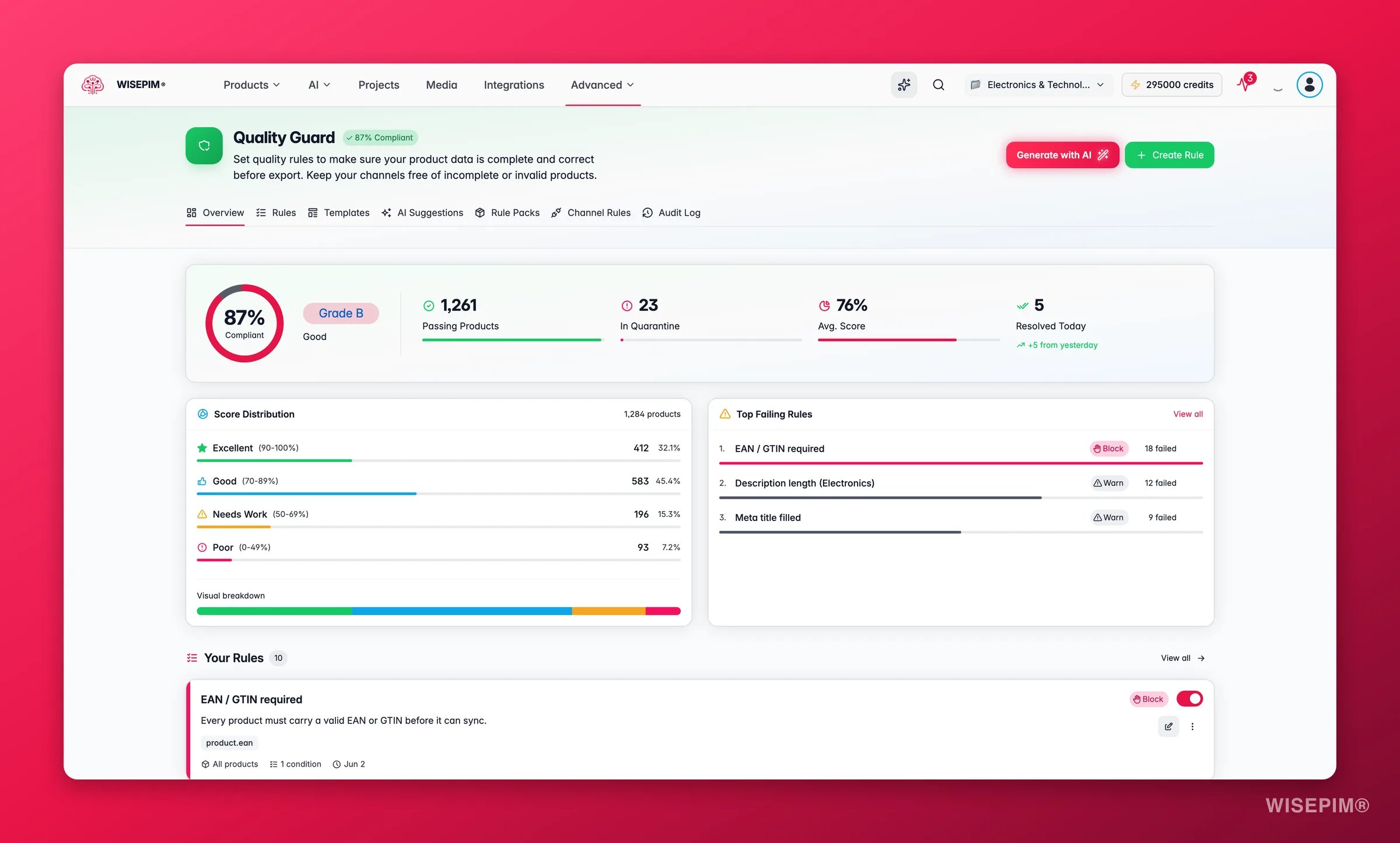
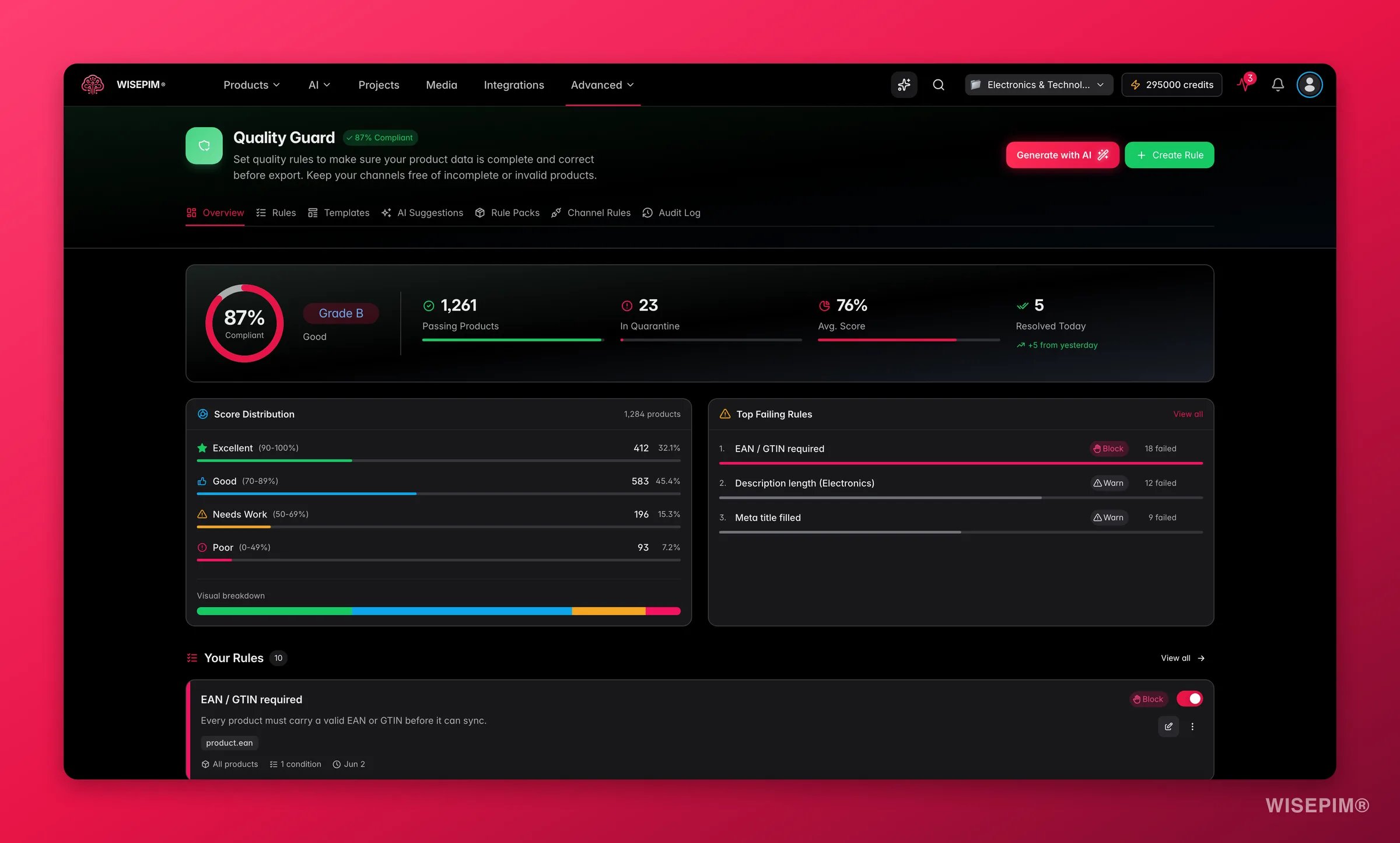 The Quality Guard dashboard gives you a high-level view of your catalog's health:
The percentage of your products that currently pass all active quality rules. This is your top-line quality metric.
Products that failed one or more rules and are being held for review. These need your attention before they can be exported.
A score from 0 to 100 reflecting how complete your product data is across all active rules.
### Score Distribution
Your catalog is broken into four quality tiers:
| Tier | Score Range | What It Means |
| ---------- | ----------- | -------------------------------------------------------------- |
| Excellent | 90–100 | Products are fully compliant and export-ready. |
| Good | 70–89 | Products pass most rules but may have minor gaps. |
| Needs Work | 50–69 | Products have notable quality issues that should be addressed. |
| Poor | 0–49 | Products fail significant rules and likely cannot be exported. |
### Top Failing Rules
The dashboard highlights rules causing the most failures. Fix these first for the biggest impact on your compliance rate.
## How Rules Work
Quality Guard is built on **rules**: conditions your product data must satisfy. Each rule has three parts:
Define what you are checking. For example: "Product Name is not empty" or "Description length is at least 100 characters." You can combine multiple conditions with AND/OR logic.
Define which products the rule applies to. You can target all products, specific categories, certain channels, or products within a price range.
Define what happens when a product fails. **Block** prevents the product from being exported. **Skip** excludes it silently. **Warn** lets it through but logs a warning.
## Ways to Create Rules
There are four ways to build your rule set. Pick what fits your workflow:
Describe your requirements in plain language, or let AI analyze your catalog and competitor listings to propose rules automatically.
Install a pre-built bundle of channel-scoped rules for marketplaces like Google Shopping, Amazon, or Kaufland in one click.
Browse the template gallery for ready-made rule sets organized by channel and use case. Apply one as a starting point.
Build rules from scratch using the condition builder to express any check your catalog requires.
Start with a few high-impact rules (such as requiring a product name, at least one image, and a valid EAN/GTIN), then expand your rule set over time as your data quality improves.
## Explore Quality Guard
Learn how to create and manage quality rules for your catalog.
Set up channel-specific requirements for each of your export destinations.
Review and resolve products that failed quality checks.
Track every quality-related action and change across your project.
## Getting Started
New to Quality Guard? Here is the fastest path to clean data:
Head to the Rule Packs tab for your primary channel, or browse the Templates gallery for a ready-made rule set. Either gives you a solid baseline immediately.
After applying rules, check the dashboard to see your current compliance rate and which products need attention.
Address the most critical issues flagged by your new rules. Use [bulk editing](/en/essentials/bulk-editing) or [AI enrichment](/en/essentials/enriching-products) to resolve problems efficiently.
Create custom rules or use the AI generator for your specific business requirements. Adjust severity levels as you learn which rules matter most for your catalog.
Rules with **Block** severity will prevent products from being exported. Make sure you review the impact before activating blocking rules on a large catalog, as this could hold up your next export.
The Quality Guard dashboard gives you a high-level view of your catalog's health:
The percentage of your products that currently pass all active quality rules. This is your top-line quality metric.
Products that failed one or more rules and are being held for review. These need your attention before they can be exported.
A score from 0 to 100 reflecting how complete your product data is across all active rules.
### Score Distribution
Your catalog is broken into four quality tiers:
| Tier | Score Range | What It Means |
| ---------- | ----------- | -------------------------------------------------------------- |
| Excellent | 90–100 | Products are fully compliant and export-ready. |
| Good | 70–89 | Products pass most rules but may have minor gaps. |
| Needs Work | 50–69 | Products have notable quality issues that should be addressed. |
| Poor | 0–49 | Products fail significant rules and likely cannot be exported. |
### Top Failing Rules
The dashboard highlights rules causing the most failures. Fix these first for the biggest impact on your compliance rate.
## How Rules Work
Quality Guard is built on **rules**: conditions your product data must satisfy. Each rule has three parts:
Define what you are checking. For example: "Product Name is not empty" or "Description length is at least 100 characters." You can combine multiple conditions with AND/OR logic.
Define which products the rule applies to. You can target all products, specific categories, certain channels, or products within a price range.
Define what happens when a product fails. **Block** prevents the product from being exported. **Skip** excludes it silently. **Warn** lets it through but logs a warning.
## Ways to Create Rules
There are four ways to build your rule set. Pick what fits your workflow:
Describe your requirements in plain language, or let AI analyze your catalog and competitor listings to propose rules automatically.
Install a pre-built bundle of channel-scoped rules for marketplaces like Google Shopping, Amazon, or Kaufland in one click.
Browse the template gallery for ready-made rule sets organized by channel and use case. Apply one as a starting point.
Build rules from scratch using the condition builder to express any check your catalog requires.
Start with a few high-impact rules (such as requiring a product name, at least one image, and a valid EAN/GTIN), then expand your rule set over time as your data quality improves.
## Explore Quality Guard
Learn how to create and manage quality rules for your catalog.
Set up channel-specific requirements for each of your export destinations.
Review and resolve products that failed quality checks.
Track every quality-related action and change across your project.
## Getting Started
New to Quality Guard? Here is the fastest path to clean data:
Head to the Rule Packs tab for your primary channel, or browse the Templates gallery for a ready-made rule set. Either gives you a solid baseline immediately.
After applying rules, check the dashboard to see your current compliance rate and which products need attention.
Address the most critical issues flagged by your new rules. Use [bulk editing](/en/essentials/bulk-editing) or [AI enrichment](/en/essentials/enriching-products) to resolve problems efficiently.
Create custom rules or use the AI generator for your specific business requirements. Adjust severity levels as you learn which rules matter most for your catalog.
Rules with **Block** severity will prevent products from being exported. Make sure you review the impact before activating blocking rules on a large catalog, as this could hold up your next export.