> ## Documentation Index
> Fetch the complete documentation index at: https://docs.wisepim.com/llms.txt
> Use this file to discover all available pages before exploring further.
# Units of Measure
> Define and manage UOM code sets (grouped unit systems like weight, length, and volume) and link them to numeric product attributes for consistent, exportable measurements.
Units of measure (UOM) let you attach standardized unit systems to your numeric product attributes. Instead of storing a raw number in a weight or dimension field, you define a UOM code set (a named group of related units) and link it to an attribute. Your catalog then carries consistent, convertible measurements that export correctly to every channel.
A UOM code set groups related units under one roof. For example, a "Dimensions" set might contain mm, cm, m, and in. One base unit anchors the set; all others carry a conversion factor relative to it.
## UOM code sets
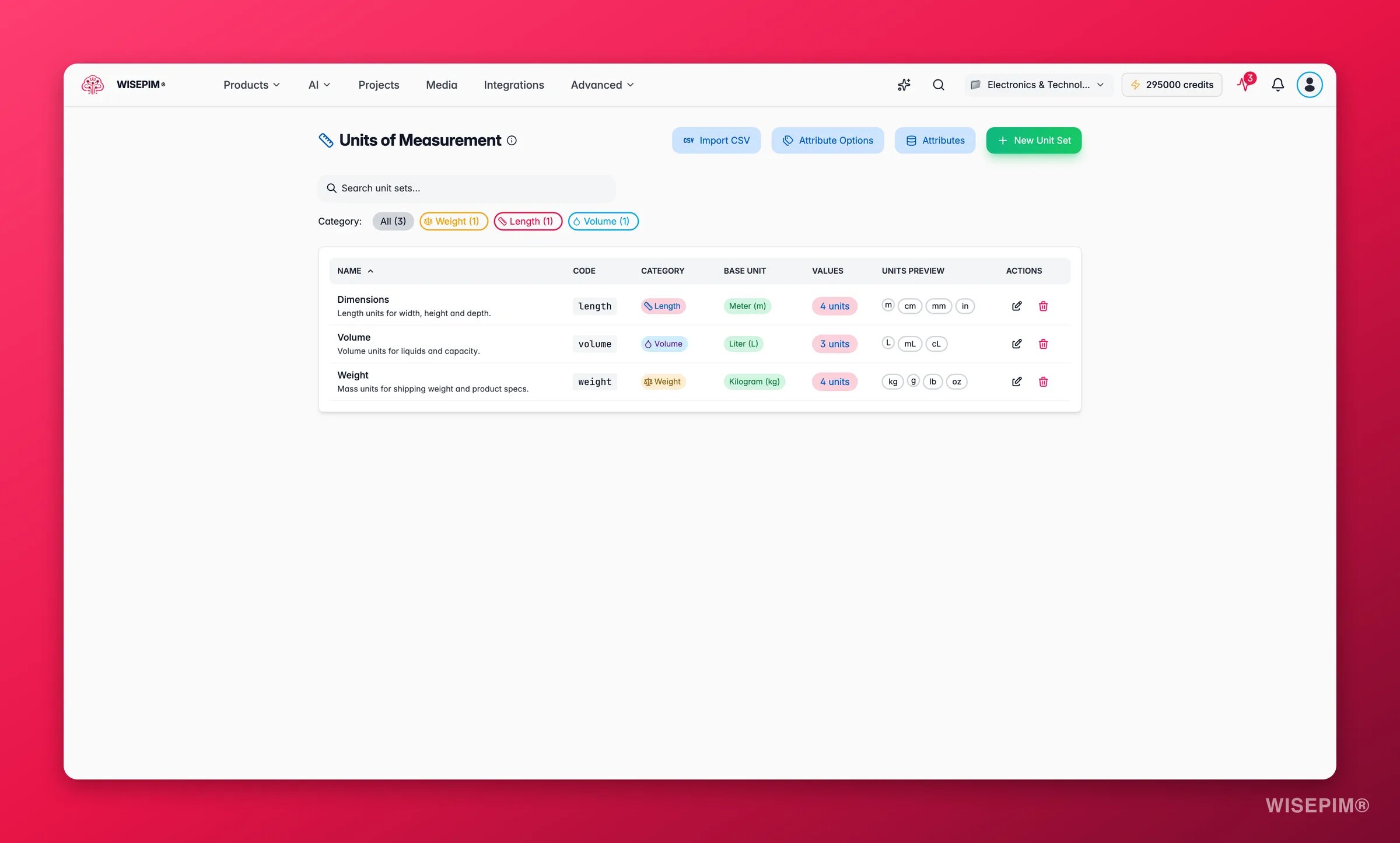
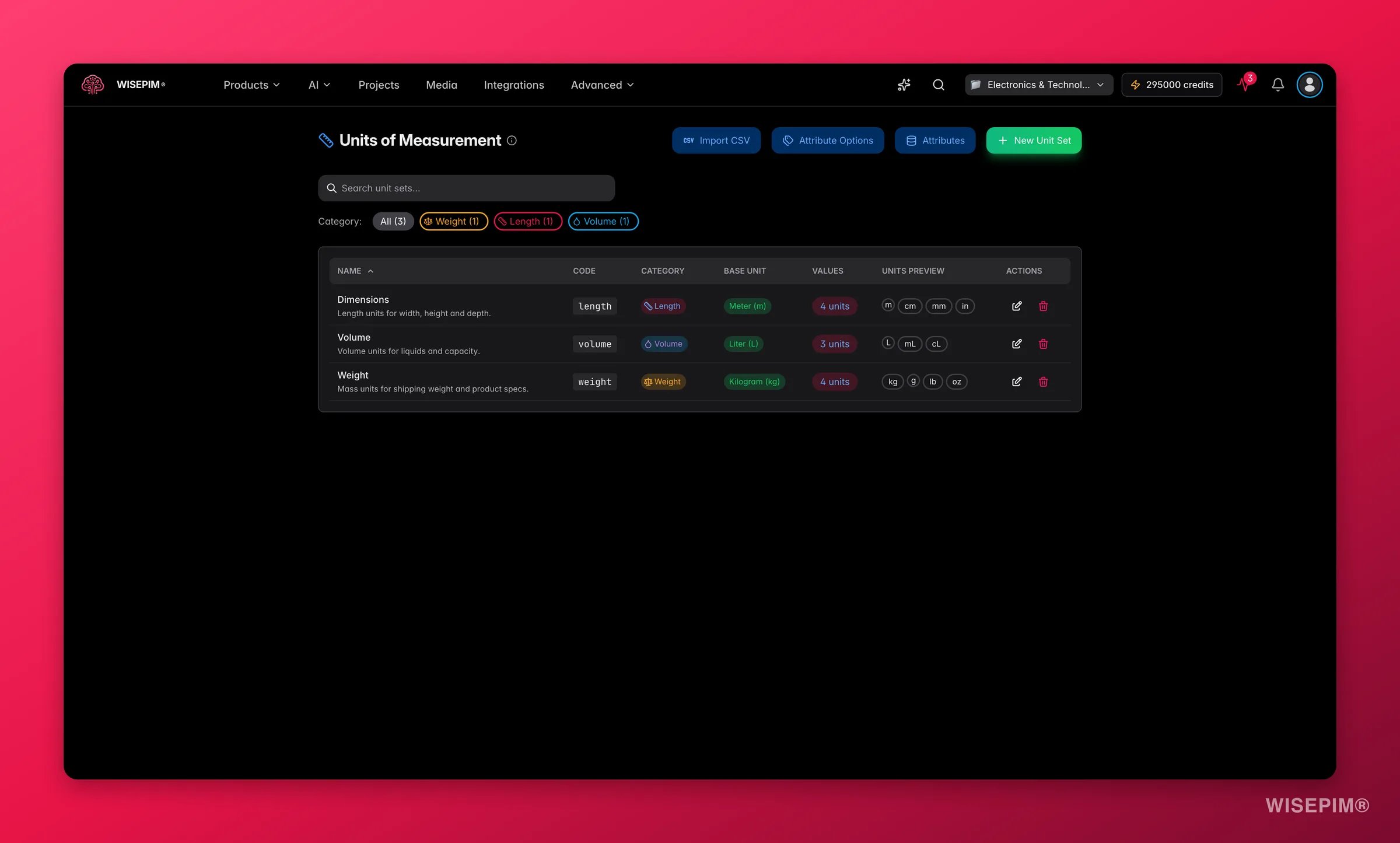 Go to **Products → Attribute Options → Units of Measurement** to see and manage your code sets.
Each code set has:
* **Name** and **Code**: the display name and a unique slug (lowercase, no spaces).
* **Category**: one of Weight, Length, Volume, Area, Quantity, Time, or Custom. Pick **Custom** for anything that does not fit the standard types, such as pallets, rolls, or boxes.
* **Base unit**: the reference unit with factor 1. All other units in the set specify how many base units they equal (e.g., if cm is the base: mm = 0.1, m = 100).
### Creating a code set
Click **New Unit Set**. Fill in the name, code, optional description, and category. Then add units one by one under **Unit Values**:
| Field | Description |
| ---------- | ---------------------------------------- |
| **Code** | Internal identifier, e.g. `mm` |
| **Name** | Display name, e.g. Millimeter |
| **Symbol** | Short label shown with values, e.g. `mm` |
| **Factor** | How many base units this unit equals |
Mark one unit as **Base unit** (it gets factor 1 automatically). Click **Set as base** on any row to promote it. You can also set validation rules per unit: minimum value, maximum value, and decimal precision.
Click **Save Changes** (or **Create Code Set** for a new one). The code set is immediately available for linking to attributes.
### Editing a code set
Click the edit icon on any row in the table. You can rename the set, add or remove units, change the base unit, and update conversion factors. Changes apply to all products using that code set.
Use the **Category** filter above the table to quickly find code sets by measurement type.
### Display format and export settings
Each code set has two additional configuration sections in its modal:
**Display format** controls how values appear in the app: decimal separator (period or comma), thousands separator, and number of decimal places.
**Export settings** control how values land in exports:
* **Append**: value and unit in one column, e.g. `100 mm`
* **Separate columns**: value and unit in separate columns (configure column name suffixes)
* **Ignore unit**: value only, no unit exported
You can override the export setting per export run from the export dialog.
## Importing UOM via the UOM Importer
For large catalogs, use the UOM Importer to load unit sets from a CSV file. Access it from the **Import CSV** button on the Units of Measurement page.
The importer walks you through four steps:
Upload a CSV file (max 50 MB). The importer analyzes it and shows a preview of the first 10 rows. Your CSV needs at minimum: UOM set name (or code), unit code, unit name, and unit symbol. A conversion factor column is recommended.
Match your CSV columns to the UOM fields. Required fields are marked with an asterisk. The importer auto-detects common column names.
Set a default category for unit sets without a category column, choose a default locale for unit names, and enable **Auto-link to Attributes** to automatically connect imported unit sets to matching numeric attributes.
The import runs in the background. You can track progress directly on the page or in the Process Tracker. When complete, you'll see a summary of units created and any errors.
## Applying UOM to products
Link a UOM code set to a product attribute in **Other Features → Managing Attributes**. Set the attribute type to **Number** or **Decimal** (the UOM field only appears for these types) and choose the code set from the UOM field. After linking, every product that uses that attribute will display values with their unit and benefit from conversion and export features.
When editing a single product, a UOM field shows a unit selector alongside the numeric input. Pick the unit that applies to that product.
## Changing UOM in bulk
To change the unit of measure across many products at once, use the bulk edit action **Change Unit of Measure**. Select products, open Bulk Edit, and find it under **Attributes and Custom Fields**. You can convert both the unit label and the actual numeric values using the conversion factor from the code set.
See [Change Unit of Measure](/en/essentials/bulk-editing/change-uom) for full details.
## Related
Bulk-convert units across products, with optional automatic value conversion.
Create numeric attributes and link them to a UOM code set.
Go to **Products → Attribute Options → Units of Measurement** to see and manage your code sets.
Each code set has:
* **Name** and **Code**: the display name and a unique slug (lowercase, no spaces).
* **Category**: one of Weight, Length, Volume, Area, Quantity, Time, or Custom. Pick **Custom** for anything that does not fit the standard types, such as pallets, rolls, or boxes.
* **Base unit**: the reference unit with factor 1. All other units in the set specify how many base units they equal (e.g., if cm is the base: mm = 0.1, m = 100).
### Creating a code set
Click **New Unit Set**. Fill in the name, code, optional description, and category. Then add units one by one under **Unit Values**:
| Field | Description |
| ---------- | ---------------------------------------- |
| **Code** | Internal identifier, e.g. `mm` |
| **Name** | Display name, e.g. Millimeter |
| **Symbol** | Short label shown with values, e.g. `mm` |
| **Factor** | How many base units this unit equals |
Mark one unit as **Base unit** (it gets factor 1 automatically). Click **Set as base** on any row to promote it. You can also set validation rules per unit: minimum value, maximum value, and decimal precision.
Click **Save Changes** (or **Create Code Set** for a new one). The code set is immediately available for linking to attributes.
### Editing a code set
Click the edit icon on any row in the table. You can rename the set, add or remove units, change the base unit, and update conversion factors. Changes apply to all products using that code set.
Use the **Category** filter above the table to quickly find code sets by measurement type.
### Display format and export settings
Each code set has two additional configuration sections in its modal:
**Display format** controls how values appear in the app: decimal separator (period or comma), thousands separator, and number of decimal places.
**Export settings** control how values land in exports:
* **Append**: value and unit in one column, e.g. `100 mm`
* **Separate columns**: value and unit in separate columns (configure column name suffixes)
* **Ignore unit**: value only, no unit exported
You can override the export setting per export run from the export dialog.
## Importing UOM via the UOM Importer
For large catalogs, use the UOM Importer to load unit sets from a CSV file. Access it from the **Import CSV** button on the Units of Measurement page.
The importer walks you through four steps:
Upload a CSV file (max 50 MB). The importer analyzes it and shows a preview of the first 10 rows. Your CSV needs at minimum: UOM set name (or code), unit code, unit name, and unit symbol. A conversion factor column is recommended.
Match your CSV columns to the UOM fields. Required fields are marked with an asterisk. The importer auto-detects common column names.
Set a default category for unit sets without a category column, choose a default locale for unit names, and enable **Auto-link to Attributes** to automatically connect imported unit sets to matching numeric attributes.
The import runs in the background. You can track progress directly on the page or in the Process Tracker. When complete, you'll see a summary of units created and any errors.
## Applying UOM to products
Link a UOM code set to a product attribute in **Other Features → Managing Attributes**. Set the attribute type to **Number** or **Decimal** (the UOM field only appears for these types) and choose the code set from the UOM field. After linking, every product that uses that attribute will display values with their unit and benefit from conversion and export features.
When editing a single product, a UOM field shows a unit selector alongside the numeric input. Pick the unit that applies to that product.
## Changing UOM in bulk
To change the unit of measure across many products at once, use the bulk edit action **Change Unit of Measure**. Select products, open Bulk Edit, and find it under **Attributes and Custom Fields**. You can convert both the unit label and the actual numeric values using the conversion factor from the code set.
See [Change Unit of Measure](/en/essentials/bulk-editing/change-uom) for full details.
## Related
Bulk-convert units across products, with optional automatic value conversion.
Create numeric attributes and link them to a UOM code set.