> ## Documentation Index
> Fetch the complete documentation index at: https://docs.wisepim.com/llms.txt
> Use this file to discover all available pages before exploring further.
# Product Families
> Define the fields each product type needs once, then assign a family so every product inherits the right attributes and validation rules.
A product family is a template for a product type. It defines which attributes a product should have. Assign a product to a family, and it inherits all of that family's attributes automatically.
This saves you from adding the same fields to every product by hand. Define a family once, then reuse it across your whole catalog.
Think of a family as a blueprint. A **Clothing** family might require size, color, and material. An **Electronics** family might require voltage, wattage, and connectivity.
## How families work
 A family is a set of attributes that together describe one product type. Assign a product to that family, and the product gains every attribute the family defines.
For each attribute you add to a family, you can set two things in the family editor:
| Setting | What it controls |
| ------------------------ | -------------------------------------------------------------------------- |
| **Required or optional** | Whether the field must be filled in before the product counts as complete. |
| **Variant axis** | Whether the attribute creates product variants, such as size or color. |
The order attributes appear in is assigned automatically as you select them, so you do not set it by hand here.
Families also support a per-attribute default value and validation overrides in the data model, but these are not yet editable in the family editor. Set validation on the attribute itself through its [attribute settings](/en/other-features/managing-attributes).
### Parent and child families
Families can be nested. A child family inherits every attribute from its parent and can add its own on top. Use this when product types share a common base but differ in the details.
For example:
* **Apparel** (parent): brand, material, care instructions
* **Tops** (child): adds sleeve length, neckline
* **Bottoms** (child): adds inseam, waist type
* **Outerwear** (child): adds insulation type, waterproof rating
Define shared attributes on the parent and add only the specialized ones to each child. This avoids duplicating fields across similar product types.
## Create a family
Go to **Product Families** in the sidebar. You'll see a table of every existing family.
Click **New Family** in the top-right corner to open the form.
Add a name (such as "Electronics") and a unique code (such as `electronics`). Add a description if it helps your team understand the family's purpose.
To inherit attributes from another family, pick a parent. Leave this empty for a top-level family.
Choose the attributes products in this family should have. For each one, set whether it's required and whether it's a variant axis. Their order follows the order you select them in.
Click **Save**. The family appears in the table right away.
The code must be unique in your project. Use a lowercase, descriptive code like `clothing` or `electronics-accessories`. You can't change the code after you create the family.
## Assign products to a family
After you create a family, assign products to it so they inherit its attributes.
Open any product from the **Products** page.
Locate the **Family** field in the product details.
Pick the right family from the dropdown. The product inherits every attribute that family defines.
### Assign in bulk
To set a family for many products at once, use [bulk editing](/en/essentials/bulk-editing) on the Products page. Select the products, choose the bulk edit action, and set the family for all of them.
## Manage families
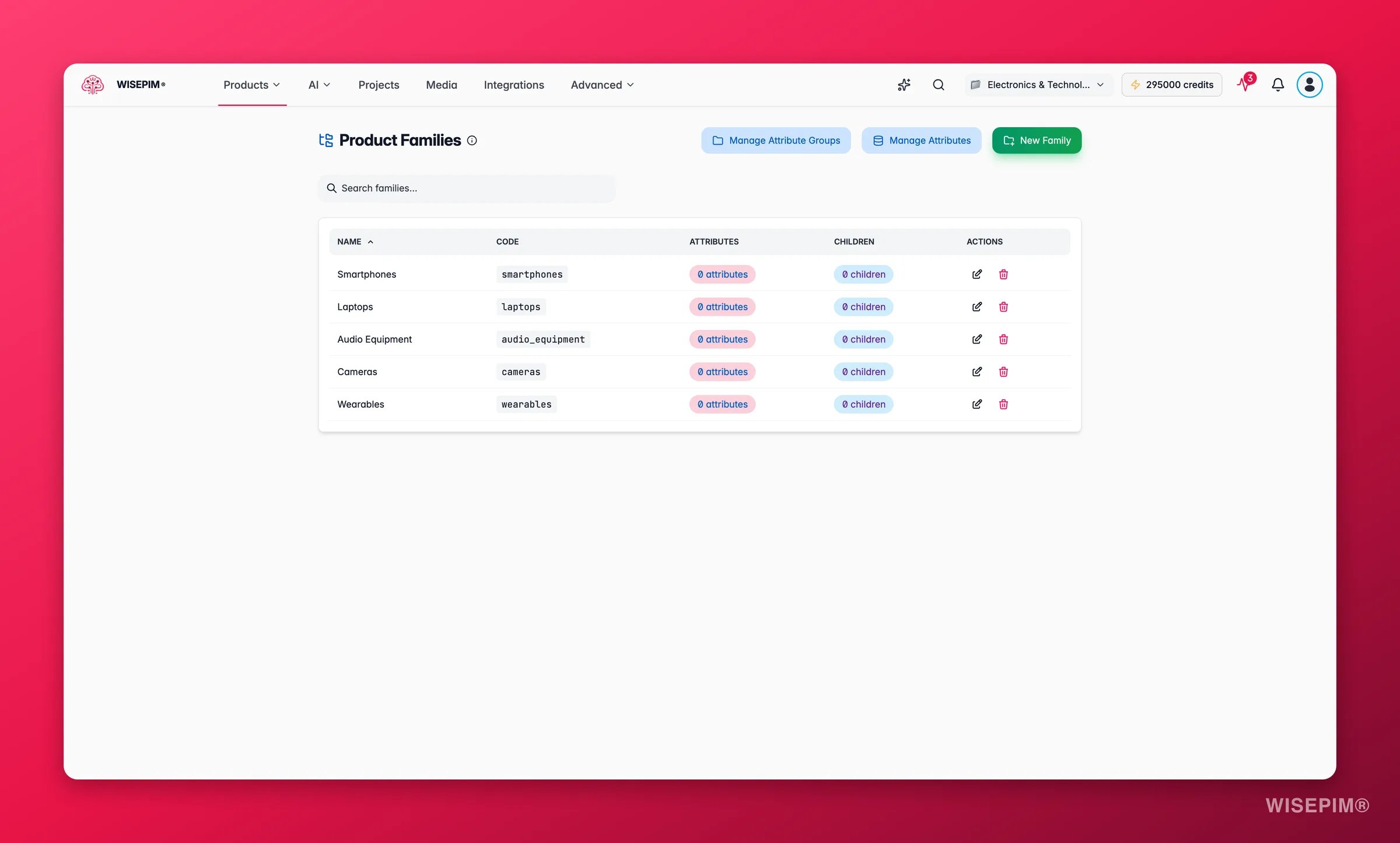
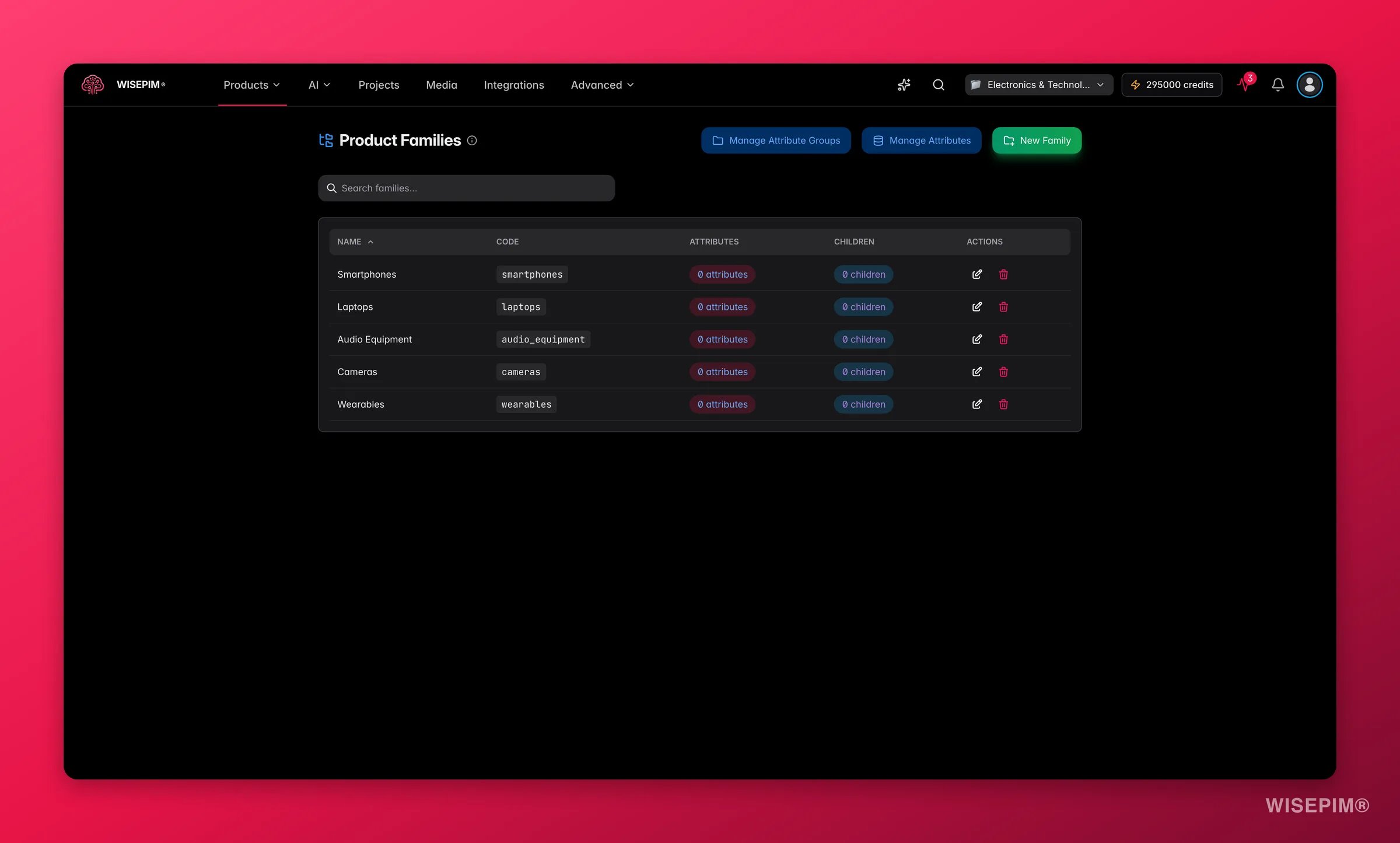
The Product Families page lists every family in a sortable table. Use the **search bar** to filter by name or code.
| Column | What it shows |
| -------------- | ------------------------------------------------------------- |
| **Name** | The family name, indented to show its place in the hierarchy. |
| **Code** | The family's unique identifier. |
| **Attributes** | How many attributes the family has. |
| **Children** | How many child families it has. |
| **Actions** | Edit and delete buttons. |
1. Click the **edit icon** (pencil) in the Actions column.
2. Update the name, description, parent, or attribute assignments.
3. Save your changes.
Editing a family's attributes affects every product in it. If you add a new required attribute, existing products will need that field filled in.
1. Click the **delete icon** (trash) next to the family.
2. Confirm in the dialog that appears.
Deleting a family affects every product that uses it. Those products lose their family assignment, but their existing attribute values stay intact. This can't be undone, so check before deleting a family with active products.
## Work with attributes
Families are built from attributes and attribute groups. Manage both from the Product Families page.
Create, edit, and organize the individual attributes that make up your data model.
Group related attributes for cleaner organization. For example, put "width", "height", and "depth" in a "Dimensions" group.
## Best practices
Map out your product types and how they relate before you build families. A clear plan saves time and avoids duplication.
Each family should represent one distinct product type. Avoid broad families with dozens of optional attributes.
Too many required fields slow down product creation. Require only the fields you truly need.
Share common attributes through parent and child families. This keeps your data model lean and easy to maintain.
## Troubleshooting
* Check that the family saved successfully.
* Confirm the family belongs to the correct project.
* Refresh the Products page to load the latest family data.
* Child families inherit from their parent. Check that the parent has the expected attributes assigned.
* New attributes added to a parent flow down automatically. Refresh the page if they don't show up.
* Confirm you have permission to delete families.
* If the family has children, reassign or delete the children first.
## Related
Build the attributes your families are made of.
Assign families to products and keep your catalog organized.
Set a family for many products in one action.
Translate product content into your project languages with AI.
A family is a set of attributes that together describe one product type. Assign a product to that family, and the product gains every attribute the family defines.
For each attribute you add to a family, you can set two things in the family editor:
| Setting | What it controls |
| ------------------------ | -------------------------------------------------------------------------- |
| **Required or optional** | Whether the field must be filled in before the product counts as complete. |
| **Variant axis** | Whether the attribute creates product variants, such as size or color. |
The order attributes appear in is assigned automatically as you select them, so you do not set it by hand here.
Families also support a per-attribute default value and validation overrides in the data model, but these are not yet editable in the family editor. Set validation on the attribute itself through its [attribute settings](/en/other-features/managing-attributes).
### Parent and child families
Families can be nested. A child family inherits every attribute from its parent and can add its own on top. Use this when product types share a common base but differ in the details.
For example:
* **Apparel** (parent): brand, material, care instructions
* **Tops** (child): adds sleeve length, neckline
* **Bottoms** (child): adds inseam, waist type
* **Outerwear** (child): adds insulation type, waterproof rating
Define shared attributes on the parent and add only the specialized ones to each child. This avoids duplicating fields across similar product types.
## Create a family
Go to **Product Families** in the sidebar. You'll see a table of every existing family.
Click **New Family** in the top-right corner to open the form.
Add a name (such as "Electronics") and a unique code (such as `electronics`). Add a description if it helps your team understand the family's purpose.
To inherit attributes from another family, pick a parent. Leave this empty for a top-level family.
Choose the attributes products in this family should have. For each one, set whether it's required and whether it's a variant axis. Their order follows the order you select them in.
Click **Save**. The family appears in the table right away.
The code must be unique in your project. Use a lowercase, descriptive code like `clothing` or `electronics-accessories`. You can't change the code after you create the family.
## Assign products to a family
After you create a family, assign products to it so they inherit its attributes.
Open any product from the **Products** page.
Locate the **Family** field in the product details.
Pick the right family from the dropdown. The product inherits every attribute that family defines.
### Assign in bulk
To set a family for many products at once, use [bulk editing](/en/essentials/bulk-editing) on the Products page. Select the products, choose the bulk edit action, and set the family for all of them.
## Manage families
The Product Families page lists every family in a sortable table. Use the **search bar** to filter by name or code.
| Column | What it shows |
| -------------- | ------------------------------------------------------------- |
| **Name** | The family name, indented to show its place in the hierarchy. |
| **Code** | The family's unique identifier. |
| **Attributes** | How many attributes the family has. |
| **Children** | How many child families it has. |
| **Actions** | Edit and delete buttons. |
1. Click the **edit icon** (pencil) in the Actions column.
2. Update the name, description, parent, or attribute assignments.
3. Save your changes.
Editing a family's attributes affects every product in it. If you add a new required attribute, existing products will need that field filled in.
1. Click the **delete icon** (trash) next to the family.
2. Confirm in the dialog that appears.
Deleting a family affects every product that uses it. Those products lose their family assignment, but their existing attribute values stay intact. This can't be undone, so check before deleting a family with active products.
## Work with attributes
Families are built from attributes and attribute groups. Manage both from the Product Families page.
Create, edit, and organize the individual attributes that make up your data model.
Group related attributes for cleaner organization. For example, put "width", "height", and "depth" in a "Dimensions" group.
## Best practices
Map out your product types and how they relate before you build families. A clear plan saves time and avoids duplication.
Each family should represent one distinct product type. Avoid broad families with dozens of optional attributes.
Too many required fields slow down product creation. Require only the fields you truly need.
Share common attributes through parent and child families. This keeps your data model lean and easy to maintain.
## Troubleshooting
* Check that the family saved successfully.
* Confirm the family belongs to the correct project.
* Refresh the Products page to load the latest family data.
* Child families inherit from their parent. Check that the parent has the expected attributes assigned.
* New attributes added to a parent flow down automatically. Refresh the page if they don't show up.
* Confirm you have permission to delete families.
* If the family has children, reassign or delete the children first.
## Related
Build the attributes your families are made of.
Assign families to products and keep your catalog organized.
Set a family for many products in one action.
Translate product content into your project languages with AI.