> ## Documentation Index
> Fetch the complete documentation index at: https://docs.wisepim.com/llms.txt
> Use this file to discover all available pages before exploring further.
# Filtering & Searching Products
> Find any product fast. Search across fields, describe what you want in plain language, build precise advanced filters, check products against Quality Guard rules, or fix data quality with one-click presets.
Finding the right products is the start of almost every job in WISEPIM: enriching, translating, fixing prices, preparing an export. The Products page gives you two tools for it.
* **Quick search** in the toolbar for fast, instant lookups.
* The **filter modal** for everything else. It has **four modes**, so you can find products the way that fits the task: describe what you want in plain language, build precise conditions by hand, check products against a Quality Guard rule, or pick a ready-made data quality filter.
Whichever way you find a set of products, the payoff is the same: a focused selection you can act on in one go, with [bulk editing](/en/essentials/bulk-editing), [AI enrichment](/en/essentials/enriching-products), or an [export](/en/essentials/exporting-products).
## Quick search
The search bar sits in the top left of the toolbar. Start typing and press **Enter**. Clear the field to show all products again.
By default it looks across the key text fields at once: product name, SKU, EAN, descriptions, and meta fields. You do not need to know which field holds your term.
You control what search covers and how strict it is in **[Settings > Product views](/en/settings/product-views)**. Pick exactly which fields the search bar reads, and turn on **fuzzy search** to match similar terms so small typos and spelling variations still find the product.
Quick search is best for "I know roughly what I'm looking for" moments: a SKU, a brand, a word in the title. For anything structured ("all products under €50 with no image"), open the filter modal.
## Open the filter modal
Click the **Filters** button next to the search bar. A red badge on the button shows when filters are active. The modal opens with four tabs across the top.
| Mode | Best for | What it does |
| -------------------- | --------------------------------- | --------------------------------------------------------------------------------------------- |
| **Natural language** | The fastest way to a precise list | Describe what you want in plain words. AI builds the filter conditions for you. |
| **Advanced filters** | Exact, repeatable queries | Stack conditions across 90+ fields, combine them with AND/OR, and save them as reusable sets. |
| **Compliance** | Channel-readiness triage | Find the products that pass or fail a [Quality Guard](/en/quality-guard/overview) rule. |
| **Presets** | Daily data quality cleanup | One-click filters for the most common catalog issues. |
You can switch modes at any time, and they work together: generate a filter with natural language, then open **Advanced filters** to fine-tune it.
## Natural language
This is the default tab, and usually the quickest way to a precise list. Describe what you are looking for in plain words and AI turns it into real filter conditions.
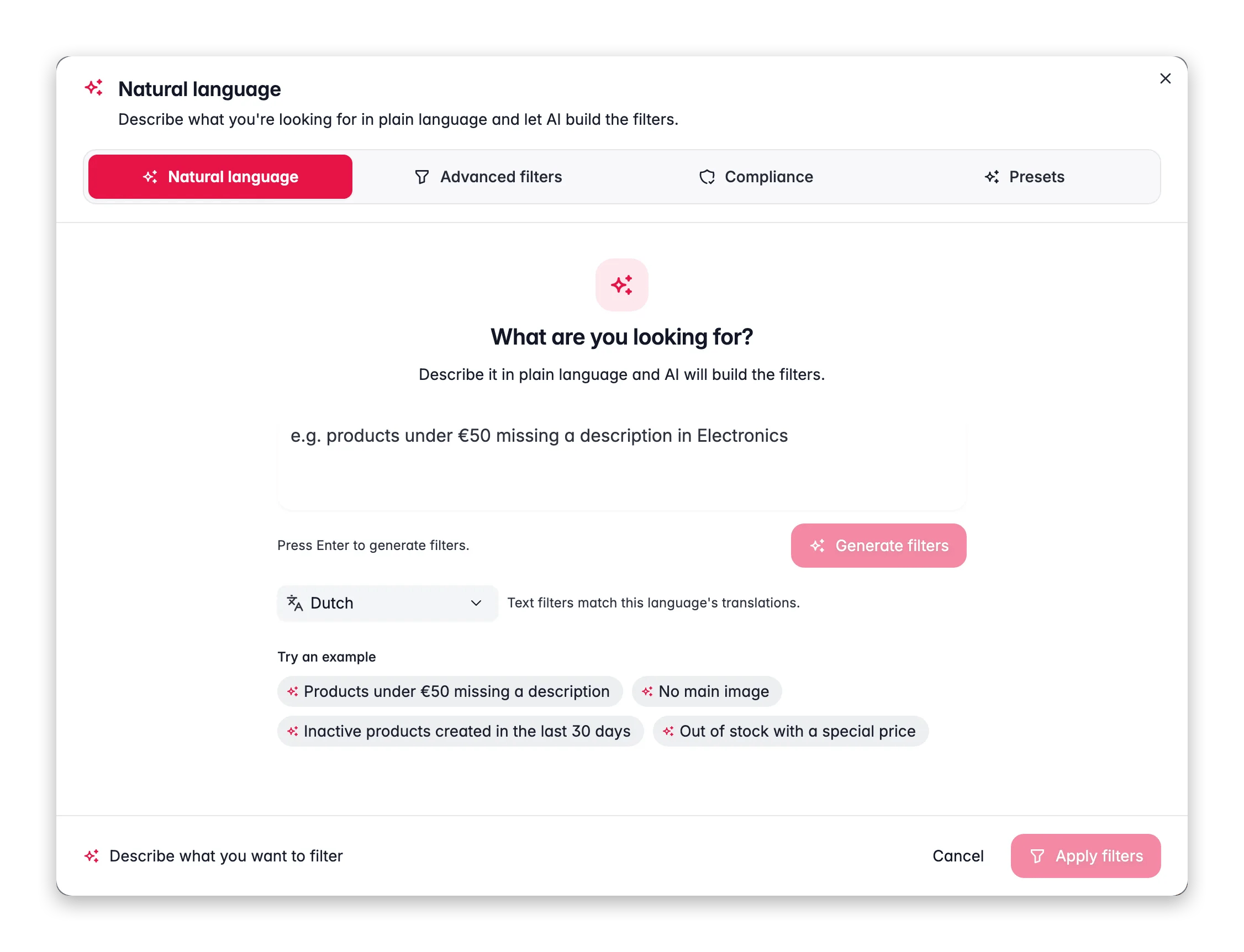
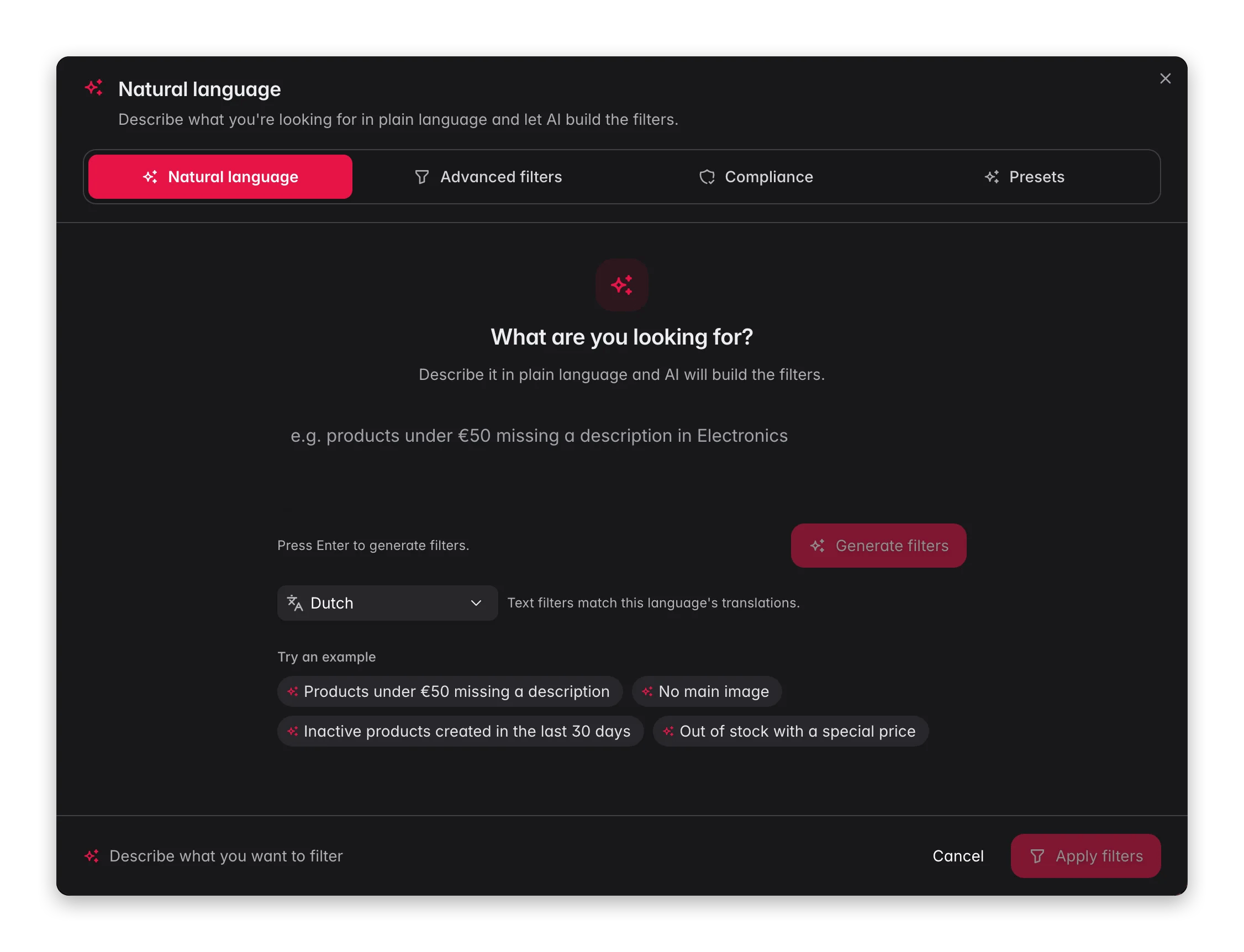 Type something like "Products under €50 missing a description" or "Inactive products created in the last 30 days." Press **Enter** to generate.
AI shows the conditions it created, explains what it did, and lists anything it couldn't map to a filter. Check that it matches your intent.
Click **Apply** to use the filter, or **Refine in Advanced filters** to adjust a condition by hand. **New search** clears it and starts over.
Not sure where to start? The tab shows example prompts (like "No main image" or "Out of stock with a special price"). Click one to run it instantly and see how a description maps to filters.
Natural language understands the same fields and operators as Advanced filters, including pricing, stock, dates, categories, translation status, and even synced order counts, so you can ask for fairly specific things and get an accurate list back.
## Advanced filters
Build precise, repeatable queries by hand. Use this when you want full control, or to fine-tune a filter that natural language started.
Type something like "Products under €50 missing a description" or "Inactive products created in the last 30 days." Press **Enter** to generate.
AI shows the conditions it created, explains what it did, and lists anything it couldn't map to a filter. Check that it matches your intent.
Click **Apply** to use the filter, or **Refine in Advanced filters** to adjust a condition by hand. **New search** clears it and starts over.
Not sure where to start? The tab shows example prompts (like "No main image" or "Out of stock with a special price"). Click one to run it instantly and see how a description maps to filters.
Natural language understands the same fields and operators as Advanced filters, including pricing, stock, dates, categories, translation status, and even synced order counts, so you can ask for fairly specific things and get an accurate list back.
## Advanced filters
Build precise, repeatable queries by hand. Use this when you want full control, or to fine-tune a filter that natural language started.
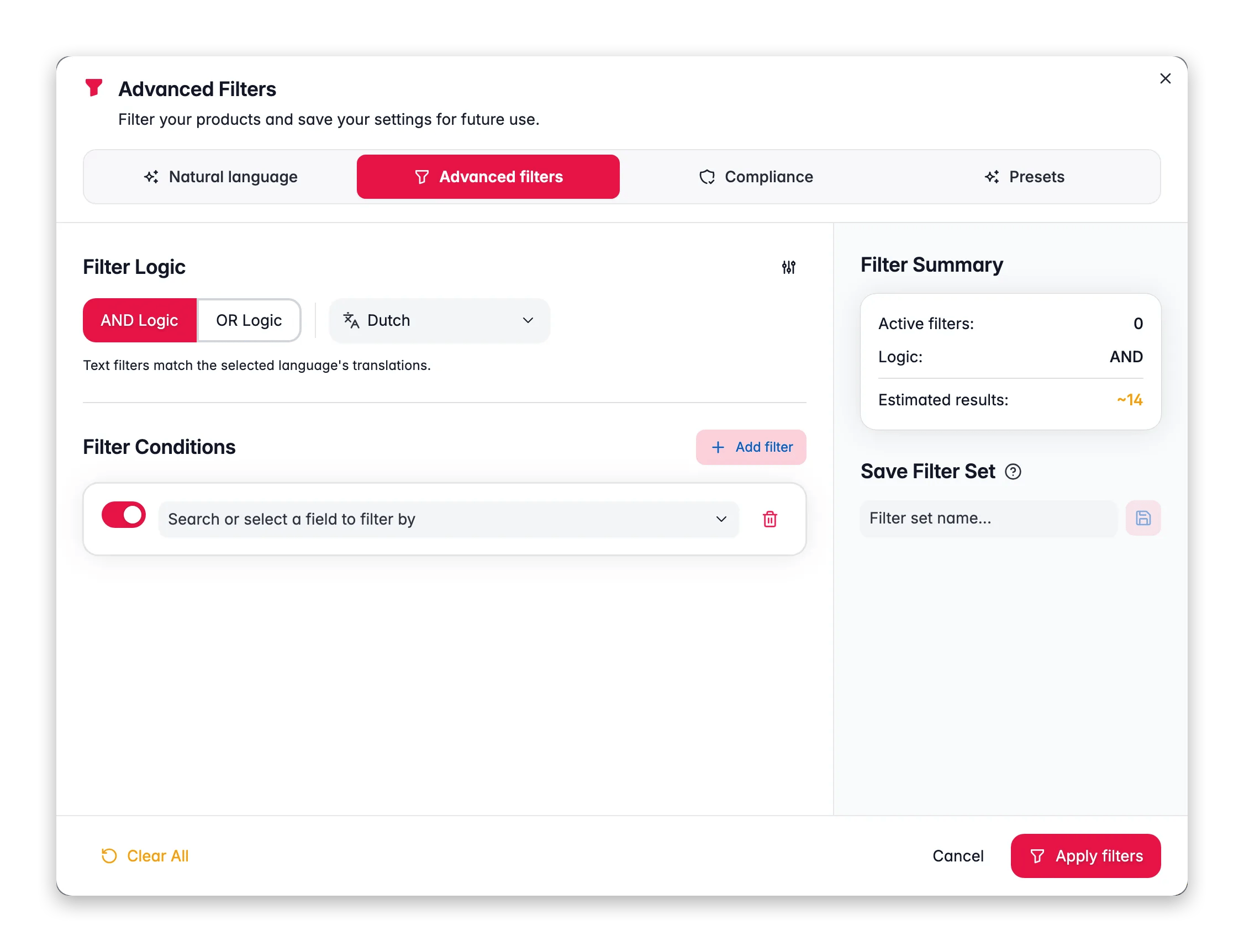
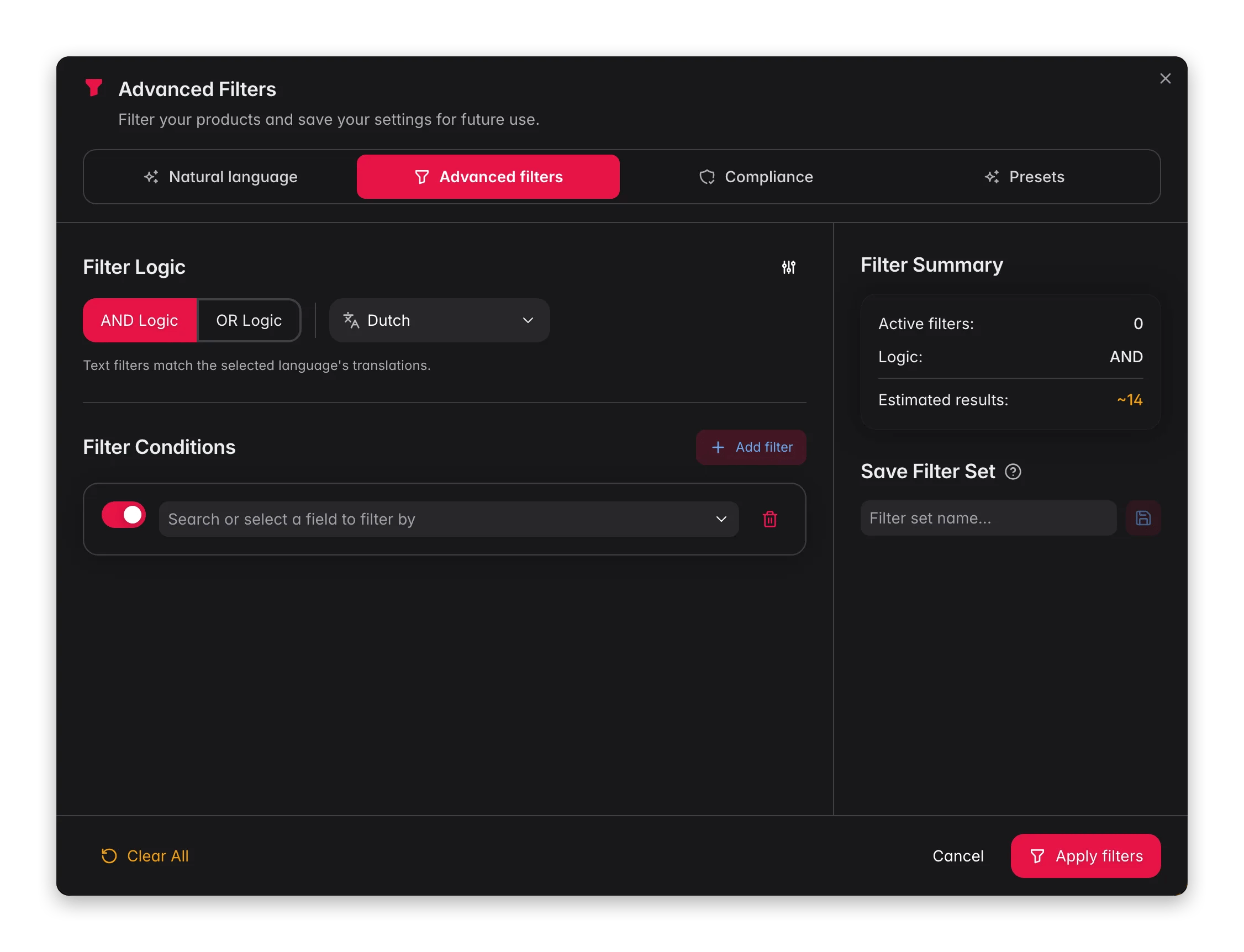 Click **Add filter**, choose a field, pick an operator, and enter a value.
Stack as many as you need. Toggle any condition off without deleting it, so you can test combinations fast.
Pick **AND** (match all conditions) or **OR** (match any). With OR, a slider lets you set how many conditions must match, for example "at least 3 of these 5."
The summary panel shows an estimated result count as you build. Click **Apply filters** to update the list.
### Fields you can filter on
You can filter on **90+ built-in fields plus your own custom attributes**, organized into groups so they are easy to find:
| Group | Examples |
| ----------------------------- | ------------------------------------------------------------------------------------- |
| **Categories & Organization** | Categories, Product Family, Inferred Industry |
| **Basic Information** | Name, SKU, EAN, UPC, MPN, Brand, Supplier |
| **Descriptions** | Description, Original vs. Enriched, Short Description, word counts |
| **SEO** | Meta Title, Meta Description, Meta Keywords (with length checks) |
| **Pricing** | Price, Special Price, Cost, Profit Margin, Active Sale |
| **Inventory** | Stock Quantity, Stock Status, Low Stock, Backorders |
| **Physical** | Weight, Dimensions, Has Dimensions |
| **Shipping & Customs** | Requires Shipping, HS Code, Country of Origin, Dangerous Goods |
| **Status & Review** | Status, Review Status, Visibility, Import Source |
| **Product Configuration** | Product Type, Has Variants, Is Variant, Edit Version |
| **Translation** | Translation Status, Translated To / Not Translated To language, per-field translation |
| **Quality Metrics** | Quality Score, Completion Score |
| **Quality Guard** | Rule compliance, Quality Guard Status, last checked, bypassed |
| **Timestamps** | Created, Updated, Last Imported / Exported / Enriched / Translated |
| **Media & Assets** | Has Main Image, Main Image URL |
| **Platform & Sync** | Synced to Shopify / Magento / WooCommerce / Lightspeed |
| **Related Products** | Has Related Products, Related Products Count |
| **Commerce** | Orders (distinct synced orders containing the product) |
### Operators you can use
The operators adapt to the field type:
* **Text**: contains, doesn't contain, equals, starts/ends with, in list, regex match, case-sensitive equals, word count, character length, is empty
* **Number**: equals, greater than, less than, between
* **Date**: within the last X days, older than X days, between, before, after
* **Category / Select**: is, is one of, in, not in, has any, has all
* **Yes/No**: is true, is false
* **Find duplicates**: **is unique** / **is duplicate**, to catch repeated SKUs, EANs, or names across your catalog
The "is duplicate" operator on **SKU** or **EAN** is the fastest way to find accidental duplicates before they reach a channel. Run it, review the matches, and clean them up.
### Save a filter as a set
Use the same filter often? Save it once and reload it in a click.
Set up the conditions you want to keep.
Enter a name in the **Save filter set** box and click save.
Open the modal and click a saved set to apply it instantly. Rename or delete sets any time.
Saved filter sets live in your browser. They stay across sessions, but only on the browser you are using. To share a view with your team, save a [layout](/en/products/customizing-views) instead.
## Compliance
The **Compliance** tab filters your catalog by whether products pass or fail a [Quality Guard](/en/quality-guard/overview) rule. This is your channel-readiness lens: instead of guessing which products are export-ready, you check them against the exact rule that gates a channel.
Click **Add filter**, choose a field, pick an operator, and enter a value.
Stack as many as you need. Toggle any condition off without deleting it, so you can test combinations fast.
Pick **AND** (match all conditions) or **OR** (match any). With OR, a slider lets you set how many conditions must match, for example "at least 3 of these 5."
The summary panel shows an estimated result count as you build. Click **Apply filters** to update the list.
### Fields you can filter on
You can filter on **90+ built-in fields plus your own custom attributes**, organized into groups so they are easy to find:
| Group | Examples |
| ----------------------------- | ------------------------------------------------------------------------------------- |
| **Categories & Organization** | Categories, Product Family, Inferred Industry |
| **Basic Information** | Name, SKU, EAN, UPC, MPN, Brand, Supplier |
| **Descriptions** | Description, Original vs. Enriched, Short Description, word counts |
| **SEO** | Meta Title, Meta Description, Meta Keywords (with length checks) |
| **Pricing** | Price, Special Price, Cost, Profit Margin, Active Sale |
| **Inventory** | Stock Quantity, Stock Status, Low Stock, Backorders |
| **Physical** | Weight, Dimensions, Has Dimensions |
| **Shipping & Customs** | Requires Shipping, HS Code, Country of Origin, Dangerous Goods |
| **Status & Review** | Status, Review Status, Visibility, Import Source |
| **Product Configuration** | Product Type, Has Variants, Is Variant, Edit Version |
| **Translation** | Translation Status, Translated To / Not Translated To language, per-field translation |
| **Quality Metrics** | Quality Score, Completion Score |
| **Quality Guard** | Rule compliance, Quality Guard Status, last checked, bypassed |
| **Timestamps** | Created, Updated, Last Imported / Exported / Enriched / Translated |
| **Media & Assets** | Has Main Image, Main Image URL |
| **Platform & Sync** | Synced to Shopify / Magento / WooCommerce / Lightspeed |
| **Related Products** | Has Related Products, Related Products Count |
| **Commerce** | Orders (distinct synced orders containing the product) |
### Operators you can use
The operators adapt to the field type:
* **Text**: contains, doesn't contain, equals, starts/ends with, in list, regex match, case-sensitive equals, word count, character length, is empty
* **Number**: equals, greater than, less than, between
* **Date**: within the last X days, older than X days, between, before, after
* **Category / Select**: is, is one of, in, not in, has any, has all
* **Yes/No**: is true, is false
* **Find duplicates**: **is unique** / **is duplicate**, to catch repeated SKUs, EANs, or names across your catalog
The "is duplicate" operator on **SKU** or **EAN** is the fastest way to find accidental duplicates before they reach a channel. Run it, review the matches, and clean them up.
### Save a filter as a set
Use the same filter often? Save it once and reload it in a click.
Set up the conditions you want to keep.
Enter a name in the **Save filter set** box and click save.
Open the modal and click a saved set to apply it instantly. Rename or delete sets any time.
Saved filter sets live in your browser. They stay across sessions, but only on the browser you are using. To share a view with your team, save a [layout](/en/products/customizing-views) instead.
## Compliance
The **Compliance** tab filters your catalog by whether products pass or fail a [Quality Guard](/en/quality-guard/overview) rule. This is your channel-readiness lens: instead of guessing which products are export-ready, you check them against the exact rule that gates a channel.
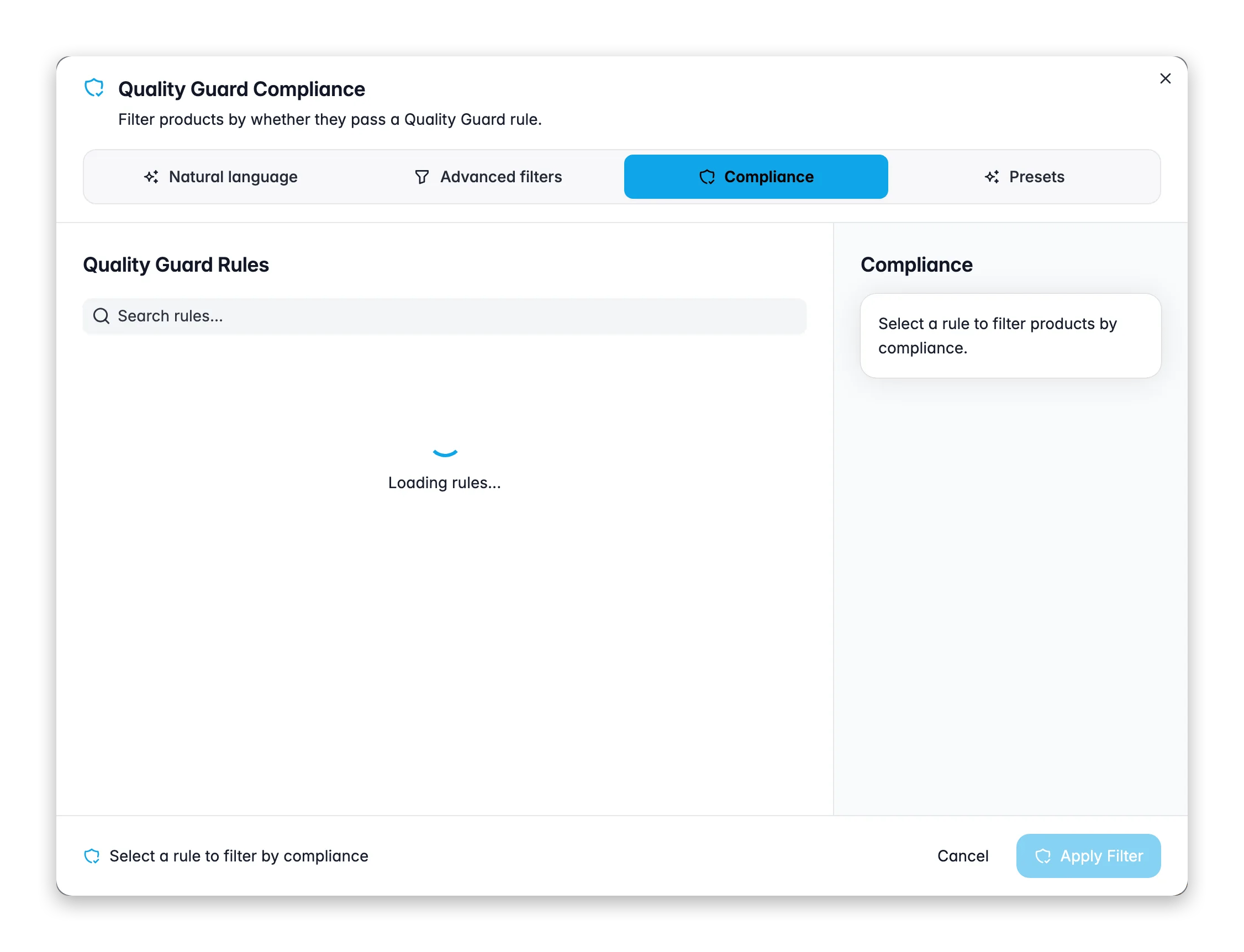
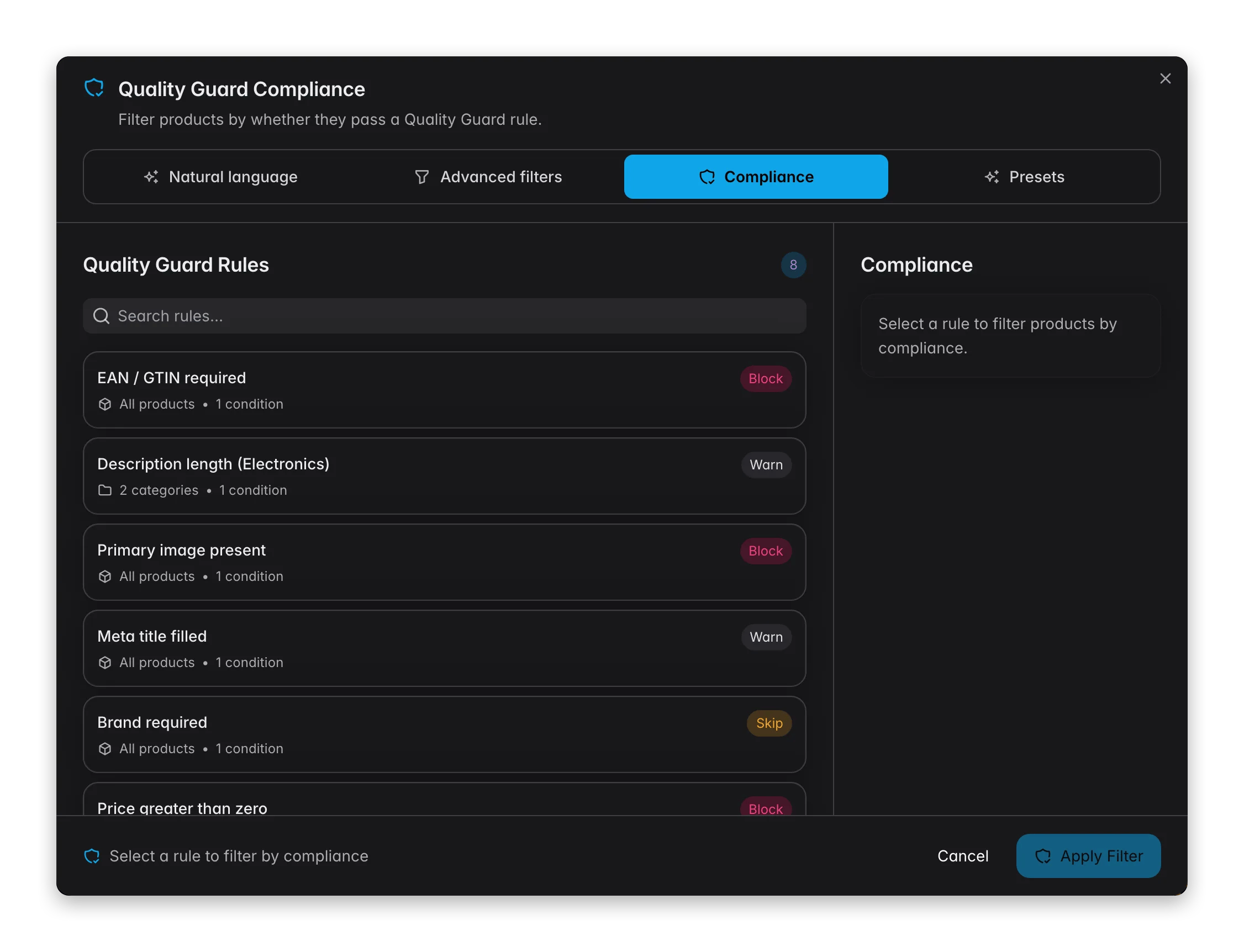 Search and select one of your active Quality Guard rules. Each card shows its scope and severity.
**Violates** finds the products that fail the rule (the ones to fix). **Complies with** finds the products that have been checked and pass.
A live count shows how many products match before you commit. Click apply to load them.
The rule's scope is applied automatically, so you only see products the rule actually targets. Filter to the violators, select them, and fix the gap with bulk edit or AI enrichment, then they pass on the next check.
No rules yet? The tab links straight to **Create a rule** in Quality Guard. See [Quality Guard](/en/quality-guard/overview) to set up the checks that gate your exports and syncs.
## Presets
The **Presets** tab gives you **46 one-click filters** that each surface a common data quality problem across your catalog, grouped into 10 categories. It is the fastest way to find what needs attention.
Search and select one of your active Quality Guard rules. Each card shows its scope and severity.
**Violates** finds the products that fail the rule (the ones to fix). **Complies with** finds the products that have been checked and pass.
A live count shows how many products match before you commit. Click apply to load them.
The rule's scope is applied automatically, so you only see products the rule actually targets. Filter to the violators, select them, and fix the gap with bulk edit or AI enrichment, then they pass on the next check.
No rules yet? The tab links straight to **Create a rule** in Quality Guard. See [Quality Guard](/en/quality-guard/overview) to set up the checks that gate your exports and syncs.
## Presets
The **Presets** tab gives you **46 one-click filters** that each surface a common data quality problem across your catalog, grouped into 10 categories. It is the fastest way to find what needs attention.
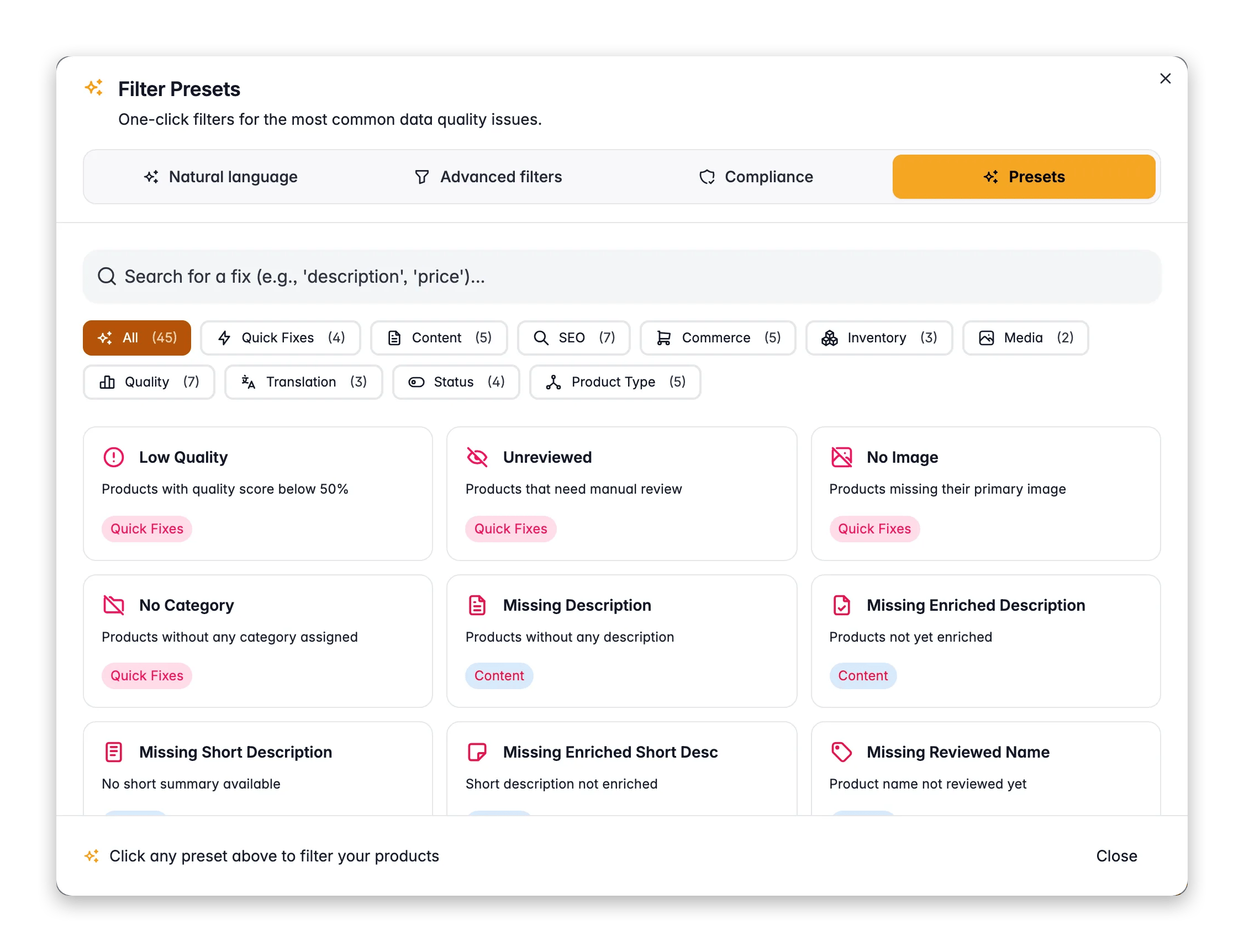
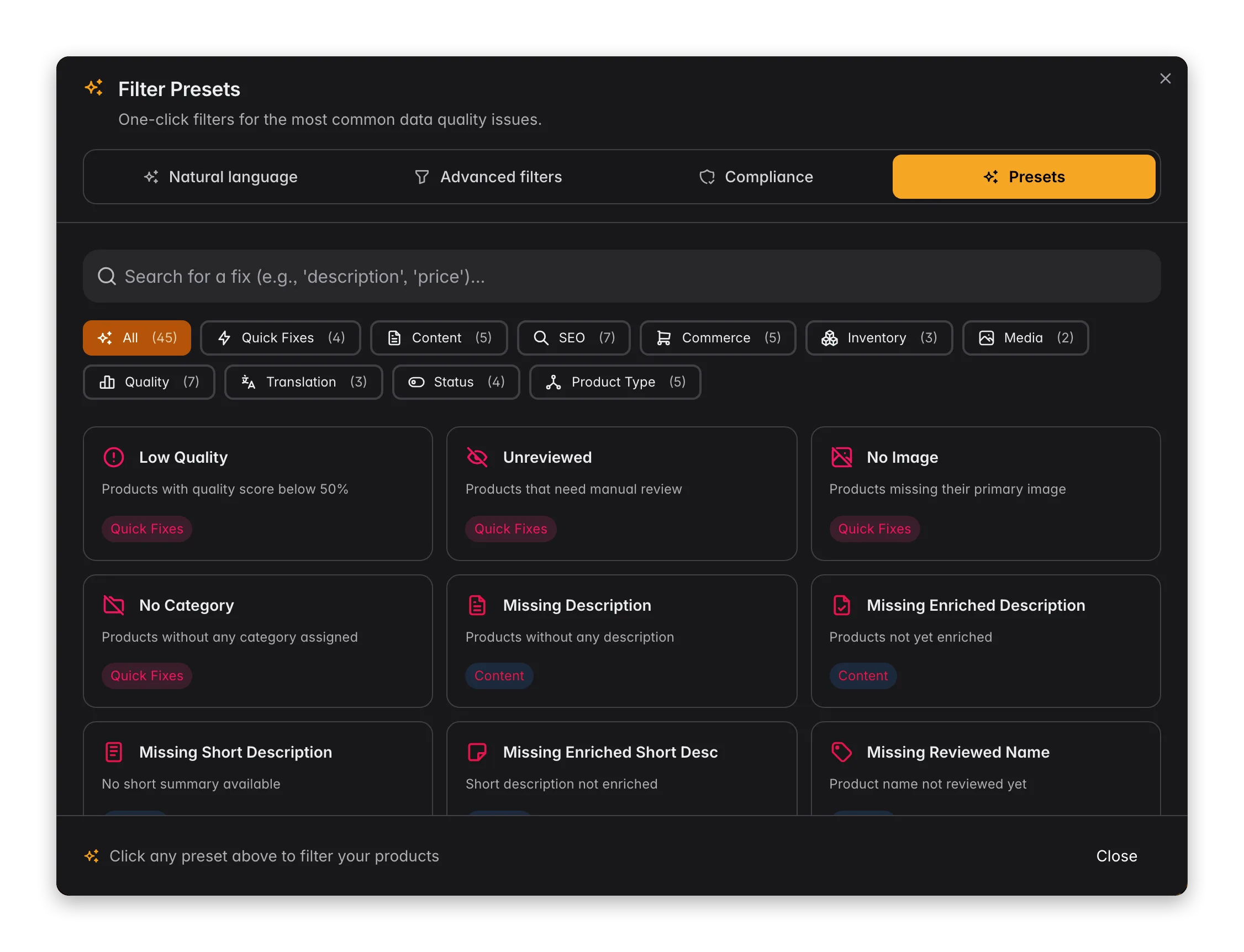 Each preset card shows how many products have that issue right now, so you can see your biggest problems at a glance and prioritize.
| Category | What it surfaces |
| ---------------- | ------------------------------------------------------------------------- |
| **Quick Fixes** | The highest-impact issues: low quality, unreviewed, no image, no category |
| **Content** | Missing description, short description, or enriched content |
| **SEO** | Missing meta title, description, or keywords, and length problems |
| **Commerce** | Missing price, EAN, brand, or cost |
| **Inventory** | Out of stock, low stock, missing weight |
| **Media** | No image, missing alt text |
| **Quality** | Low quality score, incomplete products |
| **Translation** | Not translated, partially translated |
| **Status** | Draft, inactive, unreviewed |
| **Product Type** | Variant and configuration issues |
Click any preset to filter the list to the affected products. From there, select them and act: [enrich with AI](/en/essentials/enriching-products), [bulk edit](/en/essentials/bulk-editing), or fix them one by one.
Use Presets as your daily quality checklist. Start with **Quick Fixes** to see what needs attention most, then work through **Missing Description** and **Low Quality** until the counts drop.
## Act on what you find
Filtering is only step one. The reason to narrow your list is to act on it efficiently:
Use any of the four modes to get a focused list.
Tick individual products, or use **Apply to all** to select every product that matches your filter, across all pages.
[Enrich with AI](/en/essentials/enriching-products), [bulk edit](/en/essentials/bulk-editing) a field, [translate](/en/products/translating-products), or [export](/en/essentials/exporting-products). The action only touches the products you filtered to.
This is what makes filtering powerful: a precise filter plus a bulk action turns an afternoon of one-by-one edits into a single click on hundreds of products.
## Tips
* **Start with natural language.** It is the quickest way from "I need X" to a real filter, and you can always refine it in Advanced filters.
* **Combine search and filters.** Use search for quick lookups and the modal for structured queries. They work together.
* **Filter before bulk actions.** Narrow your list first, then select all matching products, so a bulk action only touches the ones that need it.
* **Save your daily filters.** Filter for "unreviewed products" every morning? Save it as a set and it is one click away.
* **Check compliance before you export.** Run the Compliance tab against the rule that gates a channel to find and fix blockers before they cost you a failed sync.
## Related
See how search, filters, and selection fit into your daily product workflow.
Act on a filtered selection: update many products at once.
Filter for missing content, then fill it with AI.
Set up the rules the Compliance filter checks against.
Each preset card shows how many products have that issue right now, so you can see your biggest problems at a glance and prioritize.
| Category | What it surfaces |
| ---------------- | ------------------------------------------------------------------------- |
| **Quick Fixes** | The highest-impact issues: low quality, unreviewed, no image, no category |
| **Content** | Missing description, short description, or enriched content |
| **SEO** | Missing meta title, description, or keywords, and length problems |
| **Commerce** | Missing price, EAN, brand, or cost |
| **Inventory** | Out of stock, low stock, missing weight |
| **Media** | No image, missing alt text |
| **Quality** | Low quality score, incomplete products |
| **Translation** | Not translated, partially translated |
| **Status** | Draft, inactive, unreviewed |
| **Product Type** | Variant and configuration issues |
Click any preset to filter the list to the affected products. From there, select them and act: [enrich with AI](/en/essentials/enriching-products), [bulk edit](/en/essentials/bulk-editing), or fix them one by one.
Use Presets as your daily quality checklist. Start with **Quick Fixes** to see what needs attention most, then work through **Missing Description** and **Low Quality** until the counts drop.
## Act on what you find
Filtering is only step one. The reason to narrow your list is to act on it efficiently:
Use any of the four modes to get a focused list.
Tick individual products, or use **Apply to all** to select every product that matches your filter, across all pages.
[Enrich with AI](/en/essentials/enriching-products), [bulk edit](/en/essentials/bulk-editing) a field, [translate](/en/products/translating-products), or [export](/en/essentials/exporting-products). The action only touches the products you filtered to.
This is what makes filtering powerful: a precise filter plus a bulk action turns an afternoon of one-by-one edits into a single click on hundreds of products.
## Tips
* **Start with natural language.** It is the quickest way from "I need X" to a real filter, and you can always refine it in Advanced filters.
* **Combine search and filters.** Use search for quick lookups and the modal for structured queries. They work together.
* **Filter before bulk actions.** Narrow your list first, then select all matching products, so a bulk action only touches the ones that need it.
* **Save your daily filters.** Filter for "unreviewed products" every morning? Save it as a set and it is one click away.
* **Check compliance before you export.** Run the Compliance tab against the rule that gates a channel to find and fix blockers before they cost you a failed sync.
## Related
See how search, filters, and selection fit into your daily product workflow.
Act on a filtered selection: update many products at once.
Filter for missing content, then fill it with AI.
Set up the rules the Compliance filter checks against.